Roborock Qrevo troubleshooting
Auto-empty and dock behavior. We route by the exact error or symptom rather than assuming a generic robot-vacuum fix applies.
Roborock Qrevo issue index
4 guides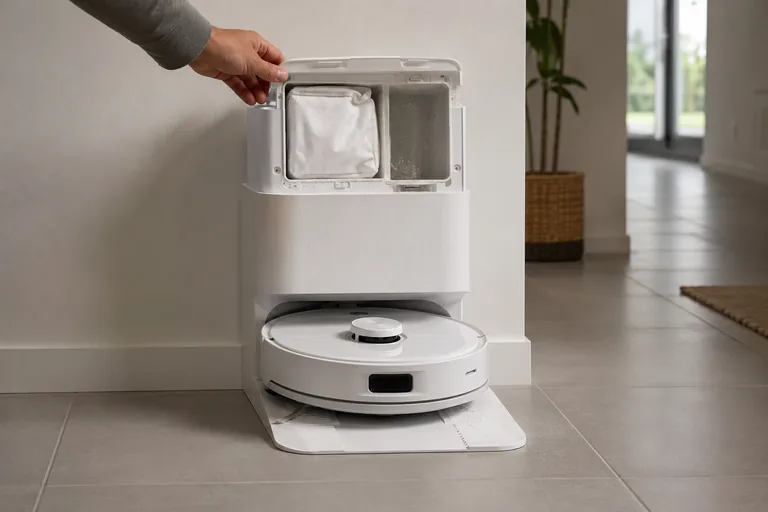
Auto-empty not working
First decide whether Q Revo auto-emptying never starts or starts but leaves debris behind—Roborock documents different branches. If the cycle does not start, check that Auto-Emptying is enabled, the dock dust-container cover is installed, the robot actually returned after a cleaning task, and Do Not Disturb is not configured to disable auto-emptying. Roborock also says manually putting the robot on the dock does not trigger automatic emptying. If the cycle starts but emptying is ineffective, shift to the airflow/mechanical branch: confirm the main brush and brush cover are installed correctly, then clear the filter, air duct, suction inlet, air inlet and dustbin. This trigger-vs-airflow split prevents unnecessary dock disassembly.
Error 13
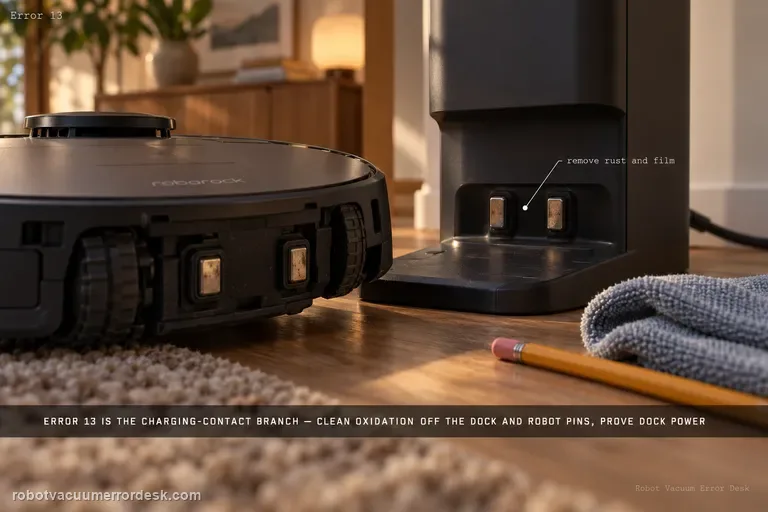
Qrevo Error 13 is the charging-contact branch. Roborock’s current Qrevo support says to remove stains or rust from the dock and rear robot contacts, verify the dock indicator changes from on without the robot to off when it is properly seated, push the station power cable fully into its socket, unplug the dock for about two minutes and try another outlet if needed. Prove sustained battery gain after those checks before suspecting the battery or internal charging hardware.
Wi-Fi won't connect / offline
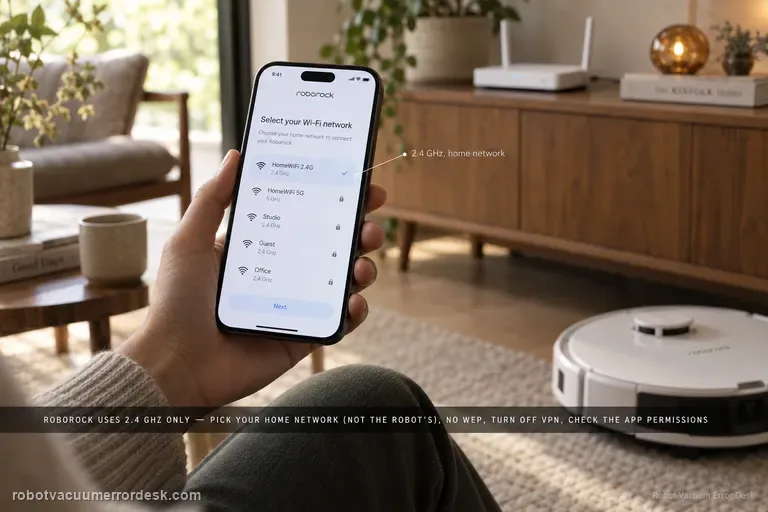
If a Roborock Qrevo will not connect to Wi-Fi, disappears from the Roborock app, or stalls during pairing, treat it as a network-stage problem before resetting the whole robot. Roborock’s Qrevo support says the robot uses 2.4 GHz Wi-Fi, the password must be correct, phone permissions can matter, the home Wi-Fi must be selected instead of the temporary robot network, WEP is not supported, and VPN or cellular routing can interfere. The Qrevo manual also gives a dedicated Wi-Fi reset: open the top cover, locate the Wi-Fi indicator, hold the documented button combination until the robot announces “Resetting WiFi,” then wait for the indicator to flash slowly before adding the robot again. A Wi-Fi reset is different from a factory reset and is the safer recovery step when the robot itself still cleans normally.
Can't find dock
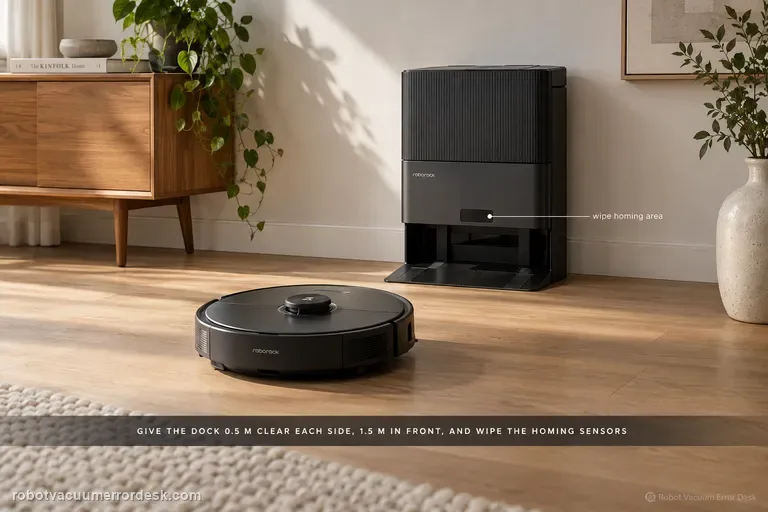
For a Qrevo that cannot find its RockDock, separate navigation from station functions. Roborock’s support says return can fail after manual relocation, a different start point, obstacles, poor dock clearance or dirty homing surfaces. Keep the station against a wall with about 20 inches (50 cm) to either side and 59 inches (1.5 m) in front, clean the dock signal area and robot front sensor, then compare a near return with an automatic return after a real cleaning task. Do not treat a charging or mop-wash fault as the same problem once the robot has actually reached the dock.