Find the fault before you replace parts.
Error codes, docking failures, map problems, charging faults and base-station issues — routed by exact model, with manufacturer-source evidence and clear stop-DIY thresholds.
Robot Vacuum Error Finder
Choose the model first when you know it. We do not assume “Error 8” or a red light means the same thing across brands.
Start with the symptom
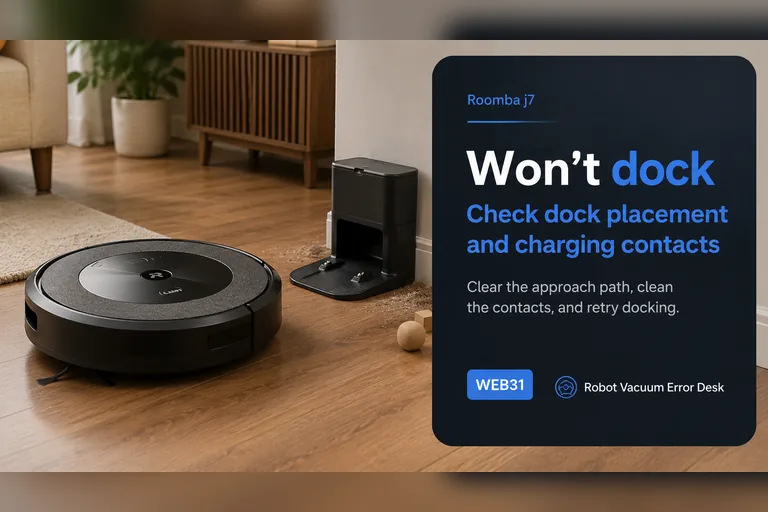
Won't Dock or Return Home
Separate “cannot find the dock” from “finds it but cannot seat/charge.” Those are different failure paths and should not be reset the same way.
20 matching diagnostics →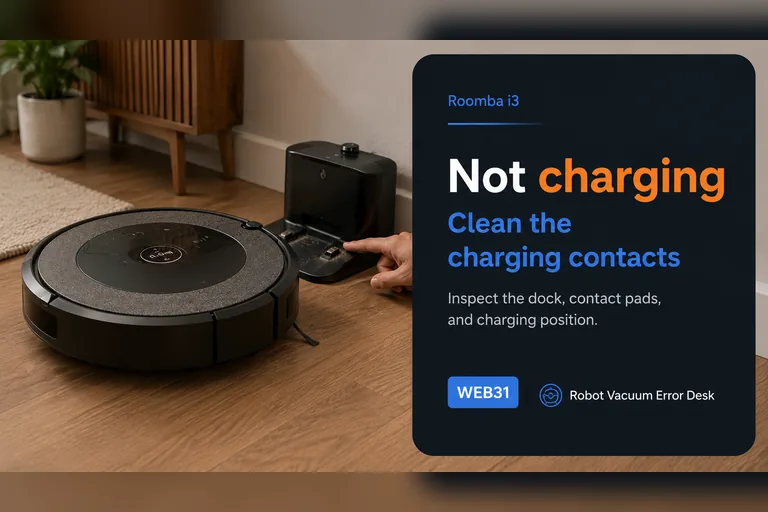
Not Charging or No Power
Start with wall power, dock power, contact condition and battery seating before buying a battery or opening a base station.
22 matching diagnostics →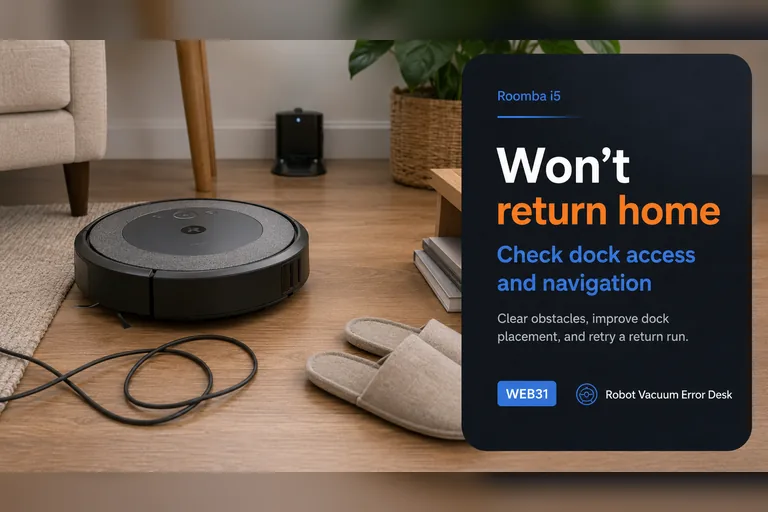
Map, Navigation or Missed Areas
Map corruption, moved docks, temporary maps, blocked LiDAR and trapped-robot states can look similar. Preserve the map until the failure is classified.
50 matching diagnostics →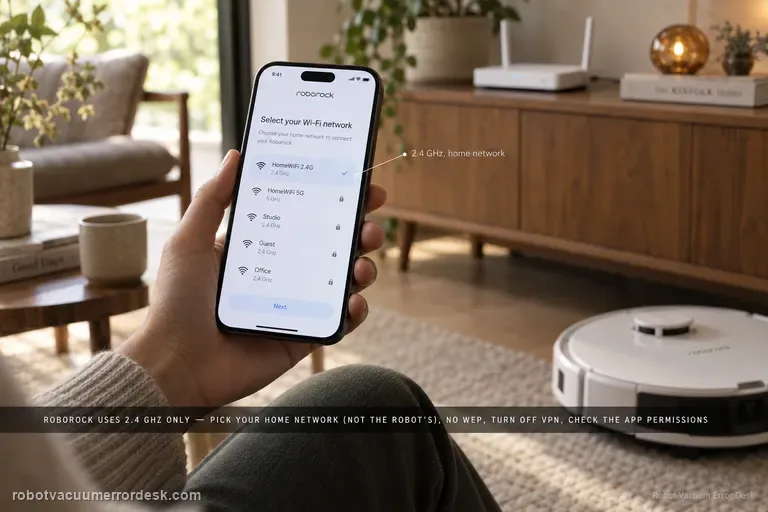
Wi-Fi, App or Update Problems
Use the manufacturer’s network reset or pairing flow before a full system reset. Network recovery should not automatically erase maps and schedules.
11 matching diagnostics →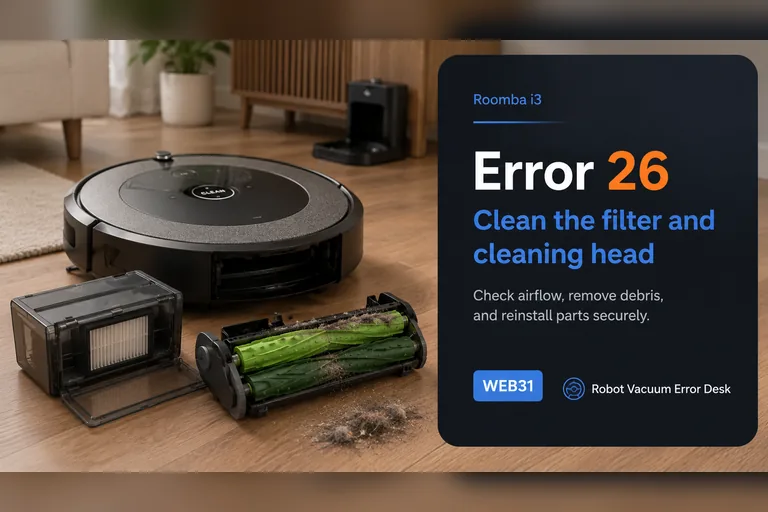
Brush, Suction or Fan Problems
Airflow restrictions, wrapped brush ends and true motor faults need different actions. Clean the user-serviceable path before replacing assemblies.
29 matching diagnostics →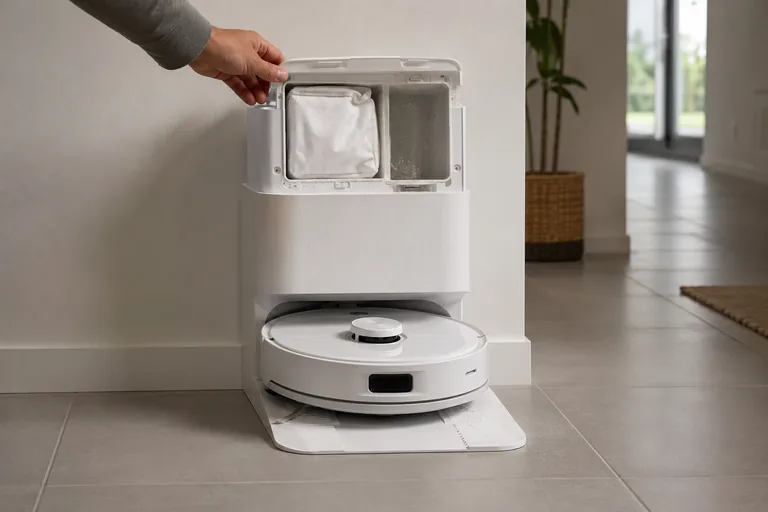
Mop, Water or Base-Station Problems
Water delivery, mop extension, wash trays, overflow and auto-empty functions add failure points that basic vacuum-only guides miss.
51 matching diagnostics →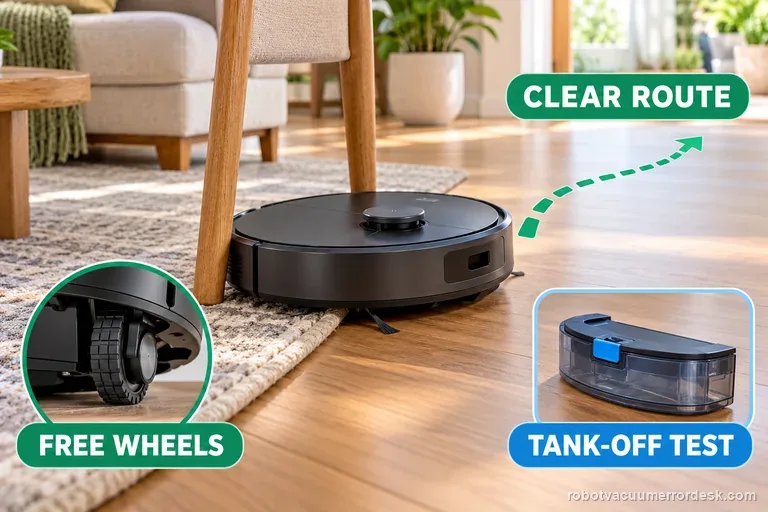
Spinning, Circling or Repeatedly Getting Stuck
Separate a wheel/roller bind from localization behavior. A robot that rotates briefly while locating itself is different from one that circles through an entire cleaning run.
19 matching diagnostics →Auto-Empty or Dust Collection Not Working
A full bag, poorly seated bin, blocked duct and a true station motor fault can all look like “the base stopped emptying.” Prove the disposable and airflow path first.
7 matching diagnostics →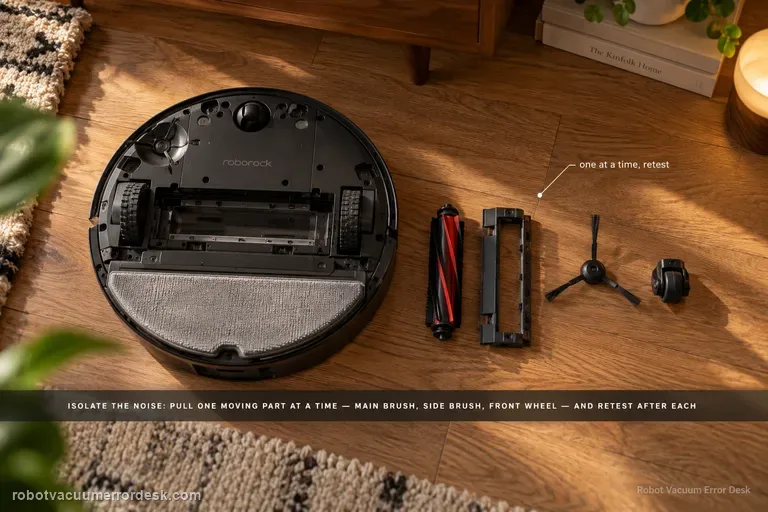
Abnormal Noise, Grinding or Scraping
Use a controlled test to separate brush or roller contact, airflow or fan load, drive-wheel noise and wet-system noise before opening hardware.
8 matching diagnostics →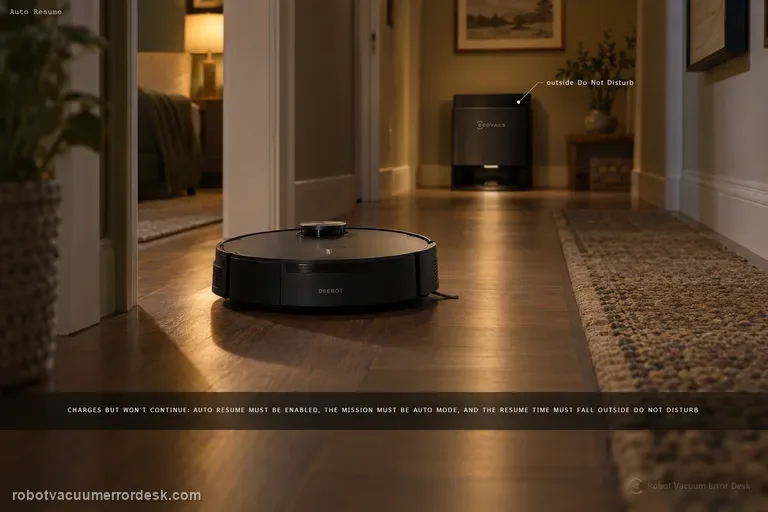
Recharges but Does Not Resume Cleaning
Recharge-and-resume depends on task mode, settings and sometimes Do Not Disturb. If charging works, do not start by replacing a battery.
7 matching diagnostics →Seven brand desks, current-model entry points
Coverage pairs established installed-base models with current 2026 platforms such as Saros 20, Aqua 10 Ultra Roller, DEEBOT X11, T80 OMNI and Narwal Flow where manufacturer troubleshooting is already public.
iRobot Roomba
Roomba i, j, Max 700 and current Wi-Fi models
Open brand desk →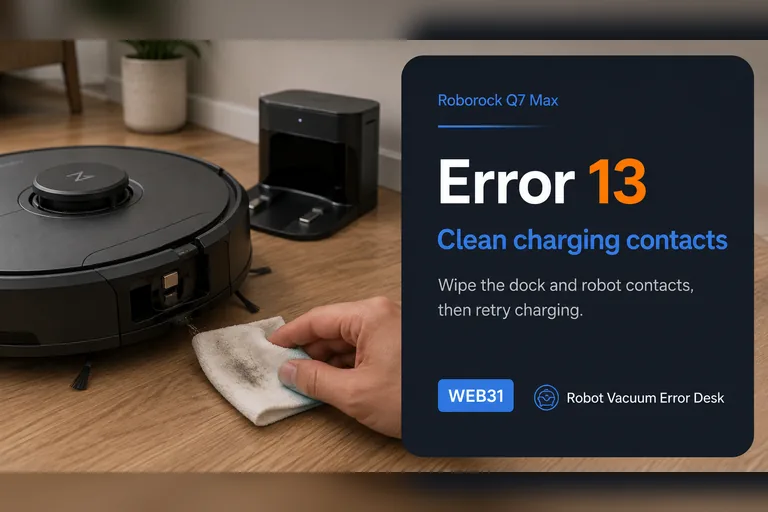
Roborock
Q, S and Qrevo families
Open brand desk →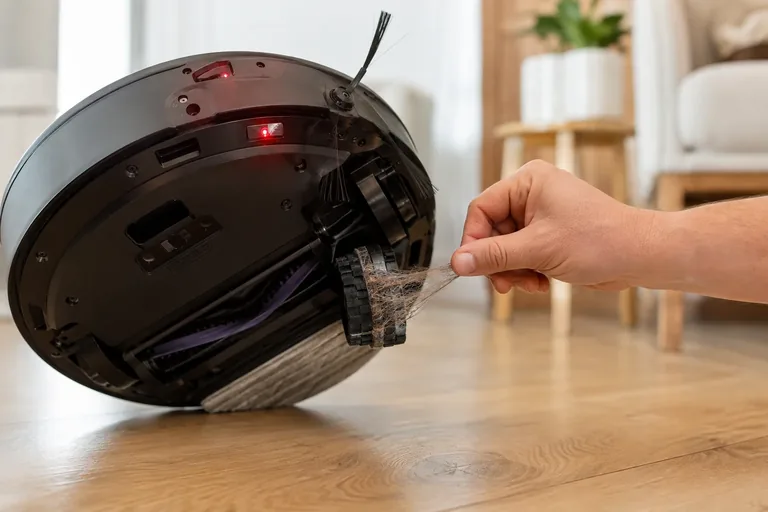
Shark
Matrix and self-empty robot vacuums
Open brand desk →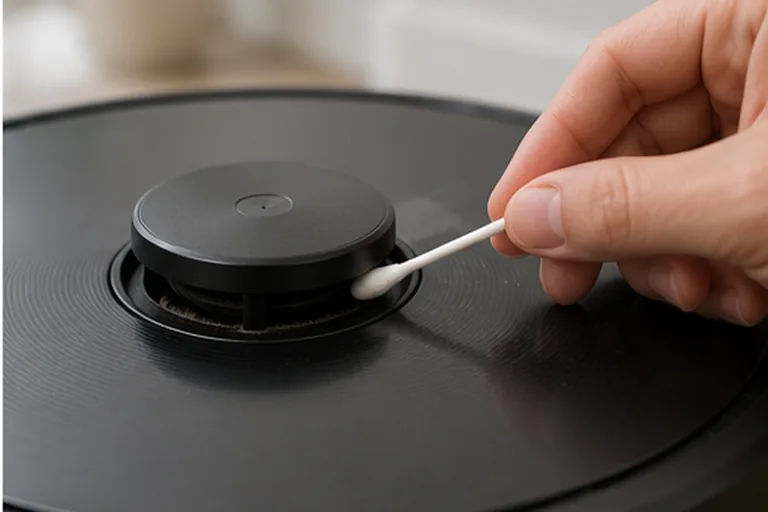
eufy
X10 Pro Omni, Omni S2, Omni E28 and related eufy Clean robots
Open brand desk →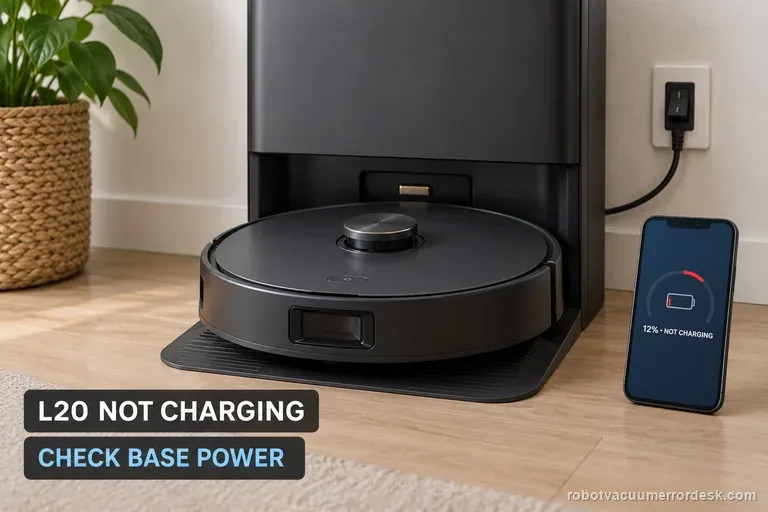
Dreame
L20, X40, X50, X60, Aqua 10 and L50 robot-and-base-station diagnostics
Open brand desk →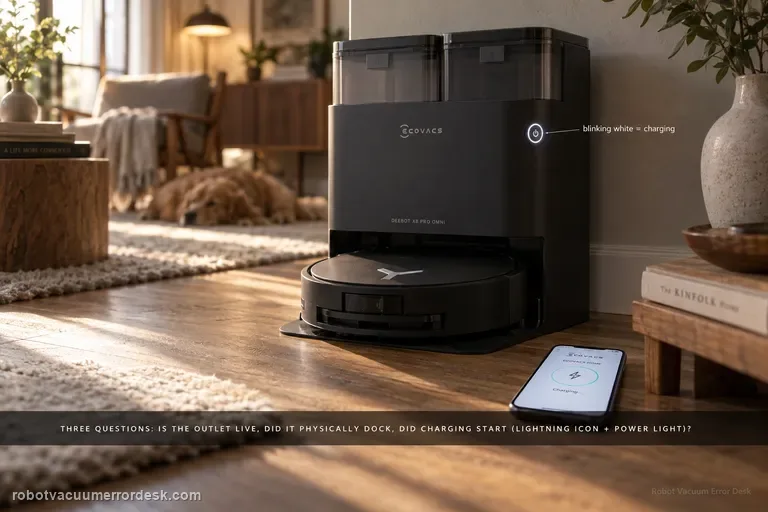
Ecovacs DEEBOT
DEEBOT X8, X11 and T80 OMNI charging, docking, mapping, wet-system and connectivity diagnostics
Open brand desk →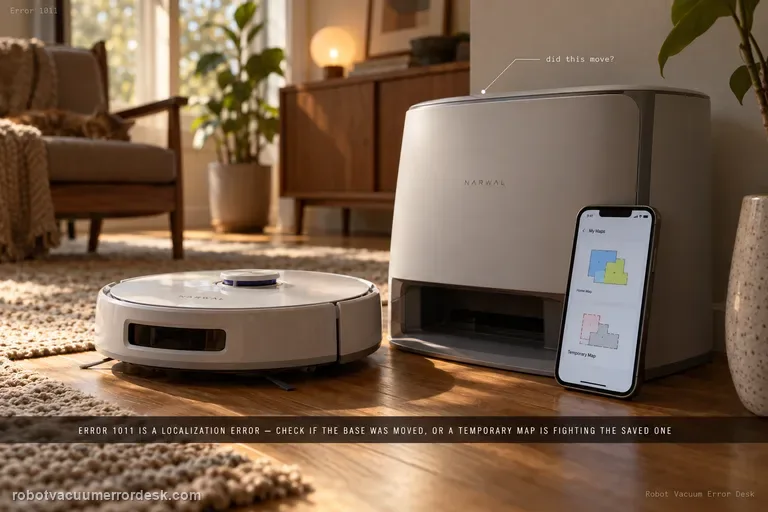
Narwal
Freo error codes, localization and base-station diagnostics
Open brand desk →Start where the official troubleshooting is deepest.
These eight current-model desks now carry enough manufacturer-backed diagnostics to function as real troubleshooting hubs rather than one-page stubs.
Roborock Saros 20 Sonic
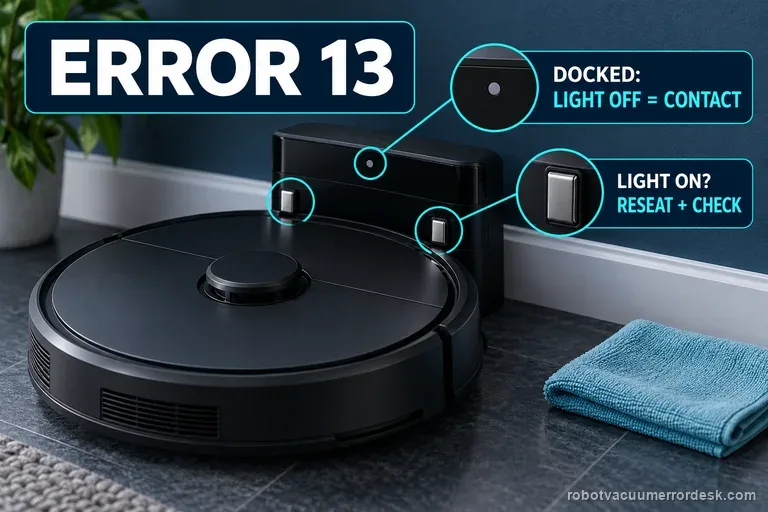
Exact error-code, charging, docking, mapping and noise diagnostics from model support.
Open model desk →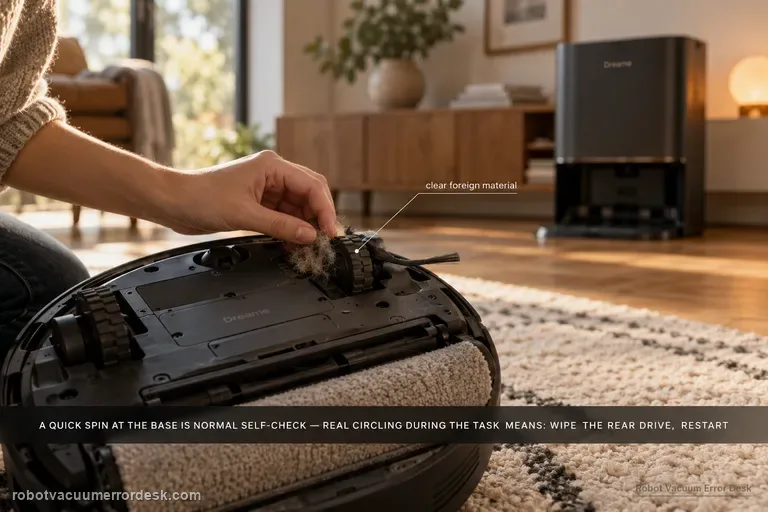
Dreame Aqua 10 Ultra Roller Complete
Roller, brush, mop, detergent, base-station and water-path troubleshooting.
Open model desk →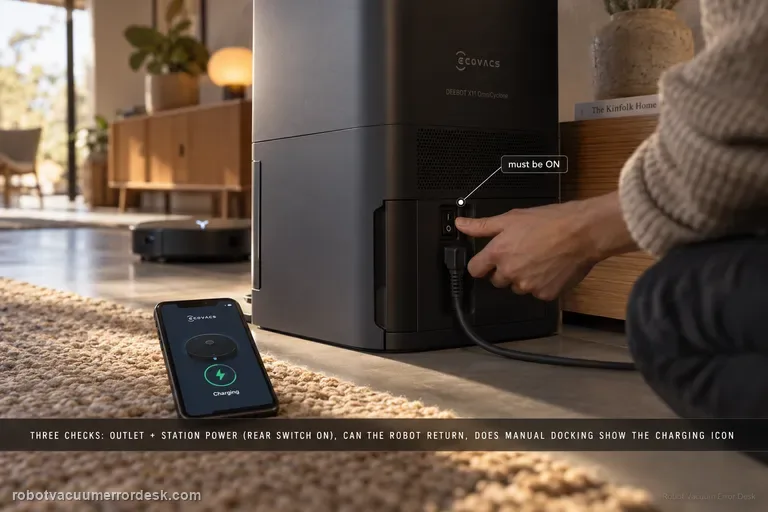
Ecovacs DEEBOT X11 OmniCyclone
Charging, navigation, obstacle, wheel, tank, threshold and station diagnostics.
Open model desk →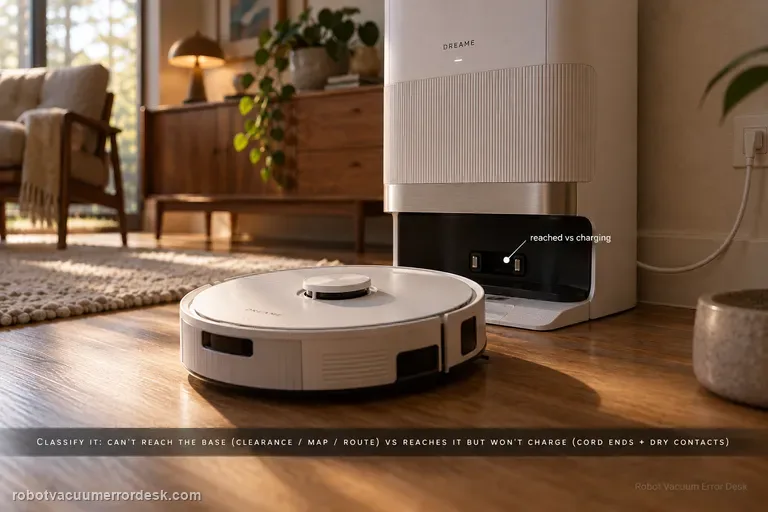
Dreame L50 Ultra AE
Recharge, resume-cleaning, main-brush and abnormal-noise diagnostics from Dreame support.
Open model desk →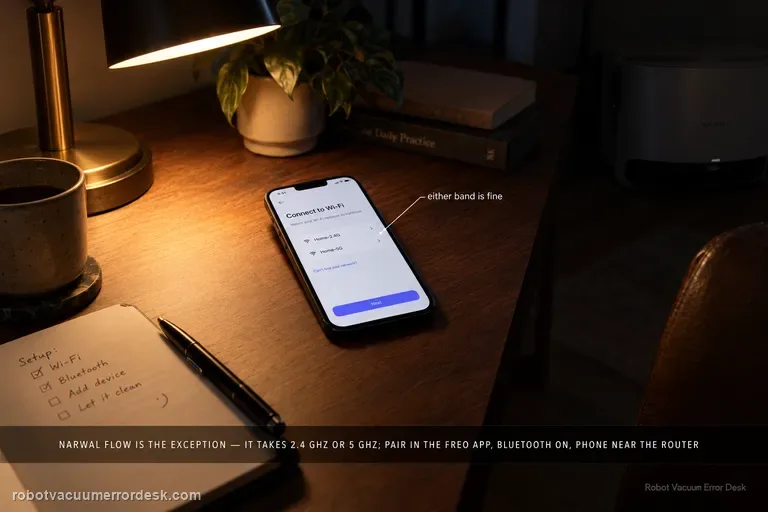
Narwal Flow
Flow-specific Wi-Fi, docking, dock-version, detergent and noise diagnostics.
Open model desk →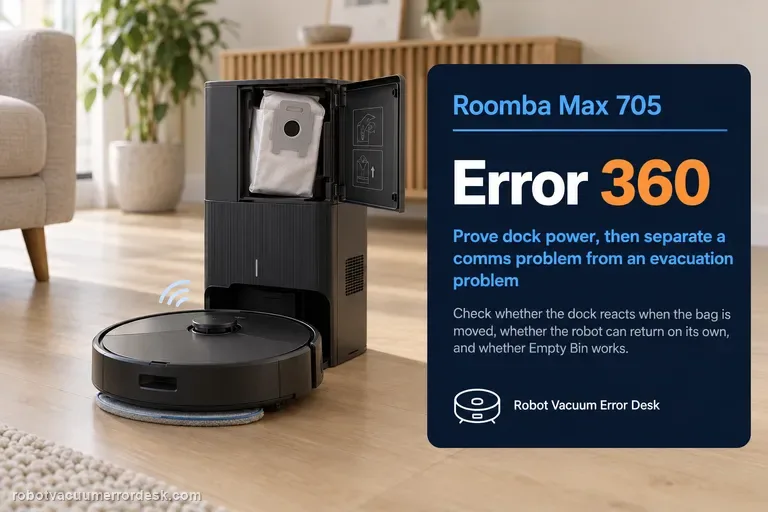
Roomba Max 705 Combo
Current-generation dock communication, charging and software diagnostics.
Open model desk →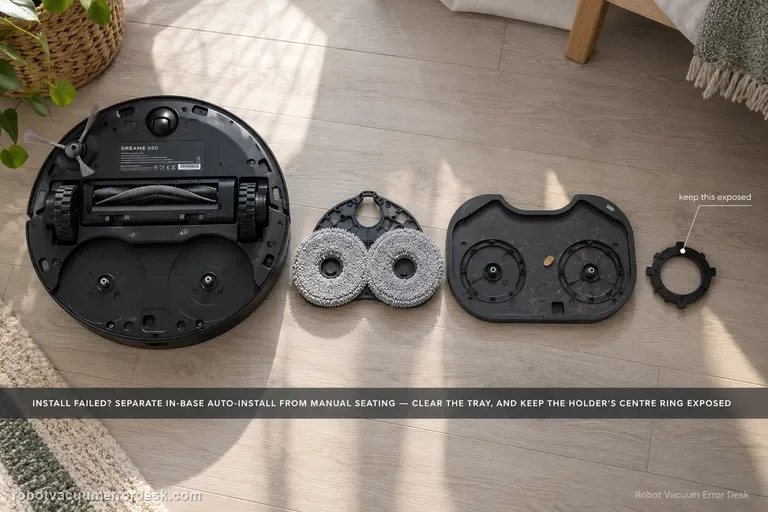
Dreame X60 Pro Ultra Complete
Current X60 diagnostics for mop installation, brush noise, low-clearance navigation, thresholds, stains, water behavior and extension arms.
Open model desk →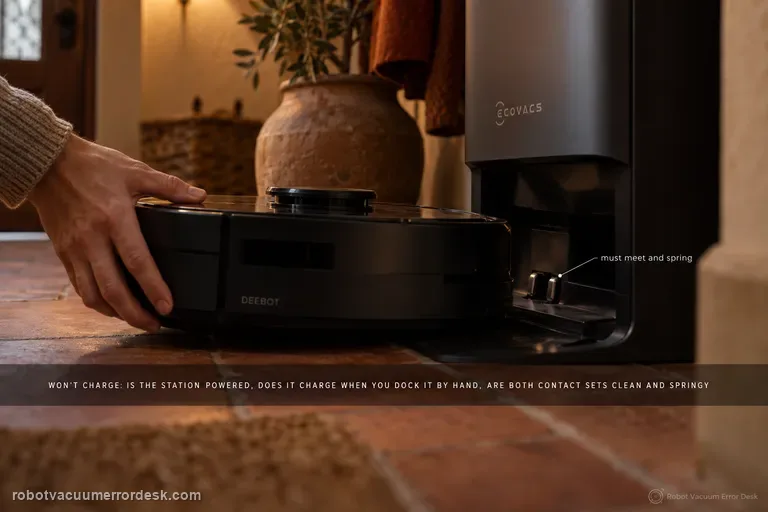
Ecovacs DEEBOT T80 OMNI
Exact-model charging, wet-system, navigation, sensor, Wi-Fi, roller-mop and return-to-station diagnostics from ECOVACS support.
Open model desk →High-intent diagnostics worth entering now
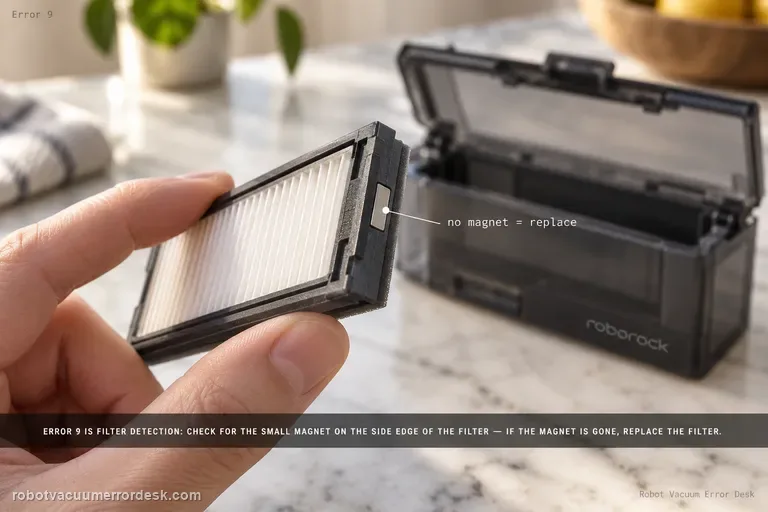
Error 9
Roborock Error 9 on the Saros 20 Sonic is a filter-detection check. The model support page says to look for the magnet on the side of the filter; if the magnet is missing, replace the filter and try again. First remove and inspect the filter carefully, clean its seating area, and reinstall it correctly. A present magnet plus correct seating but immediate Error 9 points beyond a simple missing-filter-magnet case.
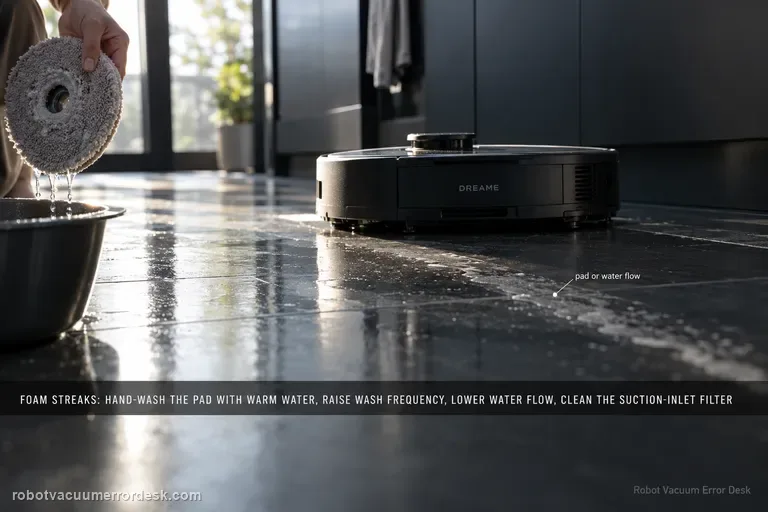
Foamy water marks
Dreame’s exact Aqua10 foam path checks four variables in order: mop-pad condition, wash frequency, app water-flow level and the suction-inlet filter. Hand-clean the removed mop pad with warm water and detergent as the support article instructs, rinse it thoroughly, and replace it if worn or permanently stained. Then increase wash frequency, reduce water flow and clean the suction-inlet filter. Do not pour household detergent into the robot’s clean-water tank; the Aqua10 manual says only clean water and officially approved cleaning solution belong there.
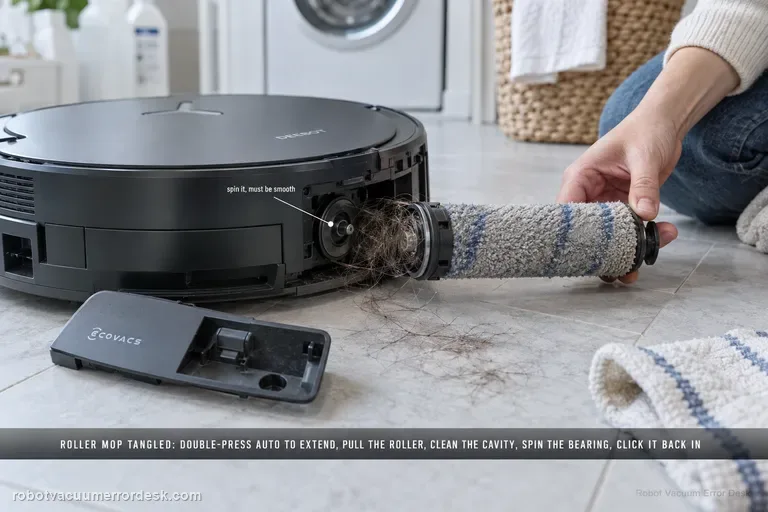
Roller Mop Tangled alert
The X11 Roller Mop Tangled alert has a detailed manufacturer service path. Double-press Robot AUTO to extend the roller component, release and remove the roller, separate the end cover and clean it. Remove the dirty-water box before turning the robot over; clear the roller cavity and spin the roller-motor bearing to confirm smooth movement. Refit the end cover, push the roller into the motor until it clicks, retract it with a double press, reinstall the dirty-water box and restart.
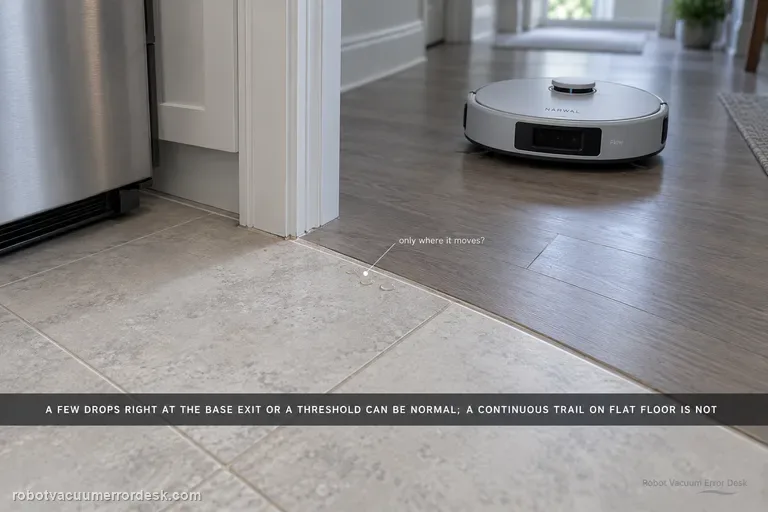
Residual water after mopping
Narwal says Flow normally leaves no water in most cases, but a few droplets can be normal after significant movement—especially when the robot exits the base station or climbs a threshold. Treat quantity and pattern as the key discriminator. Dry the floor, repeat the same short route and note whether moisture is limited to those movement events or forms a continuous trail/puddle during ordinary travel. Do not open the internal water path for a few isolated drops. If the residue is clearly noticeable or persistent, Narwal asks for the robot serial number and a video of the robot operating.
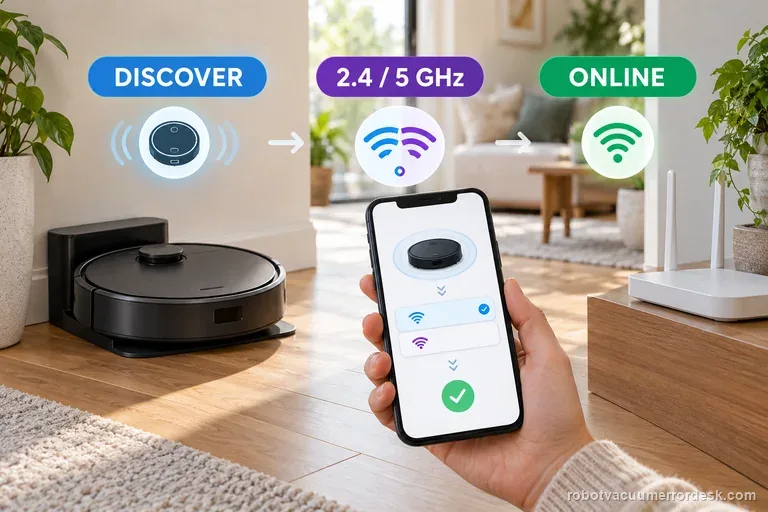
Wi-Fi setup / connection
First note where Max 705 setup stops: nearby discovery, Wi-Fi credentials, or the post-setup cloud connection. iRobot lists this model on both 2.4 and 5 GHz, so do not force 2.4 GHz by default. Keep it charging near the router, allow the phone permissions the app requests, then test one network change at a time.
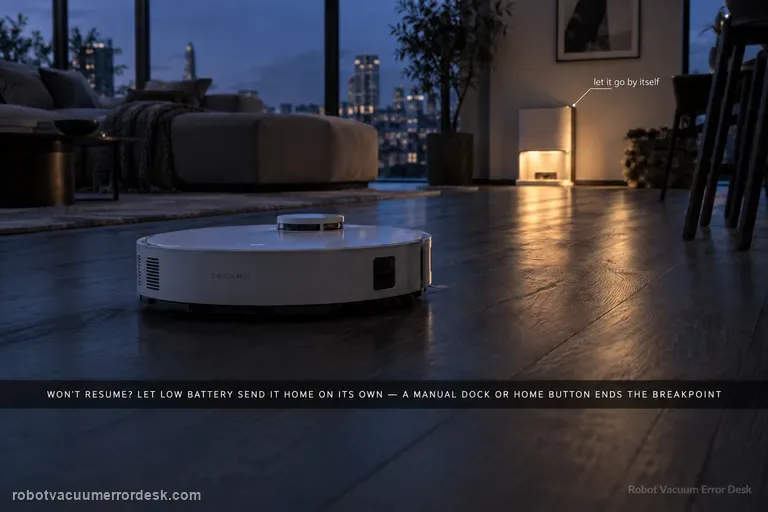
Resume cleaning not working
A valid L50 Ultra AE resume test must create a real low-battery breakpoint. Dreame says Resume Cleaning must be enabled, the job must use Automatic Working Mode, DND must not suppress the departure, charging must remain fault-free, and restart/reset can disrupt the breakpoint. The exact manual adds a critical discriminator: the robot will not resume an unfinished job if you manually place it on the base or send it home with the app or Dock button. Let low battery trigger the return automatically.
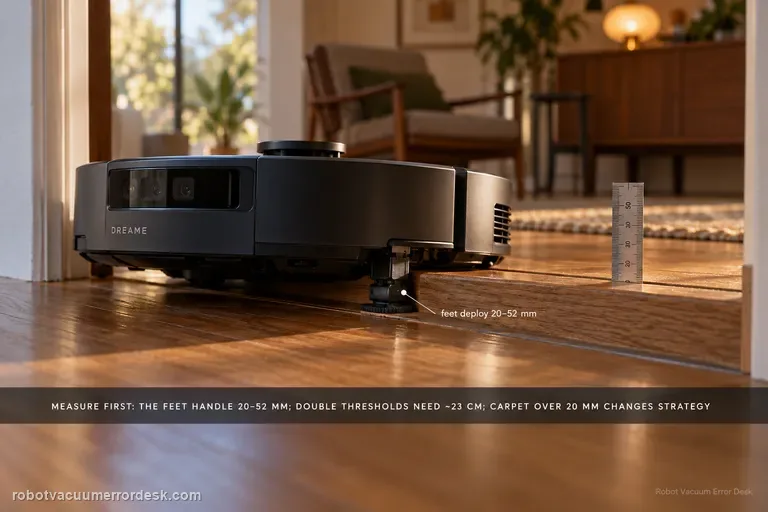
Cannot cross threshold
Measure the obstacle before calling the X60’s behavior a navigation fault. Dreame’s current X60 support page distinguishes obstacle height, double-layer width/geometry, dark surfaces, mechanical-foot behavior, chassis lifting and carpet strategy. The robot’s mechanical feet are used when a threshold is greater than 20 mm but less than 52 mm; if those feet do not reset in time, a tangling warning can appear. Double-layer obstacles add a width constraint of about 23 cm, and carpets thicker than 20 mm use a different chassis-lift strategy. Treat 52 mm as a conditional capability boundary, not a promise that every 52 mm doorway will be crossed regardless of shape, approach or surface.
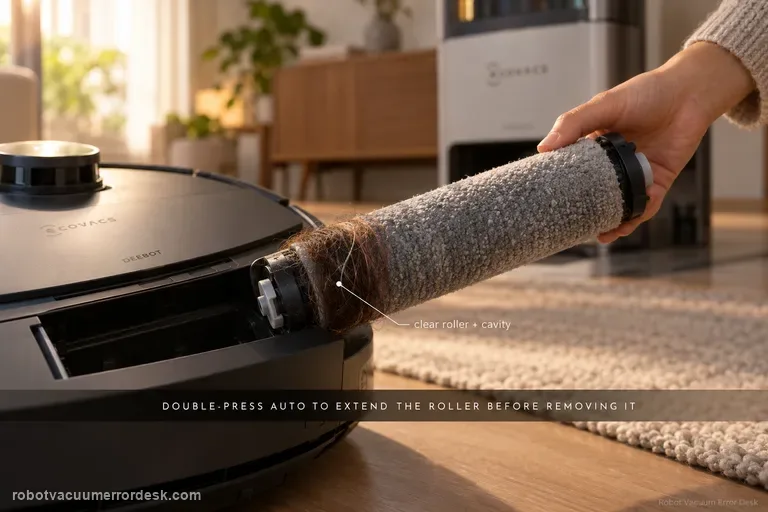
Roller Mop Tangled
Do not pull a tangled T80 roller while the mechanism is retracted. ECOVACS' exact-model sequence is to double-press AUTO so the roller-mop component extends, release and remove the integrated roller, take off its end cover, clear the roller and cavity, check the roller-motor bearing for smooth movement, reinstall the end cover, align the roller with the motor until it clicks, retract the component, reinstall the dirty-water box and restart. The companion removal guide also warns that expansion mode is required and that the roller and mop are integrated rather than separately replaceable.
New robot? Preserve the evidence before you factory-reset.
Pairing, first maps, dock return, charging, software updates and water-system setup are routed into exact-model paths. The goal is to keep the clues that disappear when a new owner resets too early.
✓ exact app message
✓ saved map screenshot
✓ installed software version
✓ short-range dock test
✓ model-specific Wi-Fi facts
When DIY stops, hand support a reproducible case.
Select the exact model and issue, record the checks you completed, then copy a case packet with the manufacturer source and evidence checklist. No account and no upload required.
✓ outlet + station power
✓ manual contact test
✓ app/error screenshot
✓ checks already completed
✓ manufacturer source
Evidence before certainty.
Robot-vacuum codes shift across brands, series and firmware generations. Every diagnostic page states what the manufacturer actually documents, what the test result narrows down, what data to preserve before resetting, and when owner-level troubleshooting should stop.
Exact model + exact code, light, voice prompt or symptom.
Low-risk checks with a pass condition after each step.
Collect the screenshot, map, firmware or video support actually needs.