Wi-Fi, App or Update Problems
Use the manufacturer’s network reset or pairing flow before a full system reset. Network recovery should not automatically erase maps and schedules.
Confirm the robot is in the documented pairing state and that the phone/app can discover it before changing router settings or deleting saved robot data.
What the symptom points to
Network/app/account path rather than motor or navigation hardware.
Pairing mode, phone permissions, band/security compatibility or credentials.
Update recovery path; repeated resets can make evidence harder to preserve.
Do not erase the evidence
- Factory reset as the first networking step
- Changing multiple router settings at once
- Deleting the robot from the app before noting firmware and map state
Record app version, robot firmware, router band/security mode, the exact pairing stage that fails and a screenshot of the message. This makes escalation actionable.
Matching model-specific guides
11 diagnostics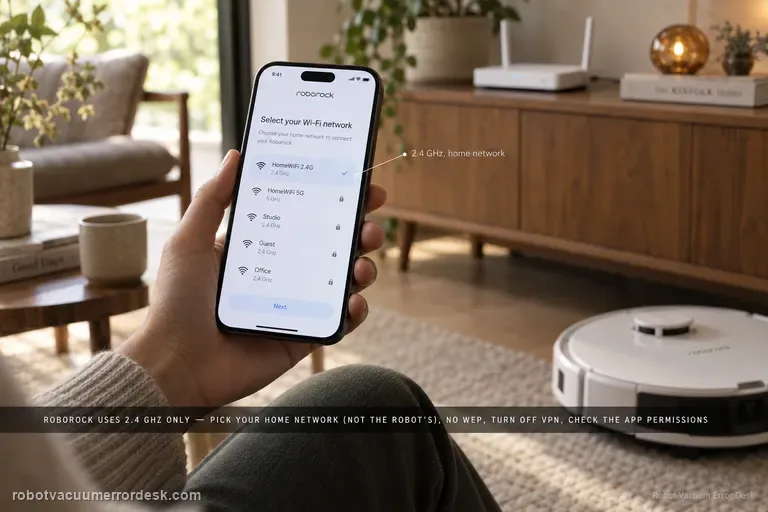
Wi-Fi won't connect / offline
If a Roborock Qrevo will not connect to Wi-Fi, disappears from the Roborock app, or stalls during pairing, treat it as a network-stage problem before resetting the whole robot. Roborock’s Qrevo support says the robot uses 2.4 GHz Wi-Fi, the password must be correct, phone permissions can matter, the home Wi-Fi must be selected instead of the temporary robot network, WEP is not supported, and VPN or cellular routing can interfere. The Qrevo manual also gives a dedicated Wi-Fi reset: open the top cover, locate the Wi-Fi indicator, hold the documented button combination until the robot announces “Resetting WiFi,” then wait for the indicator to flash slowly before adding the robot again. A Wi-Fi reset is different from a factory reset and is the safer recovery step when the robot itself still cleans normally.
Wi-Fi won't connect
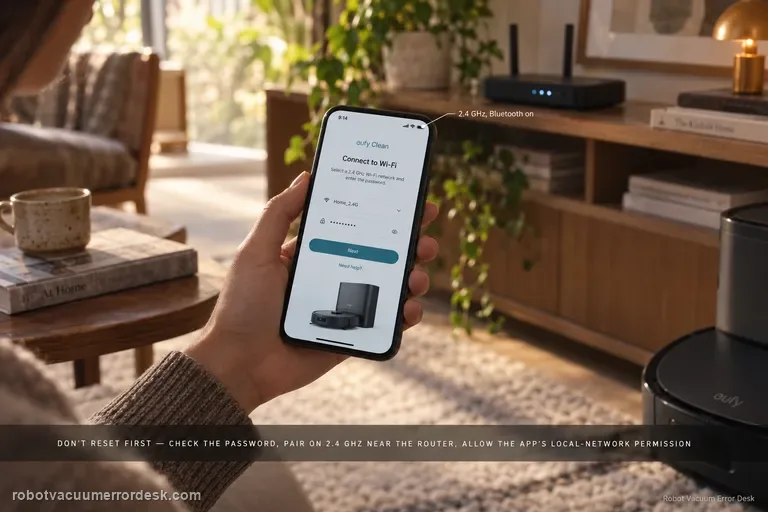
For X10 Pro Omni Wi-Fi setup, do not jump straight to factory reset. Confirm the network name/password, move the phone and robot closer to the router, allow eufy Clean location/precise-location and local-network permissions, pair on 2.4 GHz with Bluetooth enabled, then reset only the robot’s Wi-Fi by holding Home + Spot Cleaning for three seconds. If setup still fails, a phone-hotspot test can separate router configuration from robot/app problems.
Error 29 / update interruption
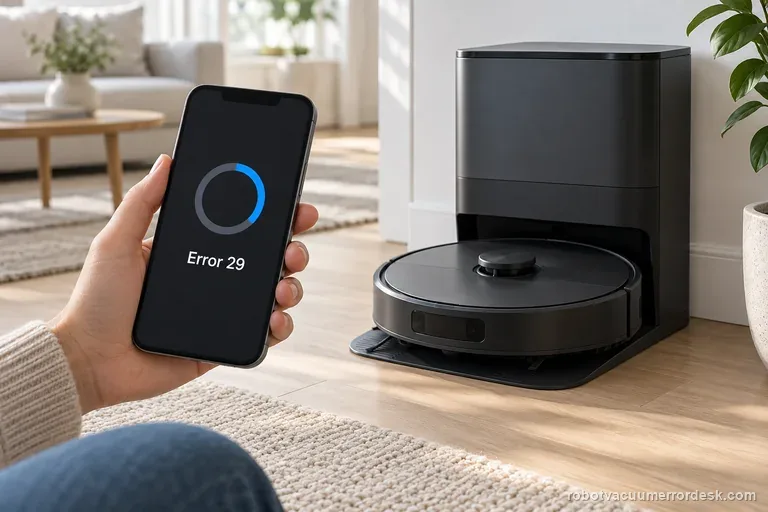
Error 29 means the Roomba started while a software update was in progress. Leave the Max 705 on its dock and watch the app for a few minutes. If status never finishes, iRobot says to reboot from Product Settings or hold the power button for 10 seconds off the dock. Record the software version and result before contacting support.
Won't connect to Wi-Fi
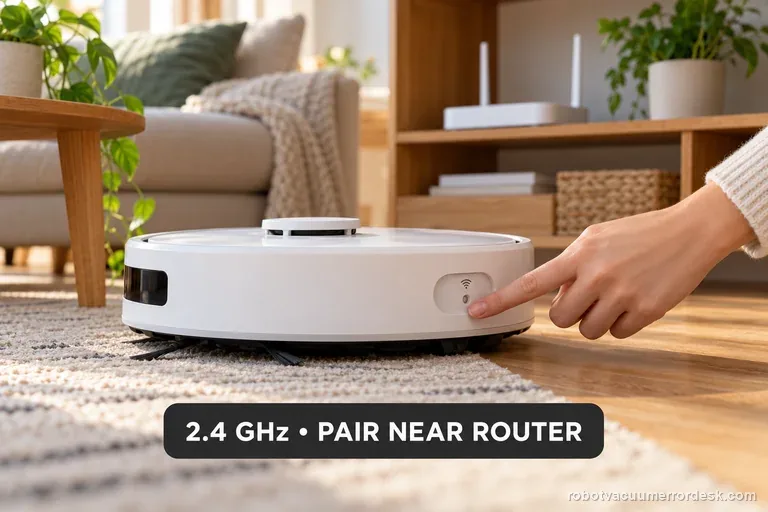
Qrevo Curv Wi-Fi trouble does not call for a map or factory reset. Roborock documents a dedicated Wi-Fi reset, 2.4 GHz support only, and a five-minute pairing window. Confirm a 2.4 GHz network, reset only Wi-Fi, and pair promptly near strong coverage. Try a combined SSID first; if setup still fails, ask the router provider to expose 2.4 GHz.
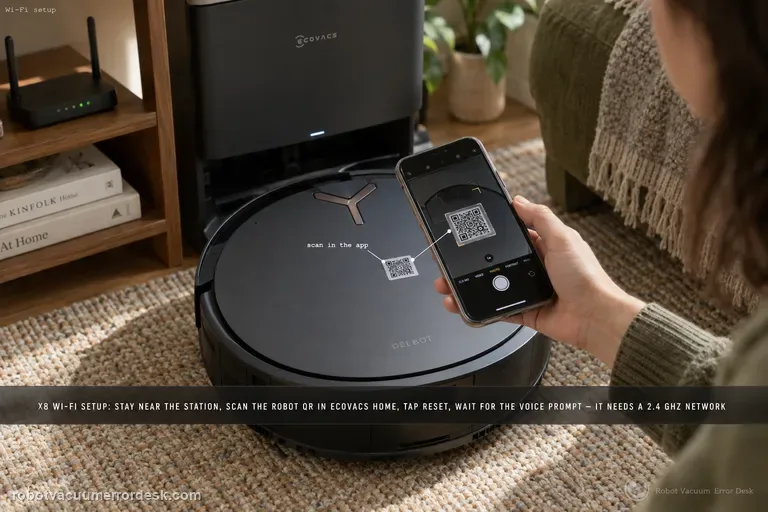
Won't connect to Wi-Fi
Follow the X8’s connection sequence before changing router settings: keep the robot near the station, sign in to ECOVACS HOME, scan the robot QR code, power the robot on, briefly press Reset and wait for the network-setup/Bluetooth-hotspot voice prompt, then let the app complete the join in strong Wi-Fi coverage. The X8 manual adds the useful compatibility boundaries: a 2.4 GHz or mixed 2.4/5 GHz network, 802.11b/g/n with IPv4, no VPN/proxy or hidden SSID, WPA/WPA2 rather than enterprise authentication, and matching SSID/password on an extender. If pairing fails, first identify whether discovery fails before credentials are sent or whether the robot is discovered but cannot join the home network. Those are different failures and should not be “fixed” by deleting maps or factory-resetting the robot.
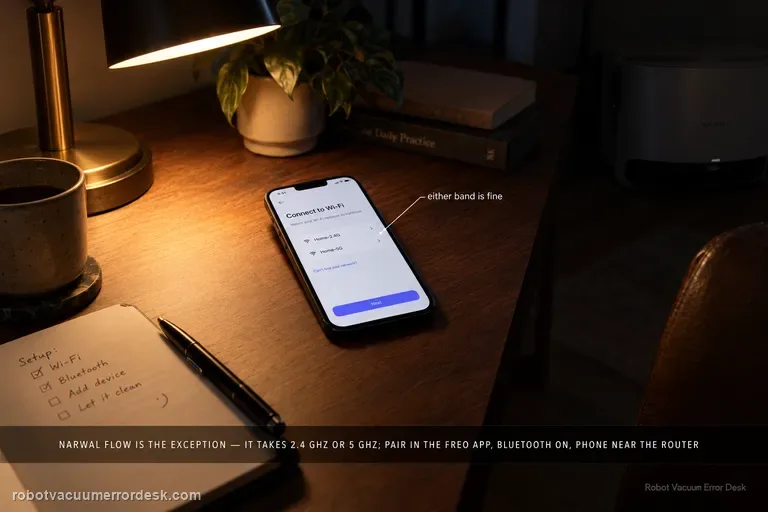
Wi-Fi / app connection failure
Narwal Flow is an exception to the older Narwal “2.4 GHz only” rule: Narwal’s Flow-specific FAQ says this model supports both 2.4 GHz and 5 GHz Wi-Fi. Start with the Flow pairing path in the Freo App, confirm the robot and base are powered, enable Bluetooth and the phone permissions Narwal requires, and keep the robot near a strong signal. If setup fails, compare the two supported bands or a simple phone hotspot without changing several variables at once. Narwal’s general network guide is still useful for permissions, hotspot and router isolation, but its 2.4-GHz-only sentence is not the correct compatibility rule for Flow. If the failure persists, send Narwal the robot SN, App ID and a screen recording or clear record of the failed setup stage.
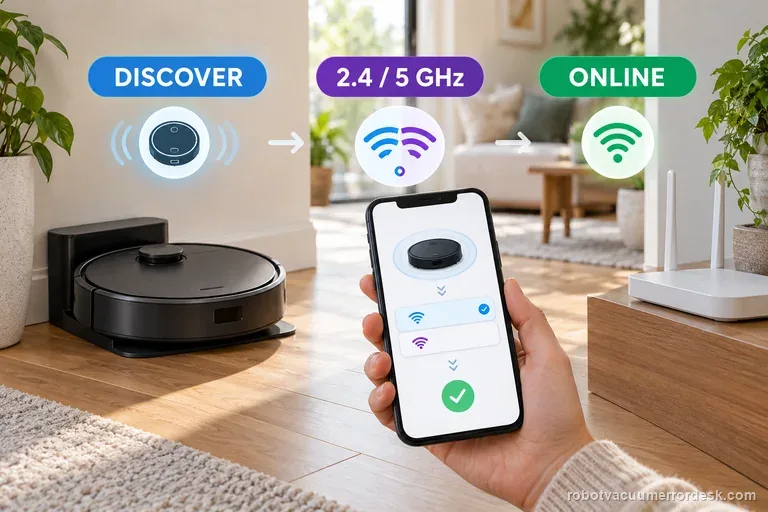
Wi-Fi setup / connection
First note where Max 705 setup stops: nearby discovery, Wi-Fi credentials, or the post-setup cloud connection. iRobot lists this model on both 2.4 and 5 GHz, so do not force 2.4 GHz by default. Keep it charging near the router, allow the phone permissions the app requests, then test one network change at a time.
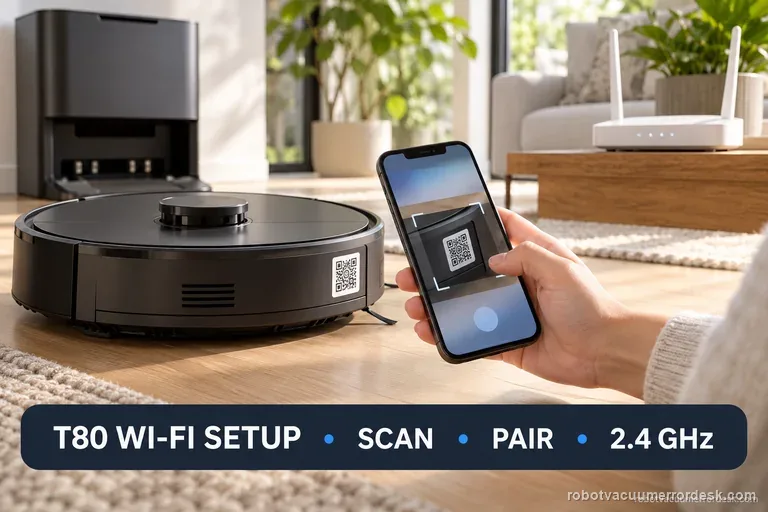
Wi-Fi setup / connection failure
T80 setup starts in ECOVACS HOME: scan the robot QR, enter home Wi-Fi, power on, and briefly press the network button when prompted. Continue after hearing “Bluetooth hotspot released.” Use a visible 2.4 GHz or mixed network; turn off mobile data and VPN during setup. Record the failed stage and indicator before trying again. Save factory reset for ECOVACS support.
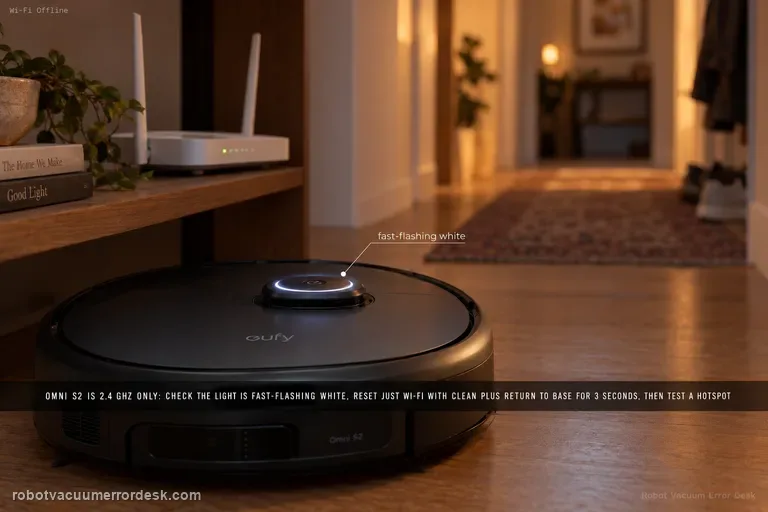
Wi-Fi / Offline
Treat Omni S2 Wi-Fi as a pairing-path problem, not a reason to factory-reset the robot. eufy says S2 supports 2.4 GHz Wi-Fi only: verify the SSID/password, keep Bluetooth on, confirm the circular light is fast-flashing white, then reset only Wi-Fi by holding CLEAN + Return to Base for 3 seconds. A mobile-hotspot test is the clean discriminator before escalation.
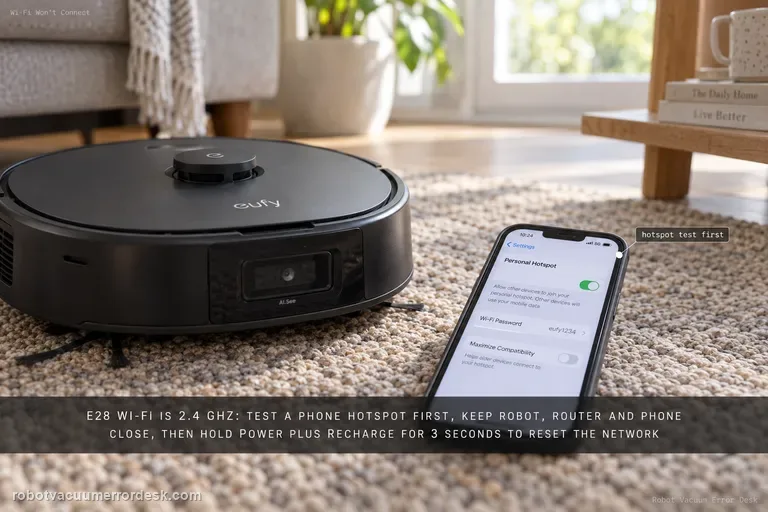
Wi-Fi setup
The Omni E28 uses a 2.4 GHz Wi-Fi connection. Before resetting anything, confirm the password and test whether the robot can join a phone hotspot. For a clean pairing test, keep the robot, router and phone close together. If setup still fails, eufy says to hold the Power and Recharge buttons together for 3 seconds until the network-reset voice prompt, then reconnect. A hotspot that works while home Wi-Fi fails points away from a dead robot radio and toward the home network or credentials.
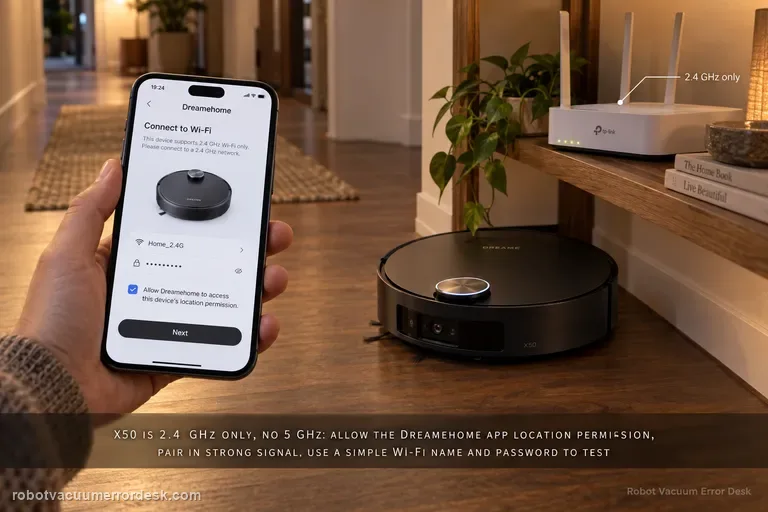
Wi-Fi setup failure
For first-time X50 network configuration, start with the hard compatibility rule: Dreame says the robot supports 2.4 GHz Wi-Fi and does not support a 5 GHz Wi-Fi connection. Then keep the robot/phone in strong Wi-Fi coverage, allow phone location permission for the Dreamehome app, and complete the handoff from the robot’s temporary hotspot back to the app after the voice prompt. Dreame also recommends simple letters/numbers in the Wi-Fi name and password for troubleshooting and suggests testing a different phone or a second phone’s hotspot if pairing still fails. The X50 manual adds two useful checks: verify the Wi-Fi password and, if the robot is not ready to be configured, exit and re-enter the app before retrying. This page is for configuration failure, not a robot that was paired successfully and later went offline.