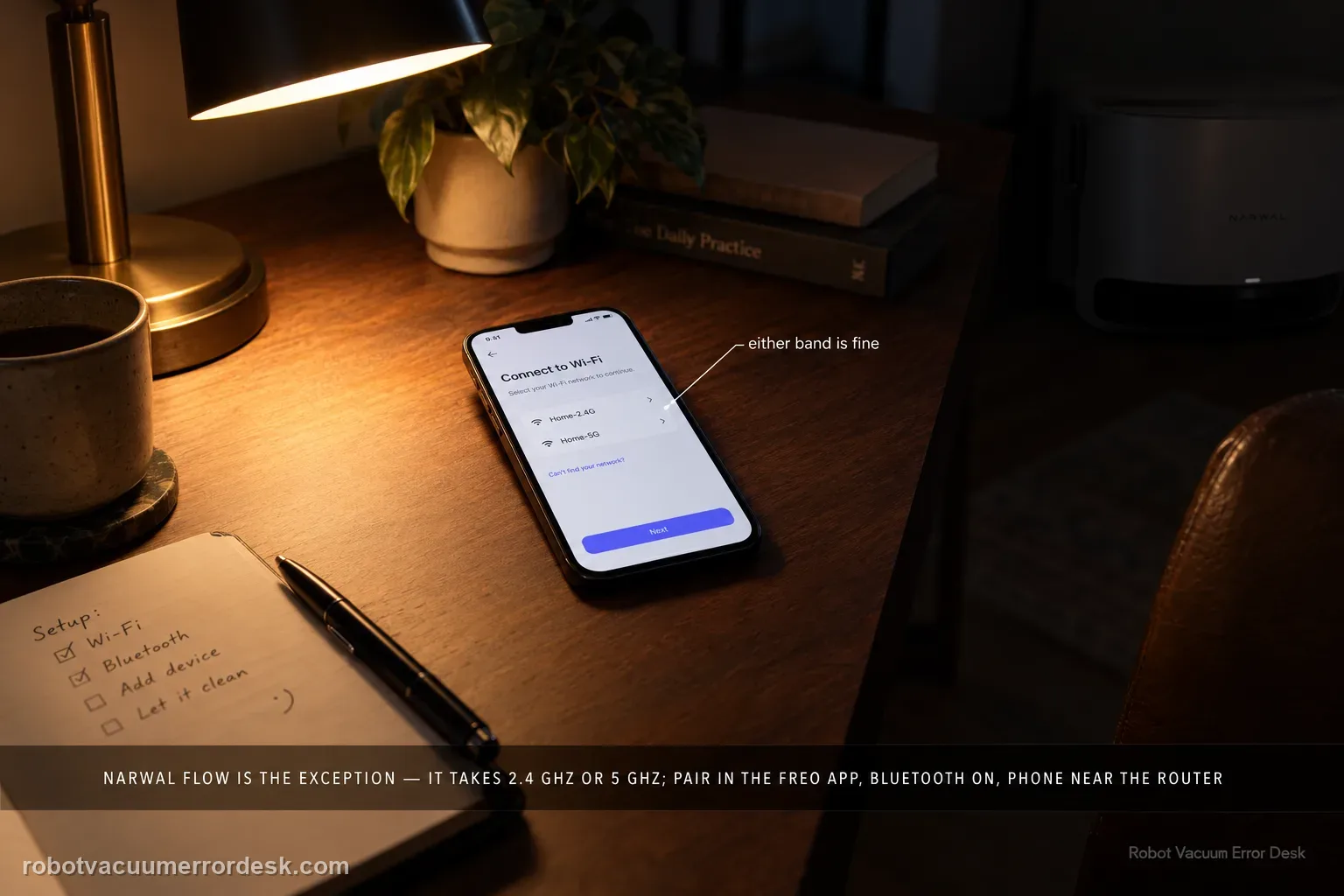
Narwal Flow is an exception to the older Narwal “2.4 GHz only” rule: Narwal’s Flow-specific FAQ says this model supports both 2.4 GHz and 5 GHz Wi-Fi. Start with the Flow pairing path in the Freo App, confirm the robot and base are powered, enable Bluetooth and the phone permissions Narwal requires, and keep the robot near a strong signal. If setup fails, compare the two supported bands or a simple phone hotspot without changing several variables at once. Narwal’s general network guide is still useful for permissions, hotspot and router isolation, but its 2.4-GHz-only sentence is not the correct compatibility rule for Flow. If the failure persists, send Narwal the robot SN, App ID and a screen recording or clear record of the failed setup stage.
Does Flow fail before Wi-Fi credentials, on one supported band, or after pairing?
Confirm the exact model and exact code, light pattern or symptom.
Run the lowest-risk physical or software check first.
Use each pass condition to decide what the result actually narrows down.
Confirm this is the right issue
- Narwal Flow cannot be added to the Narwal Freo App after scanning the QR code or selecting the Flow model.
- The Flow appears offline or loses the app connection even though the robot/base still have power and local cleaning controls work.
- You are searching for Narwal Flow 5 GHz support, 2.4 GHz versus 5 GHz, QR pairing, Freo App network setup, or repeated connection failure.
- Another Narwal guide told you to use 2.4 GHz only, but you need to know whether that advice actually applies to the Flow model.
- You want a safe way to separate phone/app, Wi-Fi band, router, signal, robot/base power and possible Narwal service/cloud issues without random factory resets.
What’s most likely causing this
Pairing is being attempted with generic 2.4-GHz-only instructions instead of the Flow-specific dual-band rule
Robot/base power, Bluetooth, phone permissions or weak signal is blocking discovery or configuration
Home-router policy, mesh/band steering or client isolation is affecting one network path
A previously paired robot has an app/network session problem rather than a first-time Wi-Fi association failure
The failure reproduces across supported bands or a simple hotspot and needs Narwal support evidence
Reading your test result
| What you observe | What it narrows down | Next move |
|---|---|---|
| A generic Narwal page says 5 GHz is unsupported | That rule is not model-specific and conflicts with Flow’s exact FAQ. | Use the Flow-specific dual-band rule; keep the generic page only for non-conflicting troubleshooting steps. |
| Flow is not discovered before Wi-Fi credentials are accepted | The failure is still at device discovery/permission stage. | Check robot/base power, Bluetooth, app permissions and QR/model selection before router changes. |
| 2.4 GHz works but 5 GHz fails near the same router | Flow radio/account can connect; the failure follows one home-network path. | Review 5-GHz signal, access point, mesh/band-steering or router policy instead of declaring incompatibility. |
| A simple phone hotspot works but the home router fails | Robot/app pairing is functional on an alternate network. | Focus on home-router filtering, isolation, mesh node or network configuration. |
| Both supported bands and a simple alternate network fail at the same stage | A robot/app/account-side issue becomes more plausible. | Send Narwal the SN, App ID and a recording of the repeatable failure stage. |
Do not factory-reset by default. Use the exact model’s reboot/network-reset procedure only when the manufacturer path calls for it.
Work through these checks in order
Start with the Flow-specific pairing path and powered hardware
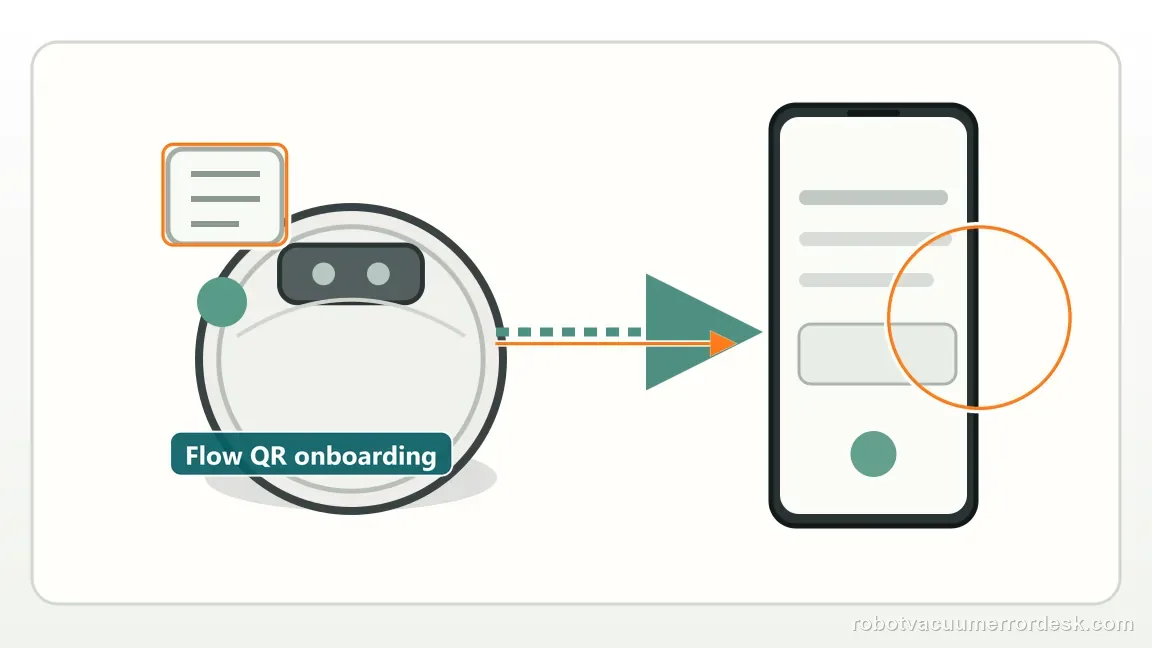
Confirm the robot and base station are powered and operating normally before changing router settings. In the Narwal Freo App, add the device through the model list or scan the QR code under the robot top cover, then follow the in-app pairing prompts. Narwal’s general pairing material also says Bluetooth should be enabled and the base and robot should be in strong Wi-Fi coverage. This first step proves that the failure is occurring inside the expected Flow onboarding path rather than because the wrong model, an unpowered base or a stale app screen is being used.
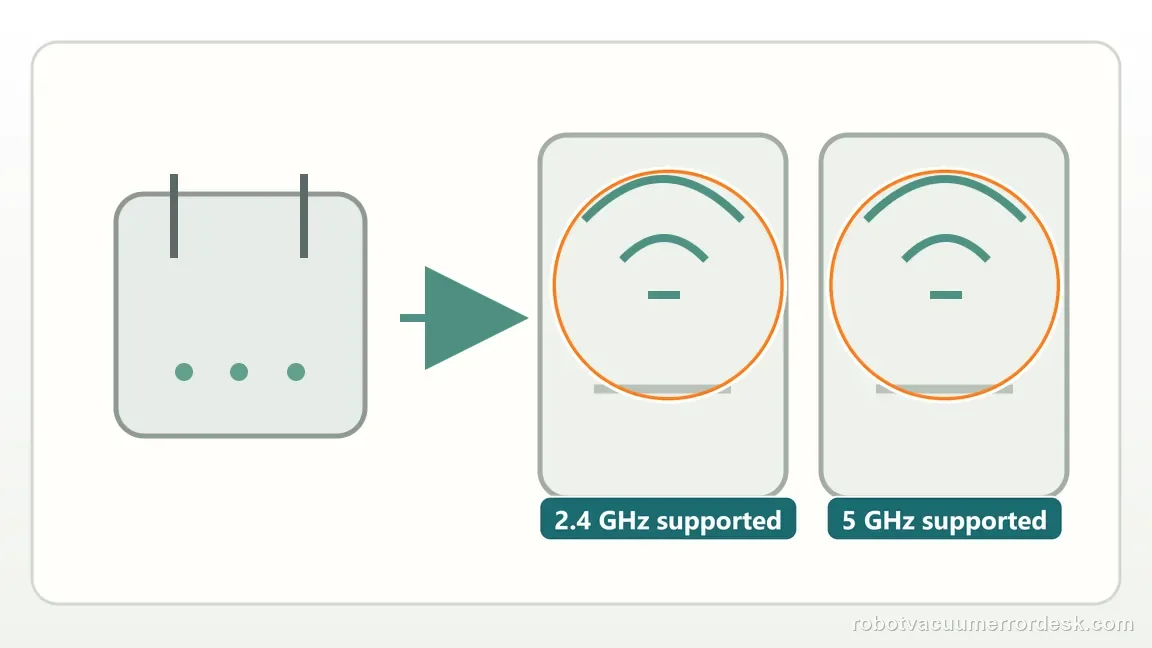
Use the Flow-specific Wi-Fi rule: both 2.4 GHz and 5 GHz are supported
Narwal has a dedicated Flow FAQ stating that Flow supports both 2.4 GHz and 5 GHz Wi-Fi. That exact-model statement should take precedence over Narwal’s older generic network pages that still say 5 GHz is unsupported for many other models. Do not diagnose a healthy Flow as incompatible merely because it is on 5 GHz. Record which band you are testing, because comparing 2.4 and 5 GHz can still help isolate range, access-point or router behavior even though both bands are valid for this model.
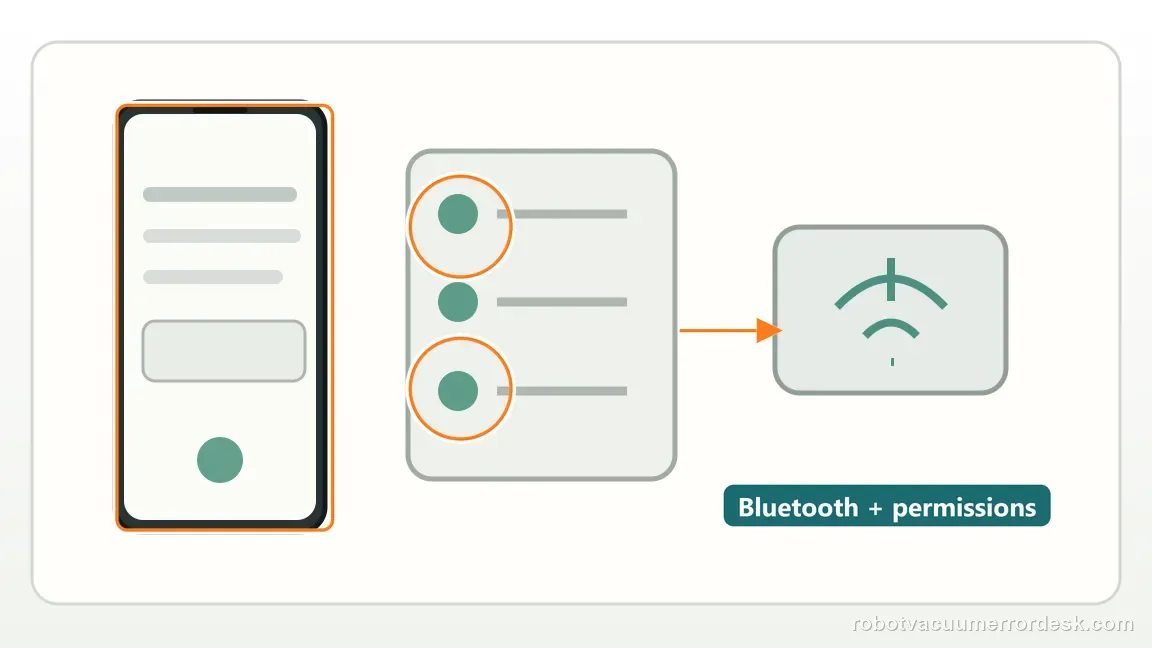
Check Bluetooth, location permissions and signal before any reset
Narwal’s network troubleshooting requires Bluetooth and the app’s phone permissions; on iOS it specifically calls out Location and Precise Location for discovery. Keep the phone and Flow near the router for the proof attempt, verify the Wi-Fi password, and make sure the phone itself has working internet on the intended network. If the Freo App appears stuck, restart the app before resetting the robot. A clean permissions-and-signal test is more informative than repeatedly deleting and re-adding a device while the original discovery requirement is still failing.
Separate first-time pairing from an already-paired robot that only appears offline
If Flow previously worked in the Freo App, first verify whether local robot and base controls still work and whether the phone has normal internet. A temporary app, router or service-session problem is different from a robot that never completes Wi-Fi onboarding. Narwal provides a Reset Network function for cases such as moving home, changing routers or persistent connectivity trouble, but it should not be the automatic first response to every brief offline state. Preserve a known-good pairing unless the evidence shows that the network configuration itself needs to be rebuilt.
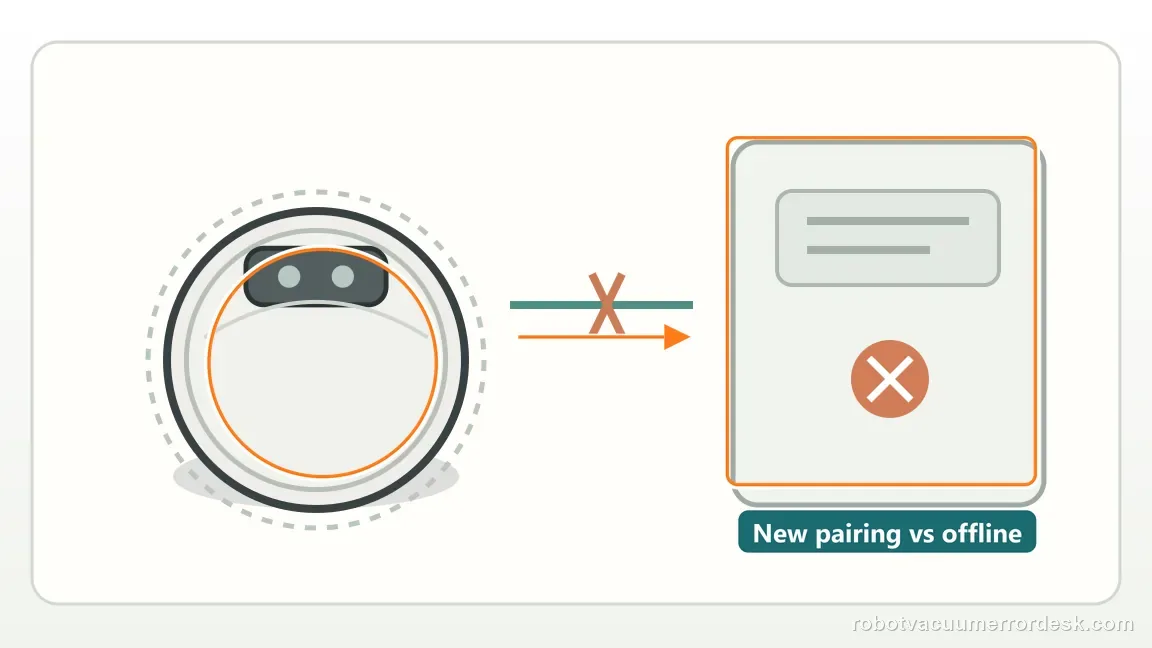
Use a second band, phone or hotspot as an isolation test
Keep the robot, app and test location constant while changing one network variable. Because Flow supports both bands, a 2.4-versus-5-GHz comparison can reveal a home-network-specific path. Narwal’s general network guide also recommends trying another phone or a mobile hotspot; for an iPhone hotspot it calls out Maximize Compatibility. If Flow joins the simple hotspot but not the home router, focus on the router, mesh node, filtering or isolation settings instead of repeatedly resetting robot hardware.
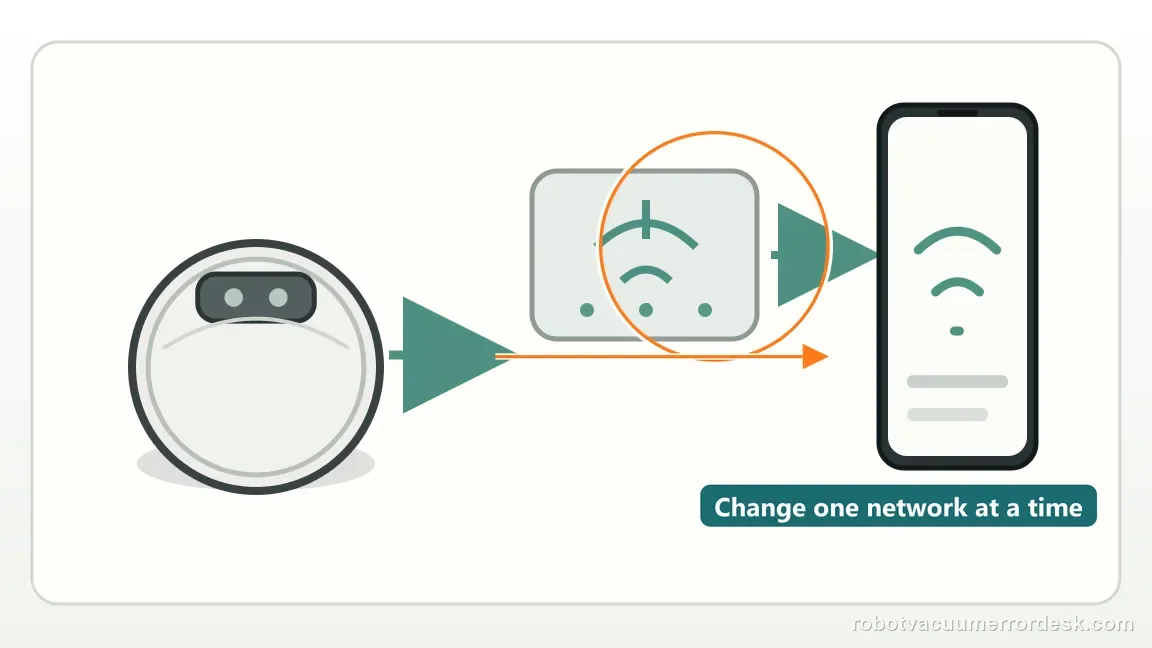
Escalate with Narwal’s requested identifiers and a reproducible setup record
When the failure survives powered hardware, correct Flow pairing, permissions, strong signal and alternate-network testing, stop changing unrelated settings. Narwal’s network troubleshooting asks for the robot serial number and App ID, and it explains how to screen-record app and hotspot status changes on one phone. Include the exact screen or percentage where pairing stops, phone/OS, Freo App version, router model and which supported band or hotspot was tested. That package lets support distinguish a Flow radio issue from account, app or router behavior.
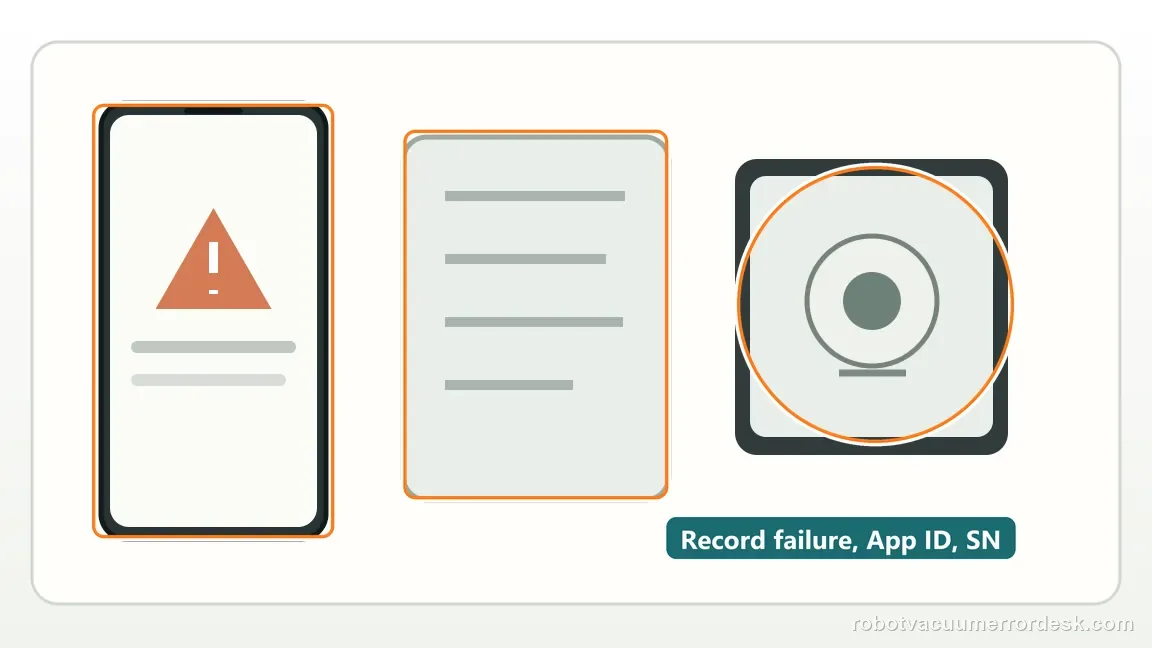
Escalate after the Flow-specific pairing path, Bluetooth/permissions, strong signal and at least one controlled alternate-network test have been completed. Narwal’s general network guide asks for the robot SN and App ID and describes screen-recording the setup/hotspot state. Include the phone and router details and the exact failed stage. Do not let older 2.4-GHz-only Narwal guidance override the Flow-specific fact that this model supports both 2.4 and 5 GHz.
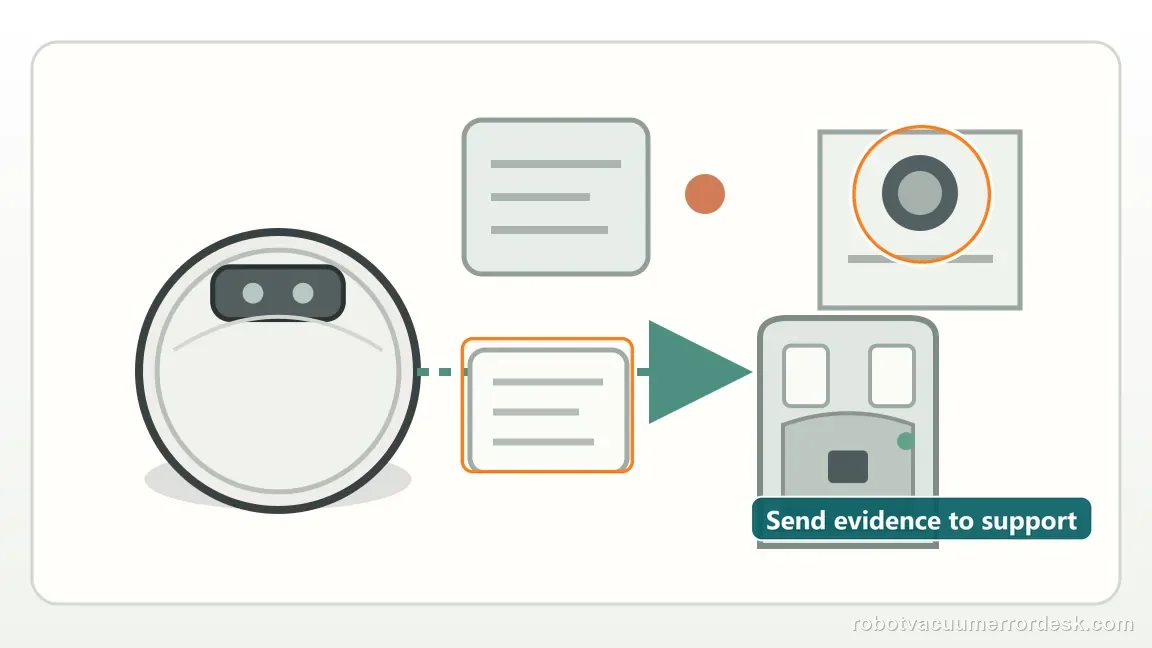
Before you contact support, gather this
A reproducible case moves a support call past the basic troubleshooting script faster than “it doesn’t work” does, and it keeps the clues from your own tests on record.
- Exact model name and the error code / voice prompt exactly as shown
- A photo or screenshot of the app error and the time it occurred
- A short list of the checks already completed and what happened after each one
- Map screenshots and robot location when the problem involves localization, zones or docking
Where this comes from
Narwal Flow — Freo App connection guide
Narwal’s Flow-specific pairing page establishes the model onboarding path, while a separate Flow-specific FAQ explicitly confirms support for both 2.4 GHz and 5 GHz. Narwal’s general network troubleshooting remains useful for Bluetooth/location permissions, router proximity, alternate phone/hotspot testing and support identifiers, but its generic 2.4-GHz-only compatibility sentence is not applied to Flow.
Additional official source: Narwal Flow — 5 GHz Wi-Fi support ↗Additional official source: Narwal — themed network troubleshooting ↗Last editorial review: September 5, 2026Regional note: manufacturer help centers, model suffixes, mains-power requirements and warranty procedures can differ by country. If the source redirects to a local support site, confirm that the model/hardware scope still matches before following a region-sensitive step.
This guide is rated Official model support. See what each evidence label means →
Questions people ask
Does Narwal Flow support 5 GHz Wi-Fi?
Yes. Narwal has a Flow-specific support article stating that this model works with both 2.4 GHz and 5 GHz Wi-Fi. That exact-model statement is more relevant than older generic Narwal pages written for models that are 2.4-GHz-only. If 5 GHz fails, compare signal or router behavior rather than declaring the band unsupported.
Why do some Narwal support pages still say 5 GHz is not supported?
Narwal’s general network guides cover many robot generations and still contain a 2.4-GHz-only rule. Flow has a newer model-specific FAQ that explicitly supports both bands. For Flow troubleshooting, use the exact-model compatibility statement, while still borrowing the generic guide’s useful permission, hotspot and router-isolation steps where they do not conflict with the Flow-specific rule.
What phone settings matter when Narwal Flow cannot be discovered?
Narwal’s network troubleshooting says Bluetooth must be enabled and the Freo App needs the relevant phone permissions. On iOS, Location and Precise Location are specifically mentioned. Keep the phone and Flow in strong Wi-Fi coverage, confirm the password, and restart the app before resetting the robot. This rules out discovery and permission failures first.
Should I reset Narwal Flow every time it appears offline in the app?
No. First decide whether the robot never completed pairing or was previously working and is only temporarily offline. Check phone internet and local robot/base operation before rebuilding the network. Narwal provides Reset Network for changed routers, moves and persistent connectivity problems, but a brief app/session interruption does not automatically prove the saved Wi-Fi configuration is bad.
What should I send Narwal if Flow Wi-Fi still will not connect?
Send the robot serial number and App ID, plus a screen recording or clear record of the failed setup stage. Add the phone model and OS, Freo App version, router model, tested SSID/band and whether another band, phone or hotspot changed the result. Narwal’s network guide specifically uses these identifiers to support deeper troubleshooting.
Did this diagnostic narrow the fault?
Use this as an editorial signal, not a popularity counter. If a feedback address is configured you can email the note; otherwise you can copy it for your own support record.