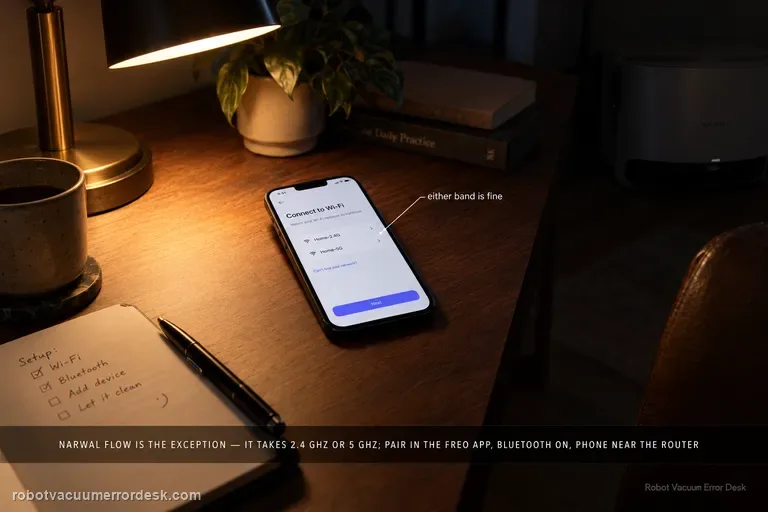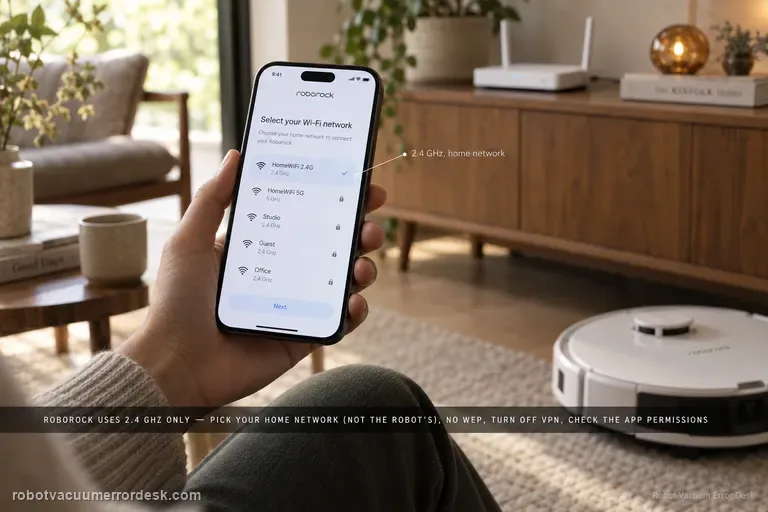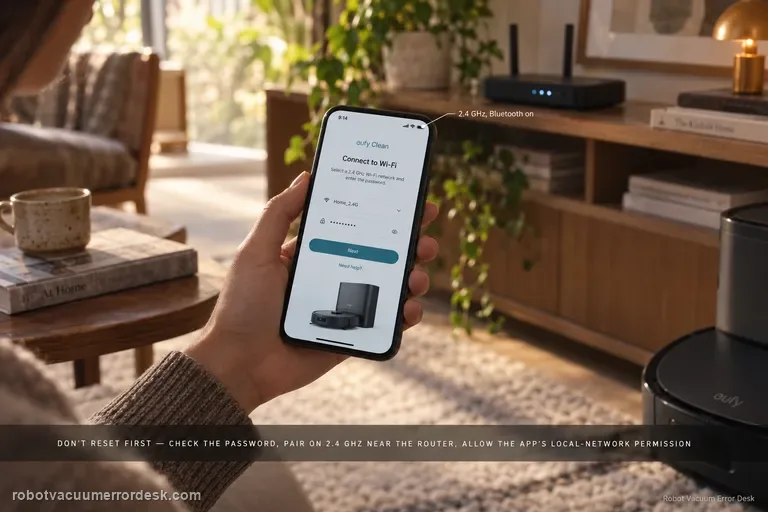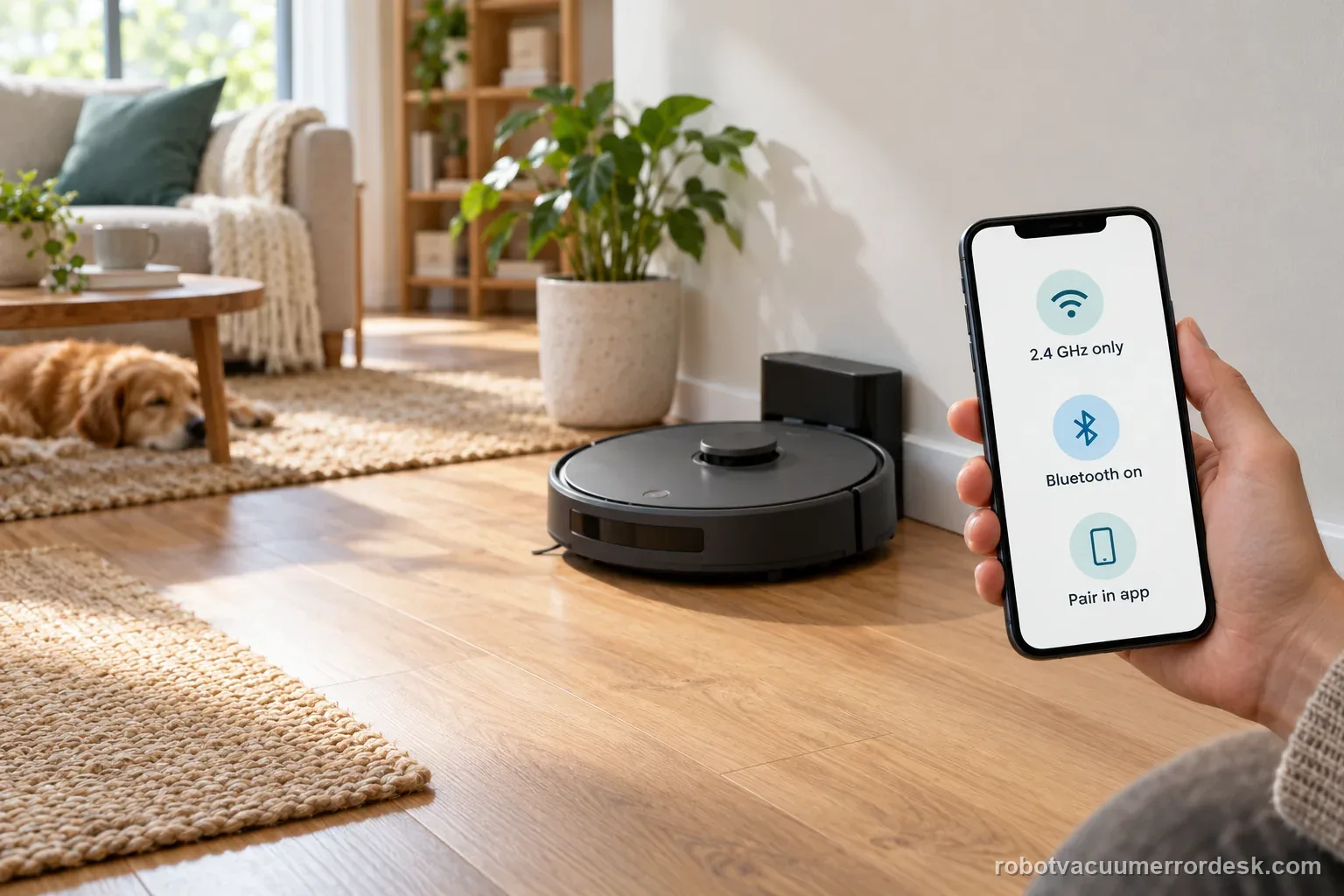
The Freo Z Ultra uses 2.4 GHz Wi-Fi. Enable Bluetooth and required location access, then add it inside the Narwal Freo App. Note whether setup fails at discovery, Wi-Fi join, or app-online status. Check password spaces and router security compatibility; one 2.4 GHz hotspot test helps isolate home Wi-Fi. After a router change, use the app’s Reset Network path. Save screenshots before resetting.
This guide is for Freo Z Ultra pairing that fails before the robot appears reliably in the app. Narwal lists this model as 2.4 GHz only; do not apply Wi-Fi band advice from newer or different Narwal models without checking the exact model page.
Separate phone discovery from router acceptance
| Observation | What it separates | Next action |
|---|---|---|
| Robot not found | Bluetooth discovery or permissions | Enable Bluetooth and required location access |
| Robot found, Wi-Fi fails | Band, password, signal, or router policy | Try the supported 2.4 GHz network nearby |
| Hotspot works | Home router remains the variable | Check band and network restrictions |
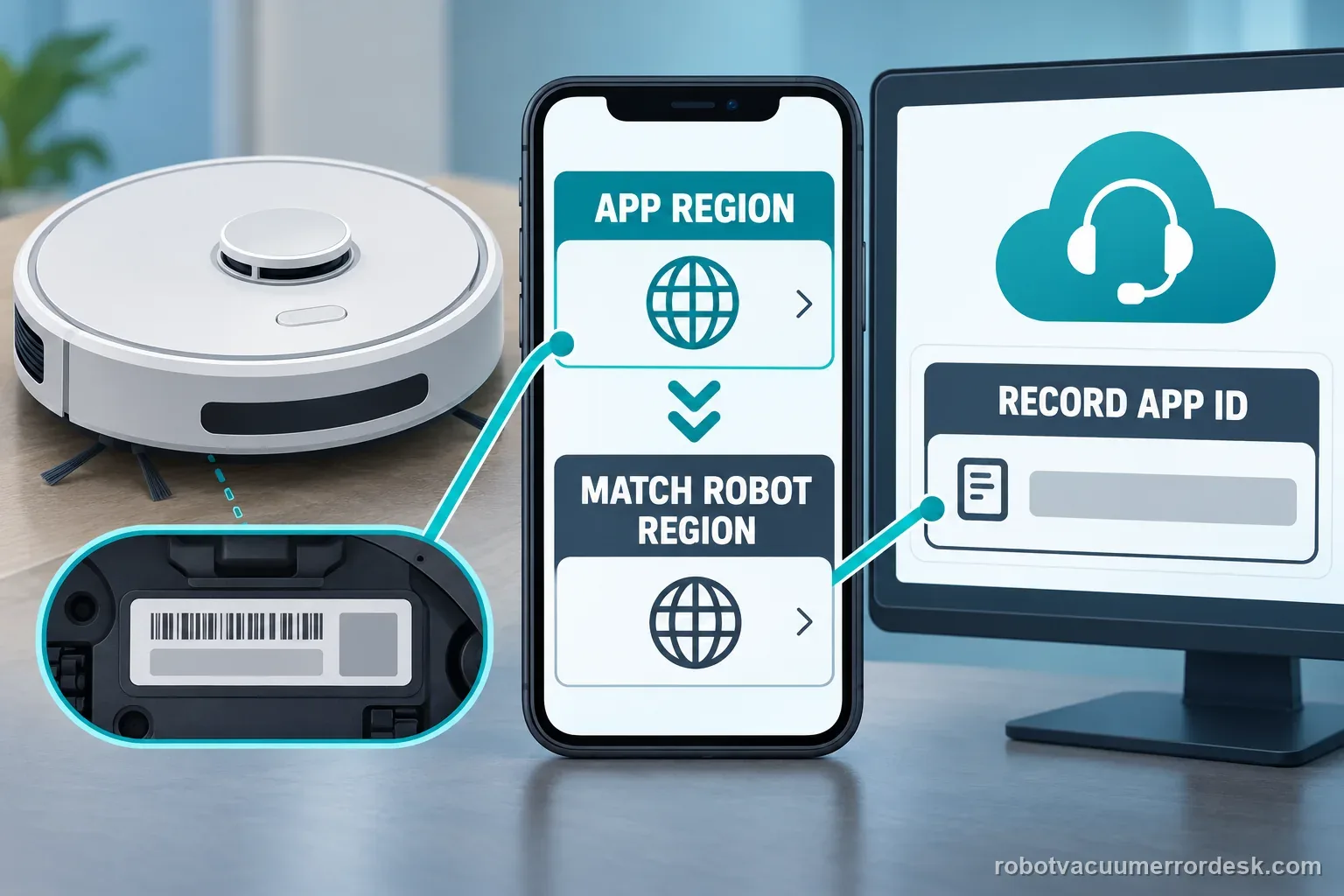
| Region warning appears | Device sale region may not match | Capture the prompt and contact Narwal |
Confirm the exact model and exact code, light pattern or symptom.
Run the lowest-risk physical or software check first.
Use each pass condition to decide what the result actually narrows down.
Does this match your problem?
- Freo Z Ultra will not add to the Narwal Freo App or repeatedly fails during network configuration.
- The app says the robot is offline even though local buttons and base-station controls still respond.
- You are unsure whether Freo Z Ultra supports 5 GHz Wi-Fi or whether the router must expose 2.4 GHz.
- Pairing reaches Bluetooth or QR discovery but fails after the Wi-Fi name and password are entered.
- You want to distinguish a home-router problem from a robot/app problem without deleting maps or doing a factory reset.
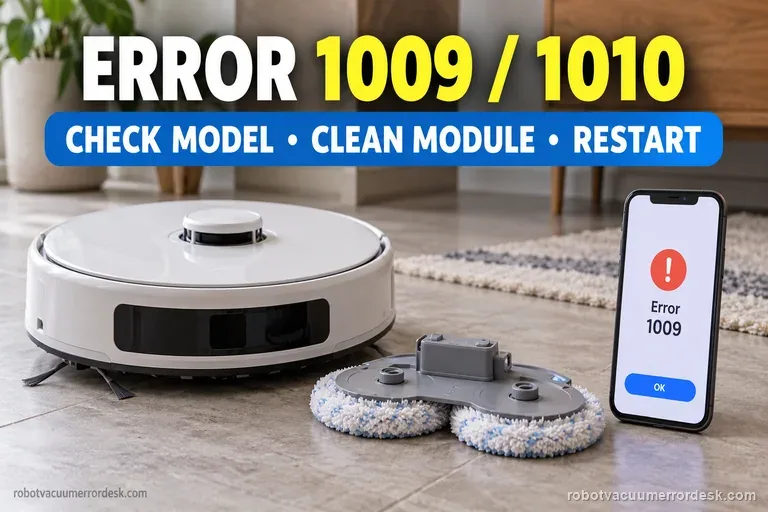
If Wi-Fi joins but an alert remains, look up the exact Narwal code; for a separate Wi-Fi pairing issue on another model, compare its model-specific setup steps: Narwal Freo Z Ultra Error 1009 and 1010 · Roborock Qrevo Curv Wi-Fi setup
Most likely causes
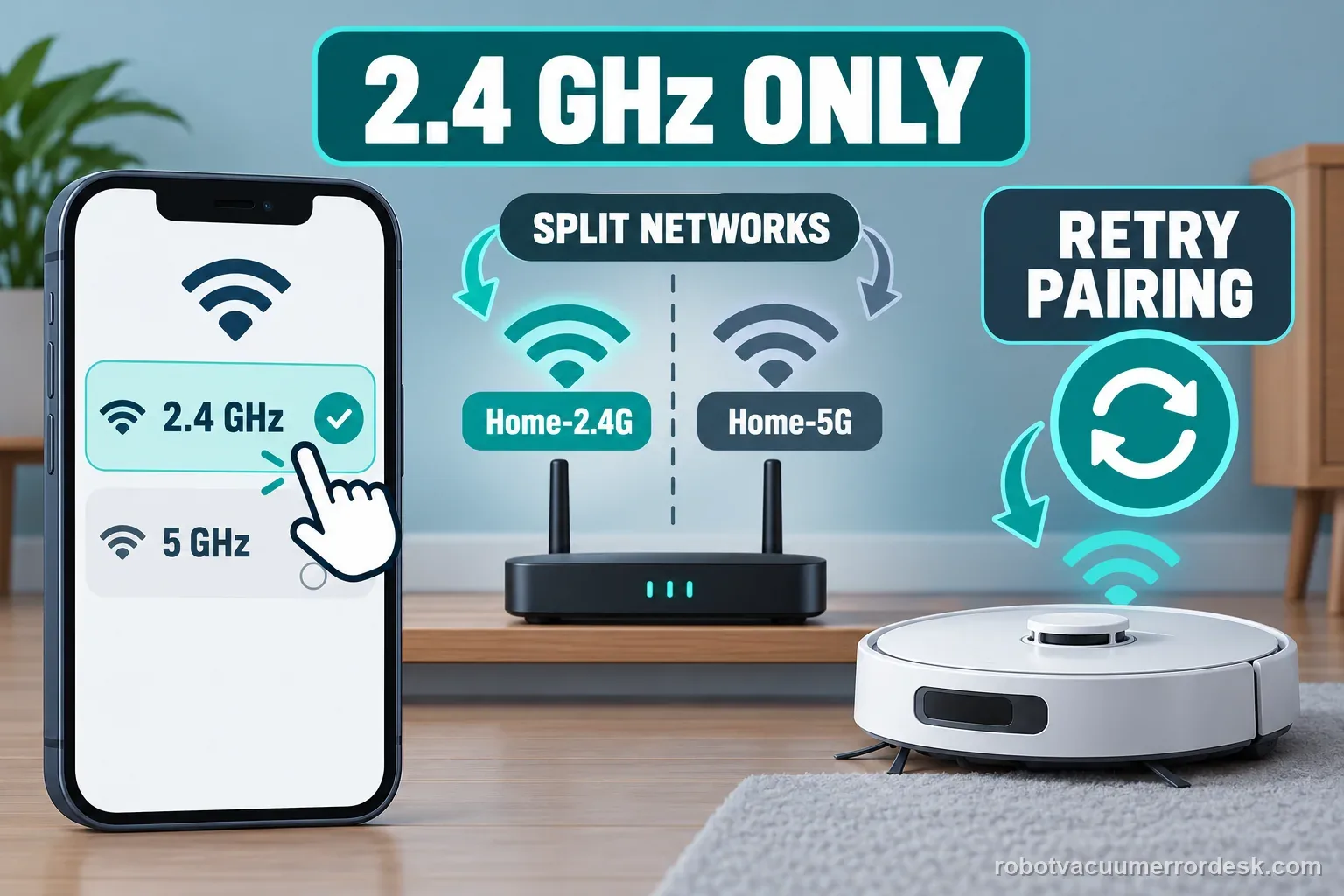
Attempting setup on 5 GHz; Narwal says Freo Z Ultra is a 2.4 GHz-only model.
Bluetooth, location, precise-location or app permissions are disabled during onboarding.
The robot/base are not both powered and positioned in a reliable Wi-Fi area when pairing begins.
The Narwal Freo App is not completing the device-list or QR-code pairing sequence correctly.
Home-router signal, credentials, isolation or band configuration prevents the robot from joining even though the phone can use the network.
A persistent robot/app connectivity fault remains after the same onboarding succeeds or fails consistently on an isolated 2.4 GHz hotspot.
What your test result means
| What you observe | What it narrows down | Next move |
|---|---|---|
| Phone is on 5 GHz and Z Ultra will not join | Narwal says this model does not support 5 GHz Wi-Fi. | Expose/select a 2.4 GHz network and repeat the in-app pairing flow. |
| Robot is discovered but setup fails after entering Wi-Fi credentials | Discovery works; the failure is later in the network join/authentication stage. | Recheck the exact 2.4 GHz SSID/password and then compare with a 2.4 GHz hotspot. |
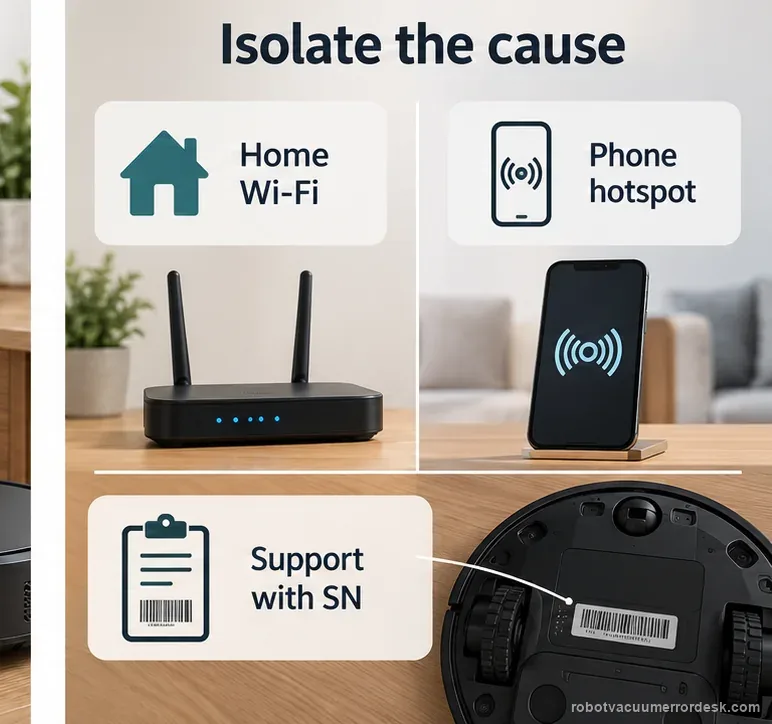
| Hotspot works but home Wi-Fi does not | The robot/app path can connect; the home network is the main discriminator. | Focus on home-router 2.4 GHz availability, signal and local network configuration instead of resetting the robot. |
| Neither home Wi-Fi nor a clean 2.4 GHz hotspot works | The failure follows the robot/app rather than one router. | Capture the exact setup stage, app screenshot, app version and robot serial number for Narwal support. |
| Robot cleans from local controls but app alone shows offline | Mechanical systems are not the first suspect. | Treat this as connectivity/session state; avoid brush, battery or dock hardware replacement. |
Two pairing results with different next steps
The app cannot discover the robot
Illustrative example: one Freo Z Ultra appears on a second phone after two unsuccessful discovery scans on the first phone. Both attempts use the same nearby 2.4 GHz network. That result points first to the original phone’s permissions or app state; it does not prove the router is perfect. Record each phone’s operating-system version and the exact app screen before changing router settings.
The hotspot works but home Wi-Fi does not
Illustrative example: one attempt joins a temporary 2.4 GHz hotspot, while two attempts fail on the home 2.4 GHz SSID at the network-join step. That comparison shifts attention to the home router’s band, password entry, signal or security compatibility. It is not a repair-rate estimate or a reason to repeat setup indefinitely. Record the two distinct outcomes and keep the Wi-Fi password out of support screenshots.
Illustrative decision sequence. These are observations, not measured repair success rates.
- Confirm app discovery permissions
- Test supported Wi-Fi near the router
- Use one hotspot or second-phone test
Reset can erase maps/settings on this path. Use lower-risk checks first and document the current state before resetting.
Run these checks in order
Confirm this is the Freo Z Ultra network path
Confirm the label or device card says Freo Z Ultra. Narwal says Flow is the only current model in its range that supports 5 GHz; Z Ultra uses 2.4 GHz. A generic Flow guide may say something different. Record whether this is first pairing, an offline device, or a reconnect after changing routers. If the label says Freo X Ultra or Freo X Plus, use that model’s support path; those are related but distinct models.
Put the robot and base into a known-good powered state
Narwal’s network troubleshooting asks owners to verify that both the robot and base station are powered before configuration. For first use, the robot should be placed into the powered base so startup is complete. Move the phone close enough that it has a strong 2.4 GHz signal at the base location. Do not relocate the base far from its mapped position merely to improve Wi-Fi if the robot already has a good map; use a temporary network test instead so mapping evidence is not disturbed.
Enable phone permissions before repeating pairing
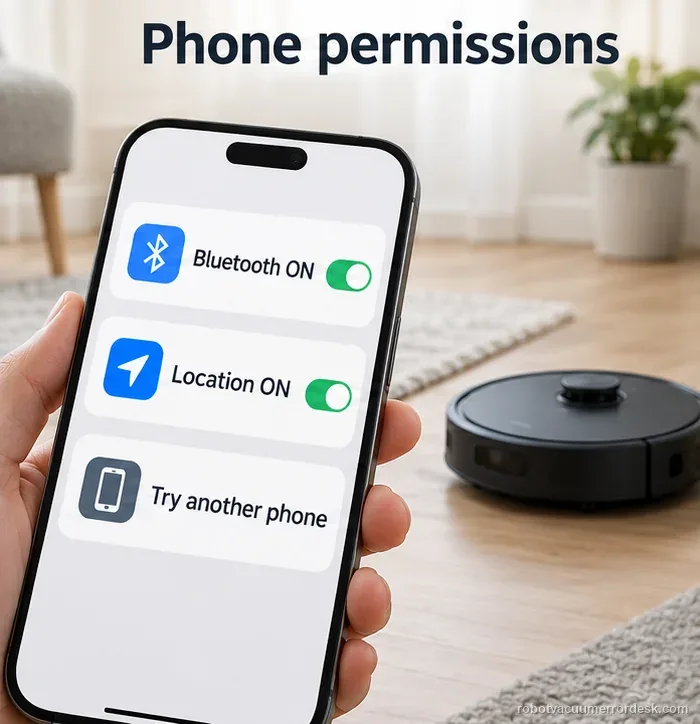
Turn on Bluetooth and location services, then verify the Narwal Freo App has the permissions requested by the manufacturer. On iOS, Narwal specifically calls out Precise Location. Pair inside the Narwal Freo App rather than manually connecting to the robot from the phone’s Bluetooth settings. Permission failures often look like a robot problem because the app never completes discovery or handoff even though the hardware is powered normally.
Use the supported 2.4 GHz network deliberately
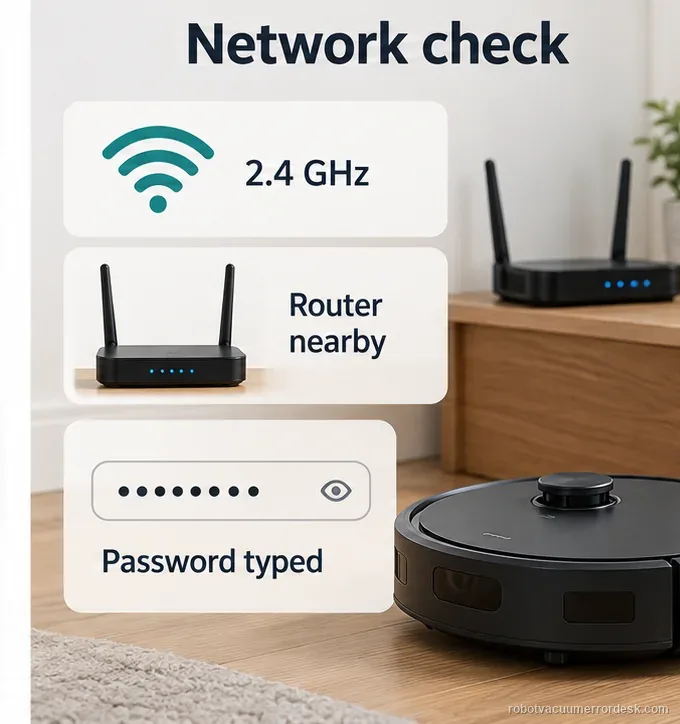
Select a confirmed 2.4 GHz SSID and type the password without added spaces. Narwal also lists unsupported Wi-Fi encryption as a failure cause, but does not name one security mode for every router. If a combined 2.4/5 GHz network stalls, separate the bands so setup occurs on 2.4 GHz. Phone internet on 5 GHz does not prove the robot joined. Do not call the robot radio failed before this check.
Repeat device-list or QR pairing once from a clean app state
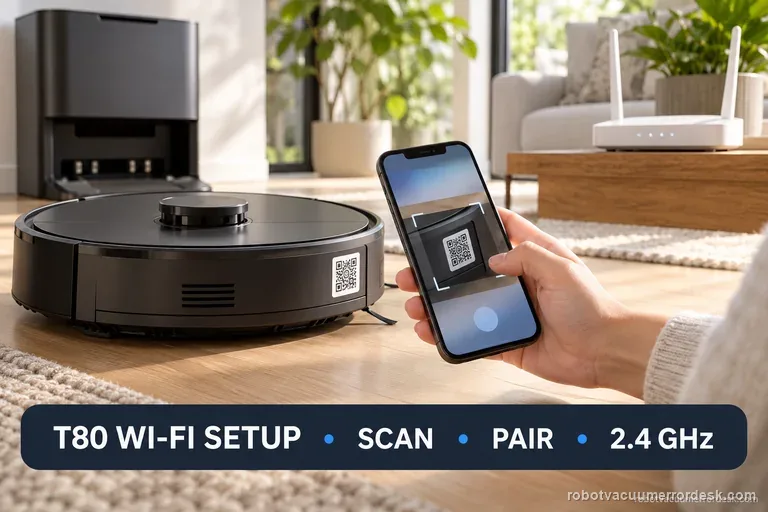
In the Narwal Freo App, add the device from the device list or scan the QR code under the robot’s top cover, then follow the on-screen prompts. If a previous attempt partially created a device card, document what the app shows before removing anything. The diagnostic goal is to identify the exact stage that fails: device discovery, Wi-Fi credential submission, robot joins network, or app still shows disconnected after the robot reports success.
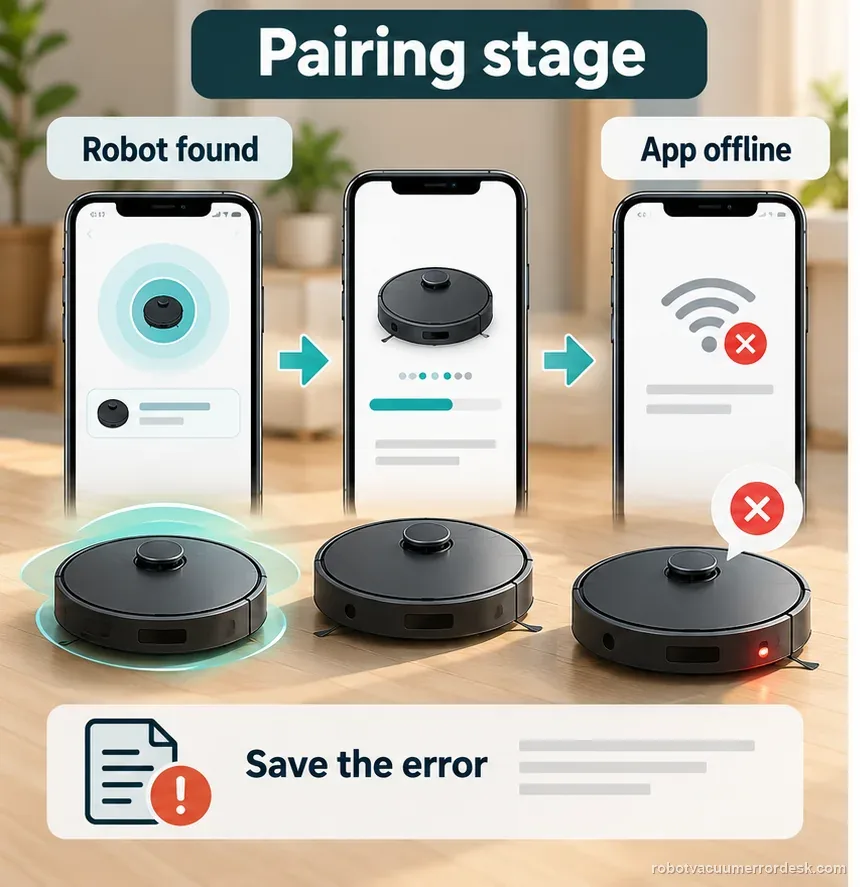
Run a 2.4 GHz personal-hotspot comparison
Narwal publishes a personal-hotspot test specifically to isolate router failures, unstable home networks and unsupported bands. Configure a temporary 2.4 GHz hotspot with a simple name/password and repeat the same in-app onboarding. This is a discriminator, not a permanent networking recommendation. If the robot connects to the hotspot, stop resetting the robot and investigate the home network. If it fails identically, the evidence shifts toward the app/device path.
Reset only the network when reconfiguration is truly needed
If the robot was previously working and the home Wi-Fi/router changed, use Narwal’s Device > Reset Network path in the app rather than jumping to a full factory reset. A network reset is scoped to connectivity and preserves a clearer diagnostic trail. After reconnecting, verify the robot appears online and run one simple command from the app. If the robot still will not join either known-good 2.4 GHz path, preserve logs/screenshots and escalate.
If the Freo app also shows a numbered alert, match the complete message and exact model in the Narwal error-code index before following a code-specific step.
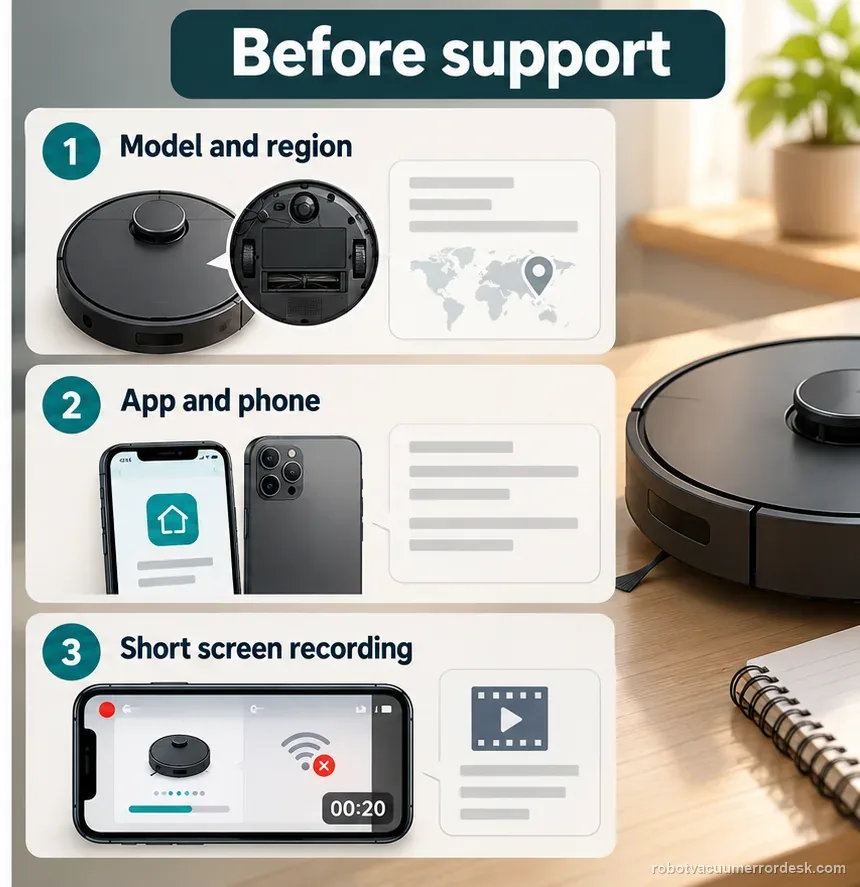
Stop repeating resets if the Freo Z Ultra fails on both a known-good 2.4 GHz home network and a clean 2.4 GHz hotspot with Bluetooth/location permissions enabled. Send Narwal the robot serial number, app version, phone model/OS, screenshots of the failing onboarding stage and whether the robot/base operate from local controls. If the issue started after a router or app change, include that timeline; it is more useful than saying only that Wi-Fi is broken.
Keep the setup evidence in sequence
| Stage | Question to answer | Evidence to keep |
|---|---|---|
| Discovery | Robot appears in app? | Screen and exact step |
| Network | 2.4 GHz and typed password? | Band and result, never password |
| Isolation | Hotspot or second phone? | Which test passed |
| Region | Any cross-region message? | Model label and prompt |
What to collect before contacting support
Give support a reproducible case instead of “it doesn’t work.” That reduces repeated basic troubleshooting and preserves the clues from your tests.
- Exact model name and the error code / voice prompt exactly as shown
- A photo or screenshot of the app error and the time it occurred
- A short list of the checks already completed and what happened after each one
- Map screenshots and robot location when the problem involves localization, zones or docking
Manufacturer evidence
Narwal Network Configuration Troubleshooting
Narwal’s network support defines the 2.4 GHz requirement for non-Flow robot vacuums, phone permission checks, in-app pairing flow and failed-configuration path. The hotspot article provides the key router-versus-device discriminator; the Freo Z Ultra support section confirms the exact model family.
Additional official source: Narwal Freo App Pairing Guide ↗Additional official source: Narwal Personal Hotspot Network Test ↗Additional official source: Narwal 5 GHz Wi-Fi Support Matrix ↗Last editorial review: September 5, 2026Regional note: manufacturer help centers, model suffixes, mains-power requirements and warranty procedures can differ by country. If the source redirects to a local support site, confirm that the model/hardware scope still matches before following a region-sensitive step.
This guide is rated Official series support. See what each evidence label means →
FAQ
Does Narwal Freo Z Ultra support 5 GHz Wi-Fi?
No. Narwal’s current Wi-Fi support article says Narwal Flow is the model that supports 5 GHz, while the other current robot vacuums use 2.4 GHz. For Freo Z Ultra pairing, make sure a 2.4 GHz network is available and selected. A phone being connected successfully to 5 GHz does not prove the Z Ultra can join that same band.
Why does the app find my Freo Z Ultra but fail after I enter Wi-Fi?
That pattern means device discovery is at least partly working, so the useful next question is whether the 2.4 GHz network join succeeds. Recheck the exact SSID/password, confirm permissions, and run the same onboarding on a temporary 2.4 GHz hotspot. If hotspot pairing works, the result points back toward the home router rather than a failed robot radio.
Should I connect the Freo Z Ultra from my phone Bluetooth settings?
Use the Narwal Freo App pairing flow. Narwal tells owners to enable Bluetooth and location permissions but complete the setup inside the app; the phone’s Bluetooth menu is not the normal device-onboarding path. If the app cannot discover the robot, verify permissions and power first, then repeat QR/device-list setup before performing more destructive reset steps.
Will a hotspot test erase my Freo Z Ultra map?
A hotspot comparison is intended as a network diagnostic and is safer than treating every connection failure as a reason for factory reset. Preserve screenshots and the current map before making changes, follow Narwal’s in-app network configuration steps, and use Reset Network only when reconfiguration is needed. Avoid a full factory reset unless Narwal support specifically requires it for the unresolved state.
What evidence should I send Narwal for repeated Wi-Fi failure?
Send the model and robot serial number, app version, phone/OS, the exact screen where setup fails, whether Bluetooth/location permissions were enabled, and the results on both home 2.4 GHz and a temporary 2.4 GHz hotspot. Also note whether local robot/base controls still work. That evidence separates app/network failure from a wider robot or base-station problem.
If discovery and one controlled network test still fail, send Narwal the serial number, app ID, phone model, operating-system version, and a short screen recording. Keep the network password private. A region warning needs support review, not repeated pairing resets.
Choose the matching model before using another guide's procedure:
Compare a Narwal Flow connection issue →Freo Z Ultra Error 2003: base-station checks →Freo Z Ultra mapping failure: map-stage checks →Compare another model's Wi-Fi isolation tests →Compare Narwal pairing with Max 705 network setup →Did this diagnostic narrow the fault?
Use this as an editorial signal, not a popularity counter. If a feedback address is configured you can email the note; otherwise you can copy it for your own support record.