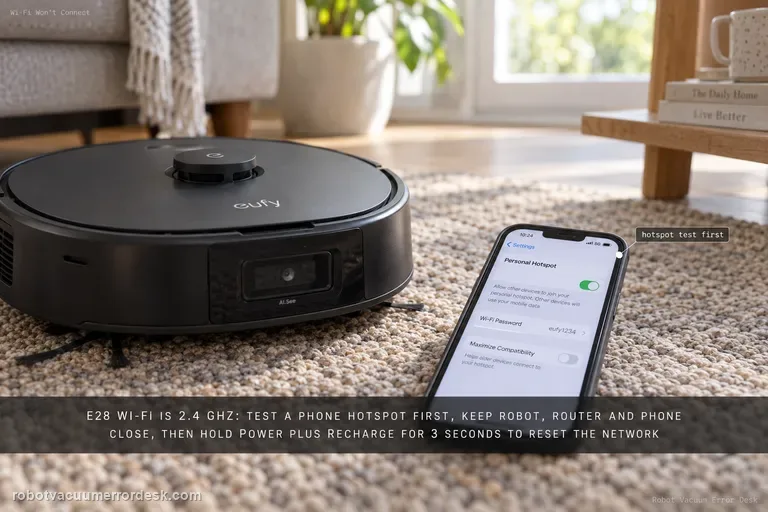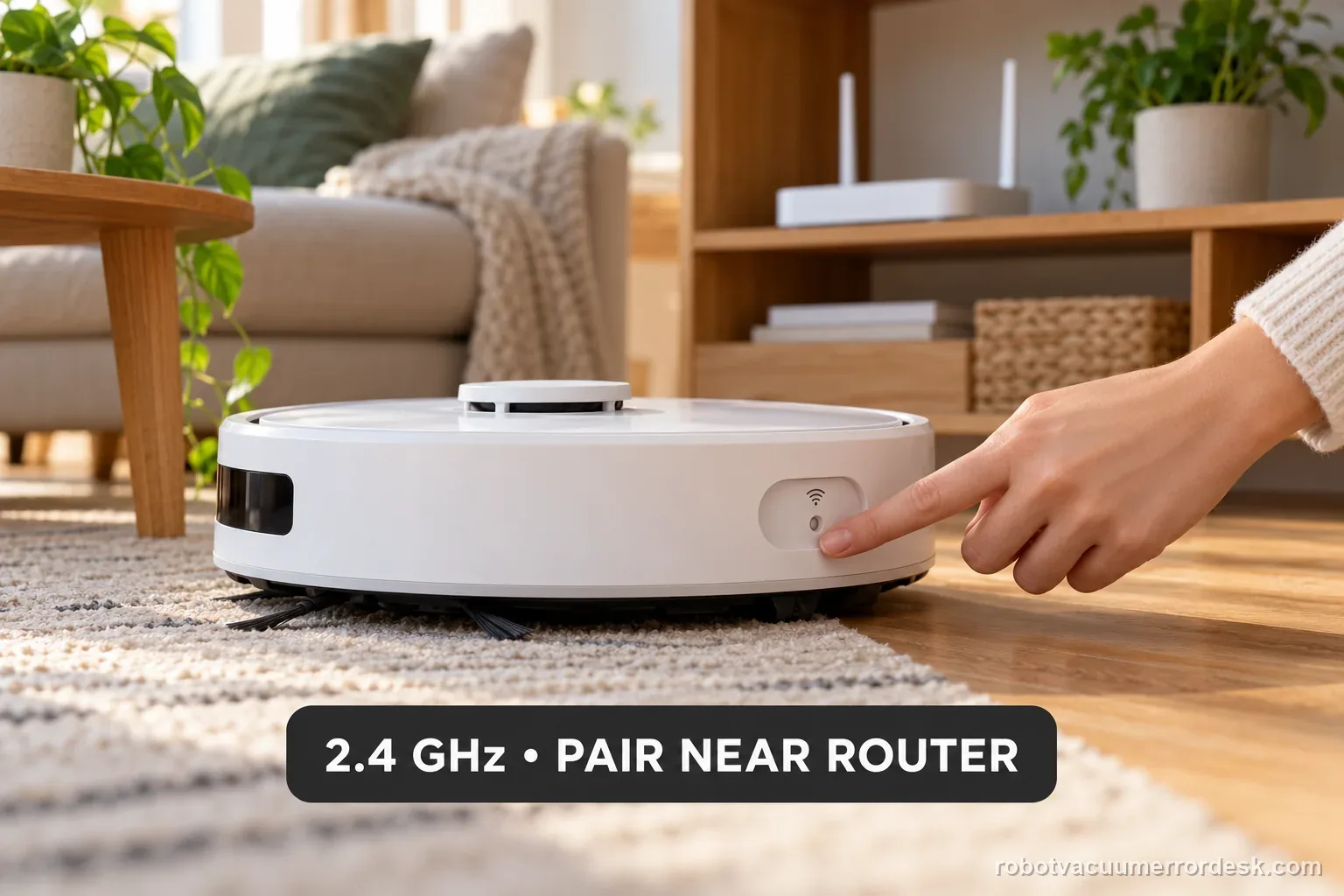
Qrevo Curv Wi-Fi trouble does not call for a map or factory reset. Roborock documents a dedicated Wi-Fi reset, 2.4 GHz support only, and a five-minute pairing window. Confirm a 2.4 GHz network, reset only Wi-Fi, and pair promptly near strong coverage. Try a combined SSID first; if setup still fails, ask the router provider to expose 2.4 GHz.
Confirm the exact model and exact code, light pattern or symptom.
Run the lowest-risk physical or software check first.
Use each pass condition to decide what the result actually narrows down.
Does this match your problem?
- The Roborock app cannot add or reconnect the Qrevo Curv even though the robot powers on normally.
- The robot still cleans from its buttons but app status is offline or setup repeatedly times out.
- The home router uses 5 GHz only, separate 2.4/5 GHz names, or one combined dual-band SSID.
The Qrevo Curv sequence is model-specific. For another robot’s Wi-Fi setup symptoms, or a Saros 20 Error 13, use that separate guide: Narwal Freo Z Ultra Wi-Fi troubleshooting · Roomba Max 705 Wi-Fi setup · ECOVACS T80 Wi-Fi setup · Saros 20 Error 13 checks
Most likely causes
The robot's Wi-Fi state needs the dedicated model reset before pairing again.
No usable 2.4 GHz network is available even though a 5 GHz network is visible.
The phone and robot are pairing at the edge of Wi-Fi coverage or through an unstable band-steering setup.
The Roborock app or router configuration is blocking completion after the robot enters pairing mode.
What your test result means
| What you observe | What it narrows down | Next move |
|---|---|---|
| Robot never reaches the slow-blue Wi-Fi waiting state | Pairing has not reached the documented network-ready state. | Repeat only the dedicated Wi-Fi reset sequence and listen for the reset announcement before changing router settings. |
| Slow-blue state appears but a 5 GHz-only network is the only option | The robot is ready, but the network does not match Roborock's 2.4 GHz requirement. | Enable a usable 2.4 GHz path; do not system-reset the robot to solve a band mismatch. |
| Combined dual-band SSID pairs successfully | Band steering is not blocking this setup under the current conditions. | Leave the router unchanged and verify the robot stays online through a short task. |
| Combined SSID fails but a dedicated 2.4 GHz SSID works | Router band presentation/steering is the useful discriminator. | Keep the proven 2.4 GHz path or get router/ISP help rather than deleting maps. |
| Known 2.4 GHz network still fails after a clean Wi-Fi reset at strong signal | The controlled test has excluded the common band and weak-signal branches. | Escalate with router model, SSID structure and the exact pairing stage that fails. |
Compare the Wi-Fi setup state before changing the router
Keep each attempt to one known network and one documented reset. The Qrevo Curv manual specifies 2.4 GHz and a five-minute pairing wait; Roborock recommends trying a combined SSID before splitting bands.
| Observed result | What it establishes | Next controlled action |
|---|---|---|
| No slow blue flash after the Wi-Fi reset | The robot has not reached the manual’s network-ready state. | Repeat the dedicated Wi-Fi reset sequence once; do not factory-reset. |
| Slow blue flash, but router offers only 5 GHz | The available network does not meet the manual’s 2.4 GHz requirement. | Ask the router or ISP provider to enable a 2.4 GHz network. |
| Combined network fails, separate 2.4 GHz works | The network presentation or band steering is the useful difference. | Record the successful SSID and ask the router provider about a stable 2.4 GHz option. |
| Known 2.4 GHz network fails inside five minutes | The basic band and timeout checks do not explain pairing failure. | Save the exact app stage and router details, then contact Roborock. |
Two numerical pairing records
These counts show how to compare a controlled attempt. They are illustrative observations, not Roborock pass rates or performance claims.
Example A: the combined network succeeds
- One dedicated Wi-Fi reset reaches the slow-blue waiting state.
- The phone selects the home router’s combined SSID and completes setup in 1 of 1 attempts within five minutes.
- The app still shows the robot online after 1 normal dock cycle.
What it shows: Record 1/1 successful pairing and 1/1 online check. Leave router settings unchanged because the documented setup worked.
Example B: only the separated 2.4 GHz network succeeds
- A clean attempt on the combined SSID fails in 0 of 1 tries while the manual’s five-minute window is open.
- After the router provider exposes a separate 2.4 GHz SSID, the same reset and phone location succeed in 1 of 1 tries.
- The app remains online after the same normal dock cycle.
What it shows: The 0/1 versus 1/1 comparison points to router band presentation as the changed condition. It does not diagnose a robot hardware fault.
Qrevo Curv Wi-Fi pairing decision flow
Use the model-specific reset state and network band to choose the next check. Do not keep repeating setup after the documented wait window expires.
- 1Does the dedicated reset reach the slow-blue waiting state?
YESYes: begin one setup attempt promptly.
NONo: repeat only the model’s Wi-Fi reset sequence once; if it still does not reach the state, contact Roborock.
- 2Is a 2.4 GHz network available?
YESYes: select that home network, or try the combined SSID first.
NONo: ask the router or ISP provider to enable 2.4 GHz before pairing.
- 3Does pairing fail on the known network within five minutes?
YESYes: save the app stage, router model and SSID layout for Roborock.
NONo: confirm the app stays online after one normal dock cycle.
Ordered checks before contacting support
- Record the exact model suffix, app version and router model.
- Confirm the home network offers 2.4 GHz and note whether SSIDs are combined.
- Use the dedicated Wi-Fi reset and wait for slow blue flashing.
- Start the app setup promptly and record the elapsed time and failure stage.
- After success, confirm app status through one normal leave-and-return-to-dock cycle.
- Send Roborock the network layout and screenshots if a controlled attempt still fails.
Common mistakes to avoid
- Factory-resetting the robot or erasing maps for a Wi-Fi-only symptom.
- Choosing a 5 GHz-only network or the robot’s temporary setup network instead of the home SSID.
- Leaving the robot waiting past the manual’s five-minute Wi-Fi window and treating the timeout as a new router fault.
- Changing SSID, encryption, DNS and router placement at the same time.
- Repeating many pairing attempts without recording which stage changed.
The dedicated Wi-Fi reset changes the network pairing state and does not erase maps or schedules. Avoid a factory reset for a Wi-Fi-only problem unless Roborock support recommends it after these checks.
Run these checks in order
Confirm that 2.4 GHz actually exists
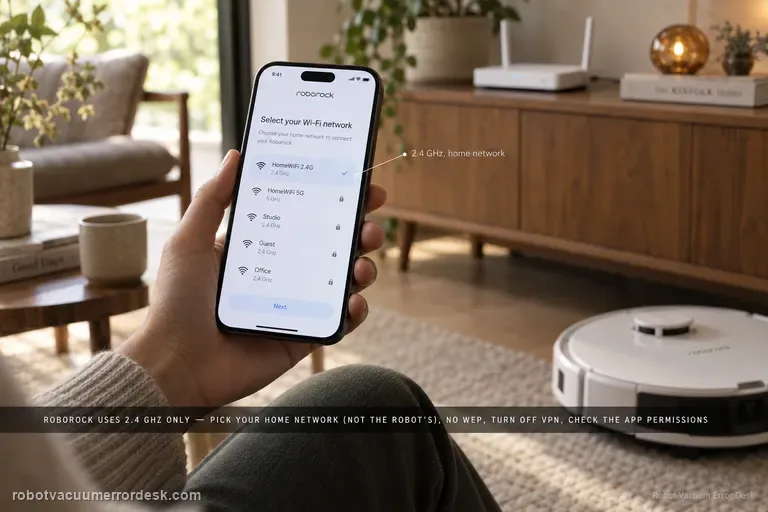
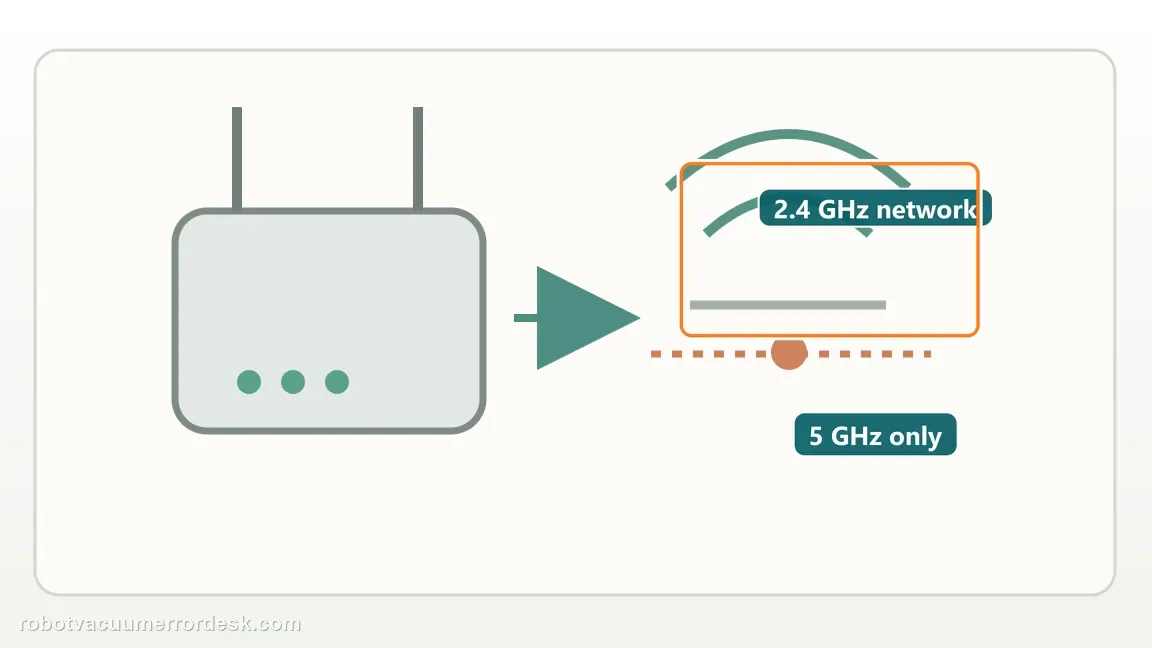
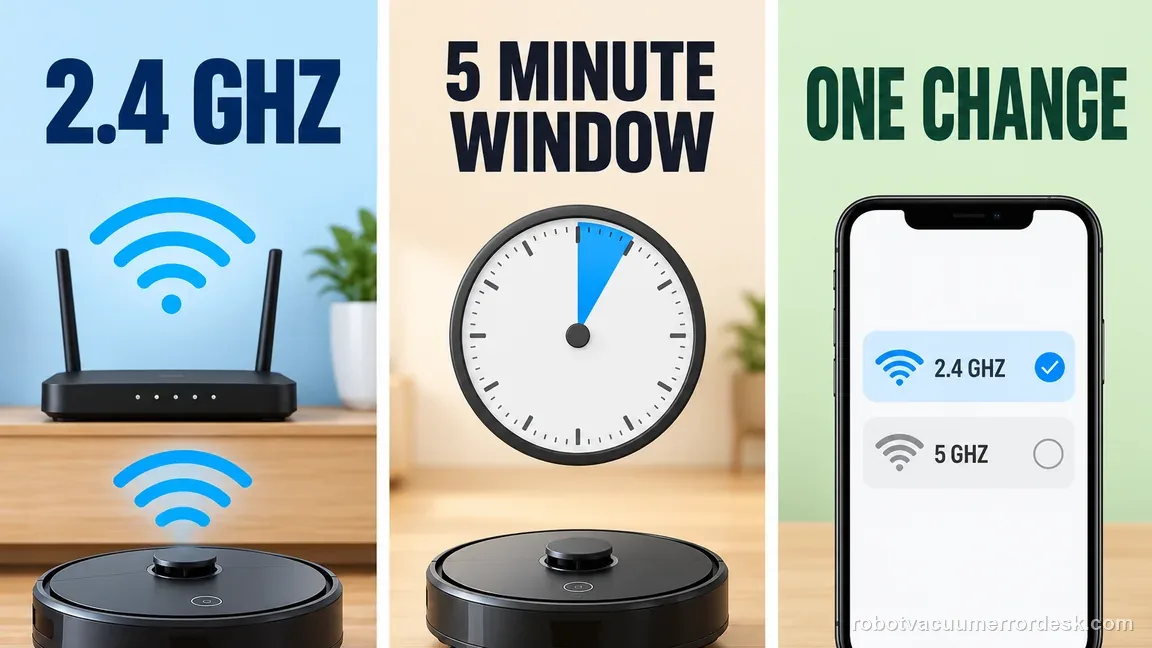
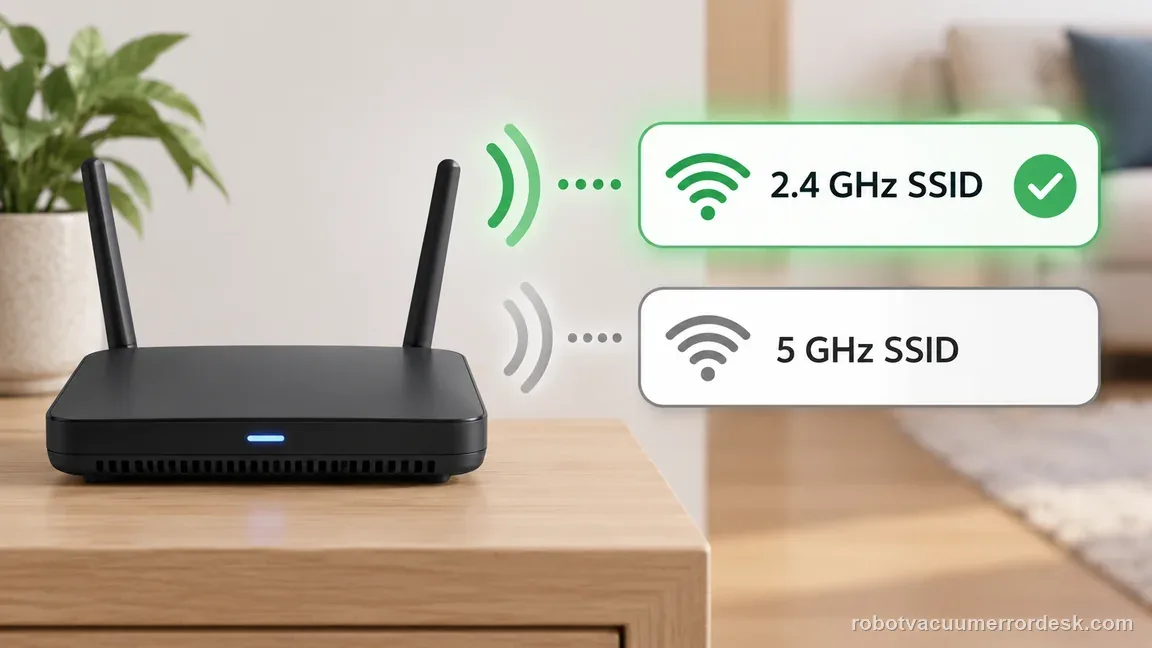
Before resetting anything, inspect the router's available networks. Roborock's Qrevo Curv support material says its robots currently use the 2.4 GHz Wi-Fi band and do not connect directly to a 5 GHz-only network. If the router broadcasts separate names, identify the 2.4 GHz SSID. If only a 5 GHz name appears, enable 2.4 GHz in the router or get help from the router/ISP provider before repeating robot setup.
Use the dedicated Qrevo Curv Wi-Fi reset
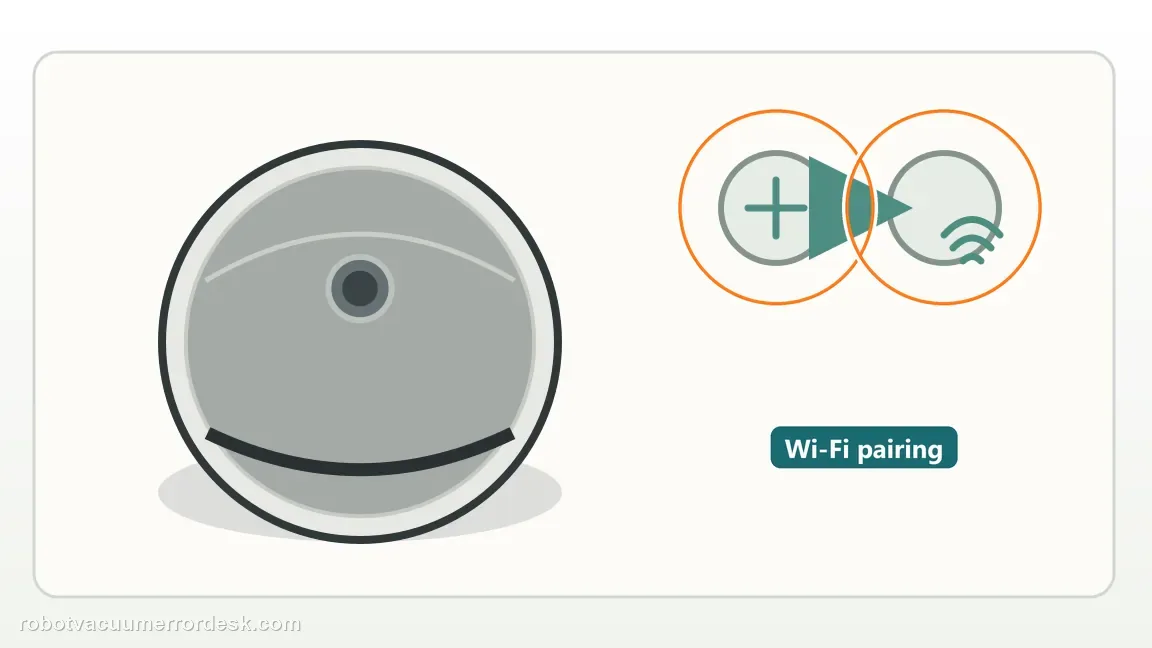
Use the model’s dedicated Wi-Fi reset rather than a factory reset. The current manual says the reset is complete when the power indicator flashes blue slowly and the robot waits for a connection. It also says Wi-Fi is automatically disabled if the robot waits more than five minutes, so reset Wi-Fi again before another pairing attempt after a long pause. This preserves maps and schedules while putting only the network path back into pairing mode.
Pair the phone and robot in strong coverage
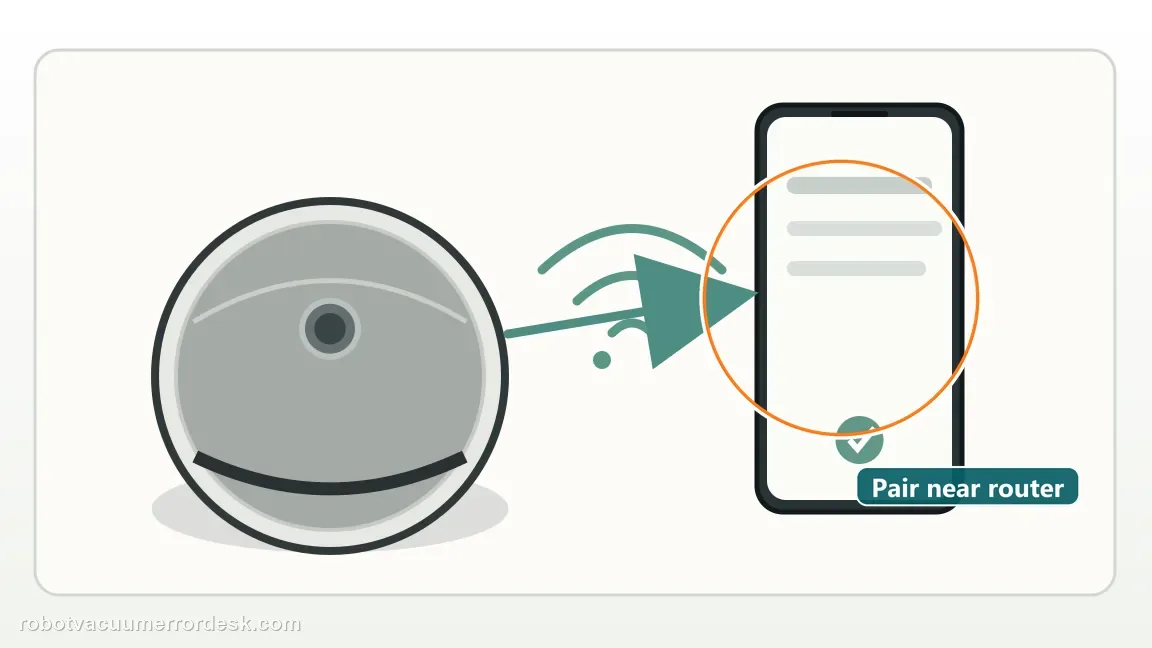
Keep the phone and robot close enough to the access point that weak signal is not another variable. Open the current Roborock app, select the intended 2.4 GHz-capable network, and complete one clean pairing attempt. Do not move the dock, reboot several devices at once, or change multiple router settings during the same test because that makes the result hard to interpret.
Handle dual-band SSIDs deliberately
If the router has separate 2.4 and 5 GHz names, choose the 2.4 GHz network. If it uses one combined SSID, Roborock says to try that network first; if pairing still fails, the next useful action is to separate or enable the bands with help from the router manufacturer or ISP. This is more targeted than deleting maps or factory-resetting the robot.
Verify the connection survives one normal cycle
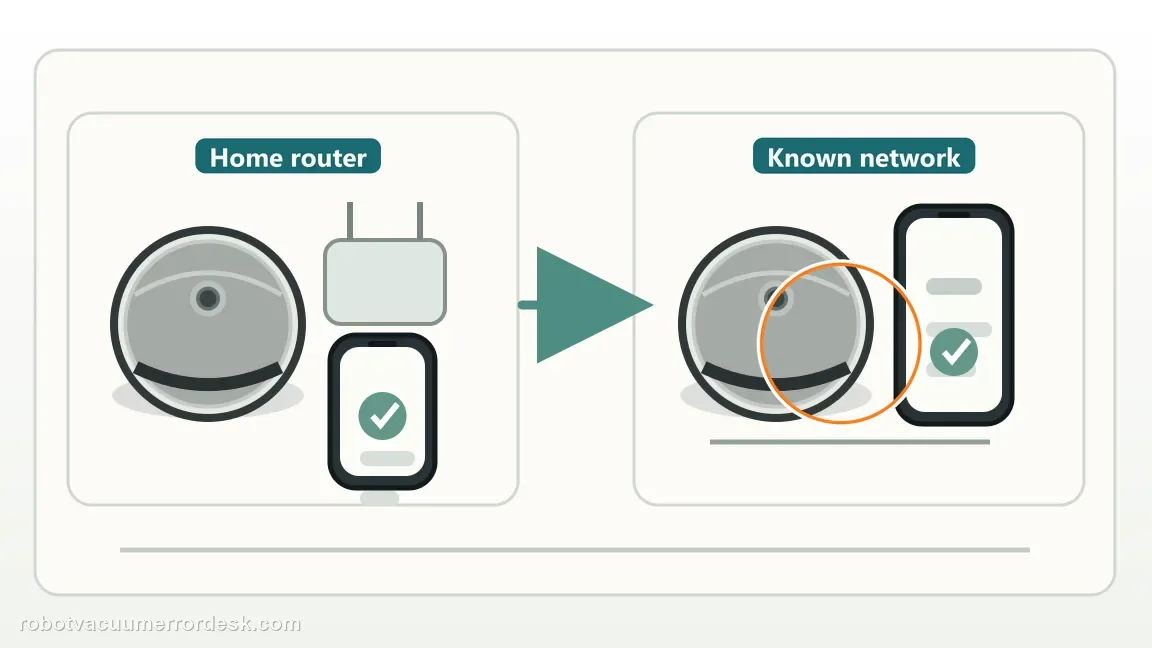
After the robot appears online, leave it connected long enough to confirm that app status remains available through a short cleaning/return-to-dock cycle. A robot that pairs once and then repeatedly disappears on a strong 2.4 GHz network has a different problem from a robot that never enters pairing state, so record the exact stage that fails before contacting support.
Contact Roborock when the Qrevo Curv reaches the documented slow-blue Wi-Fi pairing state, a usable 2.4 GHz network is confirmed, and setup still fails repeatedly. Include router model, whether the SSIDs are separate or combined, and the exact stage where setup stops. Avoid a full system reset unless you intentionally accept resetting broader settings and Roborock support recommends it.
What to collect before contacting support
Give support a reproducible case instead of “it doesn’t work.” That reduces repeated basic troubleshooting and preserves the clues from your tests.
- Exact model name and the error code / voice prompt exactly as shown
- A photo or screenshot of the app error and the time it occurred
- A short list of the checks already completed and what happened after each one
- Router model and whether the 2.4/5 GHz SSIDs are combined or separate
- The pairing stage, elapsed time and whether slow blue flashing appeared
- App version and whether the robot stays online after one normal dock cycle
Manufacturer evidence
Roborock: Qrevo Curv Series User Manual (2026)
The current Qrevo Curv Series manual documents the dedicated Wi-Fi reset, a slow blue-flashing waiting state, 2.4 GHz-only support and automatic Wi-Fi disable after more than five minutes waiting for a connection. Roborock’s current Curv FAQ also explains dual-band router handling. For a combined dual-band SSID, Roborock says to try the shared network first and expose/separate 2.4 GHz if pairing repeatedly fails.
Additional official source: Roborock: Qrevo Curv current FAQ ↗Additional official source: Roborock: Qrevo Curv User Manual (earlier edition) ↗Last editorial review: September 5, 2026Regional note: manufacturer help centers, model suffixes, mains-power requirements and warranty procedures can differ by country. If the source redirects to a local support site, confirm that the model/hardware scope still matches before following a region-sensitive step.
This guide is rated Official manual. See what each evidence label means →
FAQ
Does Qrevo Curv support 5 GHz Wi-Fi?
No. Roborock’s current Qrevo Curv manual says only 2.4 GHz Wi-Fi is supported. If your router exposes separate 2.4 and 5 GHz network names, choose the 2.4 GHz SSID during setup. With a combined dual-band SSID, try it normally first; if pairing repeatedly fails, use the router or ISP controls to make the 2.4 GHz network explicitly available.
Do I need to factory-reset Qrevo Curv for Wi-Fi problems?
No. The manual provides a dedicated Wi-Fi reset specifically for connection problems, so a factory reset is unnecessary as a first step. Use the model’s button combination until the robot announces the Wi-Fi reset and the indicator flashes blue slowly, then add it again in the Roborock app. This keeps the troubleshooting scope on networking instead of wiping unrelated settings.
Why did the Qrevo Curv Wi-Fi pairing light stop waiting?
The current manual says Wi-Fi is automatically disabled if the robot waits more than five minutes for a connection. If setup was interrupted or the app sat too long, perform the dedicated Wi-Fi reset again and restart pairing promptly. That timeout can look like a second network failure even when the router settings did not change, so record the pairing stage before changing the router.
What should I do with a dual-band router during Qrevo Curv setup?
Roborock says its robots currently use 2.4 GHz Wi-Fi. If your router has separate SSIDs, select the 2.4 GHz one. If both bands share one SSID, try the combined network first; when pairing fails repeatedly, use the router or ISP settings to expose or separate 2.4 GHz. Avoid changing encryption, DNS and band settings simultaneously because that makes the failed condition harder to isolate.
How do I know whether the Qrevo Curv Wi-Fi fix is stable?
Do not stop at “device added.” After pairing, confirm the app can see the robot after it leaves and returns to the dock and after the phone reconnects to normal home Wi-Fi. A stable result survives that ordinary cycle without another Wi-Fi reset. If it drops offline again, record whether local cleaning still works and whether the app loses only cloud/network control before contacting Roborock.
Did this diagnostic narrow the fault?
Use this as an editorial signal, not a popularity counter. If a feedback address is configured you can email the note; otherwise you can copy it for your own support record.