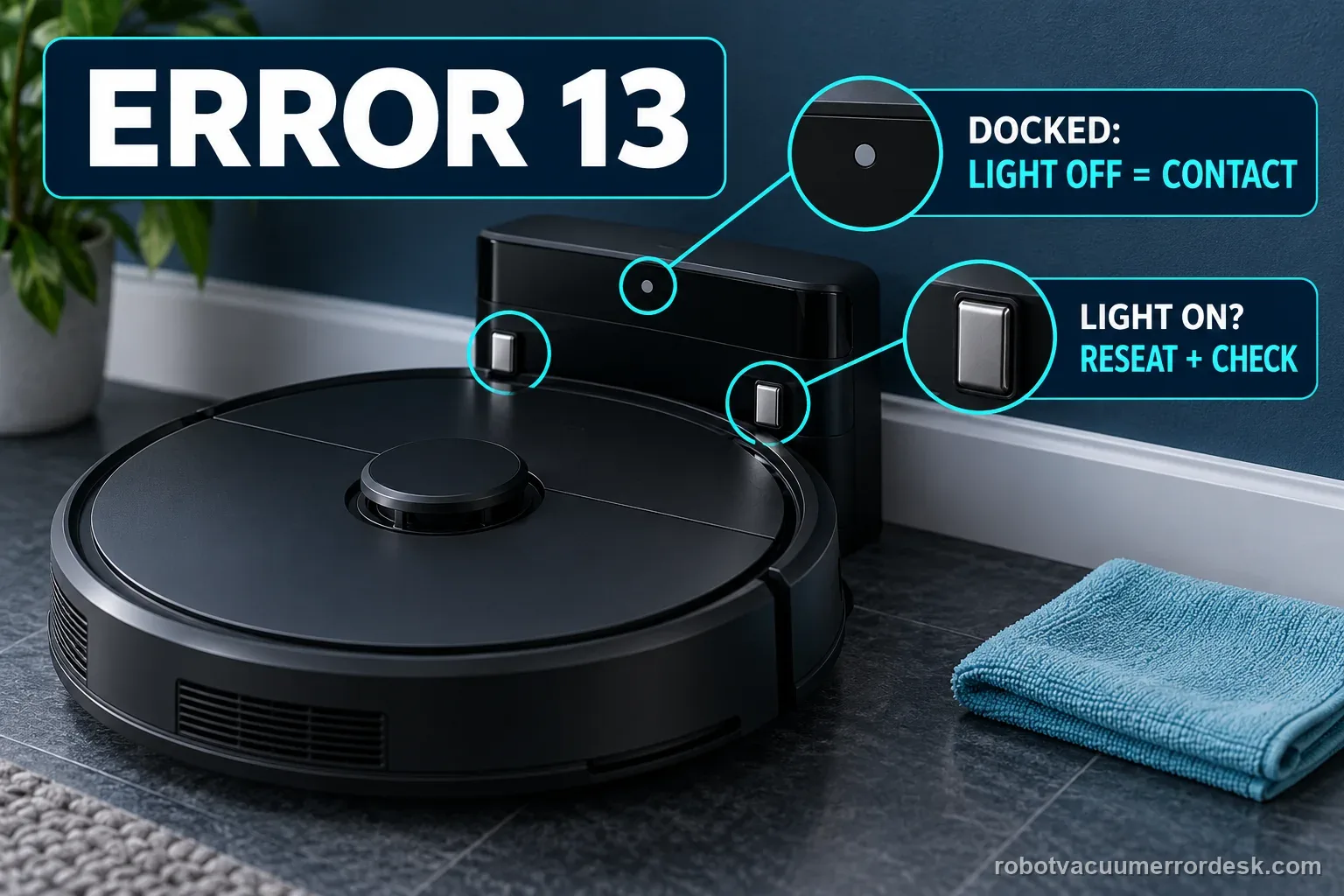
Roborock Error 13 on the Saros 20 Sonic is a charging-contact diagnosis. The model support page says the dock indicator should be OFF when the robot is docked and charging correctly; if it stays ON, reposition the robot, clean the contacts on robot and dock, then prove dock power and the wall outlet. Use the light state as the key pass/fail signal instead of replacing a battery before contact alignment and power are proven.
What does the dock light do while the robot is seated?
Confirm the exact model and exact code, light pattern or symptom.
Run the lowest-risk physical or software check first.
Use each pass condition to decide what the result actually narrows down.
Does this match your problem?
- The Saros 20 Sonic reports Error 13.
- The robot reaches the dock but charging does not start reliably.
- The dock indicator stays on when the robot appears to be seated.
- You are diagnosing error 13 on a Roborock Saros 20 Sonic and want the exact model support path rather than a generic reset list.
Error 13 has its own dry-cloth checks. If the observed symptom is instead a return-to-dock failure or a different model’s Wi-Fi setup, use its separate guide: Saros 20 cannot-find-dock checks · Roborock S7 map-orientation checks · Qrevo Curv Wi-Fi pairing steps
Most likely causes
Robot and dock contacts are not aligned
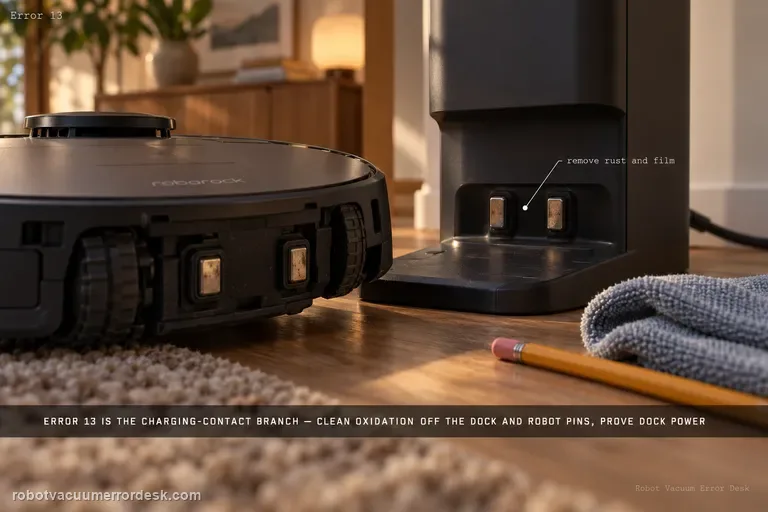
Dust, film or oxidation on the charging contacts
Dock power cable or outlet problem
If clean contacts still leave the dock indicator lit, the remaining evidence points to dock power, alignment or a charging-path fault rather than an unproven battery diagnosis.
What your test result means
| What you observe | What it narrows down | Next move |
|---|---|---|
| Dock indicator stays ON with robot seated | Charging contacts are not making the expected connection | Reposition the Saros until the indicator turns OFF. |
| Contacts show dirt, stains or oxidation | Electrical contact quality is suspect | Clean robot and dock contacts, then reseat. |
| Indicator is ON even after cleaning/repositioning | Dock power or deeper charging fault remains | Check cable, outlet and dock power. |
| Different outlet restores charging | Original outlet/power path was the cause | Keep the working power source and monitor. |
| Indicator never turns OFF with clean contacts and proven power | Owner-level charging checks are exhausted | Escalate with indicator/contact video. |
Compare the Saros 20 Sonic charging result
Use the dock indicator first, then compare real battery change. These observations narrow the charging path; they do not identify a failed component by themselves.
| Observed result | What it supports | Next useful action |
|---|---|---|
| Indicator turns OFF when the robot is seated | Roborock says the charging contacts are connected and charging is working. | Record the starting battery level and confirm that it rises during an undisturbed check. |
| Indicator stays ON after normal reseating | The expected charging-contact connection has not been made. | Clean both contact sets with a soft, dry cloth, then check the cable and outlet. |
| Indicator is OFF but the displayed battery level is unchanged | Contact alignment passed, but measurable charge progress is not yet established. | Record the elapsed time and readings; contact Roborock if the repeatable result remains flat. |
| Another outlet restores normal dock behavior | The original external power path may explain the failure. | Keep the dock setup stable and record which outlet changed the result. |
Two illustrative Error 13 charge records
The readings below demonstrate a useful before/after note. They are examples only, not Roborock charge-rate standards or a required test duration.
Example A: contacts pass and the battery rises
- The dock indicator is ON before docking and turns OFF when the Saros 20 Sonic is seated.
- The app shows 22% at the start and 24% after an illustrative 30-minute undisturbed interval.
- No Error 13 returns during that observation.
What it shows: The indicator and percentage both support that charging began in this example. Record the readings; 30 minutes and the two-point change are not a manufacturer threshold.
Example B: contact light passes but the reading stays flat
- Both contact sets are clean and dry; the dock indicator turns OFF while the robot is seated.
- The displayed level is 41% before and 41% after the same illustrative 30-minute interval.
- The exact alert and both readings are saved for Roborock.
What it shows: This repeatable observation does not prove a battery failure. Stop repeating tests and send Roborock the light state, elapsed time and readings.
Saros 20 Sonic Error 13 decision flow
Follow the exact model support path: use the indicator to test contact, then check clean contacts and external dock power before asking support to evaluate a deeper charging fault.
- 1Is the exact robot a Saros 20 Sonic and is the alert Error 13?
YESYes: save the exact alert and check the dock indicator while the robot is seated.
NOStop and look up the full model and alert before using this charging path.
- 2Does the dock indicator turn OFF when the robot is seated?
YESYes: contact is established; record the battery level and check for actual gain.
NOMake one normal position adjustment. If it stays ON, unplug the dock before dry-cleaning both contact sets.
- 3Are the contacts clean and the external power path firm?
YESYes: reseat normally and observe the indicator and battery reading once.
NOUse a soft, dry cloth on accessible contacts; seat both cable ends and compare a known-good outlet.
- 4Does Error 13 or a flat battery reading persist?
YESYes: stop owner checks and send Roborock the evidence.
NORecord the changed condition and monitor normal charging.
Ordered checks before contacting support
- Confirm Saros 20 Sonic and save the exact Error 13 screen.
- Record whether the dock indicator is ON before docking and OFF or ON with the robot seated.
- Photograph both accessible contact sets before cleaning; use a soft, dry cloth only.
- Check both external power-cable connections and compare a known-good wall outlet if needed.
- Record the displayed battery percentage and elapsed observation time without moving the robot.
- If the failure repeats, send Roborock the alert, indicator video, contact photos and readings; do not open the dock or battery pack.
Common mistakes to avoid
- Replacing a battery before using Roborock’s indicator, contact and dock-power checks.
- Cleaning the contacts with a wet wipe or damp cloth despite the Saros 20 Sonic manual’s dry-cloth instruction.
- Bending, sanding or pressing charging contacts to force a connection.
- Opening the dock or battery pack to measure or repair internal components.
- Continuing to reposition the robot after the indicator is already OFF.
- Treating an illustrative time interval or one battery reading as a manufacturer pass threshold.
A factory reset does not establish charging contact. Check the dock indicator, clean accessible contacts with a soft, dry cloth, and verify external dock power first. Do not open the dock or battery pack.
Run these checks in order
Read the dock indicator with the Saros 20 Sonic seated
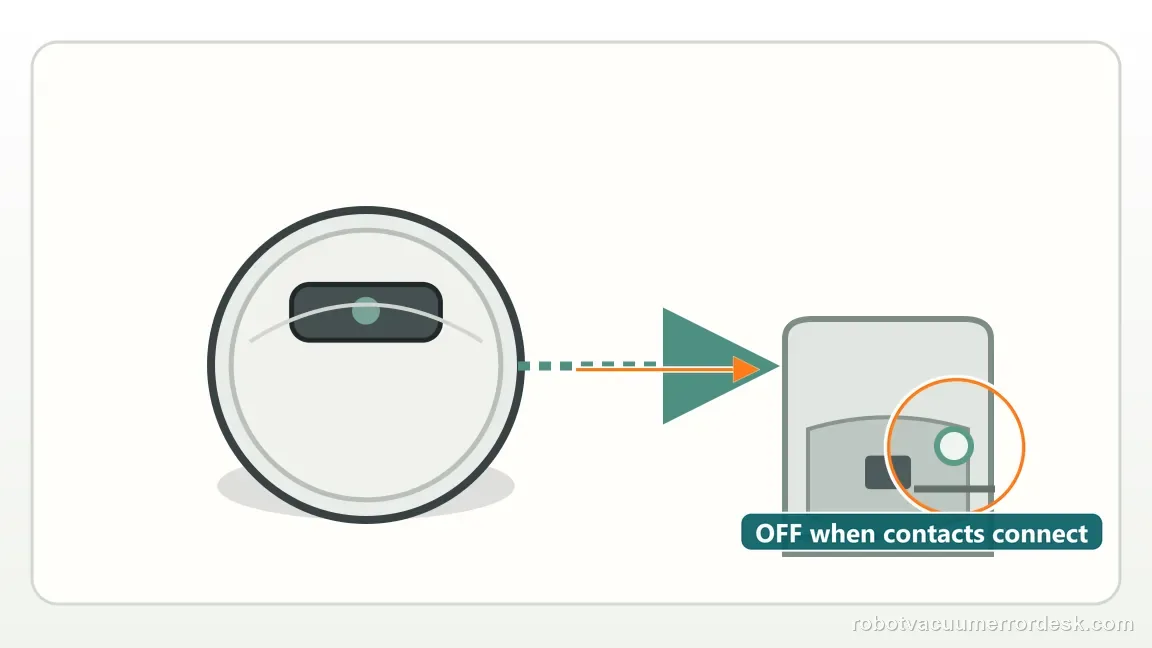
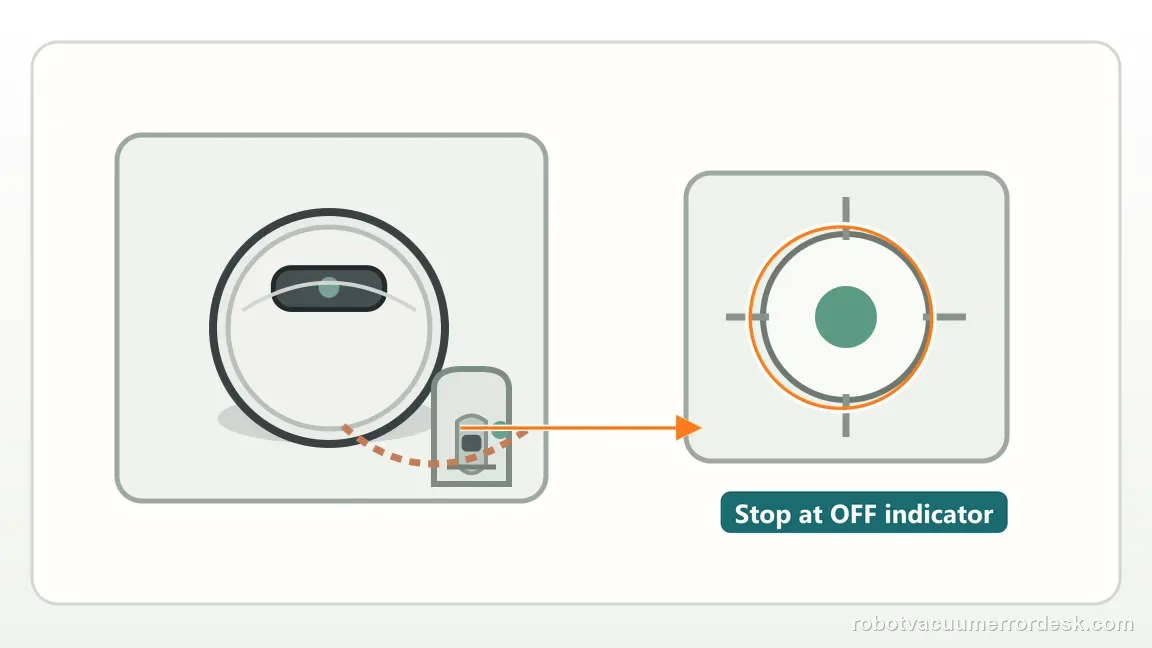
Place the robot normally on the dock and watch the indicator. Roborock says OFF while docked means the charging contacts are connected and charging is working; ON means the contacts are not properly connected. Use that state before making any battery assumption.
Clean both charging-contact sets
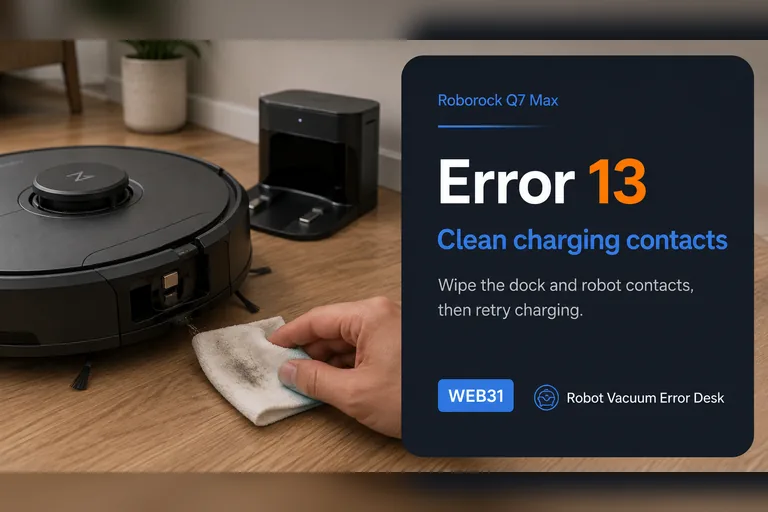
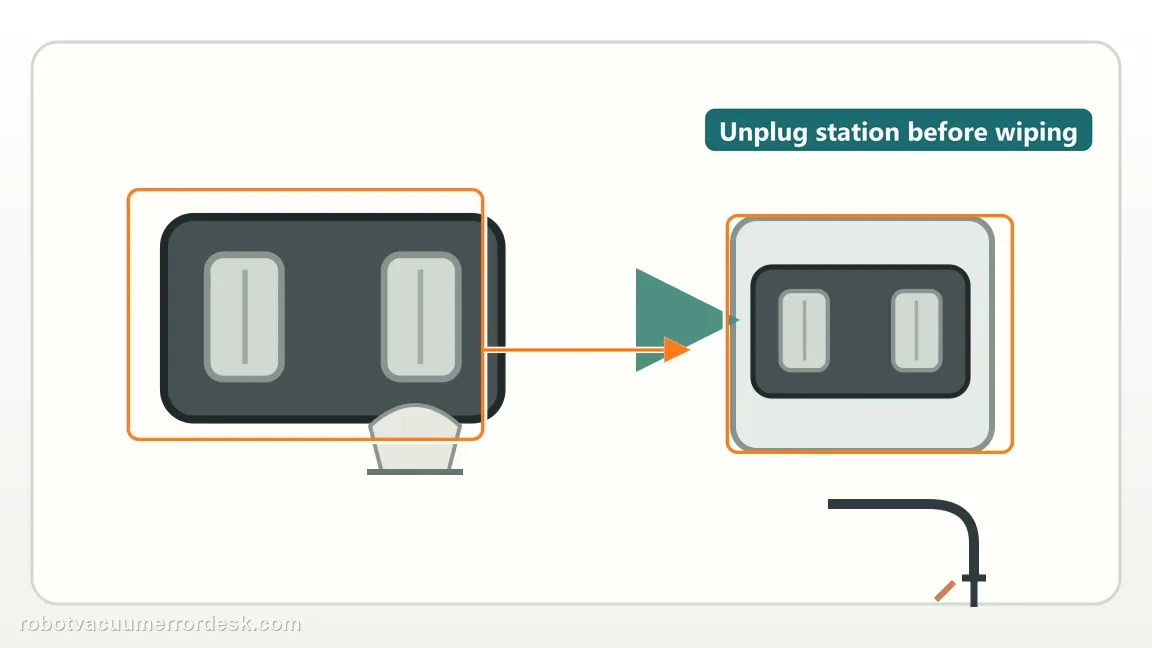
Inspect the robot and dock contacts for dust, film, stains or oxidation. Unplug the dock before wiping its accessible contact surfaces. Use a soft, dry cloth on the robot and dock contacts; the Saros 20 Sonic manual says not to use a damp cloth, wet wipe or wet hands on them. If a stain or oxidation remains, stop and ask Roborock rather than scraping, sanding or bending the contact.
Re-seat only until the indicator proves contact
If the indicator stays ON, make small normal alignment corrections until it turns OFF or the failure is repeatable. Once the light is OFF, stop repositioning; the contact/alignment branch has passed and further nudging will not test a new variable.
Prove the dock power path
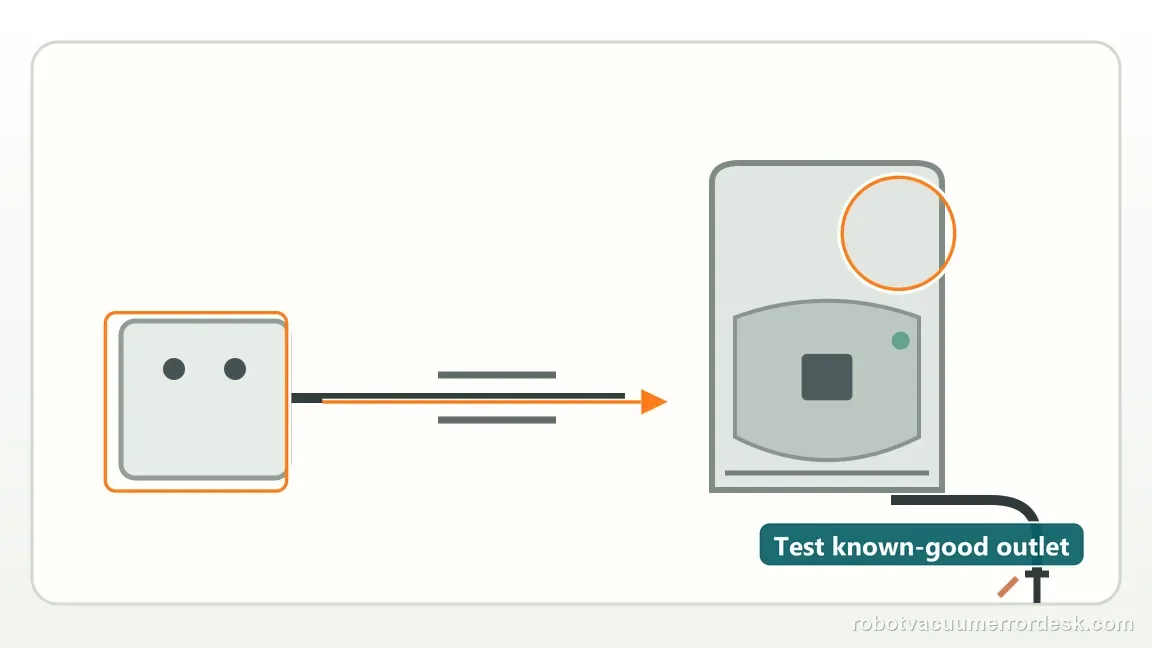
Firmly seat the dock power cable at the station and wall, then compare a known-good outlet if needed. Good robot-to-dock contact cannot charge the robot if the station itself lacks stable input power.
Confirm actual battery gain, not only a charging icon
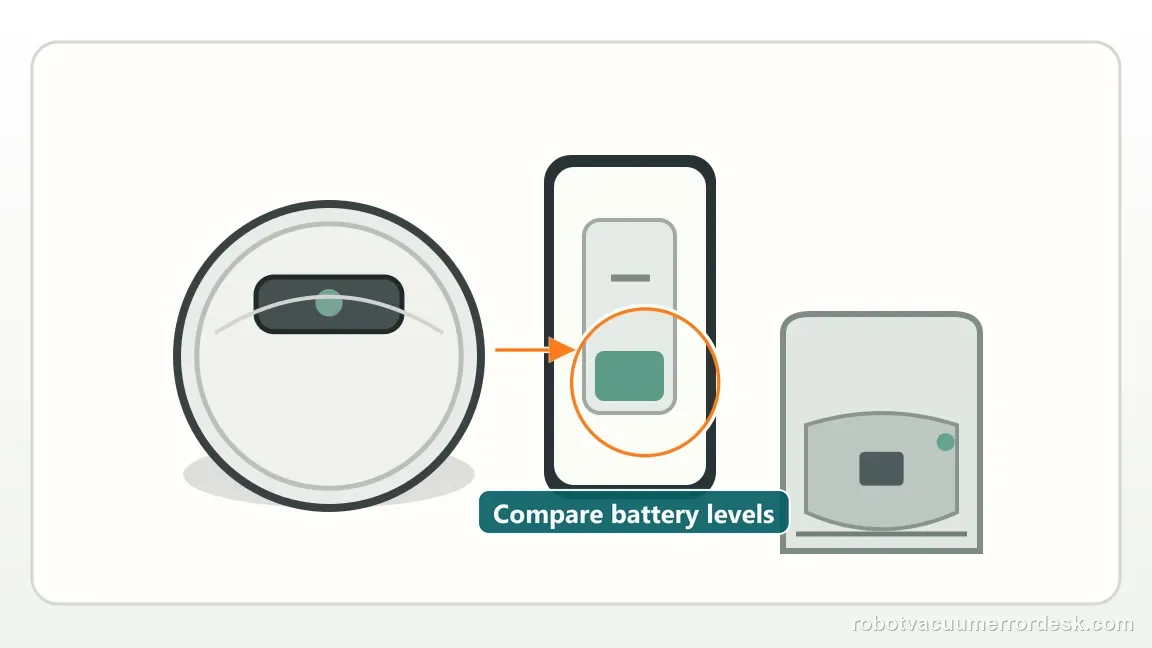
With the indicator OFF, note battery percentage and leave the robot undisturbed for a meaningful interval. A rising percentage confirms real charge progress. An OFF dock light with no battery gain is stronger evidence of a deeper charging-path fault.
Capture the first failed condition and escalate
If Error 13 returns after clean contacts, proven indicator state and dock power, record the dock light, battery timeline and exact alert. Do not sand or bend contacts, open the dock or replace the battery before Roborock evaluates the repeatable evidence.
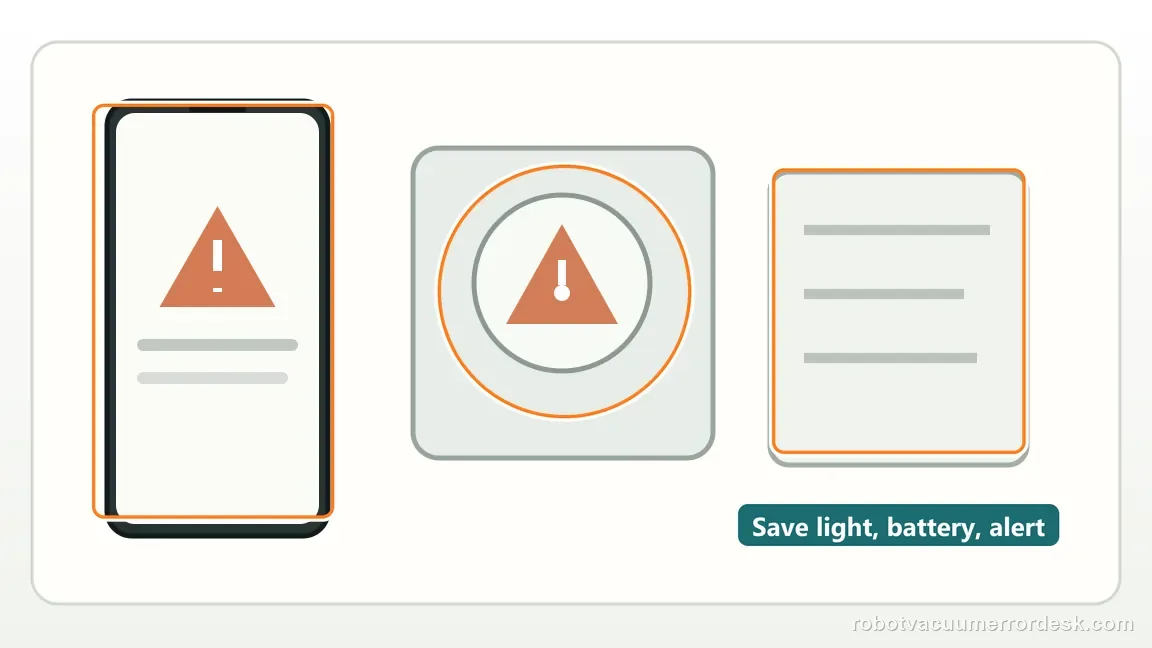
Escalate when Error 13 persists after both contact sets are clean, the dock indicator has been used to prove or disprove contact, the power cable/outlet are verified and a timed charge test still fails. Send the indicator state, contact photos and battery timeline. Do not bend contacts, open the dock or replace a battery merely because Error 13 appeared.
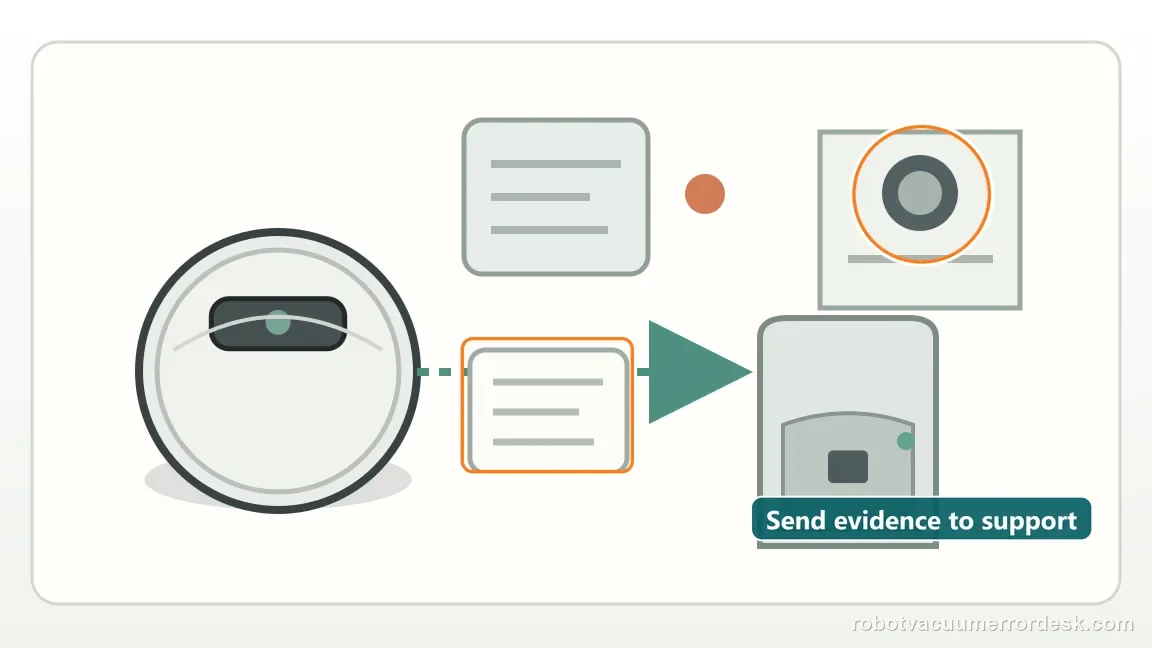
What to collect before contacting support
Give support a reproducible case instead of “it doesn’t work.” That reduces repeated basic troubleshooting and preserves the clues from your tests.
- Exact model name and the error code / voice prompt exactly as shown
- A photo or screenshot of the app error and the time it occurred
- A short list of the checks already completed and what happened after each one
- Robot serial number and exact Saros 20 Sonic model name
- Dock indicator state before docking and while the robot is seated
- Photos of both clean, dry contact sets and a note of the external cable/outlet check
- Starting and ending battery readings with the elapsed observation time
- A short video of Error 13 and the indicator if the failure repeats
Manufacturer evidence
Roborock Saros 20 Sonic troubleshooting: Error 13
Roborock’s Saros 20 Sonic Error 13 page says the dock indicator should be OFF with the robot seated when charging contacts are connected, and ON when they are not. It directs owners to reposition the robot, clean both contact sets, check the dock cable and outlet, then confirm the light turns OFF. The Saros 20 Sonic manual specifies a soft, dry cloth for charging contacts and warns against damp cloths, wet wipes or wet hands; this guide follows that model manual for cleaning.
Additional official source: Roborock Support Center: Help & Manuals ↗Additional official source: Roborock Support: Error 13 ↗Last editorial review: October 19, 2026Regional note: manufacturer help centers, model suffixes, mains-power requirements and warranty procedures can differ by country. If the source redirects to a local support site, confirm that the model/hardware scope still matches before following a region-sensitive step.
This guide is rated Official model support. See what each evidence label means →
FAQ
Does Error 13 mean I need a new battery?
No. Roborock’s first-line Saros 20 Sonic path checks charging-contact alignment, contact cleanliness and dock power before any battery conclusion. Seat the robot and watch the dock indicator: if it stays ON, the expected charging connection has not been made. Get the indicator to turn OFF, then confirm the battery percentage actually rises before considering a deeper charging fault.
Why is the dock light useful?
It turns a vague “not charging” complaint into an observable test. Roborock says the Saros 20 Sonic dock indicator should be OFF when the robot is seated with proper charging contact. If it stays ON, reposition the robot and clean both contact sets. If it turns OFF but battery percentage still does not rise, the diagnosis moves beyond simple alignment.
Why does my Roborock Saros 20 Sonic show Error 13?
Error 13 means the charging path is not being established correctly. On the Saros 20 Sonic support page, Roborock uses the dock indicator as a direct test: it should turn OFF when the robot is docked with good contact. Reposition the robot, clean both charging-contact sets, then verify dock power and the outlet before considering battery or dock replacement.
Should the Saros 20 Sonic dock light be on while charging?
Roborock says the dock indicator should be OFF when the Saros 20 Sonic is docked and charging correctly. If it remains ON, the contacts are not properly connected. Slightly reposition the robot first, then clean the contacts and verify the dock cable and wall power. Treat the indicator state as the pass condition for the charging-contact test.
What should I record if Saros 20 Sonic error 13 still happens?
Record the exact Error 13 alert, whether the dock indicator is ON or OFF while the robot is seated, and the battery percentage before and after an undisturbed charge interval. Add clear photos of both charging-contact sets. That evidence distinguishes poor contact, dock-power trouble and a deeper charging-path fault much better than a list of unrelated resets.
Did this diagnostic narrow the fault?
Use this as an editorial signal, not a popularity counter. If a feedback address is configured you can email the note; otherwise you can copy it for your own support record.