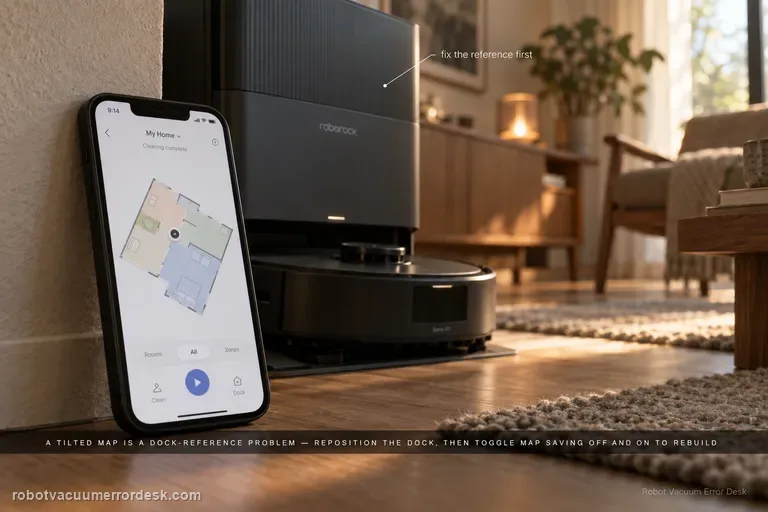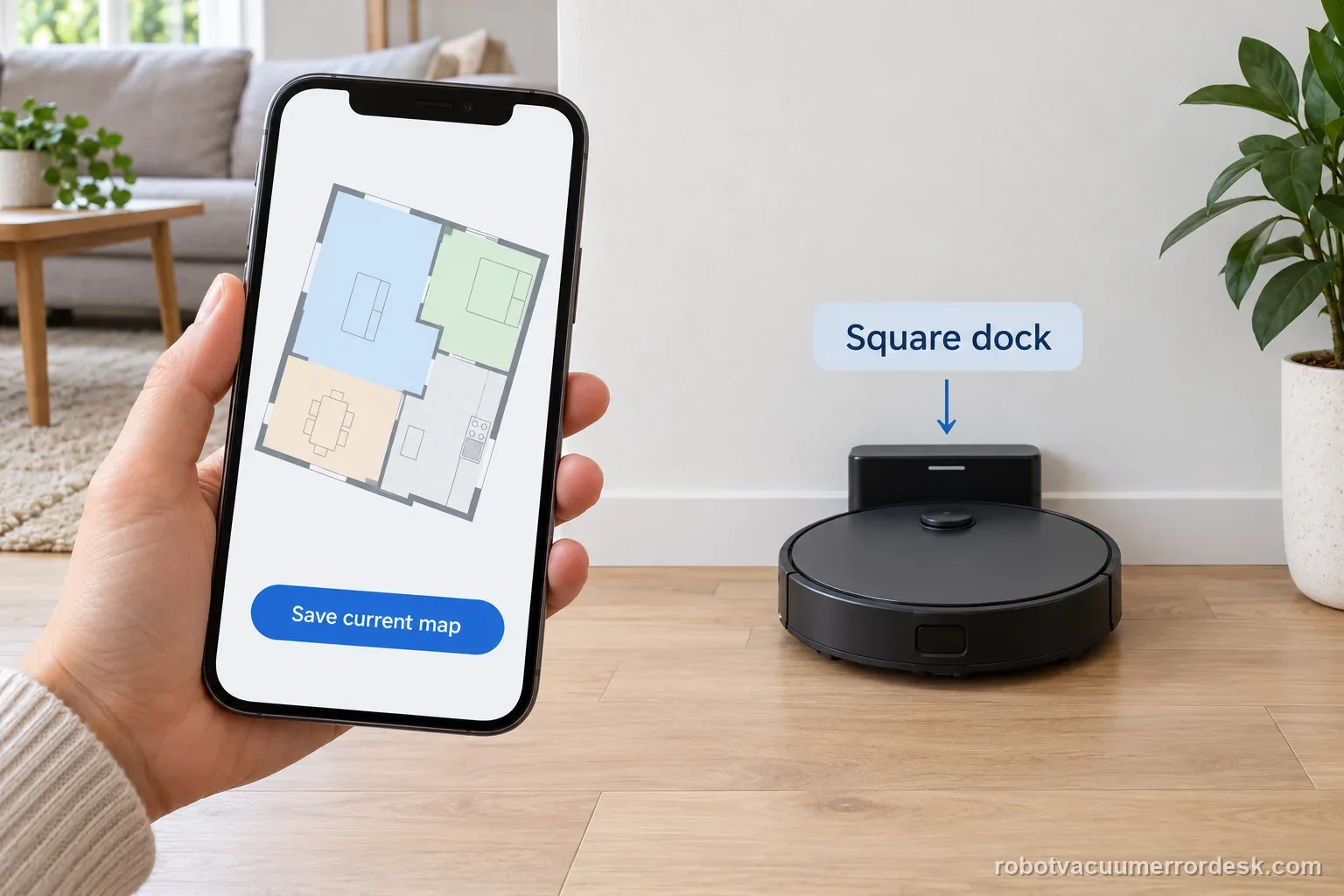
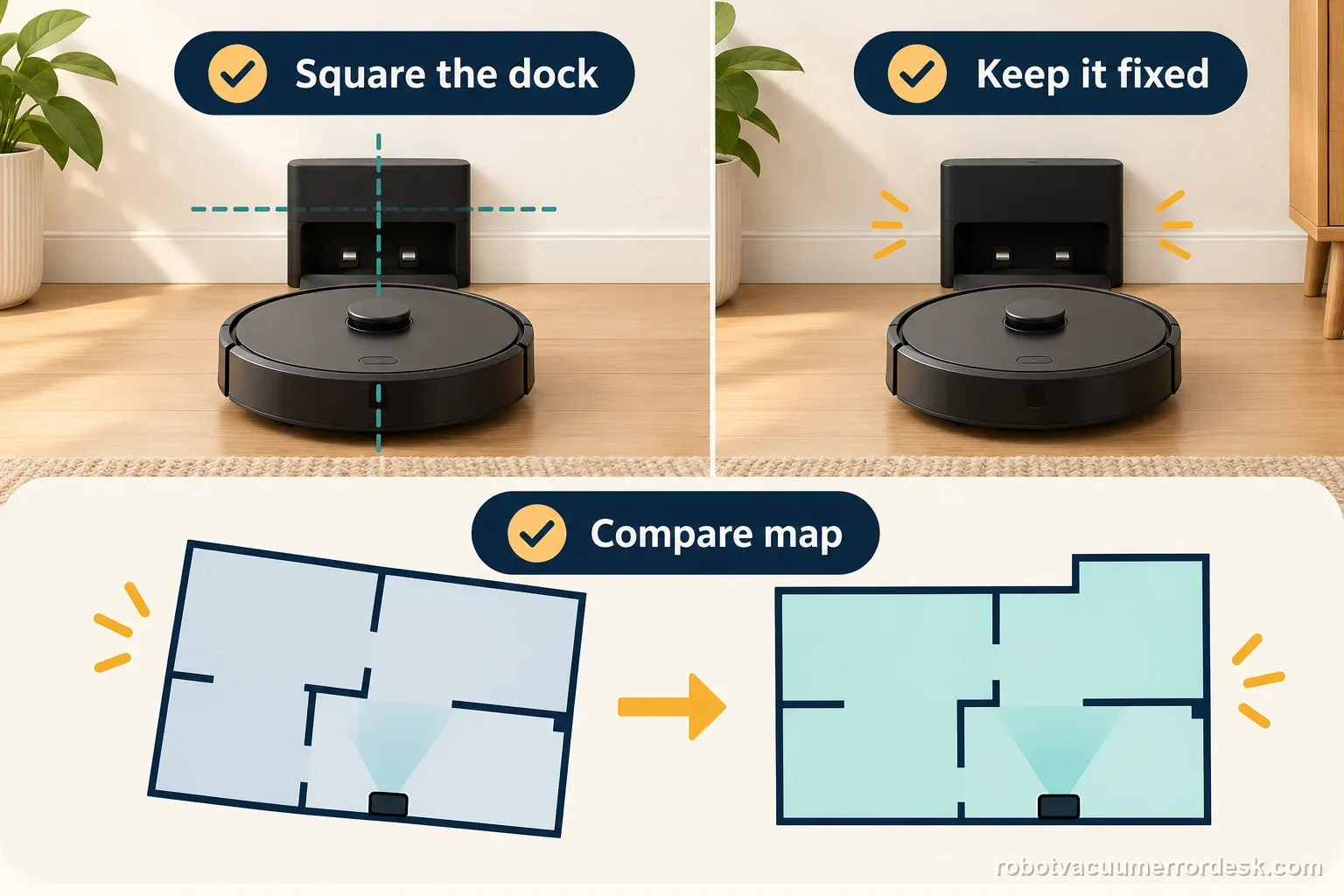
A tilted S7 map does not prove a LiDAR fault. Roborock says dock placement can cause the angle: save a screenshot, place the dock square with clear space, and run one normal clean without moving it. If the saved map stays tilted, switch Map Saving off and on for the next clean, then compare the new map before restoring room edits.
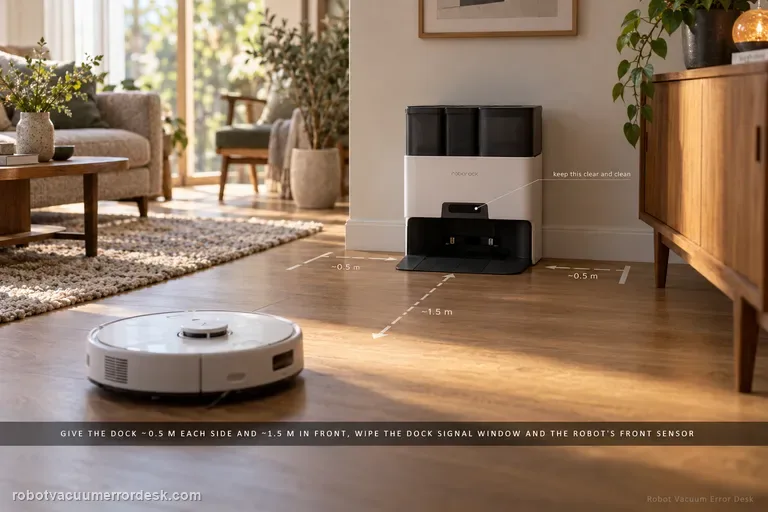
Roborock says dock placement can cause a map angle and recommends a square position with 0.5 m clearance at each side and 1.5 m in front. Its general wrong-angle guidance also lists turning Map Saving off and on to create a fresh map; this is not an S7-only repair guarantee.
Check orientation before replacing a saved map
| Observation | What it separates | Next action |
|---|---|---|
| Map is rotated but room outlines match | Dock alignment or reference direction | Square the dock and compare next cleanup |
| Map shifts after dock was moved | Reference location changed | Return the dock to a stable position |
| Map itself is distorted or overlapping | Mapping quality differs from rotation | Use the map-generation checks |
| Robot drives correctly but display is rotated | Presentation and route differ | Save screenshots before changing Map Saving |
Confirm the exact model and exact code, light pattern or symptom.
Run the lowest-risk physical or software check first.
Use each pass condition to decide what the result actually narrows down.
Confirm this is the right issue
- The in-app map is noticeably tilted instead of horizontal/vertical.
- The robot otherwise localizes and cleans.
- The issue started after the dock was moved.
Map orientation trouble does not explain every movement symptom. If the robot reports another code or a brush itself stops, follow that separate diagnostic path: Roborock Saros 20 Error 13 · Shark Matrix side-brush stuck checks
What’s most likely causing this
Dock is not square to a straight wall or shifted after mapping
Saved map was created from a poor or changed dock reference
Robot was carried or interrupted while establishing the map reference
Map Saving state needs a clean rebuild after physical placement is corrected
A broader localization fault if a new map is still rotated from a fixed, square dock
Reading your test result
| What you observe | What it narrows down | Next move |
|---|---|---|
| Map became tilted soon after the dock was moved | The saved reference and physical dock pose no longer agree. | Return the dock to a stable square position and test once before touching Map Saving. |
| Map is tilted but nearby docking and cleaning are otherwise normal | Navigation hardware may still be functioning; orientation/reference is the stronger branch. | Run one full cycle from the corrected, unmoved dock and compare the display. |
| Existing map straightens after dock correction | The problem was environmental/reference-related rather than a corrupted map. | Keep the dock fixed and retain the current saved map. |
| Old map stays tilted but a newly built map is straight | Saved map state was the remaining variable. | Recreate only the necessary room edits and avoid moving the dock afterward. |
| Fresh map is still rotated from the same square dock | Repeated remapping has ruled out the simplest saved-state explanation. | Send Roborock the before/after screenshots, dock photo and test history. |
Use one controlled cleanup before rebuilding the map
The tilt began after moving the dock
Illustrative example, not repair-rate data: the map looked square before one dock move. Save 1 screenshot, place the dock square against a straight wall with 0.5 m clear on each side and 1.5 m in front, then run 1 normal cleanup from that fixed position. If the saved map looks right afterward, keep it and record the result instead of rebuilding.
The map stays tilted after the dock is fixed
Illustrative example, not repair-rate data: after 1 normal cleanup, the map still looks tilted. Keep the before screenshot, switch Map Saving off and back on once, and let the next normal cleanup create a comparison map. Compare the 2 screenshots. If the angle remains, stop remapping and send Roborock 2 screenshots and 1 photo of the dock against its wall.
Illustrative decision sequence. These are observations, not measured repair success rates.
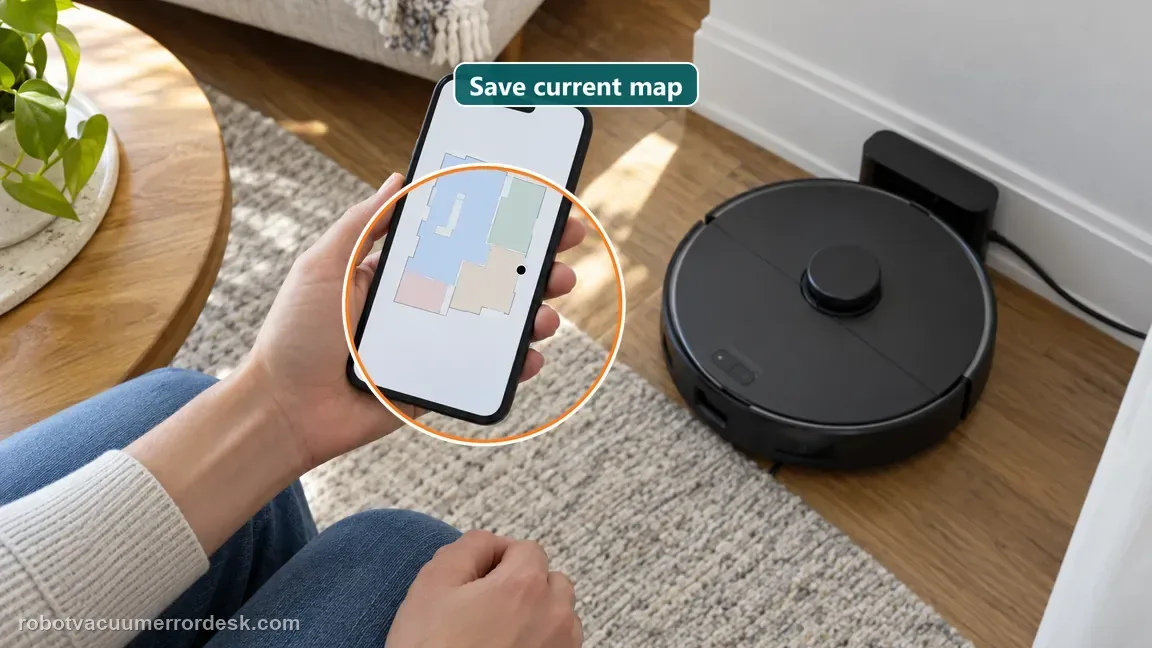
- Save the current map evidence
- Stabilize dock placement
- Use Map Saving toggle only for a planned next cleanup
Do not factory-reset by default. Use the exact model’s reboot/network-reset procedure only when the manufacturer path calls for it.
Work through these checks in order
Photograph the current map before changing anything
Save a screenshot showing the map angle, dock icon and room boundaries. That gives you a baseline and prevents a common troubleshooting mistake: deleting the only evidence before you know whether the dock, the saved map or localization is responsible. Also note whether the tilt appeared immediately after the dock was moved or after a remap.
Square the S7 dock to a straight wall
Put the dock on a level floor, flush and square against a straight wall rather than diagonally across a corner or angled skirting. Keep the approach free. Roborock’s docking guidance calls for roughly 0.5 m clear on each side and 1.5 m in front, which also gives the robot a cleaner reference while it leaves and returns.
Keep the dock fixed for the whole diagnostic run
Do not slide, rotate or relocate the dock after the test begins. A map created around one dock pose and then judged against a second pose does not isolate the cause. Start the S7 from the corrected dock, avoid carrying it, and let it establish its position naturally.
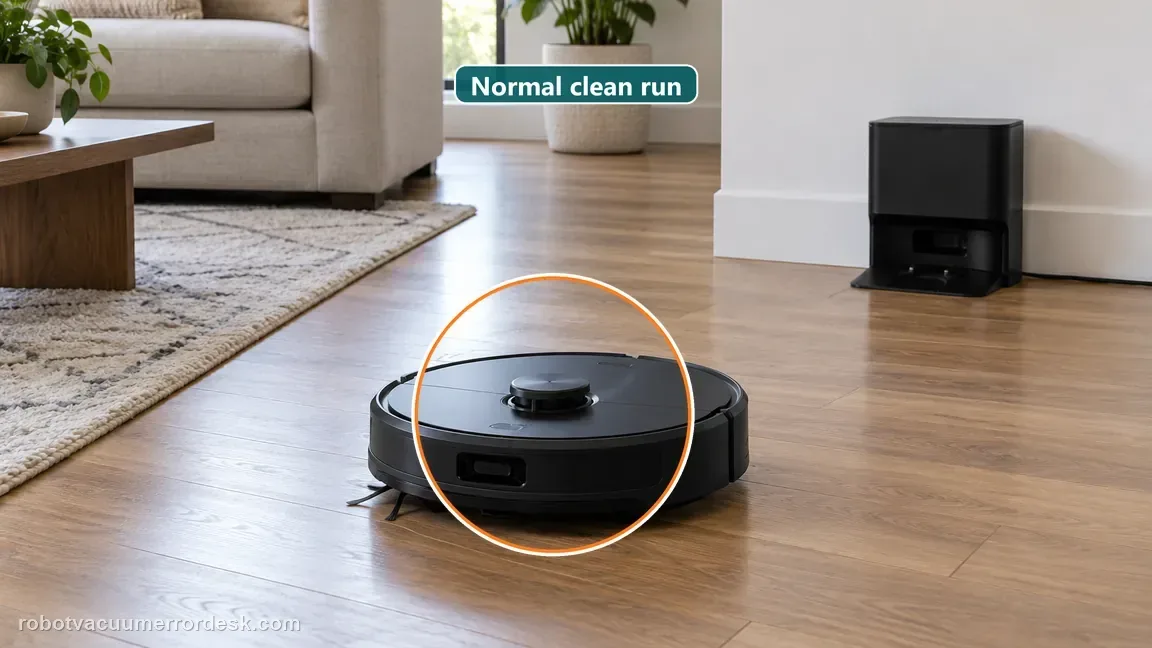
Run one ordinary cleanup before remapping
Let the S7 clean and return normally from the corrected reference. If the display straightens without deleting the map, the useful fix was the dock/reference condition and there is no reason to throw away room edits, zones or no-go work.
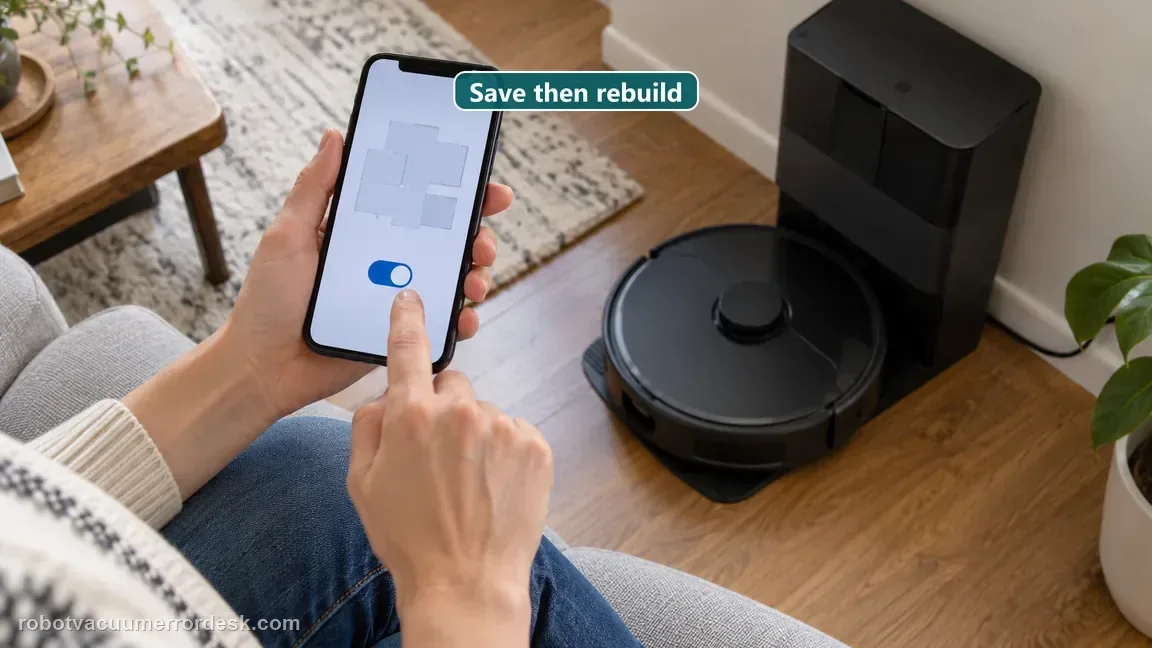
Rebuild Map Saving only after placement is proven
If the angle remains, follow Roborock’s map-reset guidance: switch Map Saving off and back on, then allow the next cleanup to create a fresh map. Keep doors and the dock condition consistent through the run so the new map is a clean comparison, not another mixed-variable test.
Judge the new map before restoring room edits
Before recreating detailed room names, zones and no-go areas, check whether the new map itself is square and whether the dock icon sits where the physical dock actually is. If a fresh map is still rotated from a known-good dock reference, document it and stop repetitive remapping.
Contact Roborock if a brand-new map remains rotated even though the dock is square, fixed and unobstructed and the robot was not carried during mapping. Include the old and new map screenshots plus a photo of the dock against the wall. Repeatedly deleting maps after that point adds little diagnostic value and can erase useful evidence.
Compare the map and dock in one record
| Stage | Question to answer | Evidence to keep |
|---|---|---|
| Before change | Saved orientation and map | Screenshot |
| Dock | Wall position and clearance | Wide photo |
| Next cleanup | Start point and route | Task history |
| After cleanup | Map angle and room match | New screenshot |
Before you contact support, gather this
A reproducible case moves a support call past the basic troubleshooting script faster than “it doesn’t work” does, and it keeps the clues from your own tests on record.
- Exact model name and the error code / voice prompt exactly as shown
- A photo or screenshot of the app error and the time it occurred
- A short list of the checks already completed and what happened after each one
- Firmware/app version if the issue began after a software change
Where this comes from
Roborock map at a wrong angle
Roborock’s general wrong-angle article says dock placement can cause the orientation, gives 0.5 m side and 1.5 m front clearance, and lists switching Map Saving off and on to create a fresh map. It is general support guidance rather than an S7-only repair guarantee. The S7 FCC manual separately says Spot Clean returns to its start and a significant position change can trigger map regeneration; this guide therefore uses a normal clean from a fixed dock for the comparison.
Additional official source: Roborock S7 FCC user manual ↗Last editorial review: October 13, 2026Regional note: manufacturer help centers, model suffixes, mains-power requirements and warranty procedures can differ by country. If the source redirects to a local support site, confirm that the model/hardware scope still matches before following a region-sensitive step.
This guide is rated Official model support. See what each evidence label means →
Questions people ask
Why is my Roborock S7 map suddenly tilted at an angle?
A sudden tilt can follow a changed dock reference. Roborock says dock placement can affect map orientation. Save a screenshot, square the dock to a straight wall, keep it fixed, then run one normal cleanup before rebuilding the saved map. A screen angle alone does not establish a LiDAR fault.
Should I delete the S7 map as soon as it looks crooked?
No. Save a screenshot and correct the dock position first. Deleting immediately removes useful evidence and may force you to recreate room edits without addressing the cause. Use remapping as a controlled second-stage test if the same orientation remains after one normal run.
How should I position the S7 dock while testing a tilted map?
Place it level and square against a straight wall, with about 0.5 m clear on each side and 1.5 m in front, as Roborock advises. Keep the same position through the comparison run so the reference does not change again.
Can carrying the S7 or using Spot Clean affect its next map or return?
The S7 manual says Spot Clean returns to its start point. After Spot Clean or a significant position change, the robot may regenerate its map and may not return to a distant dock. For this comparison, start a normal clean from the fixed dock and do not carry the robot.
When should I contact Roborock about a map that stays angled?
Contact support if a fresh map remains rotated after the dock is square, fixed and unobstructed and the robot completed a normal run without being moved. Send the before-and-after map screenshots, a photo of the dock against the wall, and a short note about the test. Stop repeating the same remap.
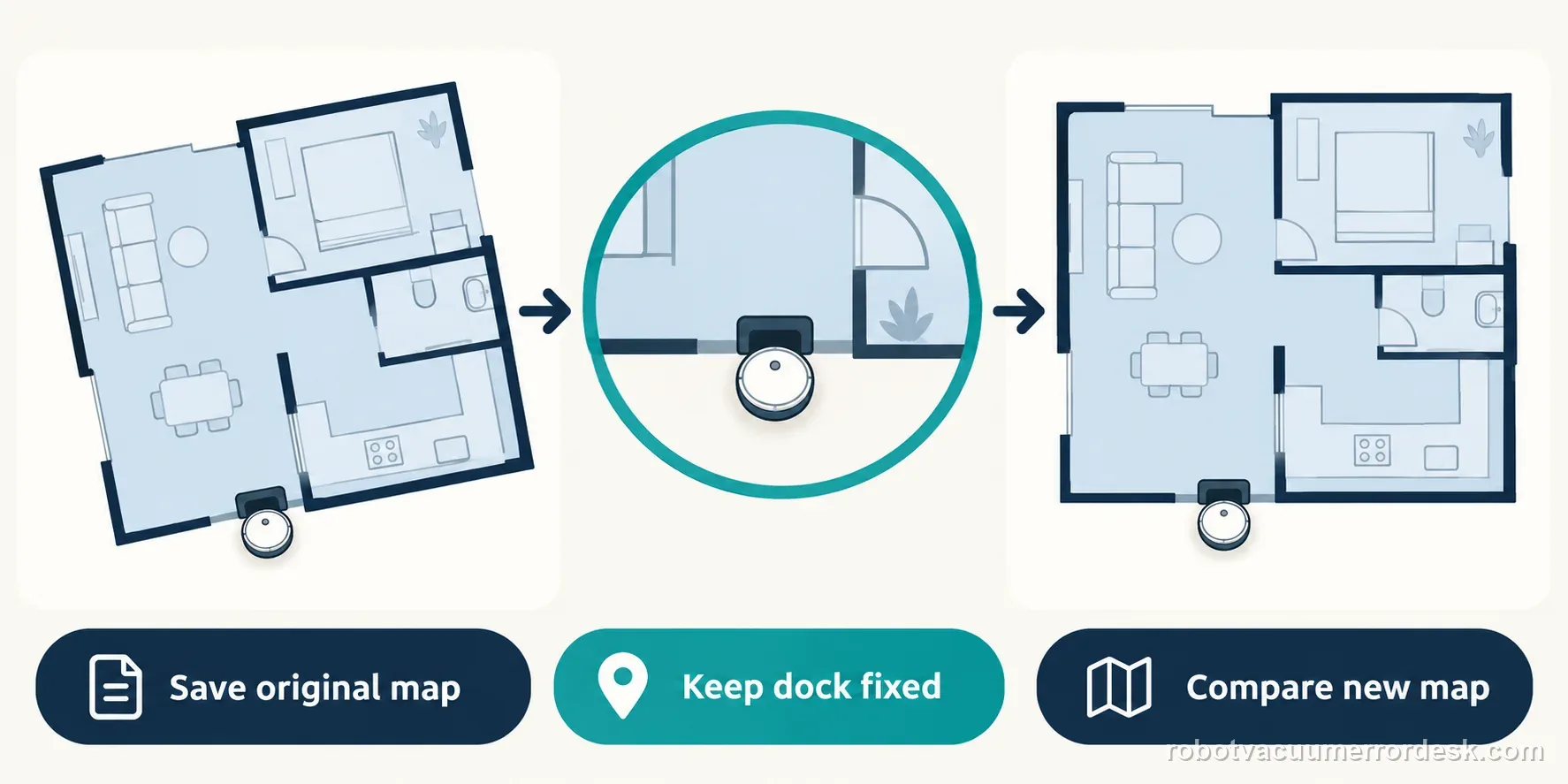
Roborock's general guidance gives dock placement and Map Saving as the first orientation checks. If the room geometry is also distorted, use a map-creation diagnosis rather than treating every map fault as rotation.
Choose the matching model before using another guide's procedure:
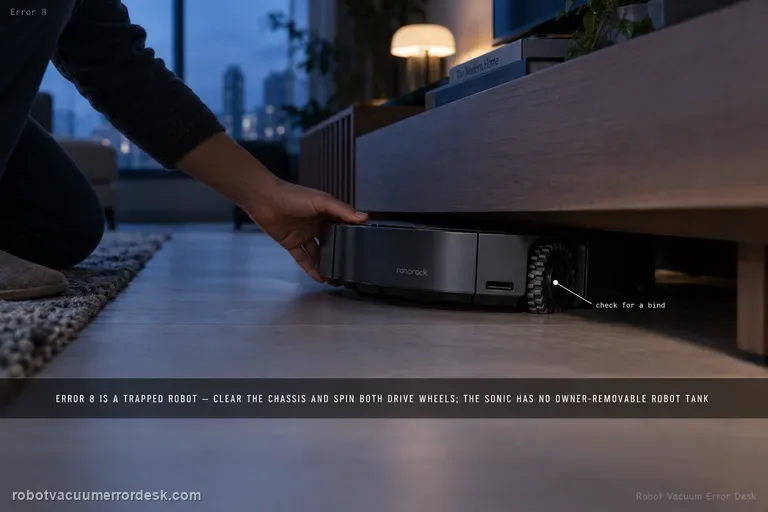
Compare a map-save failure, not a rotated map →Dock-location test for a newer Roborock →Review the S7 map angle and dock placement →Roborock return-path checks →Use Error 8 guidance only when the robot reports that trapped status →Did this diagnostic narrow the fault?
Use this as an editorial signal, not a popularity counter. If a feedback address is configured you can email the note; otherwise you can copy it for your own support record.