New robot vacuum? Diagnose setup problems without wiping everything.
This is not a generic setup checklist. It routes common first-week failures into exact-model diagnostics and preserves the map, firmware and app clues that disappear when owners factory-reset too early.
Pairing & Wi-Fi
Start with model-specific network facts. Some current robots support 5 GHz; others still have narrower setup requirements.
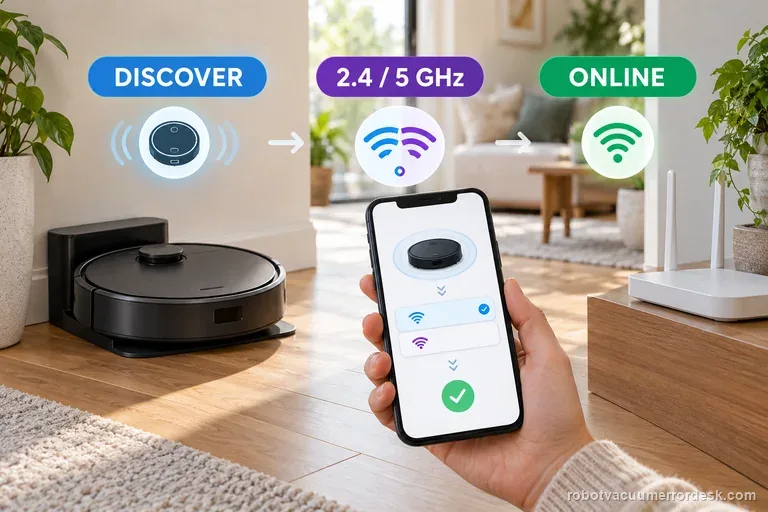
Wi-Fi setup / connection
First note where Max 705 setup stops: nearby discovery, Wi-Fi credentials, or the post-setup cloud connection. iRobot lists this model on both 2.4 and 5 GHz, so do not force 2.4 GHz by default. Keep it charging near the router, allow the phone permissions the app requests, then test one network change at a time.
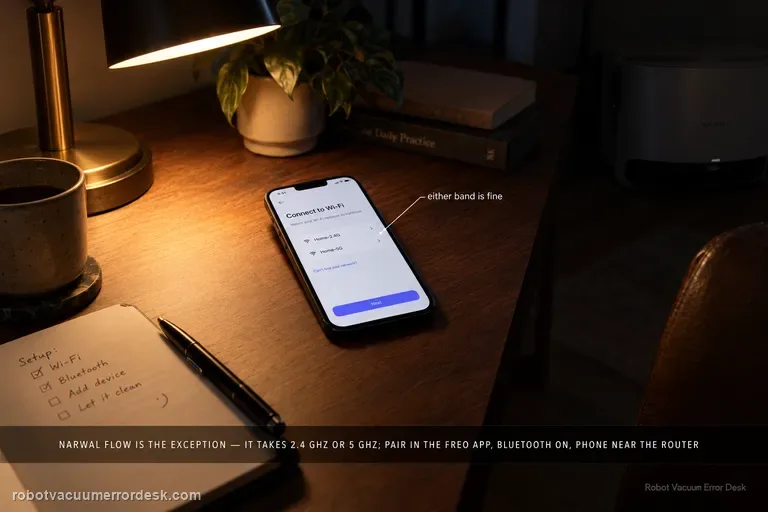
Wi-Fi / app connection failure
Narwal Flow is an exception to the older Narwal “2.4 GHz only” rule: Narwal’s Flow-specific FAQ says this model supports both 2.4 GHz and 5 GHz Wi-Fi. Start with the Flow pairing path in the Freo App, confirm the robot and base are powered, enable Bluetooth and the phone permissions Narwal requires, and keep the robot near a strong signal. If setup fails, compare the two supported bands or a simple phone hotspot without changing several variables at once. Narwal’s general network guide is still useful for permissions, hotspot and router isolation, but its 2.4-GHz-only sentence is not the correct compatibility rule for Flow. If the failure persists, send Narwal the robot SN, App ID and a screen recording or clear record of the failed setup stage.
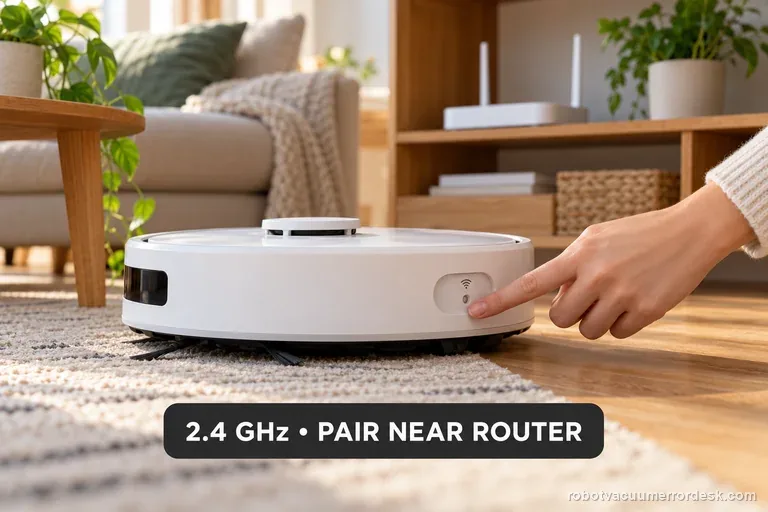
Won't connect to Wi-Fi
Qrevo Curv Wi-Fi trouble does not call for a map or factory reset. Roborock documents a dedicated Wi-Fi reset, 2.4 GHz support only, and a five-minute pairing window. Confirm a 2.4 GHz network, reset only Wi-Fi, and pair promptly near strong coverage. Try a combined SSID first; if setup still fails, ask the router provider to expose 2.4 GHz.
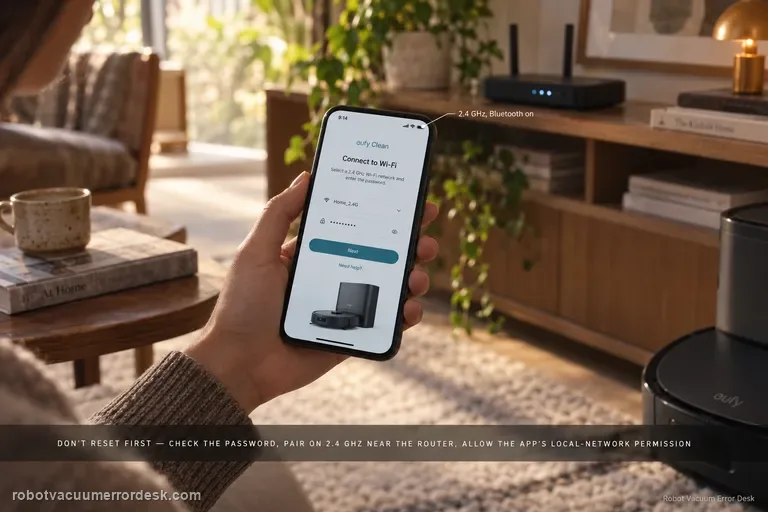
Wi-Fi won't connect
For X10 Pro Omni Wi-Fi setup, do not jump straight to factory reset. Confirm the network name/password, move the phone and robot closer to the router, allow eufy Clean location/precise-location and local-network permissions, pair on 2.4 GHz with Bluetooth enabled, then reset only the robot’s Wi-Fi by holding Home + Spot Cleaning for three seconds. If setup still fails, a phone-hotspot test can separate router configuration from robot/app problems.
Won't connect to Wi-Fi
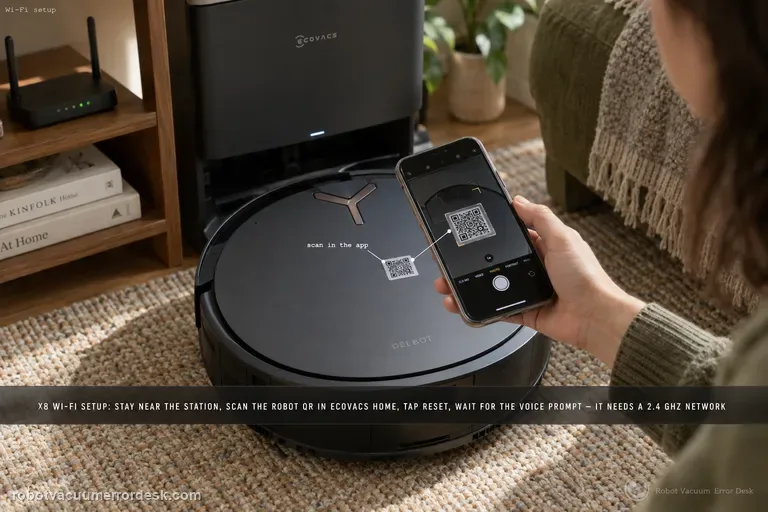
Follow the X8’s connection sequence before changing router settings: keep the robot near the station, sign in to ECOVACS HOME, scan the robot QR code, power the robot on, briefly press Reset and wait for the network-setup/Bluetooth-hotspot voice prompt, then let the app complete the join in strong Wi-Fi coverage. The X8 manual adds the useful compatibility boundaries: a 2.4 GHz or mixed 2.4/5 GHz network, 802.11b/g/n with IPv4, no VPN/proxy or hidden SSID, WPA/WPA2 rather than enterprise authentication, and matching SSID/password on an extender. If pairing fails, first identify whether discovery fails before credentials are sent or whether the robot is discovered but cannot join the home network. Those are different failures and should not be “fixed” by deleting maps or factory-resetting the robot.
First map & navigation
Preserve screenshots before deleting a new map. A moved dock, low-clearance setting or bad first localization can look like hardware failure.
Map not saving
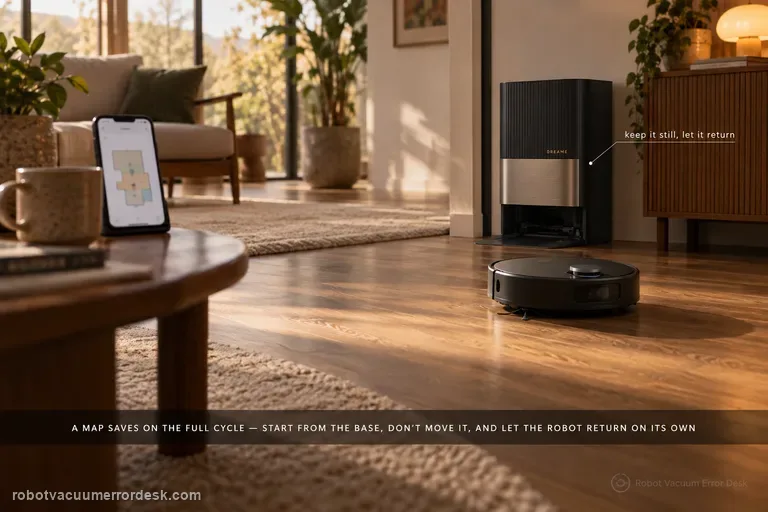
For the X50, a map is not just a drawing created at startup; Dreame ties reliable saving to the full mapping/cleaning cycle. Update firmware first, place the base where it can stay fixed with clear surroundings and good Wi-Fi, then rebuild the map only after that setup is stable. Start the robot from the station and do not move the base during the task. Most importantly, let the robot finish and return automatically: Dreame warns that manually sending it to charge or physically placing it on the base because the battery is low can prevent the map from saving successfully. If an alarm occurs while the robot is building the map, resolve it promptly and resume from a cleaned area rather than judging the final map while the task is still faulted.
Map skewed / overlapping
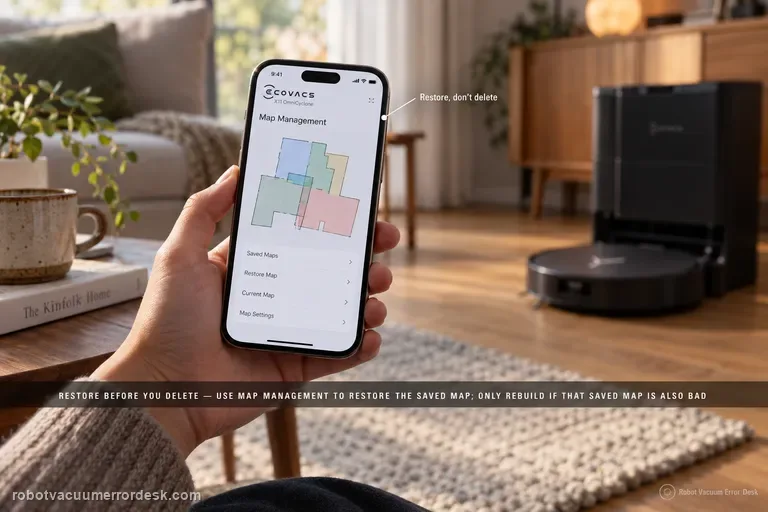
Restore before you delete. ECOVACS’ X11 support tells owners to use Map Management and restore the initially saved map when the floor plan becomes skewed or overlapping. ECOVACS’ broader map guidance explains why that order matters: restore returns to a saved/backup state, while deleting and Quick Mapping destroys the current map and starts over. If restore works, stop. If the saved map is also bad, prepare the home, start from the station and rebuild once under stable conditions.
Map wrong angle
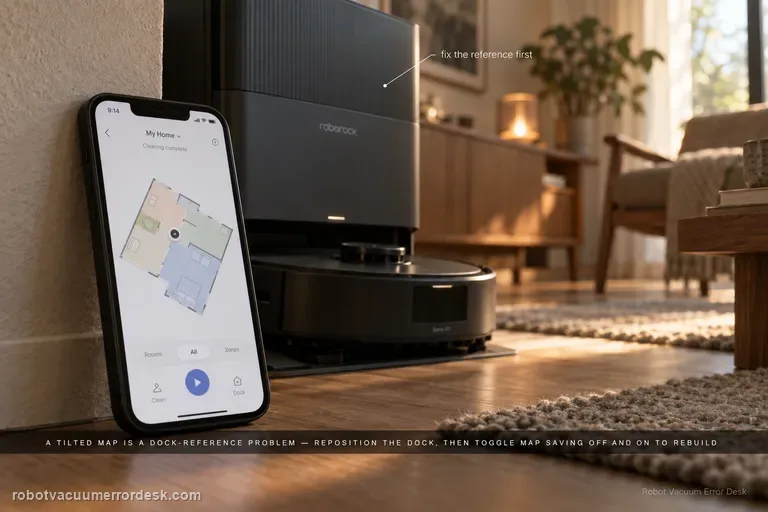
A Saros 20 Sonic map that appears rotated or at the wrong angle is usually handled as a dock-placement/map-orientation issue. Roborock says the map should display horizontally or vertically. Move the dock to a clearer location with roughly 0.5 m at each side and 1.5 m in front; if orientation stays wrong, switch Map Saving off and back on so the next cleanup creates a new map. Preserve a good map before rebuilding.
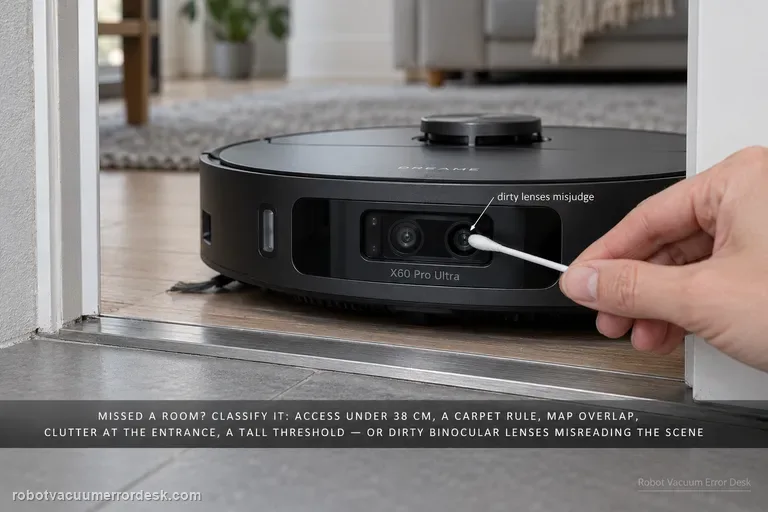
Missed cleaning areas
When the X60 misses a room or patch, do not delete the map first. Dreame’s X60 cleaning-function support page lists several distinct causes: access narrower than about 38 cm, carpet-avoidance rules, map overlap/positioning error, objects at entrances, thresholds beyond what the robot can cross, obstacle-avoidance behavior that leaves small margins, and dirty binocular lenses that can misjudge the scene. The fastest diagnosis is to classify the miss as physical access, intentional software avoidance, bad map position or perception. Preserve the map, measure the doorway, inspect carpet/threshold rules, clear only the entrance, clean the binocular lens, then run one targeted retest.
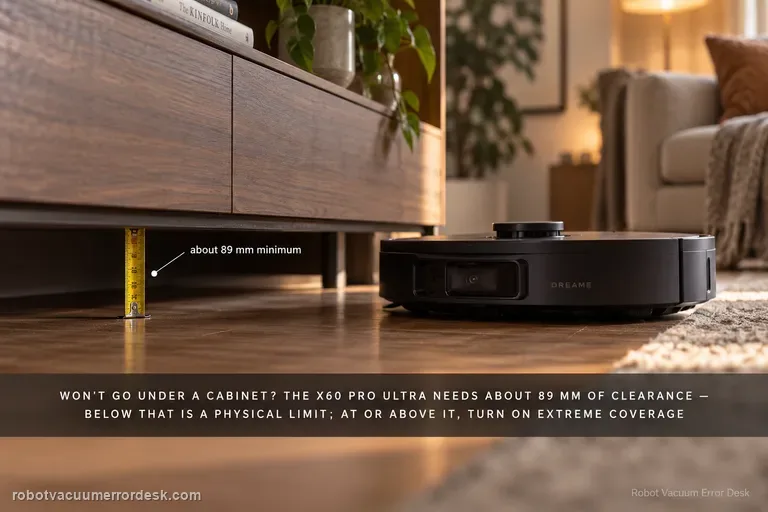
Cannot enter low furniture
Measure before changing settings. Dreame states that the X60 Pro Ultra Complete needs approximately 89 mm of furniture clearance; an opening below that is a physical limit, not a mapping fault. If the lowest usable opening is at or above that figure, check Settings → Ground Cleaning Settings → Extreme Coverage and, where useful, mark a Low-Height Area in map editing. Because Extreme Coverage lowers the robot’s profile, Dreame also warns you to inspect the floor and underside of furniture for protrusions such as loose nails or hidden cable channels before enabling the behavior.
Dock & first charge
Manually seating the robot is a useful discriminator: it separates charging contact/power from autonomous return and final approach.
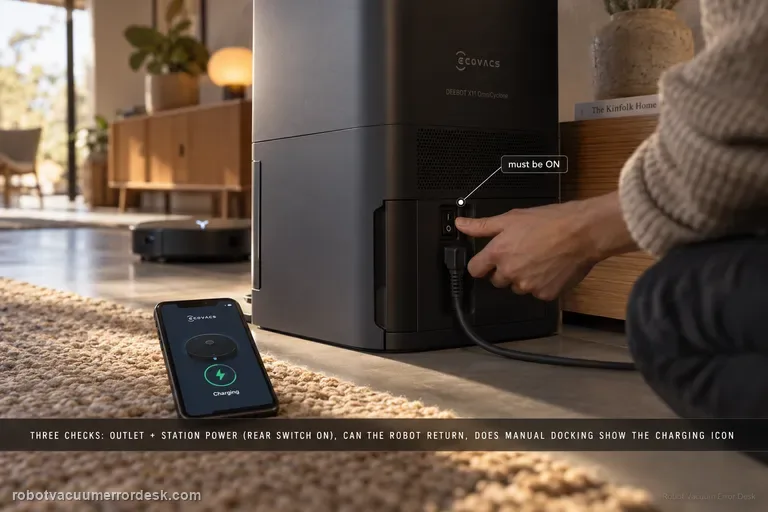
Not charging
Ecovacs’ X11 charging flow separates three things owners often mix together: whether the station has power, whether the robot can power/return, and whether manual contact charging works. First prove the wall outlet and station connection; on U.S. units, confirm the rear station switch is ON. Power the robot on and ask it to return. If it cannot power on, manually dock it and look for the charging indication—the Auto button blinking or the lightning icon in the app. If manual contact charging also fails, clean the station and rear robot contacts and make sure the station contacts rebound normally. This sequence prevents a navigation failure from being misdiagnosed as a bad battery or dock.
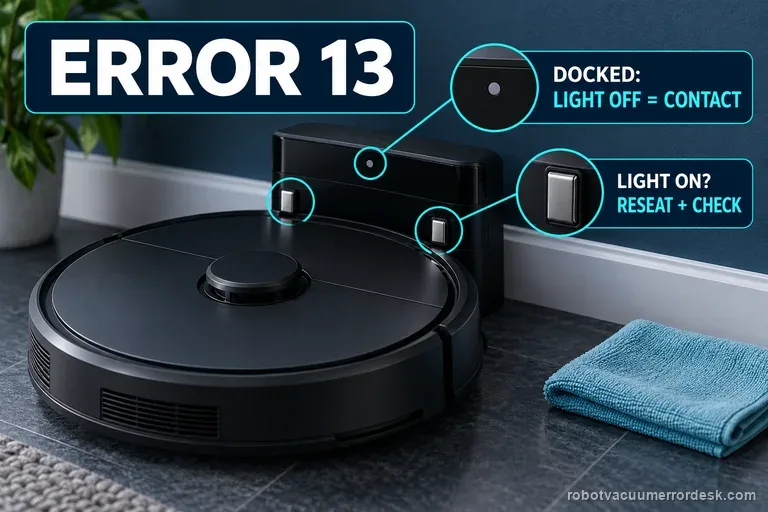
Error 13
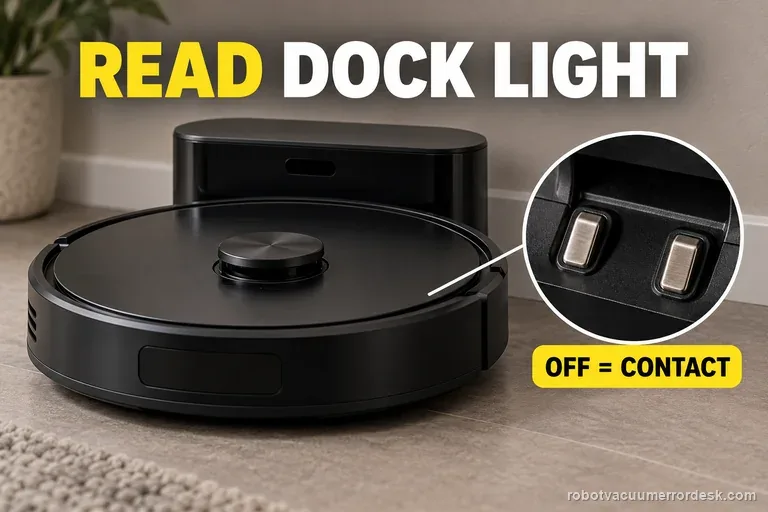
Roborock Error 13 on the Saros 20 Sonic is a charging-contact diagnosis. The model support page says the dock indicator should be OFF when the robot is docked and charging correctly; if it stays ON, reposition the robot, clean the contacts on robot and dock, then prove dock power and the wall outlet. Use the light state as the key pass/fail signal instead of replacing a battery before contact alignment and power are proven.
Unable to charge
Seat the Curv and read the dock light before checking the battery. Roborock says OFF means the charging contacts are connected; ON means they are not. If it stays on, reseat the robot, clean both contact sets, then verify the cable and outlet. If the light turns off but charge does not rise, record both signals for support.
Won't return to base
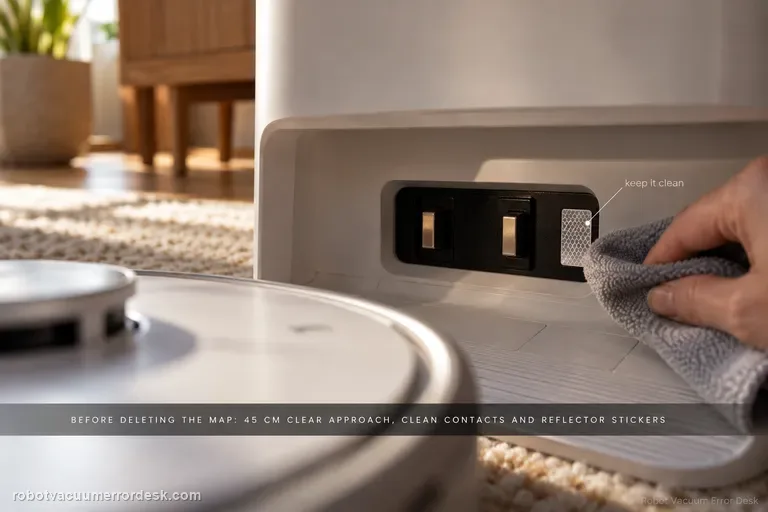
Do not start by deleting the map. First give Narwal Flow a compliant base area: hard and level, away from direct sunlight, with about 45 cm / 1.5 ft of clear approach space. Narwal’s current return-to-base troubleshooting then calls for cleaning the robot/base charging contacts and reflector stickers, checking the drive and caster wheels for oil or debris, confirming the cleaning tray and roller-brush cover are seated correctly, and remapping only if the base station was moved. A short return from near the dock can then separate final-entry trouble from whole-home localization. If Flow still cannot return, record the final approach for support instead of repeatedly remapping.
Recharge / return fails
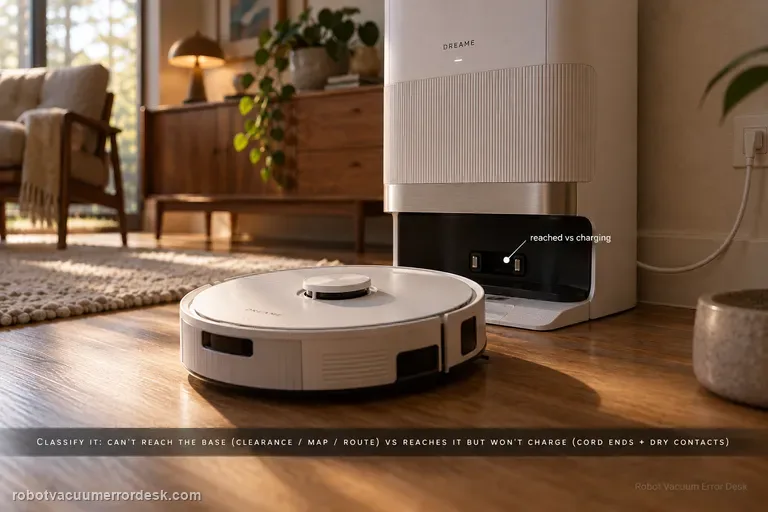
First classify where the L50 Ultra AE fails. If it cannot find or approach the base, Dreame’s exact recharge article points to dock clearance, distance, starting from the base and an abnormal saved map; the exact manual adds blocked return routes, a moved or unpowered station and a dirty signaling area. If the robot reaches the base correctly but charging never begins, stop remapping: the manual moves the diagnosis to both ends of the station power cord, dry charging contacts and foreign objects at the robot connectors.
Update / app state
Record the installed version and exact failure stage before reset. Update interruptions and provisioning requirements are model-specific.
Error 29 / update interruption
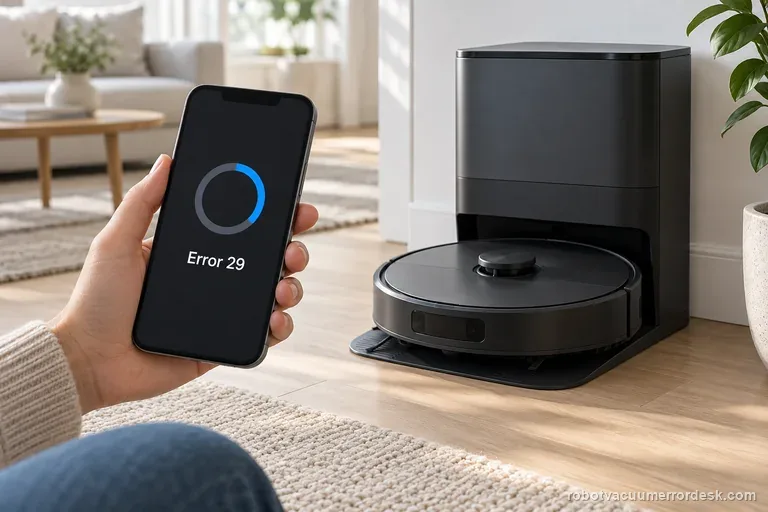
Error 29 means the Roomba started while a software update was in progress. Leave the Max 705 on its dock and watch the app for a few minutes. If status never finishes, iRobot says to reboot from Product Settings or hold the power button for 10 seconds off the dock. Record the software version and result before contacting support.
Wi-Fi setup / connection
First note where Max 705 setup stops: nearby discovery, Wi-Fi credentials, or the post-setup cloud connection. iRobot lists this model on both 2.4 and 5 GHz, so do not force 2.4 GHz by default. Keep it charging near the router, allow the phone permissions the app requests, then test one network change at a time.
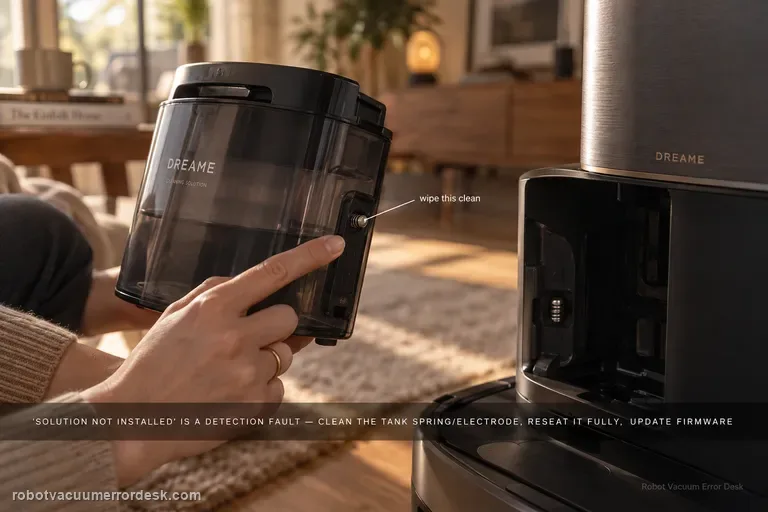
Cleaning solution not installed
Treat “cleaning solution not installed” as a detection problem, not as proof that detergent is empty or not being consumed. Dreame's exact Aqua10 flow starts at the tank spring/electrode, then requires full seating, current firmware, a robot/base restart, and one global-cleaning observation when the robot returns to mop. That sequence separates a dirty contact or poor seating issue from a persistent detection fault before service.
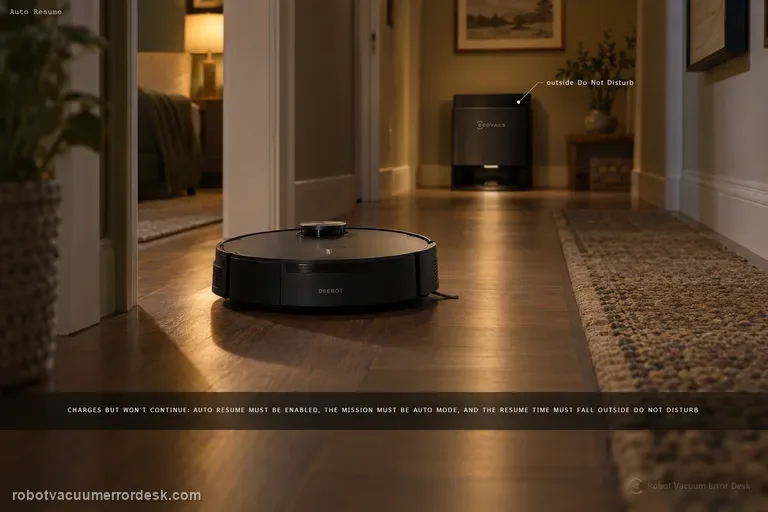
Auto Resume not working
For X11 Auto Resume, prove the three prerequisites ECOVACS documents before touching charging hardware: Auto Resume must be enabled, the recharge/resume point must not fall inside Do Not Disturb, and the cleaning mission must be Auto mode. A robot can charge normally and still not resume if any one of those conditions is false. The best test is a controlled Auto-mode mission outside DND, with the setting visibly enabled and no manual mode change while the robot recharges.
Base station & water system
Do not treat every drop of water as a leak. First-use residue, tank detection, wet-path faults and true station leaks need different tests.
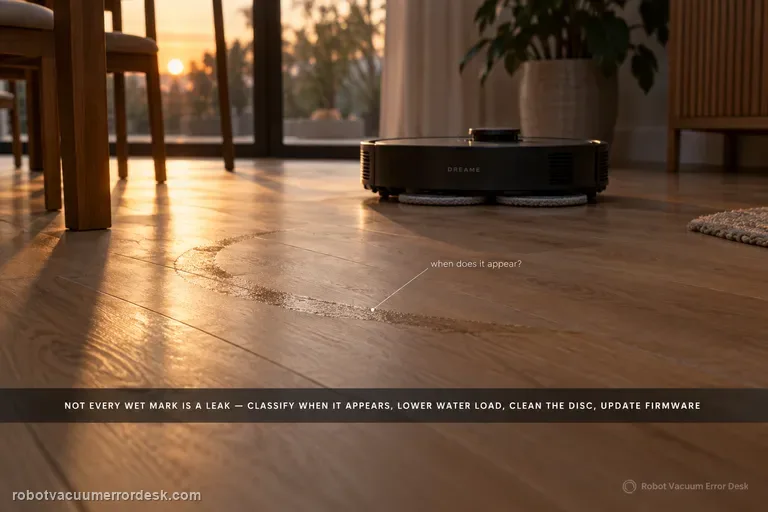
Water stains or dripping
Not every wet mark under an X60 is a leak. Dreame distinguishes ordinary post-mop moisture, a few initial-use droplets left from factory water-circuit testing, and small droplets created when the robot rehydrates or spins the mop from persistent/excessive dripping that should go to service. Classify when the water appears, lower avoidable water load, clean the disc, update firmware, and use Dreame's 1–2-use observation window only for minor early-use droplets.
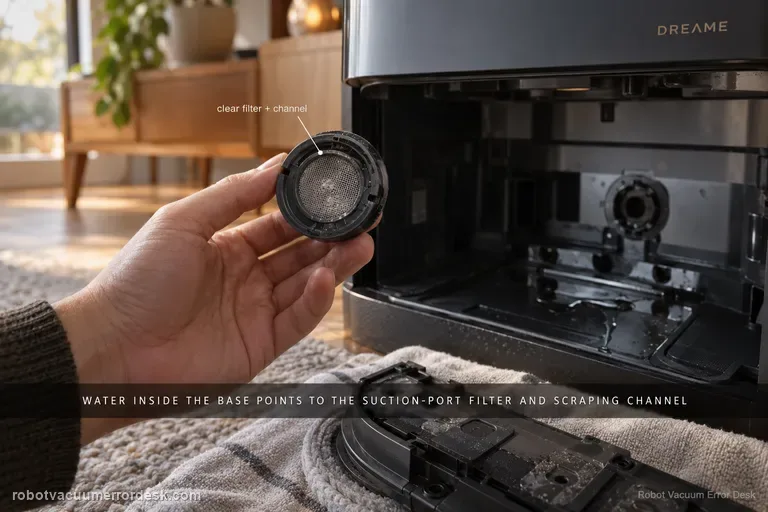
Water leaking inside base
For water that appears inside the Aqua 10 Ultra Roller Complete base station, Dreame points first to the robot-side suction-port filter and the scraping channel around it. Treat this as a controlled leak-location test, not a reason to open the station. Stop repeated wet cycles, confirm the water is actually appearing inside the base rather than dripping outside it, remove the mop assembly, clear the filter and nearby channel, reinstall everything, then run one short task. If the base stays dry after that test, the blocked pickup path was the useful discriminator; if fresh water or sewage still accumulates inside the station, stop wet operation and escalate rather than disassembling powered wet-station parts.
Water leaking outside base
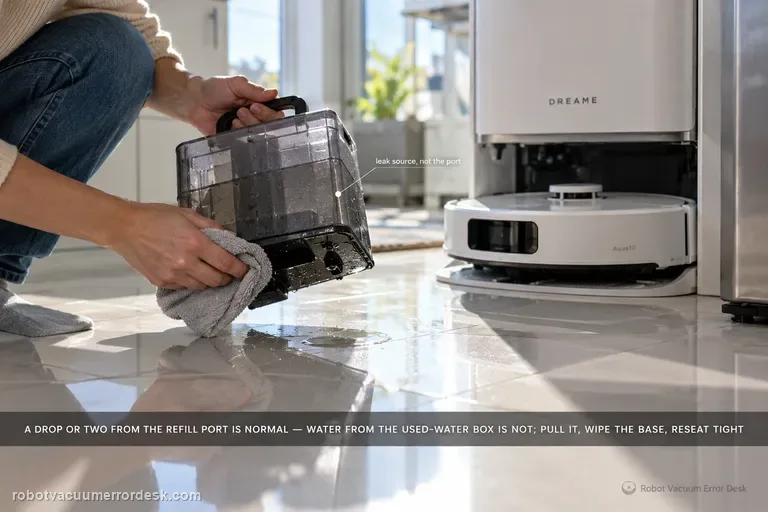
Dreame says one or two drops from the robot’s water refill port after refilling can be normal. If water is instead coming from the robot’s used-water box, remove it, wipe the bottom surface clean, reinstall it tightly and retry. Larger or persistent leakage should not be normalized.
Clean water not coming out
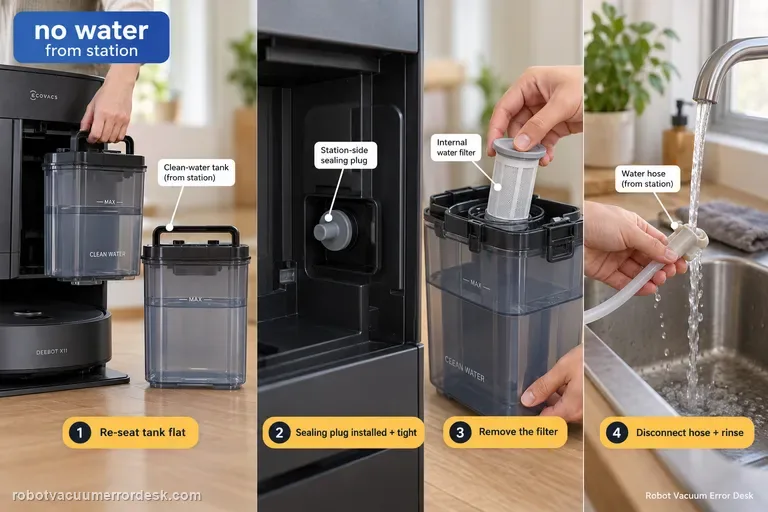
When the X11 station produces no clean water during mopping or self-cleaning, ECOVACS checks the supply path in a specific order: remove the clean-water tank, clear anything trapped between tank and station, seat the tank flat, verify the station-side sealing plug is correctly installed and tight, then open the tank, remove the filter, disconnect the water hose and rinse the filter with clean water before reassembly. That sequence distinguishes a seating/seal problem from a restricted filter/hose path.
Detergent not auto-dispensing
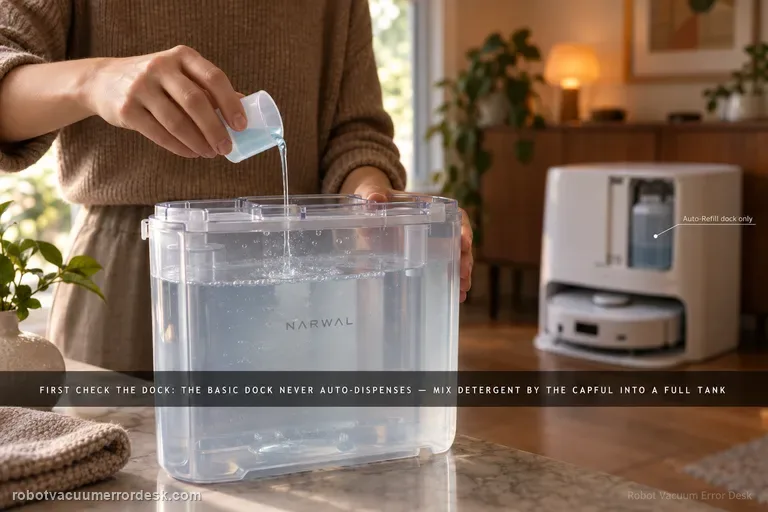
The first test is not the detergent bottle; it is the dock version. Narwal says Flow’s Basic Dock does not auto-dispense detergent at all. With that dock, detergent is mixed manually into a full clean-water tank using Narwal’s specified capful guidance. The compact/Auto Refill & Drainage version has a built-in main detergent reservoir and can auto-dispense after the cartridge is filled and reinstalled horizontally. Narwal also documents an app switch under Device Homepage → Settings → Base Station → Automatically add detergent for Flow with Auto Refill & Drainage. If you diagnose the wrong dock as if it had the other dock’s dosing system, a normal design difference looks like a failure.