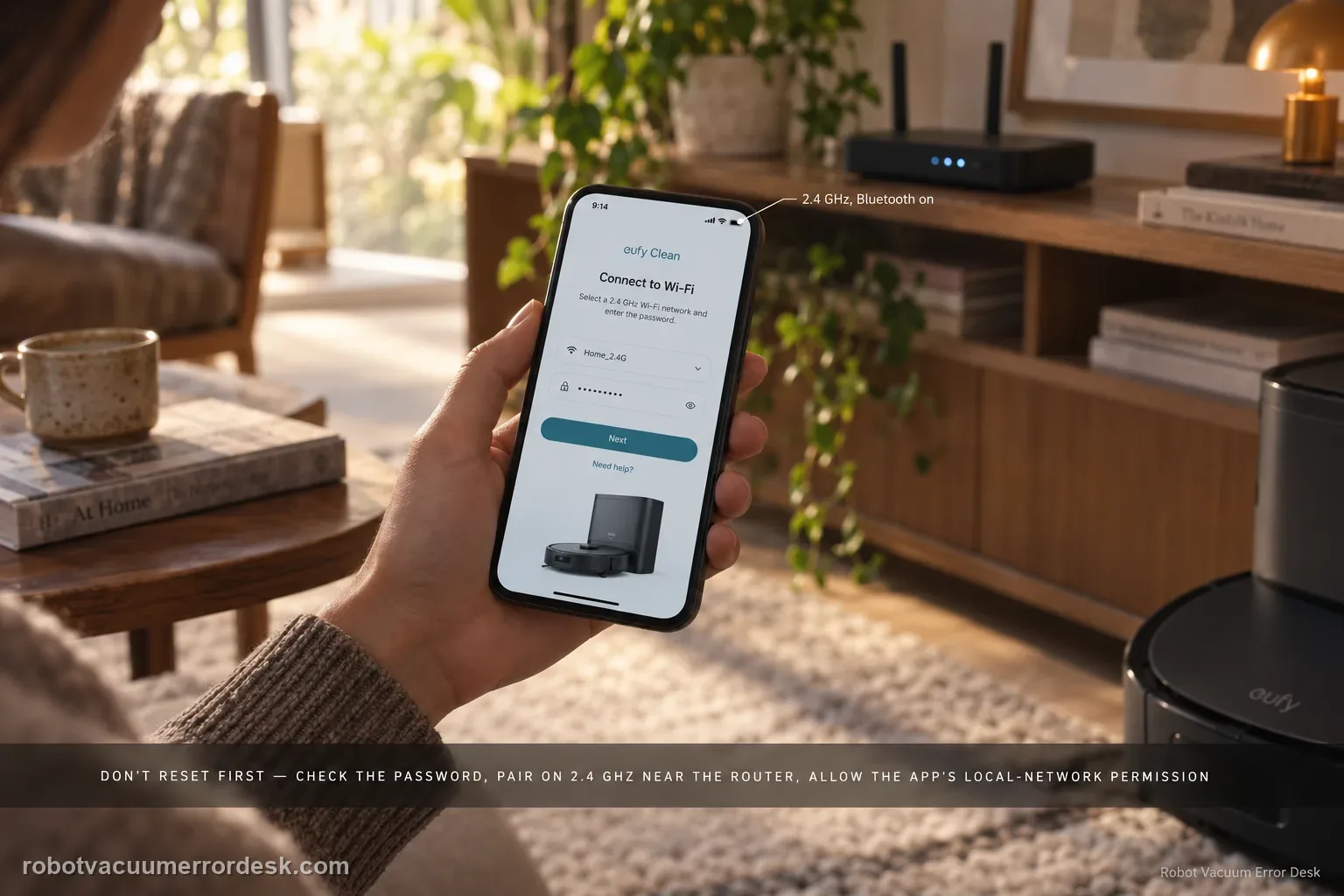
For X10 Pro Omni Wi-Fi setup, do not jump straight to factory reset. Confirm the network name/password, move the phone and robot closer to the router, allow eufy Clean location/precise-location and local-network permissions, pair on 2.4 GHz with Bluetooth enabled, then reset only the robot’s Wi-Fi by holding Home + Spot Cleaning for three seconds. If setup still fails, a phone-hotspot test can separate router configuration from robot/app problems.
Where does X10 Pro Omni pairing stop?
Confirm the exact model and exact code, light pattern or symptom.
Run the lowest-risk physical or software check first.
Use each pass condition to decide what the result actually narrows down.
Confirm this is the right issue
- The X10 Pro Omni fails during initial Wi-Fi setup.
- The app cannot discover or bind the robot.
- The phone is currently on a 5 GHz-only network.
- A useful discriminator is observed: wi-Fi LED flashes slowly.
- A useful discriminator is observed: wi-Fi LED flashes quickly.
What’s most likely causing this
Wrong SSID/password or weak setup signal
Location/Precise Location, Local Network or Bluetooth permission blocked on the phone
Phone not actually using the required 2.4 GHz setup path
Robot Wi-Fi not reset into pairing state
Home-network configuration interfering even though the robot radio can join a clean hotspot
Reading your test result
| What you observe | What it narrows down | Next move |
|---|---|---|
| Wi-Fi LED flashes slowly | eufy identifies this as ready-to-connect state. | Check app permissions and begin setup on a 2.4-GHz network with correct credentials. |
| Wi-Fi LED flashes quickly | The robot is actively trying to connect, so discovery has progressed further than a no-light state. | Keep phone/robot near the router and verify case-sensitive password and 2.4-GHz band. |
| Wi-Fi LED becomes steady blue | eufy defines steady blue as connected. | Stop resetting Wi-Fi and verify the robot appears online in the eufy Clean app. |
| Home network fails but phone hotspot works | Robot/app networking can function; home-router configuration is the stronger branch. | Review 2.4-GHz availability, security/band steering, isolation and credentials rather than replacing the robot. |
| Robot fails both a controlled hotspot test and normal 2.4-GHz setup | Router-specific failure is less likely after permissions and Wi-Fi reset are correct. | Save LED state/app error and contact eufy for the robot/network module path. |
Read the X10 Wi-Fi light as a pairing timeline
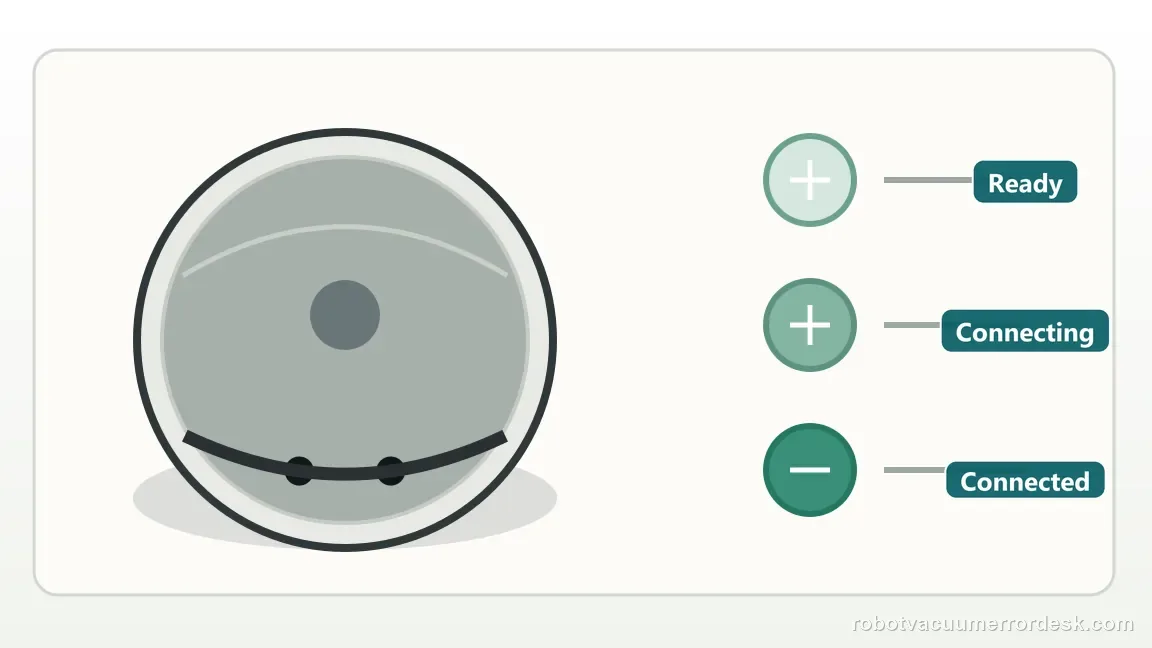
The X10 support article defines three distinct light states. Use the transition, not a generic “blinking means connected” interpretation.
- 1Slow flash
Ready to connect. Start discovery in eufy Clean on a 2.4 GHz network.
- 2Fast flash
Connection is in progress. Keep the app open and avoid moving the robot or phone away.
- 3Steady blue
Connected. If the app still shows offline, investigate app permissions or phone-to-router path.
- 4Never reaches steady blue
After checking credentials, permissions, and Wi-Fi-only reset, use the official hotspot test to isolate the home router.
Reset can erase maps/settings on this path. Use lower-risk checks first and document the current state before resetting.
Work through these checks in order
Verify credentials and reduce distance
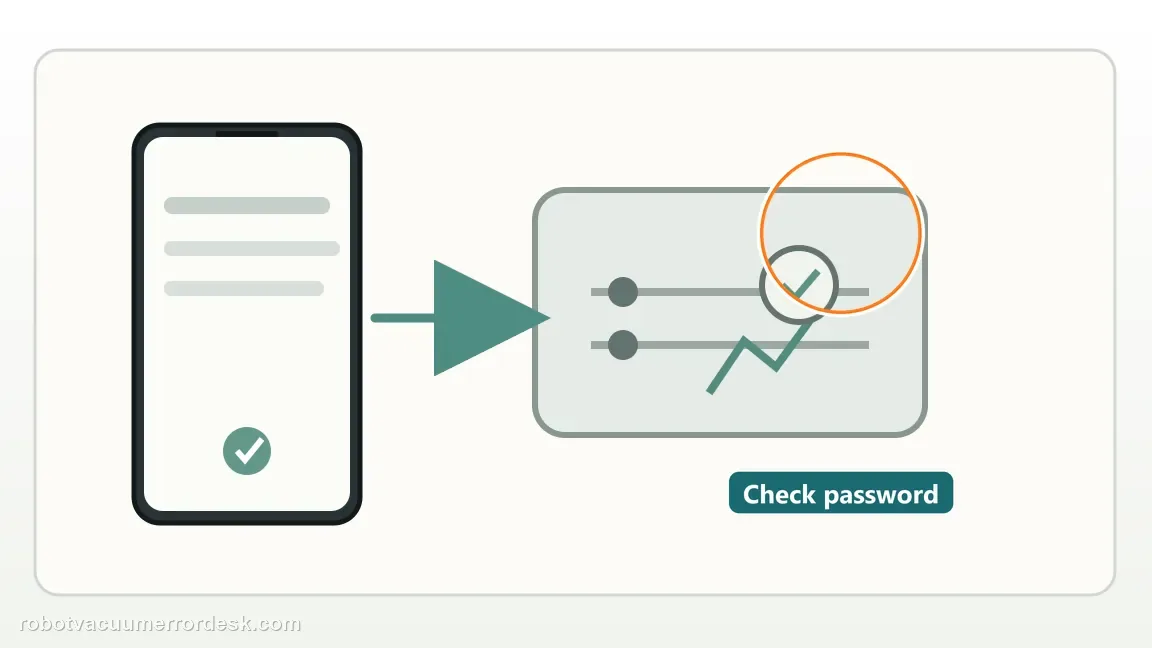
Confirm the Wi-Fi name and case-sensitive password, then move the phone and robot closer to the router during setup. This removes weak signal and a simple credential typo from the test.
Grant the app the required permissions
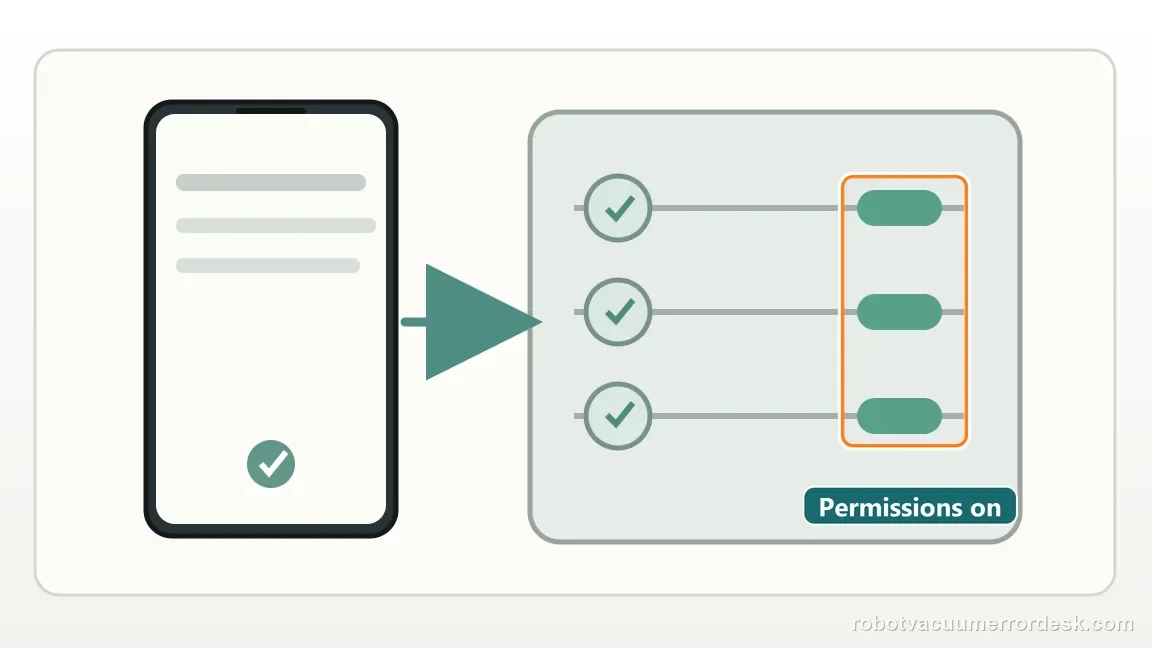
Allow location access and precise location where available; eufy also calls out local-network access and Bluetooth during setup. Missing permissions can stop discovery even when the password is correct.
Pair on 2.4 GHz
Connect the phone to a 2.4 GHz network for setup. eufy recommends Airplane mode during the preparation flow and, on some dual-band routers, temporarily disabling 5 GHz if the bands cannot be separated cleanly.
Reset Wi-Fi only, then re-add the robot
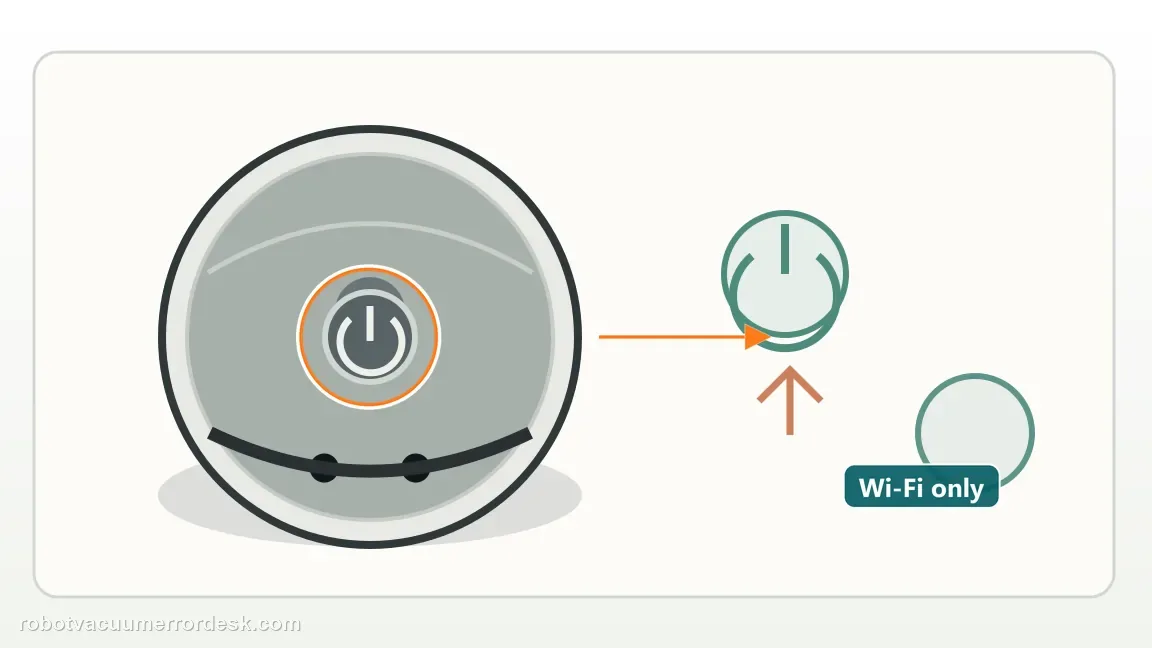
Hold the Home and Spot Cleaning buttons together for about three seconds until the Wi-Fi reset voice prompt. This is a network reset, not a reason to erase maps or do a full factory restore.
Use a hotspot as an isolation test
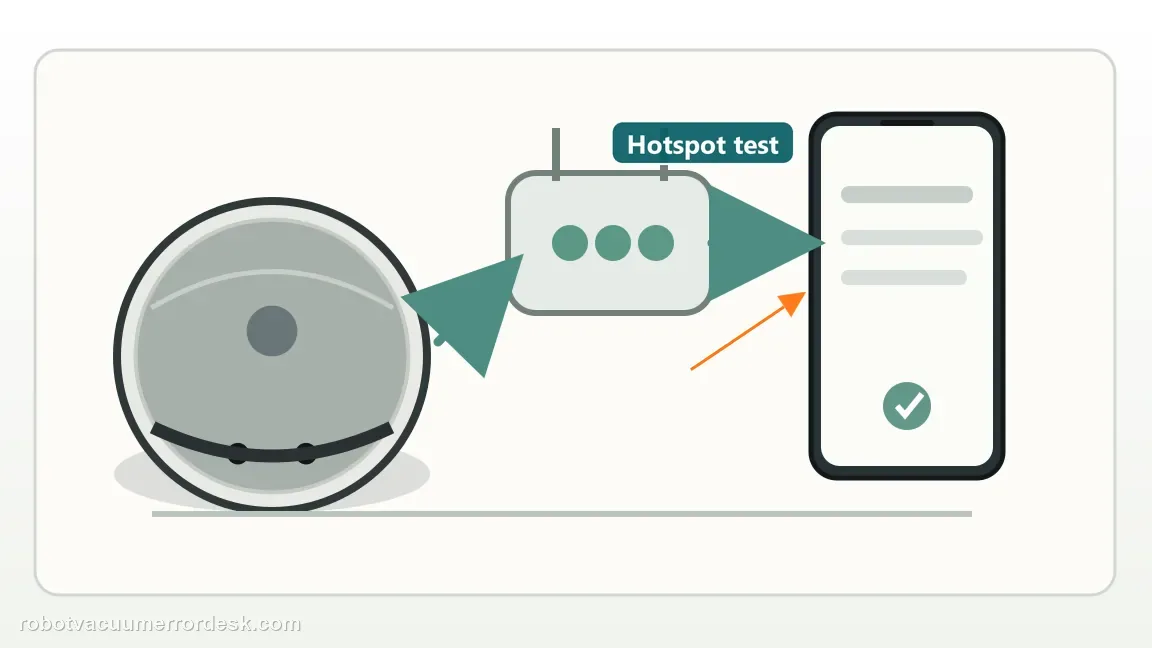
If normal pairing still fails, use eufy’s hotspot test with another phone/tablet running the app. A successful hotspot connection points toward the home router/network configuration rather than a dead robot radio.
Read the Wi-Fi LED as part of the test
Use the X10 indicator instead of judging only by the app spinner. eufy says slow flashing means ready to connect, quick flashing means connecting, and only steady blue means connected. Record which state the robot reaches before setup fails. That one observation distinguishes “never entered pairing” from “attempted authentication but did not complete,” and makes any later hotspot test much more useful.
Interpret the hotspot test correctly
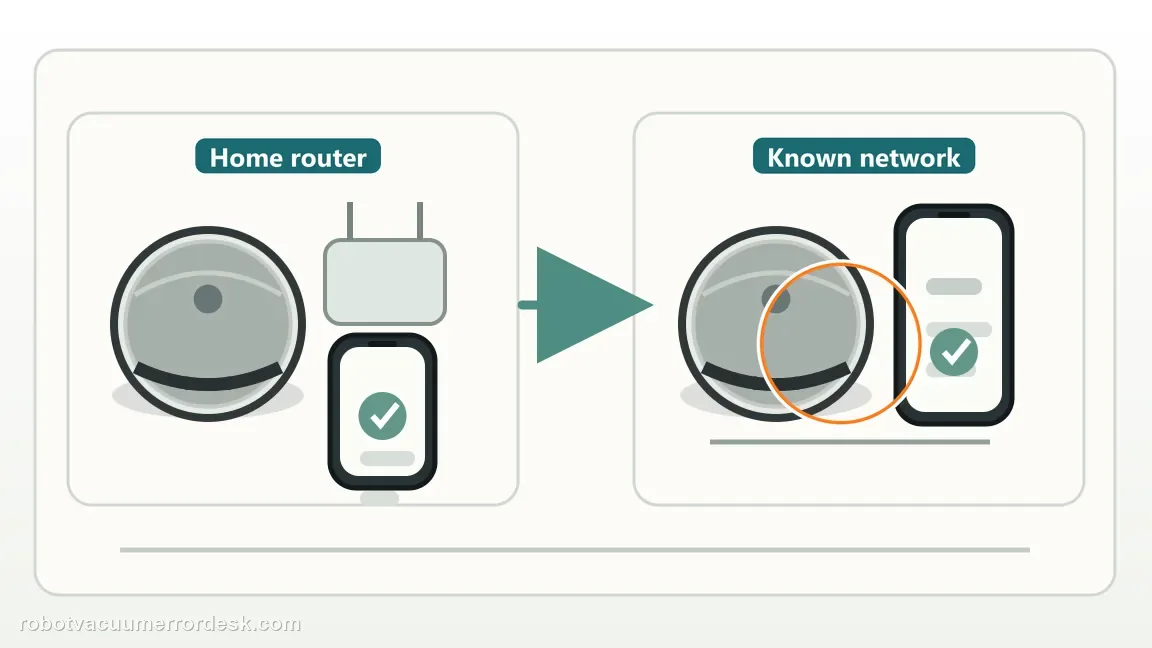
eufy recommends a phone-hotspot isolation test using another phone/tablet for the app. If the X10 connects there, do not factory-reset it again: that successful join proves the robot can connect to a network and points back toward the home network’s setup conditions, credentials or 2.4-GHz path. If it also fails on a clean hotspot, preserve the exact Wi-Fi LED and app state and stop cycling unrelated router settings.
Contact eufy if the X10 cannot complete pairing after correct credentials, phone permissions, 2.4-GHz setup, the model-specific Wi-Fi reset and a controlled hotspot test. Save whether the Wi-Fi LED was slow flashing, quick flashing or ever reached steady blue. A hotspot success should be reported because it points strongly toward the home network; a hotspot failure after clean setup conditions points more strongly toward robot/app networking.
Before you contact support, gather this
A reproducible case moves a support call past the basic troubleshooting script faster than “it doesn’t work” does, and it keeps the clues from your own tests on record.
- Exact model name and the error code / voice prompt exactly as shown
- A photo or screenshot of the app error and the time it occurred
- A short list of the checks already completed and what happened after each one
- Device information / activity-log details from eufy Clean when the issue is mapping or routing related
Where this comes from
eufy X10 Pro Omni Wi-Fi support
eufy’s X10 Pro Omni Wi-Fi article explicitly requires a 2.4-GHz setup path, lists location/Precise Location, Local Network and Bluetooth permissions, documents the three-second Home + Spot Wi-Fi reset, defines slow/quick/steady-blue Wi-Fi LED states and recommends a hotspot isolation test. The X10 manual independently documents the same Wi-Fi-reset button combination. This makes the page model-specific rather than generic router advice.
Additional official source: eufy — X10 Pro Omni T2351 English manual ↗Last editorial review: October 13, 2026Regional note: manufacturer help centers, model suffixes, mains-power requirements and warranty procedures can differ by country. If the source redirects to a local support site, confirm that the model/hardware scope still matches before following a region-sensitive step.
This guide is rated Official model support. See what each evidence label means →
Questions people ask
Does the eufy X10 Pro Omni require 2.4 GHz Wi-Fi?
For the X10 Pro Omni setup procedure, eufy tells owners to put the phone on a 2.4-GHz network and, on a dual-band router, temporarily disable 5 GHz if necessary during pairing. Follow that model-specific rule rather than borrowing settings from another eufy model. Keep the phone and robot close to the router, enter the case-sensitive password carefully, and confirm the Wi-Fi LED reaches the expected pairing state.
What do the X10 Pro Omni Wi-Fi light patterns mean?
eufy says a slow-flashing Wi-Fi light means the robot is ready to connect, a quick-flashing light means it is connecting, and steady blue means connected. Record the state where setup stops. If it never reaches quick flashing, focus on Wi-Fi reset/app discovery. If it reaches quick flashing but never steady blue, credentials, 2.4-GHz network conditions or router behavior are more relevant.
How do I reset only Wi-Fi on the X10 Pro Omni?
Press and hold the Home/Recharge and Spot Cleaning buttons together for about three seconds until the robot gives the Wi-Fi reset voice prompt. This is the model-specific network reset in eufy’s support article; it is not a reason to erase maps with a factory reset. After the reset, verify Bluetooth, Local Network and Precise Location permissions, keep the phone on 2.4 GHz and add the robot again.
Why does eufy ask for Precise Location and Bluetooth during X10 setup?
The eufy Clean app uses those phone permissions to discover nearby Wi-Fi networks and establish a nearby connection with the robot during setup. eufy specifically calls out Precise Location, Local Network and Bluetooth. A router can be working perfectly while the app fails discovery because a phone permission is blocked. Fix that layer before changing the Wi-Fi password or repeatedly resetting the robot.
What does it mean if X10 Pro Omni connects to a hotspot but not my router?
A successful hotspot test shows that the robot and app can complete basic network provisioning. That shifts attention toward the home network: 2.4-GHz availability, credentials, band steering, client isolation or router security. Preserve the hotspot success instead of resetting the robot again. If the X10 fails both the clean hotspot and normal 2.4-GHz setup after permissions and Wi-Fi reset are correct, contact eufy with the LED state and app error.
Did this diagnostic narrow the fault?
Use this as an editorial signal, not a popularity counter. If a feedback address is configured you can email the note; otherwise you can copy it for your own support record.