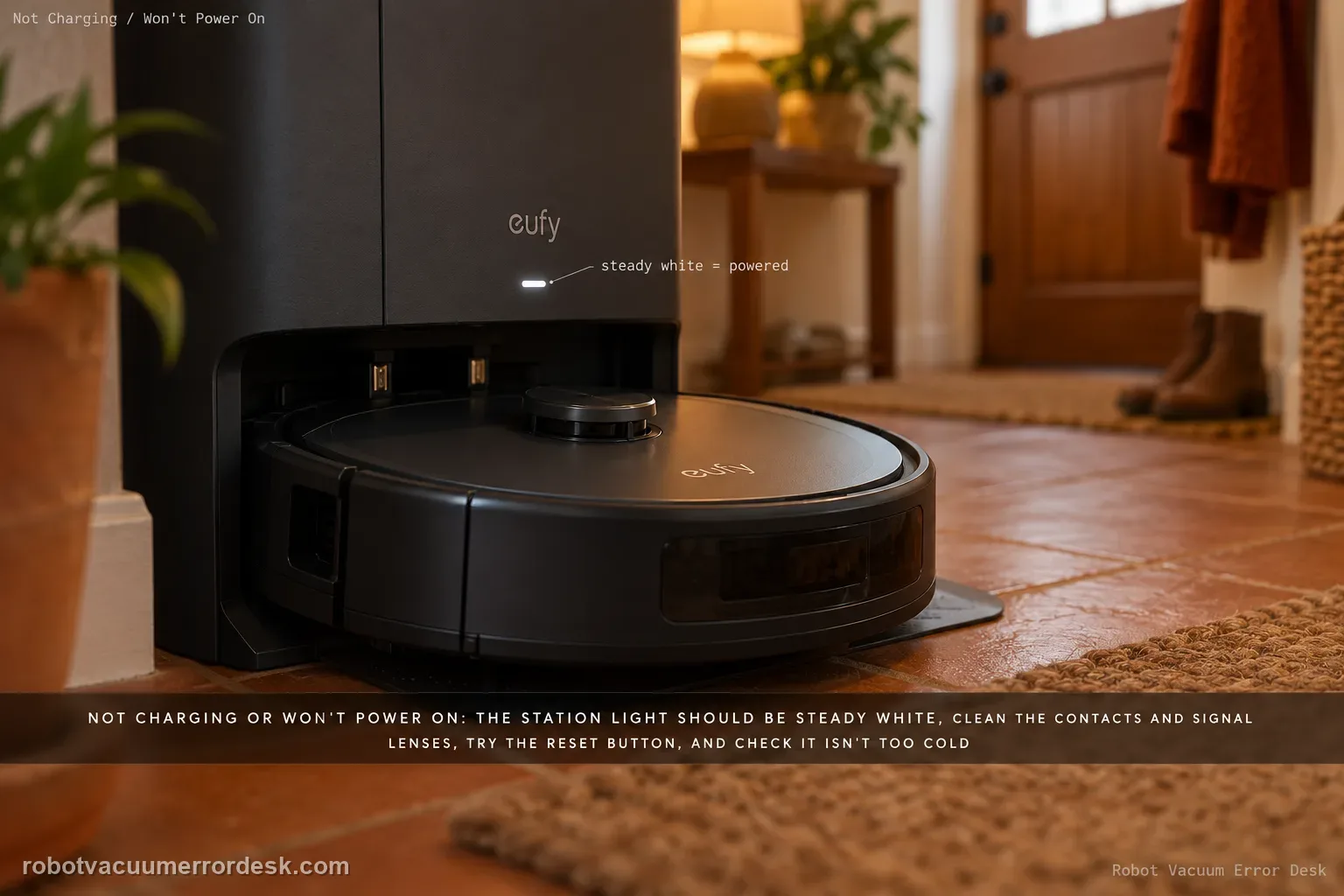
Start at the powered dock, not the battery. eufy’s X10-specific sequence is: confirm the Omni Station shows a steady white indicator, clean the robot/station charging contacts and signal lenses, use the robot Reset button if it remains unresponsive, then rule out temperature protection. eufy lists 4–45°C (39.2–113°F) as the protective range boundary and advises warming/cooling farther into range before retrying charge.
Confirm the exact model and exact code, light pattern or symptom.
Run the lowest-risk physical or software check first.
Use each pass condition to decide what the result actually narrows down.
Does this match your problem?
- The X10 will not power on after being placed on the Omni Station.
- The robot docks but does not acknowledge charging.
- The station or robot became unresponsive after storage, cleaning or an extreme-temperature condition.
- A useful discriminator is observed: omni Station does not show steady white indicator.
- A useful discriminator is observed: station is powered but robot does not react when docked.
Most likely causes
Omni Station power cord/outlet problem
Dirty charging contacts or signal modules
Robot in an unresponsive state that needs the documented reset
Temperature protection blocking charge
Persistent charging/battery hardware fault after exact-model checks
What your test result means
| What you observe | What it narrows down | Next move |
|---|---|---|
| Omni Station does not show steady white indicator | Station power is not proven, so robot battery diagnosis is premature. | Reseat the station power cord and verify the wall outlet before touching the robot battery. |
| Station is powered but robot does not react when docked | Contact/signal surfaces can prevent the robot from recognizing/using the station. | Clean robot charging pins/signal receivers and station charging/signal areas with a soft cloth as directed. |
| Power and surfaces look normal but robot is unresponsive | eufy includes the robot Reset-button recovery in the exact X10 procedure. | Use the documented reset, restart the robot, then return it to the station for one fresh test. |
| Robot/station is extremely cold or hot | Temperature protection can block charging outside the documented range. | Let the unit move comfortably into normal range before retesting; do not heat/cool it aggressively. |
| Powered station + clean contacts + reset + normal temperature still fails | External causes are exhausted and battery/charging hardware becomes plausible. | Record station/robot light behavior and contact eufy before buying a battery or opening electronics. |
Reset can erase maps/settings on this path. Use lower-risk checks first and document the current state before resetting.
Run these checks in order
Confirm the Omni Station has its steady-white powered state
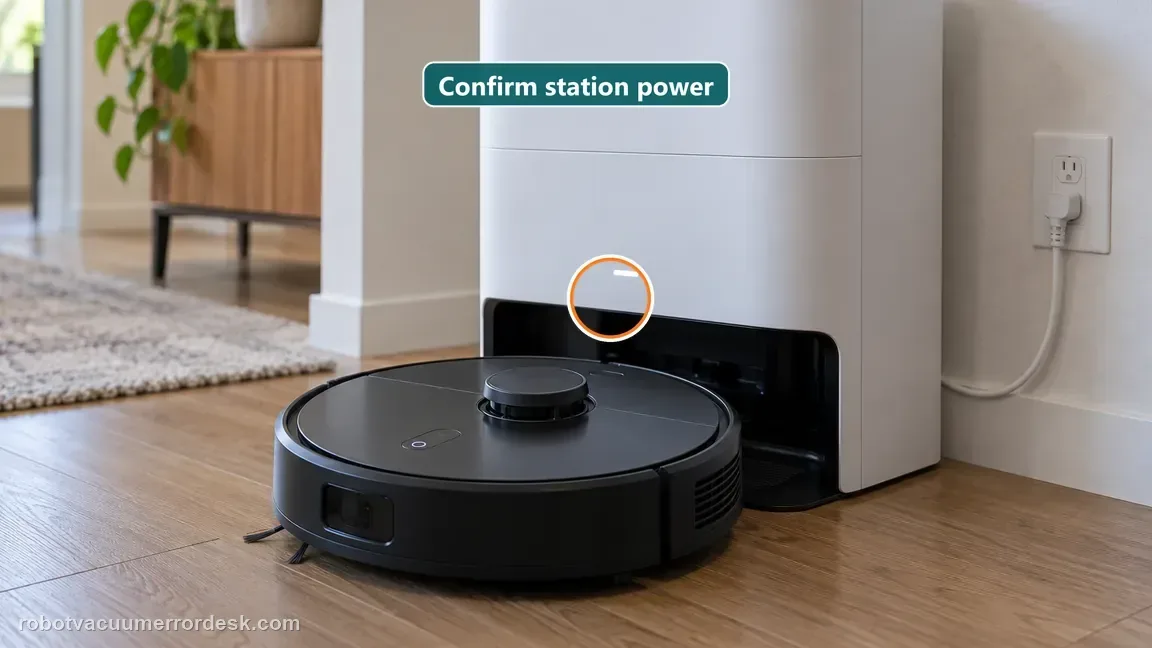
Start at the station. eufy’s exact X10 charging article says the Omni Station indicator should be steady white when it is receiving power normally. Reseat the power cord at the station and use a known-working wall outlet if the light is absent. Do not diagnose the robot battery while the charger itself is unproven; a dead outlet, loose cord and robot battery fault can all look like “won’t power on” from the robot side.
Clean both charging contacts and the signal lenses/prongs
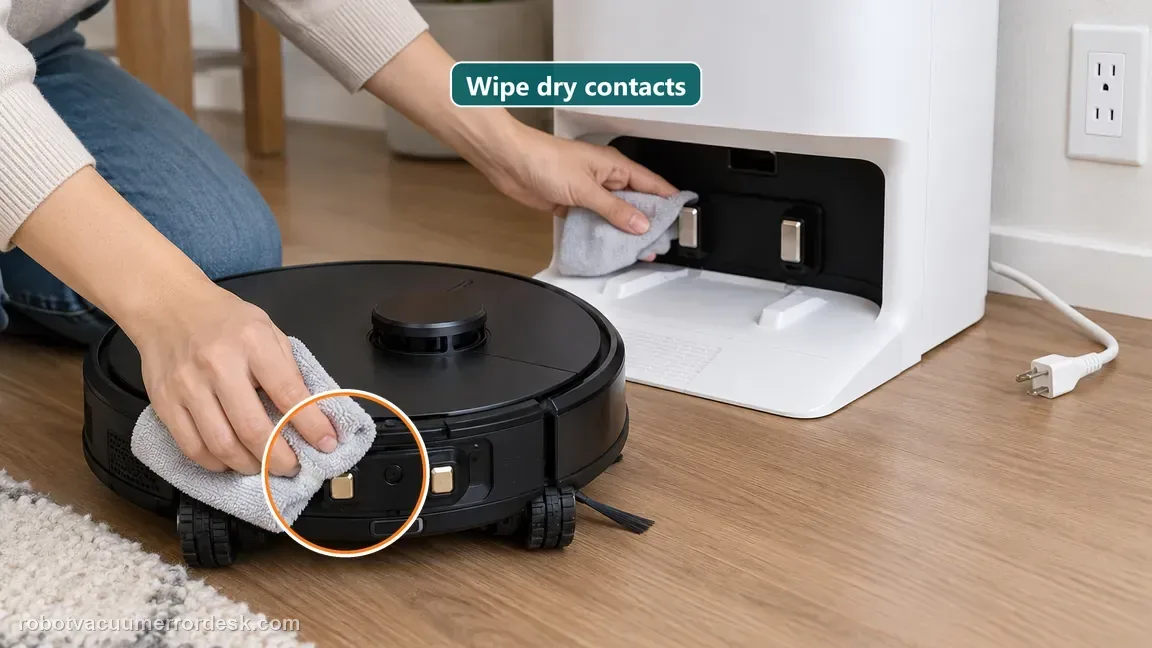
Clean the robot charging contacts and its signal receiver lenses, then clean the station charging prongs and signal transmitter lenses as eufy directs. Use a soft dry cloth and remove visible dust/film without abrasive scraping. The signal lenses matter because alignment/handshake can fail even when the metal contacts look clean. Let all surfaces remain dry before docking.
Seat the robot normally and observe the actual charging response
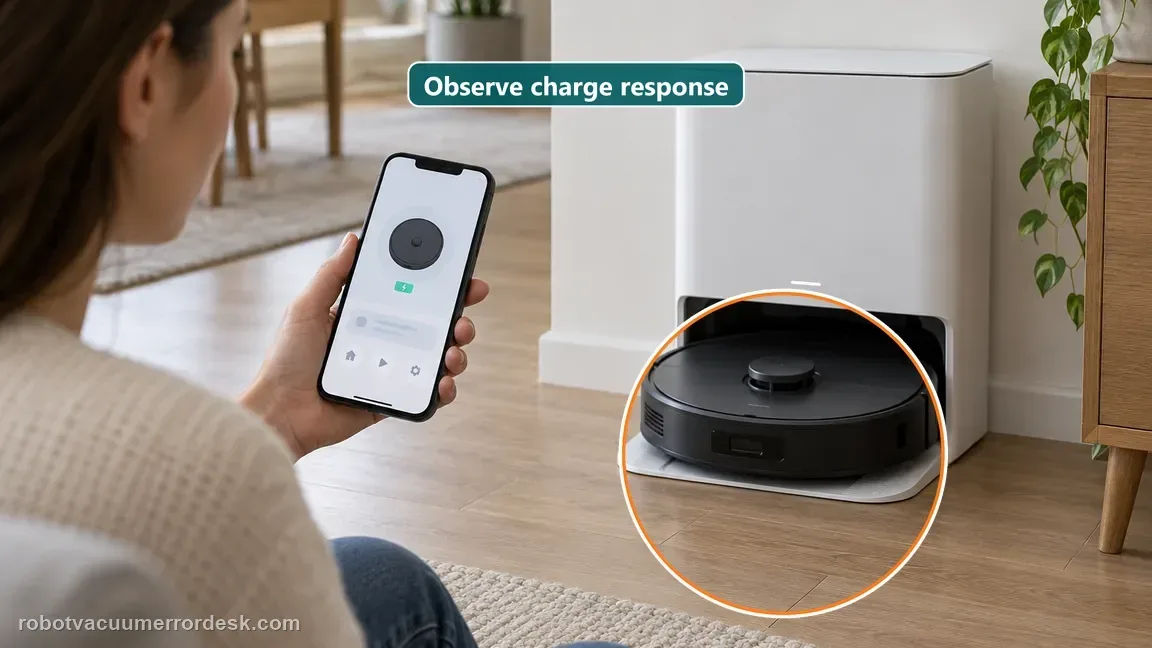
Place the X10 on the powered station in its normal docking position and observe the robot/app response rather than repeatedly pressing power. Note whether there is a charging acknowledgement, no response at all, or a connection-related voice alert. This separates “station has power but robot does not handshake/charge” from the earlier station-dead branch and creates a reproducible state for the next check. Read the two indicators separately. eufy says the Omni Station should show steady white when connected to power; the X10 manual lists a pulsing white robot light as charging, while steady white on the robot means standby, pause or normal operation depending on state. A steady-white station alone does not prove current is reaching the robot. If the station light is steady but the robot is not pulsing white, reseat the robot and inspect the charging pins and signal surfaces. A rapidly flashing red robot light means an error; check the exact in-app alert rather than assuming the battery failed.
Use the physical Reset button only for the documented unresponsive state
If the robot is genuinely unresponsive, eufy instructs using the robot Reset button as a forced power-off recovery, followed by restarting the robot. This is not a factory reset and should not be presented as one. Do not erase maps or Wi-Fi for a charging problem. After recovery, return the robot to the same powered station and see whether the charging response changes. Match the reset to the symptom. eufy describes the physical Reset button as a forced power-off recovery for an unresponsive robot; after pressing it, restart the robot. The manual lists a different action for Wi-Fi: hold Recharge and Spot Cleaning together for 3 seconds. That combined-button operation is only for a network problem and will not repair a charging connection. The voice-alert article says the physical recovery does not restore factory settings, delete the map or reset the network. Keep the reset type matched to the symptom so a no-charge diagnosis does not turn into unnecessary network setup.
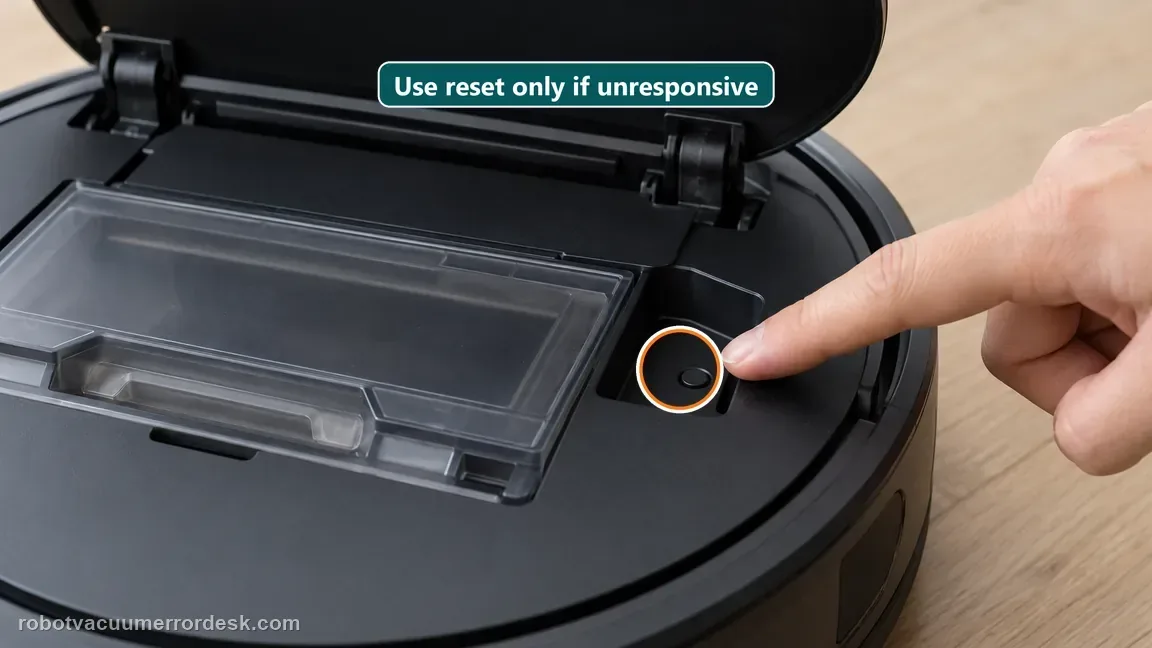
Rule out X10 temperature protection before judging the battery
eufy lists charging protection below 4°C (39.2°F) and above 45°C (113°F). If the robot has been in a cold garage, hot sun or other extreme environment, let it stabilize naturally indoors. eufy advises bringing a cold unit to at least 8°C or a hot unit down to about 41°C before retrying. Do not use heaters, hair dryers or a freezer to force the temperature change.
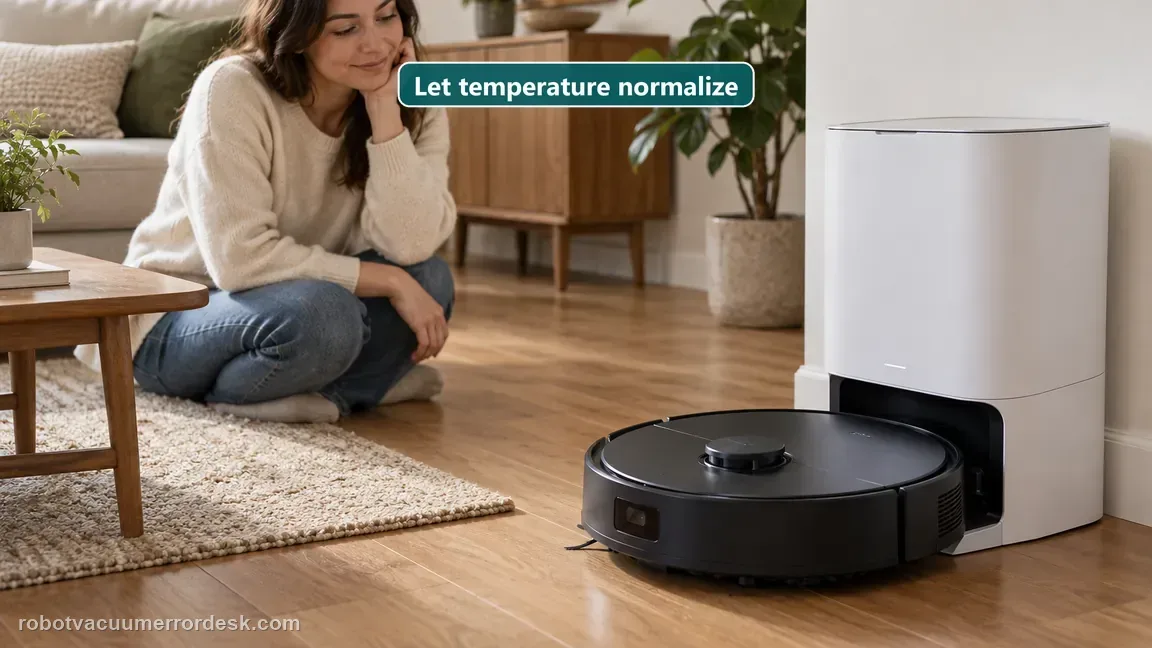
Run one final controlled charge test and escalate the remaining state
With steady station power, clean contacts/signal lenses, a responsive robot and normal temperature, dock the X10 once more and wait for the normal charging acknowledgement. If the same failure remains, record the station LED, app/voice state and a photo of the clean contact alignment. Stop cycling resets or opening the battery/station; the remaining battery/charging hardware branch belongs with eufy support. eufy’s voice-alert table gives a specific safe sequence: turn off the robot, disconnect the base station from power, wipe the robot charging contacts and station charging point, restore station power, then place the robot back on the base and check whether it charges. If the message changes to a battery error, the same table says to contact customer service. Do not keep reseating a visibly damaged pin or open the station; photograph the message and contact surfaces for support.
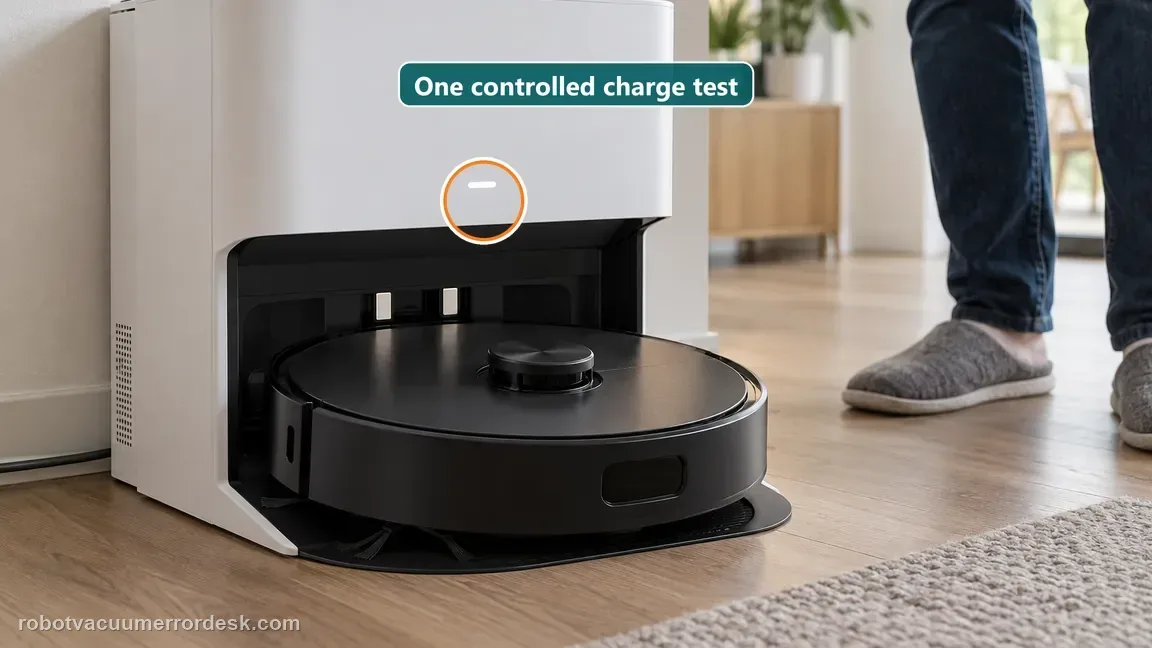
Contact eufy when the Omni Station is definitely powered, the robot/station charging and signal surfaces are clean, the documented reset has not restored operation, and the robot is at a normal stabilized temperature. Save the station and robot LED behavior. Do not purchase a battery solely from the symptom or open charging electronics; the remaining fault can involve the battery, robot or station and needs a controlled service diagnosis.
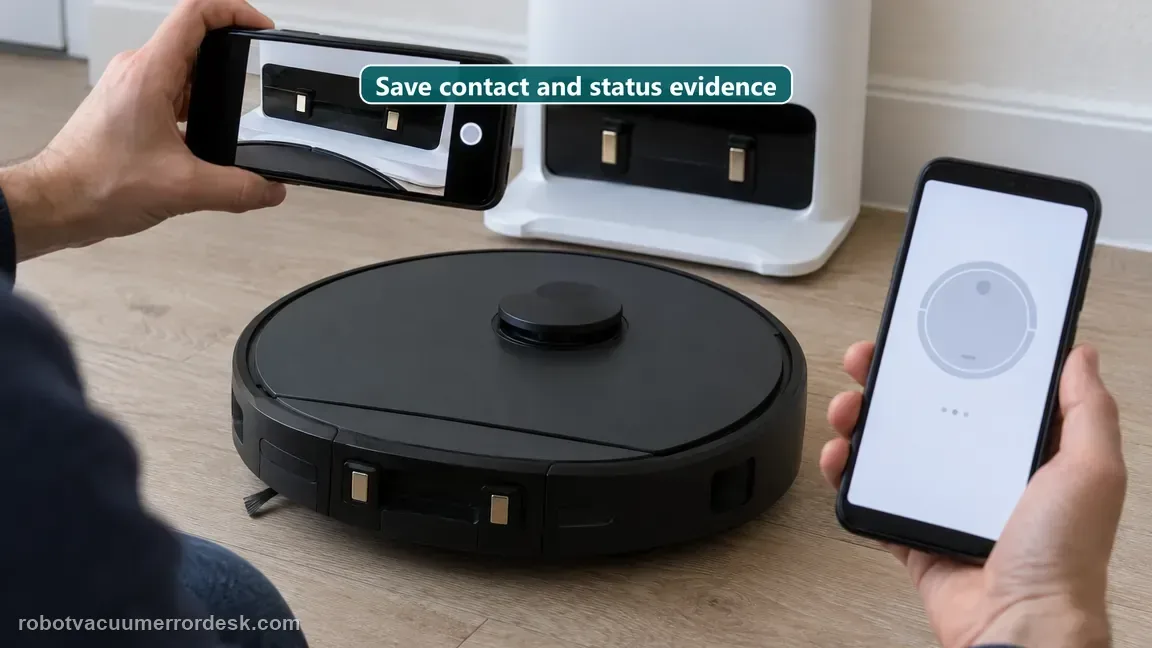
What to collect before contacting support
Give support a reproducible case instead of “it doesn’t work.” That reduces repeated basic troubleshooting and preserves the clues from your tests.
- Exact model name and the error code / voice prompt exactly as shown
- A photo or screenshot of the app error and the time it occurred
- A short list of the checks already completed and what happened after each one
- Device information / activity-log details from eufy Clean when the issue is mapping or routing related
Manufacturer evidence
eufy X10 Pro Omni — Not Charging or Powering On
eufy’s exact X10 charging/power article starts with the Omni Station’s steady-white power state, then cleaning both the robot/station charging contacts and their signal receiver/transmitter lenses, a Reset-button recovery for an unresponsive robot, and temperature protection. eufy lists protection below 4°C and above 45°C and advises returning farther into range (at least about 8°C when cold or down to about 41°C when hot) before retesting. The voice-alert table is a secondary source for distinguishing charging-connection messaging from a dead-station state; the guide does not turn the physical Reset button into a factory reset.
Additional official source: eufy — X10 Pro Omni T2351 English manual ↗Additional official source: eufy X10 Pro Omni — voice alerts and quick solutions ↗Last editorial review: October 11, 2026Regional note: manufacturer help centers, model suffixes, mains-power requirements and warranty procedures can differ by country. If the source redirects to a local support site, confirm that the model/hardware scope still matches before following a region-sensitive step.
This guide is rated Official model support. See what each evidence label means →
FAQ
Why will my eufy X10 Pro Omni not charge or power on?
eufy’s model-specific sequence starts with the Omni Station, not an immediate battery replacement. Confirm the station has a steady white indicator and a secure power cord, then clean the robot/station charging and signal surfaces. If it remains unresponsive, use the documented Reset-button recovery. Also rule out temperature protection. Only after those external branches pass does a battery or charging-hardware fault become the stronger support case.
What does the steady white light on the X10 Omni Station tell me?
It is eufy’s first power check in the X10 not-charging/not-powering-on article. If the station does not show its expected steady white indicator, make sure the power cord is fully connected at the station and a working wall outlet. A dead or intermittently powered station can make the robot appear battery-dead. Prove station power first, then move to contacts, robot reset and temperature branches.
What should I clean when the X10 is not charging?
eufy asks owners to clean the charging contacts and signal modules/lenses on the robot and station. Use a soft cloth and keep the surfaces free of dust rather than sanding contacts or spraying liquid into optical areas. A robot can be physically parked but fail to establish the expected charging/communication interface if those surfaces are contaminated. After cleaning, reseat the robot and observe the charging indicator before resetting again.
Can temperature stop the eufy X10 Pro Omni from charging?
Yes. eufy lists charging protection outside approximately 4–45°C (39.2–113°F) and recommends letting a cold or hot unit move farther into a safe normal range before retrying. Let the robot normalize naturally indoors rather than using direct heat or extreme cooling. If the station is powered and the robot still will not charge at normal temperature after contact cleaning and reset, save that result for support.
When should I contact eufy instead of replacing the X10 battery myself?
Contact eufy when the Omni Station has proven power, charging/signal surfaces are clean, the documented robot reset has been tried, and the robot is at a normal temperature but still will not power/charge. Record both station and robot light behavior. Those facts are stronger than guessing the battery is dead. The manufacturer’s troubleshooting path does not require buying a battery before those checks or opening the charging electronics.
Did this diagnostic narrow the fault?
Use this as an editorial signal, not a popularity counter. If a feedback address is configured you can email the note; otherwise you can copy it for your own support record.