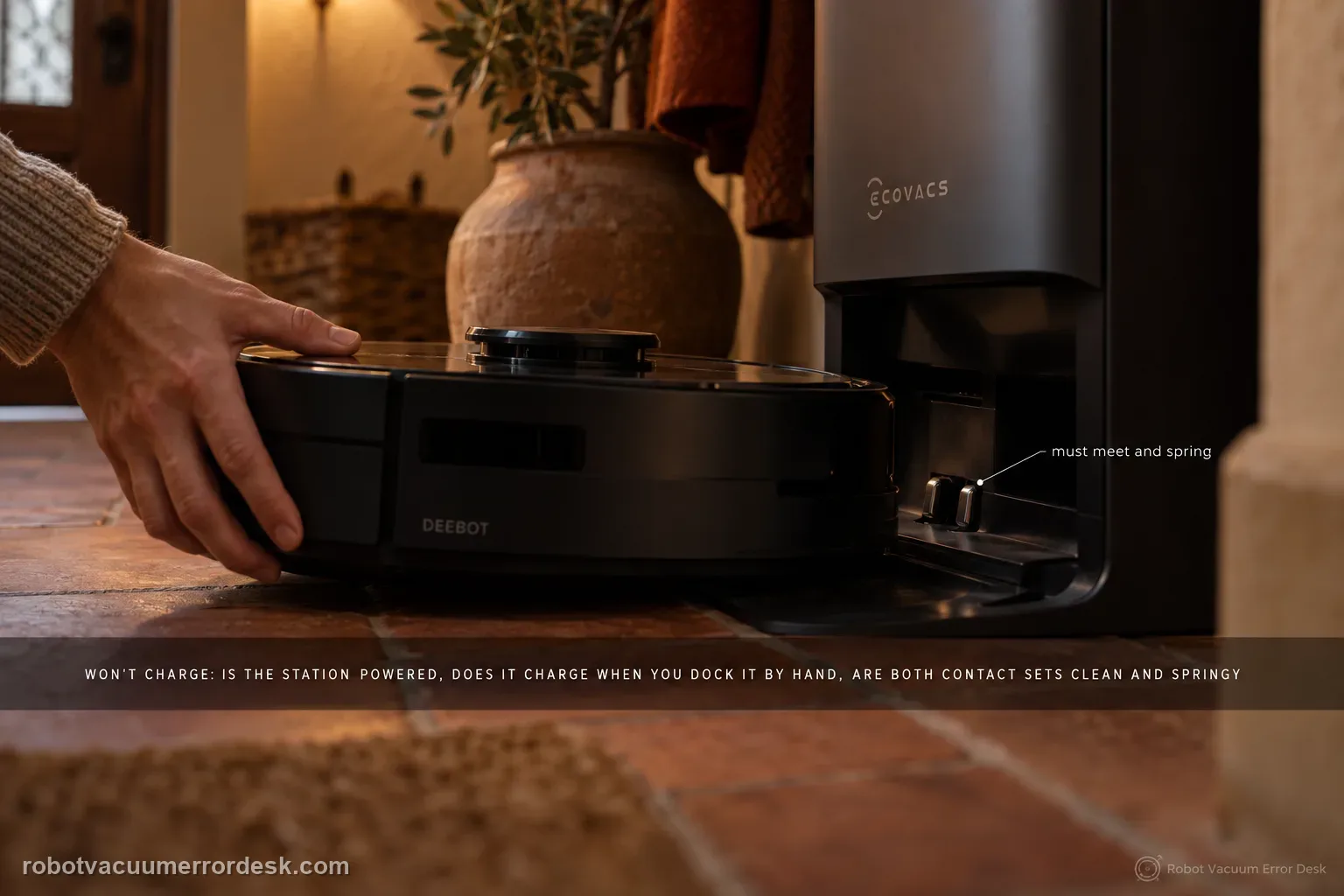
A T80 OMNI that will not charge should be split into three questions before any battery guess: is the station actually powered, does the robot acknowledge charging when it is placed on the station by hand, and are the two sets of contacts clean and springing normally? ECOVACS also documents an Energy-Saving Charging setting, so a robot that holds near 30% outside the configured window is behaving differently from one that shows no charging state at all. Prove those states in order and save the battery hypothesis for last.
Will the T80 acknowledge charging when manually seated on a powered station?
Confirm the exact model and exact code, light pattern or symptom.
Run the lowest-risk physical or software check first.
Use each pass condition to decide what the result actually narrows down.
Confirm this is the right issue
- The T80 OMNI sits on the station but the app shows no lightning icon and the battery percentage does not rise.
- The robot is too depleted to return by itself, so you need a direct-docking test that does not depend on mapping or navigation.
- The station indicator is dark or inconsistent and you are not yet sure whether the wall outlet, station switch or power cord is the real failure.
- Charging begins only when the robot is pushed or shifted on the dock, which points toward seating or contact pressure rather than battery age.
- The battery appears to pause around a low state during configured off-peak hours and you need to distinguish Energy-Saving Charging behavior from a true charging fault.
What’s most likely causing this
No mains power at the outlet, a loose station connector, or the U.S.-market station power switch left off
The robot power switch is not in the I position or the battery is too depleted for an automatic return test
Oxidation, dust or residue on the station contacts or the rear contacts on the robot prevents reliable electrical contact
The robot is physically seated poorly and charging appears only when hand pressure changes the contact alignment
Energy-Saving Charging is enabled and intentionally holds the battery near its maintenance level outside the selected full-charge period
A station, robot charging circuit or battery fault remains after power, contact, seating and charging-mode checks pass
Reading your test result
| What you observe | What it narrows down | Next move |
|---|---|---|
| Station indicator stays off with a known-good outlet | Treat this as a station-power problem before looking at the robot battery. | Re-seat the power cord, confirm the rear power switch where fitted, and test the outlet with another device. |
| Manual docking shows the lightning icon | The core charging path works; automatic return or final docking alignment is the separate problem. | Use the docking/return guide instead of buying a battery. |
| Charging starts only while you press the robot into place | Contact contamination, spring travel or physical alignment is still suspect. | Clean both contact sets, inspect their movement and repeat a hands-off seating test. |
| Battery sits around 30% during off-peak hours | That can match ECOVACS Energy-Saving Charging rather than a hardware failure. | Check Station Advanced Settings and compare behavior inside the configured charging window. |
| No charge state after confirmed power, clean contacts and correct seating | The remaining fault is no longer explained by normal owner maintenance. | Record the indicator/app state and escalate to ECOVACS without opening the station. |
Do not factory-reset by default. Use the exact model’s reboot/network-reset procedure only when the manufacturer path calls for it.
Work through these checks in order
Prove wall power and station power separately
Start with the part of the system that can fail without the robot being involved. Test the wall receptacle with another device, then push the station power connector fully into place. On U.S. versions, ECOVACS tells owners to put the station's rear switch in the ON position and verify the front indicator. Do not infer power from the fact that the station worked yesterday; a loose connector or switched outlet can create an identical symptom. If the indicator still stays dark on a known-good outlet, keep the diagnosis on the station-power branch rather than repeatedly moving the robot on and off the contacts.
Confirm the robot itself is switched on
Remove the top cover and make sure the robot's physical power switch is at I. ECOVACS' charging instructions use that state before asking the robot to return to the station. If the T80 has enough power to respond, place it in front of the dock and long-press Auto so it performs the normal return. If it is too depleted to respond, skip the navigation experiment and move directly to manual seating. This avoids mislabeling a deeply discharged robot as a docking-navigation failure when the real question is simply whether the station can deliver a charge.
Use direct docking to remove navigation from the diagnosis
Place the robot squarely on the powered station by hand. Watch the Auto-button behavior and the ECOVACS HOME app instead of judging by position alone; ECOVACS says the app should show the lightning icon when charging is recognized. If the icon appears and the battery begins to rise, the station-to-robot electrical path is working. A robot that charges manually but will not get there on its own belongs in a return-to-station or slip/alignment guide, not in battery replacement. Let the robot sit long enough to prove the percentage actually changes rather than relying on a brief animation.
Clean both charging-contact sets and check their movement
Power the system down as appropriate, then wipe the charging contacts on the station and the corresponding contacts at the rear of the T80. Use a dry, non-abrasive cloth and remove film, dust or dried residue that can create intermittent resistance. Press only as much as necessary to confirm the station contacts move and return; do not pry them outward. Re-seat the robot without holding it in place. A useful clue is whether charging begins only when you push the robot forward or sideways, because that keeps the diagnosis on alignment/contact pressure rather than on the battery pack.
Rule out Energy-Saving Charging before calling a low percentage a fault
ECOVACS documents an optional Energy-Saving Charging feature under the station's advanced settings. When enabled, full charging is reserved for the configured period; outside it, the robot can be maintained around a safer low level and may still charge enough to complete an unfinished task. Check whether this feature is on and note the configured window. A robot that clearly shows charging but intentionally holds around 30% is a different case from a T80 that shows no lightning icon, no charging voice prompt and no battery increase at any time.
Run one controlled charge test and package evidence for support
After power, robot switch, direct seating, contact cleaning and charging-mode checks, run one final test without changing several variables at once. Note the station indicator, robot light, app lightning icon, starting battery percentage and the percentage after a reasonable charging interval. If the robot still shows no charging state, capture a short video that includes the station power indication and the robot/app response while seated. That evidence allows ECOVACS to separate station electronics, charging contacts and robot-side charging hardware without asking you to repeat generic cleaning steps.
Contact ECOVACS if a known-good outlet powers the station, the robot is switched on, direct seating is correct, both contact sets are clean and spring normally, Energy-Saving Charging does not explain the behavior, and the T80 still shows no stable charging state. Do not open the mains-powered OMNI station or buy a battery solely because the first docking attempt failed. Send the starting/ending battery percentages, the station indicator state, whether the app ever showed the lightning icon, and whether hand pressure changes charging; those observations narrow the service branch far better than a generic 'not charging' report.
Before you contact support, gather this
A reproducible case moves a support call past the basic troubleshooting script faster than “it doesn’t work” does, and it keeps the clues from your own tests on record.
- Exact model name and the error code / voice prompt exactly as shown
- A photo or screenshot of the app error and the time it occurred
- A short list of the checks already completed and what happened after each one
- Map/station screenshot when the problem involves return-to-station or mapping
Where this comes from
ECOVACS T80 OMNI — Robot Fails to Charge
ECOVACS' T80 charging support separates outlet/station power, robot power state, automatic versus direct docking, app/robot charging indication and contact cleaning. A second exact T80 charging article documents Energy-Saving Charging, including the low maintenance state outside the configured period, which prevents a planned charging hold from being mislabeled as a battery failure.
Additional official source: ECOVACS T80 OMNI — proper and energy-saving charging ↗Additional official source: ECOVACS T80 OMNI product support hub ↗Last editorial review: September 5, 2026Regional note: manufacturer help centers, model suffixes, mains-power requirements and warranty procedures can differ by country. If the source redirects to a local support site, confirm that the model/hardware scope still matches before following a region-sensitive step.
This guide is rated Official model support. See what each evidence label means →
Questions people ask
Why is my DEEBOT T80 OMNI not charging even though it is on the station?
Being physically on the station is not proof that the charging circuit is connected. Confirm station power, put the robot switch at I, then look for the app's lightning icon or other charging acknowledgement. If charging appears only when you press the robot into place, clean the two contact sets and investigate seating pressure before blaming the battery.
What does it mean if the T80 charges when I place it on the dock manually?
That is useful evidence that the station can power the robot and that the battery can accept charge. The remaining problem is more likely the return route, final approach, traction or alignment. Move to the docking/return diagnostic instead of continuing through battery troubleshooting, because manual charging has already separated navigation from the electrical charging path.
Can Energy-Saving Charging make the T80 look stuck around 30 percent?
Yes. ECOVACS says the optional Energy-Saving Charging mode can maintain the battery around 30% outside the configured full-charge period, while still charging enough for unfinished tasks when needed. Check Station Advanced Settings and compare behavior during the selected full-charge window. A visible charging state with a deliberate hold is not the same symptom as zero charging response.
Should I replace the DEEBOT T80 battery after one failed charge?
No. ECOVACS' model-specific path starts with outlet/station power, robot power state, direct docking and cleaning the charging contacts. A battery becomes a stronger hypothesis only when those conditions are proven and the robot still cannot establish or maintain a charge. Replacing parts earlier can hide an alignment or station-power problem and adds cost without a diagnostic gain.
What should I send ECOVACS support for a T80 charging failure?
Send a short video showing the powered station and the robot while correctly seated, plus a screenshot of the app charge state. Include starting and later battery percentages, whether the lightning icon ever appears, whether hand pressure changes the result, and whether Energy-Saving Charging is enabled. Those details distinguish contact, station, robot-electronics and charging-schedule branches quickly.
Did this diagnostic narrow the fault?
Use this as an editorial signal, not a popularity counter. If a feedback address is configured you can email the note; otherwise you can copy it for your own support record.