Ecovacs DEEBOT troubleshooting
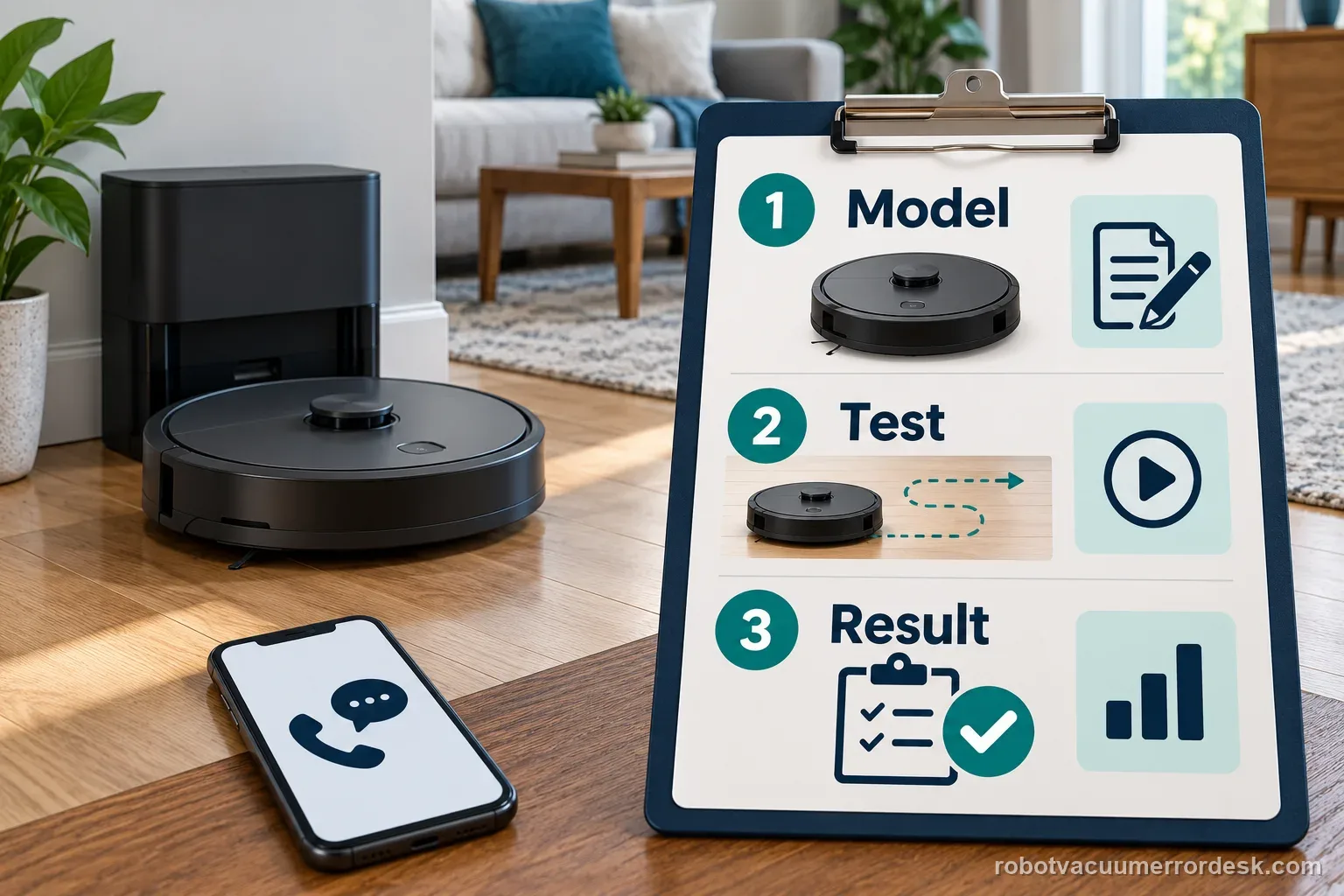
DEEBOT X8, X11 and T80 OMNI charging, docking, mapping, wet-system and connectivity diagnostics. Start with the exact model, then match the error code, light pattern, voice alert or symptom.
Ecovacs DEEBOT X8 Pro Omni
Charging, station-return, Wi-Fi and Auto Resume troubleshooting for the X8 Pro Omni family.
4 live diagnostics →X SeriesEcovacs DEEBOT X11 OmniCyclone
Charging, navigation, obstacle, wheel, tank, threshold and station diagnostics.
20 live diagnostics →T SeriesEcovacs DEEBOT T80 OMNI
Exact-model charging, wet-system, navigation, sensor, Wi-Fi, roller-mop and return-to-station diagnostics from ECOVACS support.
16 live diagnostics →All Ecovacs DEEBOT diagnostics
40 guidesNot charging
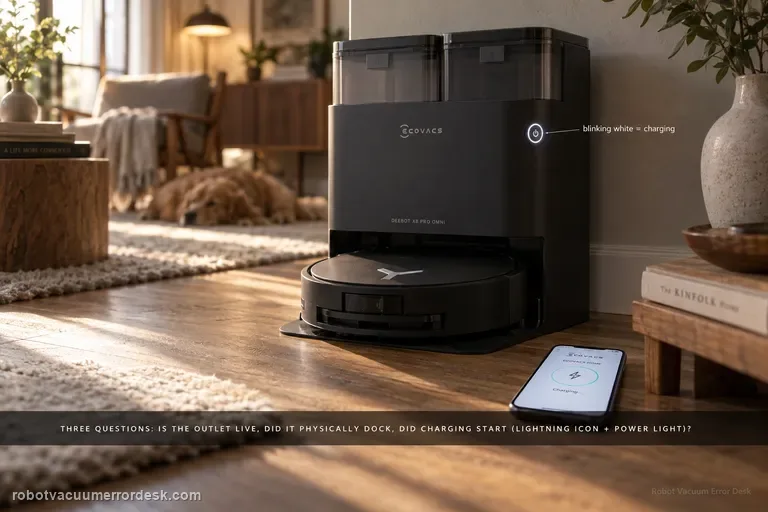
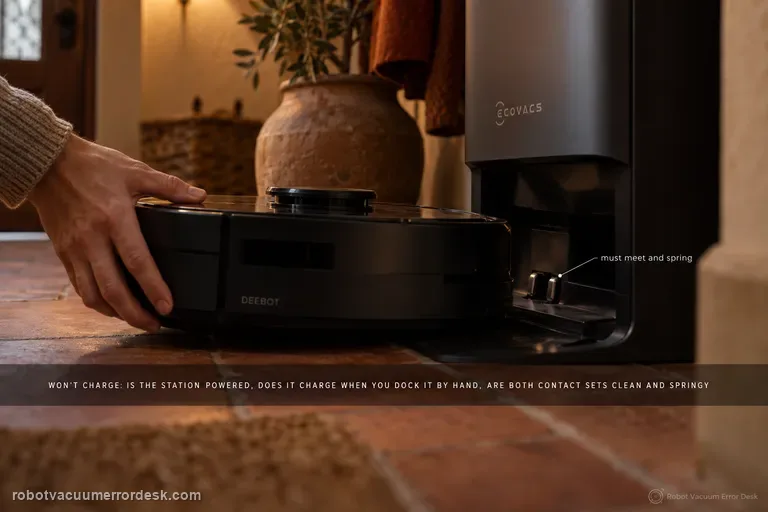
Treat X8 Pro Omni charging as three separate questions: does the station have power, can the robot make a correct physical dock, and does electrical charging actually begin once the contacts touch? ECOVACS’ exact X8 support says to confirm a live outlet and the station cord, switch the robot to I, try an automatic return, then manually dock if the robot will not power on. A blinking white power-button light and the lightning icon in ECOVACS HOME are the evidence that charging has started. If neither automatic nor manual docking charges, clean both contact pairs and confirm the station contacts press down and spring back normally. If a powered station and a manually seated robot still show no charging indication after those checks, stop treating the symptom as navigation and escalate it as a charging-hardware case.
Won't return to station
Do not treat every X8 return failure as the same problem. ECOVACS’ current station-return guide explicitly splits two cases: the robot cannot locate the station, or it locates the station but cannot enter/remain docked. For the first branch, prove station power and original placement, clear the return route, use a level floor, resolve any alarm and check whether the station icon still exists on the map; a missing icon can force low-success exploratory charging and may require manually charging the robot before rebuilding the map. For the second branch, dry the station tray and surrounding floor, verify the roller mop plus removable base/washing tray are installed correctly, clean charging contacts and confirm spring rebound. A short return test from in front of an unchanged station then tells you whether navigation or the final docking interface is still failing.
Won't connect to Wi-Fi
Follow the X8’s connection sequence before changing router settings: keep the robot near the station, sign in to ECOVACS HOME, scan the robot QR code, power the robot on, briefly press Reset and wait for the network-setup/Bluetooth-hotspot voice prompt, then let the app complete the join in strong Wi-Fi coverage. The X8 manual adds the useful compatibility boundaries: a 2.4 GHz or mixed 2.4/5 GHz network, 802.11b/g/n with IPv4, no VPN/proxy or hidden SSID, WPA/WPA2 rather than enterprise authentication, and matching SSID/password on an extender. If pairing fails, first identify whether discovery fails before credentials are sent or whether the robot is discovered but cannot join the home network. Those are different failures and should not be “fixed” by deleting maps or factory-resetting the robot.
Not charging
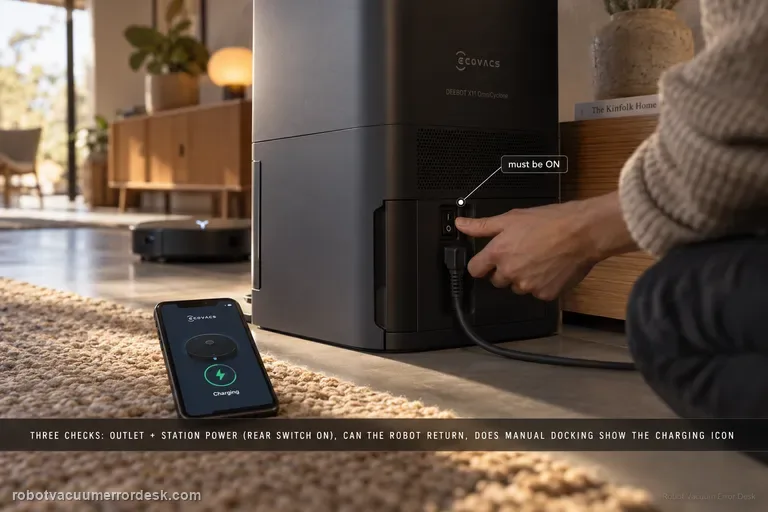
Ecovacs’ X11 charging flow separates three things owners often mix together: whether the station has power, whether the robot can power/return, and whether manual contact charging works. First prove the wall outlet and station connection; on U.S. units, confirm the rear station switch is ON. Power the robot on and ask it to return. If it cannot power on, manually dock it and look for the charging indication—the Auto button blinking or the lightning icon in the app. If manual contact charging also fails, clean the station and rear robot contacts and make sure the station contacts rebound normally. This sequence prevents a navigation failure from being misdiagnosed as a bad battery or dock.
Map skewed / overlapping
Restore before you delete. ECOVACS’ X11 support tells owners to use Map Management and restore the initially saved map when the floor plan becomes skewed or overlapping. ECOVACS’ broader map guidance explains why that order matters: restore returns to a saved/backup state, while deleting and Quick Mapping destroys the current map and starts over. If restore works, stop. If the saved map is also bad, prepare the home, start from the station and rebuild once under stable conditions.
Slips returning to station
Treat “finds the station but slips” as a different fault from “cannot find the station.” ECOVACS’ X11 procedure starts at the last meter: remove excess water from the mop-washing tray and nearby floor, clean and dry the drive wheels, confirm the roller mop is seated, confirm the mop-washing tray is fully installed, then place the robot directly in front of the station and request Auto return. That sequence isolates traction and station-entry geometry before you blame mapping, charging electronics or the battery.
Auto Resume not working
For X11 Auto Resume, prove the three prerequisites ECOVACS documents before touching charging hardware: Auto Resume must be enabled, the recharge/resume point must not fall inside Do Not Disturb, and the cleaning mission must be Auto mode. A robot can charge normally and still not resume if any one of those conditions is false. The best test is a controlled Auto-mode mission outside DND, with the setting visibly enabled and no manual mode change while the robot recharges.
Obstacle avoidance not working
If the X11 starts bumping or fails to steer around objects, first clean the obstacle-avoidance sensor at the center front of the robot with a dry paper towel and confirm the AIVI 3D switch is enabled in DEEBOT settings. ECOVACS also notes a useful limit: the robot may slow and lightly touch black or thread-like objects. That behavior should not be confused with broad AIVI failure. Test with ordinary, visible obstacles after cleaning the sensor and verifying the setting.
Scheduled cleaning not starting
A missed X11 schedule has five official checkpoints: the robot must be powered on, battery charge must be sufficient, the scheduled time must be outside Do Not Disturb, the robot must not already be busy, and the schedule must actually be saved in the app. Check those in that order and compare the exact scheduled timestamp with DND and job history. This prevents an intentionally suppressed or conflicting task from being mistaken for a failed clock or app scheduler.
Missed cleaning areas
Use Ecovacs’ definition first: a 'missed cleaning area' is floor left uncovered after the robot announces that cleaning is complete. For the X11, Ecovacs then tells owners to enable AIVI 3.0 in Standard Mode, check rugs or mats that block doorways, review Map Management → Edit Map → Carpet Settings → Bypass, and remember the robot is rated to climb up to 2.4 cm. That gives you four different causes that can look identical on the finished map: a software avoidance setting, a doorway/carpet rule, a physical threshold limit, or clutter that makes the robot deliberately keep distance to protect furniture.
Messy cleaning routes
For X11 spinning, wandering or a route that suddenly looks messy, ECOVACS checks three physical/environmental inputs: dust on the laser module in the center of the bumper, a room with many obstacles that causes high-precision avoidance to make the path look irregular, and dirty drive wheels. Clean the laser with a dry paper towel, simplify one test area and wipe the wheels before deleting a map. A stable route in the controlled area points away from map corruption.
Cannot cross threshold
X11 threshold failures have a model-specific path that goes beyond generic “clean the wheels” advice. ECOVACS says to add a Threshold Ramp at the location in the app, power the robot off, remove the dirty-water box, clean the drive wheels and inspect the blue climbing claws for debris. Then press the trigger above a drive wheel while slowly rotating the wheel clockwise and confirm the blue claw rotates with it. A claw that does not rotate normally is an after-sales case.
Drive wheel difficulty alarm
For the X11 “difficulty running / check drive wheels” alarm, ECOVACS tells you to power the robot off, remove the dirty-water box, turn the robot over, press and rotate the drive wheels to clear tangles, then wipe or brush away surface stains. The diagnosis should prove that each wheel can move through its travel without hair, thread or sticky residue. If one side remains mechanically different after cleaning, stop repeating cleaning missions and document that asymmetry for service.
Bumper stuck alert
The X11 Bumper Stuck alert has a short official fix, but the useful diagnosis is to check the bumper across all three zones rather than just pushing once in the middle. Remove the bumper protector strip, gently tap the left, center and right sections, and confirm each area springs back. Restart the robot only after the mechanical response is normal. A section that stays depressed or feels different after accessible debris is cleared is the result to show ECOVACS.
Clean water not coming out
When the X11 station produces no clean water during mopping or self-cleaning, ECOVACS checks the supply path in a specific order: remove the clean-water tank, clear anything trapped between tank and station, seat the tank flat, verify the station-side sealing plug is correctly installed and tight, then open the tank, remove the filter, disconnect the water hose and rinse the filter with clean water before reassembly. That sequence distinguishes a seating/seal problem from a restricted filter/hose path.
Dirty Water Tank Anomaly
For the X11 Dirty Water Tank Anomaly alert, ECOVACS tells owners to empty and clean the tank, check that the internal float pivots and returns normally, close the top lid with all clips secured, and reinstall the tank in the station. The key distinction is between a real full/dirty condition and a tank-state detection problem caused by a stuck float or poor sealing/seating. Test the float and lid deliberately instead of only emptying the water.
Clean Water Tank Anomaly
The X11 Clean Water Tank Anomaly path is about tank detection, not just whether water can flow. ECOVACS says to remove the clean-water tank, open it and refill as needed, inspect the float mechanism and make sure it resets after being moved, close the lid with all latches fully engaged, then reinstall the tank in the base station. If the tank is full but the float stays displaced or the lid/tank is not seated correctly, the alert can persist.
Roller mop will not expand
When the X11 roller mop will not extend for edge cleaning, ECOVACS checks software prerequisites before hardware: TruEdge Adaptive Edge Mopping must be enabled in Robot Advanced Settings and the cleaning mode must be Vacuum and Mop. Only then does the model-specific article move to a jammed roller mop. Confirm both app settings on the same test mission, then inspect and clean the roller if extension still does not occur.
Roller Mop Tangled alert
The X11 Roller Mop Tangled alert has a detailed manufacturer service path. Double-press Robot AUTO to extend the roller component, release and remove the roller, separate the end cover and clean it. Remove the dirty-water box before turning the robot over; clear the roller cavity and spin the roller-motor bearing to confirm smooth movement. Refit the end cover, push the roller into the motor until it clicks, retract it with a double press, reinstall the dirty-water box and restart.
Drip Tray Not Installed alert
The X11 “Drip Tray Not Installed” alert has a clear hardware discriminator: ECOVACS tells owners to power the robot off, lift the roller-mop side, release the blue latch and remove the tray, then inspect whether the tray magnet is present. If the magnet is there, reinstall the tray until it clicks and restart. If the magnet is missing, contact customer service. Remove the dirty-water box first whenever you flip the robot to avoid leaks.
Anti-drop sensor dust alert
For the X11 “Anti-drop Sensors Dust Accumulation” or anti-drop sensor error, ECOVACS says to remove the dirty-water box, turn the robot over and gently wipe the anti-drop sensors with a soft, dry cloth. Reinstall the dirty-water box, then power the robot off and back on to check whether the alert clears. The important limits are dry cleaning, careful inversion and no attempt to defeat or cover the cliff sensors.
Not charging
A T80 OMNI that will not charge should be split into three questions before any battery guess: is the station actually powered, does the robot acknowledge charging when it is placed on the station by hand, and are the two sets of contacts clean and springing normally? ECOVACS also documents an Energy-Saving Charging setting, so a robot that holds near 30% outside the configured window is behaving differently from one that shows no charging state at all. Prove those states in order and save the battery hypothesis for last.
Clean Water Tank Anomaly
For the T80 OMNI Clean Water Tank Anomaly, stay on the tank-detection branch first: remove the fresh-water tank, refill it, verify that the float mechanism moves and resets, secure every lid latch, then reinstall the tank flat in the station. The goal of this page is to make the station recognize the tank and its level correctly. If the alert clears but fresh water still does not reach mopping or station self-cleaning, stop repeating tank-detection checks and switch to the separate clean-water-not-dispensing path, which tests the downstream seal, filter and hose. Keeping those two symptoms separate prevents a no-flow problem from being mistaken for a tank-state alert.
Clean water not dispensing
When the T80 OMNI has a recognized clean-water tank but no fresh water reaches mopping or station self-cleaning, troubleshoot the removable water path before assuming a pump failure. ECOVACS tells owners to seat the tank flat with no object trapped between tank and station, confirm the station sealing plug is fitted tightly, then remove the tank filter, disconnect the hose and rinse the filter with clean water. A separate Clean Water Tank Anomaly alert is a different branch that adds water level, float and lid checks.
Difficulty running / drive wheels
For the T80 OMNI 'difficulty running / check drive wheels' alarm, keep the first pass mechanical and comparative. Power the robot off, remove the dirty-water box before inversion, then press and rotate both drive wheels to find wrapped hair, thread or a hard bind. Clean the tread with a damp-but-wrung cloth or brush, dry it, and compare left versus right spring and rotation on a flat hard-floor test. If one wheel remains stiff or the alarm returns immediately on a clean dry surface, stop treating it as a map problem.
Erratic cleaning paths
Erratic T80 routes are not automatically a bad map. ECOVACS' exact-model article starts with three concrete causes: dust on the forward laser module, an obstacle-dense room that makes high-precision avoidance look irregular, and dirty drive wheels that change the robot's actual motion. Clean the optical and traction inputs, simplify one small test area, and compare a repeated route before restoring or deleting the map. Use the separate map-distortion path only when the saved map itself shows overlap or skew.
Laser Sensor Abnormal
For the T80 OMNI 'Laser Sensor Abnormal' alert, ECOVACS gives a short exact-model recovery path: gently orient the laser unit so its radar lens faces forward, clean that lens with a soft brush or clean cloth, power the robot off for a few seconds, then restart it. The important additions are diagnostic: do not force a laser unit that is mechanically stuck, do not use liquids on the optical window, and prove the result with a short open-floor run. If the alert returns immediately with a clean lens and free external movement, the fault has passed the sensible owner-maintenance boundary.
Roller Mop Tangled
Do not pull a tangled T80 roller while the mechanism is retracted. ECOVACS' exact-model sequence is to double-press AUTO so the roller-mop component extends, release and remove the integrated roller, take off its end cover, clear the roller and cavity, check the roller-motor bearing for smooth movement, reinstall the end cover, align the roller with the motor until it clicks, retract the component, reinstall the dirty-water box and restart. The companion removal guide also warns that expansion mode is required and that the roller and mop are integrated rather than separately replaceable.
Resume Cleaning not working
A T80 OMNI that charges but never continues an unfinished cleaning job should be diagnosed as mission-state logic before it is treated as a charging failure. ECOVACS says Resume Cleaning must be enabled, only works in Auto mode, will not activate during Do Not Disturb, will not resume after the return-to-charge sequence produced an error alarm, and can be interrupted by restarting or resetting the robot. Build one controlled Auto-mode test that intentionally requires a recharge, leave the robot and map alone during that break, and observe whether it resumes after enough charge is available.
Anti-drop sensors dusty / error
For a DEEBOT T80 OMNI anti-drop sensor dust/error alert, use a dry optical-cleaning path rather than trying to defeat the cliff sensors. Remove the dirty-water box, switch the robot off, invert it safely, and wipe the anti-drop sensor windows gently with a soft dry cloth. Reinstall the box and power-cycle the robot, then test on level flooring well away from stairs. If the alert clears on a light, ordinary floor but returns only on a very dark or highly reflective edge condition, record that surface effect; if it returns immediately everywhere with clean sensor windows, the fault is no longer explained by surface dust.
Bumper Stuck alert
For the T80 OMNI Bumper Stuck alert, ECOVACS asks for a direct mechanical spring-back test, not a map reset. Remove the bumper protector strip, then press/tap the left, center and right bumper zones separately. Each zone should move inward and return freely. Clean only accessible debris around the bumper seam, then run a short open-floor test. If one zone remains depressed, returns slowly or the alert recurs immediately with free visible movement, stop prying at the bumper assembly and send ECOVACS a video of the three-zone comparison.
Dirty Water Box Abnormal
ECOVACS’ T80 Dirty Water Box Abnormal alert refers to the robot’s onboard Dirty Water Box, not the station’s larger Dirty Water Tank. Remove the onboard box, empty it, clean its filter and close the lid firmly for a tight seal. Then press the drain port: if the box contains water, pressing the port should release water; clean that port with a brush if it is blocked. The manufacturer adds a mechanical station test: press the charging contacts on the base’s right side for 1–2 seconds, release them and check whether the drain rod moves up/down smoothly. The same T80 support set also shows how to clean/reseat the dirty-water box and water tray, including the positive “click” on reinstallation.
Map distorted or overlapping
Do not delete the T80 map first. ECOVACS’ exact distortion/overlap article says to use Map Management → Restore Map to revert to the original saved map. Only if that original map is inadequate does ECOVACS tell you to delete it and create a new one. When a rebuild is necessary, the T80 Mapping Guide adds the conditions that make the new test meaningful: open doors, remove floor obstacles, provide sufficient lighting, power the robot on, place it directly in front of the charging dock and let it dock, keep the robot online for Quick Mapping, wait for the “Mapping completed” announcement, and manually back up the map after editing.
Obstacle avoidance not working
Do not judge the T80 from one bump. ECOVACS’ exact path says to clean the laser sensor centered on the front bumper and confirm Intelligent Avoidance/AIVI 3D is enabled. It also warns that black or thin objects may still be lightly touched. The useful test is therefore a controlled, repeatable obstacle in an open area: clean optics + enabled avoidance + a normal visible object. If that test fails repeatedly, you have evidence of a sensing problem rather than an object-class limitation.
Wi-Fi setup / connection failure
For a DEEBOT T80 OMNI that will not connect to Wi-Fi, use the T80 onboarding sequence before changing router settings: keep the robot near the station, use ECOVACS HOME, scan the robot QR code, enter the home Wi-Fi password, switch the robot on, briefly press the network/reset button when the app asks, and confirm the voice prompt that the Bluetooth hotspot has been released. ECOVACS’ T80 network guidance also calls for a 2.4 GHz-capable home network, Bluetooth enabled on the phone, strong Wi-Fi coverage, a current ECOVACS HOME app, and no VPN/proxy or captive-portal style network during pairing. The key diagnostic is the stage: QR recognition, Bluetooth discovery, home-Wi-Fi authentication, or final cloud connection. Do not factory-reset simply because the final screen says connection failed.
Roller mop will not expand
A T80 roller that will not extend should be treated as a conditions-and-mechanism problem, not immediately as a failed motor. ECOVACS says to confirm TruEdge Adaptive Edge Mopping is enabled and the task is in Vacuum and Mop mode, then check the roller for a debris jam. The companion roller guide adds two important installation facts: expansion mode is required for removal/installation, the robot should be outside the station when you double-press AUTO, and the roller must align to the motor until it clicks. Prove the settings, clean/reseat the roller, then run one repeatable edge pass.
Finds station but slips returning
When a T80 OMNI finds the station but slips during the final approach, do not delete the map first—the robot has already demonstrated that it can locate the dock. ECOVACS' exact-model path is physical: dry excess water from the mop-washing tray and surrounding floor, clean then dry the drive-wheel treads, verify the roller mop is correctly installed, verify the mop-washing tray is seated, then place the robot directly in front of the base and press AUTO for a close return test. That test separates final traction/seating from long-range navigation.
Full-house cleaning incomplete with PowerBoost
If the X11 still cannot finish a whole-home mission even after PowerBoost Charging is enabled, ECOVACS gives two model-specific settings to reduce the load on the mission: set suction to Standard from the control page, then go to Settings > Station Advanced Settings and set Mop Washing Frequency to “by time” at 10 minutes. Test a comparable full-house route after those changes. If it still cannot complete, preserve battery/job history rather than repeatedly changing several performance settings at once.
Abnormal cleaning sink alert
The X11 “Abnormal cleaning sink” alert branches on whether water is present in the mop-washing tray. First make sure the tray and overflow float are installed correctly and check the float magnet. If the tray is dry, clear any obstruction so the overflow float moves and snaps back. If water is standing in the tray, ECOVACS moves to dirty-water tank sealing, the tank-base plug, the app Auxiliary Drain function, tray cleaning/reinstallation and a station power-cycle before retesting drainage.
Auto Resume not working
ECOVACS gives five hard conditions for X8 Auto Resume: the feature must be enabled, the cleaning task must be Auto Cleaning, the expected resume time must be outside Do Not Disturb, the robot must return to charge without a fault alarm, and the robot must not be restarted or factory-reset after the resume state is created. Diagnose those conditions in that order before blaming the battery or map. A useful proof test starts from a clean Auto Cleaning mission with enough unfinished area to force a recharge, records the return-to-station event, confirms that charging begins without a new fault, and then leaves the robot untouched until it either resumes or clearly fails to do so outside DND. If that controlled mission does not resume, save the mission history and settings before any reset so ECOVACS can see which prerequisite was satisfied.