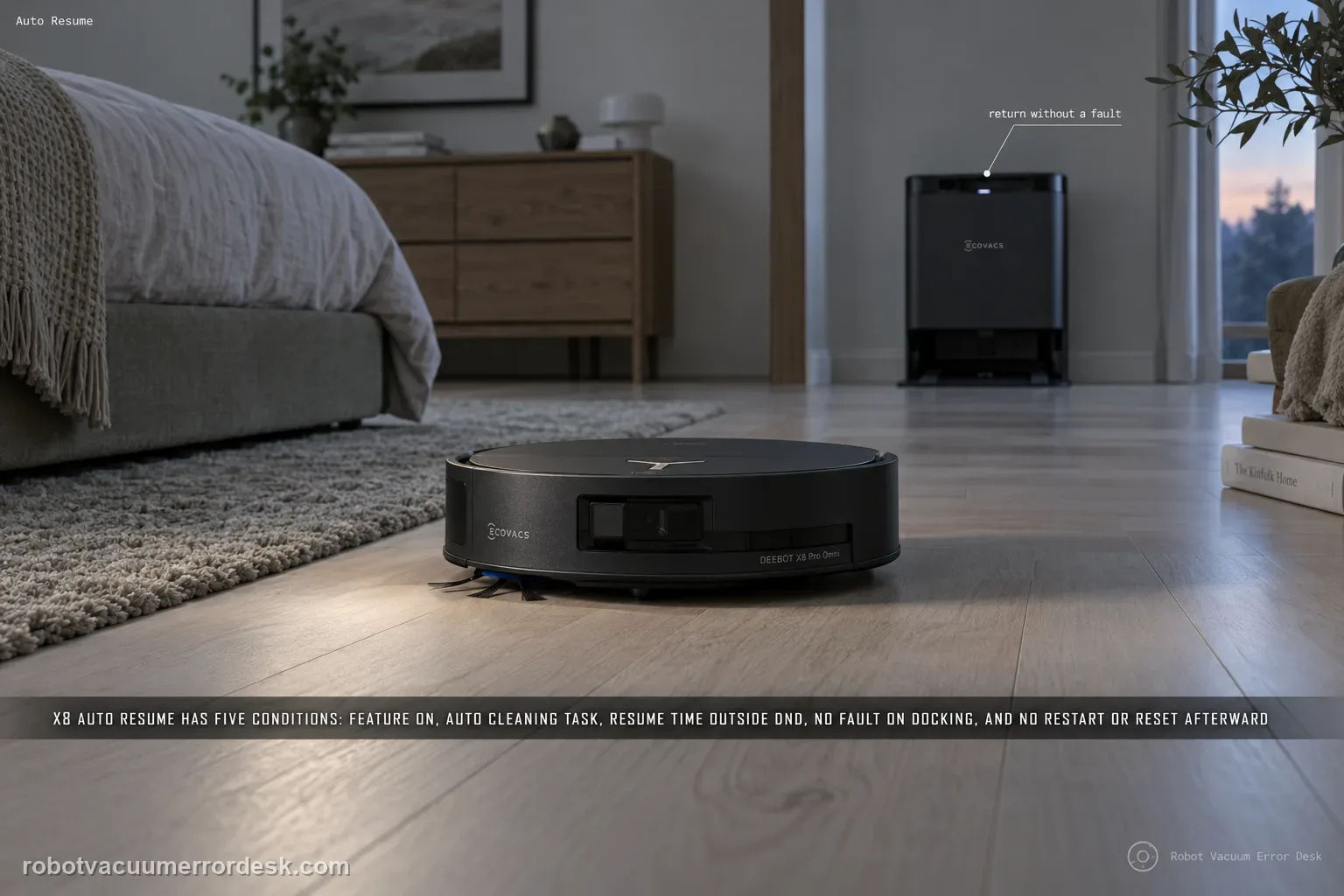
ECOVACS gives five hard conditions for X8 Auto Resume: the feature must be enabled, the cleaning task must be Auto Cleaning, the expected resume time must be outside Do Not Disturb, the robot must return to charge without a fault alarm, and the robot must not be restarted or factory-reset after the resume state is created. Diagnose those conditions in that order before blaming the battery or map. A useful proof test starts from a clean Auto Cleaning mission with enough unfinished area to force a recharge, records the return-to-station event, confirms that charging begins without a new fault, and then leaves the robot untouched until it either resumes or clearly fails to do so outside DND. If that controlled mission does not resume, save the mission history and settings before any reset so ECOVACS can see which prerequisite was satisfied.
Confirm the exact model and exact code, light pattern or symptom.
Run the lowest-risk physical or software check first.
Use each pass condition to decide what the result actually narrows down.
Confirm this is the right issue
- The X8 returns to the OMNI station and charges, but the unfinished cleaning job never continues.
- Auto Resume appears enabled yet the robot stays docked after recharging.
- The missed continuation happens during a Do Not Disturb window or after a fault message at the station.
- The robot was rebooted, power-cycled or factory-reset while you were waiting for the unfinished mission to resume.
What’s most likely causing this
Auto Resume is disabled for the robot
The interrupted task was not an Auto Cleaning mission, which ECOVACS says is required for Auto Resume
The expected restart time falls inside the configured Do Not Disturb window
A fault alarm occurred after automatic return to charge and blocks the continuation
The robot was restarted or restored to factory settings after the resume state was created, cancelling mission continuity
The prerequisites are correct but the app/robot does not preserve or act on the unfinished mission, which needs a documented support case
Reading your test result
| What you observe | What it narrows down | Next move |
|---|---|---|
| Auto Resume toggle is off | The expected behavior is not enabled, so no deeper fault diagnosis is justified yet. | Enable it and run a clean Auto Cleaning proof mission. |
| Feature is on but task was Room/Area/other custom mode | The test does not satisfy ECOVACS’ Auto Cleaning requirement. | Repeat in Auto Cleaning mode before changing DND or resetting anything. |
| Robot is charging normally but expected resume time is inside DND | The pause is consistent with a documented scheduling rule, not necessarily a malfunction. | Move the proof test outside DND and leave the robot untouched. |
| Fault alarm appears after the automatic return | ECOVACS says Auto Resume cannot trigger while that fault condition exists. | Resolve the specific alarm first, then repeat the mission from a clean state. |
| All prerequisites are met and no restart/reset occurred, but mission never resumes | The documented user-side blockers have been ruled out. | Save mission history, settings and charging timeline for ECOVACS before any factory reset. |
Reset can erase maps/settings on this path. Use lower-risk checks first and document the current state before resetting.
Work through these checks in order
Verify Auto Resume is enabled before reproducing the problem
Open the X8 settings in ECOVACS HOME and confirm the Auto Resume function is actually enabled. Save a screenshot so the setting is documented before the next mission. Do not infer that the feature is on because it worked weeks ago or because a different DEEBOT resumed successfully. Firmware/app updates, robot replacement or a prior reset can change configuration. Keep other settings unchanged for this first proof. If Auto Resume is off, turn it on and create a fresh controlled mission; there is no value troubleshooting DND, battery capacity or map state until the feature itself is enabled on the exact robot you are testing.
Run the proof mission in Auto Cleaning mode, not a different task type
ECOVACS’ X8 article states that Auto Resume only takes effect in Auto Cleaning mode. Start the test as an Auto Cleaning mission with enough area left that the robot can genuinely interrupt for charging before completion. Avoid room-only, area-only, scenario or other custom tasks for this proof because a failure there does not test the documented feature condition. Note the start time and take a screenshot of the active task type. This single distinction prevents a common false diagnosis: a user expects every cleaning mode to resume after charging even though ECOVACS narrows the feature to Auto mode.
Check the Do Not Disturb schedule against the expected resume window
Open the DND schedule before the robot returns to charge. ECOVACS explicitly says Auto Resume will not trigger during Do Not Disturb time. Compare the current clock, the likely recharge duration and the DND start/end times. If the robot is likely to become ready to resume inside DND, do not treat remaining on the station as a failure. Move the controlled test to a time when the full interruption-and-resume cycle can happen outside DND. Also check that the phone clock and robot/app region are not confusing your interpretation of when the quiet window applies.
Observe the automatic return and capture any fault alarm before touching the robot
Let the X8 return to the station by itself when the mission requires charging. Watch ECOVACS HOME and the robot/station for a fault alarm after the automatic return. The exact X8 guidance says a fault alarm blocks Auto Resume. If a fault appears, record the code or wording and switch to the diagnostic for that specific fault instead of repeatedly toggling Auto Resume. Do not manually push the robot around, move the station or dismiss the evidence. The goal is to prove that the interrupted mission reaches a clean charging state without a new condition that is documented to cancel continuation.
Leave the robot, station and mission state untouched while it is waiting to resume
After the resume state has been created, do not restart the robot, switch it off and on, factory-reset it or move the station. ECOVACS explicitly warns that restarting or restoring factory settings after Auto Resume is triggered breaks that continuation path. Also avoid manually launching an unrelated cleaning task while waiting, because that changes the mission state you are trying to observe. The cleanest experiment is deliberately boring: let the X8 charge, keep DND inactive and wait for the same unfinished Auto Cleaning mission to continue on its own. Record the battery/charging state and time rather than intervening.
Verify that the resumed run is the unfinished mission, not a new job
If the X8 leaves the station, compare the app map and cleaning history with the unfinished area from before charging. A real Auto Resume should continue the interrupted Auto Cleaning task rather than starting an unrelated full-house run because someone pressed Start again. Check whether previously completed areas remain completed and whether the robot targets the remaining portion. This is useful for intermittent cases where the user says “it started later” but cannot tell whether the robot resumed automatically or a schedule/manual command launched something new. Keep screenshots from before and after the recharge for a clean comparison.
If the controlled mission still fails, preserve evidence before any reset
When Auto Resume is enabled, the test is Auto Cleaning, DND is inactive, the robot returns and charges without a fault, and nobody restarts or resets it, a continued failure deserves support rather than more random toggles. Save the mission-history entry, Auto Resume setting, DND schedule, time of automatic return, charging state and the time when the continuation should have occurred. Note firmware/app versions if visible. Only after those records exist should a broader reset be considered, because a factory reset can erase the exact state ECOVACS needs to distinguish configuration, firmware and mission-continuity behavior.
Escalate when Auto Resume is enabled, the task is Auto Cleaning, the entire expected continuation occurs outside DND, no fault alarm appears after the automatic return, and the robot is not restarted or factory-reset, yet the unfinished mission still does not continue. Provide ECOVACS with screenshots of the setting, DND window, mission history and charging timeline. If a fault alarm appears, diagnose that alarm first because ECOVACS explicitly treats it as a blocker. Do not use repeated factory resets as the primary test because they themselves destroy the resume state.
Before you contact support, gather this
A reproducible case moves a support call past the basic troubleshooting script faster than “it doesn’t work” does, and it keeps the clues from your own tests on record.
- Exact model name and the error code / voice prompt exactly as shown
- A photo or screenshot of the app error and the time it occurred
- A short list of the checks already completed and what happened after each one
- Map/station screenshot when the problem involves return-to-station or mapping
Where this comes from
ECOVACS X8 Pro Omni — Auto Resume troubleshooting
The exact X8 Pro Omni article documents all key prerequisites used here: Auto Resume enabled, no trigger during Do Not Disturb, no post-return fault alarm, no restart/factory reset after resume is triggered, and Auto Cleaning mode only.
Additional official source: ECOVACS DEEBOT X8 Pro Omni support hub ↗Additional official source: ECOVACS Global — current Auto Resume guidance ↗Last editorial review: September 5, 2026Regional note: manufacturer help centers, model suffixes, mains-power requirements and warranty procedures can differ by country. If the source redirects to a local support site, confirm that the model/hardware scope still matches before following a region-sensitive step.
This guide is rated Official model support. See what each evidence label means →
Questions people ask
Why does my DEEBOT X8 Pro Omni charge but not resume cleaning?
Charging successfully proves only that the robot reached the station and can receive power. ECOVACS separately requires Auto Resume to be enabled, the task to be Auto Cleaning, DND to be inactive, no fault alarm after return and no restart or factory reset after the resume state is created. A controlled mission that checks all five conditions is more useful than another battery test.
Does X8 Auto Resume work after every type of cleaning task?
No. ECOVACS’ exact X8 support says Auto Resume only takes effect in Auto Cleaning mode. If a room, area, scenario or other custom task does not continue after charging, do not use that result as proof the documented Auto Resume feature is broken. Reproduce the symptom with a genuine Auto Cleaning mission before changing settings or contacting support.
Can Do Not Disturb make Auto Resume look broken even when the setting is on?
Yes. ECOVACS explicitly says Auto Resume will not trigger during the Do Not Disturb period. If the robot returns to charge before DND and becomes ready to continue inside that quiet window, remaining docked can be expected behavior. Run the proof mission far enough outside DND that both the recharge and the expected continuation occur while DND is inactive.
Why should I not reboot or factory-reset the X8 while testing Auto Resume?
Because ECOVACS says that after the Auto Resume state is triggered, the robot must not be restarted or restored to factory settings. Those actions break the mission continuity you are trying to test. Preserve the unfinished mission, charging timeline and settings first. A reset performed too early can erase evidence and create a new state that no longer answers the original question.
What should I save before contacting ECOVACS about X8 Auto Resume?
Capture the Auto Resume toggle, task mode showing Auto Cleaning, DND schedule, mission-history entry, time of automatic return, charging state and any fault alarm. Also note whether anyone restarted, reset or manually launched another task while the robot was charging. That record lets support evaluate the actual prerequisites instead of asking you to repeat a vague “it did not resume” report.
Did this diagnostic narrow the fault?
Use this as an editorial signal, not a popularity counter. If a feedback address is configured you can email the note; otherwise you can copy it for your own support record.