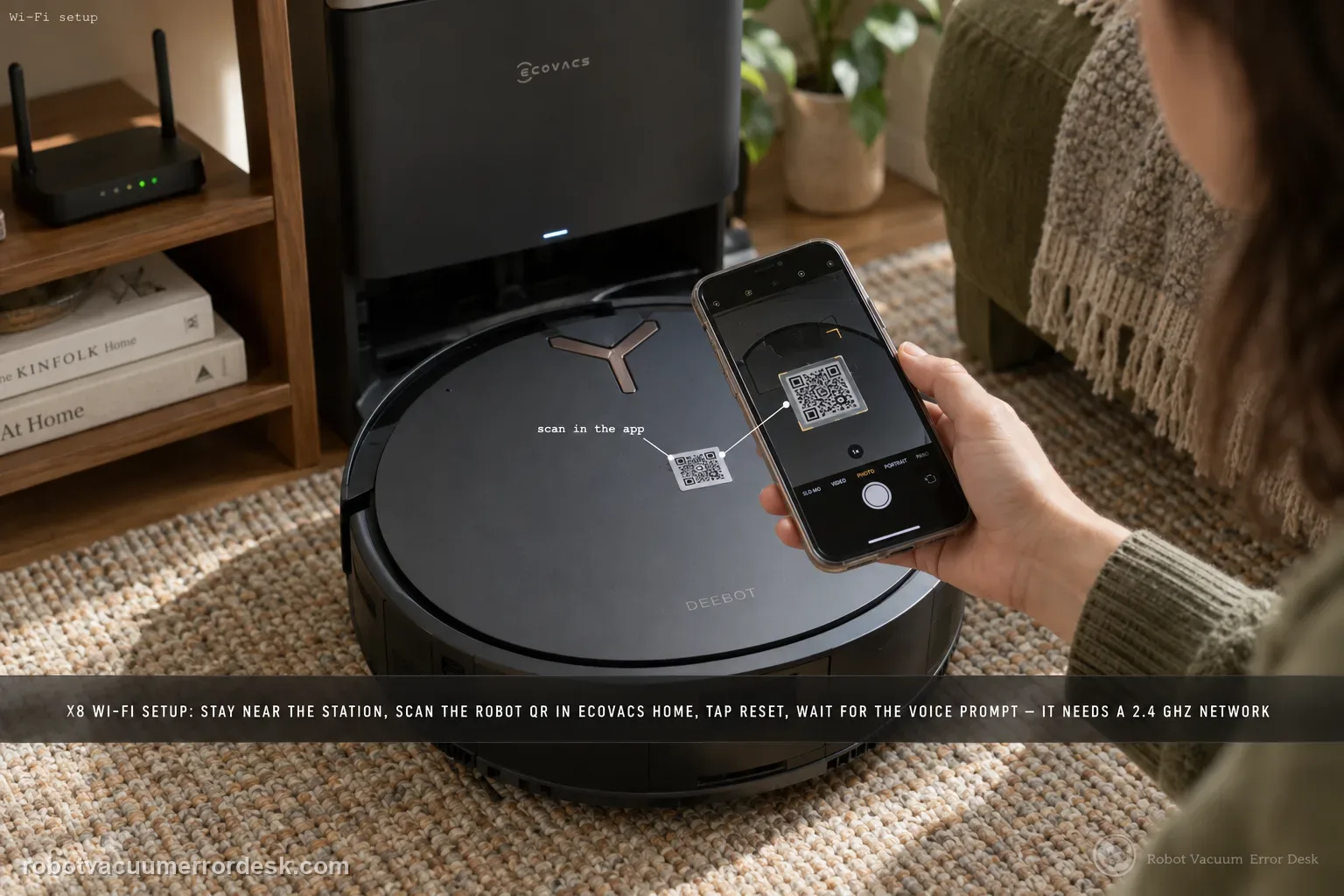
Follow the X8’s connection sequence before changing router settings: keep the robot near the station, sign in to ECOVACS HOME, scan the robot QR code, power the robot on, briefly press Reset and wait for the network-setup/Bluetooth-hotspot voice prompt, then let the app complete the join in strong Wi-Fi coverage. The X8 manual adds the useful compatibility boundaries: a 2.4 GHz or mixed 2.4/5 GHz network, 802.11b/g/n with IPv4, no VPN/proxy or hidden SSID, WPA/WPA2 rather than enterprise authentication, and matching SSID/password on an extender. If pairing fails, first identify whether discovery fails before credentials are sent or whether the robot is discovered but cannot join the home network. Those are different failures and should not be “fixed” by deleting maps or factory-resetting the robot.
Confirm the exact model and exact code, light pattern or symptom.
Run the lowest-risk physical or software check first.
Use each pass condition to decide what the result actually narrows down.
Does this match your problem?
- ECOVACS HOME cannot discover the X8 Pro Omni during initial setup.
- The QR step succeeds but the connection stalls after Wi-Fi credentials are entered.
- The robot announces network setup mode but never becomes online in the app.
- The X8 was moved to a new router/SSID and needs a controlled re-pair rather than a full robot reset.
Most likely causes
The robot never entered the documented network setup/Bluetooth hotspot mode
The phone, robot and router are too far apart or Wi-Fi coverage is weak during provisioning
SSID/password entry is wrong or the phone is provisioning a different network than intended
Router configuration conflicts with X8 manual requirements such as hidden network, VPN/proxy, enterprise authentication or unsupported security settings
An extender/repeater uses credentials that do not match the primary network and confuses provisioning
The robot is discoverable but the home router join fails, which is different from a Bluetooth/QR discovery failure
What your test result means
| What you observe | What it narrows down | Next move |
|---|---|---|
| QR scan works but robot never announces network setup mode | The app has the model identity, but the robot is not ready to accept provisioning. | Power the X8 at I, short-press Reset and wait for the exact setup/hotspot voice prompt before retrying. |
| Robot is discovered but join fails after Wi-Fi password entry | Bluetooth/local discovery worked; home-network credentials or router compatibility are now the stronger branch. | Re-enter the SSID/password and compare the router with the X8 manual requirements before repeating pairing. |
| Phone is on VPN/proxy or the SSID is hidden | The X8 manual explicitly lists configurations that should not be used for setup. | Disable VPN/proxy and expose a compatible WPA/WPA2 network for the controlled pairing test. |
| Pairing works near router but fails at the station location | The robot/app path is functional; coverage at the station is the variable. | Improve Wi-Fi coverage or station/router placement instead of resetting the robot again. |
| A clean compatible network still cannot join after repeated setup-mode proof | Basic owner-level pairing and router checks no longer explain the failure. | Capture app step, Wi-Fi indicator state and router details for ECOVACS support. |
Reset can erase maps/settings on this path. Use lower-risk checks first and document the current state before resetting.
Run these checks in order
Start with the X8, phone and station in one strong-coverage area
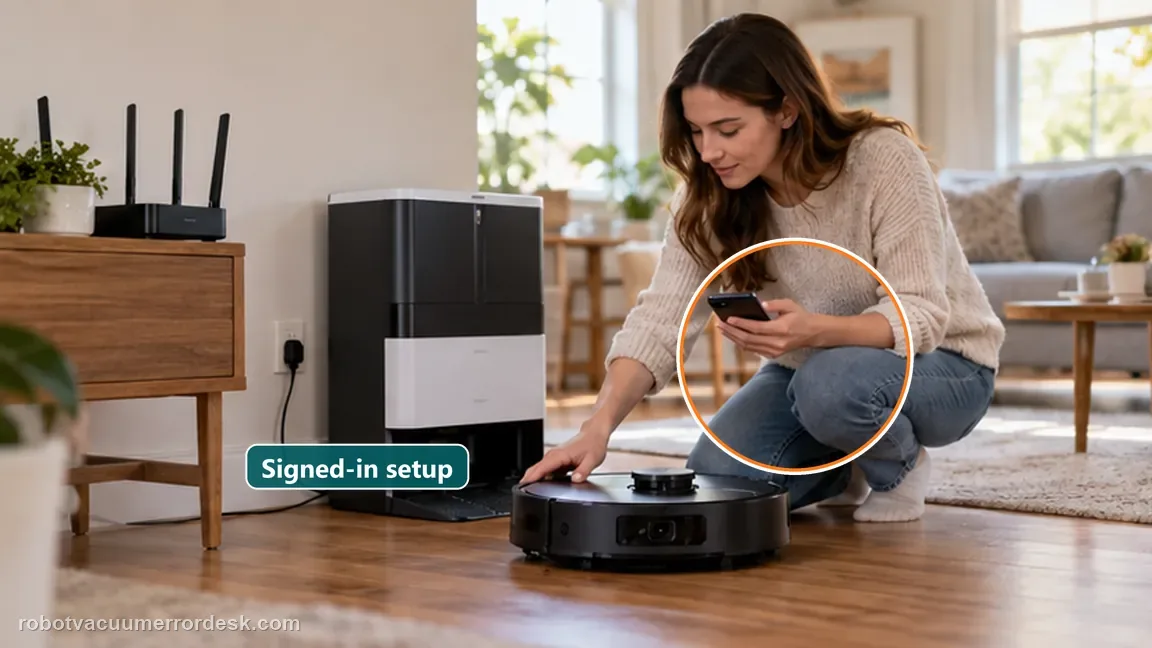
Place the X8 near the station as ECOVACS’ model-specific Network Connection Guide instructs, and keep the phone close to the robot during setup. Confirm the phone itself has reliable access on the home network before pairing. This removes weak coverage as an early confounder. Do not move the station to another floor, stand at the edge of Wi-Fi range or start through a distant mesh node while you are trying to prove the initial setup path. Open ECOVACS HOME, update it if an update is already available through the normal app store, sign in to the intended account and begin the add-device flow from a stable connection.
Use the robot QR code and confirm you are provisioning the intended SSID
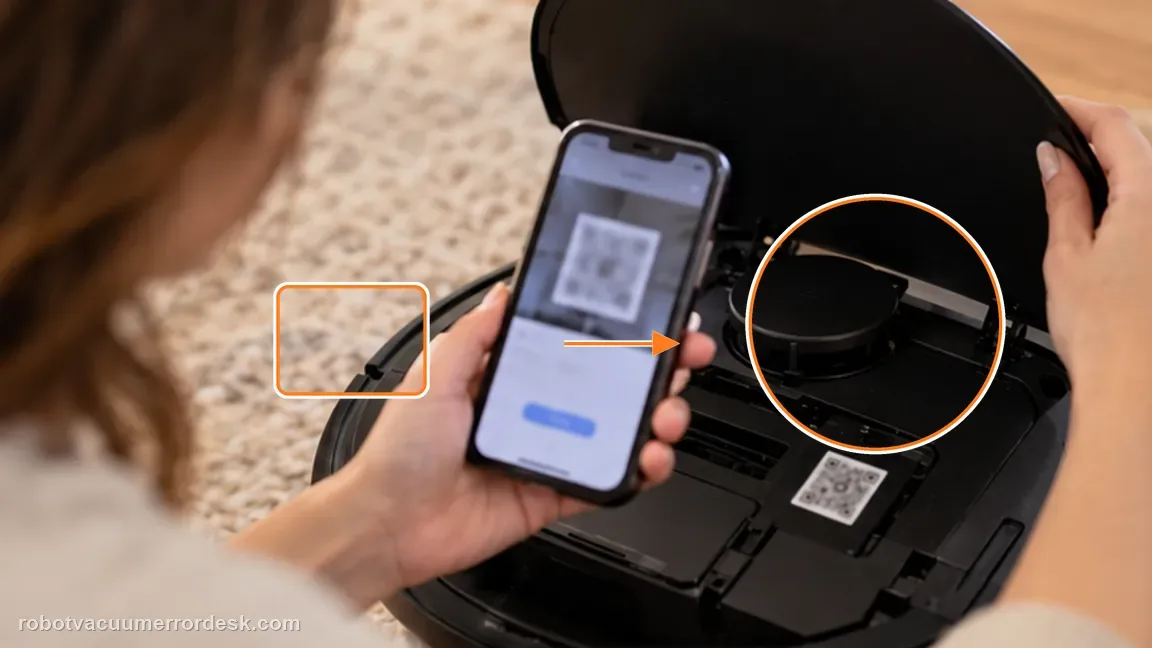
Scan the QR code on the X8 rather than selecting a vaguely similar model from memory. When ECOVACS HOME asks for Wi-Fi credentials, verify the SSID character by character and enter the password freshly rather than relying on an old stored value. If your router presents multiple networks, note which one the phone is currently using. The X8 manual supports a 2.4 GHz network or a mixed 2.4/5 GHz network; this is different from assuming every band or enterprise Wi-Fi design is supported. Keep the network name and password simple for the proof test if you control a temporary test SSID.
Power the X8 at I and deliberately enter network setup mode
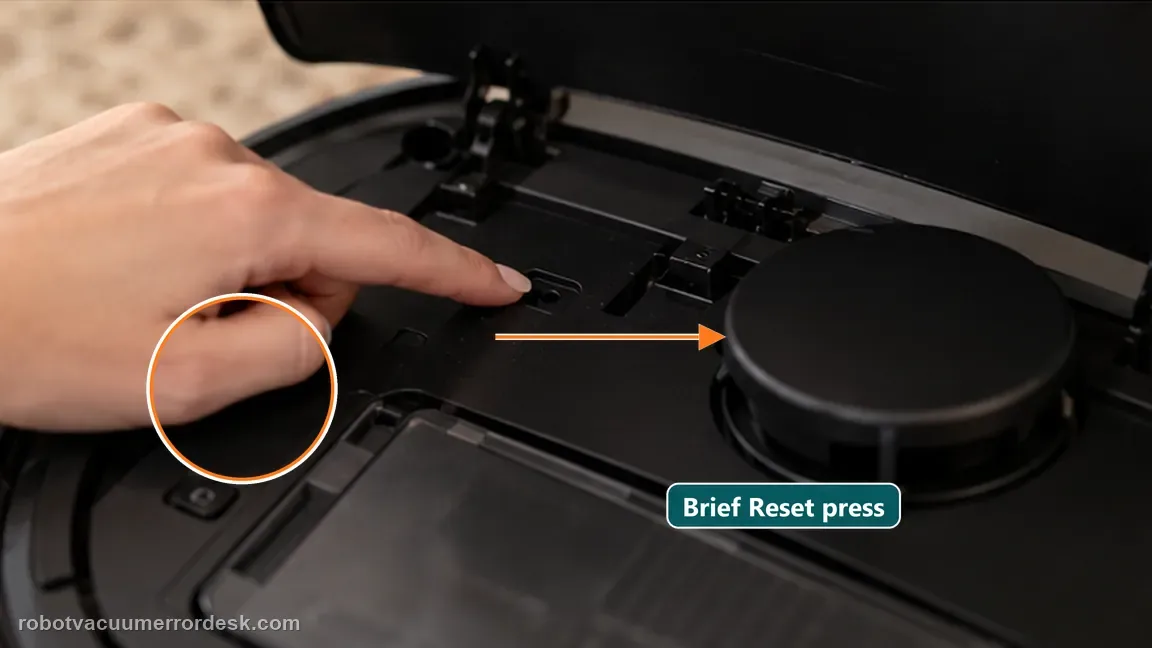
Open the top cover, slide the physical power switch to I and wait for the startup sound. Follow ECOVACS HOME to the point where it asks the robot to enter setup mode, then briefly press Reset as documented. Depending on the current support wording/firmware, listen for the voice prompt that the robot is entering network setup mode or that the Bluetooth hotspot has been released. Do not keep holding Reset into a different reset path. The voice prompt is the proof that the robot is prepared for provisioning; without it, repeated password changes do not address the actual failure.
Let Bluetooth/local discovery finish before diagnosing the router
The X8 manual recommends Bluetooth for a better app connection experience, so allow ECOVACS HOME the phone Bluetooth permission it requests and keep Bluetooth enabled during setup. Watch where the workflow fails. If the app cannot see the nearby robot at all, remain on phone permissions, Bluetooth, QR/model selection and robot setup-mode checks. If the app discovers the robot and only fails after credentials are transferred, move to the router/network branch. This distinction prevents a common waste of time: changing WPA settings when the phone never established the local provisioning link in the first place.
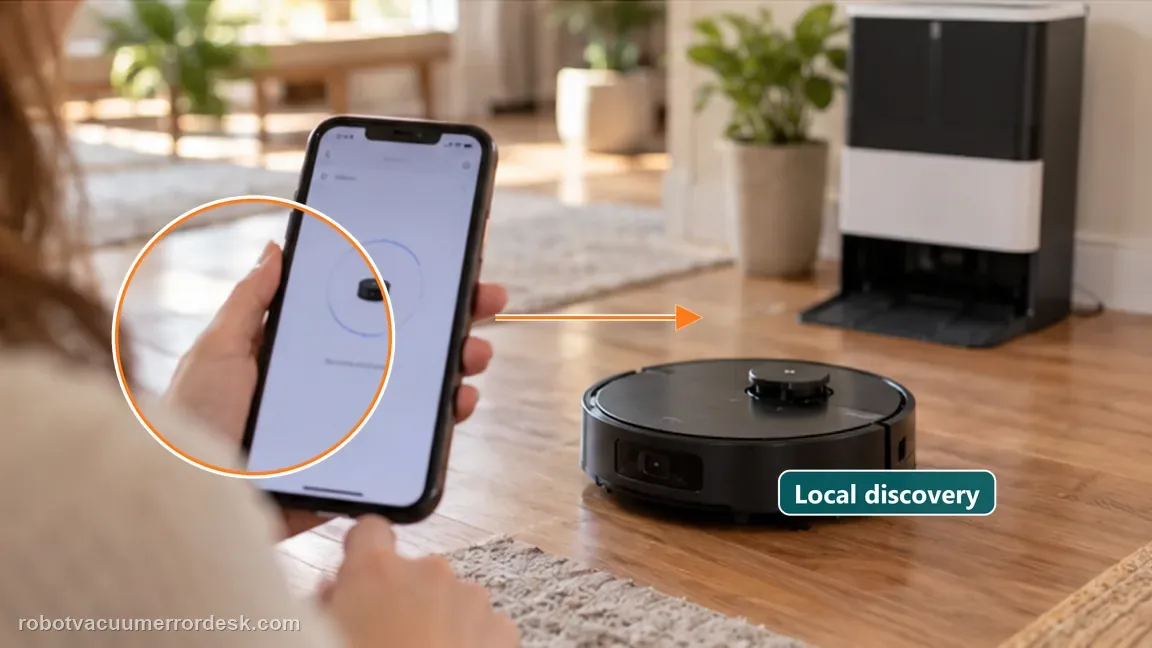
Compare the home network with the X8 manual compatibility requirements
For a join-stage failure, check the router against the X8 manual rather than applying generic smart-home folklore. ECOVACS lists 2.4 GHz or mixed 2.4/5 GHz operation, 802.11b/g/n and IPv4, WPA/WPA2 security, and warns against VPN/proxy, hidden networks and enterprise authentication. If you use a repeater/extender, the manual says its network name and password should match the primary network. Temporarily remove only one incompatible feature at a time so the result remains interpretable. Avoid a factory reset: network compatibility can be proven without erasing maps or other robot data.
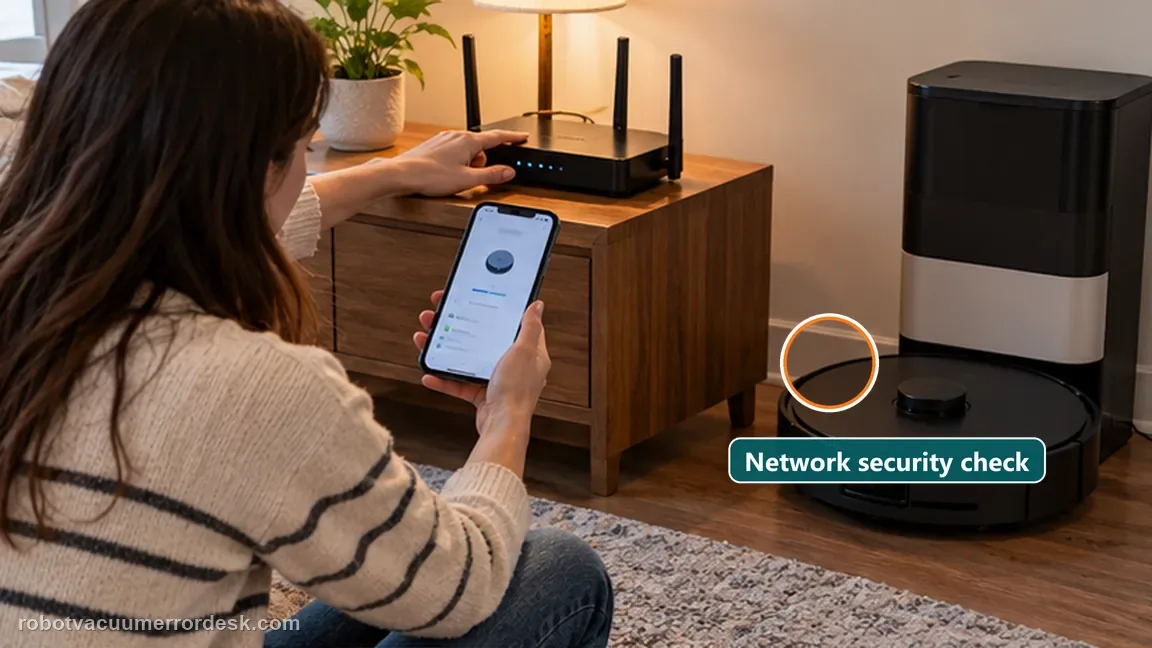
Read the Wi-Fi indicator as a state signal, not decoration
The X8 manual distinguishes Wi-Fi indicator states: slow white flashing means disconnected, fast white flashing means connecting, and solid white means connected. Observe that state while the app is pairing. A robot that remains in the disconnected state after the setup prompt has a different failure from one that moves into fast flashing and then falls back after the router join. Pair the indicator behavior with the app screen and voice prompt. This gives ECOVACS a far more useful failure description than “Wi-Fi does not work,” and it helps you decide whether the next test belongs on setup mode, credentials or router compatibility.
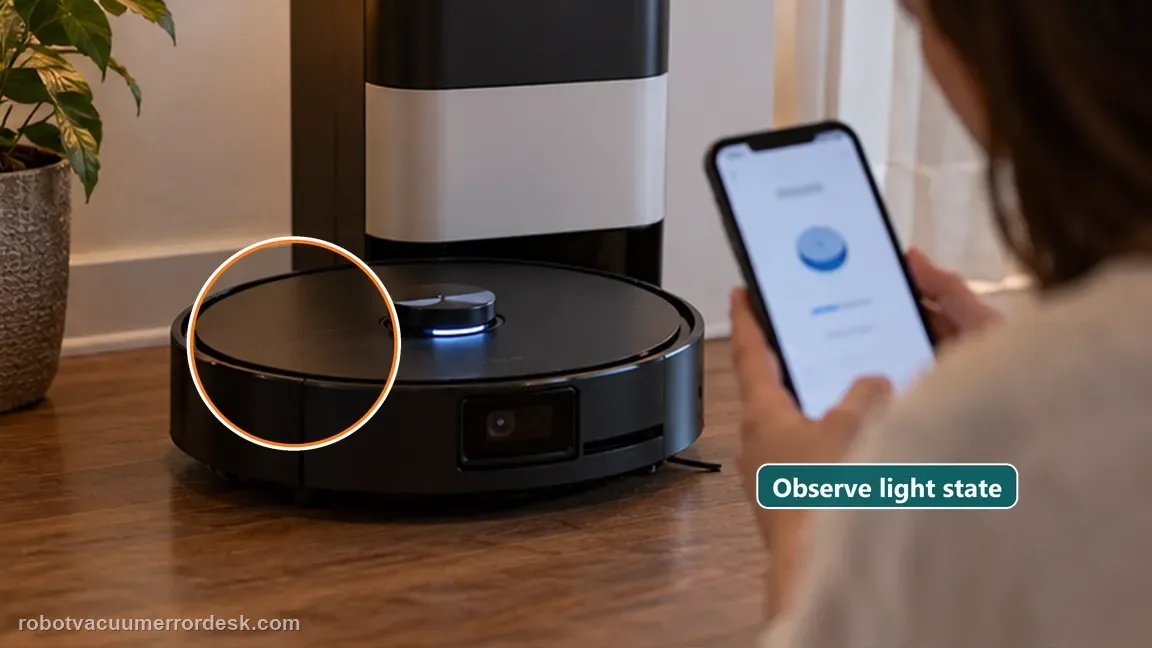
Run one controlled alternate-network test before escalating
If your normal router remains suspect, use a simple compatible test network you control, such as a 2.4 GHz or mixed WPA2 network that meets the manual requirements. Keep the robot and phone close and repeat the exact same QR → setup-mode → join sequence. If the X8 connects there, the robot’s Wi-Fi hardware and provisioning path have passed and you can focus on the original router, extender or network policy. If it fails identically on a clean compatible test network, stop cycling through map deletion and factory resets. Record the router model, ECOVACS HOME version, Wi-Fi indicator state and the exact screen where the join fails for support.
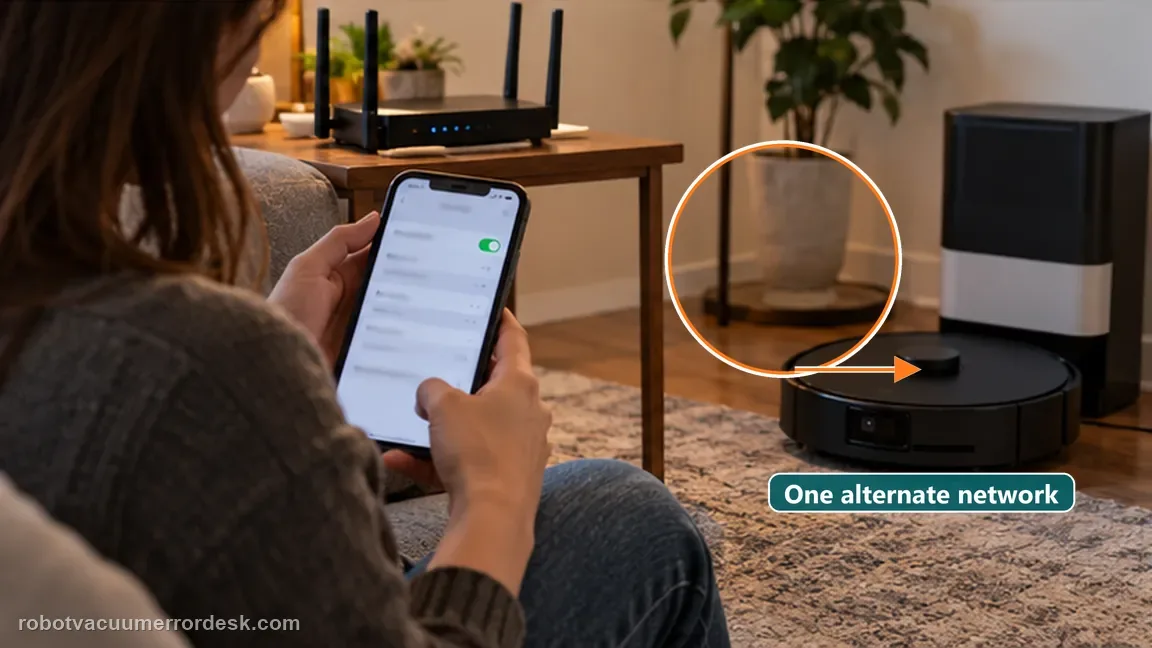
Contact ECOVACS when the X8 enters the correct setup mode, local discovery works, credentials are verified, the test network meets the manual’s 2.4/mixed-band, IPv4 and WPA/WPA2 requirements, VPN/proxy/hidden/enterprise conflicts are absent, and the robot still cannot complete the join. Include the Wi-Fi indicator state, app failure screen, router model, SSID architecture and whether a clean alternate network behaved differently. Do not erase maps for a provisioning failure unless support specifically asks for a broader reset.
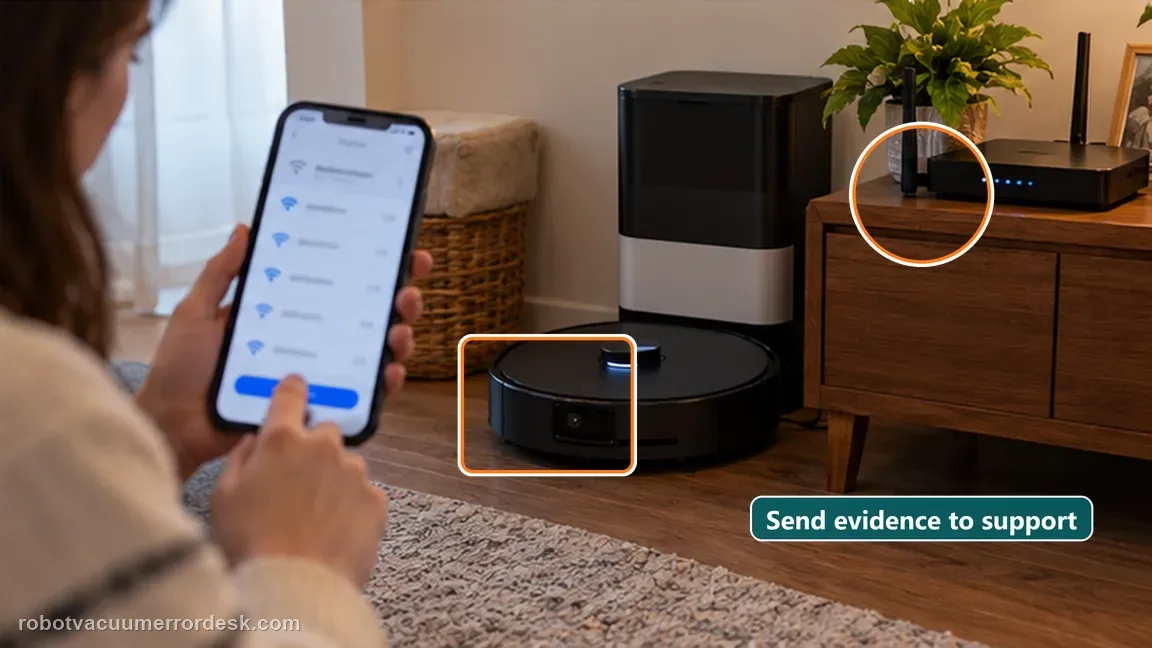
What to collect before contacting support
Give support a reproducible case instead of “it doesn’t work.” That reduces repeated basic troubleshooting and preserves the clues from your tests.
- Exact model name and the error code / voice prompt exactly as shown
- A photo or screenshot of the app error and the time it occurred
- A short list of the checks already completed and what happened after each one
- Map/station screenshot when the problem involves return-to-station or mapping
Manufacturer evidence
ECOVACS X8 Pro Omni Network Connection Guide
The exact X8 guide documents ECOVACS HOME login, QR scan, the I power-switch position, brief Reset press, network-setup voice prompt and completing the app connection. The official X8 manual adds Bluetooth preference, Wi-Fi compatibility/security boundaries and indicator meanings used to separate discovery from router-join failure.
Additional official source: ECOVACS — current home Wi-Fi troubleshooting ↗Additional official source: ECOVACS DEEBOT X8 Pro Omni support hub ↗Last editorial review: September 5, 2026Regional note: manufacturer help centers, model suffixes, mains-power requirements and warranty procedures can differ by country. If the source redirects to a local support site, confirm that the model/hardware scope still matches before following a region-sensitive step.
This guide is rated Official model support. See what each evidence label means →
FAQ
Does the DEEBOT X8 Pro Omni require a 2.4 GHz-only Wi-Fi name?
Not necessarily. The official X8 manual says it can use a 2.4 GHz network or a mixed 2.4/5 GHz network, while also listing 802.11b/g/n, IPv4 and WPA/WPA2 requirements. That is more precise than a blanket “5 GHz never works” rule. For troubleshooting, a simple compatible test network is still useful because it removes mesh and policy complexity.
Why does the X8 voice prompt matter during Wi-Fi setup?
The brief Reset press should put the robot into the documented network setup or Bluetooth-hotspot state. Hearing that prompt proves the robot is ready for provisioning. If the prompt never occurs, changing the Wi-Fi password or router security is premature because the phone may never have reached the stage where credentials can be transferred to the robot.
Should I factory-reset the X8 Pro Omni because ECOVACS HOME cannot add it?
No, not as an early step. Pairing can be diagnosed through app login, QR identification, Bluetooth permission, network setup mode, credentials, indicator state and a compatible test network without deleting maps or settings. A factory reset adds variables and can destroy useful history. Use it only if ECOVACS specifically requires it after the narrower connection path is documented.
What does fast versus slow white Wi-Fi flashing mean on the X8?
The X8 manual describes slow white flashing as disconnected, fast white flashing as connecting and solid white as connected. Those states help locate the failure. If the robot never leaves disconnected state, focus on setup mode and local discovery. If it reaches the connecting state and then falls back, credentials, router compatibility or network policy become more plausible.
How can I tell whether the problem is my router or the X8 itself?
Repeat the same QR and setup-mode sequence on a simple compatible network you control. If the X8 joins that network, its radio and provisioning path have demonstrated basic function and the original router, extender or policy deserves attention. If the failure is identical on a clean compatible network, document the app stage and indicator state and escalate to ECOVACS rather than repeatedly resetting.
Did this diagnostic narrow the fault?
Use this as an editorial signal, not a popularity counter. If a feedback address is configured you can email the note; otherwise you can copy it for your own support record.