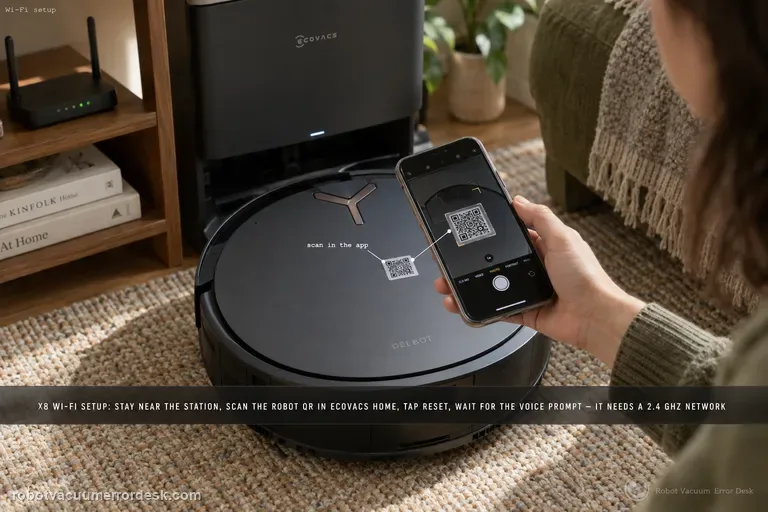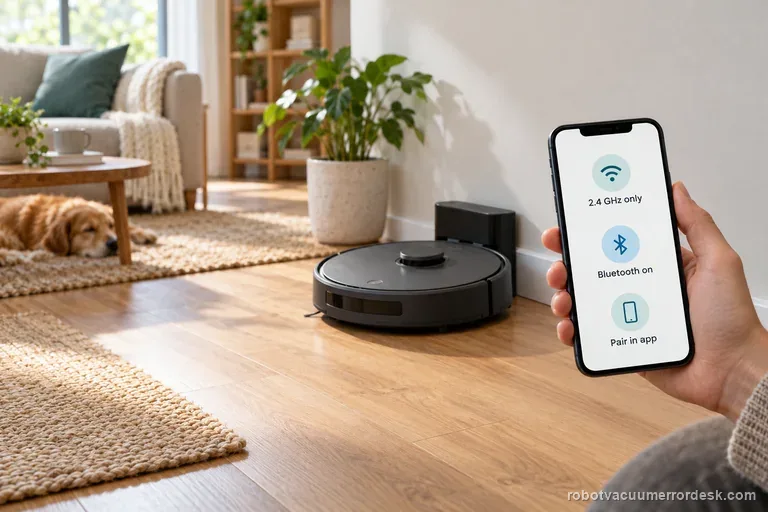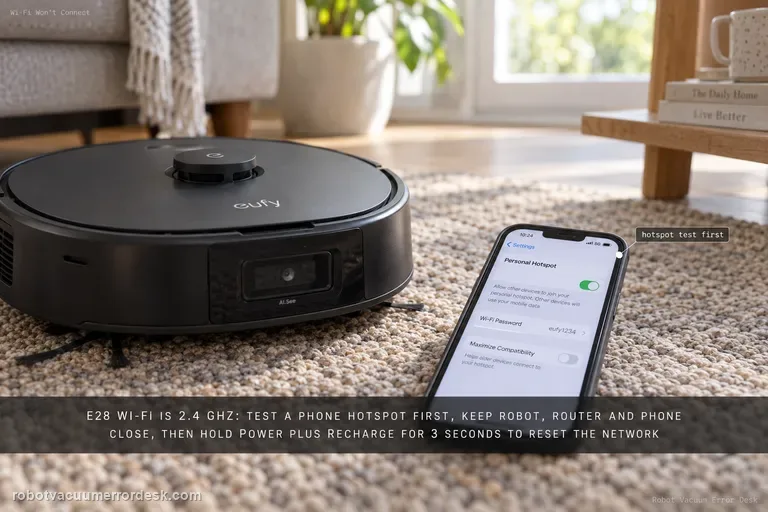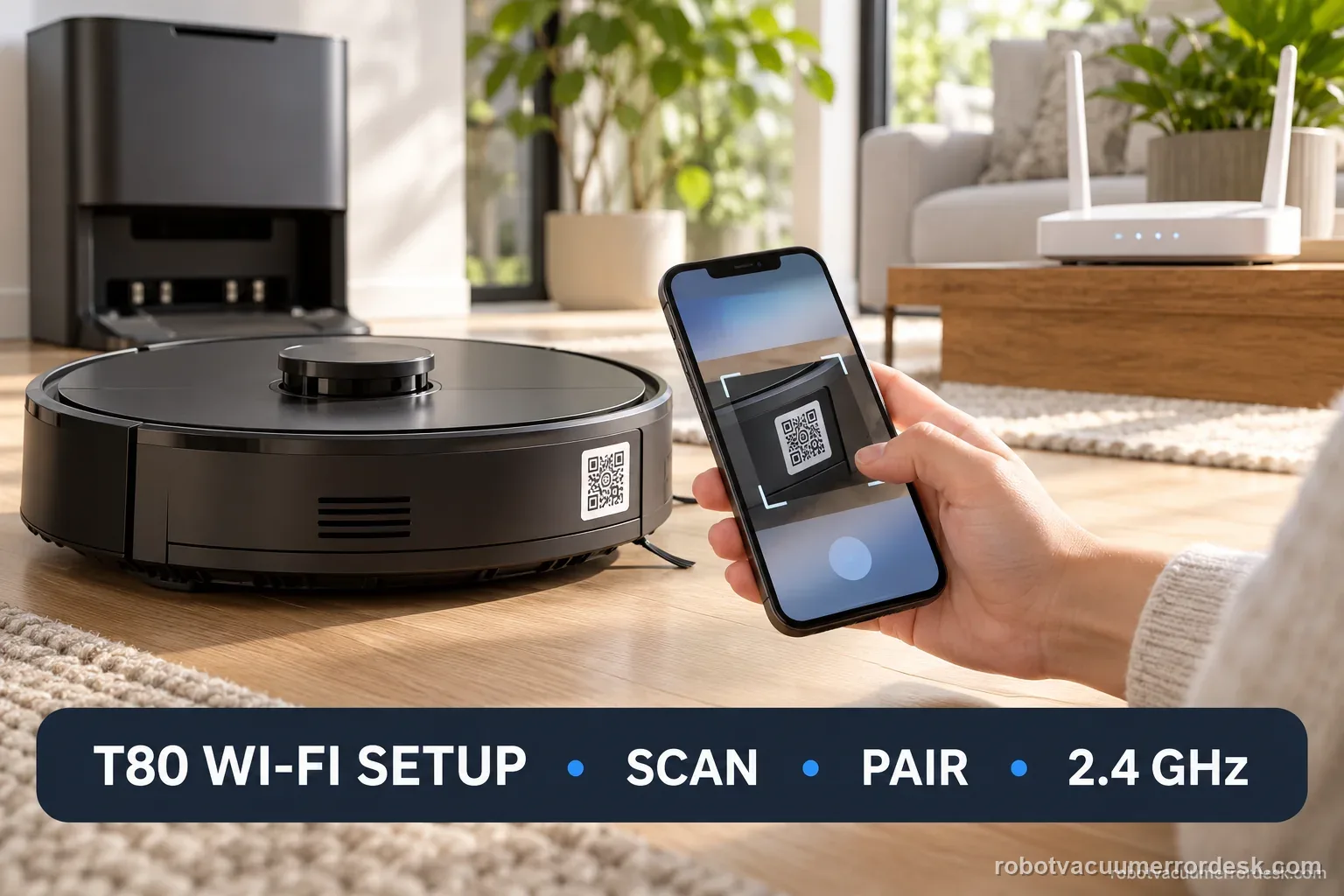
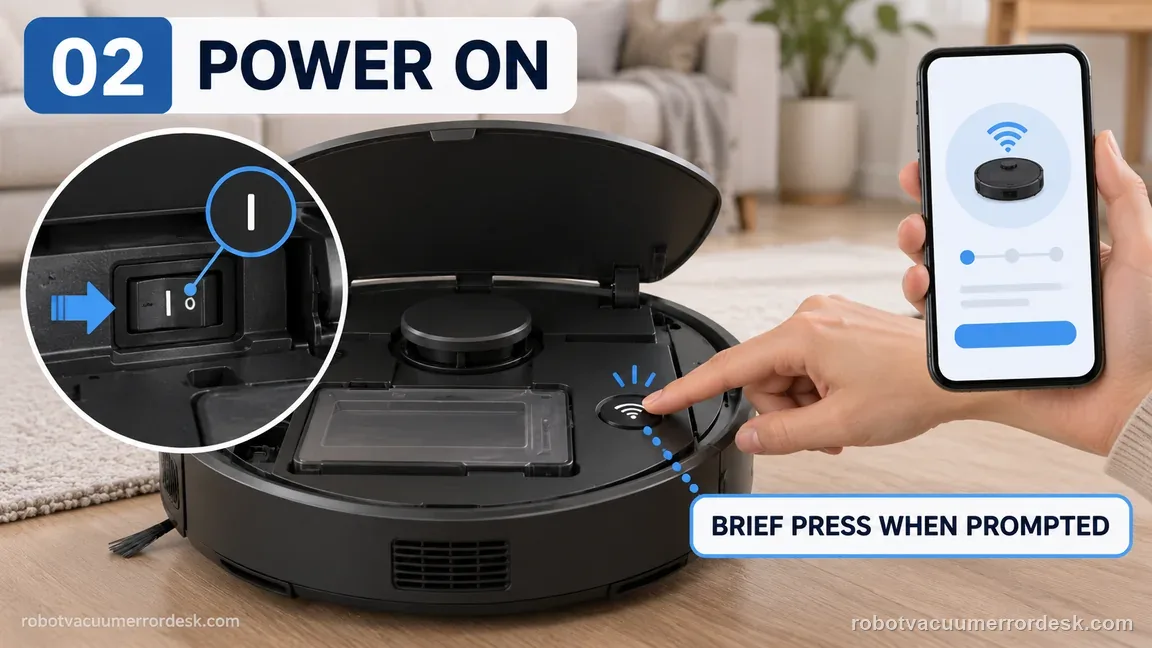
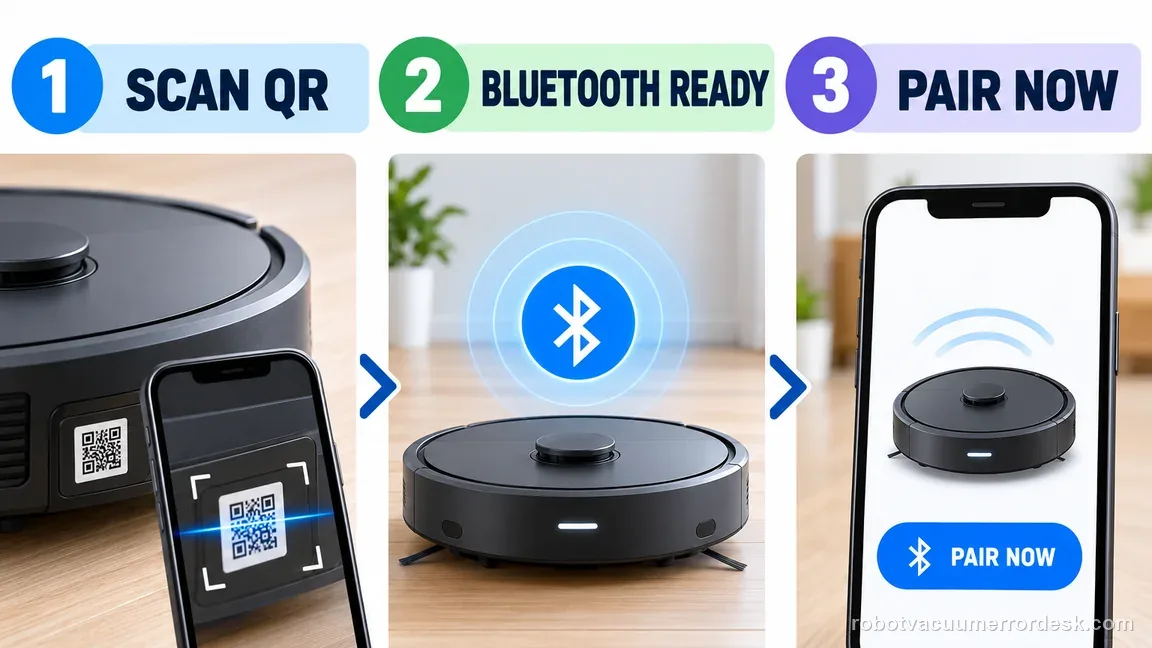
T80 setup starts in ECOVACS HOME: scan the robot QR, enter home Wi-Fi, power on, and briefly press the network button when prompted. Continue after hearing “Bluetooth hotspot released.” Use a visible 2.4 GHz or mixed network; turn off mobile data and VPN during setup. Record the failed stage and indicator before trying again. Save factory reset for ECOVACS support.
Which T80 onboarding checkpoint fails?
Confirm the exact model and exact code, light pattern or symptom.
Run the lowest-risk physical or software check first.
Use each pass condition to decide what the result actually narrows down.
Is this the problem you’re seeing?
- You are setting up a DEEBOT T80 OMNI in ECOVACS HOME for the first time and the QR or Bluetooth-hotspot step does not complete.
- The T80 was connected before but now appears offline after router, Wi-Fi password, app, phone, or network changes.
- The robot says its Bluetooth hotspot is released, but the app never finishes connecting to the home Wi-Fi.
- You are searching for T80 2.4 GHz requirements, Wi-Fi indicator meaning, reset/network button timing, ECOVACS HOME permissions, VPN, hidden SSID, or pairing failures.
- You want to identify the failed network stage before using the T80 factory-reset function and losing unrelated settings.
Use the exact robot’s pairing sequence rather than transferring button steps between brands. These Wi-Fi guides keep each model’s setup path separate: Narwal Freo Z Ultra Wi-Fi troubleshooting · Roomba Max 705 Wi-Fi setup · Roborock Qrevo Curv Wi-Fi setup
Likely root causes, ranked
The T80 is not powered on, not in network-setup mode, or the brief network/reset-button press was skipped before the app tried Bluetooth discovery.
Bluetooth, local-network/location permission, or the current ECOVACS HOME app is not ready for the local discovery stage.
The router’s 2.4 GHz service is disabled, the SSID is hidden, the signal is weak, or the phone is not actually connected to the intended home network.
The Wi-Fi password is wrong, the wrong SSID was selected, or a dual-band network is steering the setup away from a stable 2.4 GHz path.
A VPN, proxy, captive portal, enterprise authentication, or other network policy is incompatible with the ordinary ECOVACS onboarding flow.
The robot has stale network state after a router/credential change and needs the network-setup reset sequence, while a full factory reset is still unnecessary.
What the result narrows down
| What you observe | What it narrows down | Next move |
|---|---|---|
| App cannot scan or recognize the robot QR code | The failure is still before Wi-Fi authentication. | Use the current ECOVACS HOME app, verify camera permission, or search the T80 model manually instead of changing the router. |
| No “Bluetooth hotspot released” voice prompt after the button step | The robot may not be in the expected local pairing state. | Confirm power switch I, wait for startup, then repeat the brief network/reset-button press exactly when prompted. |
| Bluetooth discovery succeeds but home Wi-Fi connection fails | The robot/phone can see each other; credentials, 2.4 GHz, signal, VPN/proxy, or router conditions become the stronger branch. | Verify the intended 2.4 GHz-capable SSID/password and remove VPN/proxy or hidden-network complications. |
| T80 connects near the router but fails at the normal station location | Coverage/interference is more likely than a pairing-state fault. | Improve 2.4 GHz coverage or station/router placement; do not keep resetting the robot. |
| Multiple phones and a simple compatible network fail at the same stage | Ordinary phone/router causes have been reduced. | Save the exact voice prompt, Wi-Fi indicator, app screen and logs for ECOVACS support before factory reset. |
Compare one variable at a time
Use these controlled checks to locate the setup stage. A successful comparison narrows the path; it does not diagnose a specific failed component.
| Controlled comparison | What a change may narrow down | Next step |
|---|---|---|
| Same phone and SSID after correcting one recorded condition | A changed permission, password, or setup state may explain the result. | Record the single change; do not infer a hardware repair from one success. |
| Second phone on the same home router succeeds | The original phone, app permissions, or local discovery path becomes more relevant. | Compare app/OS permissions and retain the original failure screen. |
| Same phone joins a visible compatible 2.4 GHz or mixed test network | The home router or its network presentation becomes more relevant. | Record both SSIDs and stop if the controlled network also fails at the same stage. |
Two illustrative pairing records
These small counts demonstrate how to compare one changed condition. They are examples, not ECOVACS pass rates or service thresholds.
Example A: compare phones on the same router
- Phone A fails at the home-network step on 0 of 1 attempts.
- Without changing the robot or SSID, phone B completes setup on 1 of 1 attempts.
- Record phone models, OS/app versions, and permissions.
What it shows: The phone path is the changed condition. One successful attempt does not prove a robot hardware fault or a permanent phone fix.
Example B: compare the home network with a controlled SSID
- The same phone and robot fail on the home SSID at 0 of 1 attempts.
- On a visible compatible 2.4 GHz test network, setup succeeds at 1 of 1.
- Save the SSID layout and the exact stage for both attempts.
What it shows: The network path is the useful difference. This does not identify which router setting caused the failure; ask the router provider if needed.
DEEBOT T80 Wi-Fi setup decision flow
Follow the stage that failed. The brief network-button press is part of the app-led setup sequence; it is not permission to hold reset or factory-reset the robot.
- 1Does ECOVACS HOME identify the T80 QR/model?
YESYes: continue to the power and pairing prompt.
NONo: check camera permission or select the T80 in app search before changing router settings.
- 2After power-on and the prompted brief press, do you hear “Bluetooth hotspot released”?
YESYes: continue with the exact phone prompt and selected home SSID.
NOStay on the power/pairing step; do not hold reset or alter Wi-Fi credentials.
- 3Is the home SSID visible and compatible with the 2.4 GHz setup path?
YESYes: use it for one attempt with VPN/proxy and mobile data off.
NOExpose a supported 2.4 GHz or mixed SSID, or ask the router provider for help.
- 4Does the same stage fail on one controlled phone/network attempt?
YESYes: stop repeating and send the app stage, voice prompt, indicator, and router details to ECOVACS.
NORecord which single condition changed and confirm the robot remains online.
Ordered checks before contacting support
- Record exact T80 model, phone/OS, current ECOVACS HOME version, and router model.
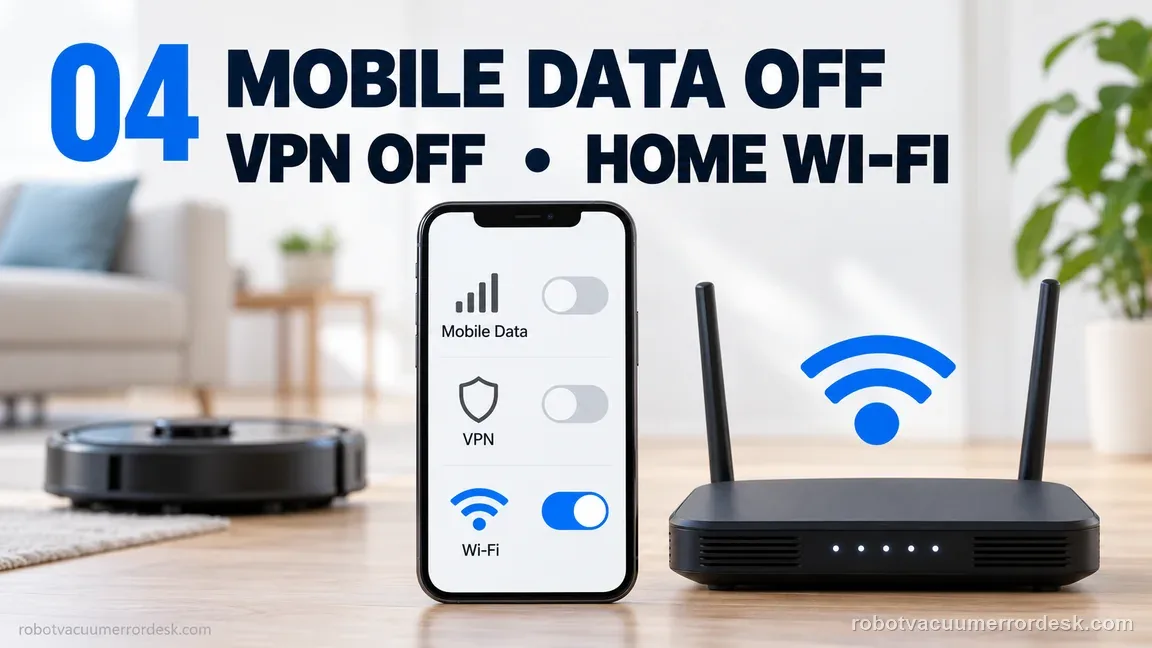
- Keep the phone on home Wi-Fi, enable Bluetooth and requested app permissions, and turn off mobile data/VPN for the test.
- Use a visible 2.4 GHz or supported mixed SSID with the confirmed password.
- Follow the QR, power switch I, startup sound, and brief network-button prompt in order.
- Record the exact voice prompt, app screen, Wi-Fi indicator pattern, and failed stage.
- If one controlled attempt fails at the same stage, send those details to ECOVACS before considering a factory restore.
Common mistakes to avoid
- Copying a long reset hold from another DEEBOT model.
- Trying a 5 GHz-only or hidden SSID as the first controlled test.
- Changing several router settings between attempts, so the useful difference is lost.
- Leaving the robot’s temporary setup hotspot before following the app prompt.
- Treating a successful Wi-Fi join followed by an app-offline message as the same failure stage.
- Factory-resetting before recording QR, Bluetooth, network, and indicator state.
Use only the brief network-button press when ECOVACS HOME prompts for it. Do not hold reset or choose a factory restore unless ECOVACS directs you; record the current app stage and save screenshots first.
Checks to run, in sequence
Start with the exact T80 ECOVACS HOME onboarding path
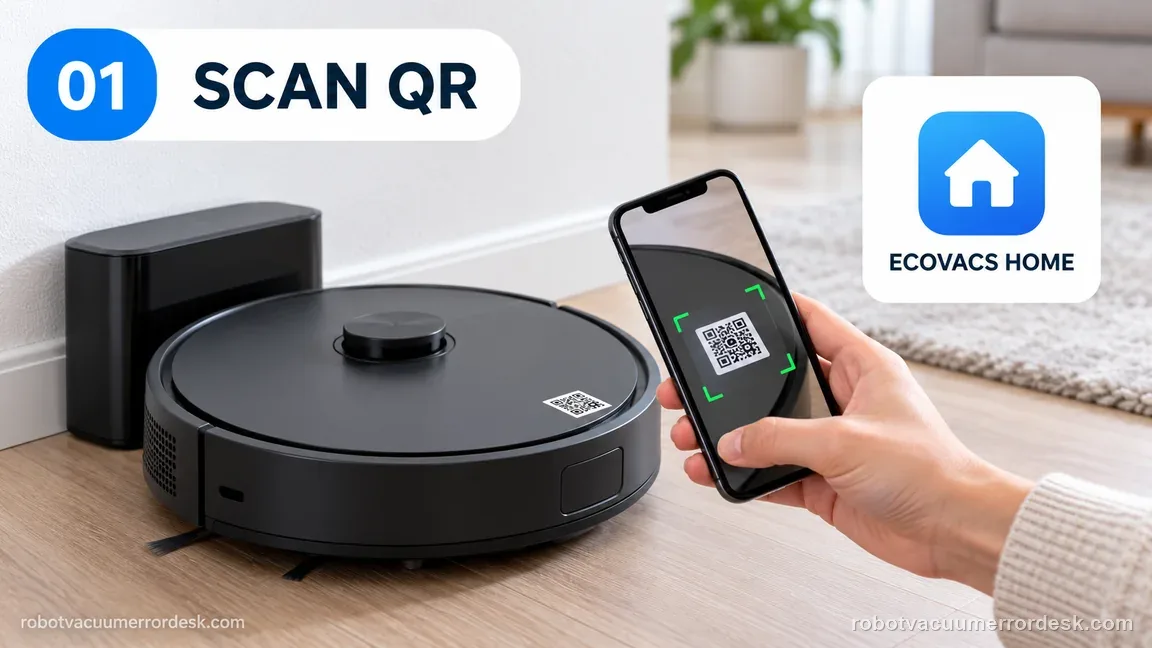
Place the T80 near its station and begin in the current ECOVACS HOME app rather than following a generic DEEBOT video for another model. ECOVACS’ US T80 guide says to scan the robot’s QR code, sign in, and continue from the app. If scanning fails, use the app’s device search/model-selection route instead of assuming Wi-Fi is already the problem. App screens can change, so follow the current wording while preserving the sequence: identify the T80 first, then move into network setup.
Prove robot power and the Bluetooth-hotspot pairing state
Open the T80 top cover and set the physical power switch to I. Wait until the startup sound finishes. When ECOVACS HOME instructs you to continue, briefly press the network/reset button and listen for the voice confirmation that the Bluetooth hotspot has been released. The exact US T80 Wi-Fi guide uses that prompt as the checkpoint before the app begins the local hotspot connection. Keep phone Bluetooth on and grant the app the nearby-device/location/local-network permissions requested by your operating system. If the prompt never occurs, stay on this branch; changing the router cannot fix a robot that never entered pairing mode.
Use a strong 2.4 GHz-capable home network for the proof test
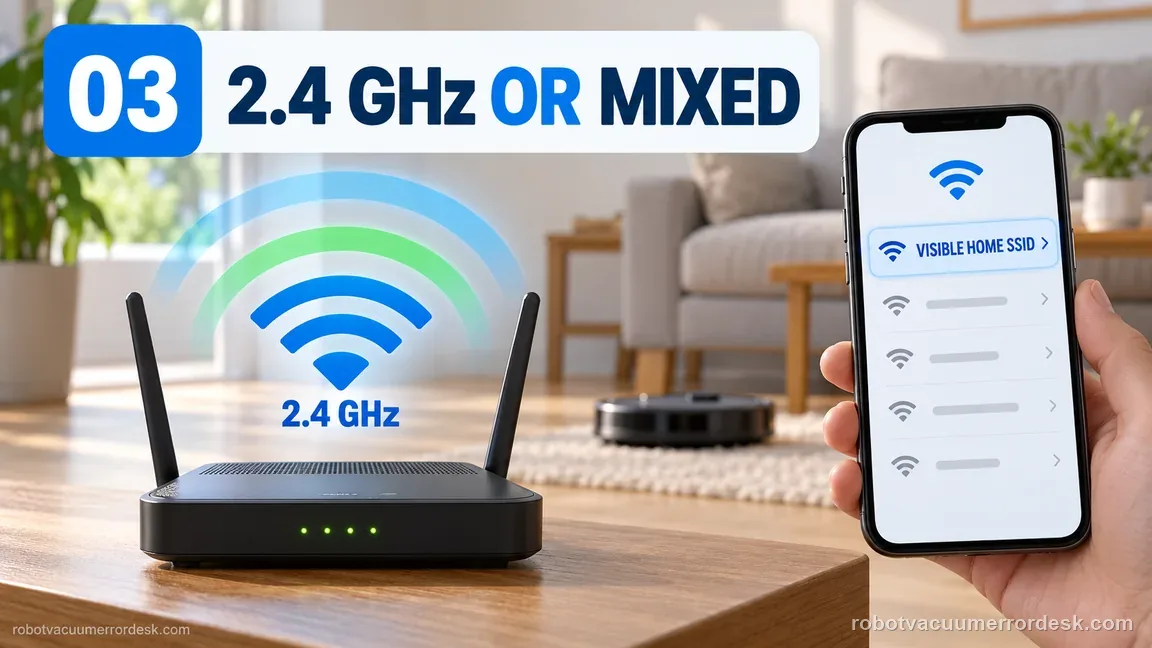
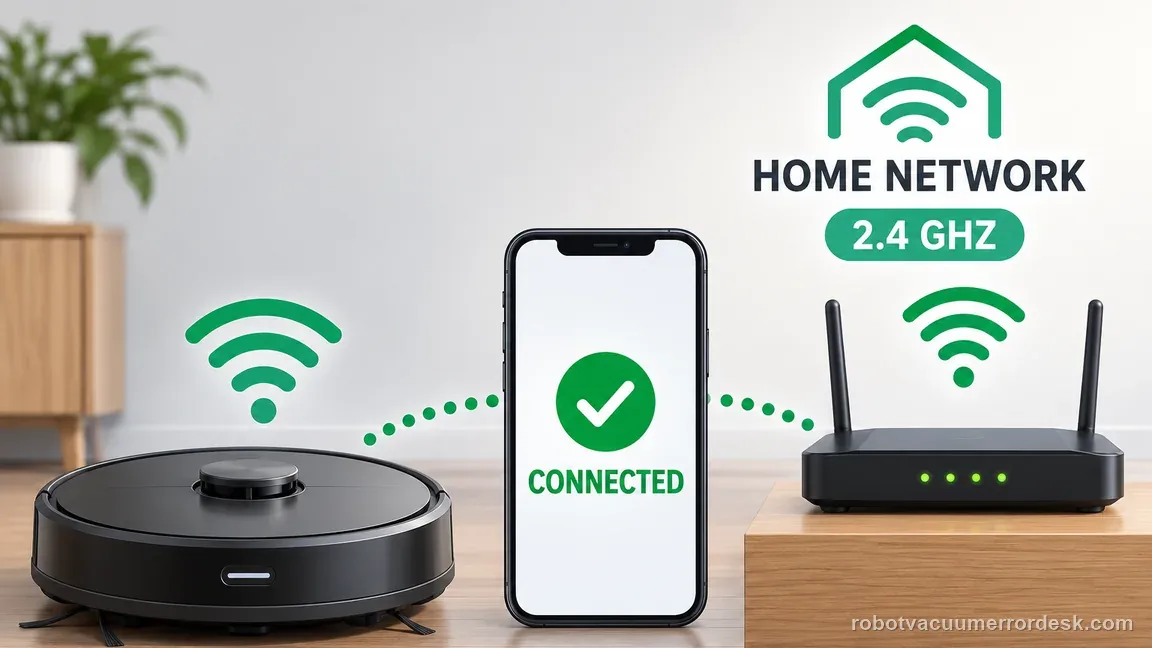
ECOVACS’ official Wi-Fi troubleshooting guidance tells users to keep the phone on the home Wi-Fi during setup, use a compatible 2.4 GHz or 2.4/5 GHz mixed network, and pair where signal strength is good. On a router that broadcasts separate 2.4 and 5 GHz SSIDs, choose the compatible 2.4 GHz network for the controlled setup test. On a combined dual-band SSID, the manual indicates a 2.4/5 GHz mixed network can be used, but if band steering causes repeated onboarding failure, temporarily exposing a clear 2.4 GHz SSID is a useful diagnostic. Keep the robot, phone and access point close enough that weak coverage is not mixed into the first result.
Remove hidden-SSID, VPN, proxy, and credential variables
Enter the home Wi-Fi password from a known working phone rather than from memory. ECOVACS’ T80 network instructions caution that the Wi-Fi signal should not be hidden during setup and state that VPN/proxy or web-authentication networks are not supported for the normal pairing flow. For one clean test, turn off phone VPN/proxy services and avoid hotel, campus, enterprise, guest-isolated, or captive-portal networks that require a browser sign-in. If the router broadcasts two similar SSIDs, confirm the app is using the same household network you just tested on the phone. Change only one variable at a time so you can tell whether the failure follows credentials, network policy, or local discovery.
Read the T80 Wi-Fi indicator and repeat only the failed stage
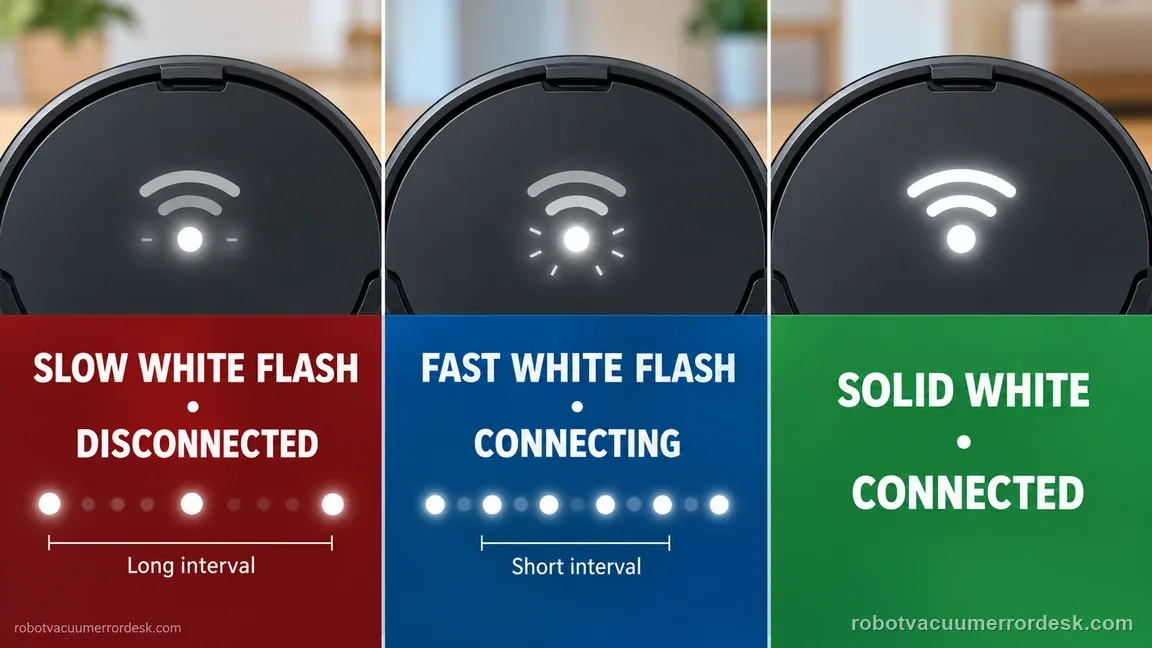
The T80 manual describes the Wi-Fi indicator states: slow white flashing means disconnected, fast white flashing means connecting, and solid white means connected. Use that state together with the app screen. If the robot remains in slow flashing, return to network setup rather than debugging cloud login. If it fast-flashes and then fails after credentials are entered, focus on the home network and authentication branch. If it becomes solid white but the app later reports offline, the initial Wi-Fi join succeeded and the next question is account/cloud/app state, not whether the robot can see Wi-Fi. Avoid repeated factory resets because they erase context without telling you which stage failed.
Escalate with a reproducible pairing stage, not “Wi-Fi broken”
If the T80 still fails, repeat one final controlled attempt with the current ECOVACS HOME app, robot powered on, Bluetooth enabled, the hotspot voice prompt confirmed, strong 2.4 GHz-capable Wi-Fi, correct password, and VPN/proxy removed. A second phone can help separate phone-permission/app issues from robot/network issues. If the failure reproduces at the same point on a simple compatible network, record the Wi-Fi indicator pattern, exact voice prompt, app screen, phone/OS, app version, router model and whether the SSID is split or combined. That package is more useful to ECOVACS than a factory reset performed before the network stage is known.
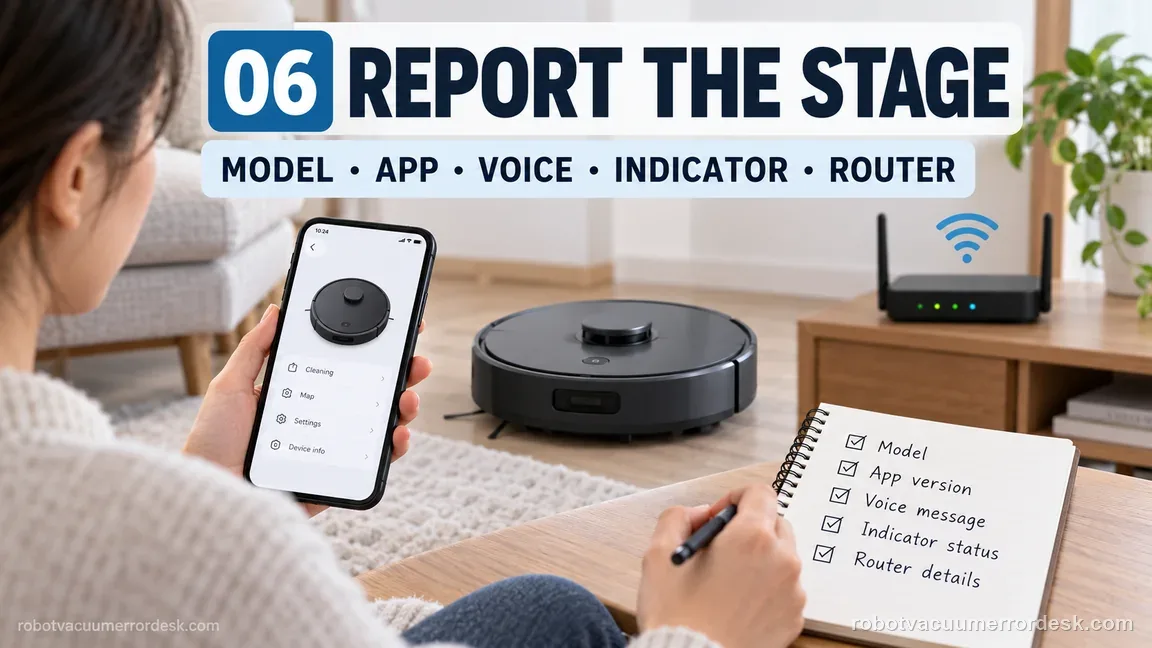
Contact ECOVACS when the T80 repeatedly fails the same setup stage after the current ECOVACS HOME app, correct power state, confirmed Bluetooth-hotspot prompt, strong compatible Wi-Fi, correct credentials, required phone permissions, and a VPN/proxy-free test. Send screenshots/video of the stage, the robot’s Wi-Fi-indicator pattern, app version, phone/OS and router/SSID details. Use factory reset only if ECOVACS directs it or if the documented network reset path cannot restore pairing, because a reset performed too early hides whether the original problem was QR discovery, Bluetooth pairing, Wi-Fi authentication or the cloud/app layer.
Information to have ready for support
Support can skip the basic troubleshooting script when you provide a reproducible case. That keeps the results of your checks from getting lost.
- Exact model name and the error code / voice prompt exactly as shown
- A photo or screenshot of the app error and the time it occurred
- A short list of the checks already completed and what happened after each one
- Exact T80 model, current ECOVACS HOME version, phone model and OS
- The failed app stage, exact voice prompt, and Wi-Fi indicator pattern
- Router model, visible SSID/band layout, and whether mobile data or VPN was on
- Screenshots of the app prompt and the result of one controlled phone/network comparison
Source and evidence level
ECOVACS T80 OMNI: Wi-Fi connection guide
ECOVACS’ US T80 guide documents the QR-code flow, physical power switch, brief network-button press and the “Bluetooth hotspot released” checkpoint. ECOVACS’ official Wi-Fi troubleshooting page adds the 2.4 GHz/mixed-network, credential and no-VPN/proxy requirements, while the T80 manual documents the Wi-Fi indicator states and mixed-network context. Together, those model-specific facts separate QR discovery, Bluetooth pairing, home-Wi-Fi authentication and post-connection app status instead of treating every failure as one generic Wi-Fi error.
Additional official source: ECOVACS US: home Wi-Fi connection troubleshooting ↗Additional official source: ECOVACS T80 OMNI product support hub ↗Additional official source: ECOVACS T80 Family: official English instruction manual ↗Last editorial review: September 5, 2026Regional note: manufacturer help centers, model suffixes, mains-power requirements and warranty procedures can differ by country. If the source redirects to a local support site, confirm that the model/hardware scope still matches before following a region-sensitive step.
This guide is rated Official model support. See what each evidence label means →
Common questions
Does DEEBOT T80 need 2.4 GHz Wi-Fi?
ECOVACS’ exact T80 network guidance instructs users to confirm that the router’s 2.4 GHz signal is enabled for setup. The T80 manual also describes use with a 2.4/5 GHz mixed network. For troubleshooting, a clearly available 2.4 GHz path is the best controlled test because it removes band-steering ambiguity.
What does “Bluetooth hotspot released” mean on the T80?
It is the voice checkpoint ECOVACS uses after the brief network/reset-button press during onboarding. Hearing it means the robot has entered the local pairing state expected by ECOVACS HOME. If you never hear it, stay on the robot power/pairing-state branch rather than changing Wi-Fi passwords or router settings.
What do the T80 Wi-Fi indicator flashes mean?
The T80 manual describes slow white flashing as disconnected, fast white flashing as connecting and solid white as connected. That makes the indicator useful when the symptom is “T80 Wi-Fi blinking,” “T80 stuck connecting,” or “T80 connected but offline in app,” because each visible state points to a different stage.
Can a VPN, proxy or hidden Wi-Fi name make DEEBOT T80 setup fail?
Yes. ECOVACS’ T80 network guidance says the Wi-Fi signal should not be hidden during setup and does not support normal pairing through VPN/proxy or browser-authentication network flows. Disable those variables for one controlled attempt and expose the SSID temporarily if needed. If pairing then works, the robot radio was not the root cause; the original network configuration was blocking onboarding.
Should I factory-reset the DEEBOT T80 when Wi-Fi setup fails?
Not as the first step. First identify whether failure occurs at QR recognition, Bluetooth-hotspot release, home-Wi-Fi authentication or after the Wi-Fi indicator becomes connected. A factory reset can erase useful state without proving which network layer failed. Escalate with the exact stage if a simple compatible test network also fails.
Did this diagnostic narrow the fault?
Use this as an editorial signal, not a popularity counter. If a feedback address is configured you can email the note; otherwise you can copy it for your own support record.