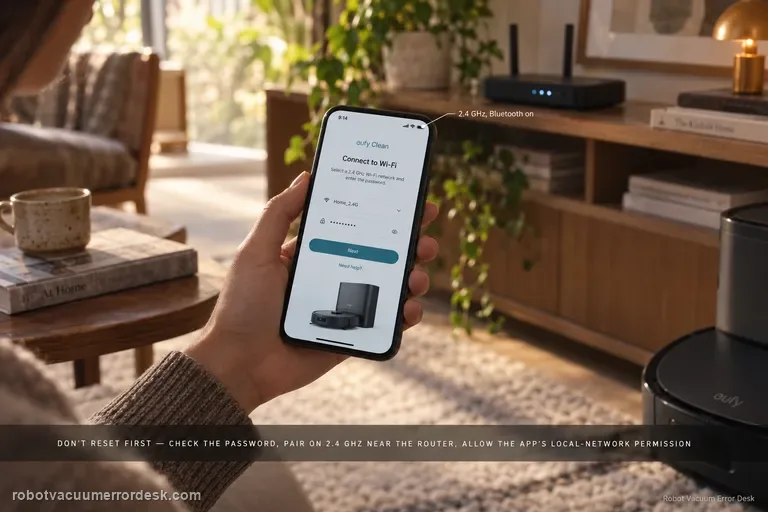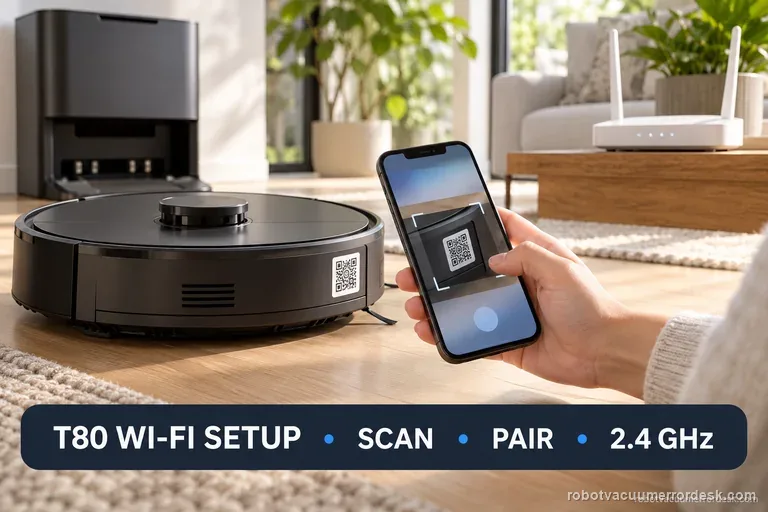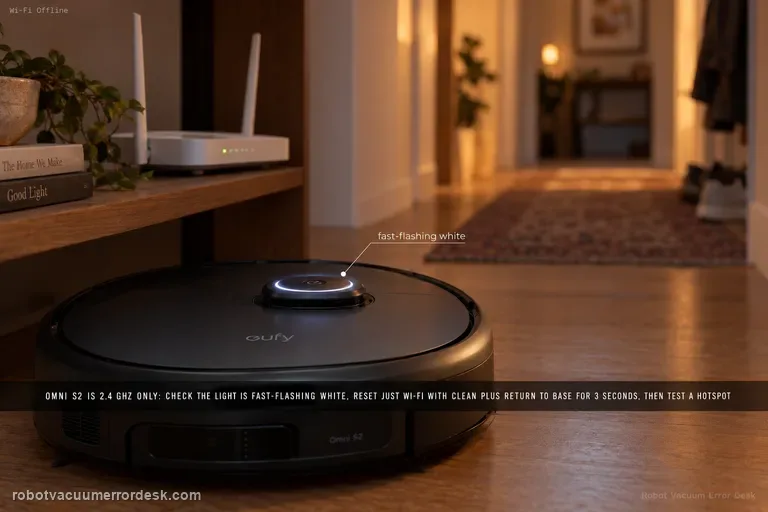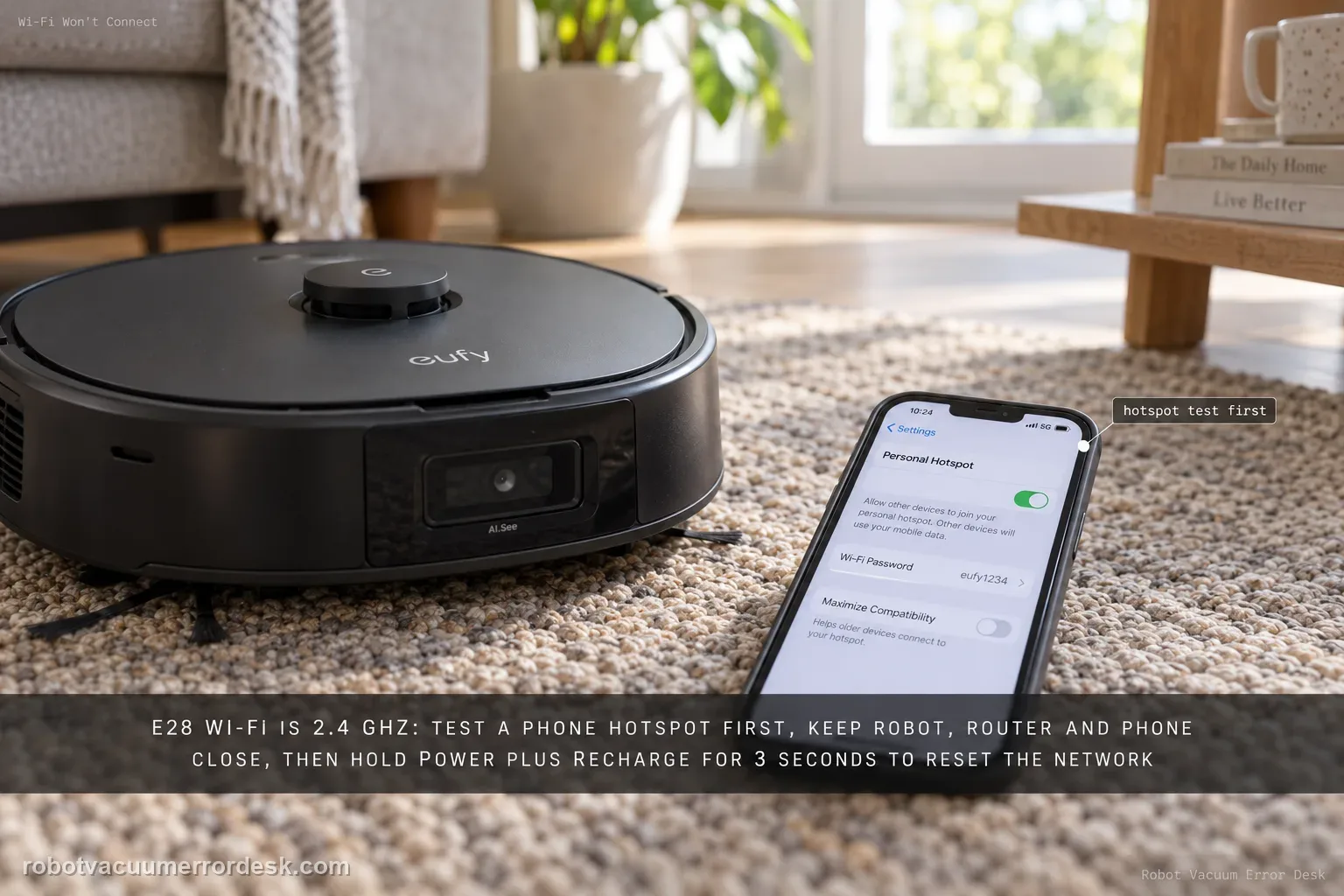
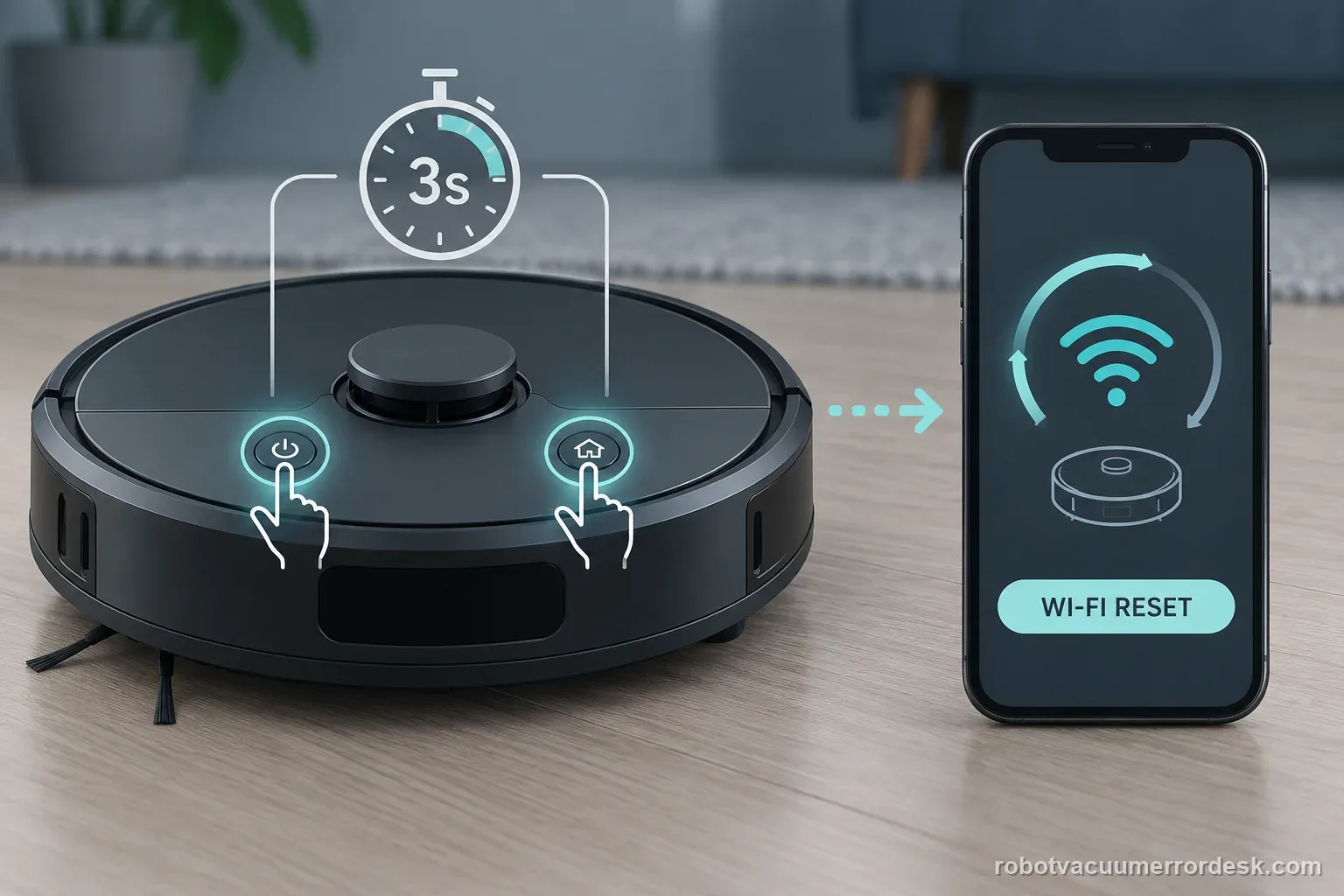
The Omni E28 uses a 2.4 GHz Wi-Fi connection. Before resetting anything, confirm the password and test whether the robot can join a phone hotspot. For a clean pairing test, keep the robot, router and phone close together. If setup still fails, eufy says to hold the Power and Recharge buttons together for 3 seconds until the network-reset voice prompt, then reconnect. A hotspot that works while home Wi-Fi fails points away from a dead robot radio and toward the home network or credentials.
Which E28 Wi-Fi test fails first?
This page covers an Eufy E28 that fails Wi-Fi setup. Eufy’s E25/E28 instructions specify 2.4 GHz compatibility and a dedicated Wi-Fi reset; they do not call for a factory reset as the first step.
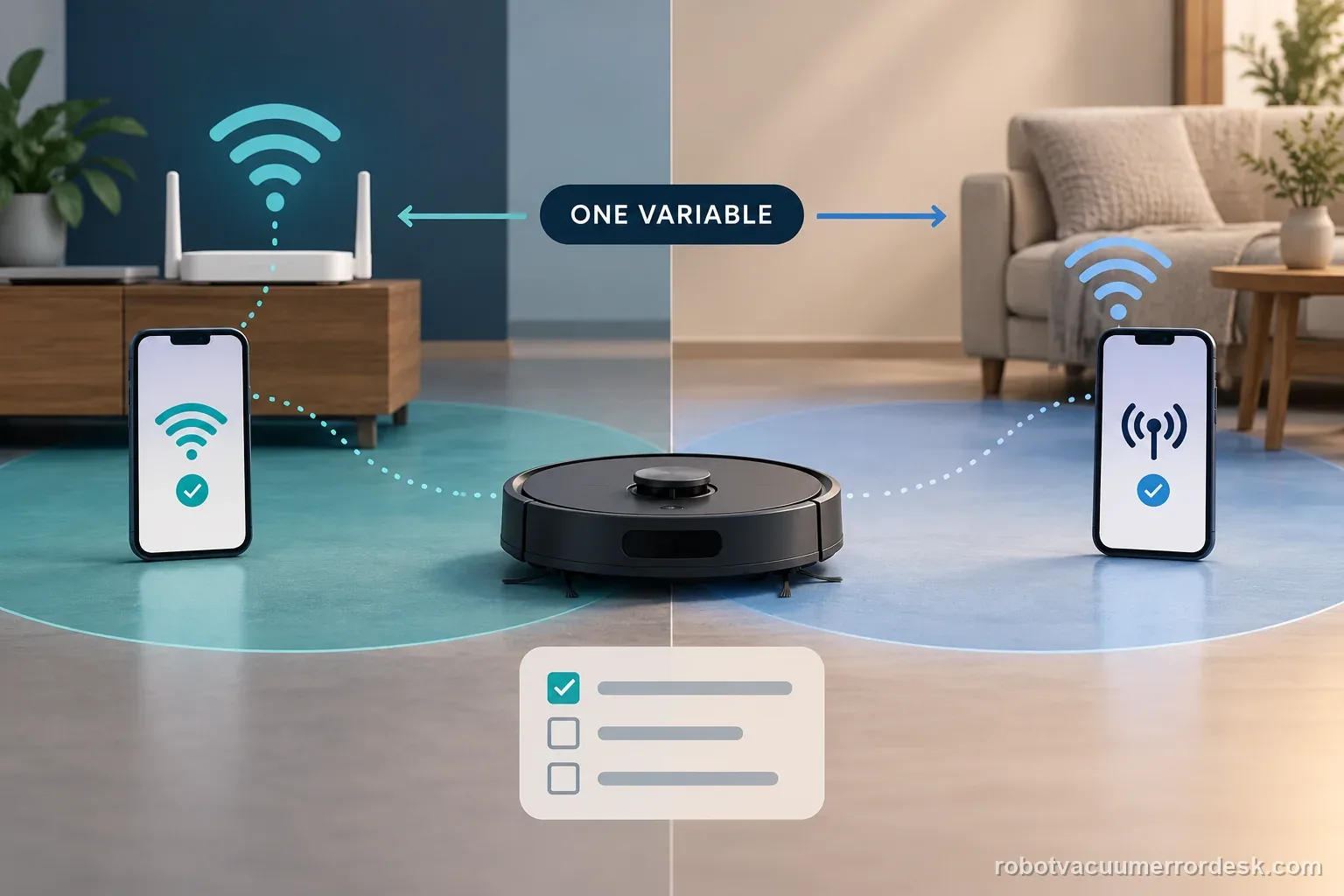
Use each connection test to isolate one variable
| Observation | What it separates | Next action |
|---|---|---|
| Password rejected | Credential or entry issue | Re-enter it carefully; never share it |
| Home network fails, hotspot works | Home router setup remains the variable | Check band and nearby placement |
| Robot connects only when close | Signal during pairing may be weak | Repeat near the router and phone |
| Wi-Fi reset completes but setup fails | Pairing or device compatibility remains | Try a second phone and save the full message |
Confirm the exact model and exact code, light pattern or symptom.
Run the lowest-risk physical or software check first.
Use each pass condition to decide what the result actually narrows down.
Is this the problem you’re seeing?
- The eufy app cannot finish Wi-Fi setup for an Omni E28/E25.
- The E28 is powered but pairing fails, loops, or reports that it cannot connect to the network.
- You need to separate a home-router problem from a robot/phone pairing problem without factory-resetting the whole robot.
Likely root causes, ranked
Incorrect Wi-Fi password or an invisible copied character
Home network presented only as 5 GHz instead of the supported 2.4 GHz band
Robot, phone and router too far apart during pairing
Robot Wi-Fi settings need the documented network-only reset
Phone-specific app or compatibility issue after network checks pass
Two E28 setup results worth keeping separate
A hotspot works but the home router does not
The E28 joins a phone hotspot during the test, while the home network continues to fail. That result points the next check toward the home network configuration, not toward a proven robot hardware fault. Confirm that the intended network offers 2.4 GHz, keep the devices close during setup, and preserve the router and app error wording.
The Wi-Fi reset completes but pairing still fails
The robot gives Eufy’s network-reset prompt after the power and recharge buttons are held as instructed. Setup still stops on the second phone. Record the exact point where pairing fails and whether the hotspot test passed. That evidence is more useful than repeating a broader factory reset or changing several router settings at once.
Illustrative decision sequence. These are observations, not measured repair success rates.
- Confirm 2.4 GHz and password
- Test nearby placement and hotspot
- Use Eufy’s Wi-Fi reset, then a second phone
What the result narrows down
| What you observe | What it narrows down | Next move |
|---|---|---|
| Hotspot works but home Wi-Fi fails | The robot can complete a wireless connection, so the home network/credentials/band presentation becomes the stronger suspect. | Recheck the home SSID/password and prove a usable 2.4 GHz path before resetting the robot again. |
| Neither home Wi-Fi nor hotspot works at close range | The failure is not isolated to one home router. | Perform the documented 3-second Power + Recharge network reset and retry once. |
| Pairing works after the network-only reset | The prior robot Wi-Fi state was likely the blocking variable. | Keep the connection stable and avoid a full robot reset solely for this Wi-Fi symptom. |
| Second phone works while the first phone fails | The phone/app environment is the discriminator rather than the robot radio. | Check app permissions/version and phone-specific setup conditions before changing router hardware. |
| Two phones and a hotspot all fail after network reset | The controlled alternatives no longer point to a single router or phone. | Escalate with the exact setup stage, app message and test matrix instead of repeating factory resets. |
Reset can erase maps/settings on this path. Use lower-risk checks first and document the current state before resetting.
Checks to run, in sequence
Verify the password before changing the robot
Open the Wi-Fi settings on the phone that is running the eufy app and confirm the exact password for the network you intend to use. eufy specifically suggests copying the password directly from the phone’s Wi-Fi settings when possible. Avoid changing several router settings at once: a wrong credential can look exactly like a pairing failure and gives you no useful evidence about the robot.
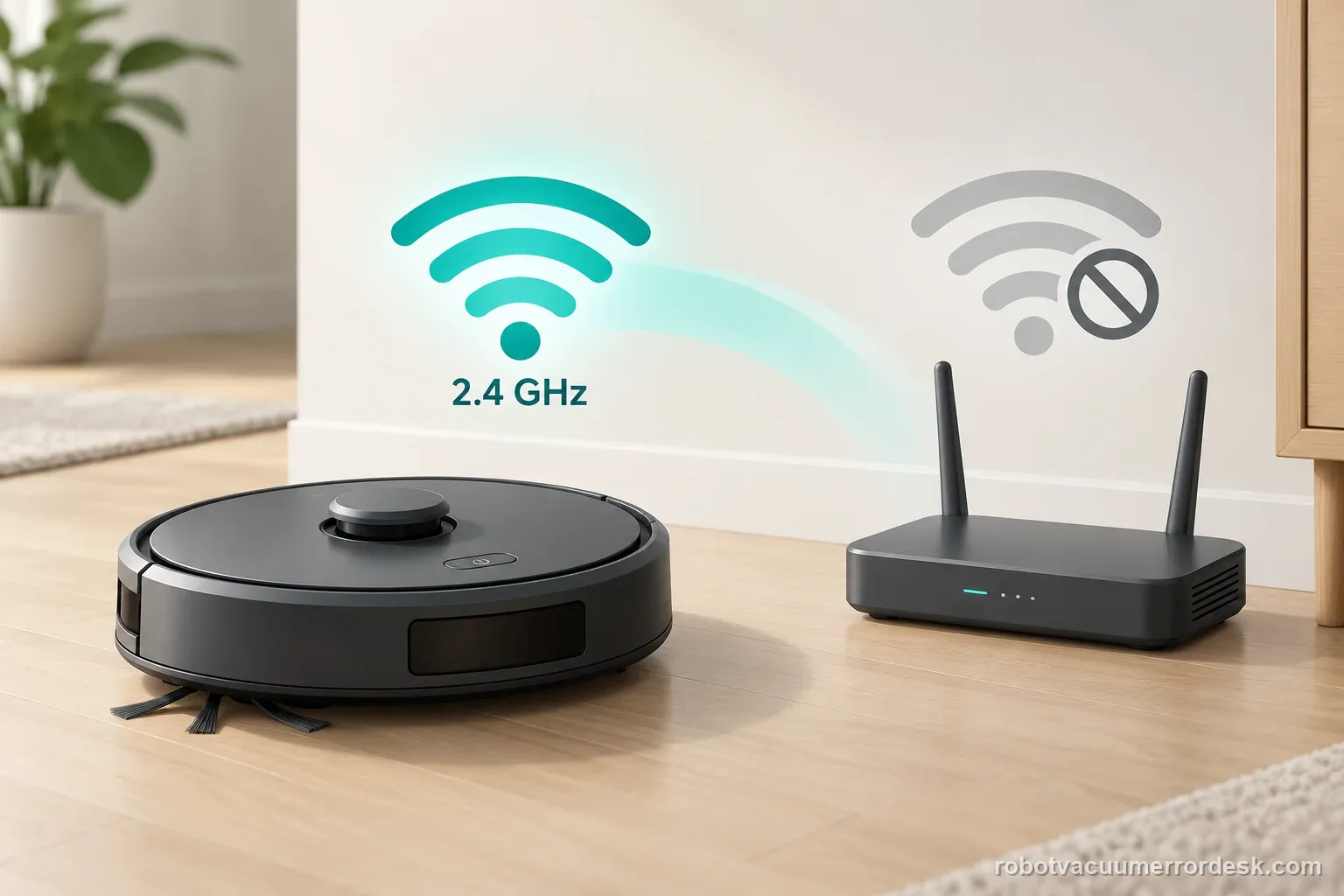
Prove the network is 2.4 GHz
eufy states that the E28 is compatible with 2.4 GHz Wi-Fi for this setup path. If the home network is currently exposing only 5 GHz to the device, move the pairing attempt to a 2.4 GHz network. If your router combines bands under one SSID, use the router’s supported method for presenting a usable 2.4 GHz connection rather than repeatedly resetting the vacuum.
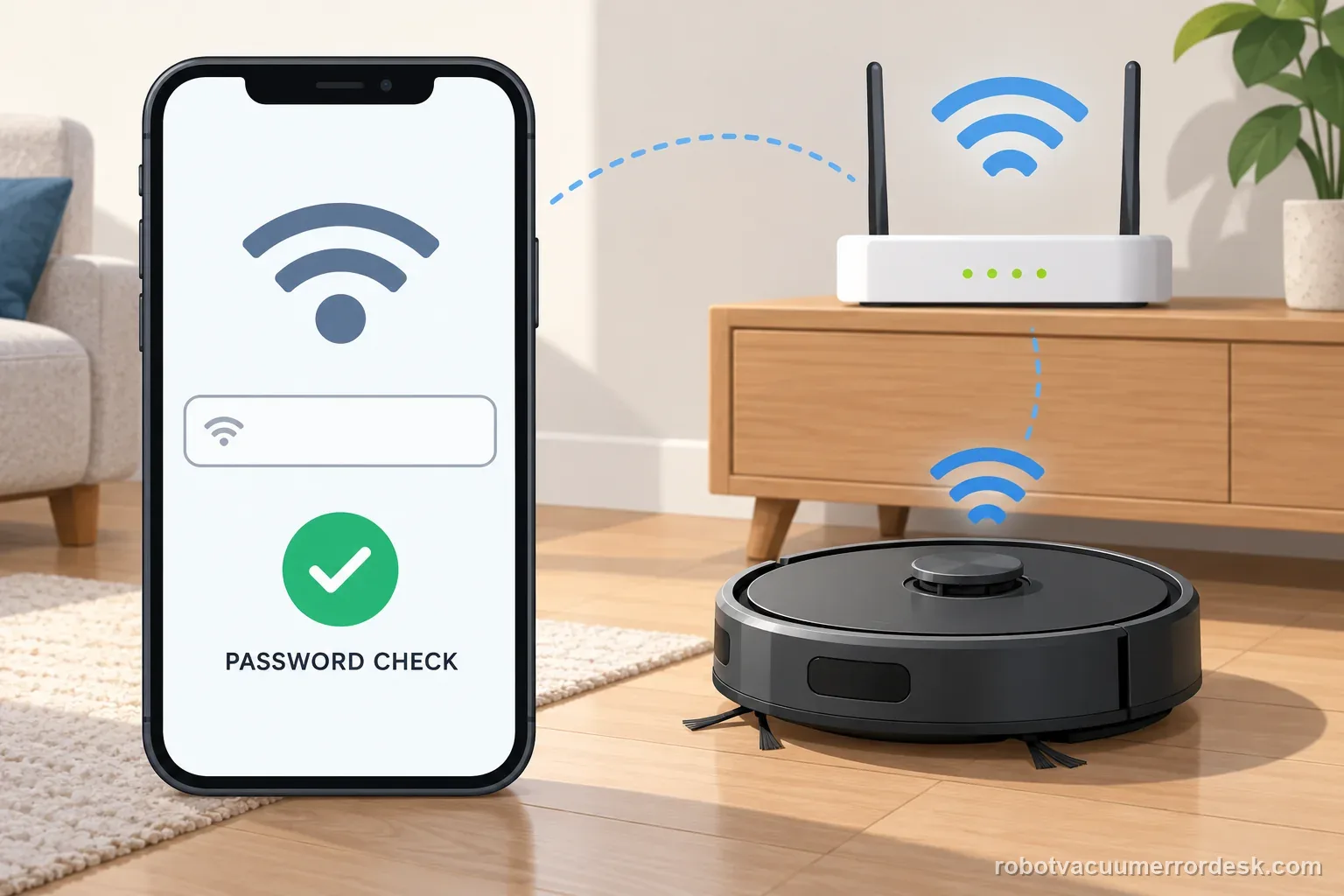
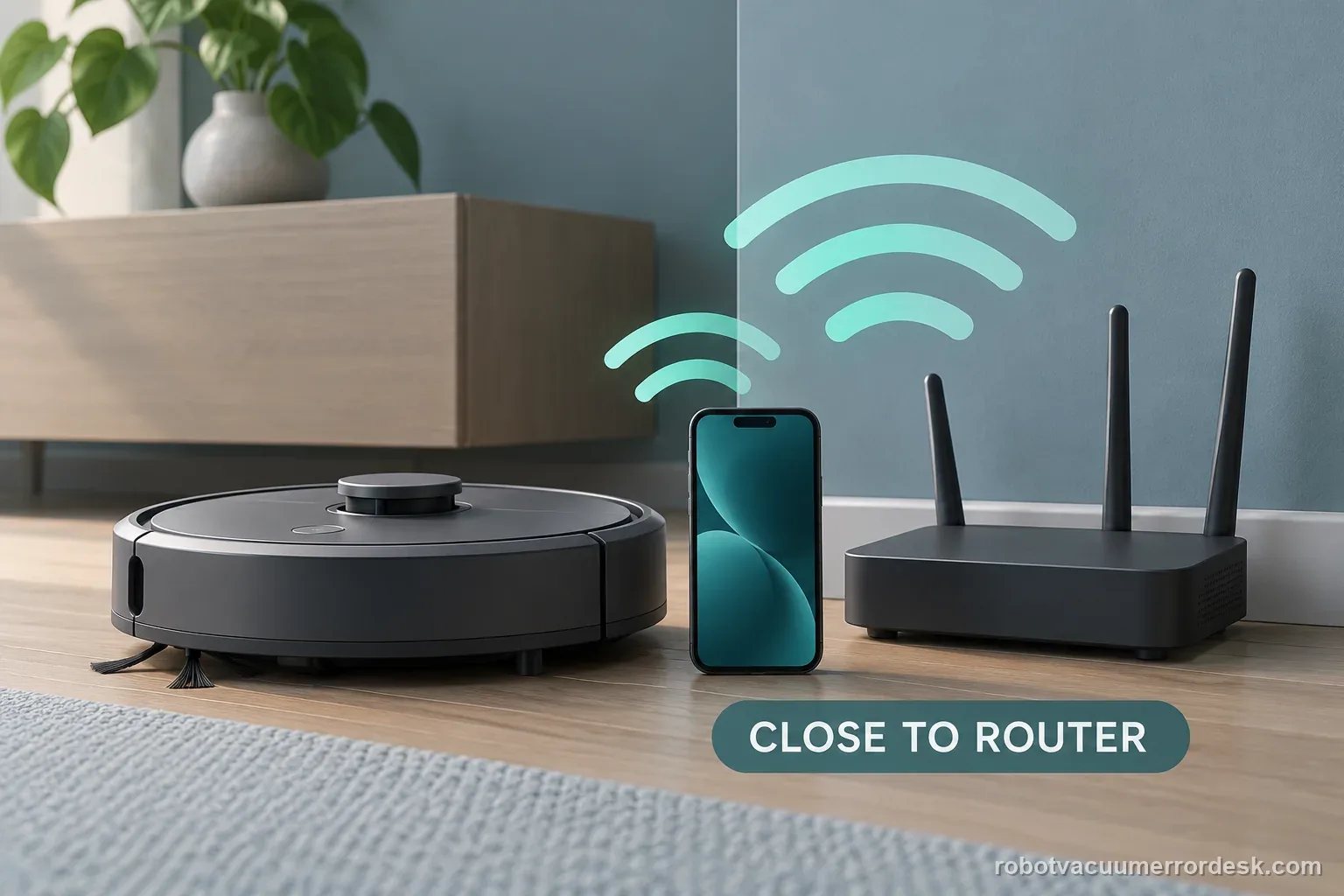
Run a close-range pairing attempt
Place the robot, the phone and the Wi-Fi router near one another during setup. The goal is not to redesign the whole home network; it is to remove weak signal as a variable for one controlled test. Keep the setup conditions unchanged until pairing is complete so the test isolates signal strength rather than several variables at once.
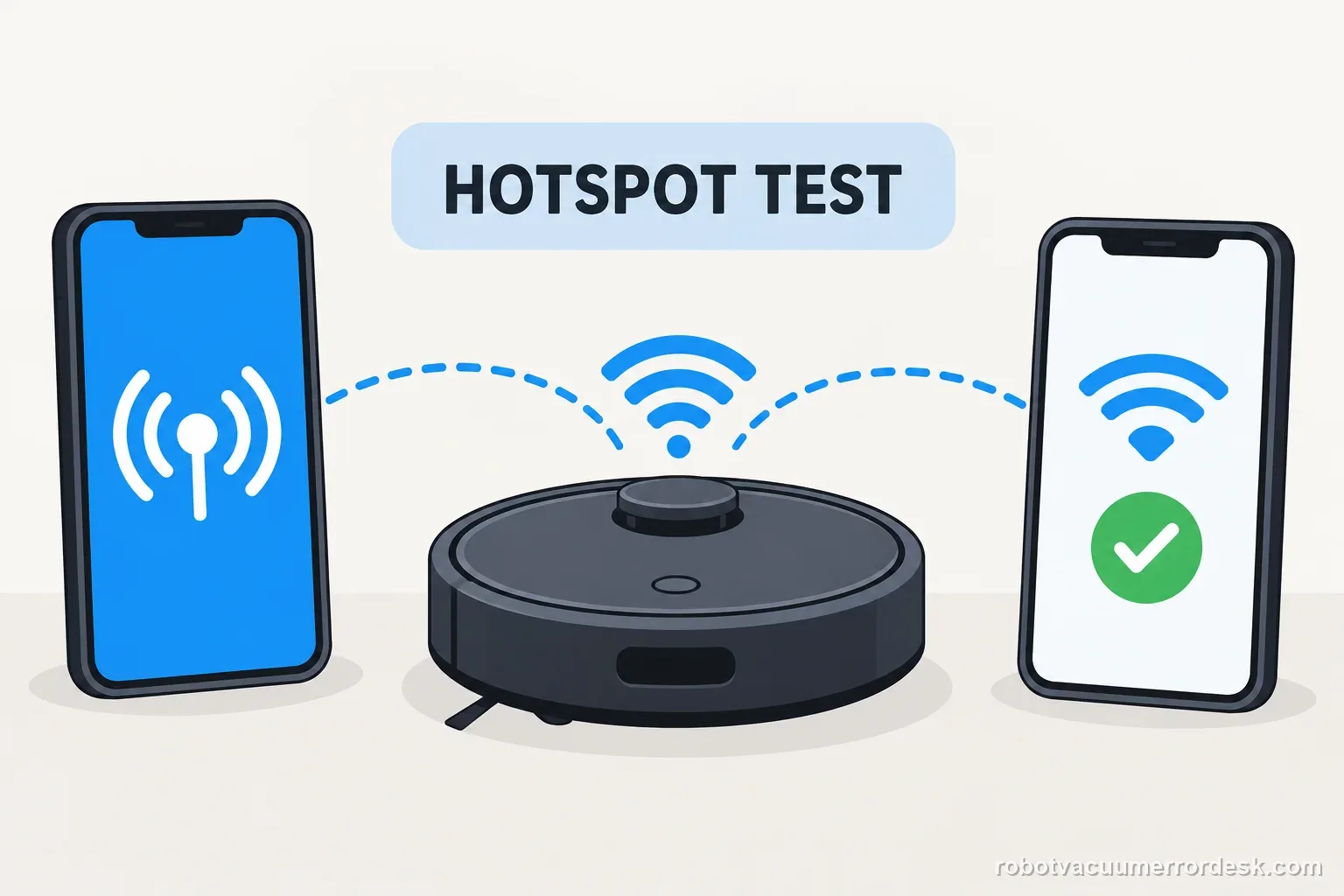
Use a phone hotspot as the discriminator
eufy recommends attempting a connection to a hotspot generated by a phone. Use this as a diagnostic branch, not as a permanent requirement. If the E28 joins the hotspot but repeatedly refuses the home Wi-Fi, the robot can establish a wireless connection and the next work belongs on the home network, credentials, security or band presentation. If both fail under close-range conditions, continue to the documented network reset.
Reset only the E28 network settings, then retest
Press and hold the Power and Recharge buttons together for 3 seconds until the robot announces the network reset, then attempt pairing again. If it still fails, eufy suggests trying another phone to rule out a phone-specific compatibility issue. Preserve the exact setup stage, app message and hotspot result before contacting support instead of escalating to repeated factory resets.
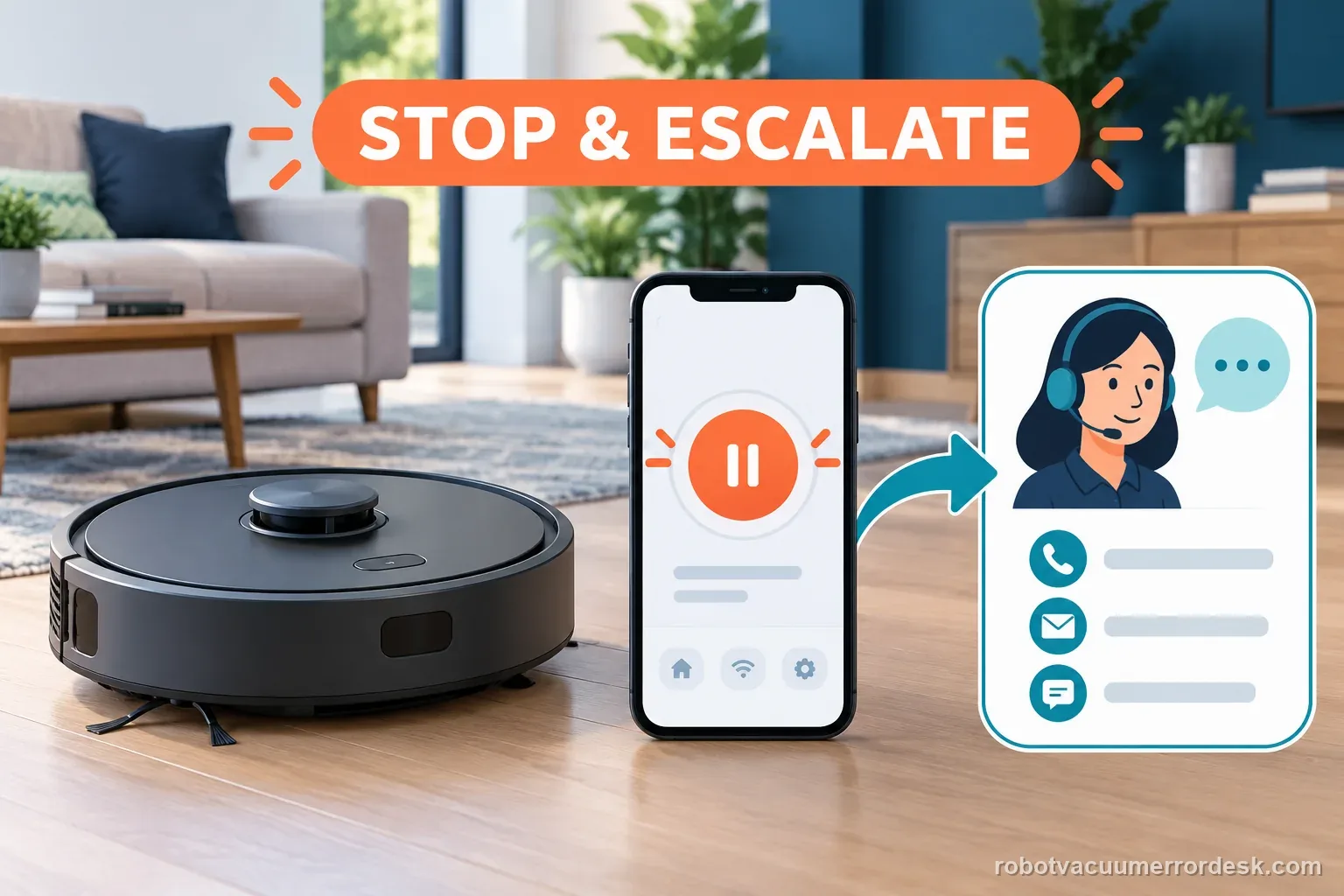
Escalate when the password and 2.4 GHz network are confirmed, close-range pairing fails after the documented 3-second Power + Recharge network reset, and a second-phone or hotspot test does not isolate the problem. Send eufy the app version, phone model/OS, exact setup stage and whether the hotspot worked. Do not erase maps or factory-reset the entire robot solely because Wi-Fi pairing failed unless eufy specifically directs it.
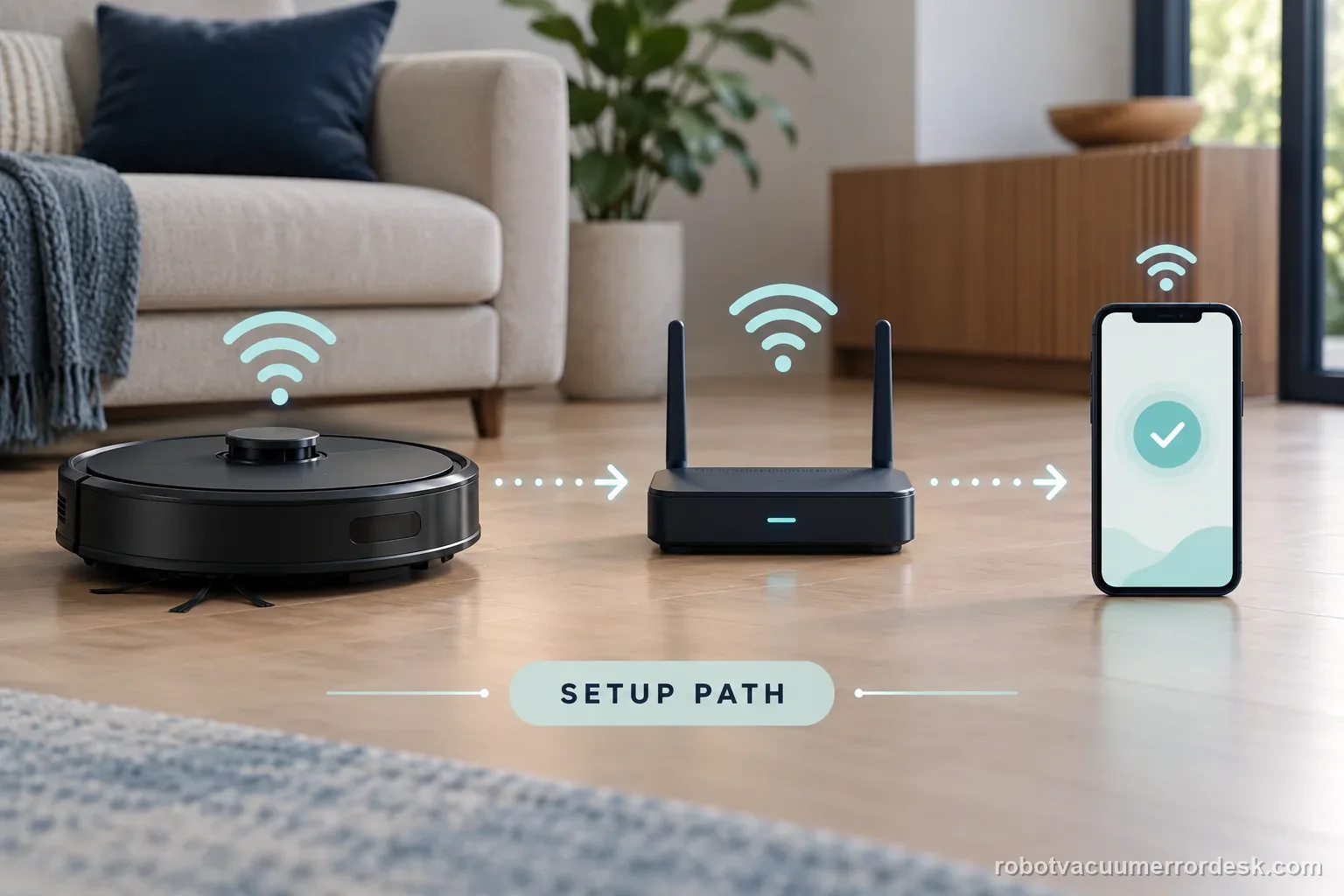
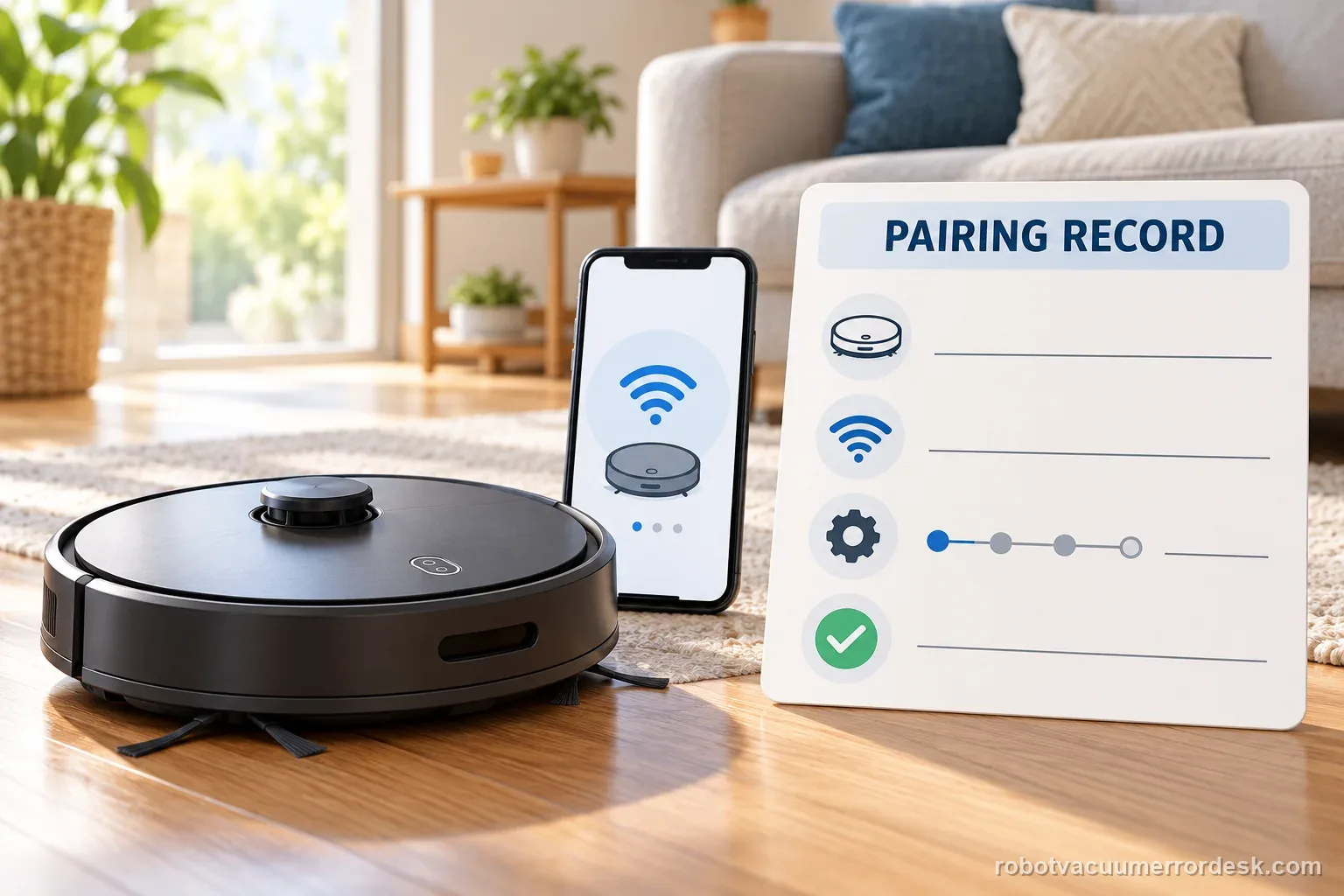
Record the E28 network setup sequence
| Stage | Question to answer | Evidence to keep |
|---|---|---|
| Network | 2.4 GHz and password checked? | Network name only; never the password |
| Placement | Phone, router, robot nearby? | Room and signal condition |
| Pairing | Hotspot and second-phone results | Full app message and reset prompt |
Information to have ready for support
Support can skip the basic troubleshooting script when you provide a reproducible case. That keeps the results of your checks from getting lost.
- Exact model name and the error code / voice prompt exactly as shown
- A photo or screenshot of the app error and the time it occurred
- A short list of the checks already completed and what happened after each one
- Device information / activity-log details from eufy Clean when the issue is mapping or routing related
Source and evidence level
eufy Omni E28/E25 — cannot connect to Wi-Fi
eufy specifies 2.4 GHz Wi-Fi, credential verification, close-range setup, a phone-hotspot discriminator, a 3-second Power + Recharge network reset and a second-phone test for E25/E28 pairing failures.
Additional official source: eufy Robot Vacuum Omni E28 User Guide (T2352) ↗Last editorial review: September 5, 2026Regional note: manufacturer help centers, model suffixes, mains-power requirements and warranty procedures can differ by country. If the source redirects to a local support site, confirm that the model/hardware scope still matches before following a region-sensitive step.
This guide is rated Official model support. See what each evidence label means →
Common questions
Does the eufy E28 support 5 GHz Wi-Fi for setup?
eufy’s E25/E28 troubleshooting page says to use 2.4 GHz for the robot connection. Treat a 5-GHz-only presentation as a network condition to correct before deeper robot troubleshooting.
What does it mean if the E28 connects to my phone hotspot?
It proves the robot can complete a wireless connection under that test. Focus next on the home SSID, password, band/security presentation or router environment rather than assuming the robot radio is dead.
How do I reset only the E28 Wi-Fi settings?
eufy says to hold Power and Recharge together for 3 seconds until the voice prompt confirms the network reset, then reconnect in the app.
Why is a phone hotspot useful for E28 Wi-Fi troubleshooting?
eufy includes a hotspot attempt as a discriminator. A successful hotspot connection shows that the robot can join an alternate wireless network under controlled conditions, which shifts attention toward the home SSID, password, 2.4 GHz availability or router environment instead of assuming the robot's Wi-Fi hardware has failed.
Should I factory-reset the whole E28 when Wi-Fi setup fails?
Not as the first response. eufy documents a network-only reset by holding Power and Recharge for 3 seconds. Use that narrower reset after verifying credentials, 2.4 GHz and close-range conditions, because a full reset can destroy maps/settings without proving anything about the network failure.
A Wi-Fi reset clears the connection setup, not the whole device. Follow the E28 instructions for the button sequence, and contact Eufy if the same failure repeats after the documented tests.
Choose the matching model before using another guide's procedure:
Eufy X10 Wi-Fi setup: separate model guide →Eufy S2 offline: separate connection symptom →E28 station return: a separate robot function →Eufy base disconnect: station-side checks →Compare Narwal 2.4 GHz pairing with E28 Wi-Fi checks →Separate an update interruption from a network pairing failure →See the Max 705 app and network setup path →Did this diagnostic narrow the fault?
Use this as an editorial signal, not a popularity counter. If a feedback address is configured you can email the note; otherwise you can copy it for your own support record.