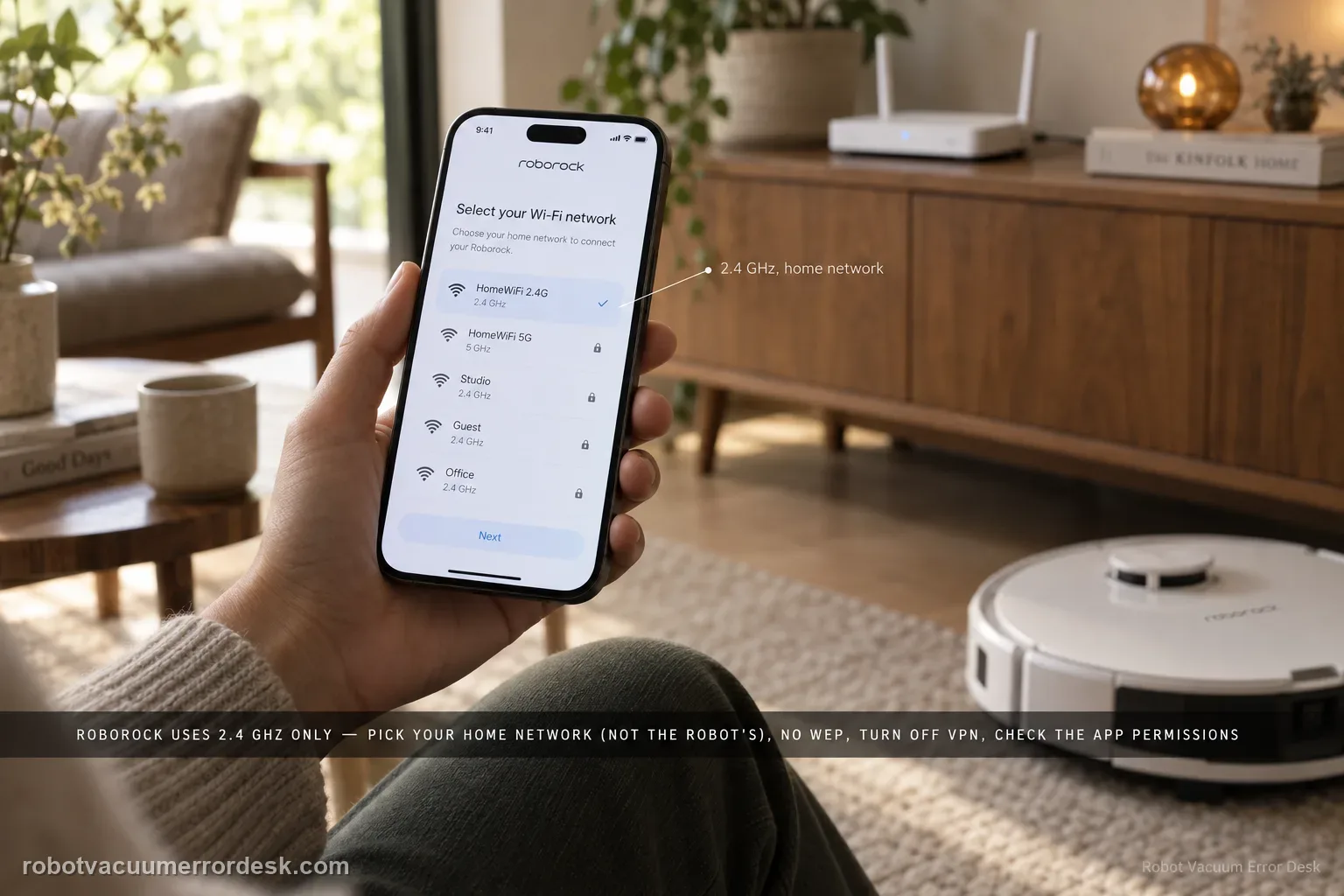
If a Roborock Qrevo will not connect to Wi-Fi, disappears from the Roborock app, or stalls during pairing, treat it as a network-stage problem before resetting the whole robot. Roborock’s Qrevo support says the robot uses 2.4 GHz Wi-Fi, the password must be correct, phone permissions can matter, the home Wi-Fi must be selected instead of the temporary robot network, WEP is not supported, and VPN or cellular routing can interfere. The Qrevo manual also gives a dedicated Wi-Fi reset: open the top cover, locate the Wi-Fi indicator, hold the documented button combination until the robot announces “Resetting WiFi,” then wait for the indicator to flash slowly before adding the robot again. A Wi-Fi reset is different from a factory reset and is the safer recovery step when the robot itself still cleans normally.
Where does Qrevo Wi-Fi setup fail?
Confirm the exact model and exact code, light pattern or symptom.
Run the lowest-risk physical or software check first.
Use each pass condition to decide what the result actually narrows down.
Confirm this is the right issue
- Roborock Qrevo setup stops before the robot joins the home network, even though the robot powers on and can clean locally.
- The Qrevo appears offline in the Roborock app after a router, SSID, password, ISP, phone, or app change.
- The app can see the robot but pairing fails at Wi-Fi selection, password validation, local-network permission, or final cloud registration.
- You have a dual-band or mesh router and are searching for Qrevo 2.4 GHz setup, combined SSID, band steering, WPA2, VPN, or Wi-Fi reset guidance.
- You want to reconnect Qrevo without deleting maps, schedules, room names, or cleaning history through an unnecessary factory reset.
What’s most likely causing this
The phone is presenting a 5 GHz-only network or the router’s 2.4 GHz band is disabled, hidden, or difficult to select during onboarding.
The Wi-Fi password, SSID choice, or temporary robot-network step is wrong; Roborock specifically warns users to choose the home Wi-Fi rather than the robot hotspot when prompted.
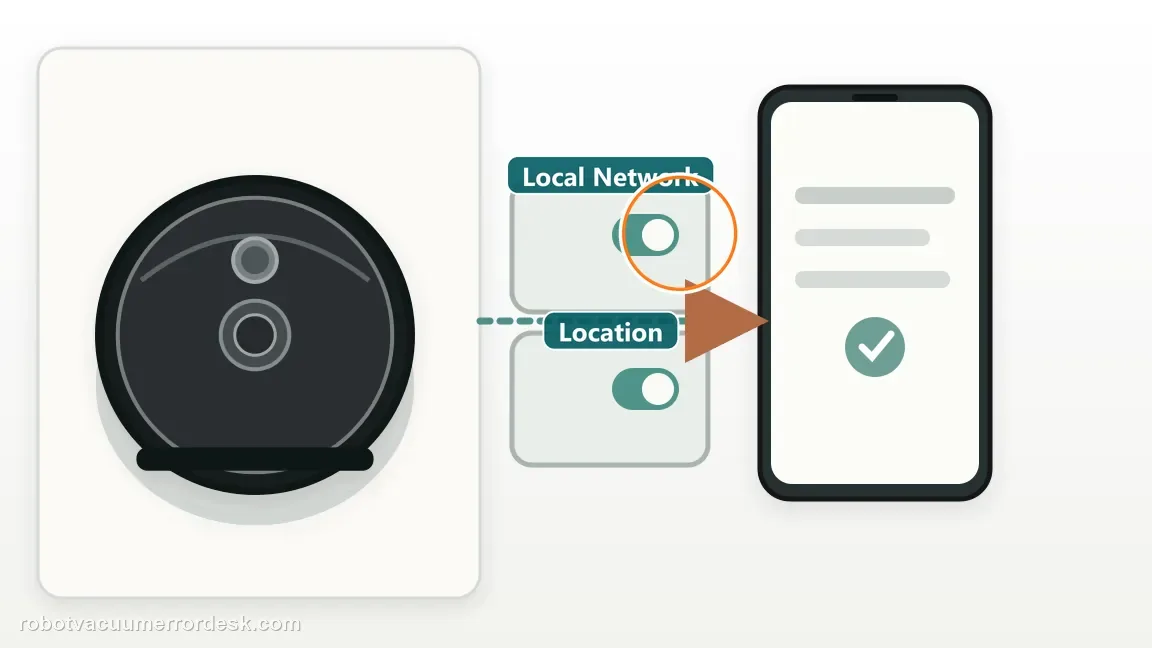
Location permission or iOS local-network permission is blocked, so the app cannot complete local discovery even though internet access works.
The router is using WEP, unusual SSID/password characters, restrictive security, DNS or network policies that interfere with the Qrevo pairing flow.
A phone VPN, cellular handoff, privacy relay, or unstable router state is sending setup traffic away from the local Wi-Fi path.
The robot’s saved Wi-Fi credentials are stale after a network change and need the dedicated Wi-Fi reset, not a full factory reset.
Reading your test result
| What you observe | What it narrows down | Next move |
|---|---|---|
| The 2.4 GHz SSID is not visible on the phone | The compatible band may be disabled, hidden, or merged in a way that makes setup unreliable. | Enable 2.4 GHz or temporarily expose a clear 2.4 GHz SSID, then retry close to the router. |
| The app cannot discover the Qrevo but normal internet works | Phone permissions or local-network discovery are stronger suspects than the robot radio. | Enable location and local-network access for the Roborock app, then reopen the app. |
| Pairing reaches Wi-Fi selection but rejects or loops | Credentials, wrong SSID, router security, special characters, VPN, or WEP may be blocking the handoff. | Verify the exact home-network password, use WPA/WPA2, disable VPN/cellular handoff, and simplify the test network. |
| Qrevo was connected before but became offline after router/SSID/password changes | The robot may still hold old network credentials. | Use the Qrevo Wi-Fi reset and add it again as a device; do not factory-reset first. |
| A known-good 2.4 GHz WPA/WPA2 test network also fails after Wi-Fi reset | The failure is no longer explained by ordinary band, credential, or phone-permission issues. | Record the failed pairing stage, indicator state, app/phone version, and router details for Roborock support. |
Pairing-stage comparison: network, app, or timeout?
The Qrevo manual adds one useful boundary: after 30 minutes waiting for setup, Wi-Fi switches off. Read the stage before repeating the reset.
| What you see | What it points to | Next useful check |
|---|---|---|
| Robot network never appears | Pairing mode may have timed out or the phone is not discovering the temporary robot network. | Restart Wi-Fi pairing and continue setup promptly; keep the phone near the robot. |
| Home 2.4 GHz network appears but pairing rejects it | Credentials, unsupported WEP security, or router band selection remain in play. | Re-enter the home SSID/password and use a WPA/WPA2 2.4 GHz network. |
| Robot joins, then the app says offline | Local-network permission, VPN/cellular handoff, or router isolation may interrupt app-to-device access. | Check app permissions and disable VPN for the controlled setup attempt. |
| Setup was left waiting for more than 30 minutes | The manual says Wi-Fi is disabled after this wait; this alone does not prove a failed radio. | Reset Wi-Fi and begin a fresh pairing session before testing hardware. |
Reset can erase maps/settings on this path. Use lower-risk checks first and document the current state before resetting.
Work through these checks in order
Prove that a real 2.4 GHz network is available
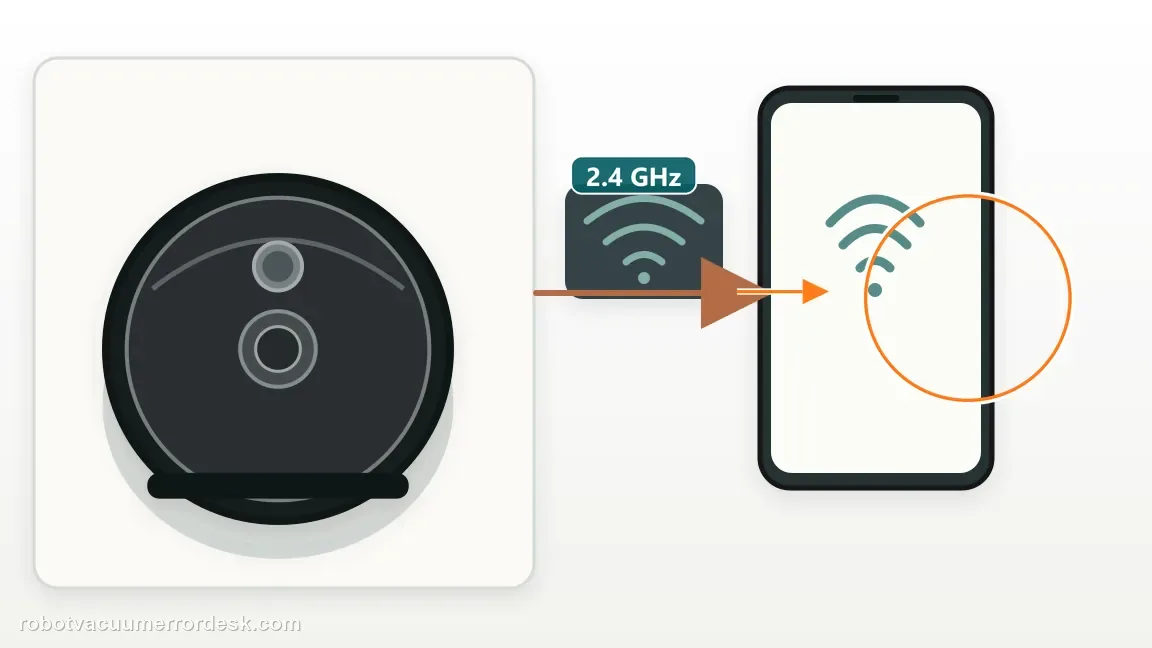
Start with the compatibility fact, not with random app reinstalling. Roborock’s current Qrevo support states that the robot does not use 5 GHz for this Wi-Fi connection. On a dual-band router, confirm the 2.4 GHz radio is enabled. If the router broadcasts separate names such as Home_2.4 and Home_5, select the 2.4 GHz SSID. If both bands share one name, first try the combined SSID as Roborock suggests; if pairing repeatedly fails, temporarily separating the bands can make the test unambiguous. Keep the robot and phone in an area with strong Wi-Fi reception during setup. Do not assume that seeing a strong 5 GHz signal proves the 2.4 GHz path is healthy.
Fix phone permissions before changing the router
Roborock’s Qrevo troubleshooting specifically calls out app permissions. On supported iOS versions, enable Local Network access for the Roborock app; also allow the location permission required by the app flow. On Android, make sure the app has the nearby-device/location permissions requested by the current version. Close and reopen the app after changing permissions. This branch matters when the phone has normal internet but the app cannot discover or communicate with the robot locally. Reinstalling the app without correcting the denied permission often reproduces the same failure and adds another variable to the test.
Verify the home SSID, password, and security mode
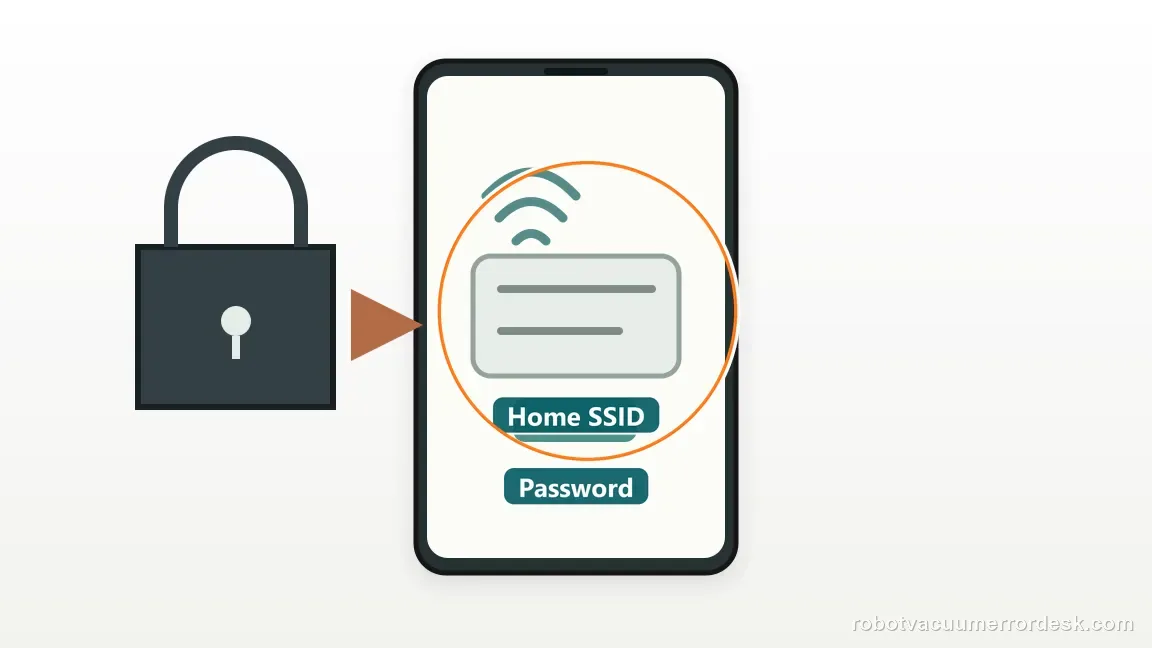
Re-enter the home Wi-Fi password carefully and confirm the selected network is the household SSID, not the temporary Wi-Fi network created by the robot. Roborock also says Qrevo does not support WEP; use a normal WPA or WPA2-compatible setup for the proof test. The support page suggests removing special characters such as !@#$ from the Wi-Fi name or password if pairing remains abnormal. Do not permanently weaken a secure network just to make the robot connect; if you need to simplify the SSID or password for diagnosis, use a temporary test configuration and restore an appropriate security setup afterward. The goal is to learn whether the failure follows the network configuration.
Remove VPN, cellular handoff, and router-state variables
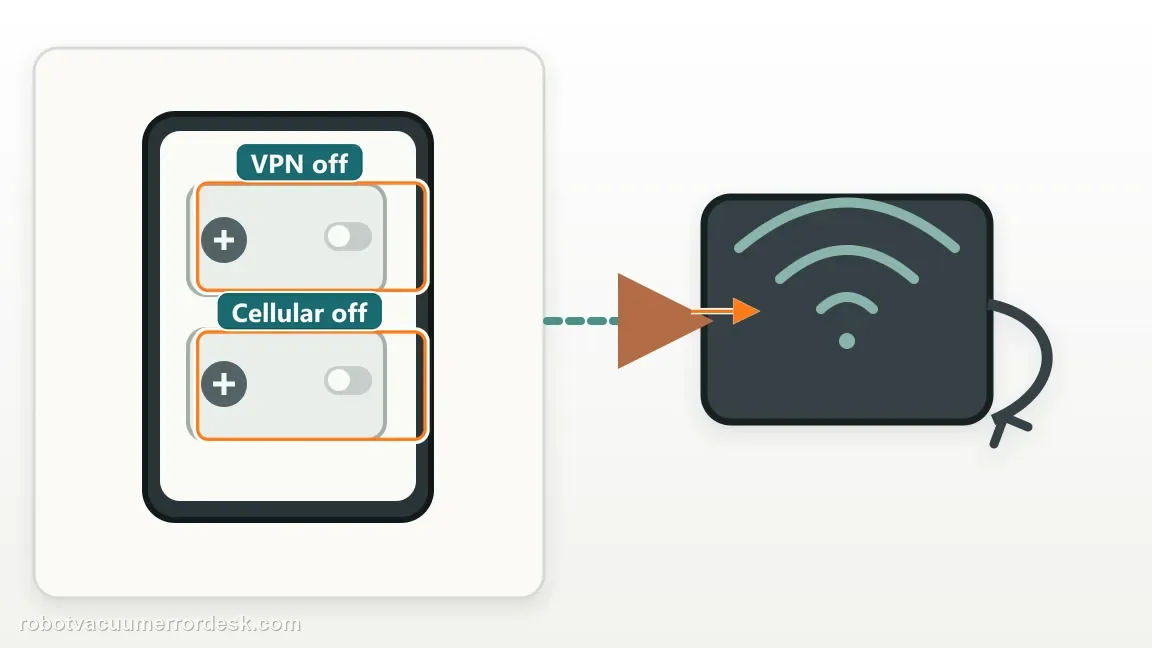
During one controlled pairing attempt, disable the phone VPN and any cellular-data handoff that may divert traffic away from the local Wi-Fi session. Roborock explicitly lists VPN/cellular isolation as a troubleshooting step and also recommends rebooting the robot and router when ordinary setup checks fail. Reboot one layer at a time so the result is interpretable: first close/reopen the app, then restart the router if necessary, then retry with the phone and robot close to the access point. If your network uses advanced DNS filtering, guest isolation, enterprise authentication, captive portals, or client isolation, move the proof test to an ordinary home WPA/WPA2 network instead of guessing at every router option.
Use the Qrevo Wi-Fi reset, not a factory reset
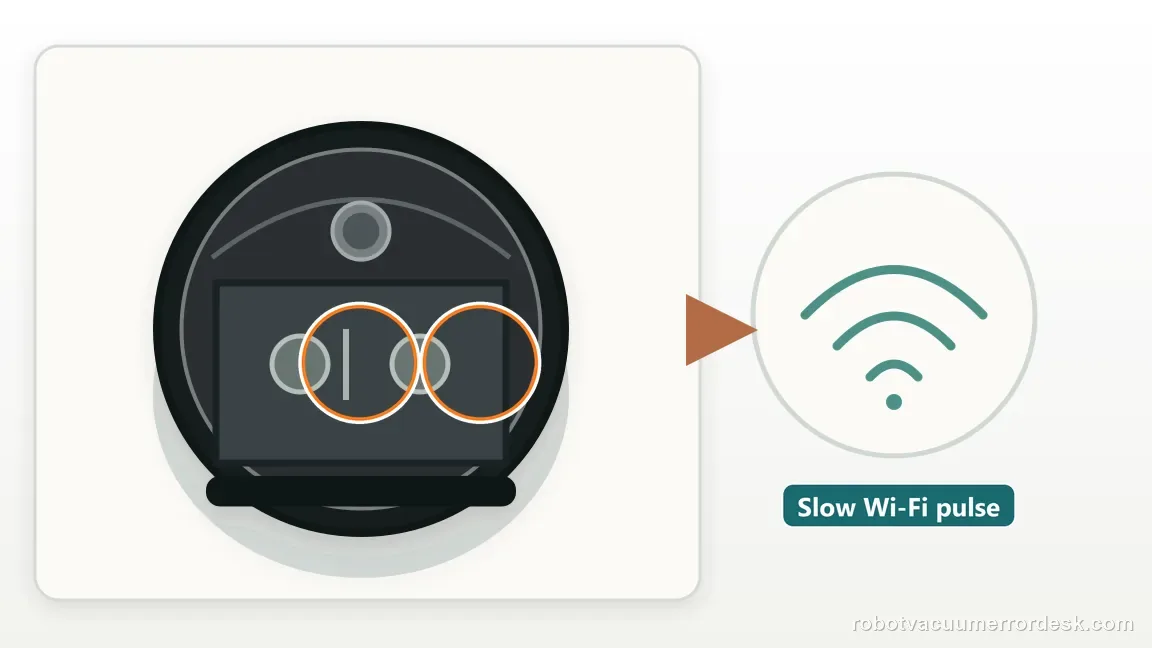
If the robot was previously connected or has stale credentials, use the dedicated Wi-Fi reset from the Qrevo manual. Open the top cover and locate the Wi-Fi indicator. Hold the documented button combination until the robot announces that Wi-Fi is resetting; wait until the Wi-Fi indicator flashes slowly, which means the robot is waiting for a connection. Then add the Qrevo again in the Roborock app. The manual notes that if the robot waits too long for a connection, Wi-Fi can disable automatically, so repeat the Wi-Fi reset before another attempt rather than assuming the robot is still in pairing mode. This operation is narrower than a full system/factory reset and should preserve the troubleshooting value of your existing maps and settings.
Separate home-network failure from a likely robot/app-side failure
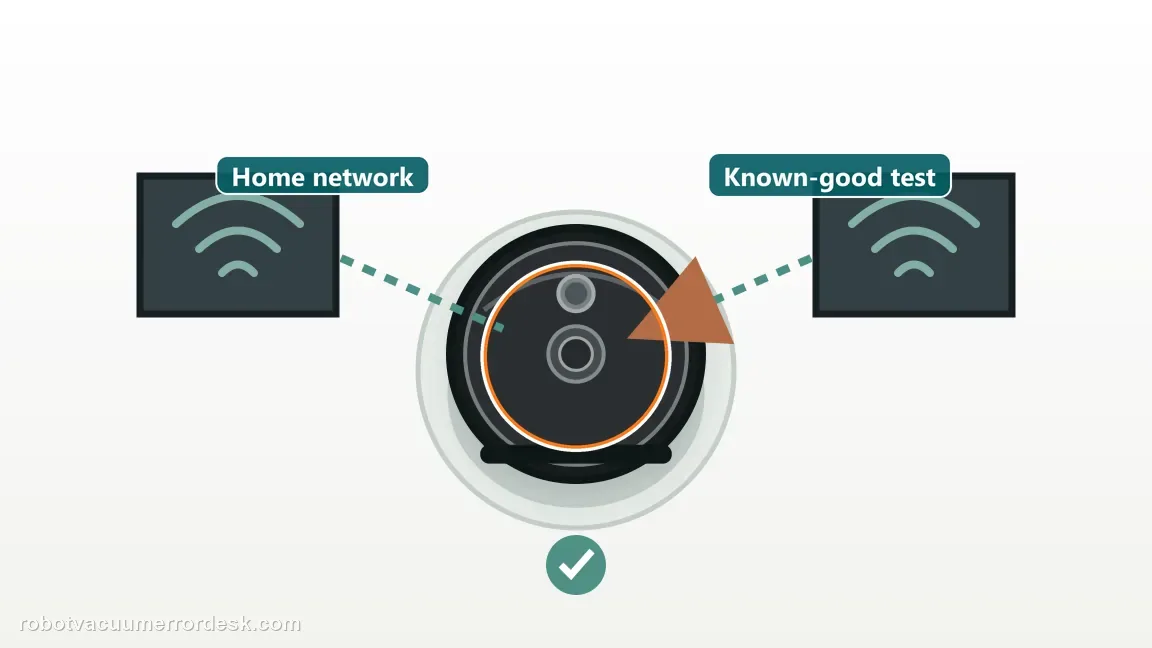
After the dedicated Wi-Fi reset, repeat the setup on a known-good 2.4 GHz WPA/WPA2 network with the correct password, strong signal, required phone permissions, and VPN disabled. If possible, a simple alternate router or hotspot that truly provides 2.4 GHz can be used as a controlled comparison; do not use that test to bypass company, hotel, captive-portal, or unsupported enterprise networks. If the Qrevo connects to the test network but not the normal home network, focus on the router, SSID, security, or band configuration. If it fails identically on multiple clean networks and phones, capture the exact app screen and Wi-Fi-indicator state before contacting Roborock.
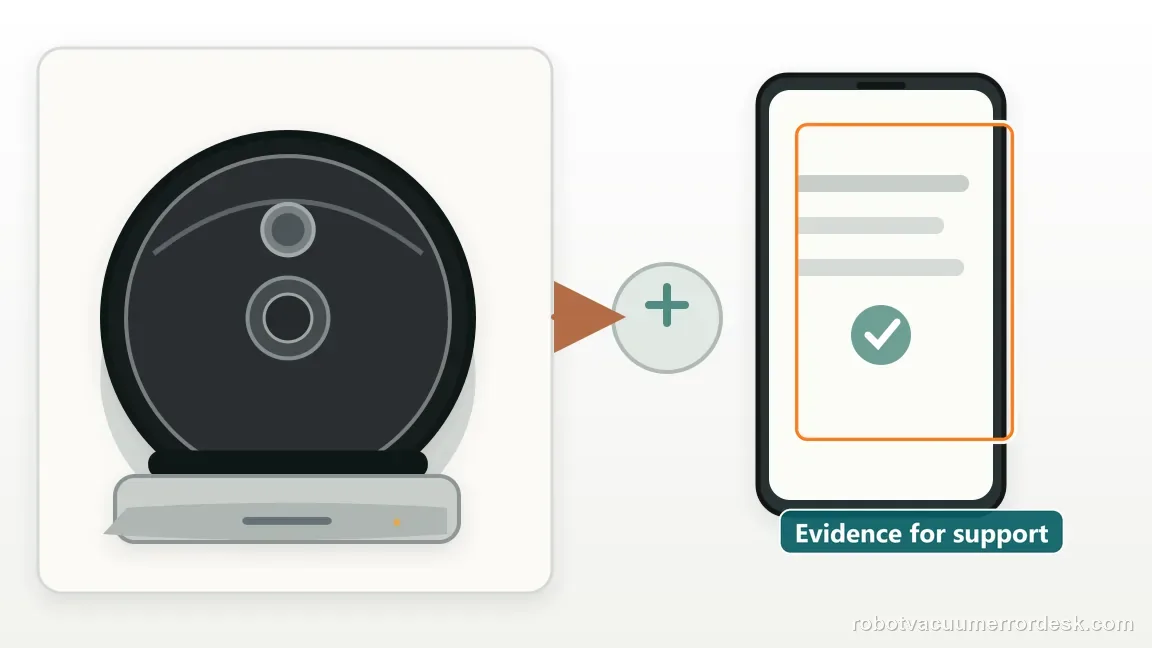
Contact Roborock when Qrevo still cannot join a known-good 2.4 GHz WPA/WPA2 network after the dedicated Wi-Fi reset, correct credentials, required phone permissions, strong signal, and a controlled attempt with VPN/cellular diversion removed. Send the model name, app version, phone/OS, router model, whether the SSID is split or combined, the Wi-Fi-indicator behavior, and the exact step where pairing fails. Avoid a full factory reset unless Roborock specifically directs it, because the Wi-Fi-only reset is the narrower recovery path and a factory reset can erase settings that are unrelated to the network fault.
Before you contact support, gather this
A reproducible case moves a support call past the basic troubleshooting script faster than “it doesn’t work” does, and it keeps the clues from your own tests on record.
- Exact model name and the error code / voice prompt exactly as shown
- A photo or screenshot of the app error and the time it occurred
- A short list of the checks already completed and what happened after each one
- Firmware/app version if the issue began after a software change
Where this comes from
Roborock Qrevo troubleshooting + official Wi-Fi setup/manual
Roborock’s Qrevo troubleshooting page documents the exact failure branches used here: 2.4 GHz-only support, password validation, location/local-network permissions, choosing the home SSID instead of the robot network, special-character and WEP cautions, VPN/cellular isolation, DNS/router checks and rebooting. The official Qrevo FAQ explains dual-band SSID handling, while the Qrevo manual documents the dedicated Wi-Fi reset, slow-flashing waiting state and the 30-minute connection timeout. WEB31 adds a decision order so users can prove which layer is failing without turning those separate manufacturer checks into a generic reset list.
Additional official source: Roborock Qrevo FAQ — 2.4 GHz vs 5 GHz Wi-Fi ↗Additional official source: Roborock Q Revo official user manual attachment ↗Last editorial review: October 13, 2026Regional note: manufacturer help centers, model suffixes, mains-power requirements and warranty procedures can differ by country. If the source redirects to a local support site, confirm that the model/hardware scope still matches before following a region-sensitive step.
This guide is rated Official model support. See what each evidence label means →
Questions people ask
Does Roborock Qrevo support 5 GHz Wi-Fi?
Roborock’s Qrevo support says the robot uses 2.4 GHz Wi-Fi for this connection. A dual-band router is still usable when its 2.4 GHz service is enabled. If the router combines 2.4 and 5 GHz under one SSID, Roborock suggests trying that network first; if onboarding fails, separating the bands temporarily can make the proof test clearer.
Why is my Qrevo offline in the app even though it still cleans?
Local cleaning can continue even when the cloud/app path is broken. If the robot went offline after a router, SSID, password, phone, or ISP change, first prove the 2.4 GHz network and app permissions, then use the Wi-Fi-only reset if the saved credentials are stale. The offline state by itself does not prove a navigation, battery, or cleaning fault.
How do I reset Wi-Fi on Roborock Qrevo without deleting the map?
The Qrevo manual provides a dedicated Wi-Fi reset. Open the top cover, locate the Wi-Fi indicator, hold the documented button combination until the robot announces “Resetting WiFi,” and wait for the indicator to flash slowly before adding the device again. This is the network recovery step to try before a full factory reset.
Can a VPN or iPhone Local Network permission stop Qrevo pairing?
Yes. Roborock’s Qrevo troubleshooting explicitly mentions app permissions and advises disabling VPN/cellular routing during the test. On iOS versions that expose Local Network permission, the Roborock app needs that access to communicate with nearby devices during onboarding. Correct internet access alone does not prove local discovery is allowed.
Should I change DNS to 8.8.8.8 or factory-reset the Qrevo?
Those are not the first moves. Roborock lists DNS as an advanced router check for users comfortable with router settings, while a full system reset is much broader than the Wi-Fi-only reset. First prove band, password, permissions, security mode, VPN state and the dedicated Wi-Fi reset. Escalate with the failed stage if a clean network still fails.
Did this diagnostic narrow the fault?
Use this as an editorial signal, not a popularity counter. If a feedback address is configured you can email the note; otherwise you can copy it for your own support record.