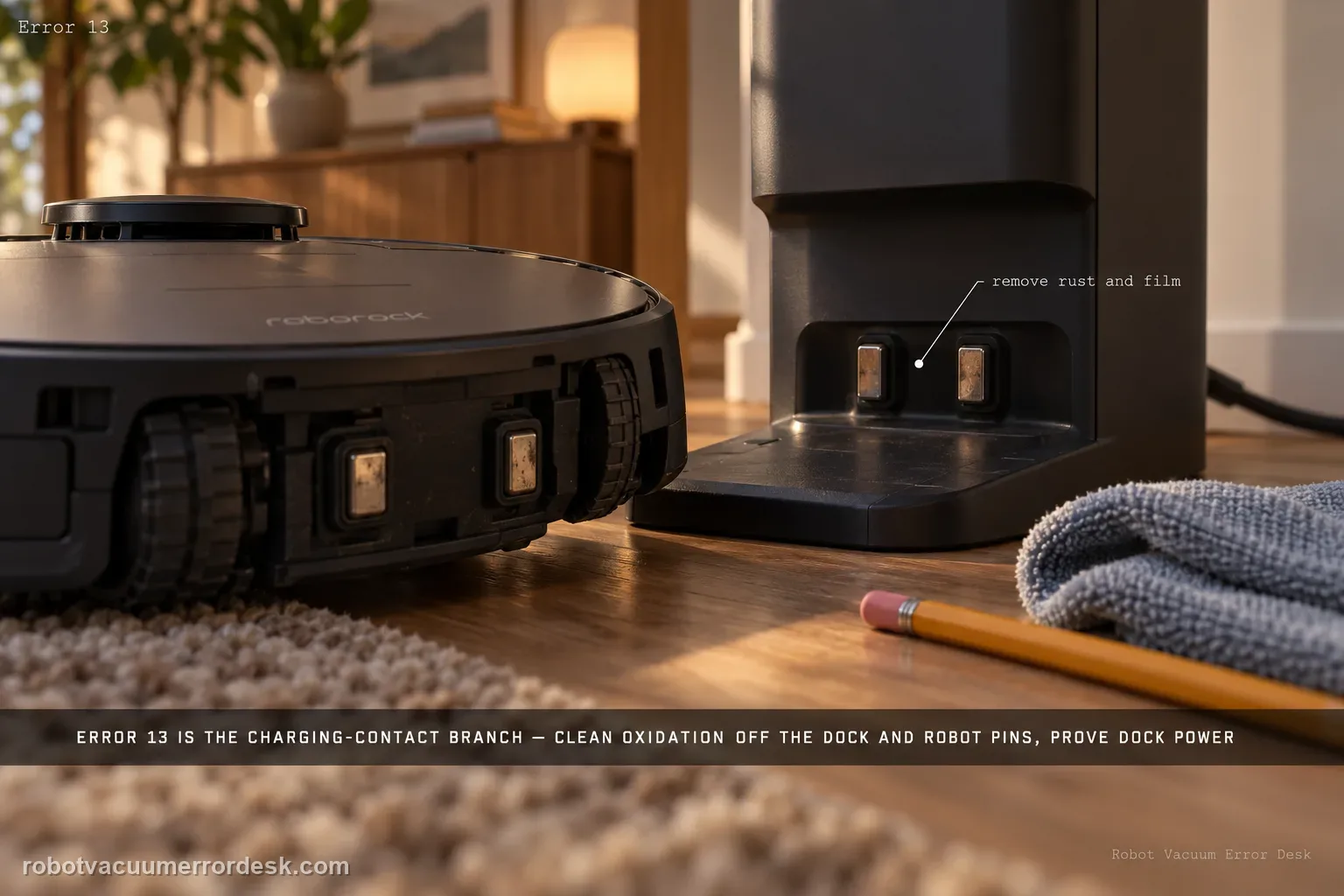
Qrevo Error 13 is the charging-contact branch. Roborock’s current Qrevo support says to remove stains or rust from the dock and rear robot contacts, verify the dock indicator changes from on without the robot to off when it is properly seated, push the station power cable fully into its socket, unplug the dock for about two minutes and try another outlet if needed. Prove sustained battery gain after those checks before suspecting the battery or internal charging hardware.
Confirm the exact model and exact code, light pattern or symptom.
Run the lowest-risk physical or software check first.
Use each pass condition to decide what the result actually narrows down.
Does this match your problem?
- The Qrevo reports Error 13.
- The dock indicator stays on while the robot is seated.
- Charging starts only after the robot is shifted by hand.
Most likely causes
Residue or oxidation on the Qrevo rear charging contacts or dock pads
Robot is physically docked but contact pressure/alignment is incomplete
RockDock power cable is not fully inserted
Station power state or wall outlet is unstable
Internal charging path fault after clean connected contacts and stable station power are proven
What your test result means
| What you observe | What it narrows down | Next move |
|---|---|---|
| Dock light stays on with Qrevo seated | Roborock says charging contact is not established correctly. | Clean/re-seat the rear contacts until the indicator reaches the connected state. |
| Visible stain or rust on charging pads | Contact resistance is a documented Error 13 cause. | Use gentle alcohol-cloth or eraser cleaning and dry before retesting. |
| Indicator is connected but station seems unstable | Dock supply, not homing, is the next variable. | Firmly seat the power lead, perform the two-minute reset and compare another outlet. |
| Charge icon appears but battery percentage stays flat | Momentary contact is not sustained charging proof. | Record a timed test with the indicator state stable. |
| All contact/power checks pass and Error 13 remains | Owner-level Error 13 sequence is exhausted. | Contact Roborock with indicator, percentage and contact evidence. |
Reset can erase maps/settings on this path. Use lower-risk checks first and document the current state before resetting.
Run these checks in order
Use the Qrevo dock indicator before touching the map
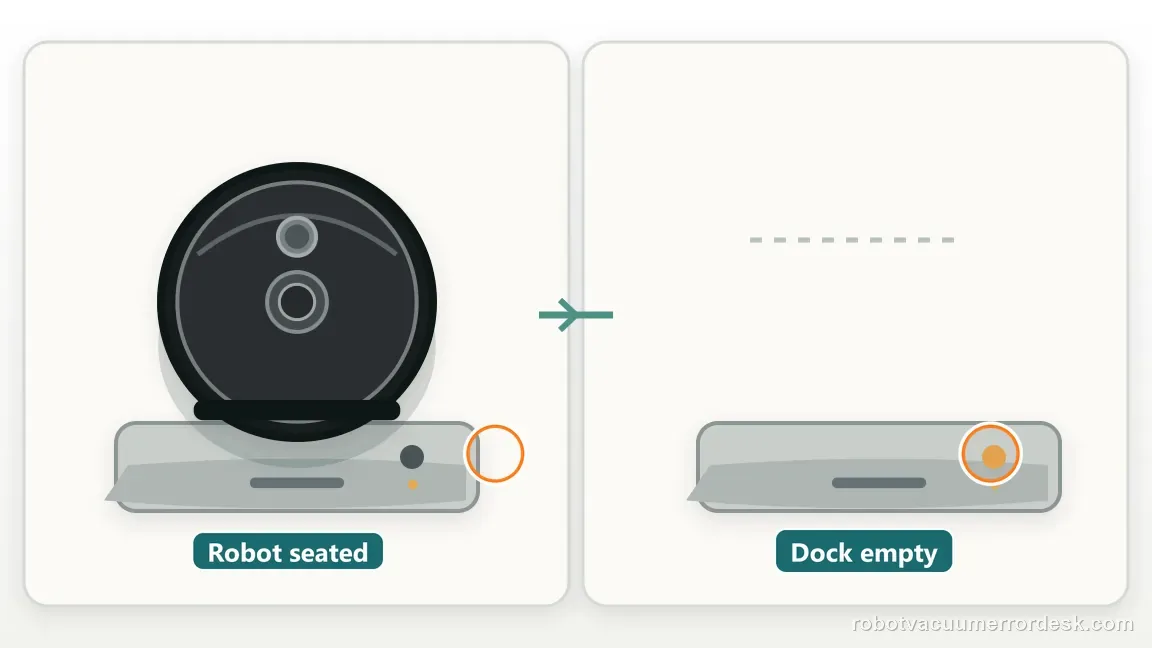
Place the robot squarely on the RockDock and observe the indicator. Roborock says it should be solid on without the robot and off when the robot is properly placed and charging. This makes Error 13 an electrical-contact test; remapping is irrelevant if the robot is already physically on the station.
Inspect the rear robot and dock charging surfaces
Qrevo’s charging contacts are at the rear docking interface. Look for dust, stain or oxidation on both sides. Roborock permits a cloth lightly moistened with alcohol or gentle eraser use for stubborn residue. Clean conservatively and let all surfaces dry before reseating.
Re-seat once and verify stable contact pressure
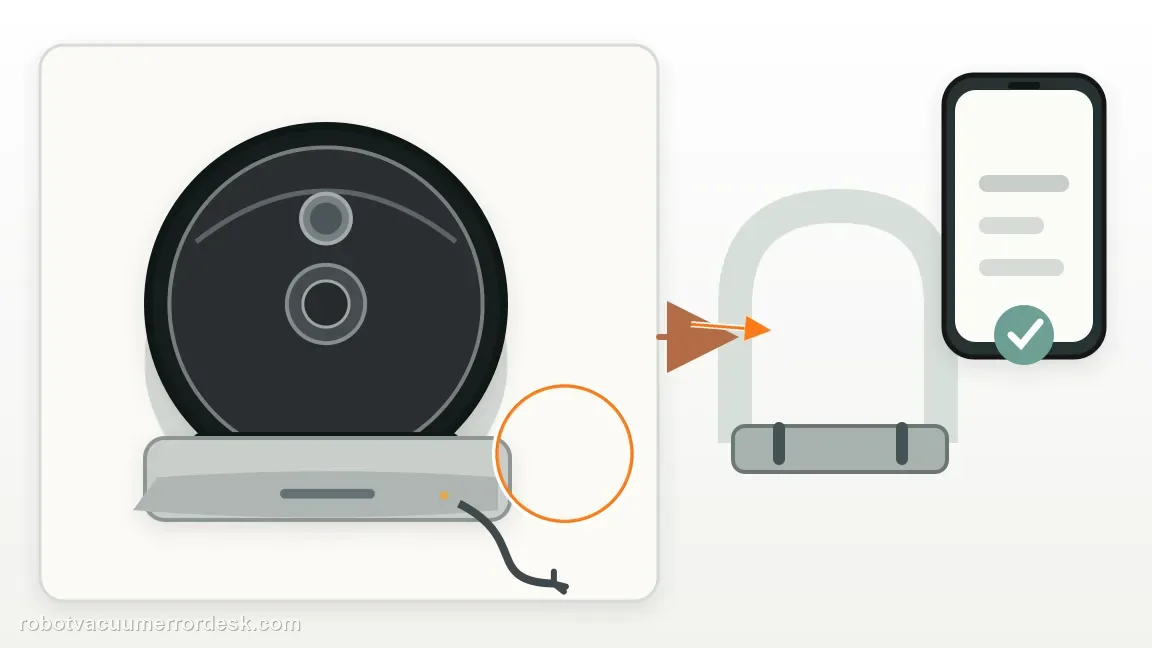
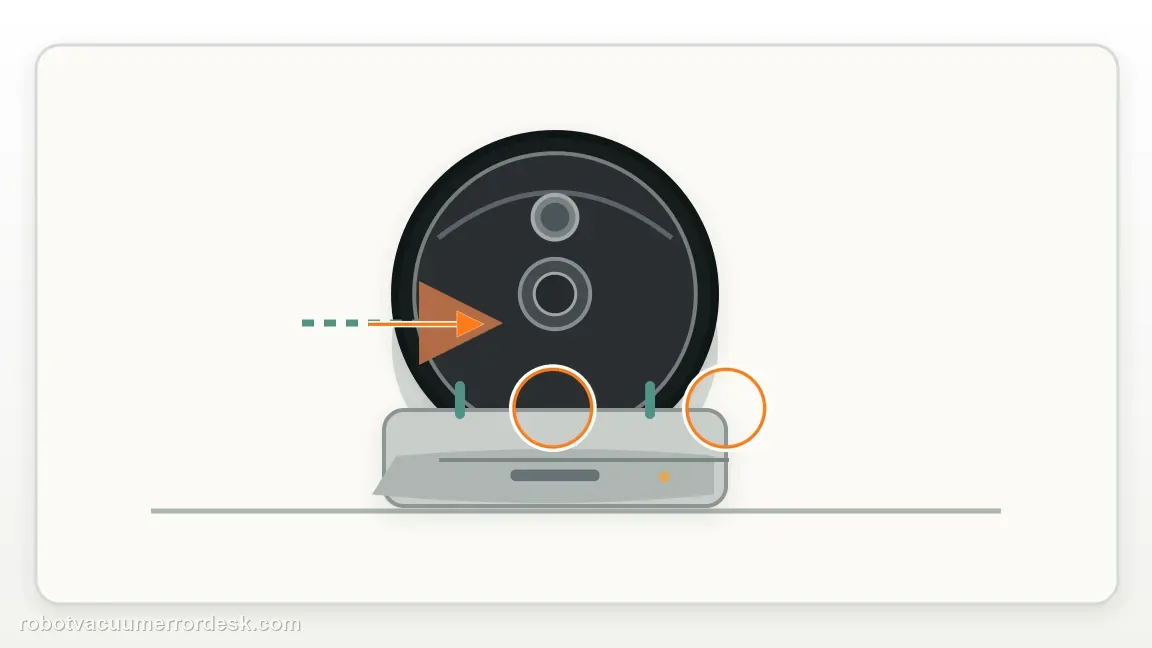
Guide the Qrevo squarely into position and check that the indicator remains in the connected/off state rather than flickering between states. Remove objects or uneven flooring that can prevent the robot from settling fully into the large station. Do not repeatedly shove the robot once a stable electrical connection is achieved.
Push the RockDock power cable fully into its inlet
Roborock specifically tells owners to double-check the cable and dock slot and push the cable head firmly into the dock. Verify the wall plug as well. A loose station lead can mimic a robot charging fault even when the contact surfaces are perfectly clean.
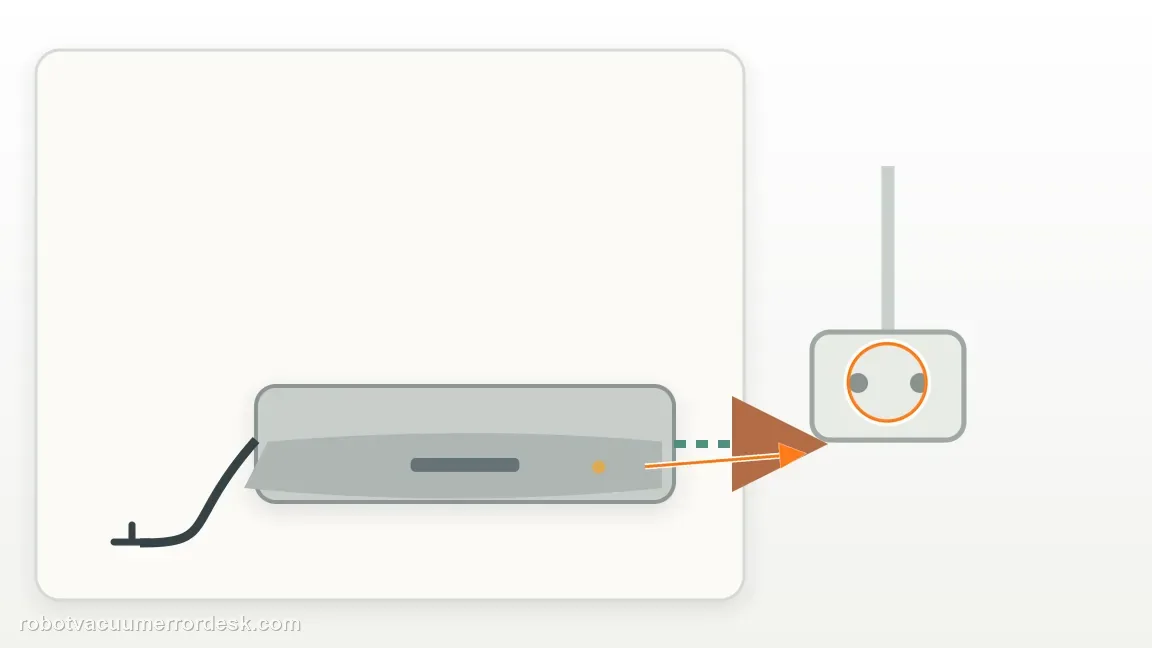
Perform the two-minute station reset and outlet comparison
Unplug the dock for about two minutes as Roborock recommends, reconnect it and retest. If Error 13 remains, try a known-good wall outlet. Change one supply variable at a time so you can tell whether the station state or household power makes any difference.
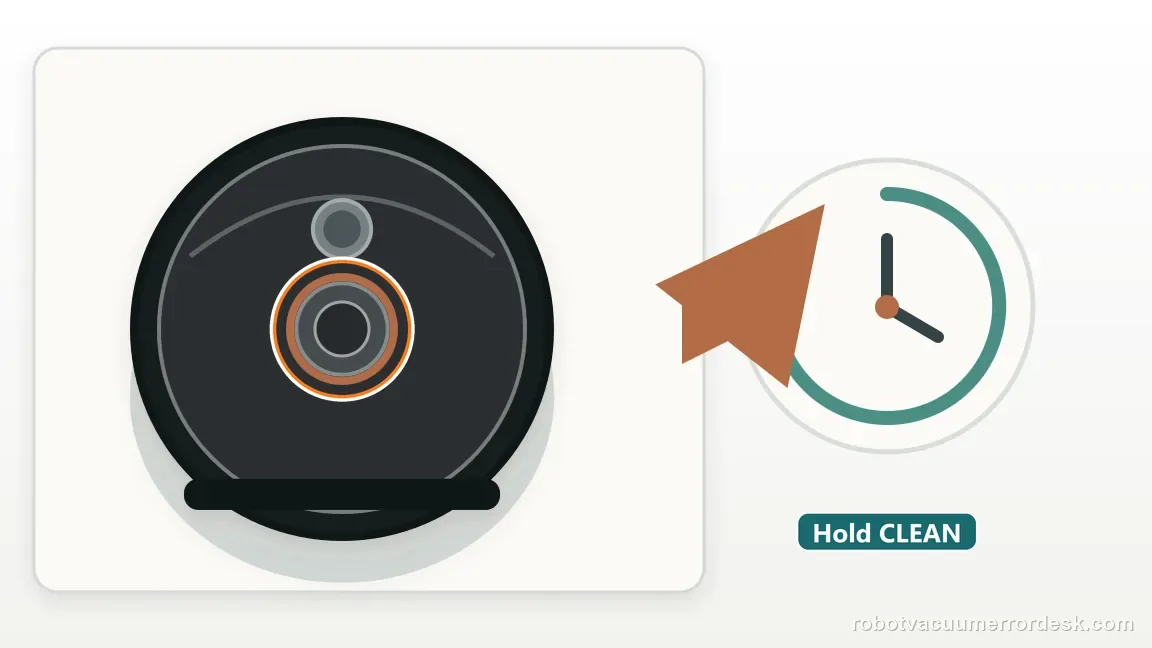
Run a timed charge-progress proof
Leave the Qrevo seated after the indicator confirms contact and note the battery percentage. Recheck after a meaningful interval. If the charge icon appears but percentage does not rise, document the station light and percentage timeline; that is stronger evidence of a deeper charging fault than a single momentary app status.
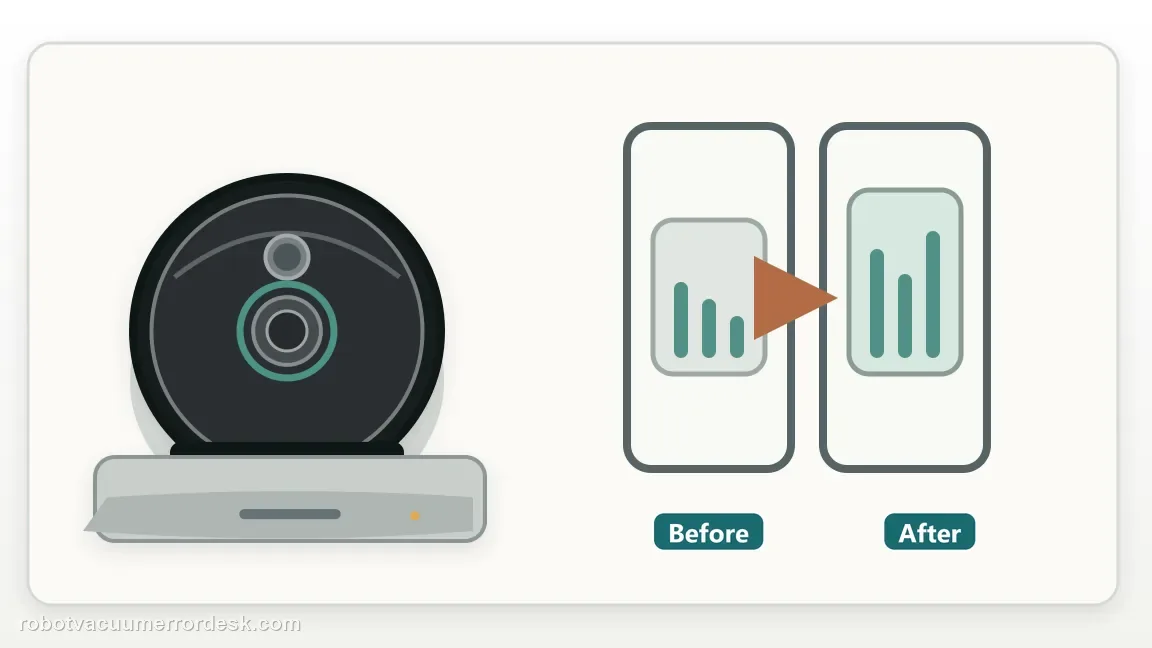
Escalate when the Qrevo still gives Error 13 with clean rear/dock contacts, a stable connected indicator state, firmly seated station power, the manufacturer’s two-minute dock reset and a known-good outlet. Send photos of the contact surfaces plus the battery-percentage timeline. Do not conflate this with cannot-find-dock if the robot already reaches and seats on the RockDock.
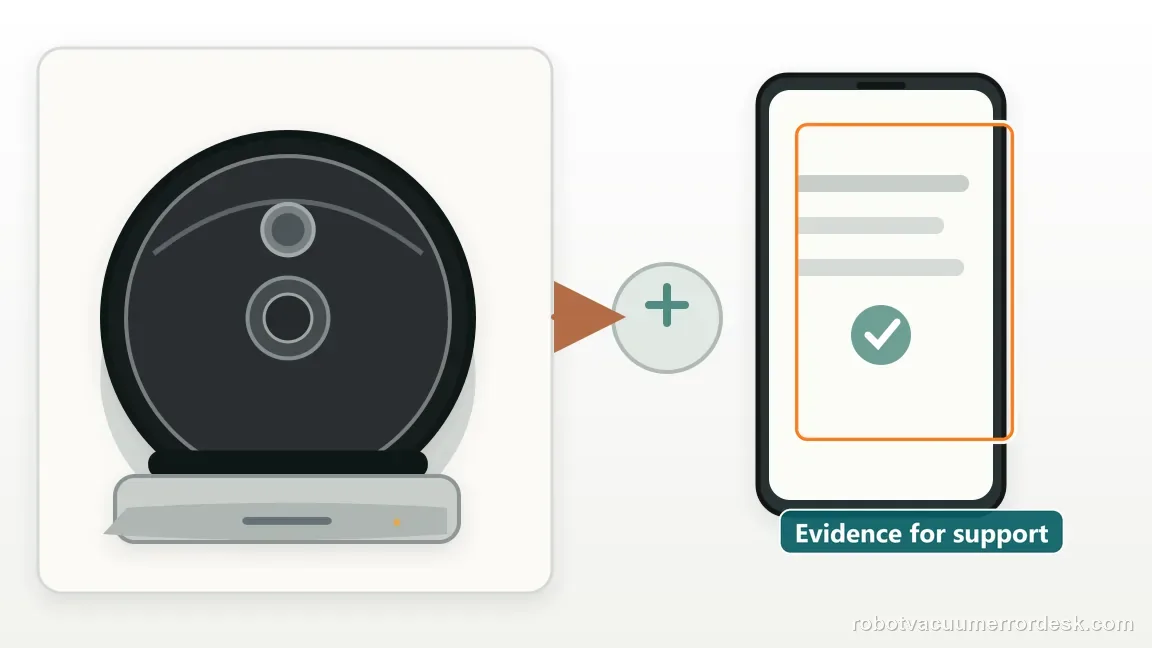
What to collect before contacting support
Give support a reproducible case instead of “it doesn’t work.” That reduces repeated basic troubleshooting and preserves the clues from your tests.
- Exact model name and the error code / voice prompt exactly as shown
- A photo or screenshot of the app error and the time it occurred
- A short list of the checks already completed and what happened after each one
- Firmware/app version if the issue began after a software change
Manufacturer evidence
Roborock Qrevo troubleshooting — Error 13
Roborock’s current Qrevo Error 13 article specifies cleaning stains/rust from the dock and rear robot contacts, checking the dock indicator, firmly seating the station power cable, unplugging the dock for about two minutes and trying another outlet. The Qrevo product page supplies the manual/support landing context. This guide then adds a timed charge-progress check so a momentary icon is not mistaken for successful charging.
Additional official source: Roborock Qrevo Error 13 support ↗Additional official source: Roborock Qrevo product support and manuals ↗Last editorial review: September 5, 2026Regional note: manufacturer help centers, model suffixes, mains-power requirements and warranty procedures can differ by country. If the source redirects to a local support site, confirm that the model/hardware scope still matches before following a region-sensitive step.
This guide is rated Official model support. See what each evidence label means →
FAQ
What does Roborock Qrevo Error 13 mean?
Error 13 is a charging error. On Qrevo, Roborock’s support path starts with the rear robot and dock charging contacts, then checks the station indicator, power-cable seating, a roughly two-minute dock power cycle and another outlet. The code does not by itself prove the battery has failed, so complete those contact and supply checks first.
What should the Qrevo dock light do when charging?
Roborock says the station indicator should be solid on without the robot and turn off when the Qrevo is properly placed and charging. If it stays on with the robot seated, the dock itself is telling you the charging connection is not established. Re-seat and clean the contacts before moving on to internal charging theories.
Where should I clean for Qrevo Error 13?
Inspect both sides of the charging interface: the contacts on the rear of the Qrevo and the matching pads on the dock. Roborock recommends removing stains or rust with a cloth lightly moistened with alcohol or gentle eraser use. Let the surfaces dry, then reseat the robot and confirm the station indicator changes to the connected state.
Why does Roborock recommend unplugging the Qrevo dock for two minutes?
That station power cycle is part of Roborock’s current Error 13 procedure after the contact and cable checks. Leave the dock unplugged for about two minutes, reconnect it and test once. If needed, compare a different known-good outlet. The goal is to isolate station/power state, not to repeatedly reboot the robot without changing a diagnostic variable.
Does Qrevo Error 13 mean the robot cannot find its dock?
No. Error 13 can be tested while the Qrevo is already physically seated on the RockDock, so it belongs to charging rather than homing. If the robot cannot locate or reach the station, use the return-to-dock workflow. If it reaches the dock and then shows Error 13, focus on contacts, indicator state and station power.
Did this diagnostic narrow the fault?
Use this as an editorial signal, not a popularity counter. If a feedback address is configured you can email the note; otherwise you can copy it for your own support record.