Not Charging or No Power
Start with wall power, dock power, contact condition and battery seating before buying a battery or opening a base station.
Manually seat the robot on a confirmed powered dock. This removes navigation from the test and tells you whether the charging path works at all.
What the symptom points to
Contact alignment, dirty pads, dock level or final seating.
Outlet, power brick/cable, station power path.
Battery state, temperature, firmware or charging hardware.
Do not erase the evidence
- Buying a battery before proving the dock is powered
- Abrasive cleaning that removes contact plating
- Opening a mains-powered dock as an owner-level first step
Save the battery percentage before and after a timed dock test, note whether the robot acknowledged charging, and photograph the contact surfaces if support asks for proof.
Matching model-specific guides
22 diagnostics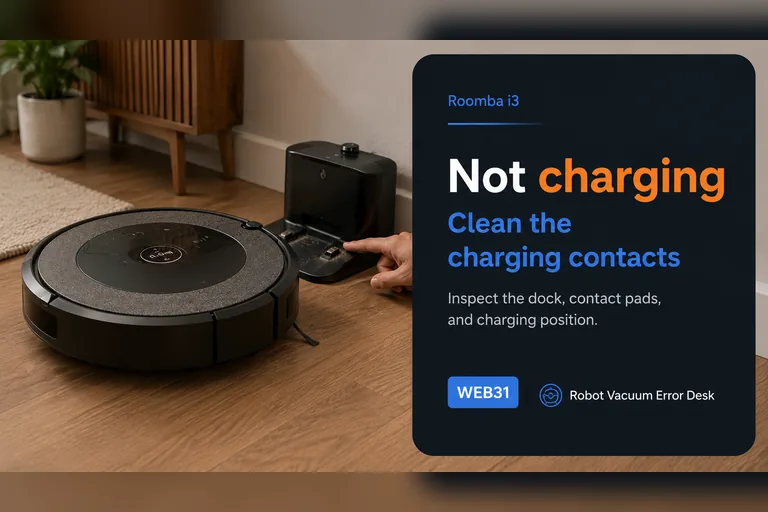
Not charging
Treat a Roomba i3 charging complaint as three separate questions: does the Home Base have power, does the robot actually make electrical contact, and does the battery state rise after contact is established? iRobot's charging guidance starts with dock power and maintenance rather than a replacement battery. Manually seat the i3 on a confirmed powered base, clean both charging contacts, allow a deeply depleted robot time to wake, and compare the battery state before and after a controlled charging interval. If manual seating works but autonomous returns do not, the problem belongs in docking/navigation diagnosis. If the i3 never acknowledges charge even when directly aligned, use the supported reboot or battery re-seat path and then escalate with the exact symptom rather than buying parts by guesswork.
Error 13
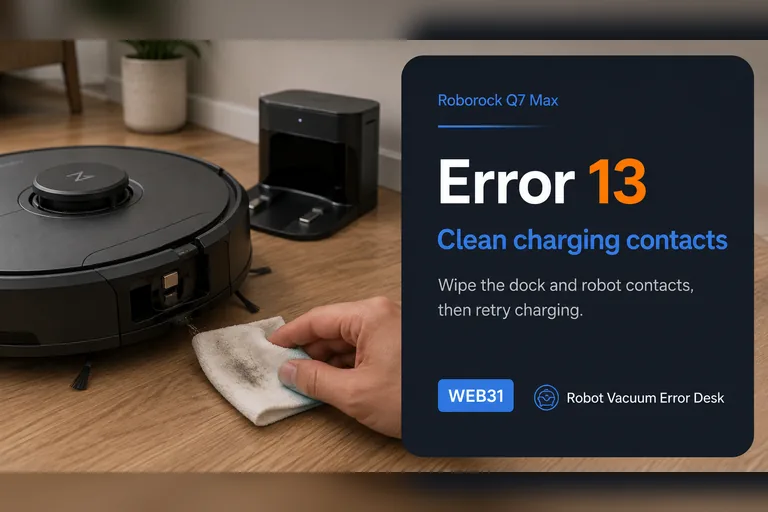
Roborock Q7 Max Error 13 is a charging fault. First prove the charging connection with the dock indicator, then clean both contact sets, fully seat the dock power cable, power-cycle the dock for about two minutes and compare a known-good outlet. Once the dock light confirms contact, use a timed battery-percentage test instead of repeatedly repositioning the robot.
Error 13
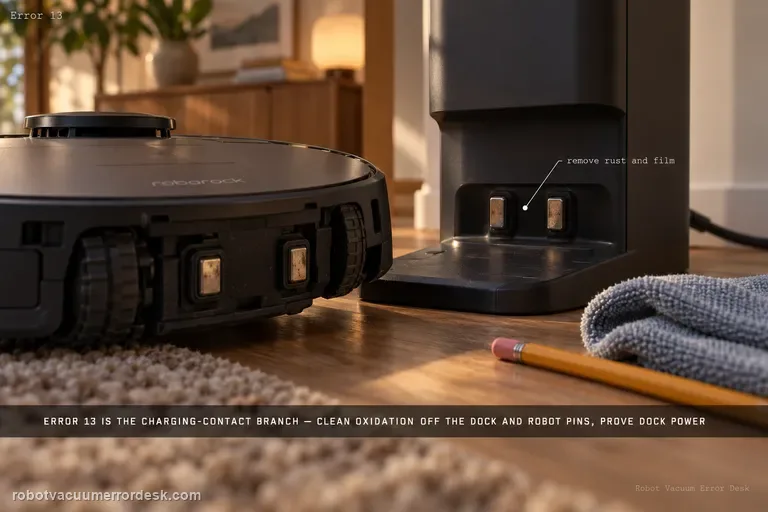
Qrevo Error 13 is the charging-contact branch. Roborock’s current Qrevo support says to remove stains or rust from the dock and rear robot contacts, verify the dock indicator changes from on without the robot to off when it is properly seated, push the station power cable fully into its socket, unplug the dock for about two minutes and try another outlet if needed. Prove sustained battery gain after those checks before suspecting the battery or internal charging hardware.
Not charging
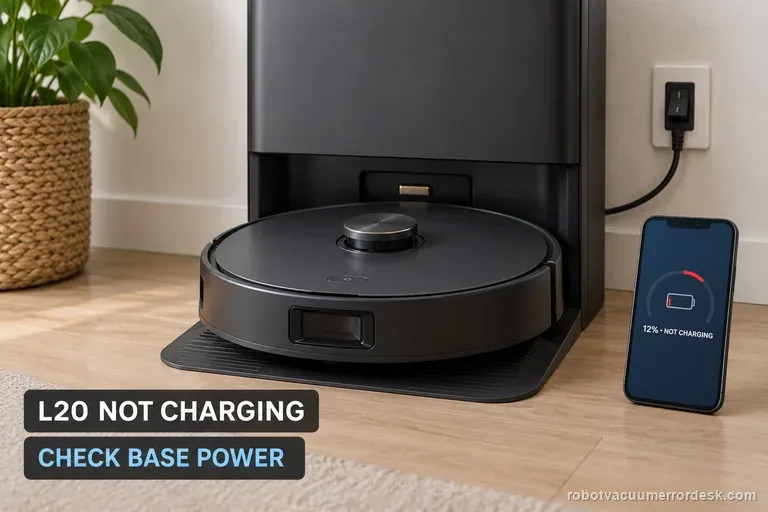
When your Dreame L20 Ultra sits on its base but will not charge, check station power first. Dreame names both ends of the base power cord and the rear switch. Then unplug the station, clean the robot and base contacts, and adjust their position. Seat the robot squarely and verify the displayed battery level increases; an automatic return failure is a separate navigation problem.
Not charging
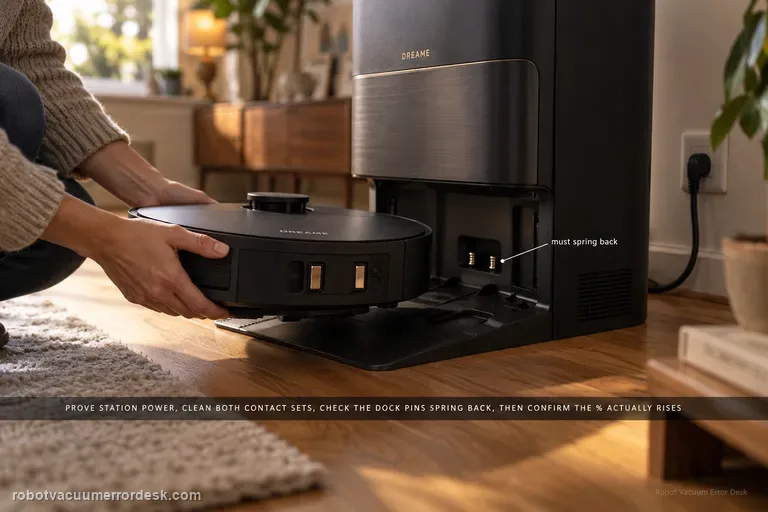
Use the X40 Ultra’s current charging and docking pages before blaming the battery. First prove the station has power and both ends of its cable are fully seated. Clean the robot and station charging contacts, then check that the station’s exposed charging pins are not stuck and spring back normally. Put the X40 directly into the dock and listen for the “Start charging” prompt; then confirm the battery percentage actually rises. If manual docking charges but an autonomous return does not, move to the separate docking/return path. If a correctly seated X40 still will not acknowledge charge, Dreame’s current X40 support allows a robot restart; a factory reset is a later step and erases maps, so preserve evidence before using it.
Charging Error 119
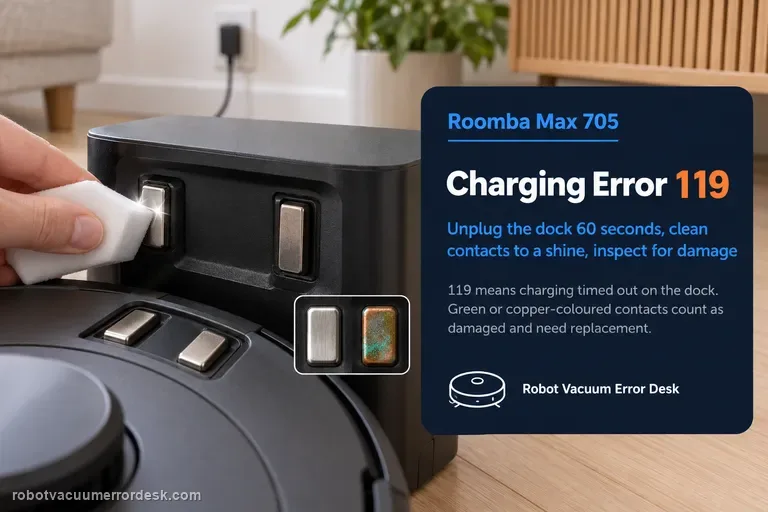
Charging Error 119 means the Roomba is on the dock but charging timed out. iRobot says the most common cause is charging contacts that need maintenance or are damaged. Start by unplugging the dock for 60 seconds, then clean the metal contacts on both robot and dock with a lightly dampened melamine foam or cloth until they have a visible shine. Inspect the contact color: green or copper-colored contacts are considered damaged and the affected robot/dock may need replacement. Confirm the dock has power, then use iRobot’s ship/sleep-mode reactivation path or remove and reinstall the battery to clear the error. The Max 705 Combo is specifically pictured in the manufacturer article, so this is not a generic older-Roomba guess.
Unable to charge
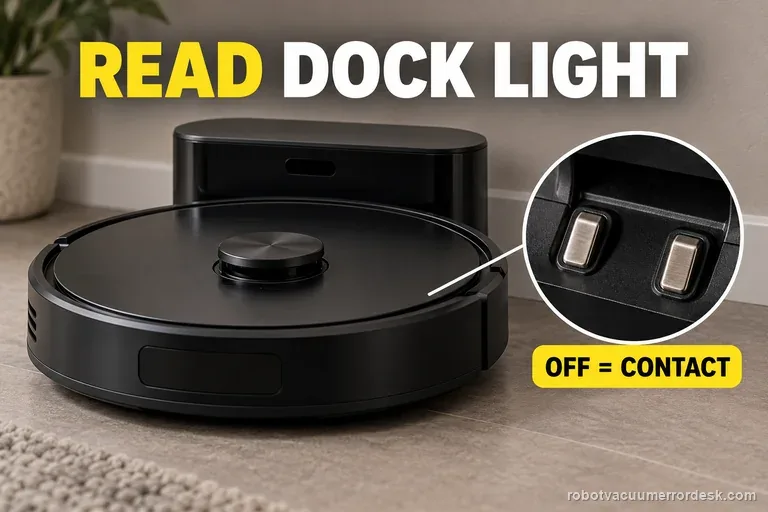
Seat the Curv and read the dock light before checking the battery. Roborock says OFF means the charging contacts are connected; ON means they are not. If it stays on, reseat the robot, clean both contact sets, then verify the cable and outlet. If the light turns off but charge does not rise, record both signals for support.
Won't power on
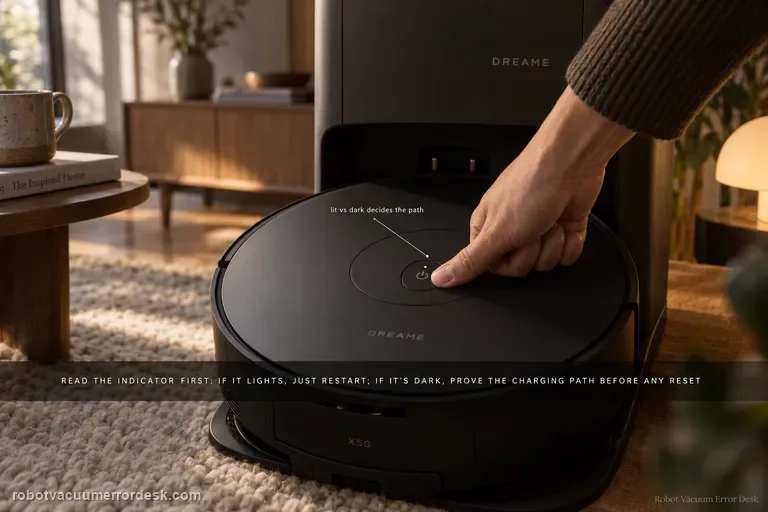
Do not jump straight to factory reset. Dreame’s exact X50 article first splits the diagnosis by the Power/Clean indicator. If the indicator lights, the robot has enough life to try a restart; reset is a later branch. If the indicator does not light, prove the charging path: base power, both ends of the power cord, clean robot/base contacts and a manual alignment on the dock. Dreame also says to hold Power/Clean for 3 seconds while docked if it does not start automatically. Only after those checks does the article return to reset, and it warns that factory reset clears all data including saved maps.
Not charging
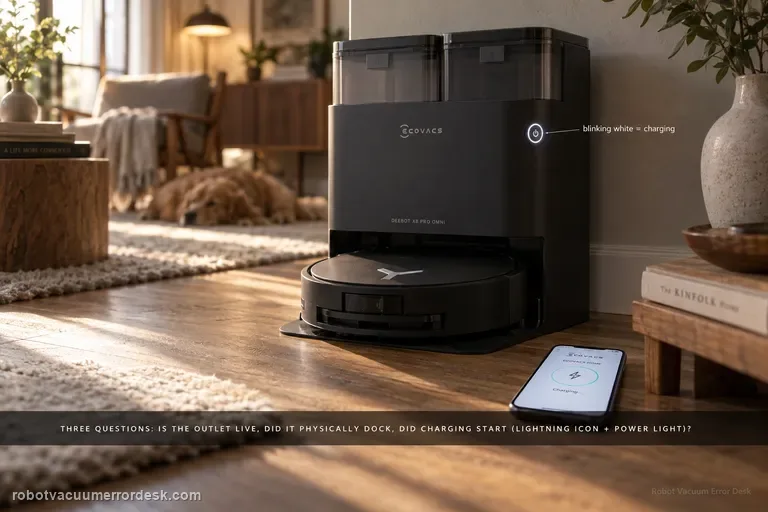
Treat X8 Pro Omni charging as three separate questions: does the station have power, can the robot make a correct physical dock, and does electrical charging actually begin once the contacts touch? ECOVACS’ exact X8 support says to confirm a live outlet and the station cord, switch the robot to I, try an automatic return, then manually dock if the robot will not power on. A blinking white power-button light and the lightning icon in ECOVACS HOME are the evidence that charging has started. If neither automatic nor manual docking charges, clean both contact pairs and confirm the station contacts press down and spring back normally. If a powered station and a manually seated robot still show no charging indication after those checks, stop treating the symptom as navigation and escalate it as a charging-hardware case.
Error 13
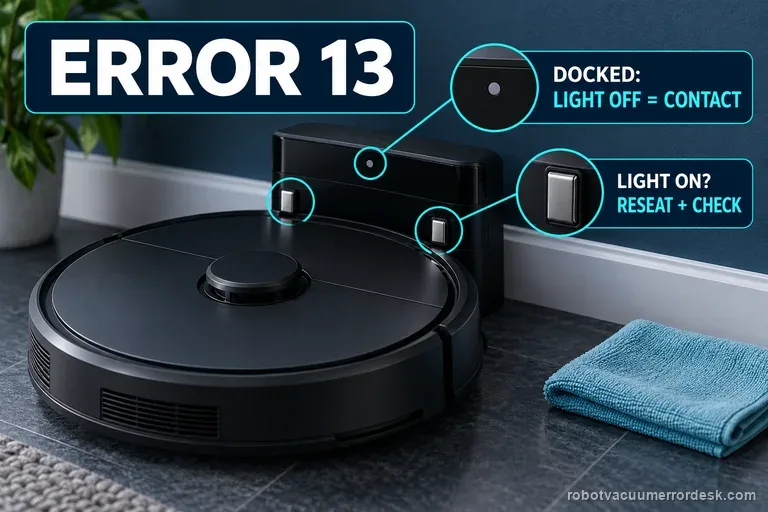
Roborock Error 13 on the Saros 20 Sonic is a charging-contact diagnosis. The model support page says the dock indicator should be OFF when the robot is docked and charging correctly; if it stays ON, reposition the robot, clean the contacts on robot and dock, then prove dock power and the wall outlet. Use the light state as the key pass/fail signal instead of replacing a battery before contact alignment and power are proven.
Not charging
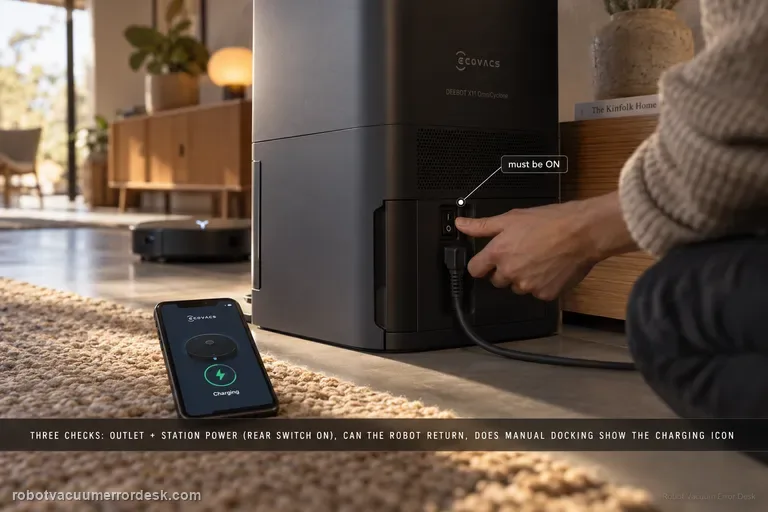
Ecovacs’ X11 charging flow separates three things owners often mix together: whether the station has power, whether the robot can power/return, and whether manual contact charging works. First prove the wall outlet and station connection; on U.S. units, confirm the rear station switch is ON. Power the robot on and ask it to return. If it cannot power on, manually dock it and look for the charging indication—the Auto button blinking or the lightning icon in the app. If manual contact charging also fails, clean the station and rear robot contacts and make sure the station contacts rebound normally. This sequence prevents a navigation failure from being misdiagnosed as a bad battery or dock.
Recharge / return fails
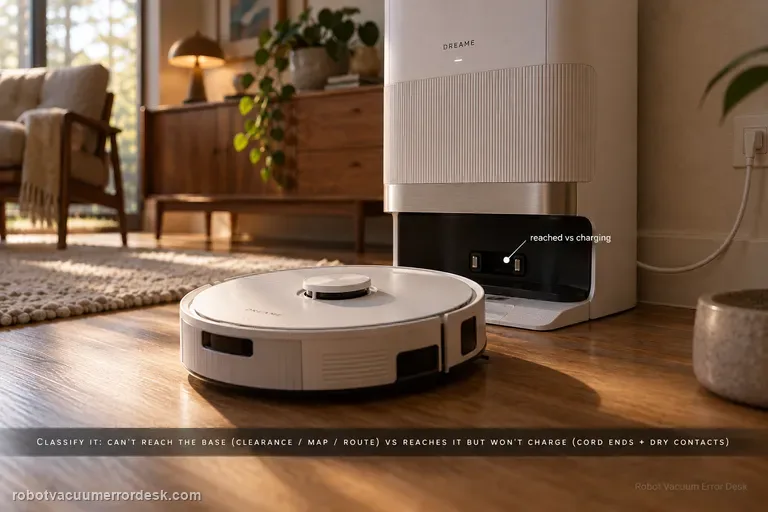
First classify where the L50 Ultra AE fails. If it cannot find or approach the base, Dreame’s exact recharge article points to dock clearance, distance, starting from the base and an abnormal saved map; the exact manual adds blocked return routes, a moved or unpowered station and a dirty signaling area. If the robot reaches the base correctly but charging never begins, stop remapping: the manual moves the diagnosis to both ends of the station power cord, dry charging contacts and foreign objects at the robot connectors.
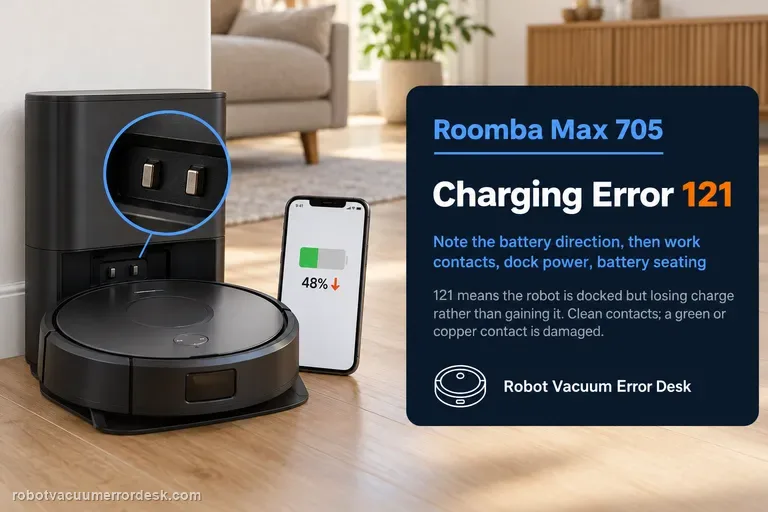
Charging Error 121
Charging Error 121 means the Roomba Max 705 is docked but losing charge instead of maintaining or gaining it. That makes the observed battery direction important: this is not merely ‘the robot will not start charging.’ iRobot’s code-specific path begins with the charging contacts, then verifies continuous dock power, and finally removes/reinstalls the battery if the external interface passes. Clean contacts with an approved lightly dampened melamine foam or cloth; if a contact is green or copper-colored, iRobot treats it as damaged. During the power test, watch whether the battery percentage or charging state continues to fall while the robot remains seated. If it does, capture that behavior. After a battery reseat, run one fresh session without moving the robot. A persistent 121 on clean intact contacts with stable dock power is a service case rather than a cue to keep polishing or repeatedly rebooting.
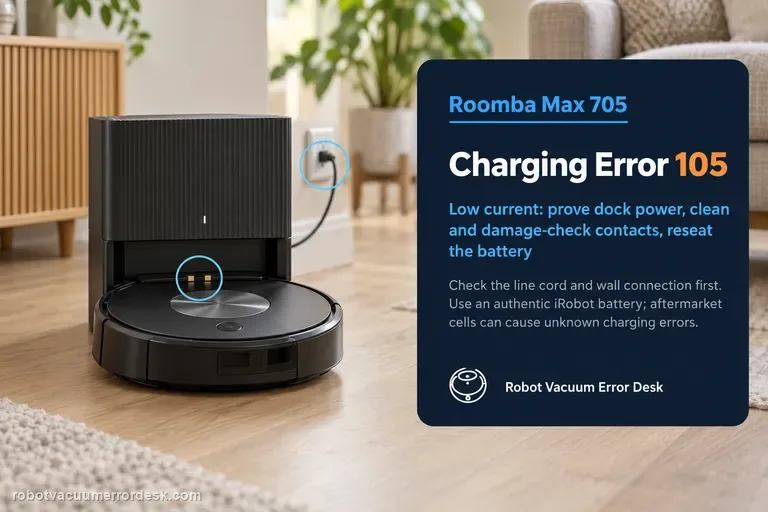
Charging Error 105
Charging Error 105 means low electrical current is reaching the Roomba Max 705. That is more specific than ‘not charging’: iRobot says the low-current path can involve the dock or power cord, debris on the charging contacts, damaged/stuck contacts, or the battery/robot side. Start by proving the dock has power, then clean both contact sets with an approved lightly dampened melamine foam or clean cloth. Inspect rather than endlessly polish: contacts that are green, copper-colored or stuck down are considered damaged and the affected robot or dock needs service/replacement. If the contacts and power path look normal, remove and reinstall the battery; iRobot says this effectively reboots the robot and specifically warns to use an authentic iRobot lithium-ion battery because aftermarket batteries can cause unknown charging errors. The pass condition is stable current/charging after each branch, not simply making Error 105 disappear for a few seconds.
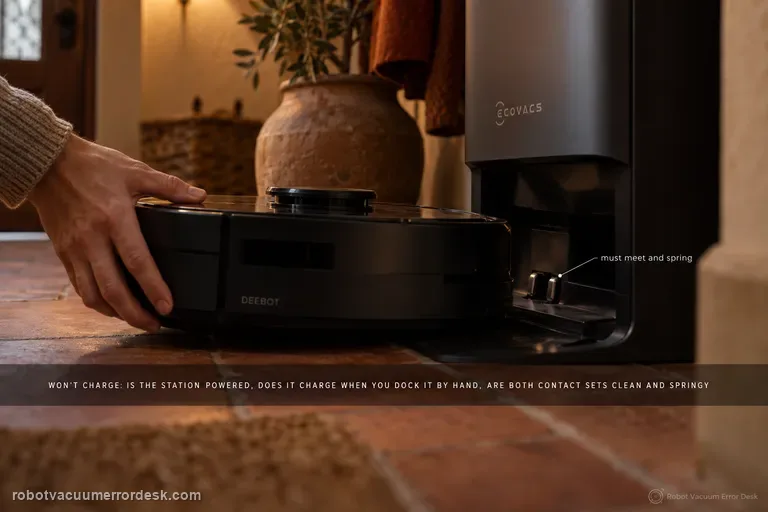
Not charging
A T80 OMNI that will not charge should be split into three questions before any battery guess: is the station actually powered, does the robot acknowledge charging when it is placed on the station by hand, and are the two sets of contacts clean and springing normally? ECOVACS also documents an Energy-Saving Charging setting, so a robot that holds near 30% outside the configured window is behaving differently from one that shows no charging state at all. Prove those states in order and save the battery hypothesis for last.
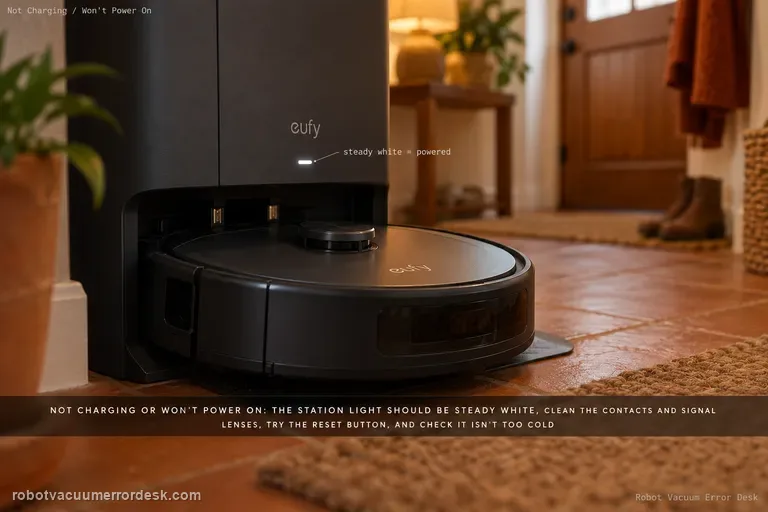
Not charging or powering on
Start at the powered dock, not the battery. eufy’s X10-specific sequence is: confirm the Omni Station shows a steady white indicator, clean the robot/station charging contacts and signal lenses, use the robot Reset button if it remains unresponsive, then rule out temperature protection. eufy lists 4–45°C (39.2–113°F) as the protective range boundary and advises warming/cooling farther into range before retrying charge.
Not charging
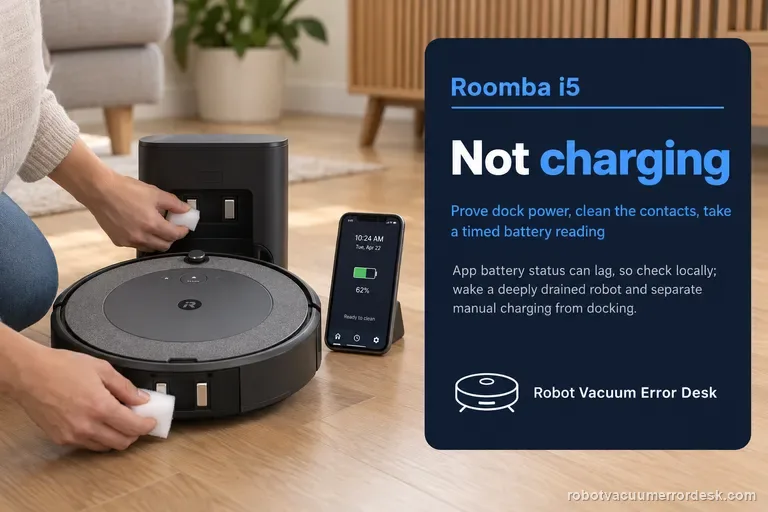
For a Roomba i5 that will not charge, first prove the Home Base or Clean Base is powered and that the robot is actually touching both charging contacts. iRobot warns that battery status may not refresh reliably from a remote connection, so check locally and use a timed before/after reading. Clean the contacts, allow a deeply exhausted robot to wake, and separate manual charging from autonomous docking. If the i5 never acknowledges charge, use the supported reboot or battery re-seat path. Only after those controlled checks should battery or robot-side charging hardware become the leading suspect; newer i5 hardware revisions can also be non-modular, which affects the service route.
Not charging
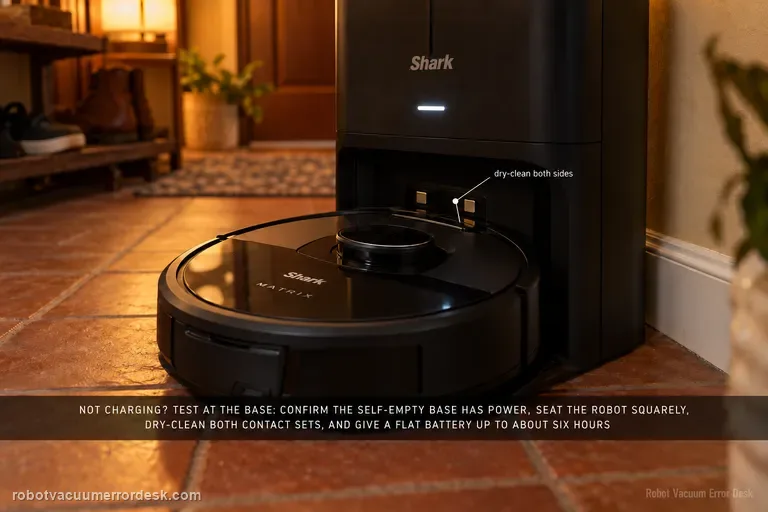
A Shark Matrix that will not charge should be tested at the base before you blame the battery. The RV2300-series owner guide distinguishes the base's powered/not-charging state from its charging state and describes the robot's charging indicators. Confirm the Self-Empty Base has power, manually seat the robot squarely, dry-clean the charging contacts on both sides, and allow a very low battery enough time to recover; the guide notes that a full charge can take up to about six hours. If the robot charges only after repositioning, treat alignment and docking as the stronger issue. If the base is powered and the robot never acknowledges charge even when hand-seated, charging hardware or battery service becomes more credible.
Error 13 charging
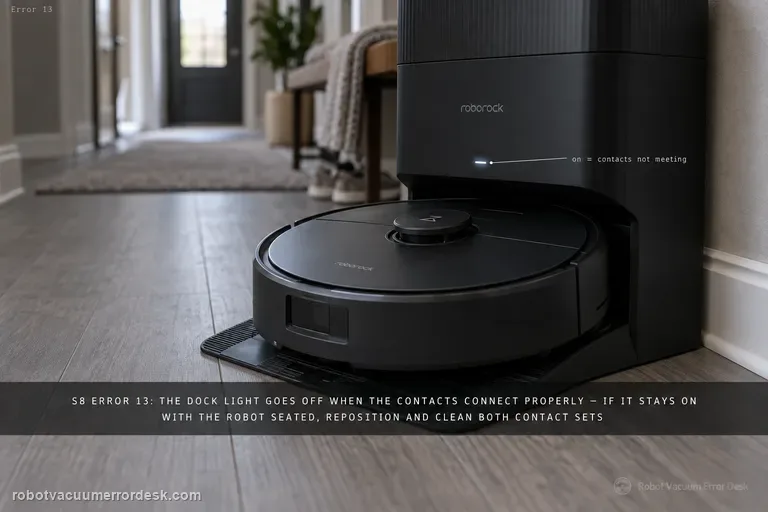
For S8 Error 13, use the dock indicator as the first electrical clue. Roborock says the dock light is off when the robot/dock charging contacts are properly connected; if it remains on with the S8 seated, reposition and clean both contact sets. Then verify the dock cable and wall outlet, power-cycle the dock if needed, and watch for sustained battery increase. This is a charging-contact diagnosis, so do not delete maps or start with battery replacement.
Error 13
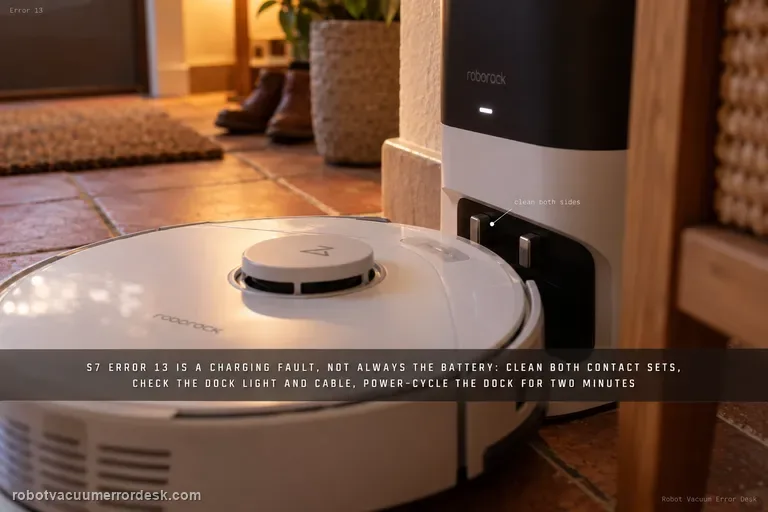
S7 Error 13 means charging failed, but it does not automatically mean the battery is bad. Roborock’s S7 manual identifies Error 13 as a charging error, and its current support path checks the robot/dock contacts, dock indicator, power-cable seating, a roughly two-minute dock power cycle and another outlet. Manually place the S7 on the dock so navigation is removed from the diagnosis, then prove that charging remains active long enough for the battery percentage to rise.
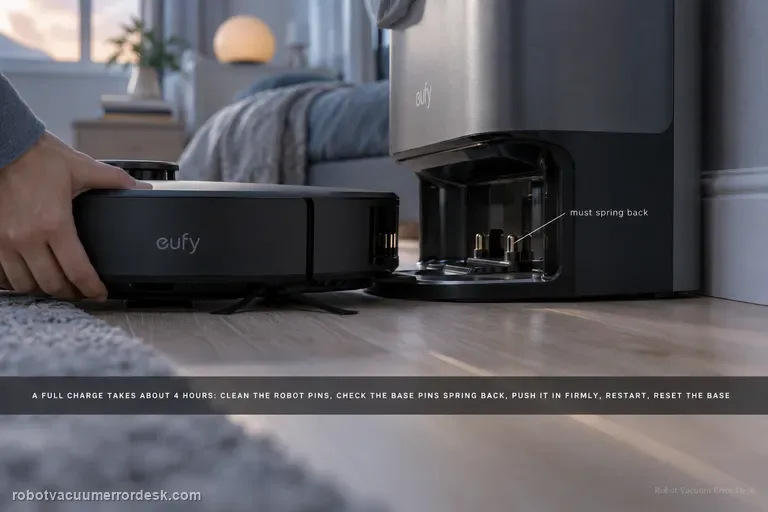
Not Charging / Slow Charge
eufy says a normal Omni S2 full charge takes about 4 hours. If the battery does not rise or charging is much slower, clean the robot charging pins, make sure the base pins move and spring back, push the robot fully into the base for firm alignment, restart the robot for 3 seconds, then unplug the base for 30 seconds. If a unit used for more than about a year still charges poorly after those checks, battery aging becomes a documented possibility.
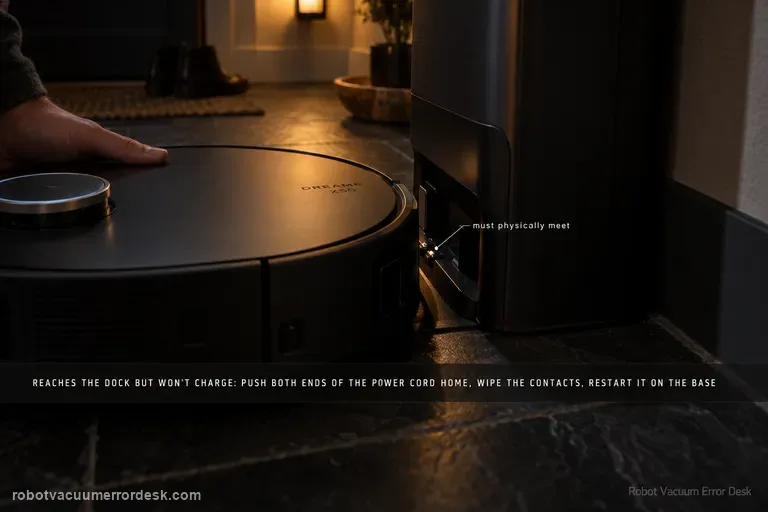
Charging abnormal
Treat an X50 that reaches the station but will not charge as a charging-path problem, not automatically as a docking problem. Dreame’s exact X50 support page starts with current firmware, a powered base station, clean charging contacts and a restart. The X50 manual adds two useful discriminators: make sure both ends of the station power cord are fully connected, and remove any foreign object at the robot’s connectors. Manually seat the robot so the metal contacts meet, then watch for the normal charging indication. If the robot cannot physically complete the final approach or the charging pins do not rebound normally, use the separate X50 docking-failed path instead. If contact is proven and charging still never begins, stop polishing the same contacts and send Dreame the charging state, firmware version and a short video.