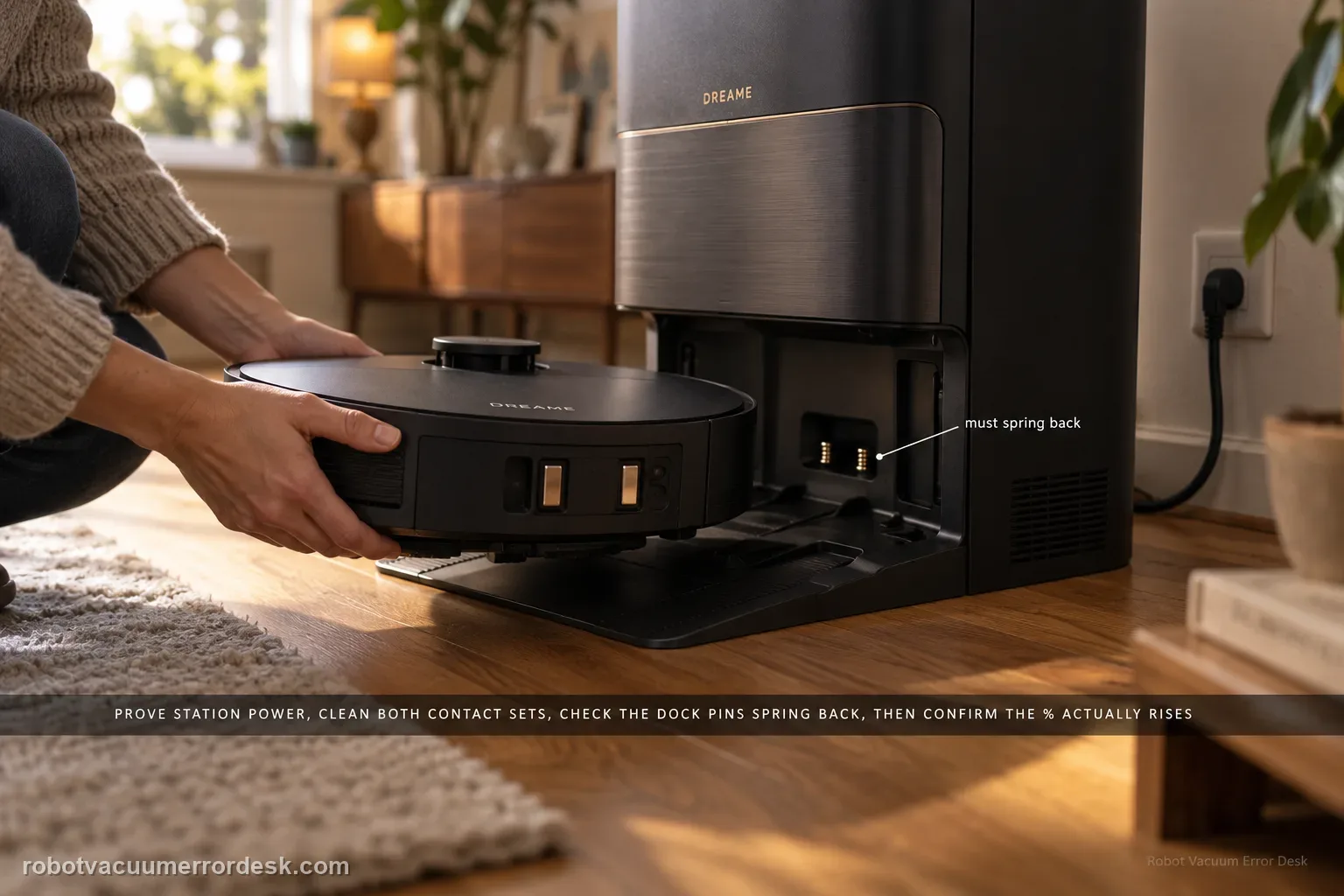
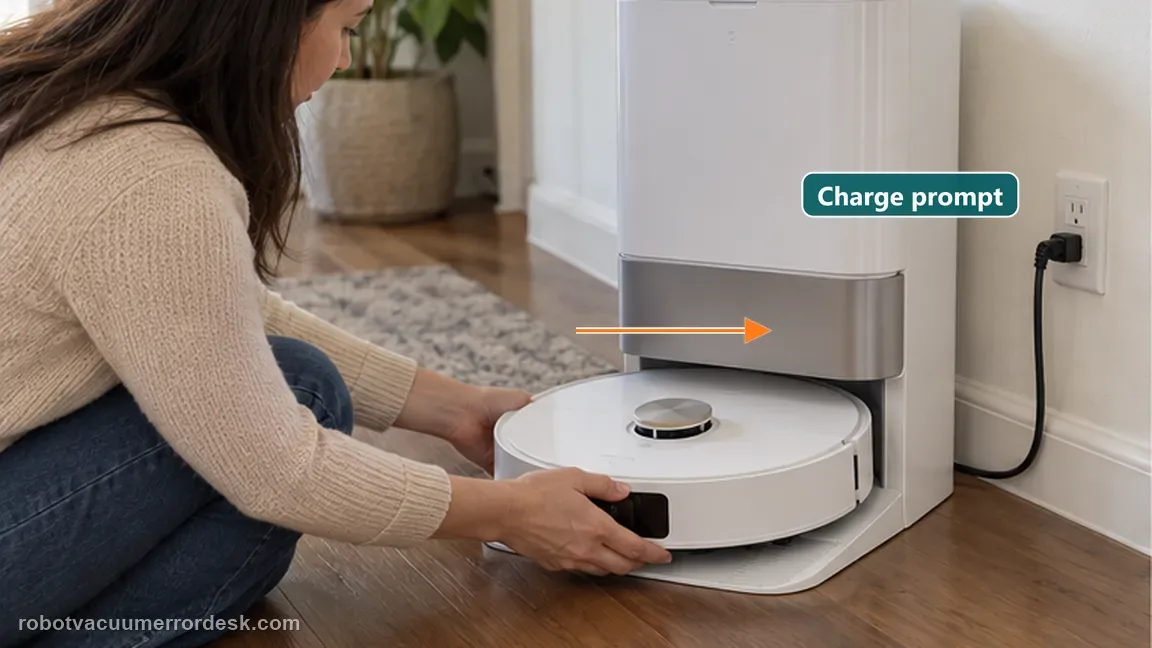
Use the X40 Ultra’s current charging and docking pages before blaming the battery. First prove the station has power and both ends of its cable are fully seated. Clean the robot and station charging contacts, then check that the station’s exposed charging pins are not stuck and spring back normally. Put the X40 directly into the dock and listen for the “Start charging” prompt; then confirm the battery percentage actually rises. If manual docking charges but an autonomous return does not, move to the separate docking/return path. If a correctly seated X40 still will not acknowledge charge, Dreame’s current X40 support allows a robot restart; a factory reset is a later step and erases maps, so preserve evidence before using it.
Confirm the exact model and exact code, light pattern or symptom.
Run the lowest-risk physical or software check first.
Use each pass condition to decide what the result actually narrows down.
Does this match your problem?
- The X40 Ultra sits on the base without gaining charge.
- Charging begins only after you reposition or push the robot.
- The base was recently moved, unplugged or switched off.
- The robot returns to the base but charging is intermittent.
Most likely causes
Station cable or wall-outlet power is not actually reaching the base
Dust, film or debris on the robot or station charging contacts
A station charging pin is stuck and cannot maintain contact pressure
The robot reaches the dock but does not settle into a repeatable charging position
A software state clears after restart, or a deeper station/robot charging fault remains after owner checks
What your test result means
| What you observe | What it narrows down | Next move |
|---|---|---|
| Station power is not proven | The charging test is invalid because the fault may be upstream of the robot. | Reseat both cable ends and verify the outlet before battery or map work. |
| Manual dock gives “Start charging” and percentage rises | The electrical charging path works. | If autonomous return still fails, switch to the X40 docking/return path. |
| Charging works only while the robot is pushed | Contact pressure or final seating is unstable. | Clean contacts, check pin rebound and capture the hands-off failure. |
| Charge acknowledgement appears but percentage stays flat | The state is recognized but real battery gain is not proven. | Record timed battery readings and escalate if no gain persists. |
| Powered station + clean contacts + springy pins + manual dock still fail | Owner-level supply/contact checks are exhausted. | Restart once, preserve evidence and contact Dreame before opening hardware. |
Reset can erase maps/settings on this path. Use lower-risk checks first and document the current state before resetting.
Run these checks in order
Prove station power before diagnosing the robot
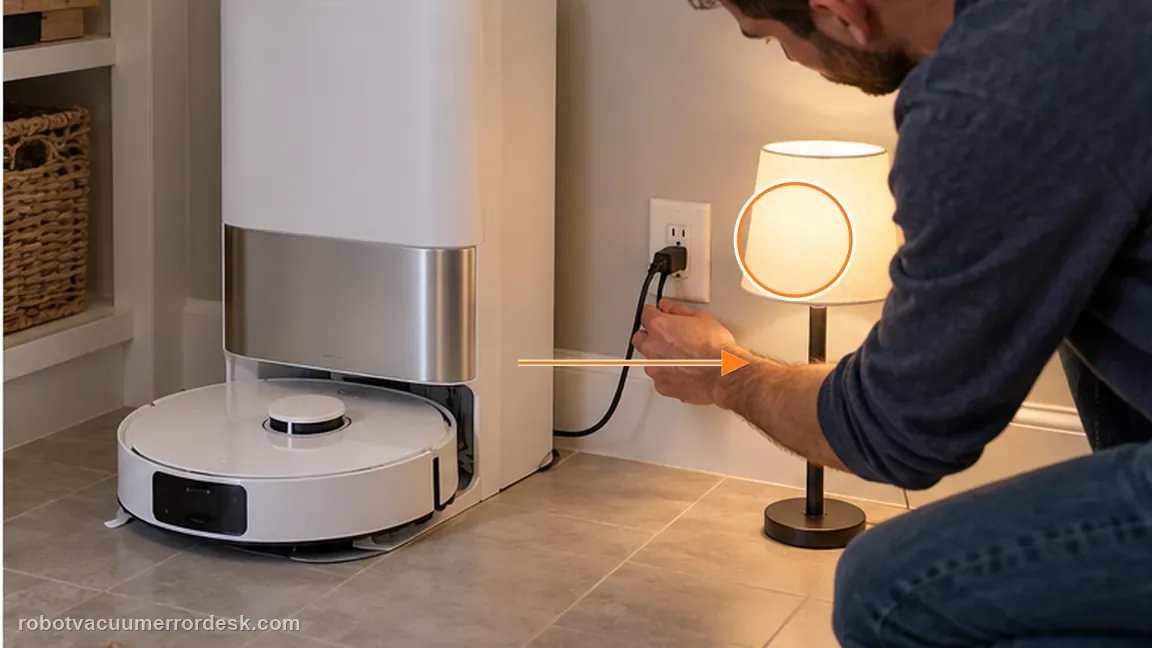
Push the station power cable fully into the base and wall outlet, then verify the outlet with another known-good device if there is any doubt. Dreame’s current X40 charging article starts with successful station power rather than battery replacement. Do not use an old app status or the robot merely sitting in the dock as proof that the base is energized. If station power is uncertain, resolve that first so every later contact and battery observation is meaningful.
Clean both charging-contact surfaces and inspect the connector area
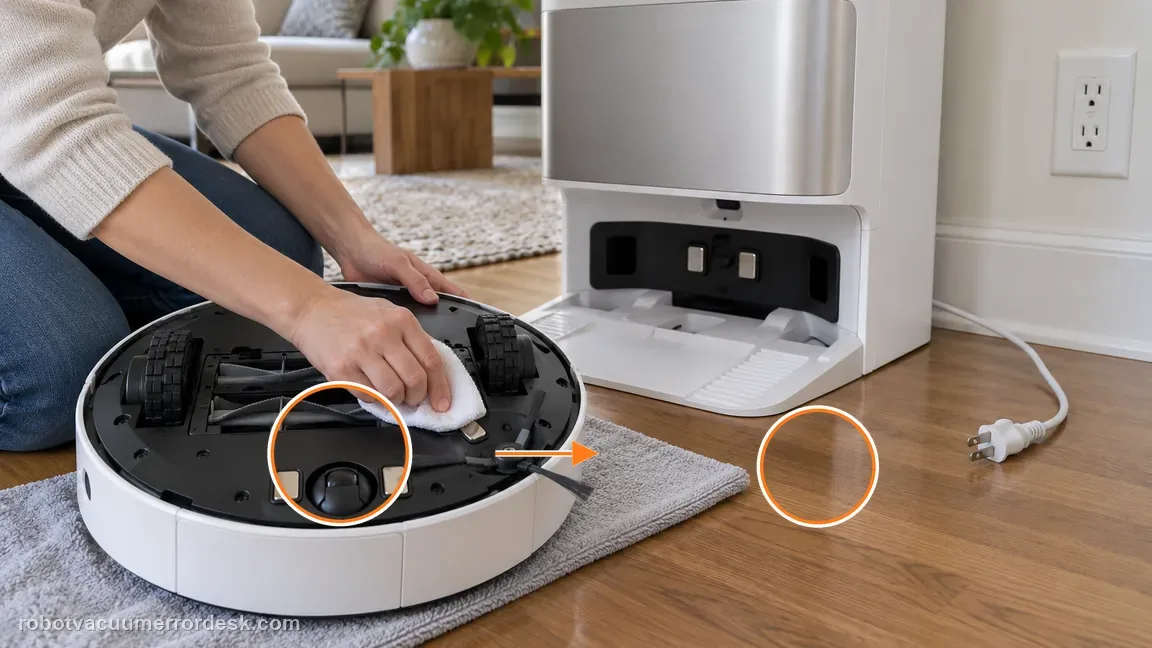
With the station disconnected from mains power, wipe the metal charging contacts on the X40 and the matching station surfaces with a dry cloth. Remove visible dust, film or foreign matter around the robot-side connector area. Do not sand, bend or wet the electrical interface. When everything is dry, restore power. This step follows the exact X40 charging guidance and changes only one variable: contact cleanliness.
Check whether the station charging pins rebound normally
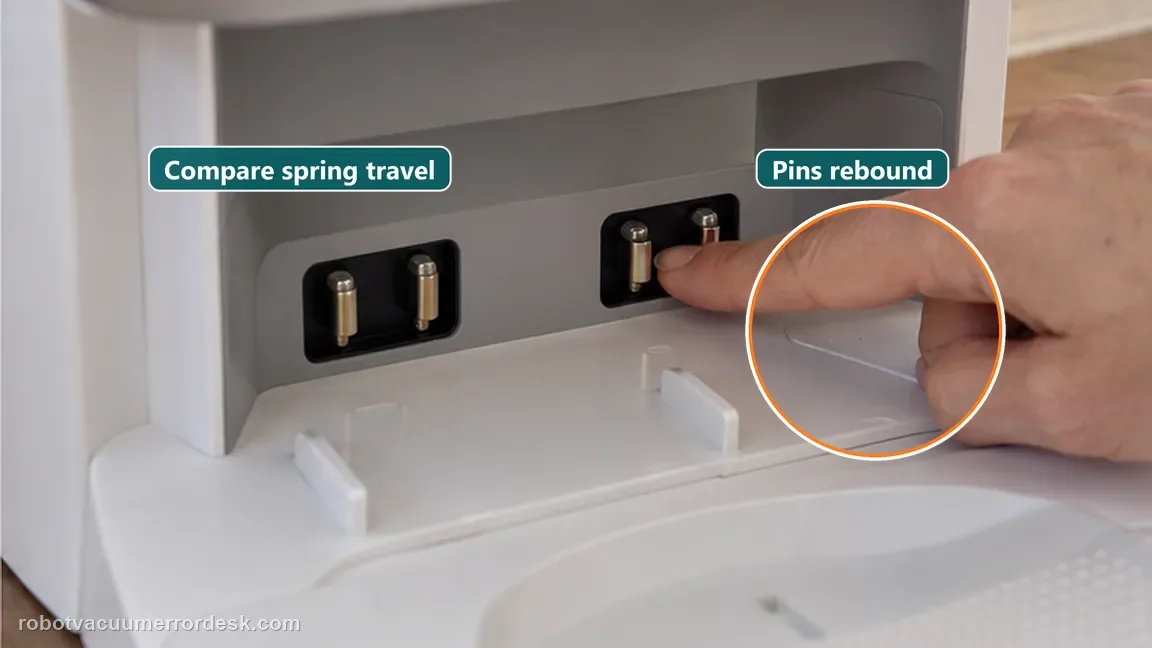
Dreame’s current X40 docking article adds an important mechanical check: the exposed metal charging pins should not be stuck and should bounce back after gentle pressure. Compare the two sides without prying them outward or opening the base. A pin that stays depressed can create intermittent charging even when the surfaces look clean. If a pin is damaged or will not rebound after safe surface cleaning, document it rather than forcing repeated dock attempts.
Manually dock the X40 and listen for the charging acknowledgement
Place the robot squarely into the station so navigation and long-range return are removed from the experiment. Dreame’s current X40 docking guidance tells owners to retry charging and listen for the voice prompt “Start charging.” Do not hold the robot against the contacts during the observation. If it acknowledges charging only while you push it farther into the base, contact pressure or final seating remains the stronger clue.
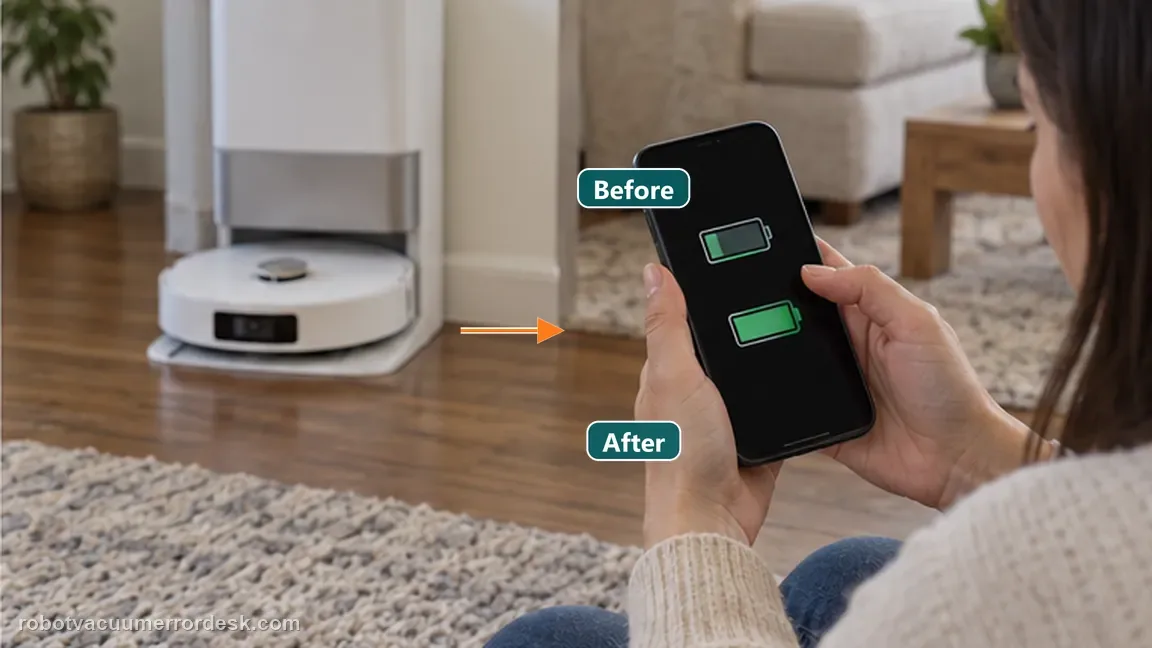
Verify real battery gain instead of trusting only a charge icon
Record the battery percentage, leave the robot undisturbed on the proven powered station, and check again after a meaningful interval. A voice prompt or app icon proves that the charging state was recognized, but battery increase proves energy is actually being accepted. If the X40 shows charging yet the percentage remains flat, capture both readings. If percentage rises, the electrical charging path is working and any remaining complaint belongs to slow charging, battery runtime or docking behavior rather than complete no-charge.
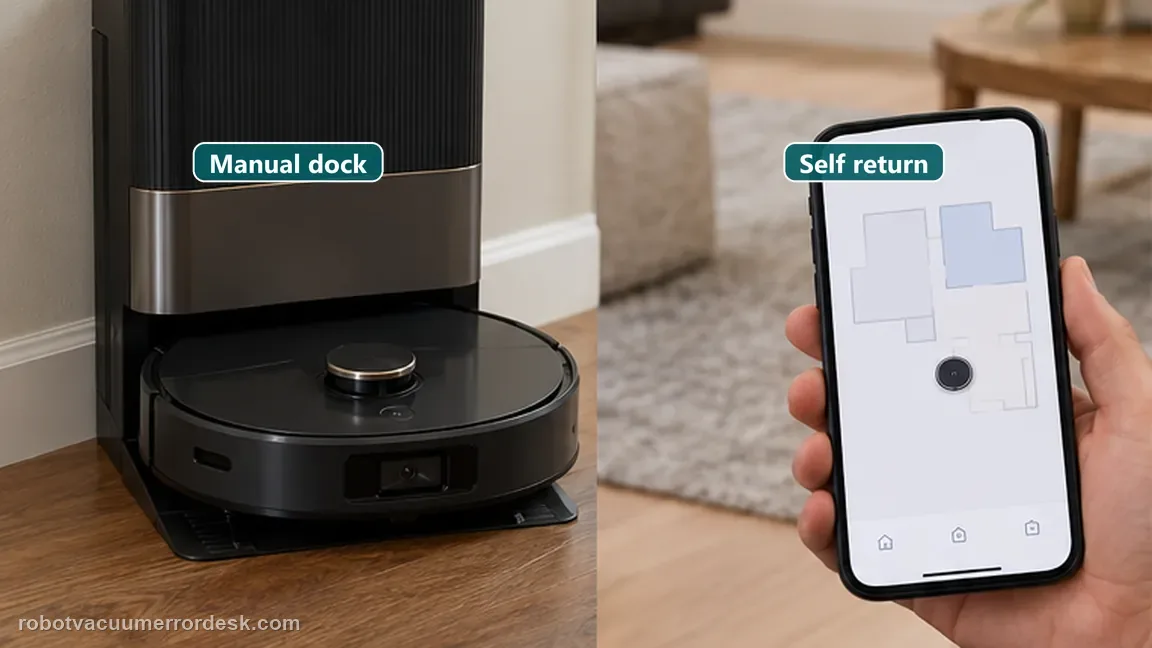
Separate charging failure from autonomous docking failure
If manual docking charges normally, test autonomous return separately. Dreame’s current X40 return guide uses a short approach from roughly 1–2 meters in front of the base, then checks station placement, interference, LDS rotation and wheel slip when return fails. Do not keep changing charging contacts if the robot can already charge when manually seated. Conversely, a robot that reaches the base but never starts charging stays on this charging/contact branch.
Restart before considering a destructive reset, then escalate with evidence
If station power, clean contacts, pin rebound and manual docking are all proven but the X40 still will not charge, remove it from the dock and restart the robot, then repeat the same manual-dock test. Dreame also lists a factory reset for persistent docking problems, but that reset erases saved maps, so it should not be the first experiment. Before any destructive reset, save a video of docking, contact condition, charging prompt/app state and before/after battery percentage.
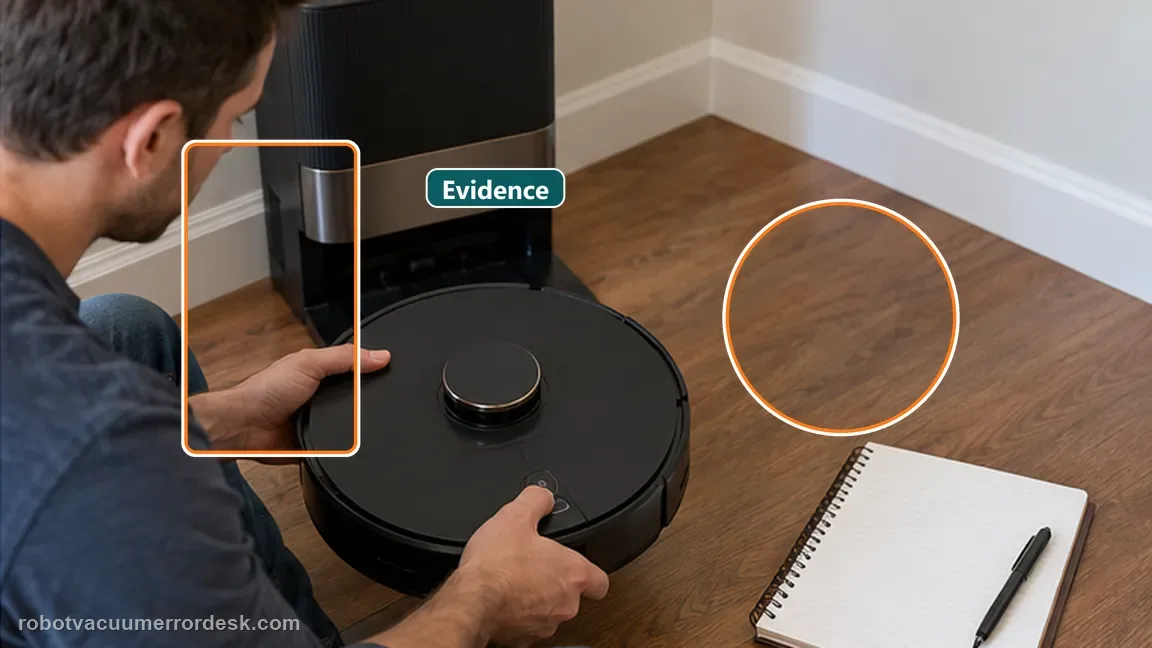
Contact Dreame when a known-good outlet powers the station, both contact surfaces are clean, the station charging pins rebound normally, the X40 is manually seated without hand pressure, and the robot still gives no reliable charging acknowledgement or battery gain after a restart. Also escalate immediately for a visibly damaged/stuck charging pin. Do not open the robot, battery pack or mains-powered station. If manual docking charges normally, use the separate docking/return guide instead of replacing the battery.
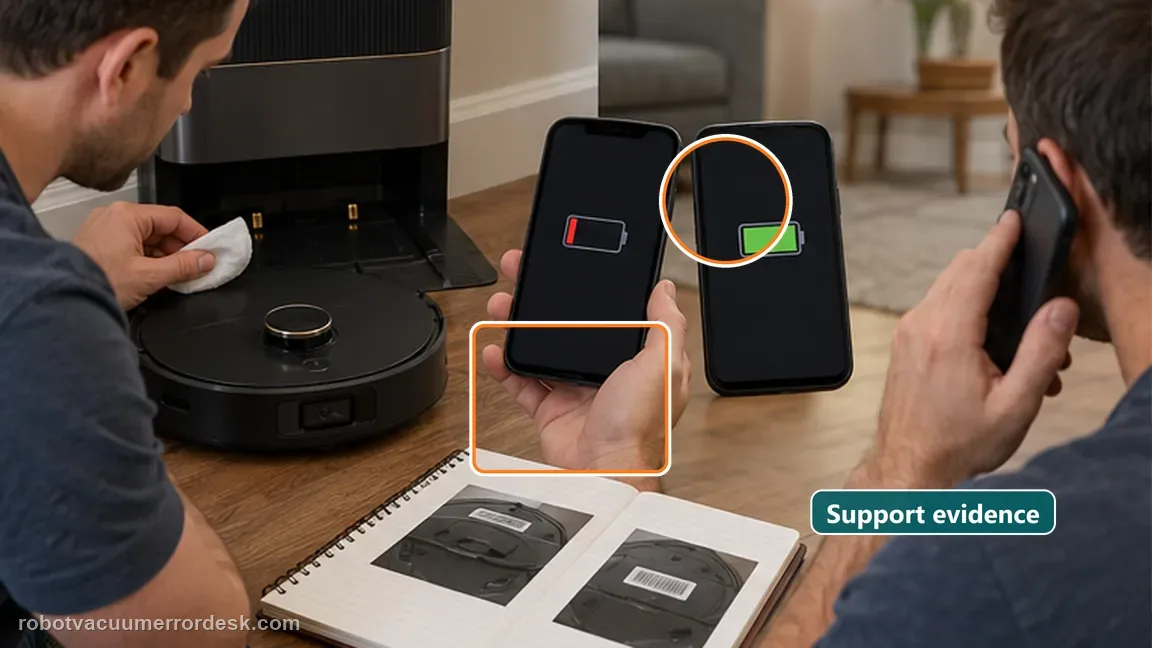
What to collect before contacting support
Give support a reproducible case instead of “it doesn’t work.” That reduces repeated basic troubleshooting and preserves the clues from your tests.
- Exact model name and the error code / voice prompt exactly as shown
- A photo or screenshot of the app error and the time it occurred
- A short list of the checks already completed and what happened after each one
- Short video showing the failed docking, mapping or base-station behavior
- Firmware version shown in Dreamehome
Manufacturer evidence
Dreame X40 Ultra Complete — charges abnormally
Dreame’s current exact-model X40 charging page starts with station power, both cable ends, robot/base charging-contact cleaning and a direct docking retest. The current X40 docking page adds spring-pin rebound, charging voice-prompt, restart and a map-erasing reset only as a later recovery step.
Additional official source: Dreame X40 Ultra Complete — Docking Failed ↗Additional official source: Dreame X40 Ultra Complete — Return for Charging ↗Last editorial review: September 5, 2026Regional note: manufacturer help centers, model suffixes, mains-power requirements and warranty procedures can differ by country. If the source redirects to a local support site, confirm that the model/hardware scope still matches before following a region-sensitive step.
This guide is rated Official model support. See what each evidence label means →
FAQ
Does Dreame X40 Ultra not charging mean the battery is bad?
No. Dreame’s current X40 path starts upstream with station power, the cable, charging contacts and docking position. A battery or internal charging fault becomes more plausible only after the base is definitely powered, both contact surfaces are clean, the station pins rebound normally and a square manual dock still produces no reliable charging acknowledgement or battery gain.
Why does my X40 charge only when I push it farther into the dock?
That result is strong evidence of unstable seating or contact pressure, not proof of a bad battery. Clean both contact surfaces, confirm the station pins spring back, then repeat a hands-free manual dock. If charging stops as soon as pressure is removed, record a short video and contact Dreame rather than bending contacts or wedging the robot into place.
What should I listen for when manually docking the X40 Ultra?
Dreame’s current docking page tells owners to listen for the “Start charging” voice prompt after the robot is placed back on the dock. Pair that acknowledgement with the app state and a before/after battery reading. A prompt without battery gain is useful evidence; no prompt despite correct seating keeps the diagnosis on power, contacts or charging hardware.
Should I factory-reset an X40 Ultra that will not charge?
Not as the first step. Dreame’s current docking guide puts a normal restart before factory reset and warns that reset erases saved maps. Prove station power, contacts, pin rebound and manual docking first, then restart and repeat the same test. Save video and battery-state evidence before any map-erasing reset so the original failure is not lost.
When should I contact Dreame about X40 Ultra charging failure?
Escalate when a known-good outlet and powered station are proven, contacts are clean, station pins rebound, the robot is seated manually without pressure and battery percentage still does not rise after a controlled retry and restart. Also stop if a pin is visibly damaged or stuck. Tell Dreame whether manual charging differs from autonomous docking and include a short video.
Did this diagnostic narrow the fault?
Use this as an editorial signal, not a popularity counter. If a feedback address is configured you can email the note; otherwise you can copy it for your own support record.