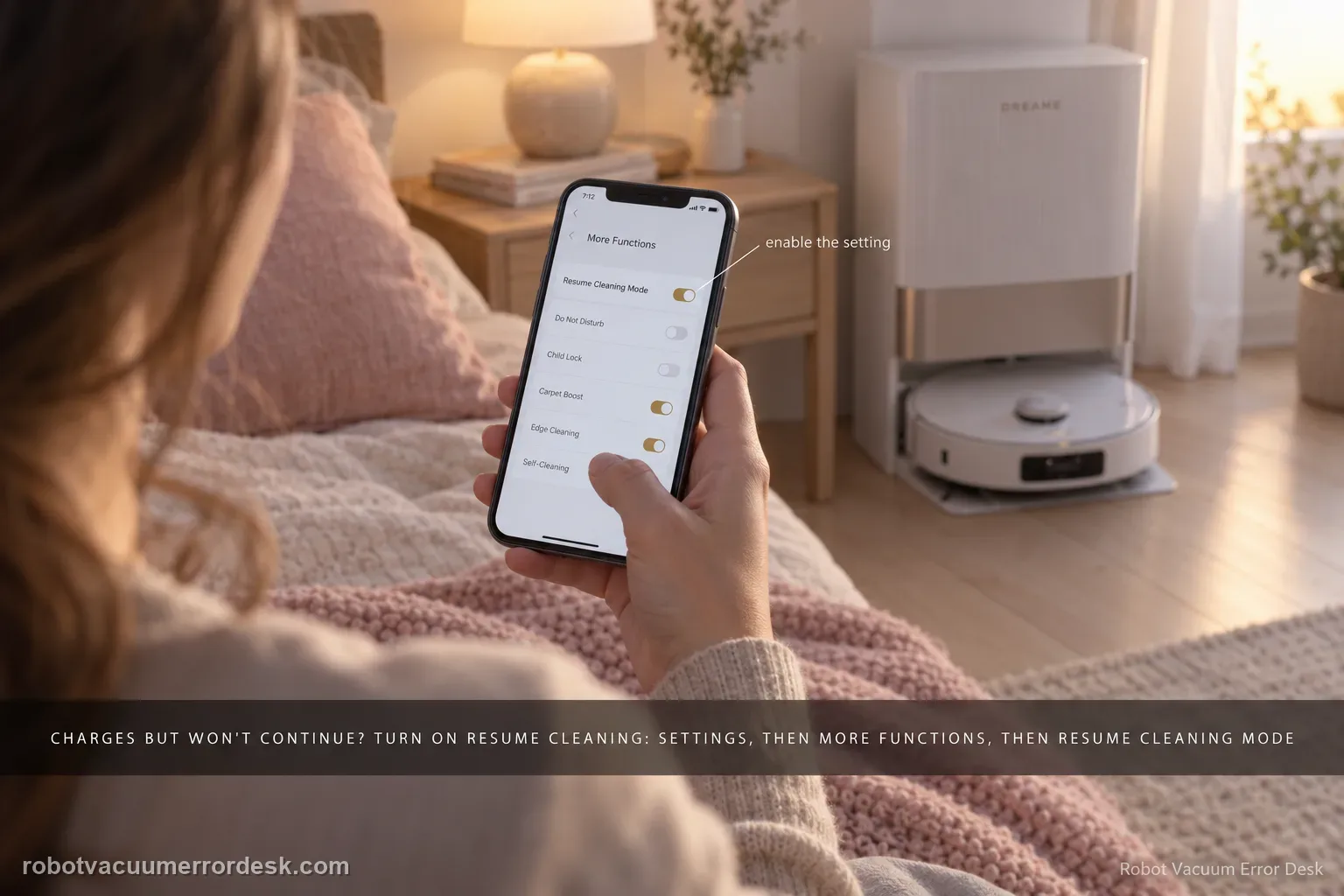
If the X40 Ultra returns to the base and charges normally but never continues unfinished work, stop troubleshooting charging contacts and prove the resume feature itself. Dreame’s X40-specific setup path is Device home → Settings → More Functions → Resume Cleaning Mode. Dreame’s general recharge-and-resume guidance explains the intended behavior: a low-battery cleaning task returns to charge and later continues the unfinished area. Enable the exact X40 setting, start a sufficiently large normal cleaning job, let the robot create the recharge breakpoint by itself, and avoid cancelling or replacing the mission while it charges.
Confirm the exact model and exact code, light pattern or symptom.
Run the lowest-risk physical or software check first.
Use each pass condition to decide what the result actually narrows down.
Confirm this is the right issue
- The robot returns to the base and charges normally.
- The interrupted area remains unfinished after charging.
- There is no charging error; only the automatic continuation is missing.
- The issue appeared after app settings were changed or reset.
What’s most likely causing this
Resume Cleaning Mode is disabled in Dreamehome
The test job finishes normally and never creates an unfinished low-battery breakpoint
The user cancels, replaces or manually ends the mission while the robot is charging
Charging itself is unhealthy, so the prerequisite recharge never completes
The app no longer preserves an unfinished map segment after the automatic recharge event
Reading your test result
| What you observe | What it narrows down | Next move |
|---|---|---|
| X40 does not charge after returning | Resume cannot work until charging succeeds. | Use the X40 charging guide first. |
| Resume Cleaning Mode is off | Breakpoint continuation is disabled. | Enable it under Settings → More Functions. |
| User manually sent robot to charge/cancelled task | The test may not preserve an unfinished breakpoint. | Run a large automatic job and let the robot return by itself. |
| Robot charges normally but mission closes instead of resuming | Charging is proven; resume state/configuration remains. | Capture app state and rerun with the switch enabled. |
| Controlled autonomous recharge still never resumes | Basic setting and mission-state variables are exhausted. | Contact Dreame with screenshots and the test sequence. |
Do not factory-reset by default. Use the exact model’s reboot/network-reset procedure only when the manufacturer path calls for it.
Work through these checks in order
First prove this is not a charging failure
Confirm the X40 Ultra returns to the base and gains charge normally. If it does not charge, use the separate X40 charging path first; breakpoint resume cannot work without a successful recharge.
Open the X40 Ultra device Settings
In Dreamehome, open the X40 Ultra device home page and enter Settings. Dreame’s own X40 example starts the resume configuration from this screen.
Open More Functions and enable Resume Cleaning Mode
Go to More Functions, find Resume Cleaning Mode and turn it on. This is the model example Dreame gives for breakpoint resume cleaning.
Run one uninterrupted recharge-and-resume proof test
Start a job large enough to require an intermediate recharge and let the robot return and recharge on its own. Do not manually cancel the mission while testing the resume setting. Dreame’s general recharge-and-resume explainer describes the feature as a low-battery interruption followed by a later continuation, so the most useful proof is a job that genuinely needs an intermediate recharge rather than a short room task that finishes before any breakpoint exists.
Confirm the mission entered recharge-and-resume rather than ending normally
Use a task large enough that the X40 must interrupt for battery charging. Do not press Return, cancel the mission or manually place the robot on the base during this test. A completed or manually ended job has no unfinished breakpoint to resume, so it cannot validate the Resume Cleaning Mode switch.
Observe what happens after charge threshold is reached
Leave the robot and base untouched while it recharges and watch the app mission state. If the robot charges normally but the task changes to completed rather than pending/resume, capture the app screen and setting state. That evidence distinguishes a resume-state problem from the separate charging system. Compare the battery trend with the task state: if battery rises normally while the same unfinished mission remains pending, charging has passed and the unresolved evidence is specifically resume logic. If charging itself stalls, leave this article and use the X40 charging path first.
Check whether the app preserves the unfinished map segment through charging
While the X40 is charging from an automatic breakpoint, look at the cleaning map and mission status without pressing pause, finish or return. A valid resume case should still have unfinished work to continue. If the pending segment disappears or the app declares the job complete, record that screen because the failure is occurring before the robot ever makes the decision to leave the base.
If Resume Cleaning Mode is enabled, the robot recharges normally and an uninterrupted test job still does not continue, capture the app version, robot firmware version and task history before contacting Dreame. Include the Resume Cleaning Mode screenshot, the unfinished map segment before recharge, battery state while docked and whether the same mission remained pending; those details distinguish a feature-state failure from a job that simply ended or a robot that never recharged successfully.
Before you contact support, gather this
A reproducible case moves a support call past the basic troubleshooting script faster than “it doesn’t work” does, and it keeps the clues from your own tests on record.
- Exact model name and the error code / voice prompt exactly as shown
- A photo or screenshot of the app error and the time it occurred
- A short list of the checks already completed and what happened after each one
- Short video showing the failed docking, mapping or base-station behavior
- Firmware version shown in Dreamehome
Where this comes from
Dreame Resume Cleaning Mode support
Dreame’s article provides an X40 Ultra-specific example and the exact Dreamehome navigation path to enable Resume Cleaning Mode.
Additional official source: Dreame — automatic recharge and resume cleaning ↗Additional official source: Dreame X40 Ultra support hub ↗Last editorial review: September 5, 2026Regional note: manufacturer help centers, model suffixes, mains-power requirements and warranty procedures can differ by country. If the source redirects to a local support site, confirm that the model/hardware scope still matches before following a region-sensitive step.
This guide is rated Official model support. See what each evidence label means →
Questions people ask
Where is Resume Cleaning Mode on the Dreame X40 Ultra?
Dreame’s X40 Ultra example places it in Dreamehome under the device home page → Settings → More Functions → Resume Cleaning Mode. Confirm that switch before running the proof test. If the robot cannot return to or charge at the station, fix that first; breakpoint resume depends on a successful autonomous recharge and is not a charging-contact feature.
Why does my X40 Ultra charge but not continue the unfinished cleaning?
If charging itself succeeds, the remaining branch is the breakpoint mission state and Resume Cleaning Mode. Confirm the switch under Settings → More Functions, then create a valid automatic breakpoint by running a job large enough to require recharge. Do not cancel the task or manually send the robot home. Capture whether the app keeps the unfinished area pending after charging.
Does manually sending the X40 Ultra to the base test Resume Cleaning?
Not cleanly. For a useful breakpoint test, start a job large enough to require an intermediate recharge and let the X40 decide to return on its own. Do not cancel the mission or manually place the robot on the station, because those actions can change the job state. The goal is to preserve an unfinished automatic mission through recharge.
Should I clean charging contacts when X40 Resume Cleaning does not work?
Only if charging itself is failing. If the X40 reaches the base, charges normally and then never leaves to finish the remaining area, the more relevant branch is Resume Cleaning Mode and mission state. Dreame documents a separate X40 charging workflow, so keep electrical-contact troubleshooting separate from a robot that has already demonstrated successful recharge.
What should I send Dreame for an X40 resume-cleaning failure?
Capture a screenshot showing Resume Cleaning Mode enabled, the mission with unfinished area, the charging state and what the app shows after the robot has had enough time to resume. Note whether you pressed Return, cancelled, restarted or manually docked the robot. A clean autonomous recharge-and-resume timeline is much more diagnostic than saying only that it “did not continue.”
Did this diagnostic narrow the fault?
Use this as an editorial signal, not a popularity counter. If a feedback address is configured you can email the note; otherwise you can copy it for your own support record.