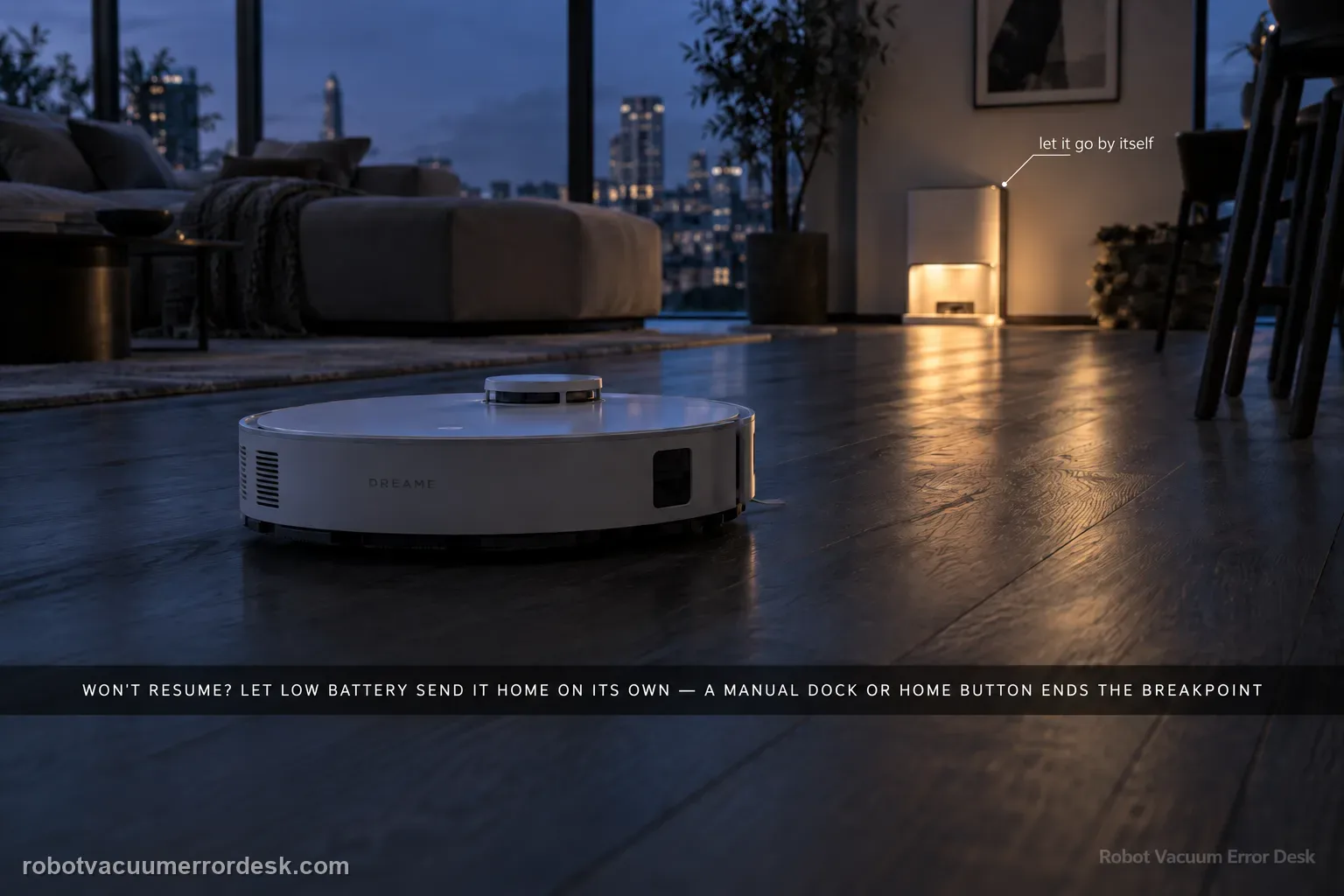
A valid L50 Ultra AE resume test must create a real low-battery breakpoint. Dreame says Resume Cleaning must be enabled, the job must use Automatic Working Mode, DND must not suppress the departure, charging must remain fault-free, and restart/reset can disrupt the breakpoint. The exact manual adds a critical discriminator: the robot will not resume an unfinished job if you manually place it on the base or send it home with the app or Dock button. Let low battery trigger the return automatically.
Is charging healthy but the unfinished job never resumes?
Confirm the exact model and exact code, light pattern or symptom.
Run the lowest-risk physical or software check first.
Use each pass condition to decide what the result actually narrows down.
Is this the problem you’re seeing?
- The L50 automatically returns to charge during an unfinished whole-home task but does not continue.
- Charging works, but the app shows the job ending or remaining unfinished after the robot tops up.
- Resume behavior changes by cleaning mode or Do Not Disturb period.
- The robot was manually placed on the base or sent home by app/button during the test.
Likely root causes, ranked
Resume Cleaning / Breakpoint Resume is disabled
The task is not running in Automatic Working Mode
Do Not Disturb delays/suppresses the resume departure during its active window
The robot was manually docked or sent home instead of returning automatically for low battery
A charging fault, restart or reset interrupts the saved breakpoint
Mission state is completed/cancelled rather than preserved as unfinished work
What the result narrows down
| What you observe | What it narrows down | Next move |
|---|---|---|
| Resume Cleaning is off | Breakpoint continuation is disabled. | Enable it before starting a fresh automatic job. |
| Task is not Automatic Working Mode | Dreame says the breakpoint function is not eligible in that mode. | Repeat with a large Automatic Working Mode task. |
| Robot was manually placed on the dock or sent home by app/button | The exact manual says that return method will not resume the unfinished job. | Repeat and let low battery trigger the return automatically. |
| DND is active or a charging fault/restart occurs | The saved breakpoint is suppressed or interrupted. | Test outside DND with fault-free charging and no restart/reset. |
| Valid automatic breakpoint remains pending but robot still does not depart | The documented eligibility conditions are proven. | Capture settings, task history, charge state and contact Dreame. |
Do not factory-reset by default. Use the exact model’s reboot/network-reset procedure only when the manufacturer path calls for it.
Checks to run, in sequence
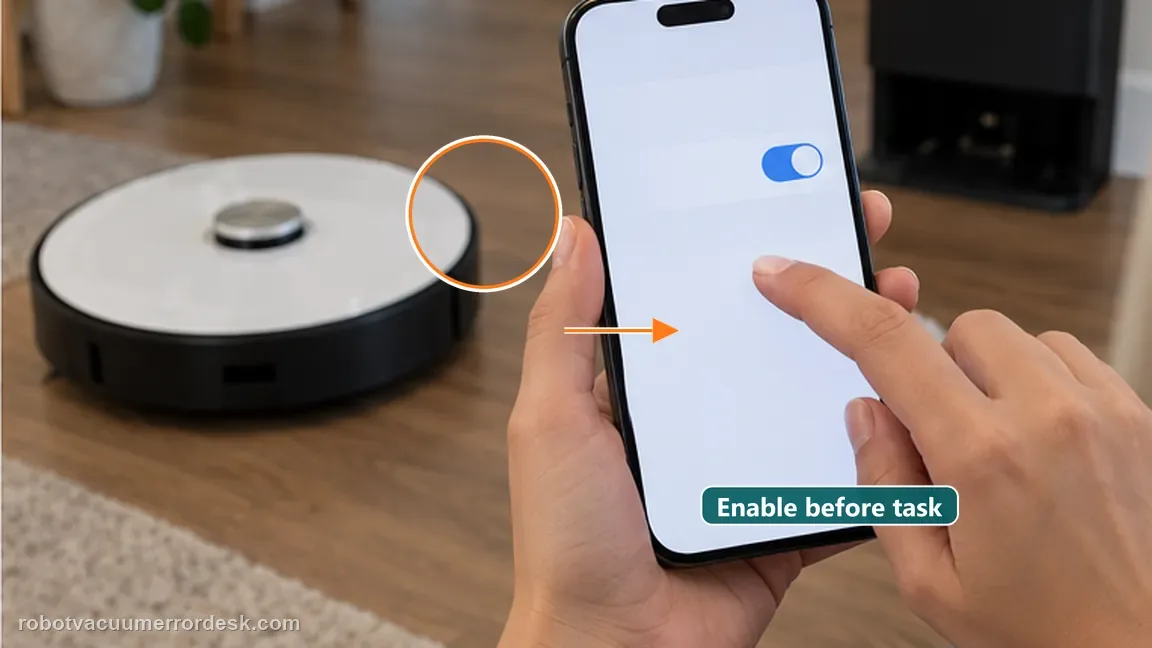
Enable Resume Cleaning before the proof run
Open the L50 settings and confirm Resume Cleaning / Breakpoint Resume is enabled before starting a new job. The exact manual also states that Auto Resume Cleaning must be enabled in the app. Make this check before the robot leaves the base so you know the feature was eligible from the start rather than toggled after the breakpoint was already created.
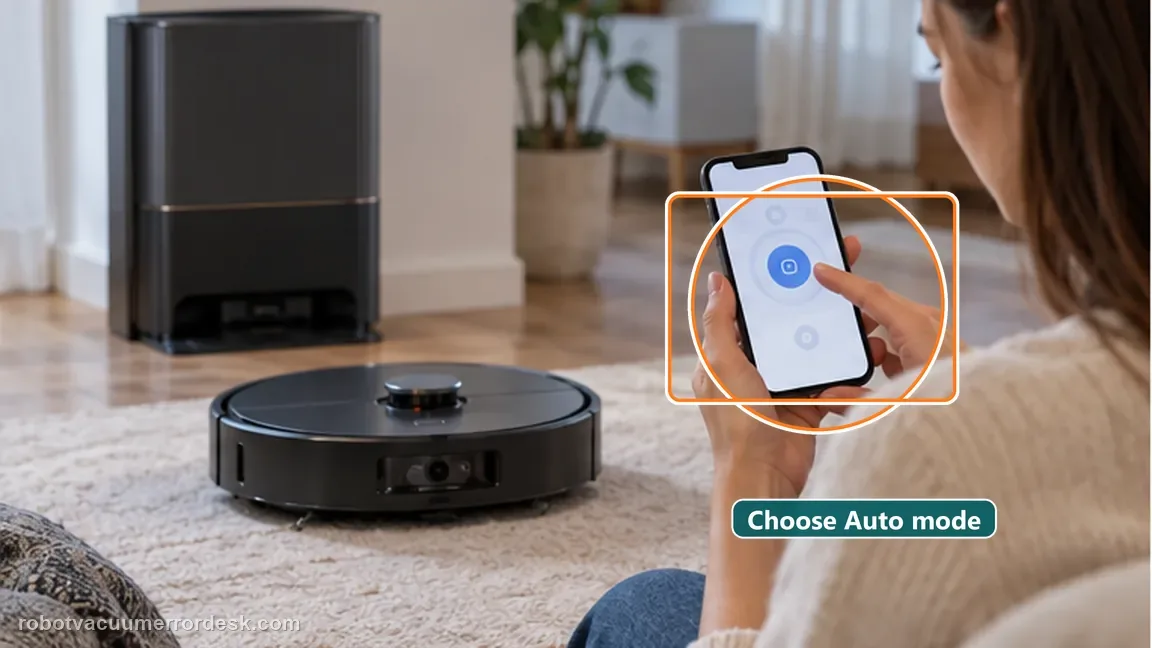
Use Automatic Working Mode
Dreame’s exact L50 support says breakpoint resume works only in Automatic Working Mode. Start a whole-home automatic job that is large enough to require a recharge. A room/spot/manual-style test that finishes before low battery or uses another work mode does not prove the feature is broken. Keep this run simple and avoid changing cleaning mode mid-mission.
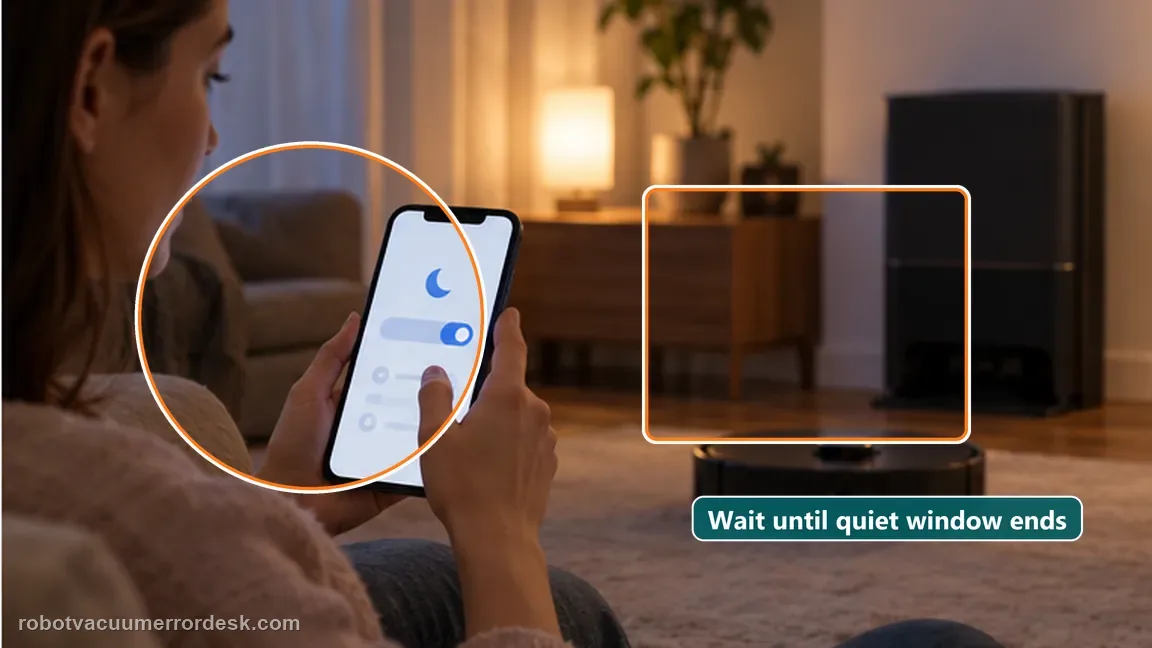
Run outside DND, or wait until the DND window ends
Dreame says breakpoint resume will not trigger during Do Not Disturb. The exact manual adds the useful nuance that the robot can resume where it left off after the DND period expires. For the cleanest proof, test outside DND. If the robot reaches its recharge breakpoint during DND, do not immediately label that delay a failure; confirm whether it departs after the configured quiet window ends.
Let low battery send the robot home automatically
Do not manually place the L50 on the base and do not send it to charge with the app or Dock button. The exact manual explicitly says the robot will not resume cleaning after those manual-return actions. A valid breakpoint is created when an unfinished automatic task reaches low battery and the robot returns to the base on its own. This is the most important discriminator between a feature failure and an invalid test.
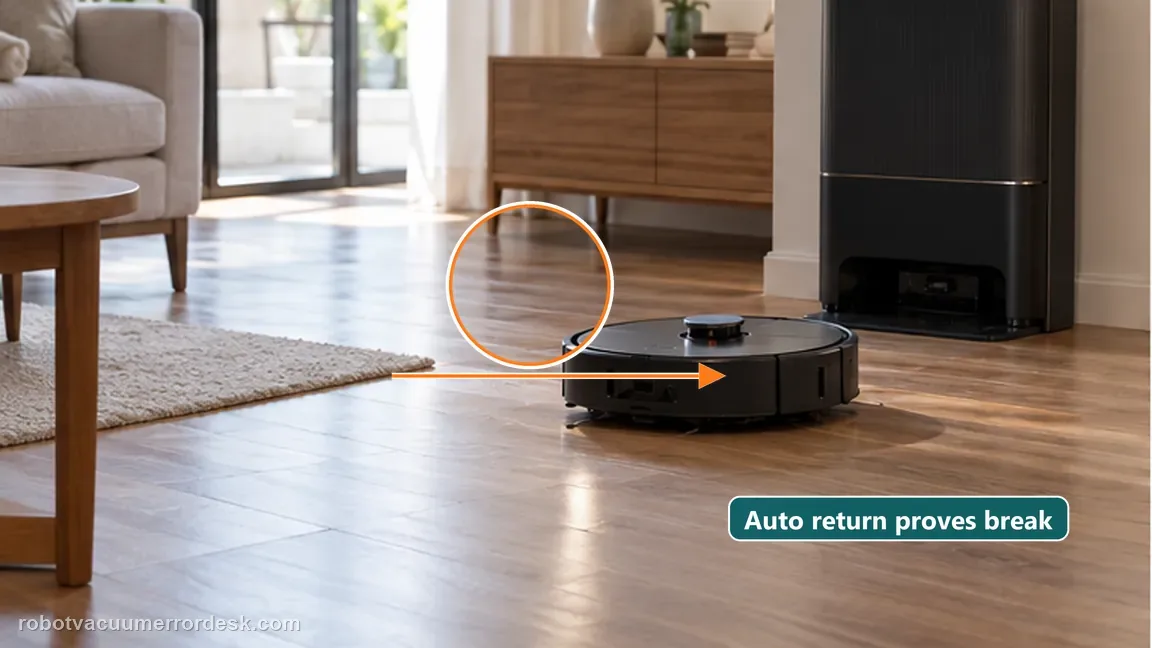
Watch charging for a fault alarm
While the robot charges, check the app and robot for any fault alarm. Dreame’s support article says a fault during charging prevents breakpoint resume. Do not troubleshoot the resume feature while an active charging or station error exists; resolve that fault first, then repeat the automatic low-battery breakpoint under the same eligible settings.
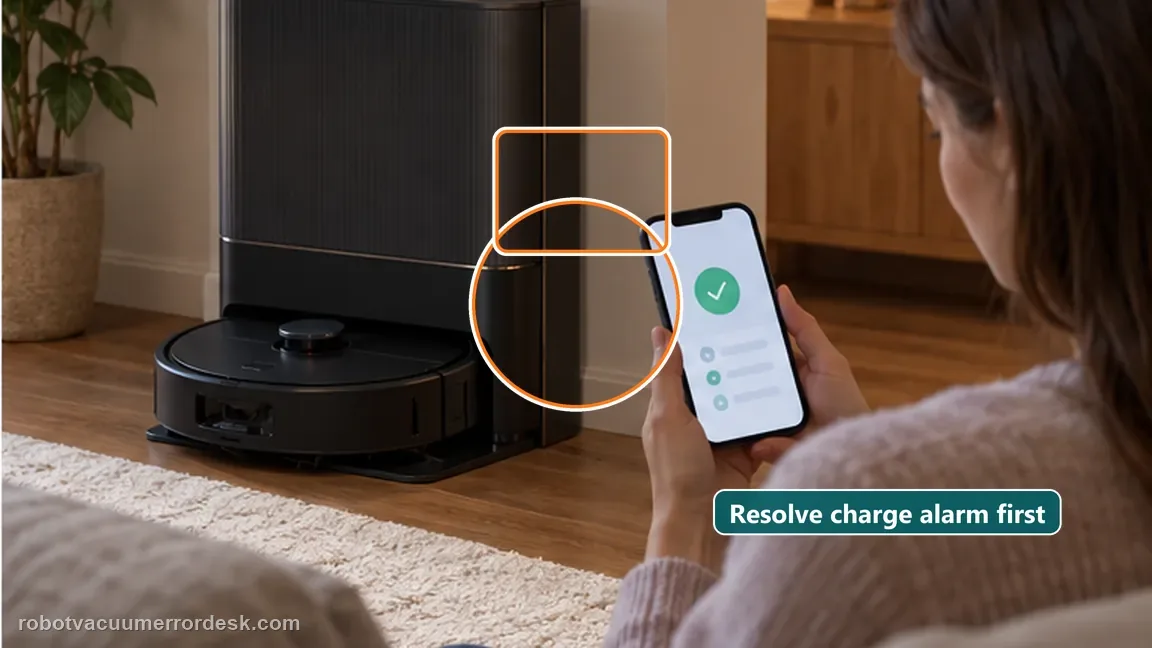
Preserve mission state: no restart, reset or cancellation
Leave the robot in the normal recharge workflow. Dreame specifically asks whether it was restarted or reset after breakpoint resume was triggered because that can affect the function. Also avoid cancelling/completing the job from the app. Observe the task history passively so the unfinished mission survives the charging period and the next departure is testing the actual saved breakpoint.
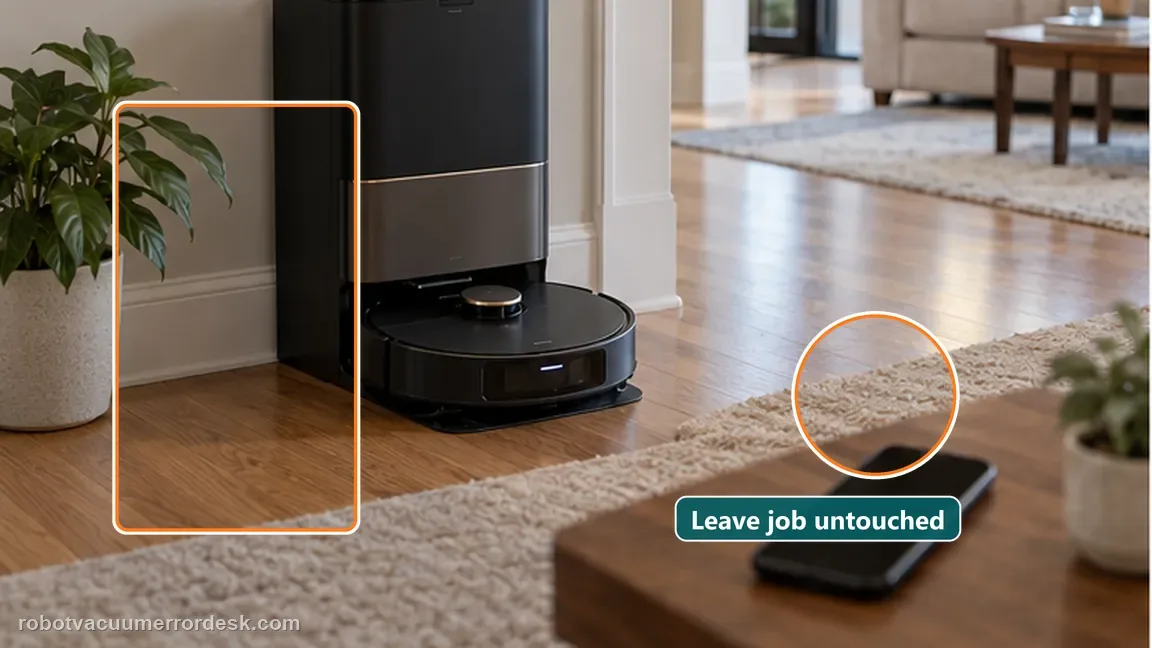
Verify the unfinished job is preserved and observe the automatic departure
Before touching controls, confirm the app still represents unfinished work while the robot charges. After it reaches the appropriate battery level, observe whether it leaves the dock on its own and continues the remaining area. If the app marks the task complete before departure, capture that screen because the failure is mission-state preservation. If the task remains pending but the robot does not depart under all eligible conditions, capture the charge level and time for Dreame.
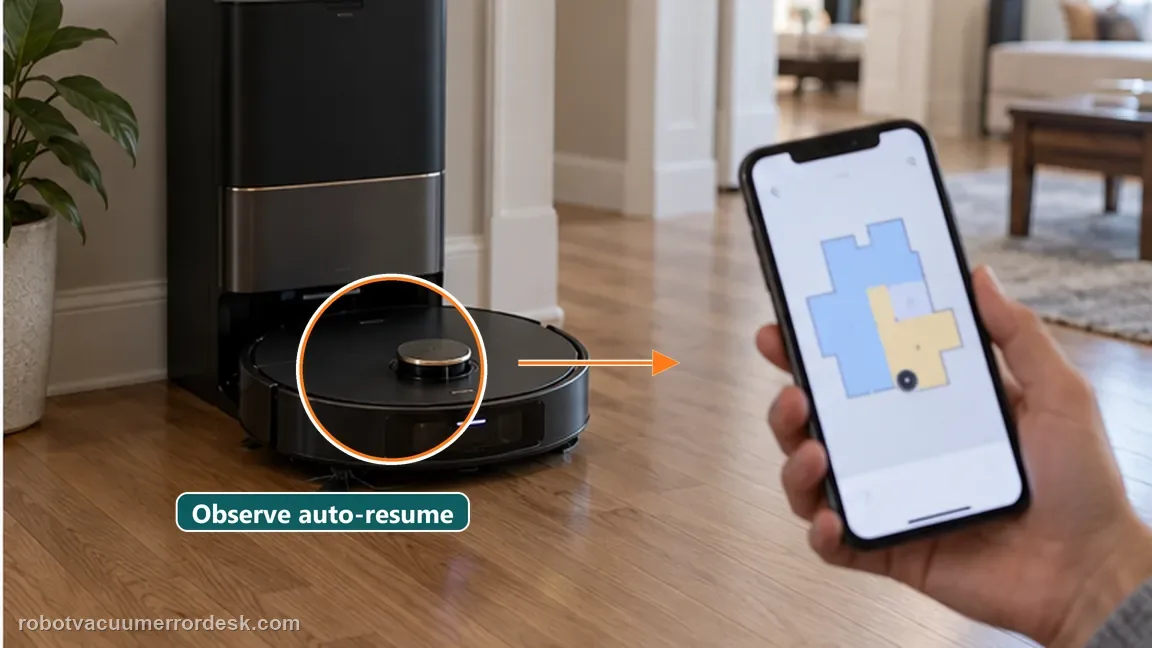
Escalate only after a large Automatic Working Mode job creates its own low-battery return with Resume Cleaning enabled, the test is outside DND (or observed again after DND ends), charging shows no fault and no restart/reset/cancellation occurs. Send screenshots of the setting, task history and charge state, and state explicitly that the robot returned automatically rather than being manually docked or sent home.
Information to have ready for support
Support can skip the basic troubleshooting script when you provide a reproducible case. That keeps the results of your checks from getting lost.
- Exact model name and the error code / voice prompt exactly as shown
- A photo or screenshot of the app error and the time it occurred
- A short list of the checks already completed and what happened after each one
- Short video showing the failed docking, mapping or base-station behavior
- Firmware version shown in Dreamehome
Source and evidence level
Dreame L50 Ultra AE — Resume Cleaning does not work
Dreame’s April 2026 support article lists Resume Cleaning enabled, Automatic Working Mode, DND, charging-fault and restart/reset gates. The exact L50 manual adds two critical behavior boundaries: low-battery auto return is the valid resume path, while manually placing the robot on the base or sending it home by app/Dock button will not resume the unfinished task; it also notes resume can continue after the DND period expires.
Additional official source: Dreame L50 Ultra AE support section and manual ↗Additional official source: Dreame L50 Ultra AE user manual ↗Last editorial review: September 5, 2026Regional note: manufacturer help centers, model suffixes, mains-power requirements and warranty procedures can differ by country. If the source redirects to a local support site, confirm that the model/hardware scope still matches before following a region-sensitive step.
This guide is rated Official model support. See what each evidence label means →
Common questions
Why does my L50 Ultra AE recharge but not resume cleaning?
First prove that the recharge came from a valid breakpoint. Resume Cleaning must be enabled, the job must be Automatic Working Mode, DND must not suppress the departure, charging must stay fault-free and no restart/reset should interrupt the mission. The exact manual also says manual docking or sending the robot home by app/Dock button will not resume the unfinished task.
Does L50 Ultra AE Resume Cleaning work during Do Not Disturb?
Dreame says breakpoint resume is not triggered while DND is active. The exact manual adds that the robot can resume where it left off after the DND period expires, so a delayed departure during the quiet window is not automatically a defect. For the cleanest diagnostic, run the proof job outside DND or wait until the configured DND period ends before judging the result.
Does manually sending the L50 Ultra AE to the dock test Resume Cleaning?
No. The exact L50 manual says the robot will not resume cleaning after you manually place it on the base or send it to charge using the app or Dock button. Let a sufficiently large Automatic Working Mode task reach low battery and return to the base on its own; that automatic return creates the valid breakpoint you need to test.
Can a charging fault, restart or reset stop the L50 Ultra AE from resuming?
Yes. Dreame’s support article says a fault alarm during charging prevents breakpoint resume and specifically asks whether the robot was restarted or reset after the breakpoint was triggered. During a proof run, leave the robot in its normal charging workflow, avoid cancelling the task and preserve the unfinished mission until it either resumes automatically or clearly remains pending without departure.
When should I contact Dreame about L50 Ultra AE Resume Cleaning?
Escalate after a large automatic job returns for low battery on its own with Resume Cleaning enabled, DND inactive or expired, no charging fault and no restart/reset/cancellation. Capture the settings, task-history screen and charge state before touching controls. Tell support whether the app marked the job complete early or kept it pending while the robot stayed on the dock.
Did this diagnostic narrow the fault?
Use this as an editorial signal, not a popularity counter. If a feedback address is configured you can email the note; otherwise you can copy it for your own support record.