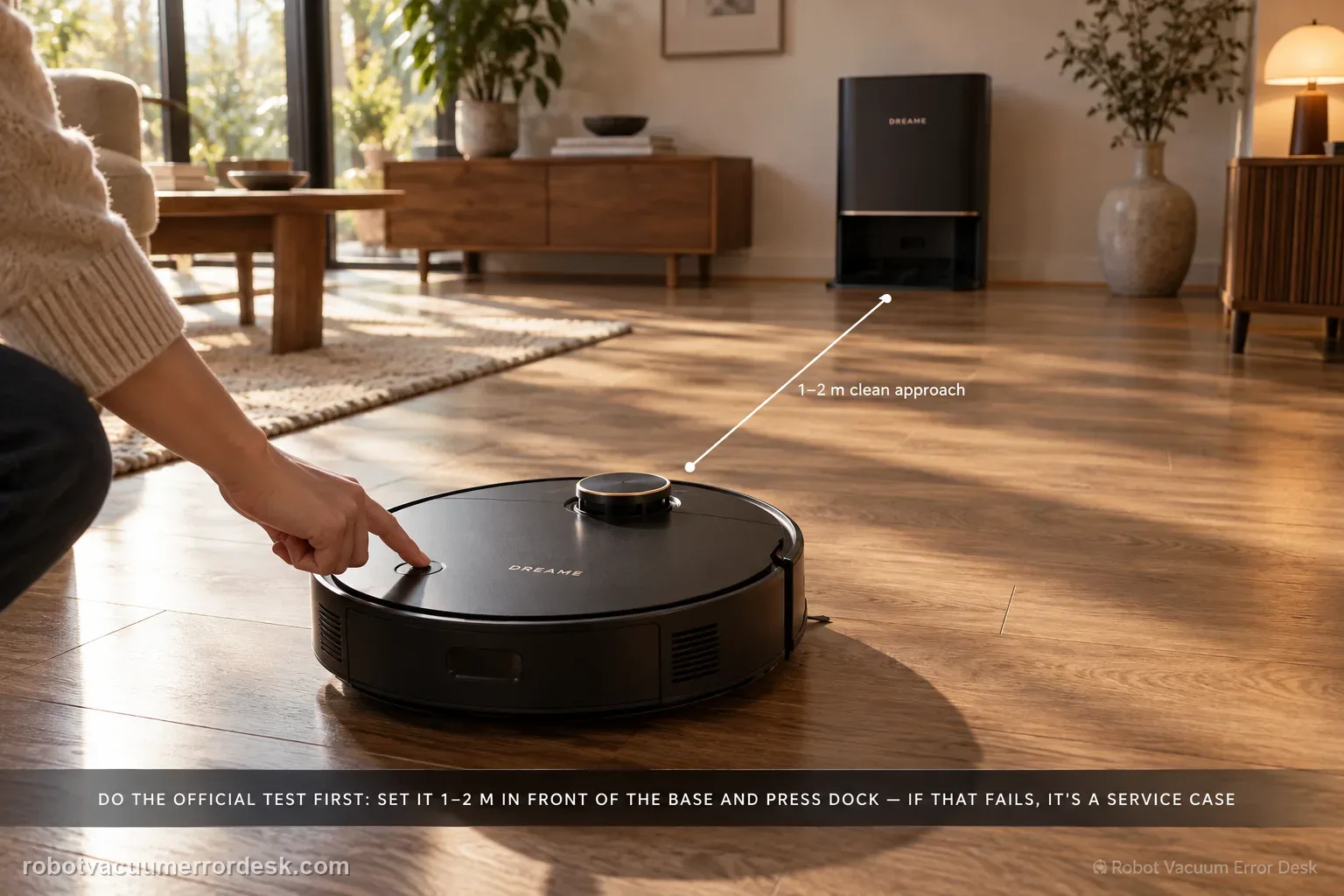
Start with Dreame’s short-range proof test, not a map reset. Confirm the base is powered, place the X50 about 1–2 meters in front of it, then press Dock. If the robot cannot return from that short clean approach, Dreame says to contact after-sales rather than treating the problem as a normal room-layout issue. If the short-range return works, move to placement: keep the station against a wall with about 1.5 m clear in front and 0.5 m on each side, away from routers/TVs and mirror-like surfaces. Then confirm the robot normally starts from the base, the top LDS rotates, drive wheels move freely, and the ramp extension is clean. Restart/reset is a late branch because Dreame warns that reset clears saved data including maps.
Confirm the exact model and exact code, light pattern or symptom.
Run the lowest-risk physical or software check first.
Use each pass condition to decide what the result actually narrows down.
Is this the problem you’re seeing?
- The X50 Ultra can clean but fails to locate or return to the base station at the end of a task.
- The robot behaves differently when tested close to the dock versus from another room.
- The dock was moved, placed near a router/TV, or faces a mirror, window or other reflective surface.
- The LDS, wheels or ramp may be interfering with the return path.
- You are considering a reset and want to rule out power, geometry and movement first.
Likely root causes, ranked
Base station is not actually powered or the power connection is loose
Station placement does not meet the documented open-space clearance
Signal interference or mirror-like reflections disrupt the return approach
The robot started away from the base or the base was moved after mapping
Top LDS is not rotating normally
Drive wheels are slipping/stuck or the ramp extension is dirty/obstructed
Persistent system/navigation state after the physical checks pass
What the result narrows down
| What you observe | What it narrows down | Next move |
|---|---|---|
| Fails the 1–2 m Dock-button test in a clear approach | The failure is reproducible even before long-range navigation and room geometry are involved. | Recheck base power once, then preserve a video and escalate as Dreame directs instead of deleting maps repeatedly. |
| Passes at 1–2 m but fails from normal rooms | The charging/short-range return path works; placement, route, map context or environmental interference is more likely. | Audit the 1.5 m front / 0.5 m side clearance, nearby electronics, reflective surfaces and starting point. |
| LDS does not rotate normally or wheels slip/stick | The robot cannot reliably localize or execute the approach even if the dock itself is fine. | Clear visible obstructions and document the mechanical symptom before any reset. |
| Dock was moved after mapping | Dreame specifically tells users to place the robot on the dock and restart cleaning from the base after a move. | Re-establish the base as the start point before judging the map or return behavior. |
| Short-range return passes after base is powered, but normal-room return fails | Dock power and basic nearby recognition work; long-range route, placement, interference or map context now deserve priority. | Keep the base fixed, verify clearance/interference and start the task from the dock before considering reset. |
Reset can erase maps/settings on this path. Use lower-risk checks first and document the current state before resetting.
Checks to run, in sequence
Prove the base has power before testing navigation
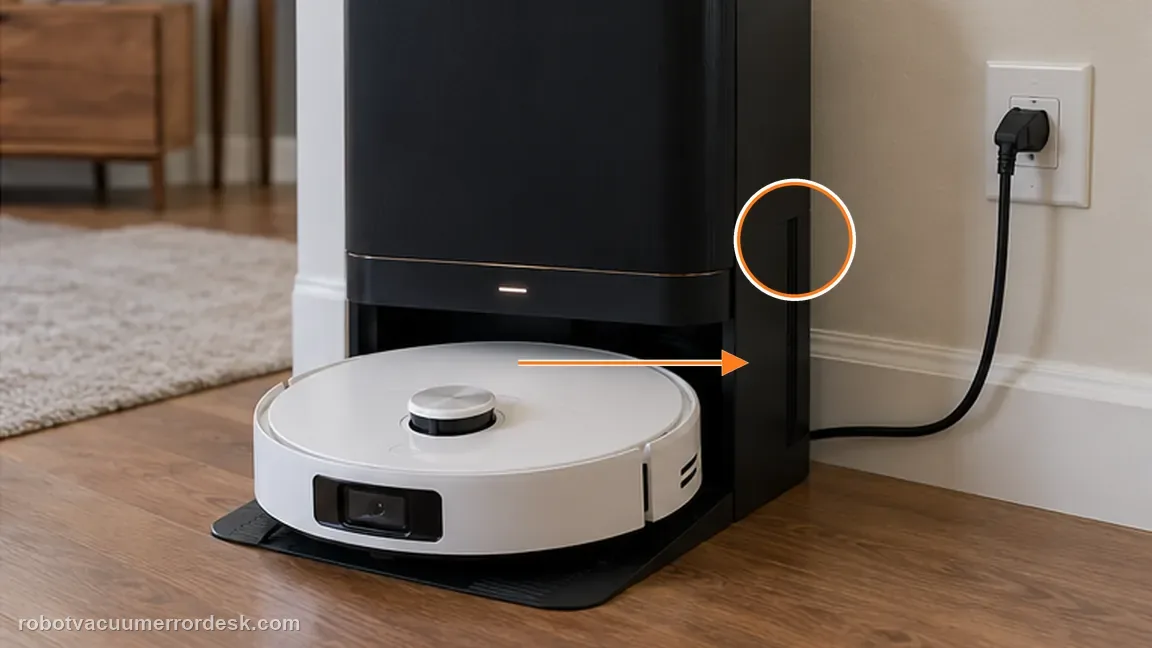
Check that the base-station plug is fully seated and that the station is powered. Do this first because a robot cannot complete the expected return/charge sequence to an unpowered station, and no mapping change can repair a missing power path. Keep the test simple: one known-working outlet and a firmly connected dock. Do not move the base yet; changing power, position and map context at the same time makes the result harder to interpret.
Run Dreame’s 1–2 meter return test
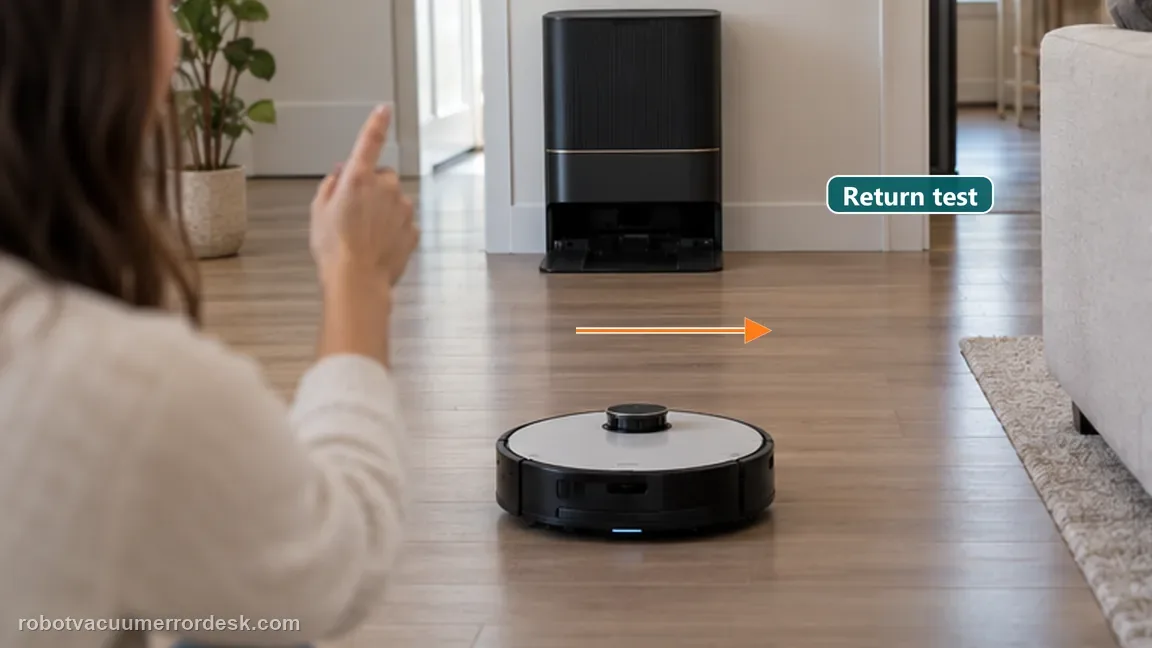
Place the X50 roughly 1–2 meters directly in front of the station in a clear approach, then briefly press the Dock button. Dreame uses this as an early discriminator. If the robot cannot return even from this short, unobstructed position, the official article points to after-sales rather than continuing with environmental optimization. If it returns and begins charging, you have proven that the short-range docking path works, so the next checks should focus on placement and long-range navigation instead of charging hardware.
Audit station placement and interference
If the short-range test passes, check the station environment against Dreame’s published requirements: the base should be against a wall, preferably in an open area, with about 1.5 meters clear in front and 0.5 meters on both sides. Keep it away from signal-interference sources such as routers or TVs, and avoid mirror-like reflective surfaces opposite the dock, including mirrors and windows. Remove temporary clutter from the approach. This is a placement proof, not a permanent redesign: change one environmental variable at a time and rerun the same return test.
Check starting point, LDS rotation, wheels and ramp
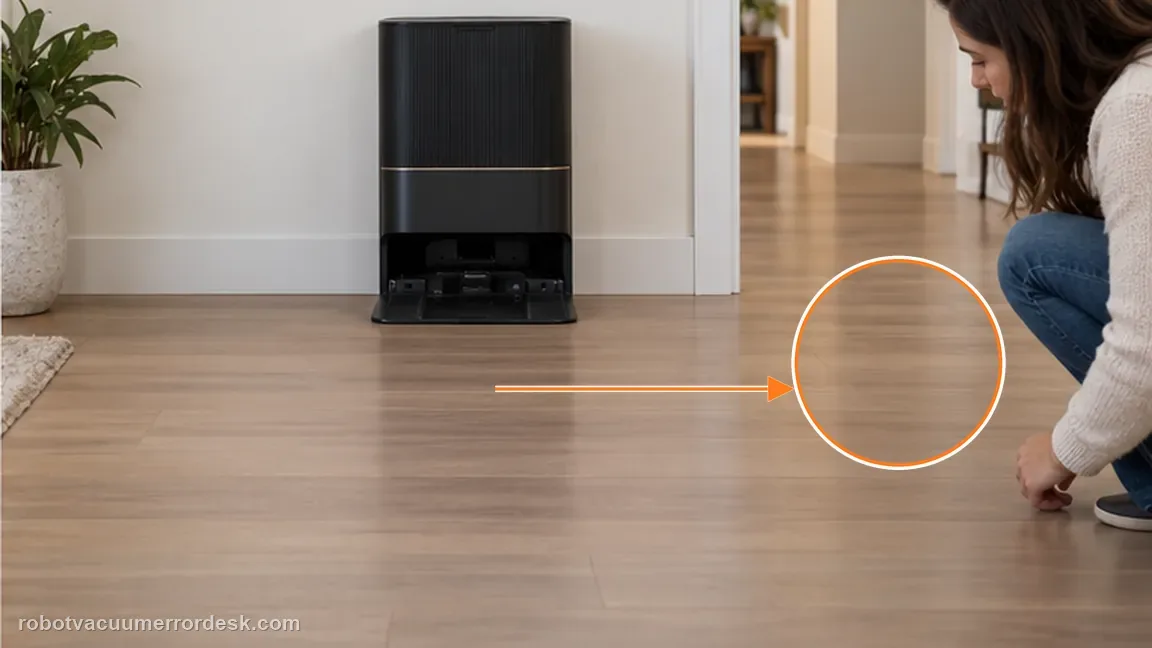
Dreame says cleaning should normally start from the base when diagnosing this problem. Watch the top LDS laser sensor and confirm it rotates normally. Then check the main wheels for slipping, sticking or trapped debris, because a localization system cannot compensate for a drive wheel that cannot execute the planned approach. Inspect the base ramp extension plate and remove dirt or foreign objects that could make the robot stall at the final climb. These checks separate “found the station but could not physically complete the return” from “never localized the station.”
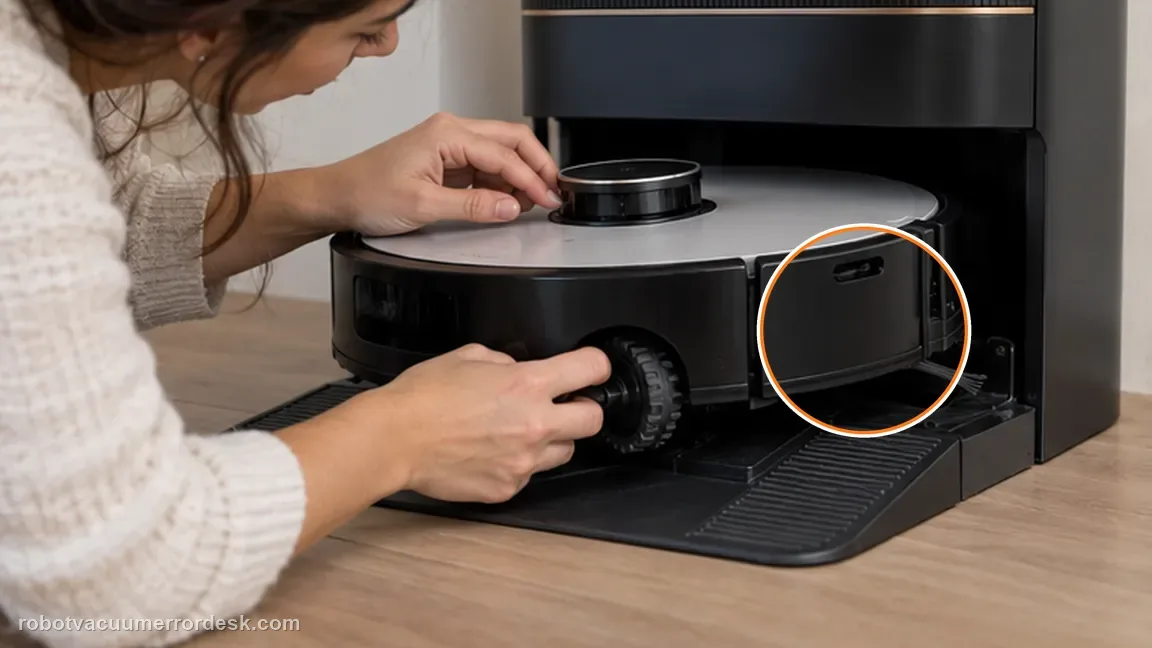
Restart first; reset only as a late, documented step
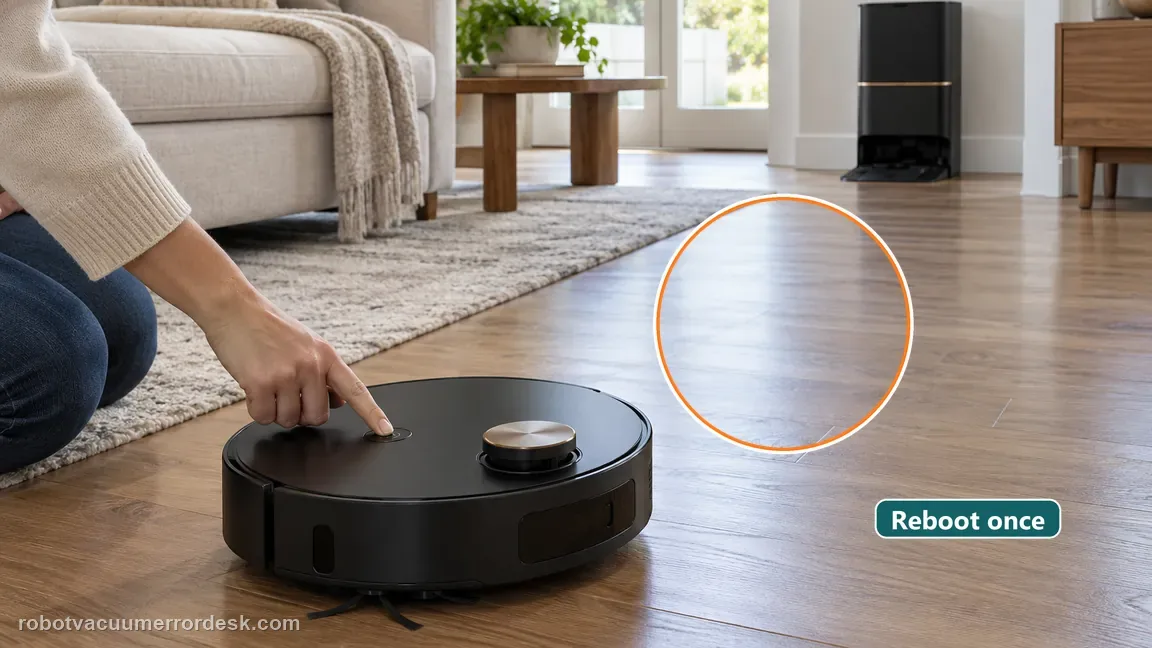
After power, short-range return, placement, LDS, wheels and ramp all pass, restart the robot and repeat one controlled cleaning/return cycle. Dreame also documents a factory-reset branch, but it explicitly warns that resetting clears data including saved maps. Treat that as a late step, not a default response to every docking miss. If the base itself has been moved, place the robot on it first and begin the next cleaning task from the station so the new base position is established in the workflow.
Escalate if the X50 fails Dreame’s 1–2 m return test with confirmed base power, or if it repeatedly fails after the documented placement, LDS, wheel and ramp checks pass. Send the model/firmware, a video of the 1–2 m Dock-button test, photos showing the station clearances and reflective/electronic surroundings, and whether the LDS rotates and wheels move normally. If you used reset, state that clearly because it erases maps and changes the diagnostic history.
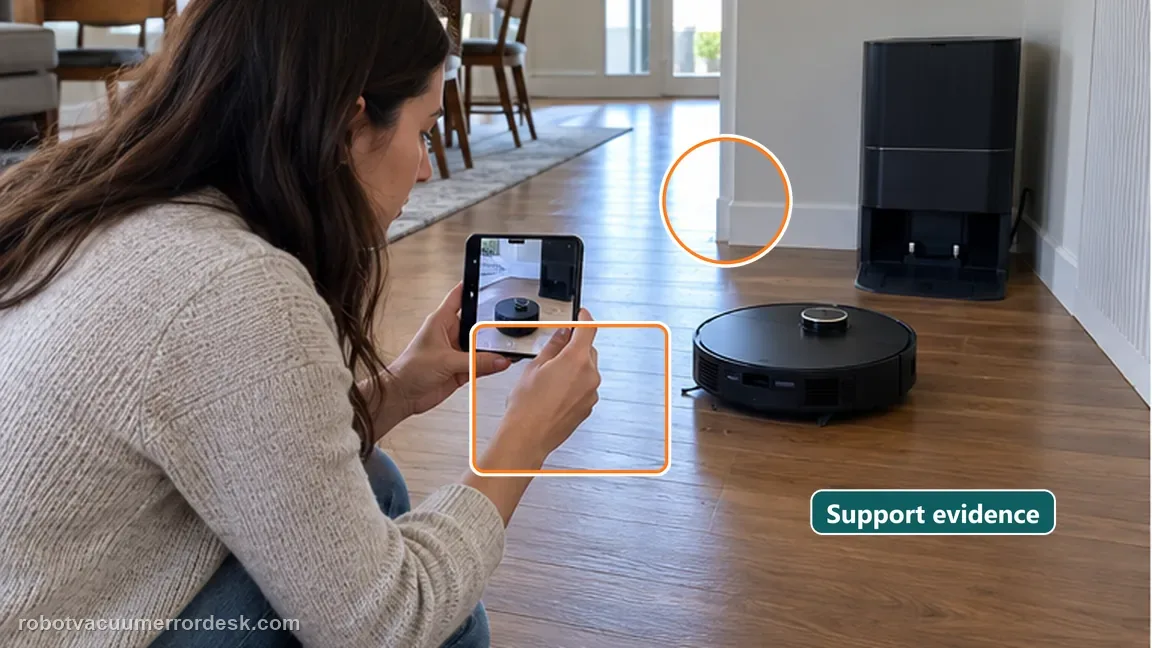
Information to have ready for support
Support can skip the basic troubleshooting script when you provide a reproducible case. That keeps the results of your checks from getting lost.
- Exact model name and the error code / voice prompt exactly as shown
- A photo or screenshot of the app error and the time it occurred
- A short list of the checks already completed and what happened after each one
- Short video showing the failed docking, mapping or base-station behavior
- Firmware version shown in Dreamehome
Source and evidence level
Dreame X50 Ultra Complete — Unable to Find or Return to Base Station
Dreame’s exact X50 article uses a powered-base check, a 1–2 m Dock-button return test, 1.5 m front/0.5 m side placement clearances, router/TV and reflective-surface cautions, start-from-base guidance, LDS rotation, wheel/ramp checks, restart/reset steps and a warning that reset clears maps/data.
Additional official source: Dreame X50 Ultra User Manual ↗Last editorial review: September 5, 2026Regional note: manufacturer help centers, model suffixes, mains-power requirements and warranty procedures can differ by country. If the source redirects to a local support site, confirm that the model/hardware scope still matches before following a region-sensitive step.
This guide is rated Official model support. See what each evidence label means →
Common questions
Why is the 1–2 meter return test the first useful discriminator?
It removes most long-range room navigation from the problem. Dreame tells owners to place the X50 1–2 meters in front of the powered station and press Dock. If that short clear test fails, the problem exists before complicated room geometry is involved. If it passes and starts charging, placement, interference, map context or route conditions become much stronger branches for normal-distance failures.
What clearances does Dreame specify around the X50 base?
Dreame’s exact X50 article says the station should sit against a wall, preferably in an open area, with about 1.5 m clear in front and 0.5 m on each side. It also warns about nearby routers/TVs and mirror-like reflective surfaces opposite the dock. Those dimensions belong to the return-to-base path, not a generic claim that every dock must be moved.
Should I reset the X50 as soon as it cannot find the base?
No. Reset comes late in Dreame’s flow, after station power, the nearby Dock-button test, placement clearances, LDS rotation, wheel movement and ramp condition. Dreame warns that reset clears all saved data including maps. Record the non-destructive results first; otherwise a reset can erase the navigation evidence you needed while leaving a power, wheel or environmental cause untouched.
What if the X50 finds the base but slips on the final approach?
That is more specific than “cannot find the station.” Dreame tells owners to confirm the main wheels are not slipping/stuck and to clean foreign material from the base ramp extension plate. If the robot reaches the dock area but repeatedly fails to seat, the separate Docking Failed path also checks charging contacts and pin rebound. Film the final approach so support can see localization versus physical docking.
What should I do if the X50 base was moved after the map was created?
Dreame says that after the base station has been moved, place the robot on the dock first and start the next cleaning task from the base. That re-establishes the station as the starting reference before you judge return behavior. Do not immediately delete the map. First test whether a base-origin task restores normal return, then preserve the result if the robot still fails.
Did this diagnostic narrow the fault?
Use this as an editorial signal, not a popularity counter. If a feedback address is configured you can email the note; otherwise you can copy it for your own support record.