How to reset a Dreame X50 Ultra
Exact-model power, charging, docking, Wi-Fi, mapping, LDS, noise, pickup and mop-attachment diagnostics from Dreame support and the official manual. We route by the exact error or symptom rather than assuming a generic robot-vacuum fix applies.
Reset a Dreame X50 Ultra without erasing a map by mistake
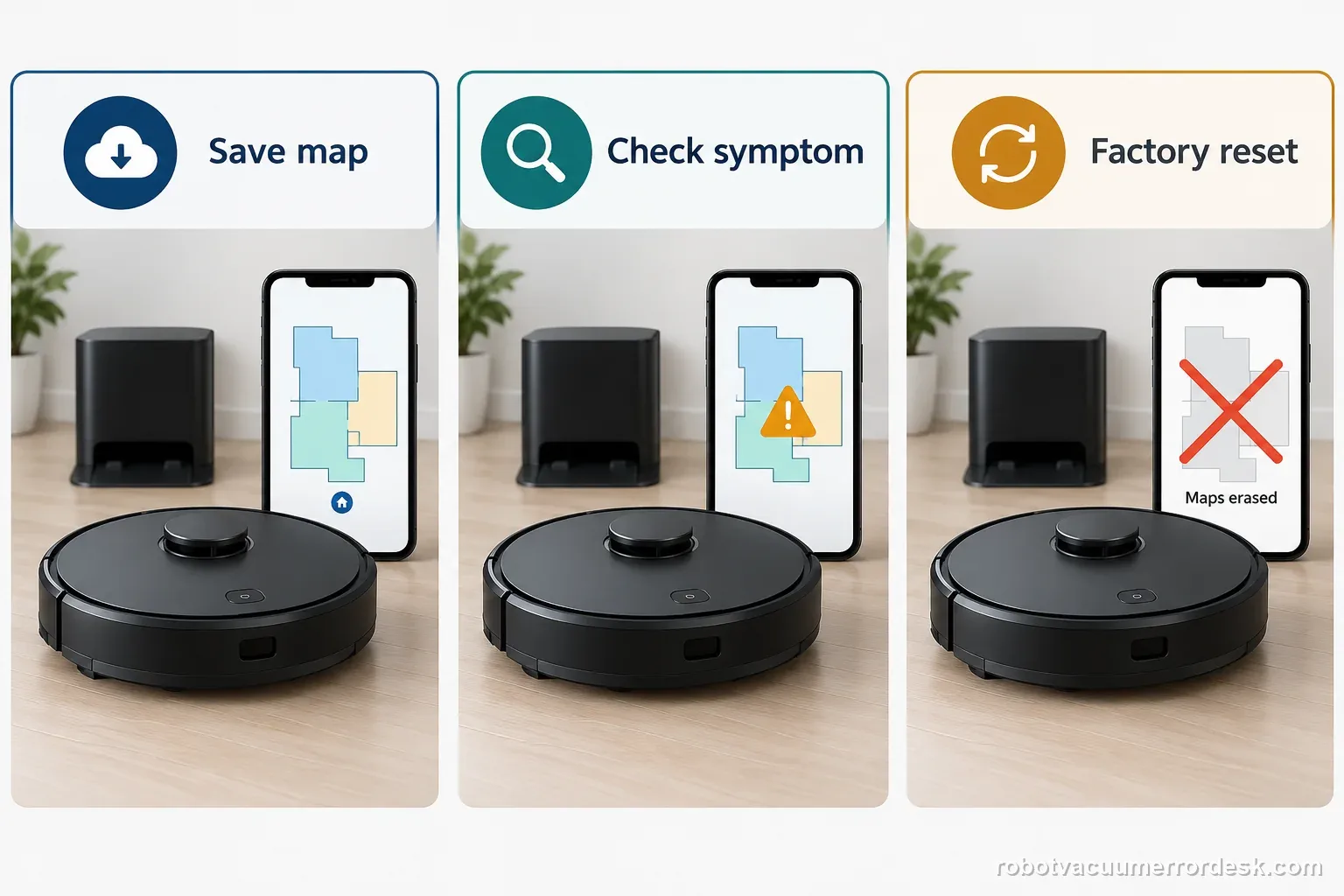
On the Dreame X50 Ultra Complete, try the ordinary Power/Clean restart before a factory reset. Dreame says its model-specific reset restores factory settings and clears saved maps and other data. Save any map the app allows, capture the full alert, and confirm the exact model before using the reset control.
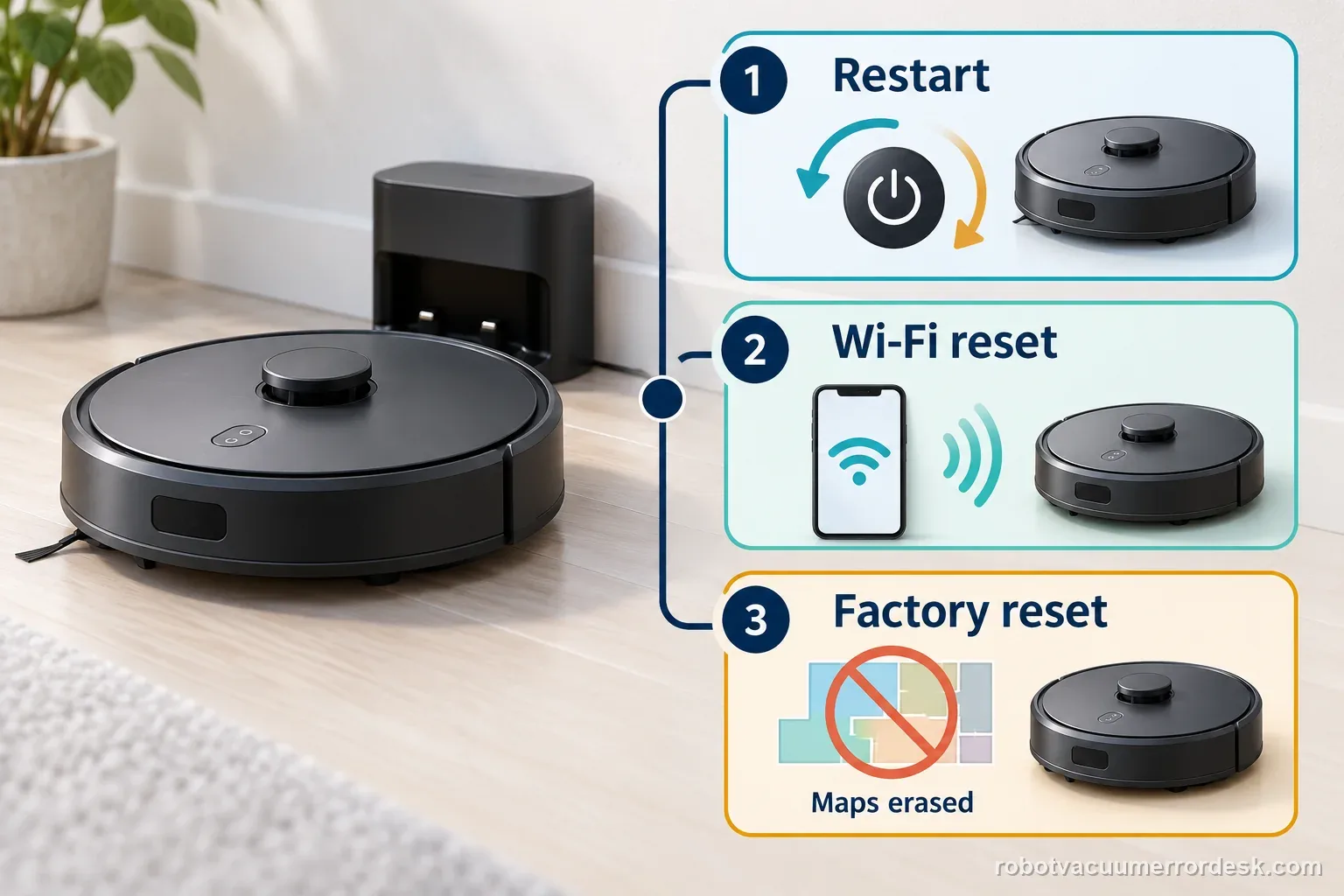
The word “reset” can mean three different things. A restart powers the robot off and on. Wi-Fi recovery reconnects the robot to the app or home network. A factory reset restores setup defaults and removes saved data. Do not use a factory reset to solve an app-only sign-in or router problem.
Choose the least destructive action that matches the symptom
| What failed | Start with | Data impact |
|---|---|---|
| Robot is unresponsive | Power/Clean restart | No factory erase stated |
| App cannot reach robot | App and Wi-Fi checks | Keep the saved map |
| Support directs a restore | Exact X50 reset control | Saved data and maps clear |
Dreame’s X50 power-on article describes a Power/Clean restart and a separate reset button beneath the upper cover. The factory restore prompt matters: it is not the same as a routine restart. Follow the wording in the current X50 article or manual. A different Dreame model may use another control or sequence.
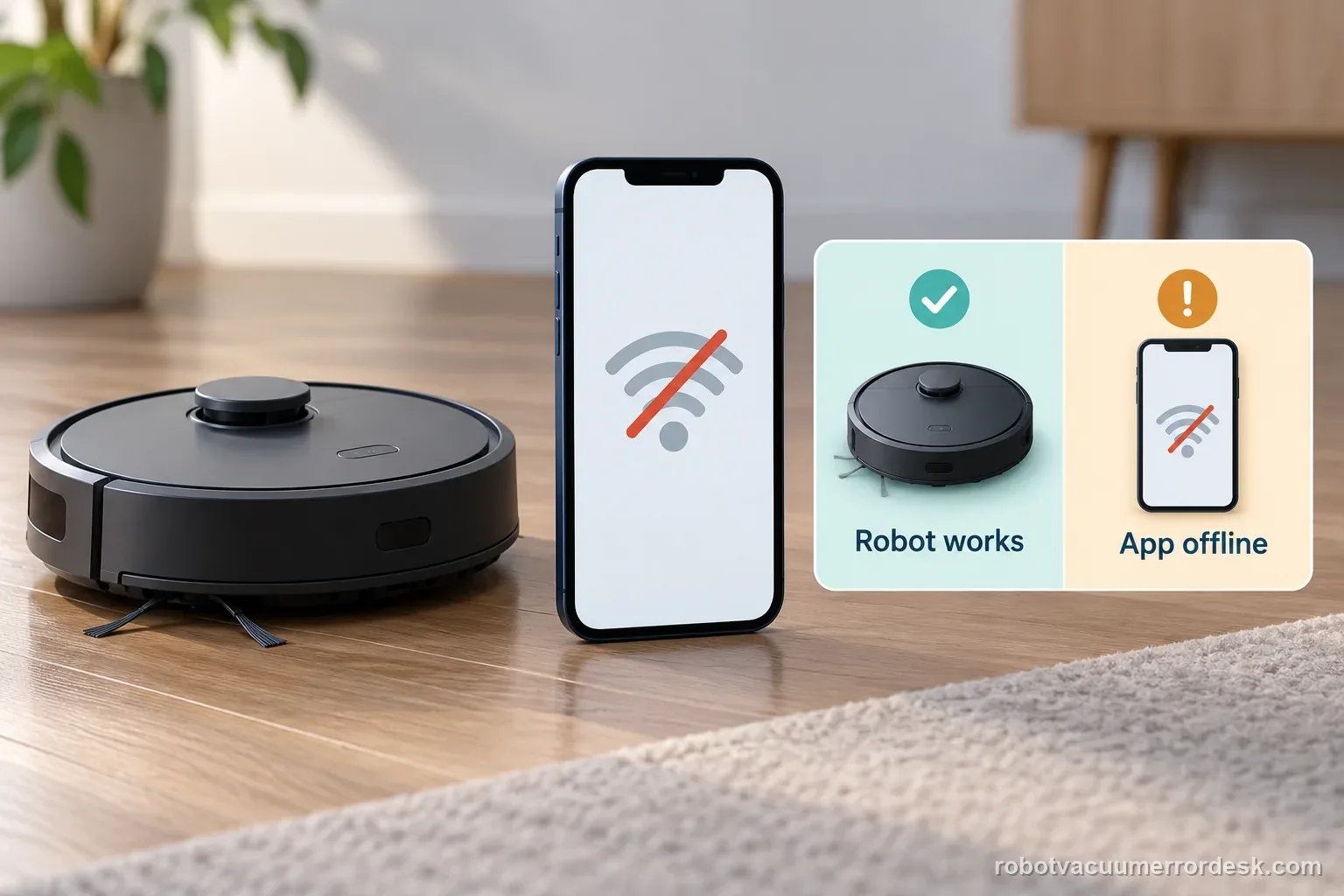
If the problem is Wi-Fi, keep it separate from a factory restore
If the robot still starts a local cleaning task but appears offline in Dreamehome, record those two observations separately. Check whether the phone and robot are on the expected home network and use the app’s current reconnect flow. Dreame’s X50 user manual covers network setup, while the support page should control any model-specific button sequence. This site does not infer a Wi-Fi button combination.
| Observation | Record | Next route |
|---|---|---|
| Robot cleans; app offline | App message and network | Wi-Fi recovery |
| Robot will not start | Button light and dock response | Power-on checks |
| Robot restores but map is gone | Restore prompt and date | Re-pair and rebuild map |
Two examples: restart first, restore only when justified
Example: the robot is online but one task froze
Write down the task stage and exact message, then use Dreame’s X50 restart step if the robot is responsive enough to do so. Retry the same short task once. If it completes, keep the map and note the change. If the fault returns, use the matching symptom guide instead of repeatedly resetting.
Example: the robot cannot start and Dreame confirms the restore step
Check the dock’s power and the charging response first. If the official X50 power-on workflow directs a factory restore, save available maps and settings, read the prompt, then record whether the robot enters setup. If the reset button or prompt does not match the model page, stop and ask Dreame rather than testing another sequence.
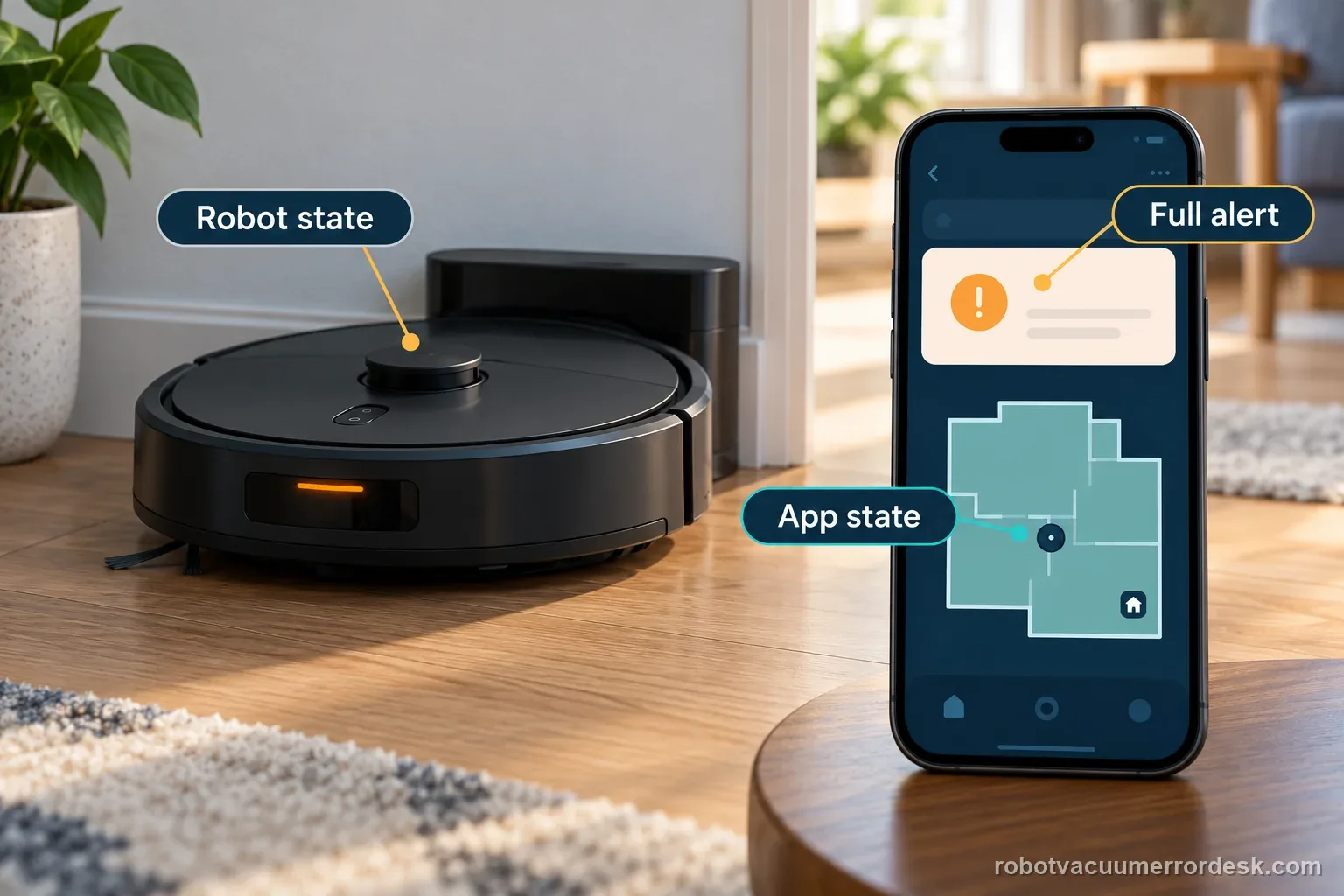
For a docking fault, open the Dreame X50 docking guide. For a lost or unsaved map, use the X50 map guide. The Dreame error-code index keeps code paths attached to their model. You can also review the robot vacuum troubleshooting library by failure stage.
Official X50 sources and limits
Dreame’s instructions take precedence over a generic reset checklist. They say a factory restore clears saved maps and all data. This page does not claim that a reset repairs a hardware fault or preserves a map.
Dreame X50 Ultra Complete issue index
12 guides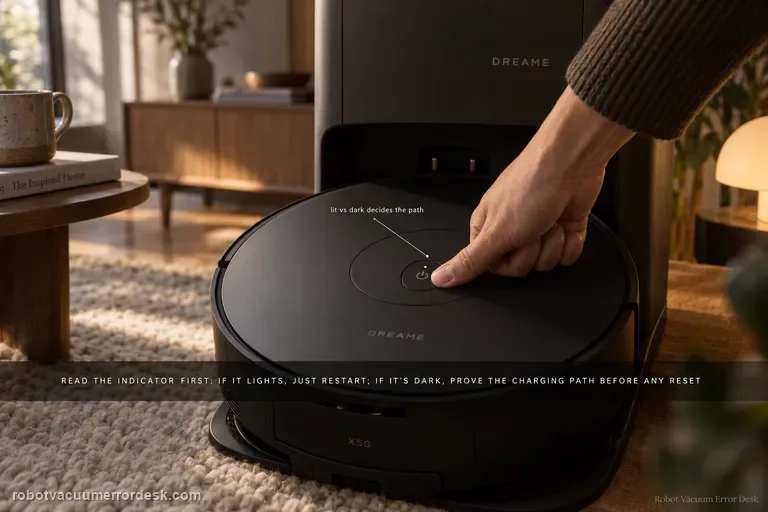
Won't power on
Do not jump straight to factory reset. Dreame’s exact X50 article first splits the diagnosis by the Power/Clean indicator. If the indicator lights, the robot has enough life to try a restart; reset is a later branch. If the indicator does not light, prove the charging path: base power, both ends of the power cord, clean robot/base contacts and a manual alignment on the dock. Dreame also says to hold Power/Clean for 3 seconds while docked if it does not start automatically. Only after those checks does the article return to reset, and it warns that factory reset clears all data including saved maps.
Docking failed
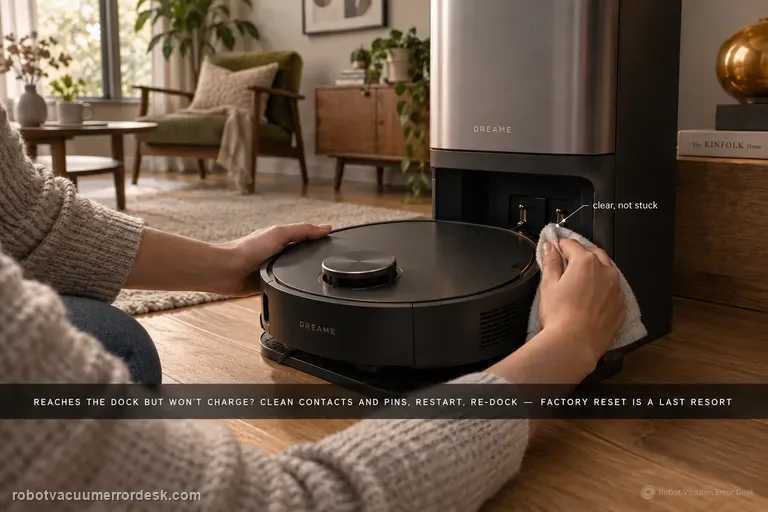
Use this guide only when the X50 reaches the dock area but repeatedly seats, backs out or fails to establish charging. Dreame’s exact Docking Failed article starts with the robot charging contacts and the dock’s metal pins: remove dust/foreign matter and confirm the pins are not stuck and can rebound. Then remove the robot, restart it, place it back on the dock and listen for the 'Start charging' voice prompt. Factory reset is third, not first, and Dreame warns that it erases saved maps. If the robot cannot find the base from 1–2 meters away, that belongs to the separate return-to-base path with power, placement, LDS and wheel checks.
Can't find base
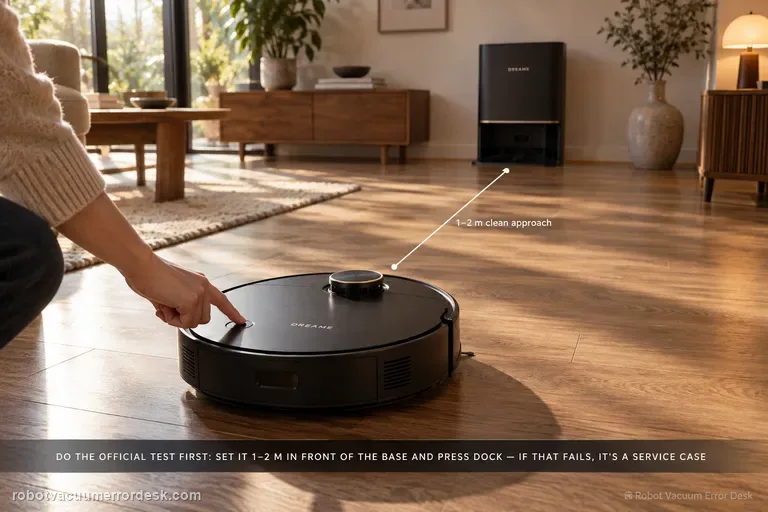
Start with Dreame’s short-range proof test, not a map reset. Confirm the base is powered, place the X50 about 1–2 meters in front of it, then press Dock. If the robot cannot return from that short clean approach, Dreame says to contact after-sales rather than treating the problem as a normal room-layout issue. If the short-range return works, move to placement: keep the station against a wall with about 1.5 m clear in front and 0.5 m on each side, away from routers/TVs and mirror-like surfaces. Then confirm the robot normally starts from the base, the top LDS rotates, drive wheels move freely, and the ramp extension is clean. Restart/reset is a late branch because Dreame warns that reset clears saved data including maps.
Map not saving
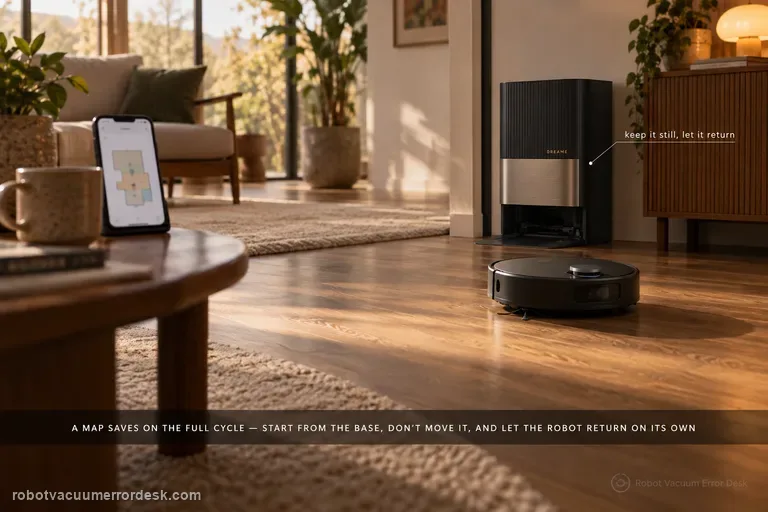
For the X50, a map is not just a drawing created at startup; Dreame ties reliable saving to the full mapping/cleaning cycle. Update firmware first, place the base where it can stay fixed with clear surroundings and good Wi-Fi, then rebuild the map only after that setup is stable. Start the robot from the station and do not move the base during the task. Most importantly, let the robot finish and return automatically: Dreame warns that manually sending it to charge or physically placing it on the base because the battery is low can prevent the map from saving successfully. If an alarm occurs while the robot is building the map, resolve it promptly and resume from a cleaned area rather than judging the final map while the task is still faulted.
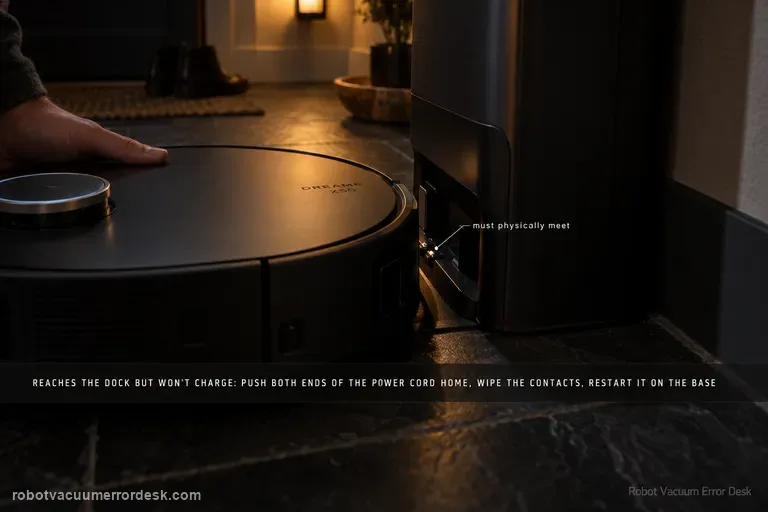
Charging abnormal
Treat an X50 that reaches the station but will not charge as a charging-path problem, not automatically as a docking problem. Dreame’s exact X50 support page starts with current firmware, a powered base station, clean charging contacts and a restart. The X50 manual adds two useful discriminators: make sure both ends of the station power cord are fully connected, and remove any foreign object at the robot’s connectors. Manually seat the robot so the metal contacts meet, then watch for the normal charging indication. If the robot cannot physically complete the final approach or the charging pins do not rebound normally, use the separate X50 docking-failed path instead. If contact is proven and charging still never begins, stop polishing the same contacts and send Dreame the charging state, firmware version and a short video.
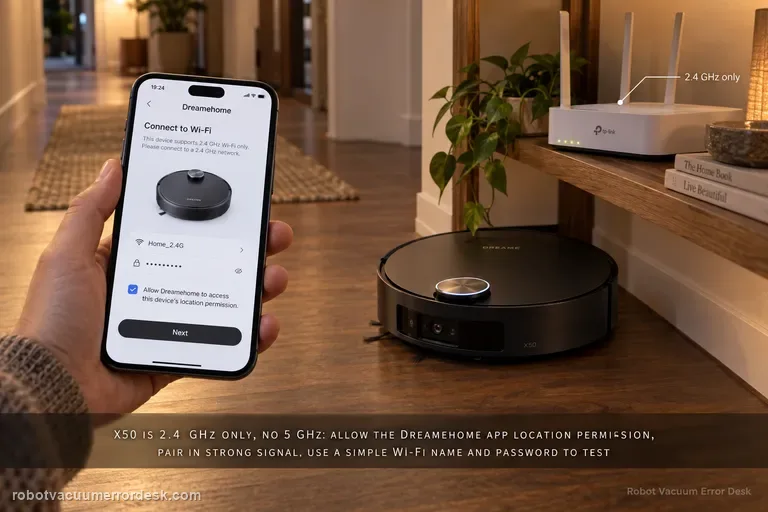
Wi-Fi setup failure
For first-time X50 network configuration, start with the hard compatibility rule: Dreame says the robot supports 2.4 GHz Wi-Fi and does not support a 5 GHz Wi-Fi connection. Then keep the robot/phone in strong Wi-Fi coverage, allow phone location permission for the Dreamehome app, and complete the handoff from the robot’s temporary hotspot back to the app after the voice prompt. Dreame also recommends simple letters/numbers in the Wi-Fi name and password for troubleshooting and suggests testing a different phone or a second phone’s hotspot if pairing still fails. The X50 manual adds two useful checks: verify the Wi-Fi password and, if the robot is not ready to be configured, exit and re-enter the app before retrying. This page is for configuration failure, not a robot that was paired successfully and later went offline.
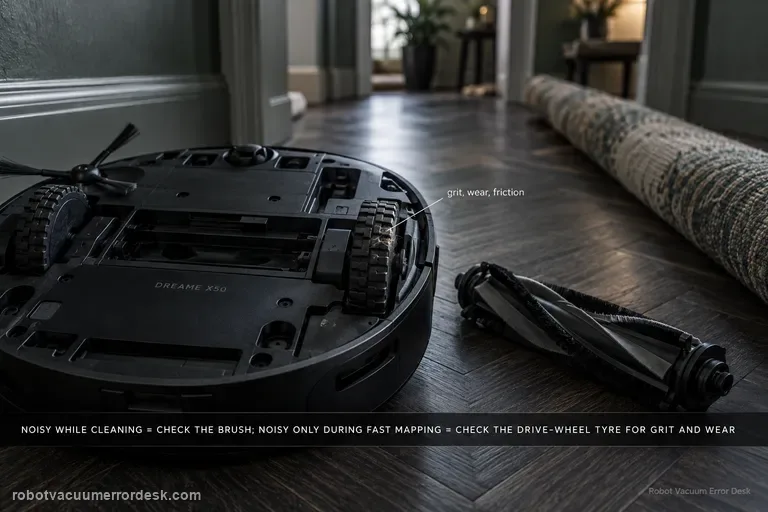
Abnormal noise
First reproduce when the X50 becomes noisy. Dreame’s exact model article splits the symptom into two scenarios: a strange sound during normal cleaning, where an entangled brush is the first check, and an unusual driving-wheel sound during rapid mapping, where tire/ground friction, debris or wear on the tire are the first owner checks. The X50 manual adds a broader operating-noise branch: a clogged dust-box filter, a hard object in the main brushes or dust box, tangled main/side brushes, or high suction can increase noise. That means the useful test is not ‘does it sound loud?’ but ‘does the sound track brush rotation, suction level, or wheel travel during mapping?’ Do not open a hub motor or fan because an internet post guesses at an internal bearing. Isolate the mode first, service only user-removable parts, then capture the sound for Dreame if it remains frequent or loud.
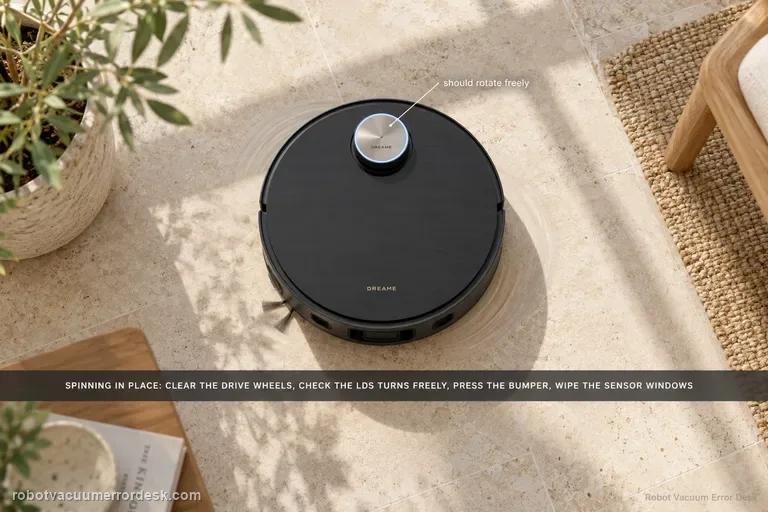
Spins in circles
Dreame’s exact X50 article gives a seven-check path for a robot that spins or keeps turning in the same place. Start with foreign material around the drive wheel, then confirm the LDS is rotating and that its upper cover rebounds normally. Check for hair/debris in the LDS rotating area and for a lifted/cocked sticker or larger object on the robot’s top surface. Then press the impact plate/bumper to confirm it rebounds and wipe the line-laser and AI-identification sensor windows clean. Restart only after those physical states are known. This is not the same intent as ‘map will not save’: a circling robot has a live movement/localization problem, while a map-save problem can occur after otherwise normal driving. Do not force the retractable LDS tower or dismantle a drive wheel. If the X50 still spins after the documented checks, preserve a short video and escalate.
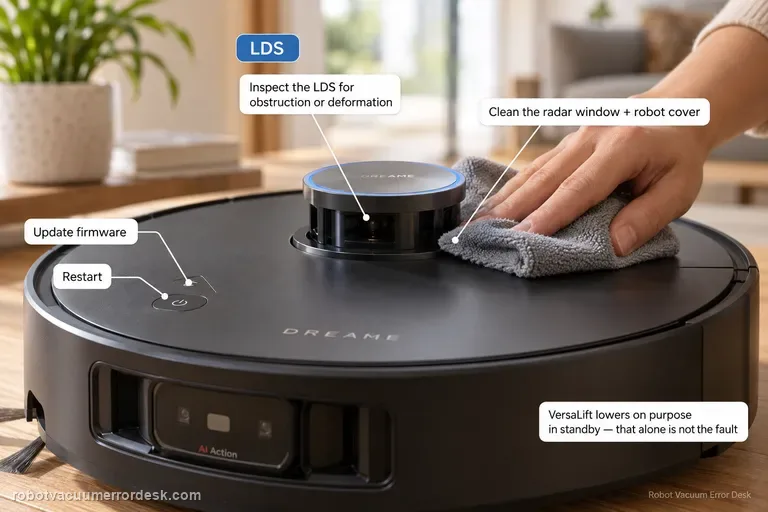
LDS sensor malfunction
Use this page when the X50 reports an LDS sensor malfunction or the localization sensor itself appears obstructed/deformed—not merely because the retractable LDS will not raise or lower. Dreame’s exact model article gives four owner checks: update firmware, inspect the LDS for anything obstructing it or for deformation, clean the radar and robot cover, and restart. The manual identifies the retractable top unit as the VersaLift sensor and says it is intentionally lowered while the robot is in standby, charging, or cleaning low-clearance areas, so a lowered tower by itself is not proof of malfunction. If the problem is specifically that the LDS cannot raise/lower on command, switch to the separate lifting-function guide, which includes the app’s radar-lifting setting and remote-control test. For a true malfunction that persists after a clear/clean sensor and restart, do not dismantle the turret; send Dreame the exact message and a video.
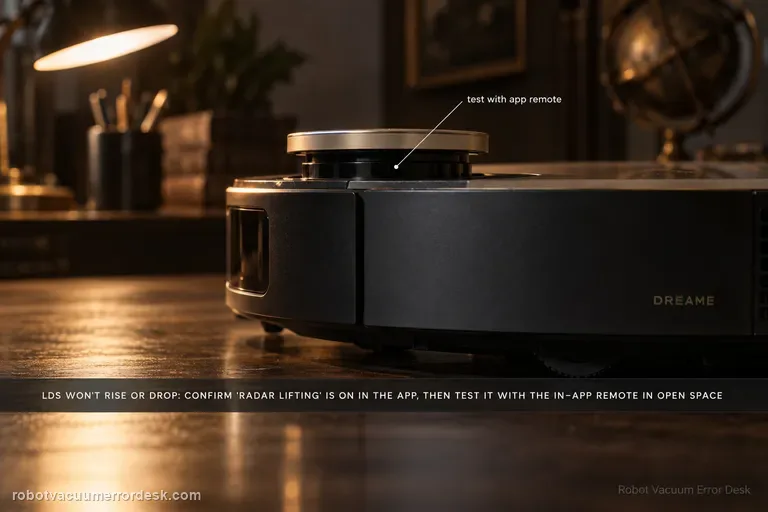
LDS won’t raise/lower
For an X50 whose retractable LDS specifically will not raise or lower, use the lifting-function branch rather than the generic LDS-malfunction page. Dreame’s exact support article says to check current firmware, move the robot to an empty unobstructed area, verify that the radar lifting function is turned on in the app, and use the remote control in the app’s accessibility settings to test whether the radar can raise/lower normally. Then inspect the radar surface and top cover for lifted stickers or debris, clean them, and restart. The manual is important context: the VersaLift sensor is intentionally lowered in standby, while charging and during low-clearance cleaning. So ‘tower is down on the dock’ is not a failed lift test. Do not pull the tower upward or disassemble it. If the remote-control lift test fails in an open area after cleaning/restart, capture that exact result for Dreame.
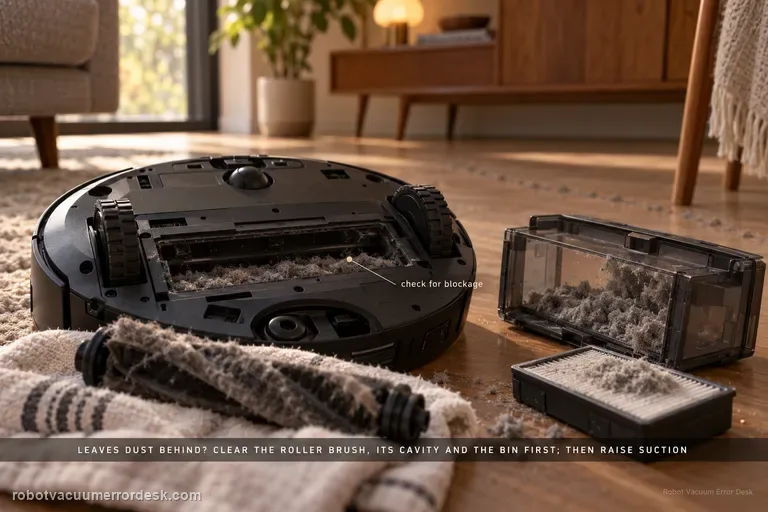
Not vacuuming dust
For an X50 that runs but leaves dust or loose debris behind, Dreame’s exact model article starts with blockage, not motor replacement: inspect and clean the roller brush, roller-brush cavity and dust bin. For difficult scenes with accumulated debris or clumps of hair, Dreame recommends more frequent cleaning and a higher suction level, while stubborn material may still need manual removal. The X50 manual adds the maintenance detail that the dust-box filter can be removed, gently tapped, and—if rinsed along with the dust box—must be cleaned with water only, no detergent, and dried completely before reinstalling; it also warns not to clean the filter with a brush, finger or sharp object. Use a small controlled debris strip to prove pickup after each branch. This page is about vacuum pickup, not a side brush failing to reach a corner or the base failing to auto-empty after the cleaning run.
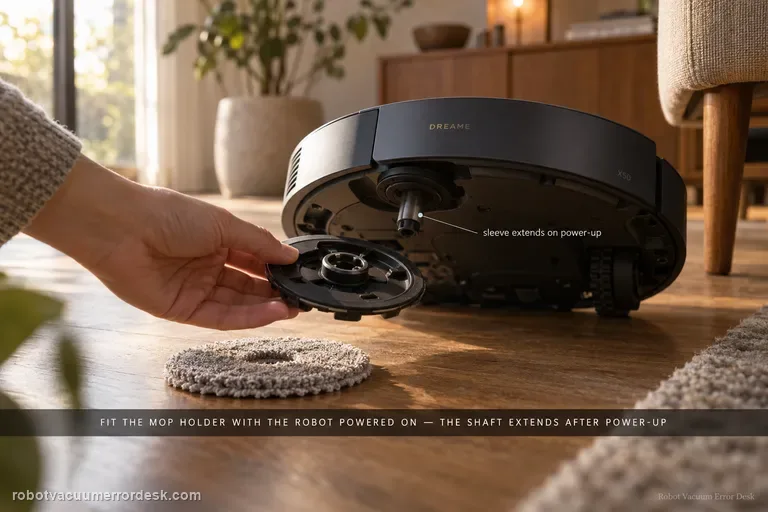
Mop falls off
Dreame’s exact X50 support says a mop tray/holder that falls off can be caused by installation state, the pad itself, floor obstacles or cleaning mode. A model-specific detail matters first: Dreame says the mop pad holder cannot be installed while the robot is turned off; after power-on, the holder shaft sleeve automatically extends, so install the holder with the robot powered on. Make sure the mop pad is attached evenly to the holder and replace a worn pad that will not hold securely. Then check the route: carpets, thresholds, small steps and loose cables can snag the tray. Dreame recommends a designated mopping area for problematic zones and Mop after Vac in Cleaning Settings, and notes that this model supports automatic mop installation/removal. If the holder physically detaches despite correct powered-on installation and a clear route, restart once and capture the detachment for support. Do not create a separate near-duplicate page for ‘mop pad holder falls off’ unless the diagnostic intent materially differs.