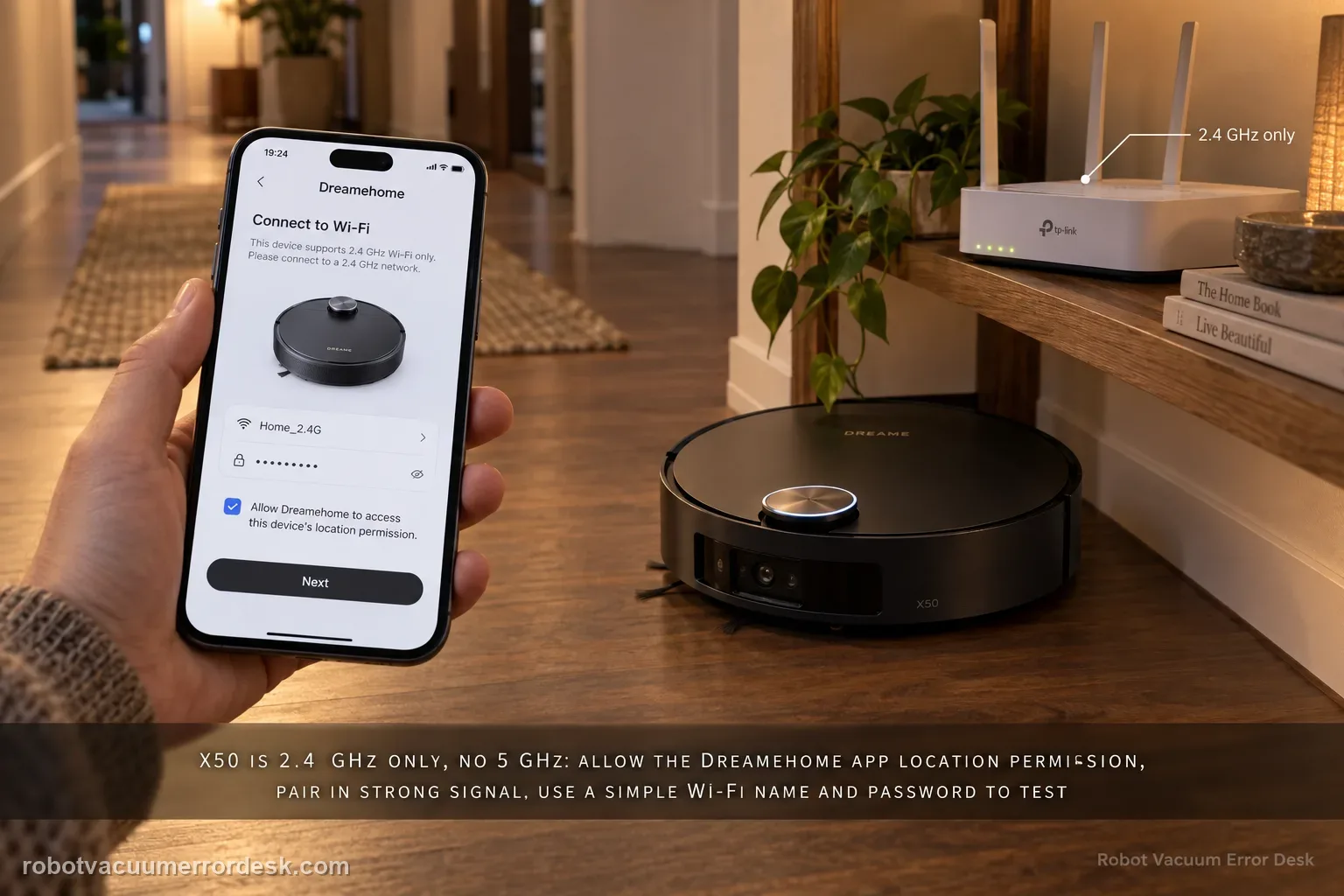
For first-time X50 network configuration, start with the hard compatibility rule: Dreame says the robot supports 2.4 GHz Wi-Fi and does not support a 5 GHz Wi-Fi connection. Then keep the robot/phone in strong Wi-Fi coverage, allow phone location permission for the Dreamehome app, and complete the handoff from the robot’s temporary hotspot back to the app after the voice prompt. Dreame also recommends simple letters/numbers in the Wi-Fi name and password for troubleshooting and suggests testing a different phone or a second phone’s hotspot if pairing still fails. The X50 manual adds two useful checks: verify the Wi-Fi password and, if the robot is not ready to be configured, exit and re-enter the app before retrying. This page is for configuration failure, not a robot that was paired successfully and later went offline.
Confirm the exact model and exact code, light pattern or symptom.
Run the lowest-risk physical or software check first.
Use each pass condition to decide what the result actually narrows down.
Confirm this is the right issue
- The X50 Ultra Complete has never completed Wi-Fi pairing in the Dreamehome app.
- Setup stalls after connecting to the temporary hotspot broadcast by the robot.
- The home router presents 5 GHz or a combined-band network and the X50 will not finish configuration.
- The app lacks location permission or pairing repeatedly fails on one phone.
- The robot was paired before but is now offline; that is a different state and should not be treated as initial configuration until re-pairing is actually required.
What’s most likely causing this
Phone/router is trying to use 5 GHz instead of the X50-supported 2.4 GHz Wi-Fi path
Weak signal during provisioning interrupts the home-network handoff
Location permission for the phone or Dreamehome app is disabled during setup
Pairing stalls when the phone joins the robot hotspot but the user does not return to the app after the voice prompt
Incorrect password or troubleshooting-hostile special characters in the SSID/password
Phone-specific networking behavior is blocking setup and can be isolated with another phone or hotspot
Reading your test result
| What you observe | What it narrows down | Next move |
|---|---|---|
| 5 GHz-only setup path fails | The network does not meet Dreame’s stated X50 Wi-Fi requirement. | Use a 2.4 GHz Wi-Fi network before resetting the robot or blaming hardware. |
| Robot hotspot is visible but app never completes after voice prompt | The failure is in the provisioning handoff rather than basic hotspot broadcast. | Return to Dreamehome after the prompt, verify permissions/credentials and retry once cleanly. |
| Pairing succeeds near router but not at normal setup location | Coverage is a strong discriminator. | Improve/choose stable 2.4 GHz coverage rather than changing robot navigation settings. |
| Different phone or hotspot succeeds | The X50 can configure; the original phone/router environment is the remaining branch. | Focus on original device permissions, band handling or credentials. |
| Two compatible environments fail at the same stage | The normal owner-level setup path has been isolated without success. | Send Dreame the failure stage, phone models and band information without sharing passwords. |
Do not factory-reset by default. Use the exact model’s reboot/network-reset procedure only when the manufacturer path calls for it.
Work through these checks in order
Confirm this is initial configuration failure, not later offline behavior
Before resetting anything, ask whether this X50 has ever completed pairing and appeared normally in Dreamehome. This guide is for network configuration failure: the setup flow cannot finish. A previously paired robot that later becomes offline has a different evidence trail involving router availability, account/app state and reconnection. Preserving that distinction avoids unnecessary reconfiguration. If you are truly in first-time or deliberate re-pairing setup, keep the X50, phone and router close enough for a controlled test and record exactly where the setup stops.
Put the setup on a real 2.4 GHz Wi-Fi path
Dreame’s exact X50 article states that the robot supports 2.4G Wi-Fi and does not support 5G Wi-Fi. The X50 manual repeats the same requirement. For troubleshooting, make sure the network credentials you enter are for a 2.4 GHz-capable SSID rather than assuming a phone connected to a mixed router will always provision the robot correctly. If your router combines bands, use its normal supported method to expose or select a 2.4 GHz network for the test. Do not buy new networking hardware before proving this basic compatibility state.
Move the phone and robot into strong Wi-Fi coverage
Dreame recommends configuring the X50 where the Wi-Fi signal is strong, and the manual likewise lists weak coverage as a reason the robot can fail to connect. Bring the phone and robot into the router’s normal strong-coverage area for the pairing test rather than trying from a marginal room, garage or distant floor. Keep the base location question separate; the point here is to remove weak signal during provisioning. If pairing succeeds only near the router, you have learned that coverage—not an LDS, dock or vacuum fault—is the dominant branch.
Allow location permission before starting configuration
The exact X50 support page tells owners to turn on the mobile phone’s location permission and authorize the app to use it before configuring the network. Check both the phone-level service and the Dreamehome app permission rather than assuming one implies the other. Return to the setup flow only after permission is available. This is a provisioning prerequisite in Dreame’s own troubleshooting, not a suggestion that the robot’s navigation location is broken. Avoid changing unrelated map or obstacle settings while testing a phone permission state.
Complete the robot-hotspot handoff exactly once
During setup, the phone may connect to the temporary hotspot broadcast by the robot. Dreame says that after you hear the robot’s voice broadcast, return to the app and wait for the network-configuration result. Do not remain indefinitely in the phone’s Wi-Fi settings or repeatedly jump between the robot hotspot and home Wi-Fi while the app is trying to complete provisioning. Note whether the phone actually joins the robot hotspot and whether the failure occurs before or after the voice prompt; that boundary is useful support evidence.
Verify the password and simplify credentials for the diagnostic test
The X50 manual lists an incorrect Wi-Fi password as a direct cause of connection failure. Dreame’s exact support article further recommends using English letters or numbers in the home Wi-Fi name and password and avoiding special characters while troubleshooting. First verify the current password on another device so you do not chase a typo. If the verified credentials still fail and your network uses unusual characters, create or use a simple 2.4 GHz test SSID according to your router’s normal controls rather than renaming a production network blindly.
Exit and re-enter the app if the robot is not ready to configure
The manual adds another useful state: the robot may not be ready to be configured, in which case it says to exit and re-enter the app and try again as instructed. Do this after the 2.4 GHz, signal, permission and credential checks so the retry has meaning. Do not repeatedly factory-reset the robot between every app retry. Record whether the configuration flow now reaches a different stage, because moving from “cannot discover/join robot hotspot” to “home Wi-Fi authentication fails” changes the next branch.
Isolate phone-specific setup with another phone or hotspot
Dreame says connection failure can be related to the mobile model and recommends trying a different phone; if the standard steps still fail, it also suggests using another phone to open a hotspot and trying again. Use this as an isolation test, not as a permanent workaround you must buy. Keep the hotspot compatible with the 2.4 GHz requirement when possible. If the X50 pairs on the alternate setup, the robot’s radio is demonstrably capable of configuration and the remaining issue is more likely the original phone/router environment.
Contact Dreame if the X50 still cannot complete configuration after a confirmed 2.4 GHz network, strong signal, verified password, phone/app location permission, correct robot-hotspot handoff, clean app retry and an alternate-phone or hotspot isolation test. Send the phone model/OS, router or SSID band, exact screen where setup fails, and whether the robot hotspot was visible/joinable. Do not disclose the Wi-Fi password in screenshots or support posts.
Before you contact support, gather this
A reproducible case moves a support call past the basic troubleshooting script faster than “it doesn’t work” does, and it keeps the clues from your own tests on record.
- Exact model name and the error code / voice prompt exactly as shown
- A photo or screenshot of the app error and the time it occurred
- A short list of the checks already completed and what happened after each one
- Short video showing the failed docking, mapping or base-station behavior
- Firmware version shown in Dreamehome
Where this comes from
Dreame X50 Ultra Complete — Wi-Fi Network Configuration Failure
Dreame’s exact X50 article states that the robot supports 2.4 GHz rather than 5 GHz for Wi-Fi setup, calls for strong signal and phone/app location permission, describes the robot-hotspot handoff, recommends simple letters/numbers for SSID/password troubleshooting, and suggests another phone/hotspot. The X50 manual also lists incorrect password, weak signal and a not-ready configuration state that can be retried by exiting and re-entering the app.
Additional official source: Dreame X50 Ultra User Manual ↗Last editorial review: September 5, 2026Regional note: manufacturer help centers, model suffixes, mains-power requirements and warranty procedures can differ by country. If the source redirects to a local support site, confirm that the model/hardware scope still matches before following a region-sensitive step.
This guide is rated Official model support. See what each evidence label means →
Questions people ask
Does the Dreame X50 connect to 5 GHz Wi-Fi?
Dreame’s X50 troubleshooting says the robot supports 2.4 GHz Wi-Fi and does not support a 5 GHz Wi-Fi connection for this setup path. If your router combines bands, prove pairing on a 2.4 GHz-capable network before doing resets. A phone having 5 GHz internet access does not change the robot’s stated provisioning requirement.
Why does Dreamehome need location permission for X50 setup?
Dreame explicitly includes phone location permission and authorization for the app in its X50 network-configuration steps. Treat that as a provisioning prerequisite rather than a navigation diagnosis. Enable the phone’s location service and the app permission for the test, then retry the same configuration flow without simultaneously changing maps, base placement or other unrelated robot settings.
What should I do after joining the X50 robot hotspot?
Dreame says that after the phone connects to the hotspot released by the robot and you hear the robot’s voice broadcast, return to the app and wait for the configuration result. Staying in Wi-Fi settings or repeatedly switching networks can interrupt that handoff. Note whether failure occurs before or after the voice prompt because that is useful diagnostic evidence.
Can special characters in the Wi-Fi name or password matter?
For troubleshooting, Dreame recommends setting the home Wi-Fi name and password to English letters or numbers and avoiding special characters. First verify the existing password independently so a typo is not mistaken for compatibility. If needed, test a simple 2.4 GHz SSID rather than permanently renaming a working home network before you know that credential parsing is the issue.
When should I try another phone for Dreame X50 pairing?
Use another phone after the 2.4 GHz, strong-signal, location-permission, verified-password and robot-hotspot steps are correct. Dreame specifically suggests a different phone model and, if needed, another phone’s hotspot as isolation tests. Success there shows the robot can configure and narrows the problem to the original phone/router environment instead of proving a robot hardware fault.
Did this diagnostic narrow the fault?
Use this as an editorial signal, not a popularity counter. If a feedback address is configured you can email the note; otherwise you can copy it for your own support record.