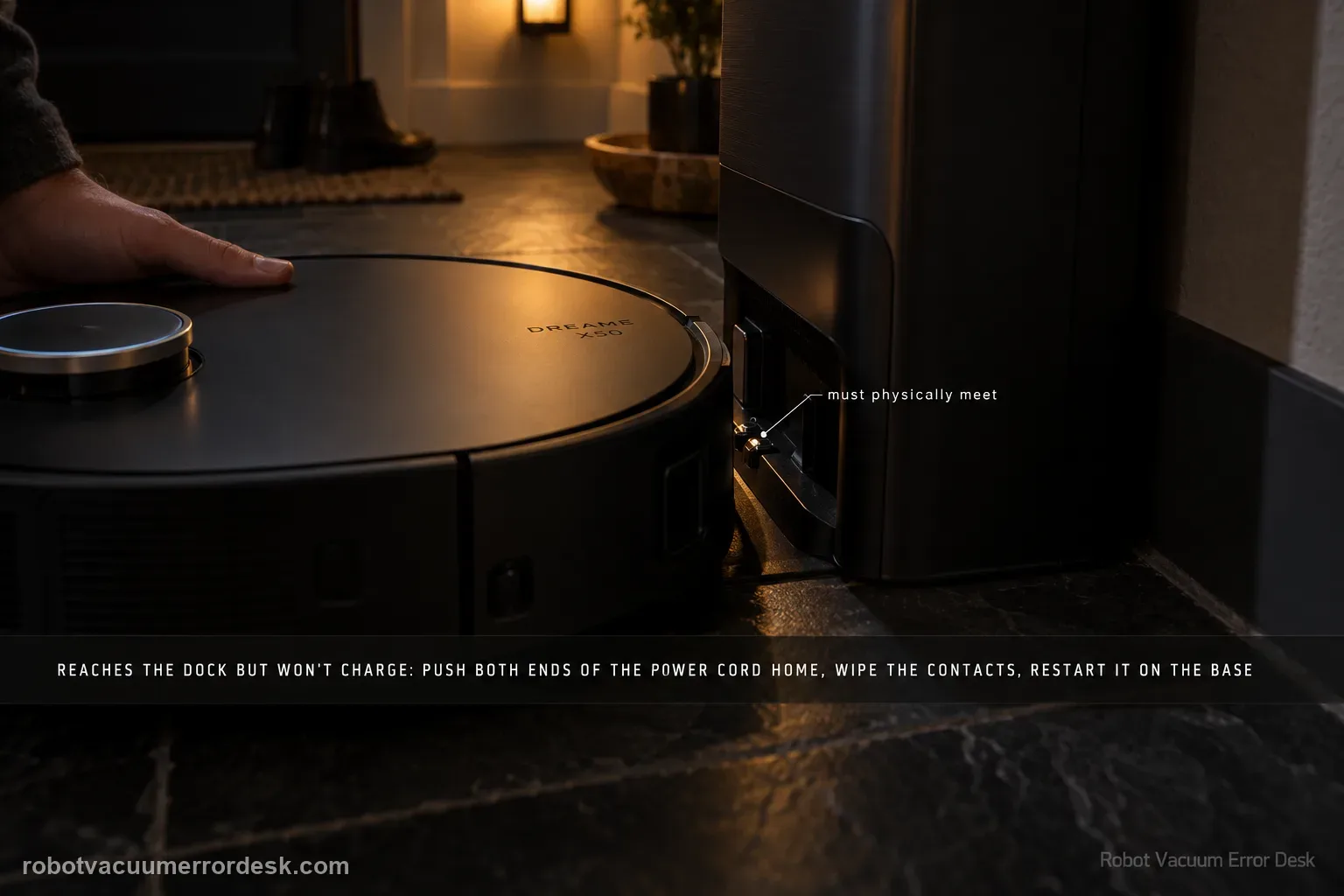
Treat an X50 that reaches the station but will not charge as a charging-path problem, not automatically as a docking problem. Dreame’s exact X50 support page starts with current firmware, a powered base station, clean charging contacts and a restart. The X50 manual adds two useful discriminators: make sure both ends of the station power cord are fully connected, and remove any foreign object at the robot’s connectors. Manually seat the robot so the metal contacts meet, then watch for the normal charging indication. If the robot cannot physically complete the final approach or the charging pins do not rebound normally, use the separate X50 docking-failed path instead. If contact is proven and charging still never begins, stop polishing the same contacts and send Dreame the charging state, firmware version and a short video.
Confirm the exact model and exact code, light pattern or symptom.
Run the lowest-risk physical or software check first.
Use each pass condition to decide what the result actually narrows down.
Does this match your problem?
- The X50 is on or against the base station but the battery percentage does not begin to rise.
- The app or robot reports abnormal charging even though autonomous navigation to the base is not the main complaint.
- Charging starts intermittently when the robot is reseated or the contacts are cleaned.
- The base appears powered but the robot remains in a non-charging state after contact is made.
- You need to separate a true electrical/contact charging fault from a final-alignment docking fault.
Most likely causes
Base station is not receiving stable power or one end of the power cord is loose
Dust, residue or oxidation-like film is reducing contact between robot and base charging surfaces
A foreign object at the robot connectors prevents full electrical contact
Robot is not seated squarely enough for the charging contacts to meet
Firmware or a temporary robot state needs the documented update/restart branch
Charging electronics, base station or battery hardware needs service after owner-level checks
What your test result means
| What you observe | What it narrows down | Next move |
|---|---|---|
| Robot reaches/seats at base but no charging begins | The dominant state is charging/contact, not return navigation. | Prove power, clean contacts and test one square manual seating. |
| Charging begins after dry contact cleaning or reseating | Contact quality or seating was materially affecting the charging path. | Stop changing variables and monitor whether charging remains stable through a normal cycle. |
| Base station has no normal powered state | Robot-side diagnosis is premature because station power is unproven. | Verify both cord ends and the normal outlet/base connection before repeating robot tests. |
| Robot repeatedly misses the final dock position | This is primarily a docking/alignment state rather than a seated no-charge state. | Use the X50 docking-failed path and check alignment/pin behavior there. |
| Powered base + clean contacts + restart still gives no charge | The manufacturer’s owner-level charging checks no longer explain the failure. | Send Dreame video, firmware, battery and station-state evidence; do not open the base or battery. |
Reset can erase maps/settings on this path. Use lower-risk checks first and document the current state before resetting.
Run these checks in order
Separate charging failure from docking failure first
Put the X50 at the station and identify the exact failure. This page is for a robot that can be manually seated or reaches the base but does not establish or maintain charging. If the robot repeatedly approaches, backs away, misses the ramp, or cannot make the final physical connection, use the X50 docking-failed guide because that path includes final alignment and charging-pin rebound. Keeping those intents separate prevents an electrical contact problem from being hidden by navigation experiments. Record whether the robot is already touching the dock when the charging problem appears.
Check firmware before repeating hardware tests
Dreame’s exact X50 charging article begins by asking whether the device firmware is current. Open the Dreamehome app, record the installed firmware version, and apply an available update while the robot still has enough power to do so. Do not interpret an update as proof that software caused the problem; it simply removes a manufacturer-defined prerequisite before a controlled retest. If the battery is too low to update, continue with station power and contact checks first so the robot has a chance to recover enough charge.
Prove station power at both ends of the cord
The X50 manual says the robot will not charge if the base station is not connected to power and specifically tells owners to make sure both ends of the base power cord are correctly plugged in. Check the wall connection and the station-side connection rather than assuming an illuminated room outlet proves the base is energized. Use the normal station indicators described for your unit; do not open the base or probe mains wiring. If power is questionable, reseat the approved cord connections and retest on the normal grounded outlet used for the station.
Clean the robot and base charging contacts dry
Dreame’s model support and the manual both call out poor contact between the charging surfaces. With the robot safely stopped, wipe the charging contacts on the robot and base with a clean, soft, dry cloth. The manual’s maintenance illustration likewise specifies a soft dry cloth for charging contacts and the signaling area. Look for dust films or stuck debris rather than sanding, scraping or applying liquid cleaner. Allow the surfaces to remain dry, then manually seat the robot squarely against the station for a single controlled test.
Inspect the robot connectors for a foreign object
The X50 manual adds a discriminator that the shorter support article does not spell out: check for a foreign object at the robot’s connectors and remove it if present. Limit this to visible owner-accessible debris. Do not insert metal tools, bend contact hardware or pry at a connector. After clearing only what can be safely removed, reseat the robot and note whether the normal charging indication appears. A change after debris removal is useful evidence that the contact path, not the battery itself, was the immediate blocker.
Restart once after power and contact are proved
Dreame’s exact article tells owners to restart the robot after firmware, base-power and contact checks. Perform one normal restart and return the X50 to the same verified station position. Avoid factory reset at this stage because the charging article does not require erasing maps or settings. Watch the app and robot indicators long enough to tell whether charging begins and whether the percentage actually increases. A brief light or voice response without sustained charging should be recorded as an intermittent contact/charging symptom, not called a pass.
Escalate a repeat no-charge state with precise evidence
If current firmware, stable station power, clean contacts, clear connectors, square seating and a restart do not restore charging, the documented owner path is exhausted. Capture a short video showing the robot seated at the base and the relevant indicator/app battery state. Record whether charging ever starts when you press or reseat the robot and whether the station itself appears normally powered. Do not keep flexing contacts or open the battery/base. Those details let Dreame distinguish an intermittent contact problem from station, battery or charging-electronics service work.
Contact Dreame if the X50 remains properly seated but will not charge after current firmware, confirmed base power, clean/dry contacts, clear accessible connectors and a normal restart. Include firmware, battery percentage, station indicator state, whether manual reseating ever changes the symptom, and a short video. If the robot cannot physically seat or the pins fail to rebound, use the docking-failed branch and report that distinction.
What to collect before contacting support
Give support a reproducible case instead of “it doesn’t work.” That reduces repeated basic troubleshooting and preserves the clues from your tests.
- Exact model name and the error code / voice prompt exactly as shown
- A photo or screenshot of the app error and the time it occurred
- A short list of the checks already completed and what happened after each one
- Short video showing the failed docking, mapping or base-station behavior
- Firmware version shown in Dreamehome
Manufacturer evidence
Dreame X50 Ultra Complete — Robot Charging Abnormal
Dreame’s exact X50 article requires current firmware, a properly powered base, clean robot/base charging contacts and a restart. The official X50 manual additionally says to verify both power-cord ends and remove any foreign object at the robot connectors, and its maintenance page specifies a soft dry cloth for the contacts.
Additional official source: Dreame X50 Ultra User Manual ↗Last editorial review: September 5, 2026Regional note: manufacturer help centers, model suffixes, mains-power requirements and warranty procedures can differ by country. If the source redirects to a local support site, confirm that the model/hardware scope still matches before following a region-sensitive step.
This guide is rated Official model support. See what each evidence label means →
FAQ
Is X50 charging abnormal the same as X50 docking failed?
No. Use this charging page when the robot can be seated at the station but charging does not start or stay active. Use the docking-failed path when the robot cannot complete the physical final approach, repeatedly backs away, or the dock-pin/alignment state is the primary failure. Separating those states avoids mixing navigation fixes with electrical-contact checks.
What should I clean the X50 charging contacts with?
Dreame’s manual shows the charging contacts and signaling area being cleaned with a soft, dry cloth. Keep the test dry and non-abrasive; do not sand the contacts or flood them with cleaner. After wiping both the robot and station contact surfaces, manually seat the robot squarely and confirm whether charging actually begins and the battery level rises.
Why check both ends of the base power cord?
The X50 manual specifically says a robot may not charge when the base station is not connected to power and tells owners to ensure both ends of the power cord are correctly plugged in. That check matters because a wall-side connection can look fine while the station-side connection is loose, leaving contact cleaning unable to solve anything.
Should I factory-reset an X50 that will not charge?
Not as an early charging step. Dreame’s exact charging article calls for firmware, base power, clean charging contacts and a normal restart; it does not require a data-erasing factory reset. Prove those simple states first. If charging still fails on a powered station, preserve the symptom and escalate rather than deleting maps without evidence that reset is relevant.
When should I contact Dreame about X50 charging?
Escalate after the base is definitely powered, the robot is squarely seated, both contact sets are clean and dry, accessible connectors are clear, firmware is current when possible, and a normal restart changes nothing. Send the firmware version, battery state, station indicator state and a short video showing the docked no-charge condition so support can triage hardware.
Did this diagnostic narrow the fault?
Use this as an editorial signal, not a popularity counter. If a feedback address is configured you can email the note; otherwise you can copy it for your own support record.