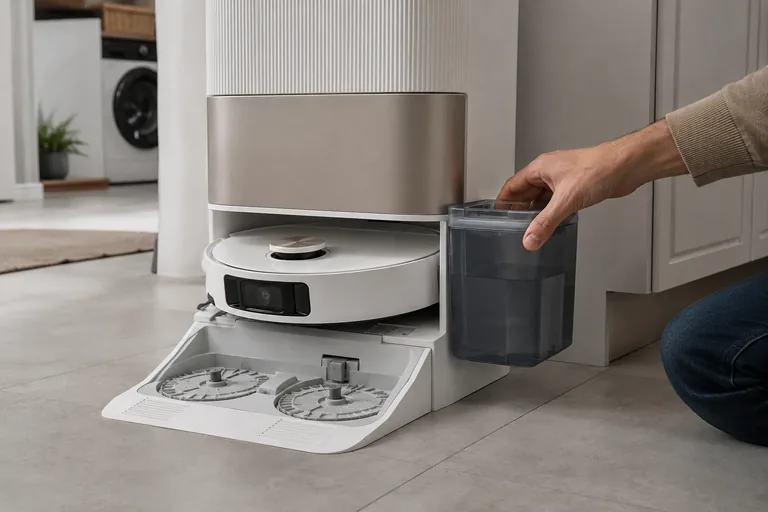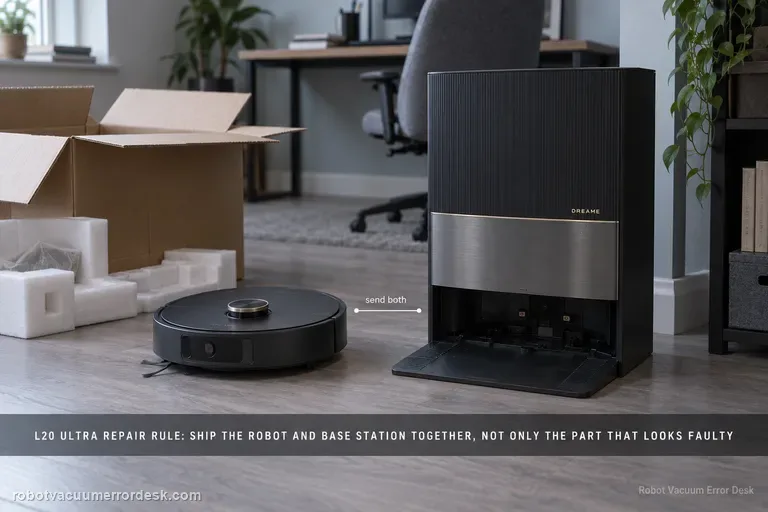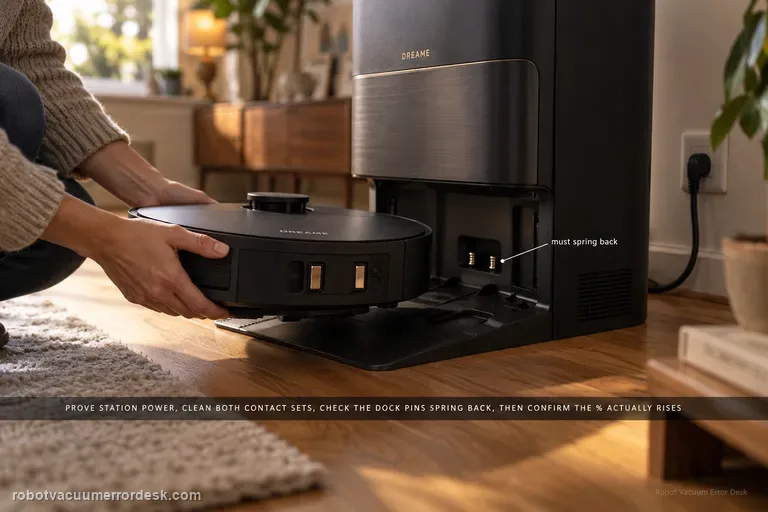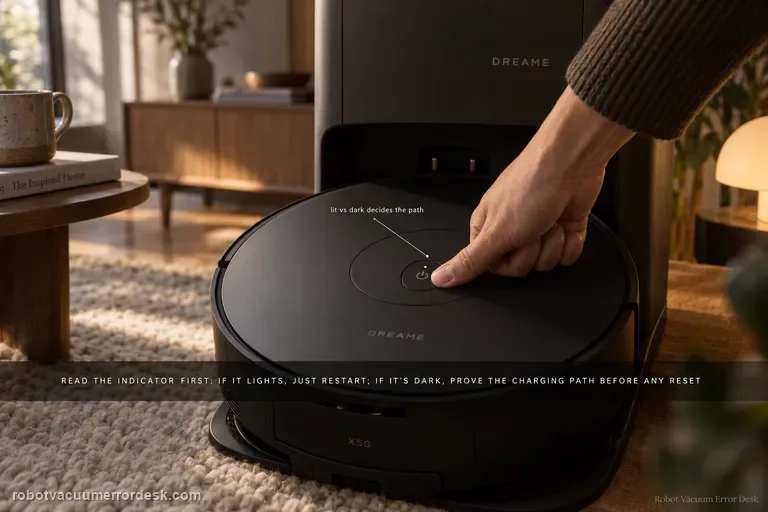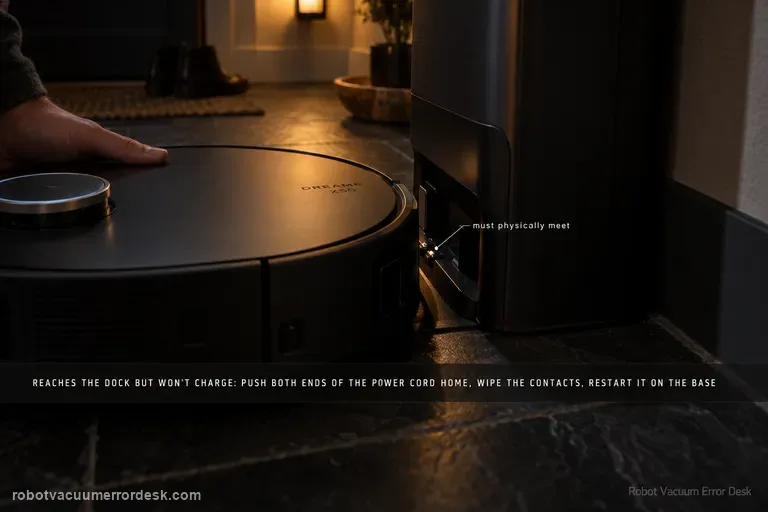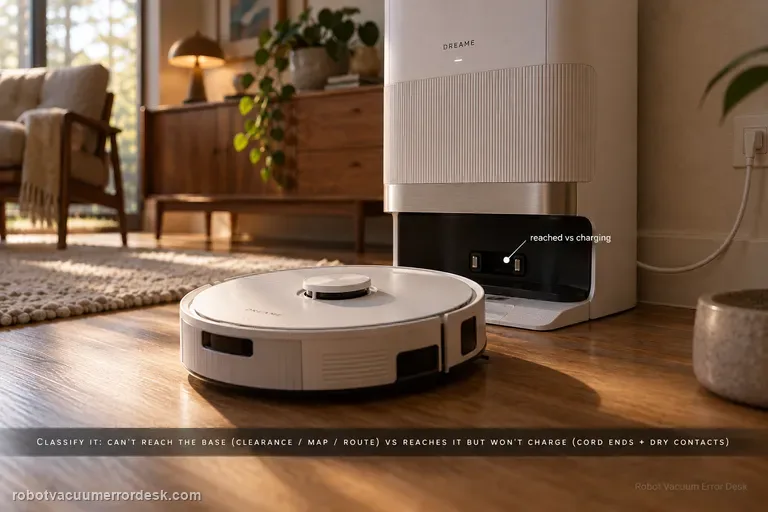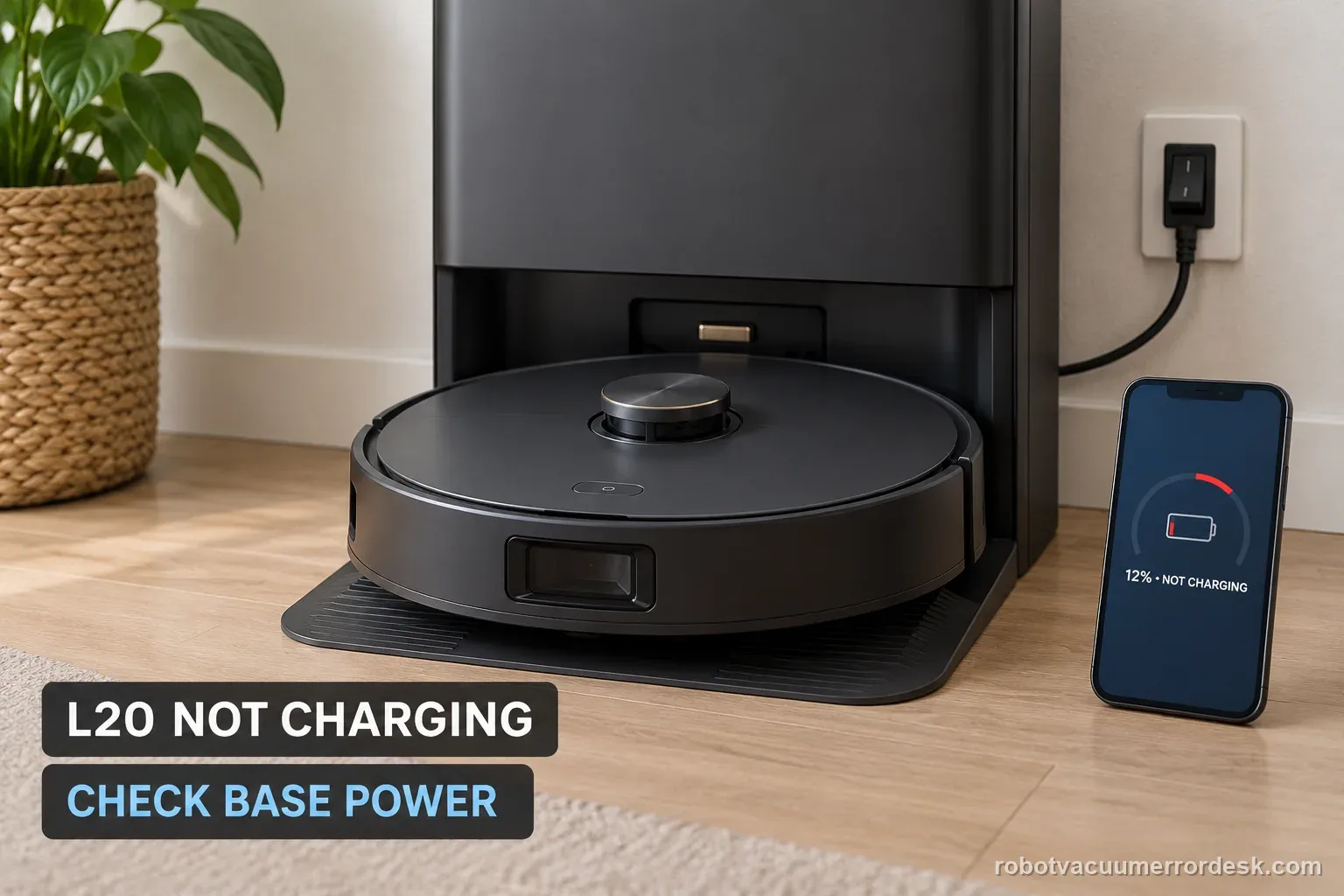
When your Dreame L20 Ultra sits on its base but will not charge, check station power first. Dreame names both ends of the base power cord and the rear switch. Then unplug the station, clean the robot and base contacts, and adjust their position. Seat the robot squarely and verify the displayed battery level increases; an automatic return failure is a separate navigation problem.
Confirm the exact model and exact code, light pattern or symptom.
Run the lowest-risk physical or software check first.
Use each pass condition to decide what the result actually narrows down.
Confirm this is the right issue
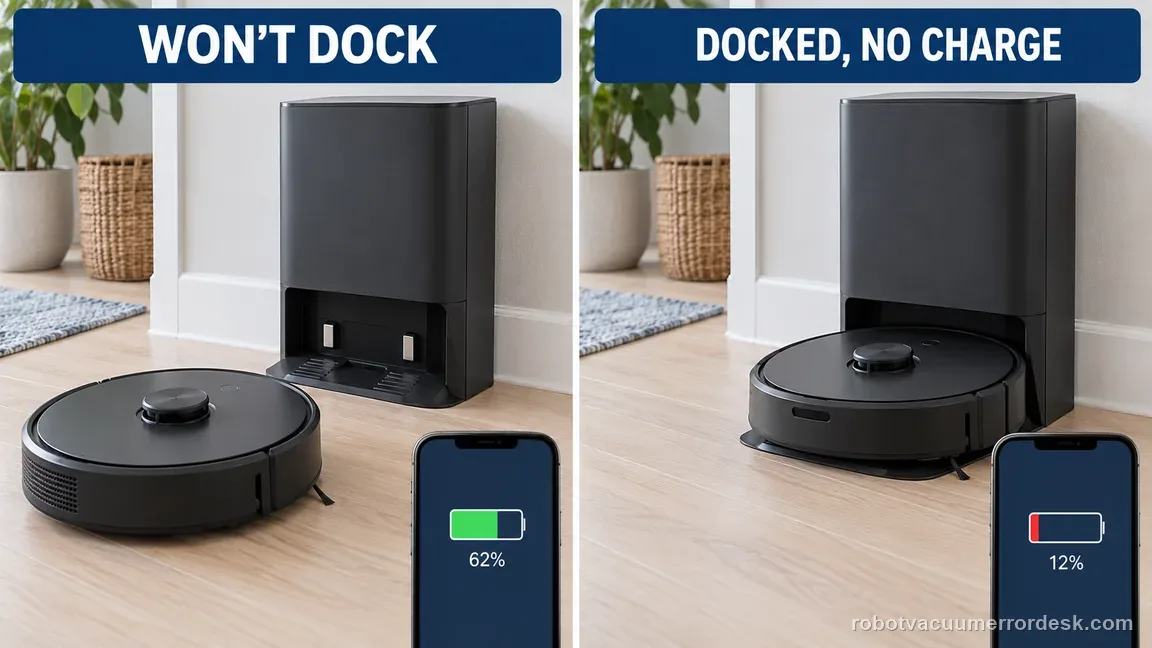
- The L20 Ultra sits at the base but battery percentage does not rise.
- The base appears inactive or the charging symbol never appears.
- Charging starts only when the robot is pushed farther into position.
- The robot returns to the base but its displayed battery level does not rise.
If charging works but the separate symptom is a map that will not persist, check the X50 map-saving path instead of repeating dock tests: Dreame X50 map-not-saving checks
What’s most likely causing this
Base station power cord or rear power switch not providing station power
Contamination or poor contact between the robot and base pads
Position-sensitive contact pressure or seating geometry
An internal charging fault if power and contact checks do not restore charging
Reading your test result
| What you observe | What it narrows down | Next move |
|---|---|---|
| Base appears unpowered | Station power is not confirmed. | Check both cord ends, outlet, and rear switch. |
| Charging appears only under hand pressure | Contact position needs review. | Clean the pads and reseat without holding the robot. |
| Powered station; dirty contact pads | The connection may be interrupted. | Unplug, dry-wipe both sides, then retest. |
| Battery reading rises while seated | Charging has started. | If it also fails to return, use the navigation checks. |
| No increase after power and seating checks | Owner-level checks did not resolve it. | Contact Dreame with photos and test readings. |
Do not factory-reset by default. Use the exact model’s reboot/network-reset procedure only when the manufacturer path calls for it.
Work through these checks in order
Verify the cord and rear base switch
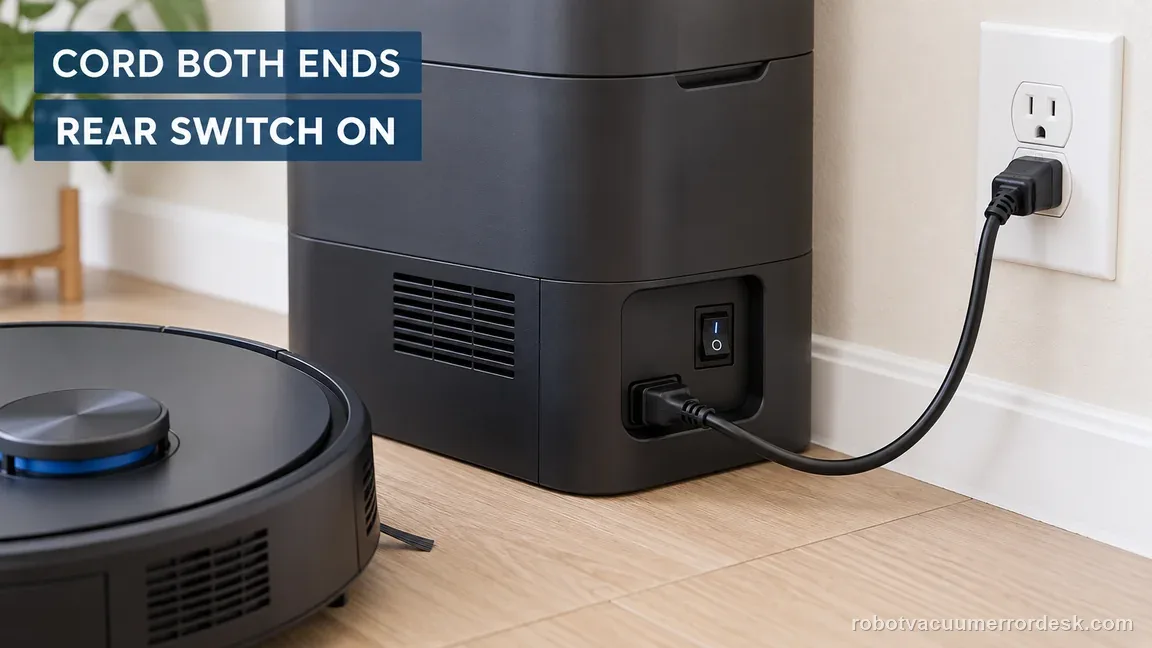
Check the outlet-side plug and the connector at the back of the base. Dreame also calls out the rear power switch. Confirm the base is on before cleaning contacts; a robot cannot charge from a station that has no power. Do not open the base or reach inside it.
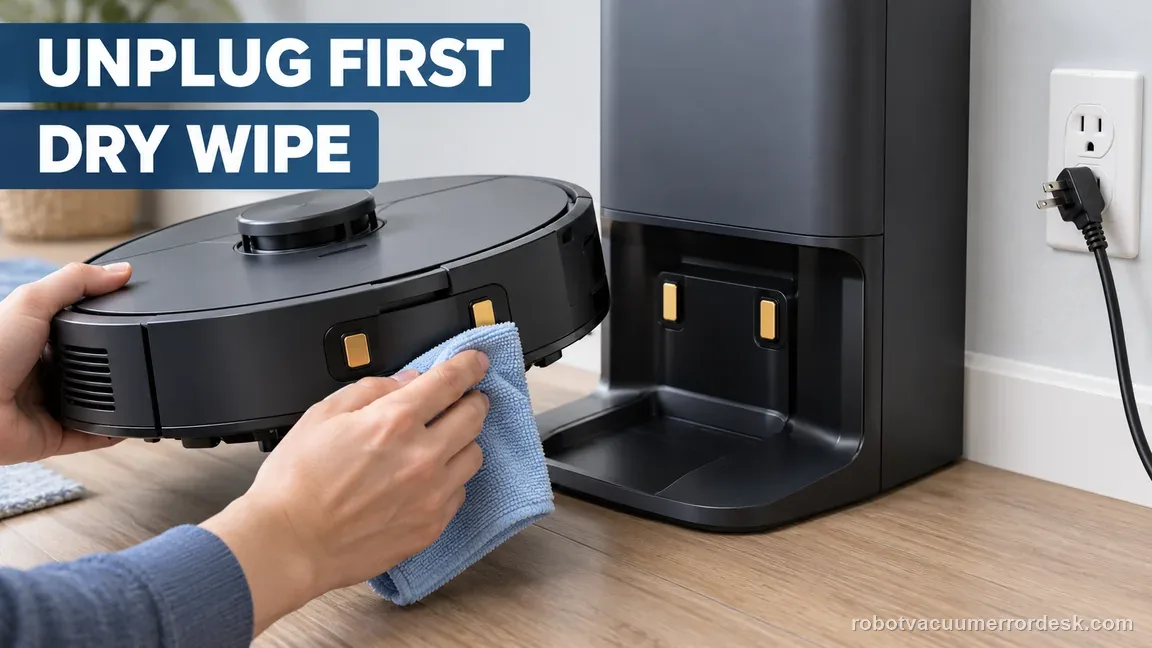
Unplug the base before cleaning both contact sets
Disconnect station power first. Use a clean, dry, soft cloth on the robot and base contact pads. Remove visible dust or film without scraping, bending, or forcing a contact. Let the surfaces dry fully before reconnecting the station and returning the robot to the base.
Align the robot so the contacts meet squarely
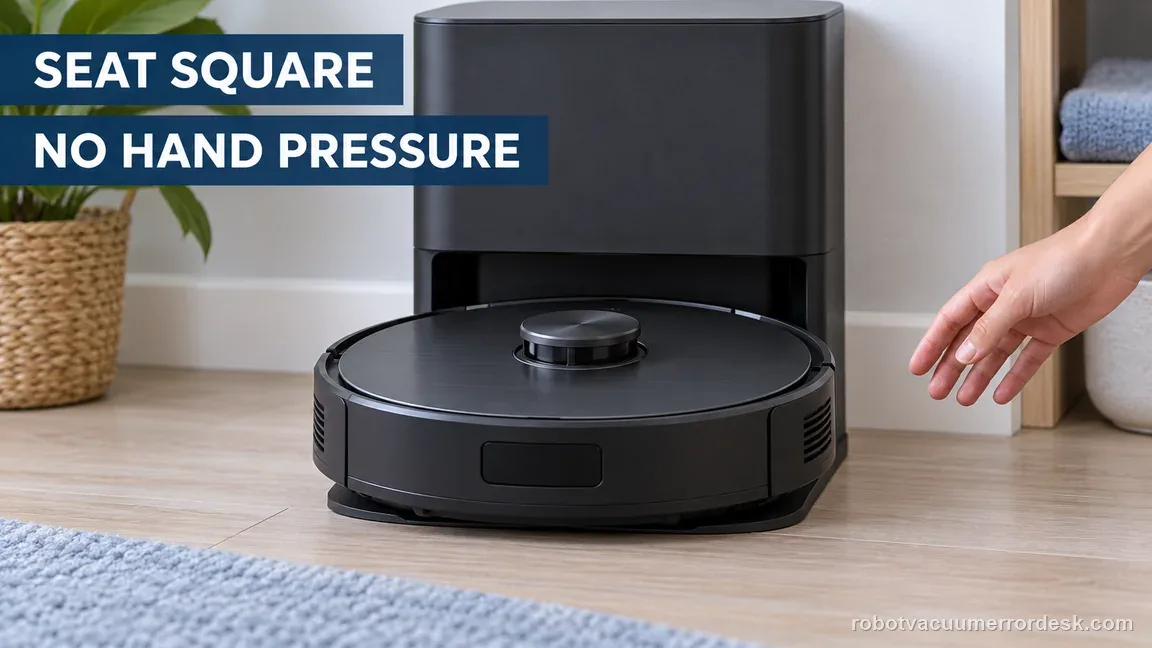
Dreame's charging article includes adjusting the contact position between the robot and base. Reseat the robot straight on the dock, then release it. The exposed charging connector area is the contact interface only; inspect the visible pads, not the inside of the robot. Do not probe for foreign material inside the connector or use a tool to reach it. Do not hold or push it against the station to keep charging. If a contact looks bent, loose, or damaged, stop and ask Dreame rather than bending it back.
Place it on the base by hand to isolate navigation
If the robot cannot find the base, put it on the station manually after power and contact checks. This separates an automatic return problem from a charging problem. Watch for the charging state, but do not treat a brief icon alone as proof that the battery is gaining charge. Record whether the robot stays seated without pressure.
Record a before-and-after battery reading
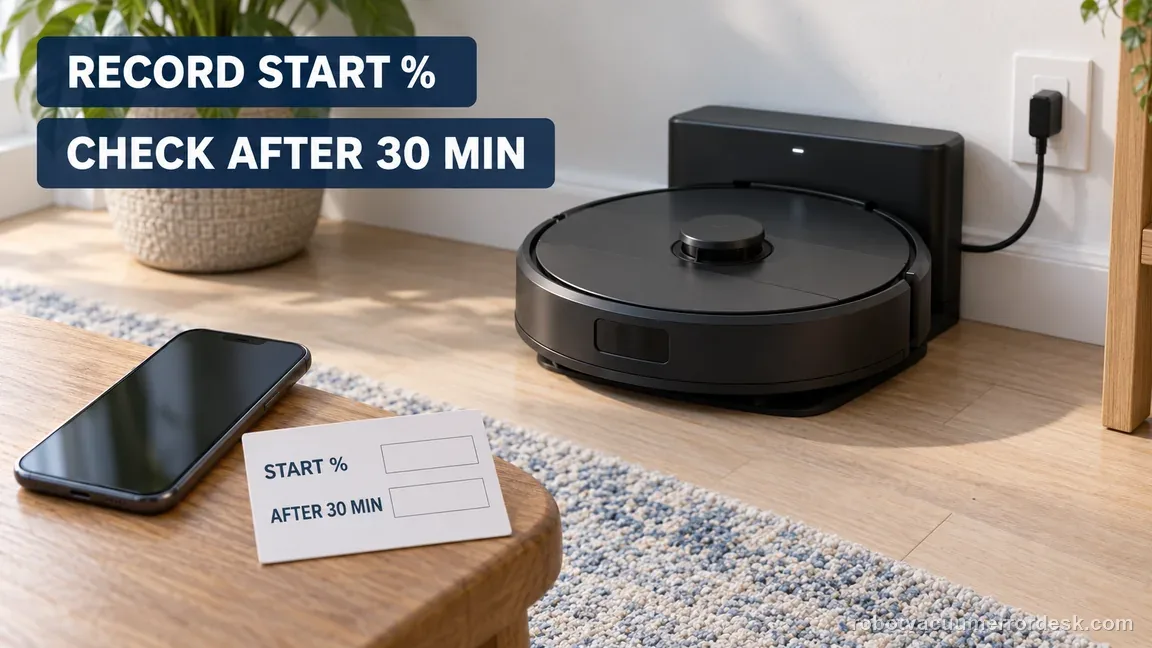
Write down the displayed battery level when charging begins, then check it again after a consistent observation interval. A 30-minute log is a convenient example, not a Dreame service threshold. A percentage increase is stronger evidence than a short-lived charging symbol. If the number stays flat, record the result and avoid repeated docking attempts.
Stop after the owner-level power and contact checks
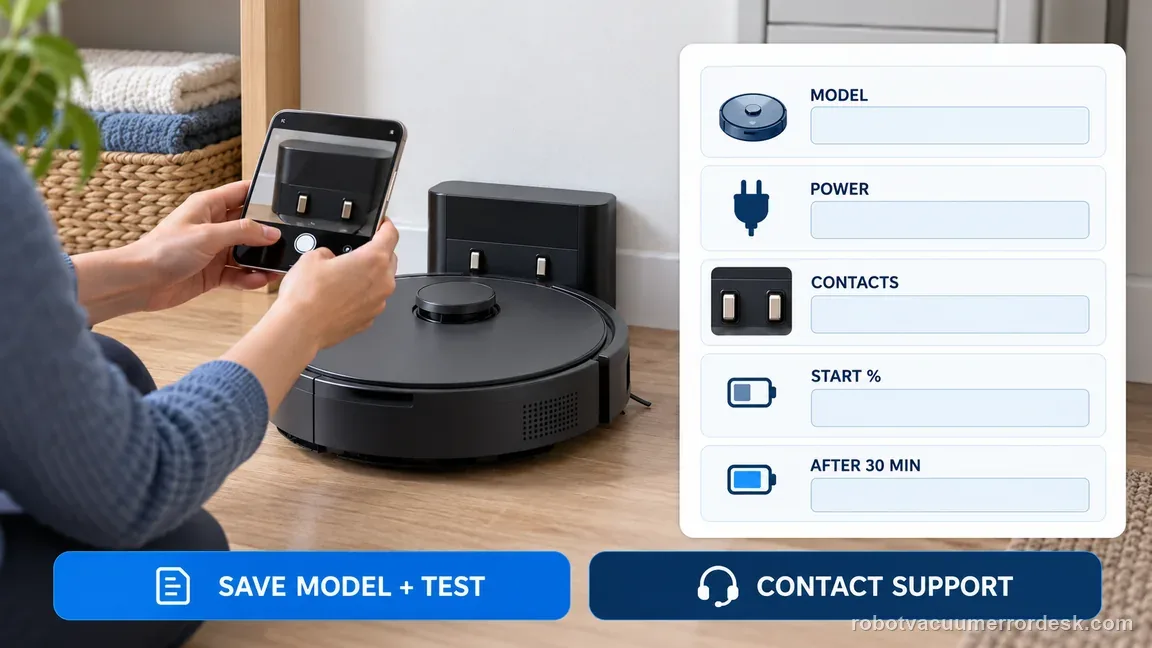
If the station has power, contacts are clean and aligned, and the robot still will not gain charge while seated, stop repeating the same test. Share the exact model, contact photos, whether charging is absent or position-sensitive, and the before-and-after readings with Dreame support. Do not replace the battery or open the dock based on one failed attempt.
Separate a return failure from a charging failure
Use what the robot does at the base to choose the next check. This comparison keeps a docking route problem from turning into an unnecessary battery diagnosis.
| What you observe | What it suggests | Next useful check |
|---|---|---|
| Robot stops short of the base. | Automatic return or navigation issue. | Use the L20 Ultra docking checks first. |
| Robot sits squarely; no charge state appears. | Base power or contact path. | Check both cord ends and rear switch. |
| Charging appears only while pushed. | Position-sensitive contact connection. | Clean pads, then reseat without pressure. |
| Battery level rises while seated. | Charging has started. | Record the result; stop charging tests. |
| Power and contact checks pass; level stays flat. | Owner-level checks did not resolve it. | Contact Dreame with the observed readings. |
Two illustrative charge logs, worked through
These numbers show how to document a result. The 30-minute interval is an example, not a Dreame charging-time or battery-health standard.
Example A: charging begins after a power check
- The robot is seated but shows 24% before the test.
- The base was off; both cord ends are seated and the rear switch is turned on.
- After the robot is seated squarely, the display reads 27% after 30 minutes.
What it shows: The level rose after station power was restored. Record that change; these numbers are one illustrative observation, not a pass target.
Example B: power and contacts pass, but the level stays flat
- The base is powered; both contact sets are clean and the robot rests squarely without pressure.
- The display reads 37% at the start and 37% after the same 30-minute observation interval.
- One repeat with the same seating produces the same displayed level.
What it shows: The owner checks did not restore a measurable increase. Stop repeating tests and send Dreame the readings and contact photos; do not assume the battery is the failed part.
Illustrative charging decision path
This flow organizes Dreame’s published power and contact checks. The battery-reading interval is an editorial logging example, not a manufacturer threshold.
- 1Does the base have power?
YESYes: unplug it before contact cleaning.
NONo: check both cord ends and the rear switch; if still unpowered, contact Dreame.
- 2Are both contact sets clean and aligned?
YESYes: reseat the robot squarely and release it.
NONo: leave power disconnected, clean both sides, then align without bending or forcing.
- 3Does the battery reading rise while seated?
YESYes: record the observation; charging has started.
NONo: document the unchanged reading and contact Dreame after the checks above.
Common mistakes to avoid
- Replacing the battery before checking base power and contact alignment.
- Holding the robot against the dock and treating pressure-dependent charging as a repair.
- Factory-resetting a map to diagnose a robot already seated on the base.
- Opening the dock or bending a contact instead of contacting Dreame.
Contact Dreame when both cord ends and the rear switch are verified, the robot and base contacts are clean and aligned, and the battery level still does not rise while the robot sits squarely. Send contact photos and note whether charging is absent, intermittent, or position-sensitive. Do not open the base or replace the battery because of one failed attempt.
Before you contact support, gather this
A reproducible case moves a support call past the basic troubleshooting script faster than “it doesn’t work” does, and it keeps the clues from your own tests on record.
- Exact model name and the error code / voice prompt exactly as shown
- A photo or screenshot of the app error and the time it occurred
- A short list of the checks already completed and what happened after each one
- Short video showing the failed docking, mapping or base-station behavior
- Firmware version shown in Dreamehome
Where this comes from
Dreame Ultra charging troubleshooting
Dreame's series charging article explicitly includes L20 Ultra and directs owners to verify both power-cord ends and the rear switch, cut power, clean contacts, and adjust their position. The 30-minute battery-reading interval is an editorial logging example, not a manufacturer threshold.
Additional official source: Dreame L20 Ultra — Fails to Return for Charging ↗Last editorial review: September 5, 2026Regional note: manufacturer help centers, model suffixes, mains-power requirements and warranty procedures can differ by country. If the source redirects to a local support site, confirm that the model/hardware scope still matches before following a region-sensitive step.
This guide is rated Official series support. See what each evidence label means →
Questions people ask
Does a Dreame L20 Ultra that will not charge automatically need a new battery?
No. Dreame's charging procedure starts with base power, the rear switch, and the charging contacts. Manually seating the robot separates charging from an automatic return failure. If a powered station and clean, aligned contacts still do not produce a battery-level increase, contact Dreame before replacing the battery.
Why should I check the L20 Ultra base power switch?
Dreame calls out the rear base-station switch as well as both ends of its power cord. Check the wall plug, station-side connector, and switch before contact work. Unplug the station before cleaning, then restore power when the pads are clean, dry, and ready for a retest.
What if my L20 Ultra charges only when I push it into the base?
That pattern makes contact position worth checking before the battery. Disconnect station power, clean both exterior pad sets, and reseat the robot squarely. If the charge state disappears as soon as you release it, record that behavior for Dreame support instead of holding the robot against the dock.
Should I reset the L20 Ultra map for a charging problem?
Not for a robot already on the base. You can test charging by seating the L20 Ultra manually, which removes the automatic route from that check. If the robot cannot find the station, troubleshoot that navigation symptom separately; a map reset does not establish whether the charging contacts work.
When should I contact Dreame about L20 Ultra not charging?
Contact Dreame after checking both cord ends and the rear switch, cleaning the contact pads with station power disconnected, and reseating the robot squarely. Share whether charging is absent or position-sensitive and include before-and-after battery readings. Do not open the station to investigate an internal fault.
Did this diagnostic narrow the fault?
Use this as an editorial signal, not a popularity counter. If a feedback address is configured you can email the note; otherwise you can copy it for your own support record.