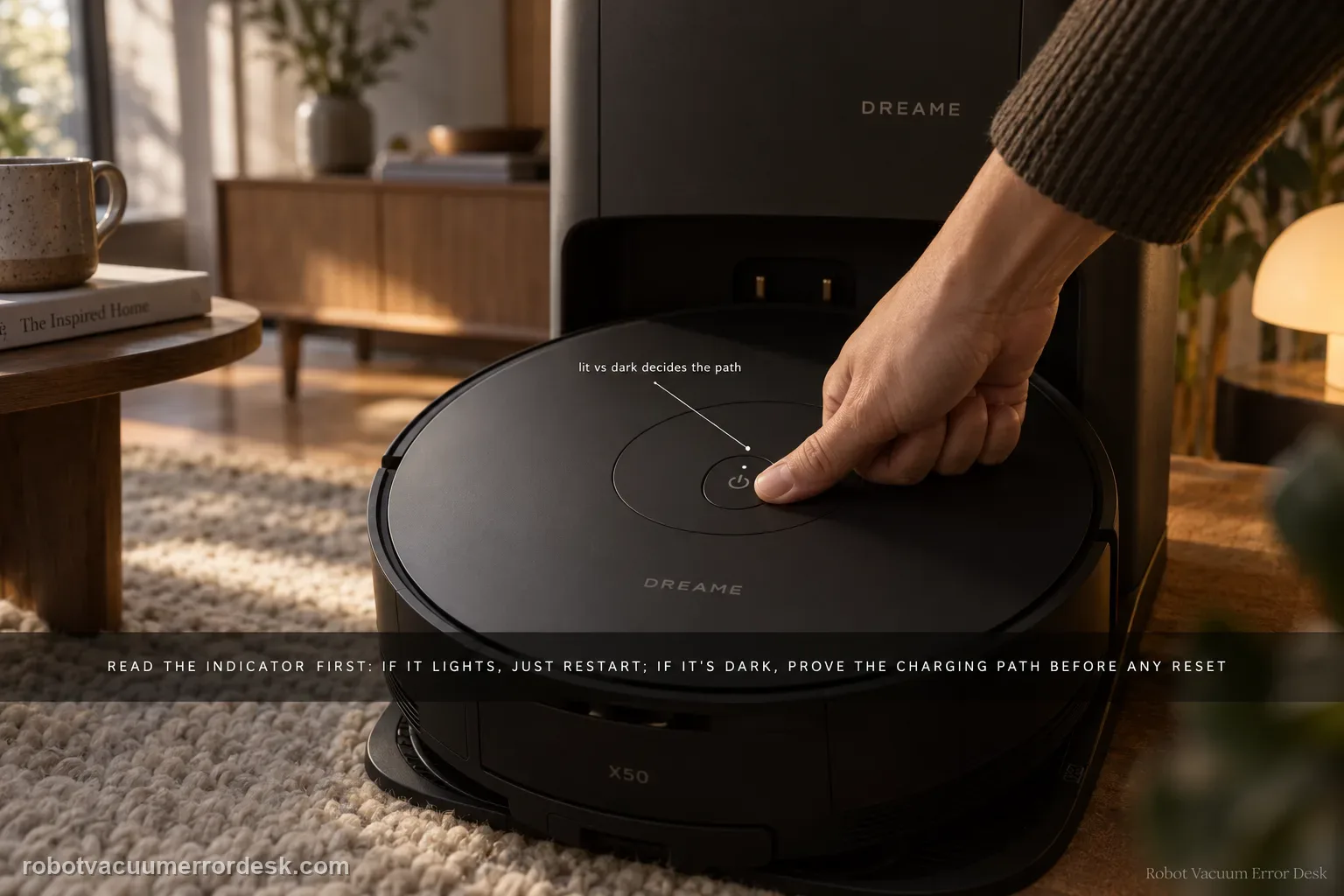
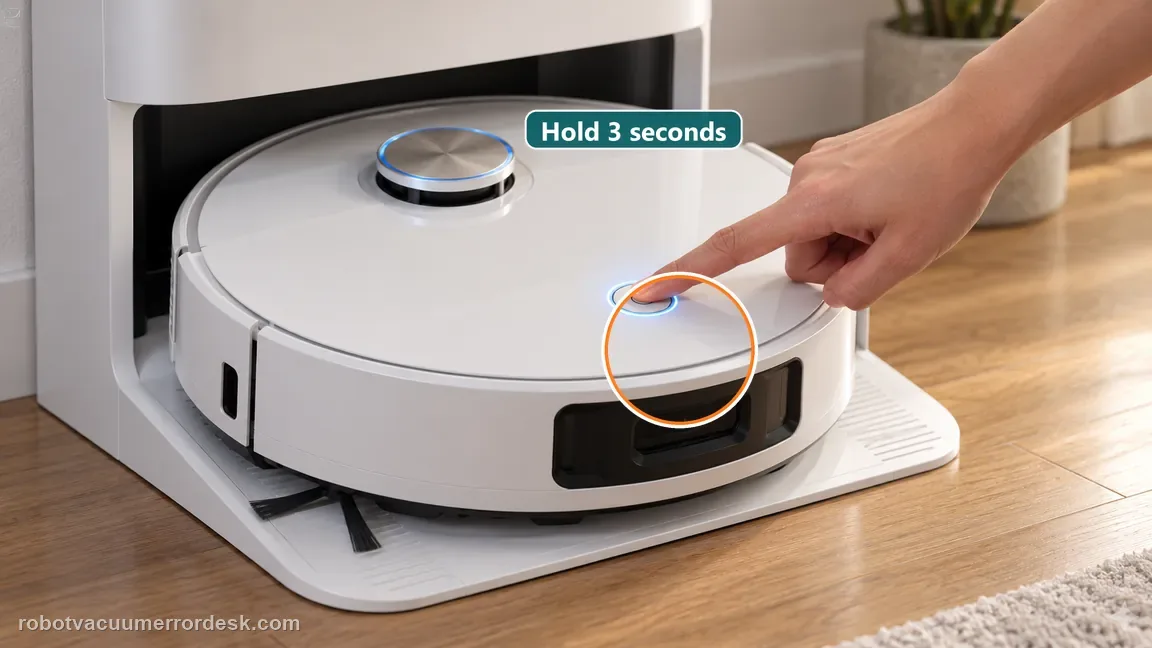
Do not jump straight to factory reset. Dreame’s exact X50 article first splits the diagnosis by the Power/Clean indicator. If the indicator lights, the robot has enough life to try a restart; reset is a later branch. If the indicator does not light, prove the charging path: base power, both ends of the power cord, clean robot/base contacts and a manual alignment on the dock. Dreame also says to hold Power/Clean for 3 seconds while docked if it does not start automatically. Only after those checks does the article return to reset, and it warns that factory reset clears all data including saved maps.
Confirm the exact model and exact code, light pattern or symptom.
Run the lowest-risk physical or software check first.
Use each pass condition to decide what the result actually narrows down.
Does this match your problem?
- The X50 Ultra Complete shows no normal response when you press Power/Clean.
- The robot appears dead after sitting away from the base or after a suspected charging interruption.
- The Power/Clean indicator lights but the robot does not start normally.
- The robot does not wake automatically when manually seated on the powered base.
- You are considering reset and want to avoid erasing maps before proving the low-battery/charging branch.
Most likely causes
Robot is responsive but stuck in a system state that may clear with restart
Battery is too low to start because the robot has not been charging
Base station is unpowered or its cable is not fully connected
Dirty/misaligned charging contacts prevent the low battery from recovering
Persistent system condition requiring the documented factory reset after power is proven
Battery, power-management or main hardware fault after all owner-level branches fail
What your test result means
| What you observe | What it narrows down | Next move |
|---|---|---|
| Power/Clean indicator lights | The robot has a response, so start on the restart/system branch rather than low-battery diagnosis. | Hold Power/Clean to restart; use factory reset only if the documented restart path does not recover it. |
| Indicator does not light | Dreame directs the diagnosis toward low battery and charging status. | Prove base power, clean contacts and manually align the robot on the station. |
| Robot wakes/charges when manually docked | The power path is working and a discharged battery was at least part of the symptom. | Let it recover charge and retest normal power-on before any destructive reset. |
| Powered dock + clean aligned contacts still produce no response | The simple low-battery/contact explanation is no longer enough. | Use the documented reset only if appropriate, then escalate if the robot remains unresponsive. |
| Factory reset would be the next step | The low-risk indicator and charging branches have been exhausted, and reset has a real data-loss cost. | Record the pre-reset states first, accept that saved maps will be erased, and escalate if reset does not restore operation. |
Reset can erase maps/settings on this path. Use lower-risk checks first and document the current state before resetting.
Run these checks in order
Classify the Power/Clean indicator before changing anything
Press the Power/Clean button and watch the indicator. Dreame uses this as the first branch in the exact X50 support article. If the indicator lights, the robot is responsive enough to stay on the restart/system branch. If it stays dark, the article tells you to proceed to charging and battery checks instead. Record the result before docking or resetting because it distinguishes “robot had power but would not start” from “robot may simply be deeply discharged or not receiving charge.” This prevents a factory reset from being used as a generic cure for a missing power path.
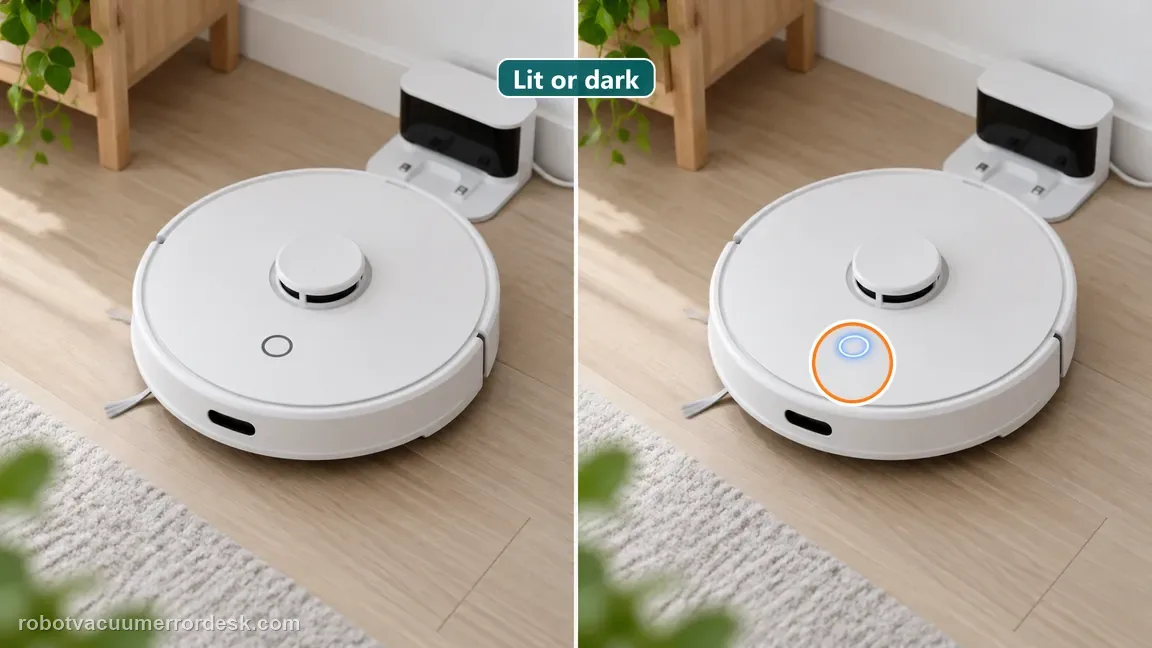
If the indicator lights, try the normal restart branch first
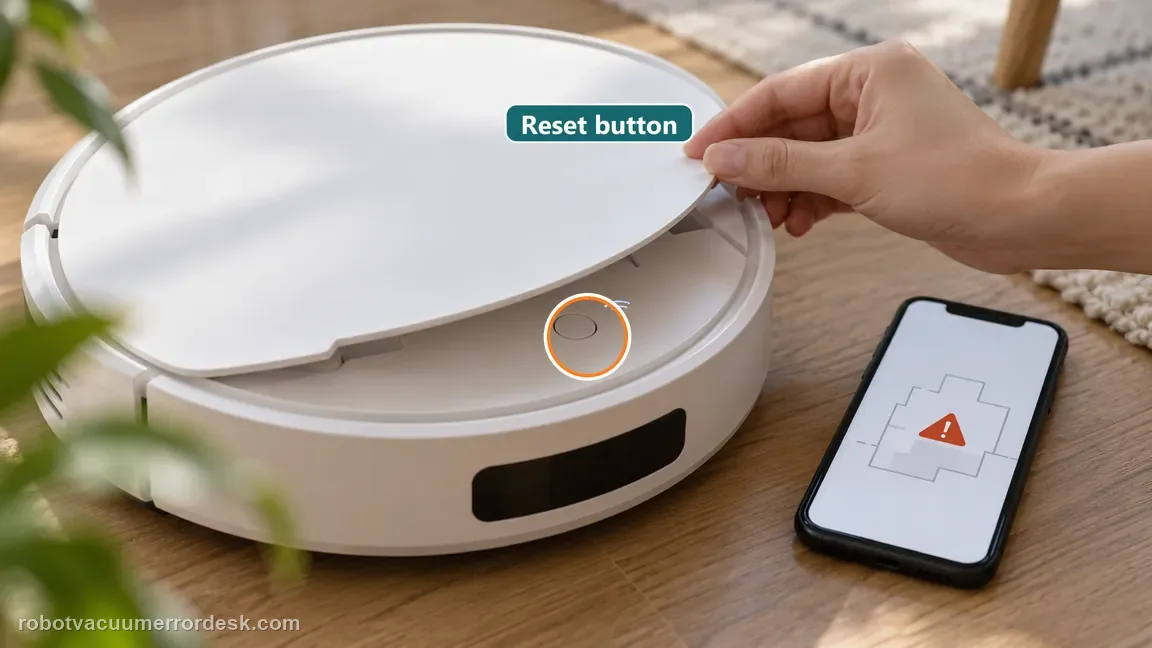
When the indicator lights, Dreame says to press and hold Power/Clean to restart the robot. Give the restart time to complete and look for a normal voice/indicator sequence. If the robot recovers, there is no reason to erase maps. If it remains stuck, the exact article documents a reset under the upper cover: press and hold the reset button with a tool for about 3 seconds until the voice prompt says it is starting to restore factory settings. Treat that reset as a later branch because Dreame explicitly warns about data loss.
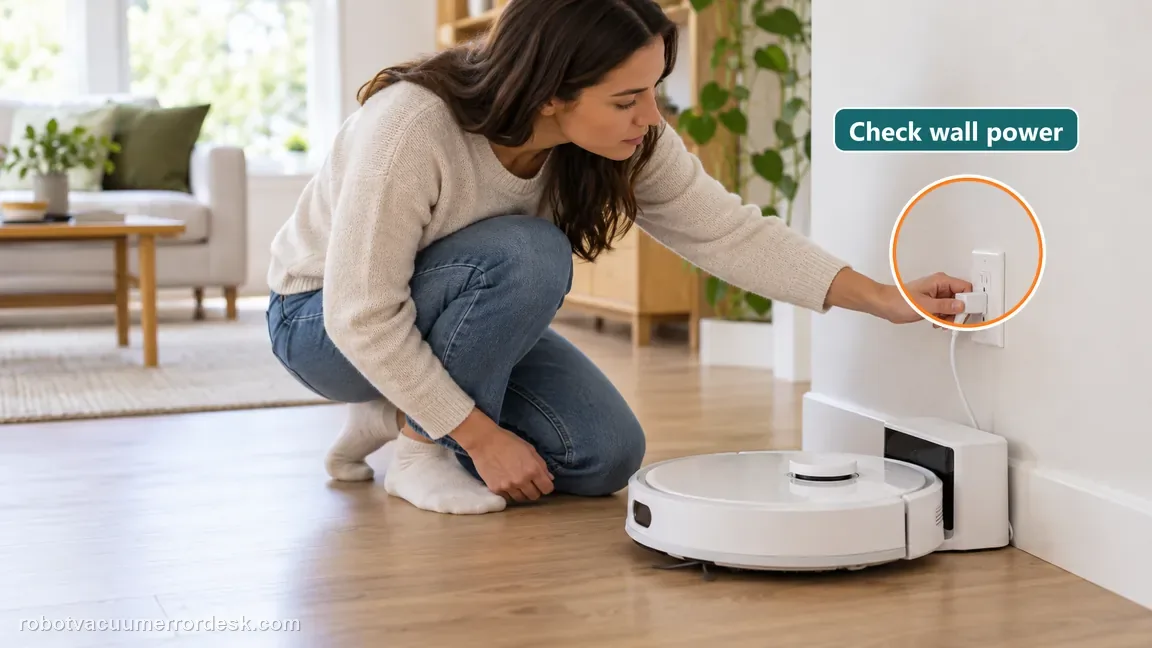
If the indicator is dark, prove base power and charging contact
Check that the base station is connected to power and that both ends of the power cord are properly plugged in. Then clean the charging contacts on both the robot and the base so residue cannot block the electrical connection. Manually place the X50 on the station and align the metal contacts rather than relying on autonomous docking. This is the core low-battery test in Dreame’s article: a robot with too little battery to boot may only become informative after the dock is proven powered and physical contact is established. Dreame's X50 manual says not to use or store the robot below 0°C (32°F) or above 40°C (104°F), and says to charge it above 0°C and below 40°C. If the robot has been stored in a garage, vehicle or overheated room outside that range, move it to a normal indoor environment and let it return within the documented charging range before judging the battery branch. Do not heat or chill the robot directly. Once it is in range, check the Power/Clean indicator, verify base power and contact alignment, and continue through the X50 charging test. The temperature limit is a manual operating condition, not a diagnosis of battery damage.
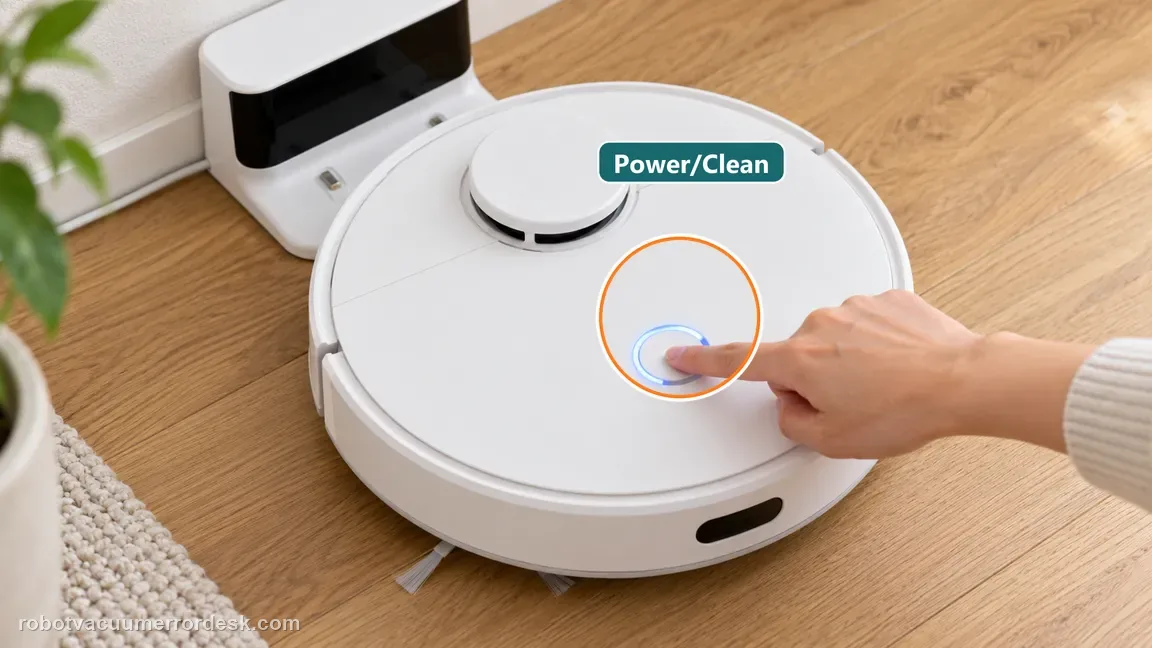
Watch for automatic wake, then try the 3-second power hold
With the X50 manually docked, observe whether it begins charging or powers up automatically. If it does not start automatically, Dreame specifically tells owners to press and hold the Power/Clean button for 3 seconds to see whether the robot can be powered on. Keep the test controlled: do not move the base, change the map and repeatedly reset at the same time. A wake-up while docked strongly supports a depleted-battery/charging-path explanation. Continued silence on a confirmed powered dock is more significant and justifies the final documented branch. The X50 manual says to hold Power/Clean for 3 seconds to turn the robot on; once it is awake, a press starts cleaning. The same manual reserves a 10-second hold for a robot that stops responding or cannot be turned off: hold until it forcefully shuts down, then hold Power/Clean for 3 seconds to start it again. Dreame's power-failure article gives the separate docked test of a 3-second hold after the robot is manually aligned on a powered station. Do not confuse those actions with the recessed reset button under the cover. The manual says holding that reset button for 3 seconds restores factory settings, and the support article warns that this clears saved maps and other data. Try the ordinary power/restart sequence before the destructive reset path.
Use factory reset only with the data-loss warning understood
If the X50 still does not recover and you are following Dreame’s support path, the article returns to the reset button under the upper cover. Dreame warns that resetting clears all data, including saved maps. That makes reset a diagnostic boundary, not a harmless first step. Before using it, note whether the indicator ever lit and whether the robot responded on a confirmed powered dock. If the robot remains unresponsive after reset, or cannot charge despite clean contacts and a powered station, stop repeating the reset because the remaining fault is more likely battery, power-management or other hardware that needs service.
Escalate if the X50 remains dead on a confirmed powered base with clean/aligned contacts, does not respond to the documented 3-second Power/Clean test, or stays unresponsive after the factory-reset branch. Tell Dreame whether the indicator ever lit, whether charging appeared when manually docked, and whether reset was performed. Because reset clears maps/data, that history matters to support.

What to collect before contacting support
Give support a reproducible case instead of “it doesn’t work.” That reduces repeated basic troubleshooting and preserves the clues from your tests.
- Exact model name and the error code / voice prompt exactly as shown
- A photo or screenshot of the app error and the time it occurred
- A short list of the checks already completed and what happened after each one
- Short video showing the failed docking, mapping or base-station behavior
- Firmware version shown in Dreamehome
Manufacturer evidence
Dreame X50 Ultra Complete — Power On Failure
Dreame’s exact X50 Power On Failure article branches first on the Power/Clean indicator, then checks base power, both power-cord ends, charging-contact cleanliness and manual alignment. It specifies a 3-second Power/Clean hold while docked and a reset under the top cover, and warns that factory reset clears all data including saved maps.
Additional official source: Dreame X50 Ultra User Manual ↗Last editorial review: October 11, 2026Regional note: manufacturer help centers, model suffixes, mains-power requirements and warranty procedures can differ by country. If the source redirects to a local support site, confirm that the model/hardware scope still matches before following a region-sensitive step.
This guide is rated Official model support. See what each evidence label means →
FAQ
Why does the Power/Clean indicator matter?
Dreame uses the Power/Clean indicator as the first branch in the exact X50 article. If it lights, the robot is responsive enough for the restart/system branch. If it stays dark, Dreame sends you to low-battery and charging checks. Recording that state before docking or resetting prevents a depleted battery from being confused with a responsive robot that is stuck in software.
How long should I hold Power/Clean while the robot is docked?
Dreame says to press and hold Power/Clean for 3 seconds if the X50 does not start automatically after it is manually placed on the powered base. That test comes after base power, both cord ends, clean charging contacts and correct contact alignment are checked. A response while docked supports a low-battery/charging-path explanation rather than proving the robot needs a factory reset.
Will factory reset erase the X50 map?
Yes. Dreame explicitly warns that factory reset clears all data, including saved maps. That is why the guide treats reset as a late branch instead of a harmless first step. Prove indicator response and the charging path first, then record whether the robot wakes on a powered dock. If those checks fail and you reset, understand that the current maps/settings will be lost.
What if the X50 is completely dark after sitting off the dock?
A dark Power/Clean indicator sends the exact Dreame flow to low-battery and charging checks. Verify the base is powered, both cord ends are connected, clean the robot/base contacts, and manually align the X50 on the station. If it does not wake automatically, hold Power/Clean for 3 seconds. Continued silence after a proven charging path is stronger service evidence than repeated button pressing.
When should an X50 power-on failure go to Dreame support?
Escalate when the robot remains unresponsive on a confirmed powered station with both power-cord ends secure, clean aligned charging contacts, and the documented Power/Clean/restart path already tested. If you also used the factory-reset branch, say so because it erases maps and changes the software state. Report whether the indicator ever lit and whether any charging response appeared when manually docked.
Did this diagnostic narrow the fault?
Use this as an editorial signal, not a popularity counter. If a feedback address is configured you can email the note; otherwise you can copy it for your own support record.