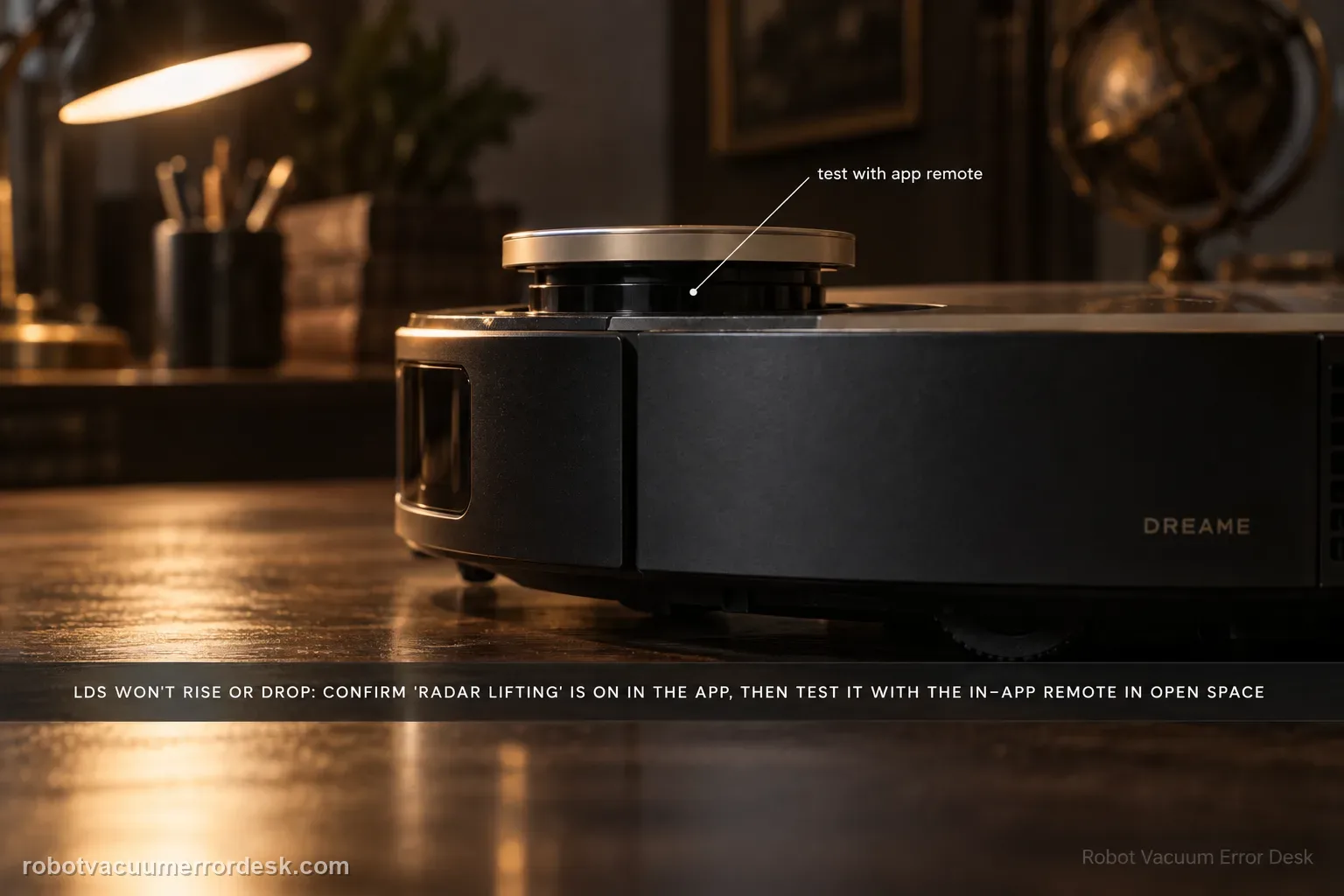
For an X50 whose retractable LDS specifically will not raise or lower, use the lifting-function branch rather than the generic LDS-malfunction page. Dreame’s exact support article says to check current firmware, move the robot to an empty unobstructed area, verify that the radar lifting function is turned on in the app, and use the remote control in the app’s accessibility settings to test whether the radar can raise/lower normally. Then inspect the radar surface and top cover for lifted stickers or debris, clean them, and restart. The manual is important context: the VersaLift sensor is intentionally lowered in standby, while charging and during low-clearance cleaning. So ‘tower is down on the dock’ is not a failed lift test. Do not pull the tower upward or disassemble it. If the remote-control lift test fails in an open area after cleaning/restart, capture that exact result for Dreame.
Confirm the exact model and exact code, light pattern or symptom.
Run the lowest-risk physical or software check first.
Use each pass condition to decide what the result actually narrows down.
Does this match your problem?
- The X50 reports that LDS/radar cannot be raised or lowered.
- The retractable top sensor fails the app’s lift/remote-control test in an open area.
- You suspect the radar-lifting option is disabled or an external sticker/debris is interfering with travel.
- The LDS is simply lowered while charging or standby; the manual says that can be normal and is not enough to match this page.
- The app reports a general LDS sensor malfunction rather than a lift-state failure; use the separate malfunction guide for that intent.
Most likely causes
Radar lifting function is disabled or not being exercised in the correct app state
Robot is in standby/charging/low-clearance behavior where the manual intentionally lowers VersaLift
Testing in a cluttered area prevents a clean raise/lower diagnosis
Lifted sticker or external debris on the radar/top cover interferes with movement
Temporary firmware/system state changes after update/restart
Persistent lift-mechanism hardware fault after the app remote-control test fails
What your test result means
| What you observe | What it narrows down | Next move |
|---|---|---|
| LDS is down only while charging or standby | The X50 manual documents that as normal VersaLift behavior. | Reproduce a real lift command/task failure before troubleshooting hardware. |
| Direct app lift command works in open area | The lift mechanism can move; task/mode/configuration context is more relevant. | Retest the original scenario and compare the app lifting setting/low-clearance state. |
| Lift command fails and external debris is visible | An owner-accessible obstruction may be blocking the mechanism. | Remove only loose external material and repeat the same command without forcing the tower. |
| Lift command works, but app reports LDS sensor malfunction | The sensor-state error is more exact than a lift-mechanism failure. | Use the dedicated LDS sensor-malfunction path. |
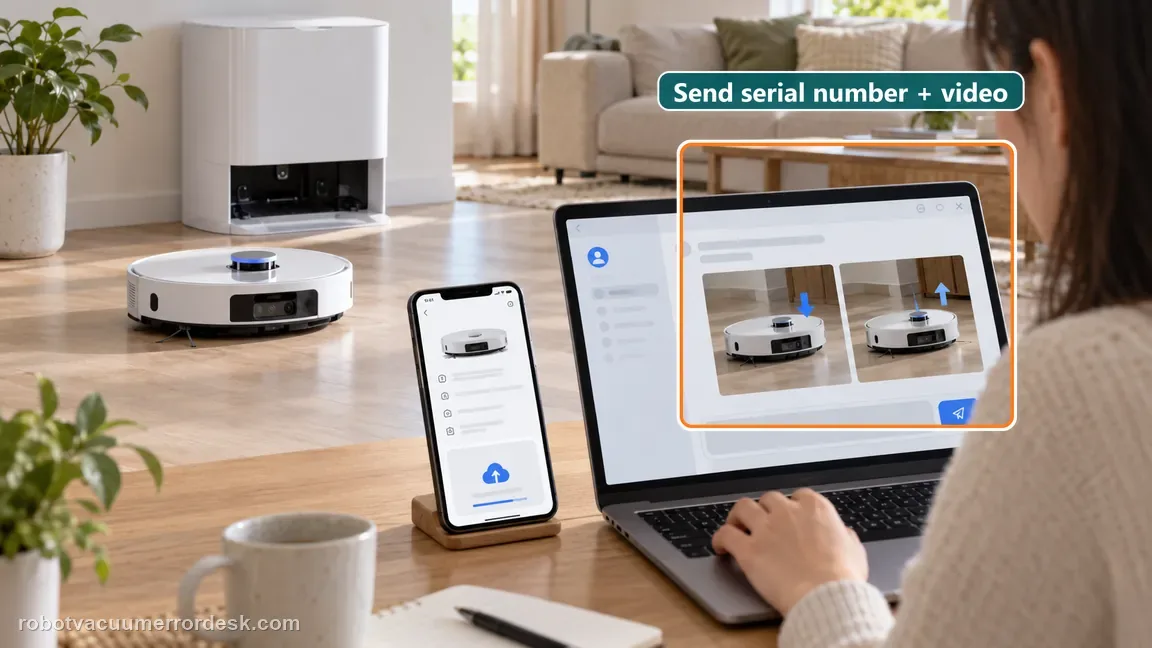
| Open-area direct lift still fails after cleaning/restart | The exact owner-level lift checks are exhausted. | Send Dreame SN and video showing the command/response; do not disassemble the turret. |
Reset can erase maps/settings on this path. Use lower-risk checks first and document the current state before resetting.
Run these checks in order
Confirm the symptom is raise/lower failure, not normal lowered standby
The X50 manual calls the retractable top unit the VersaLift sensor and says it is lowered when the robot is in standby, charging on the base, or cleaning low-clearance areas. Therefore, seeing the tower down while docked is not itself a failure. Match this guide when the robot/app reports a raise/lower problem or when the tower fails a deliberate app lift test under the conditions Dreame specifies. If the message is instead ‘LDS sensor malfunction,’ use the separate sensor-malfunction page because Dreame publishes a different diagnostic path.
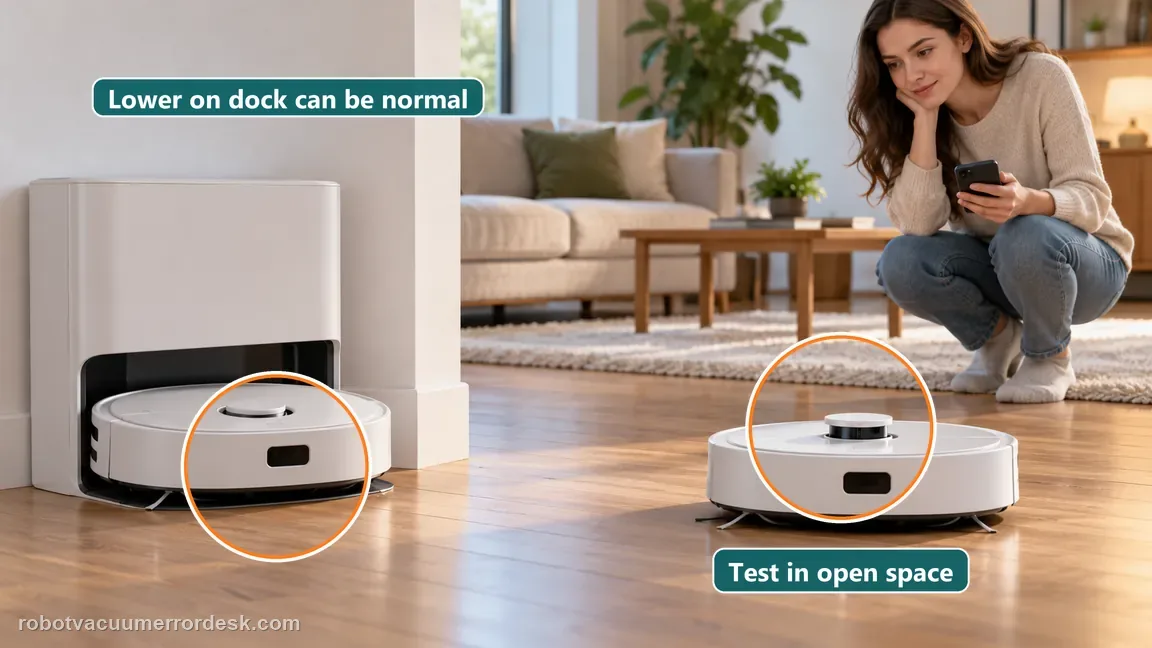
Check firmware, then move the X50 to an empty open area
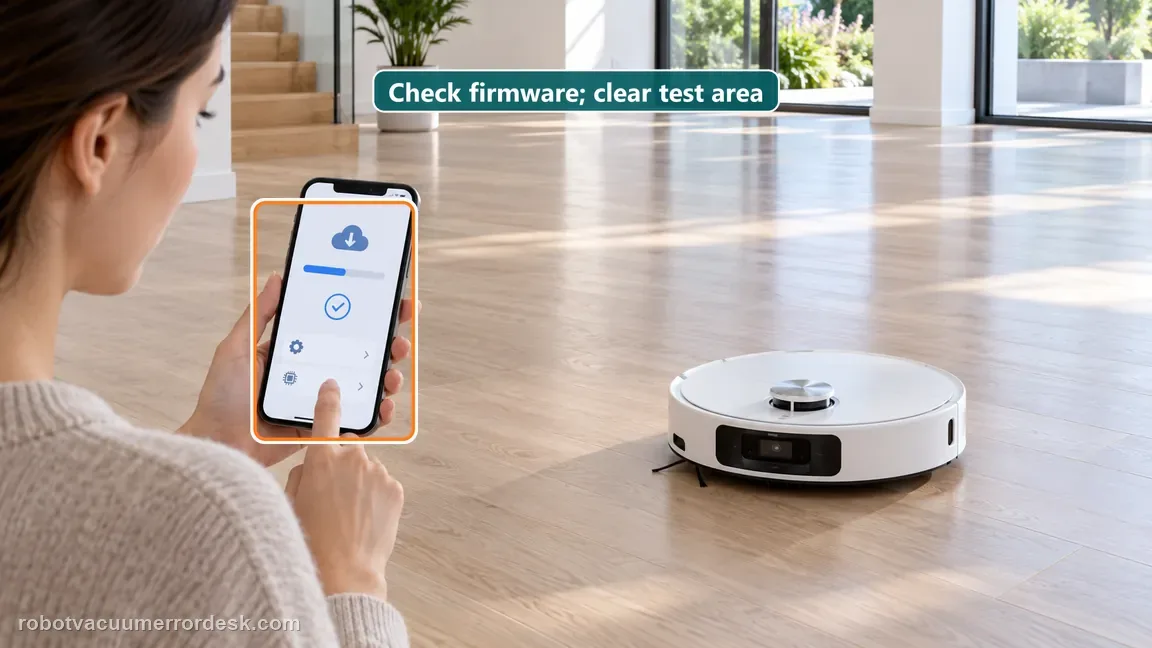
Dreame’s exact raise/lower article starts with current firmware and then says to move the robot to an empty, unobstructed area for testing. Record the firmware version and update if available. Place the robot on a level open floor away from low furniture so the VersaLift logic is not being influenced by a low-clearance task. Do not carry it mid-clean under furniture and immediately judge positioning; the manual warns that moving the robot while it is cleaning low-clearance areas may affect positioning.
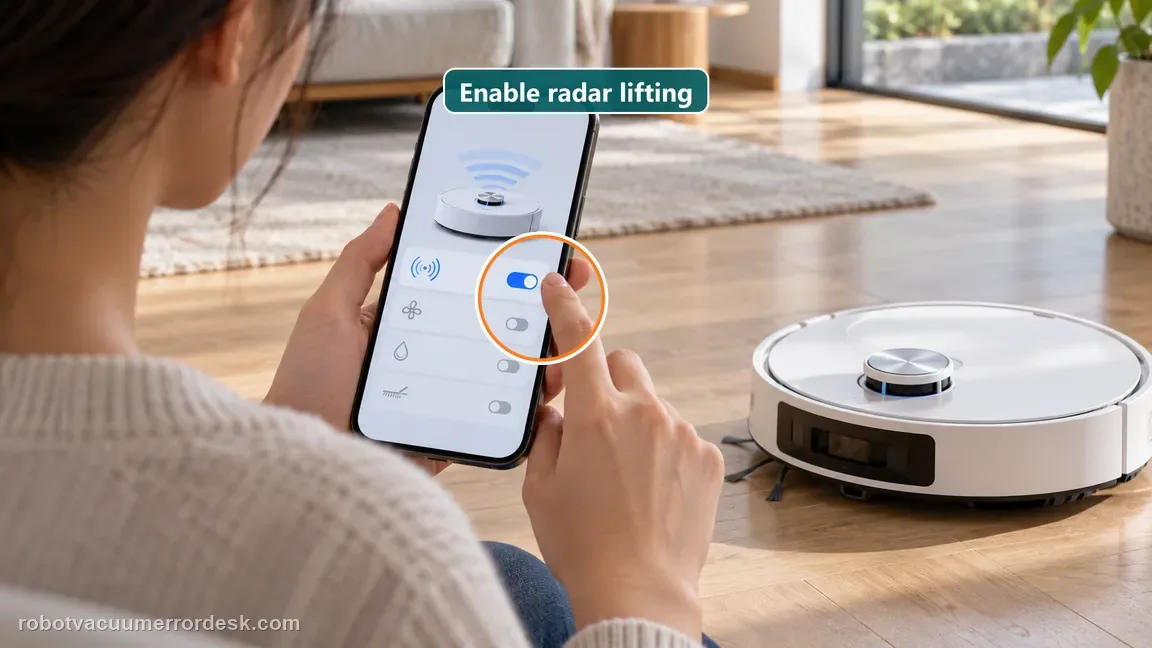
Verify the radar lifting function is turned on in the app
Open the relevant X50 settings and confirm that the radar/LDS lifting function Dreame references is enabled. App labels can change by version/region, so follow the current Dreamehome wording rather than hunting for an exact old screenshot. Keep a screenshot of the setting state if the failure persists. This step separates a disabled/configured behavior from a mechanism that is being commanded to move but cannot. Do not change obstacle, map and cleaning settings at the same time; one variable is enough for the test.
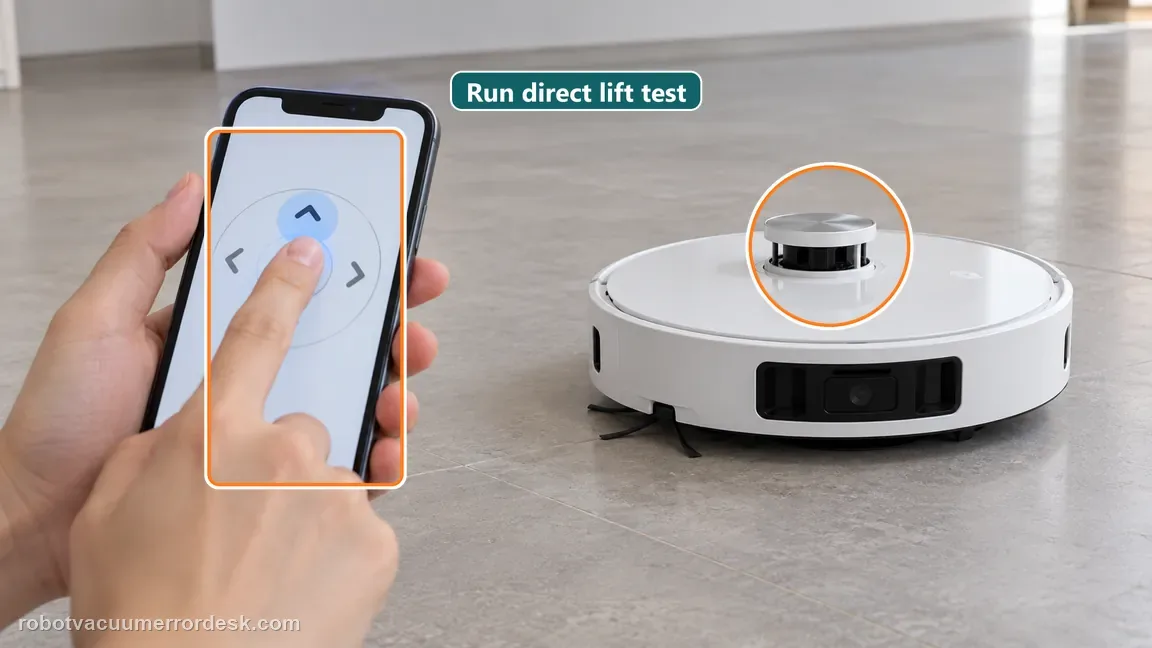
Use the app remote-control/accessibility lift test
Dreame specifically tells owners to use the remote control in the app’s accessibility settings to see whether the radar can raise and lower normally. Run that command in the open test area and observe without touching the tower. Record three states: command was accepted, tower physically moved, and app/robot reported any error. If it moves normally on command, the lift mechanism is demonstrably capable and the remaining complaint may be task/mode behavior. If it does not move, continue to external obstruction inspection.
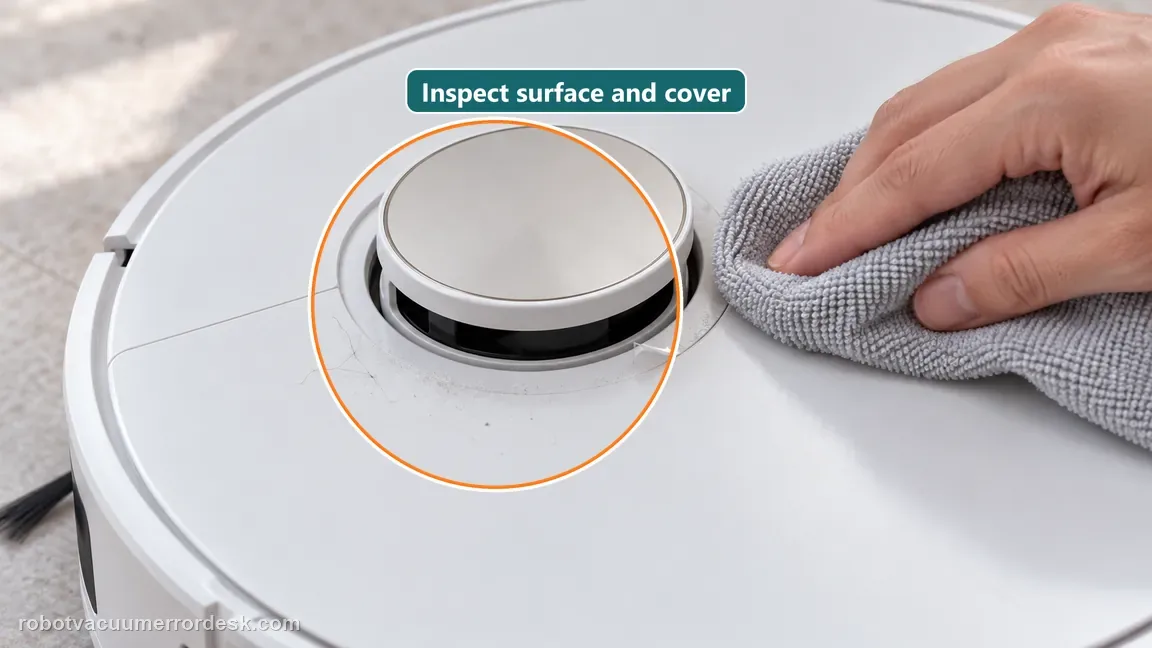
Inspect the radar surface and top cover for lifted material or debris
Dreame’s next step is to inspect the radar surface and robot top cover for lifted stickers or debris and clean them. Look for protective film, curled sticker edges, hair or foreign material that could physically interfere with the retractable assembly. Remove only loose external obstructions; do not peel required labels, pry at the turret or insert tools. The exact support path is deliberately owner-safe. After cleaning, repeat the same app lift command so the result is comparable with the first test.
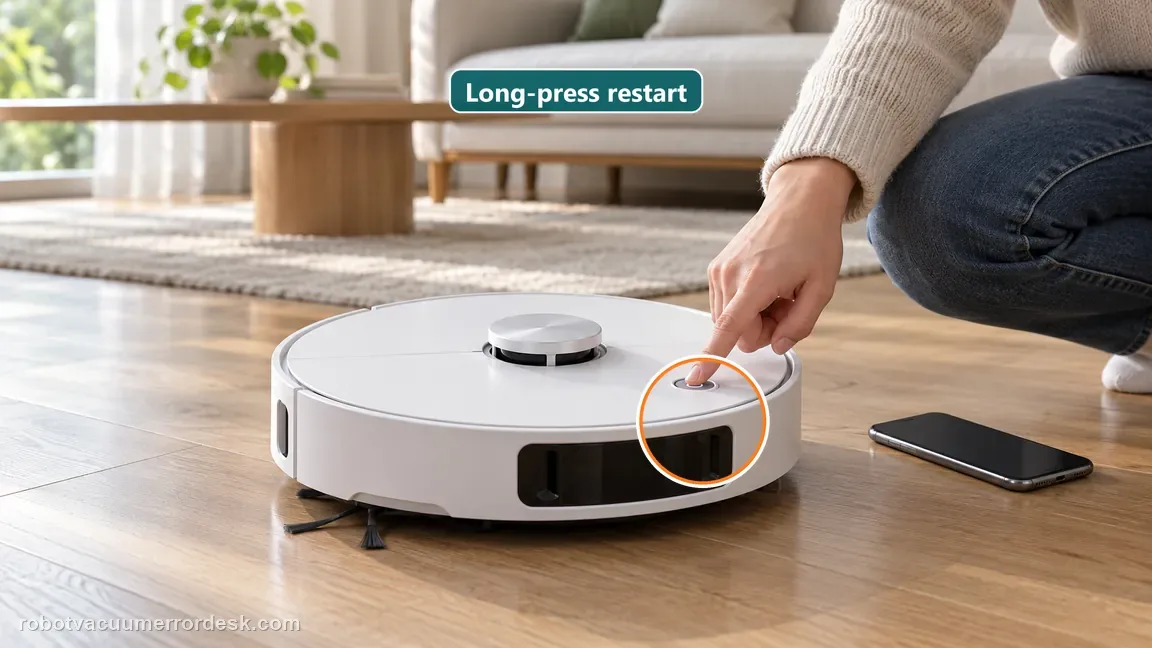
Restart with a long press, then repeat one lift test
Dreame tells owners to long-press the robot’s power button to restart and try the task again. Perform that normal restart after the setting/open-area/cleaning checks, then repeat the app command once. Avoid factory reset and avoid manually pulling the tower up; neither is part of this exact article. If the tower now cycles normally, retest the original cleaning scenario and remember that the manual intentionally lowers it in some states. If the direct command still fails, the result is strong service evidence.
Escalate the failed direct lift test without forcing the mechanism
When firmware is current, the robot is in open space, lifting is enabled, the app remote-control command is accepted, external debris is cleared and restart changes nothing, stop. Record the robot serial number and a short video showing the app command and tower response; Dreame explicitly asks for the SN and video if the issue persists. Do not manually pry or disassemble the retractable LDS. If the tower moves but the app reports a separate LDS malfunction, include that distinction and switch to the sensor-malfunction evidence path.
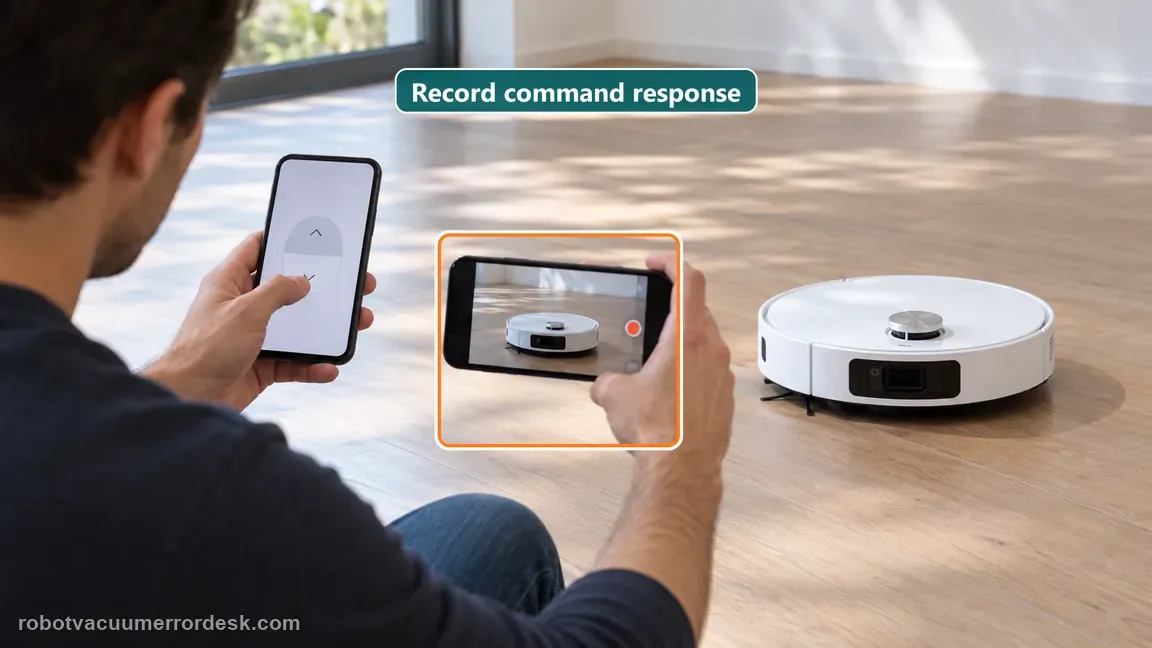
Contact Dreame after the X50 fails the app’s direct radar/LDS raise-lower test in an open area with current firmware, lifting enabled, external stickers/debris cleared and a restart completed. Dreame asks for the robot serial number and video of the abnormal behavior. Do not force the tower. State whether the mechanism never moves, moves only one direction, or moves normally on command but fails during a specific low-clearance task.
What to collect before contacting support
Give support a reproducible case instead of “it doesn’t work.” That reduces repeated basic troubleshooting and preserves the clues from your tests.
- Exact model name and the error code / voice prompt exactly as shown
- A photo or screenshot of the app error and the time it occurred
- A short list of the checks already completed and what happened after each one
- Short video showing the failed docking, mapping or base-station behavior
- Firmware version shown in Dreamehome
Manufacturer evidence
Dreame X50 Ultra Complete — LDS Cannot Be Raised or Lowered
Dreame’s exact X50 lift article requires current firmware, an open test area, radar lifting enabled in the app, a remote-control/accessibility raise-lower test, inspection/cleaning of radar surface and top-cover stickers/debris, then restart; it asks for SN and video if unresolved. The manual documents normal VersaLift-lowered states during standby, charging and low-clearance cleaning.
Additional official source: Dreame X50 Ultra User Manual ↗Last editorial review: September 5, 2026Regional note: manufacturer help centers, model suffixes, mains-power requirements and warranty procedures can differ by country. If the source redirects to a local support site, confirm that the model/hardware scope still matches before following a region-sensitive step.
This guide is rated Official model support. See what each evidence label means →
FAQ
Why is the X50 LDS tower down while it is charging?
That can be normal. The X50 manual says the VersaLift sensor is lowered when the robot is in standby, charging on the base station, or cleaning low-clearance areas. Diagnose a raise/lower fault only when the app/robot reports one or the tower fails a deliberate direct lift test in an open area. Tower position on the dock alone is not proof of failure.
How do I test whether the X50 LDS can raise and lower?
Dreame’s exact article says to put the robot in an empty unobstructed area, make sure the radar-lifting function is enabled, then use the remote control in the app’s accessibility settings to see whether it can raise and lower normally. Observe the response without touching the tower and record whether the command is accepted, movement occurs, and an error appears.
Can a sticker or debris stop the X50 LDS from lifting?
Dreame specifically tells owners to inspect the radar surface and top cover for lifted stickers or debris and clean them. Remove only loose external interference that can be reached safely. Do not pry at the retractable assembly or peel required labels. Repeat the same app-commanded lift test after cleaning so you can prove whether that external obstruction was actually causal.
Is LDS cannot raise/lower the same as LDS sensor malfunction?
No. Dreame publishes separate X50 articles. Raise/lower failure focuses on the radar-lifting setting, open-space test, app remote-control command and physical travel. LDS sensor malfunction focuses on firmware, obstruction/deformation, cleaning the radar/cover and restart. Label the exact message first; the two pages should cross only when the observed state changes, not be merged into one generic LiDAR reset.
What evidence should I send Dreame for a failed X50 LDS lift?
Dreame asks for the robot serial number and videos of the abnormal behavior if the lifting steps do not resolve it. A useful clip shows the X50 in an open area, the app’s direct raise/lower command and the tower’s response. Also report firmware and whether movement fails both directions or only during a specific low-clearance task. Do not manually force the tower for the video.
Did this diagnostic narrow the fault?
Use this as an editorial signal, not a popularity counter. If a feedback address is configured you can email the note; otherwise you can copy it for your own support record.