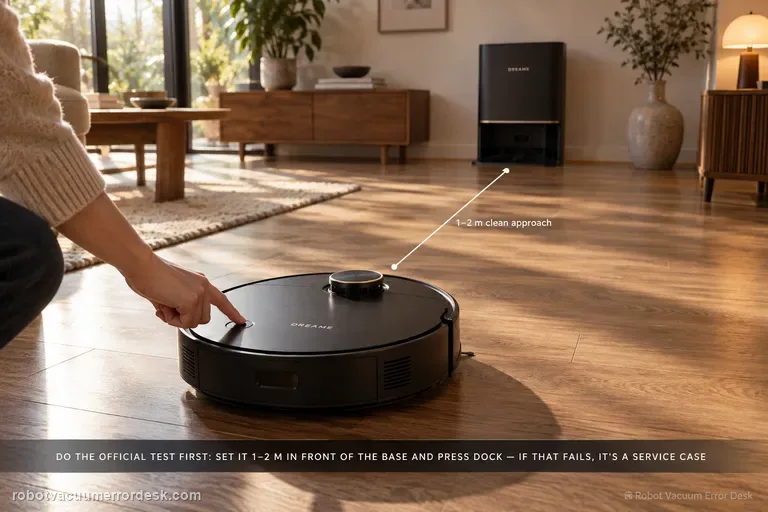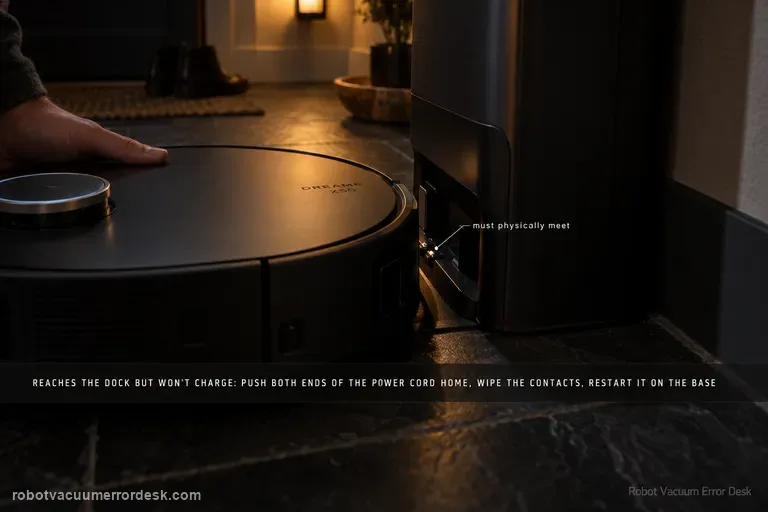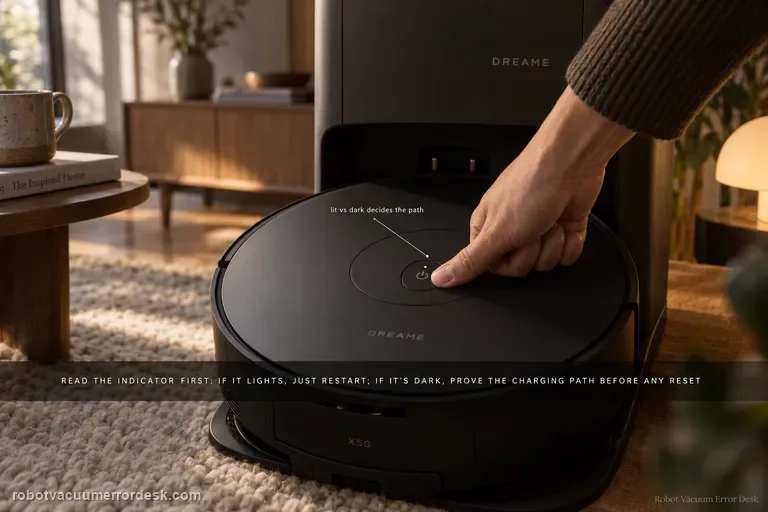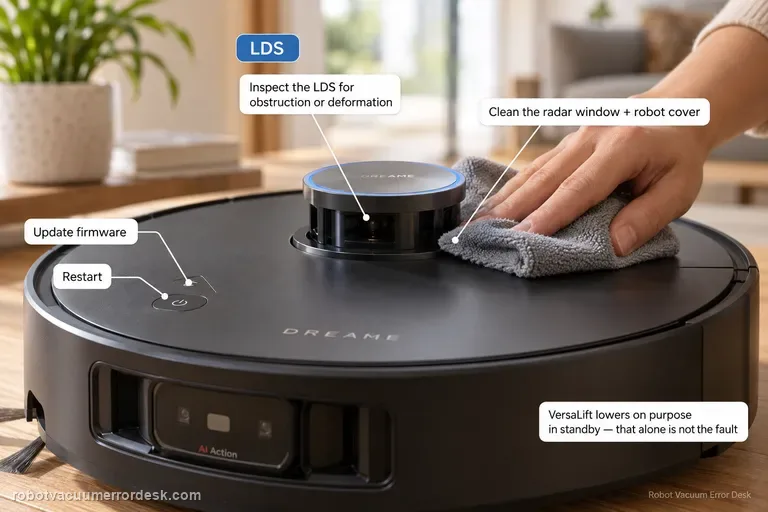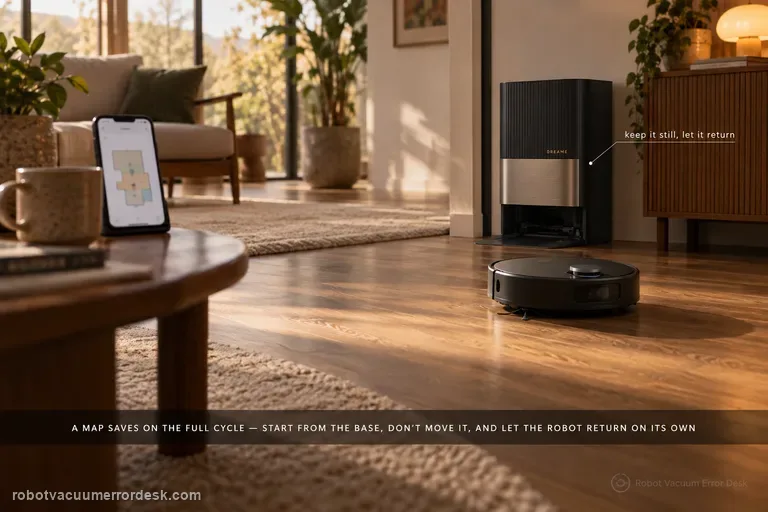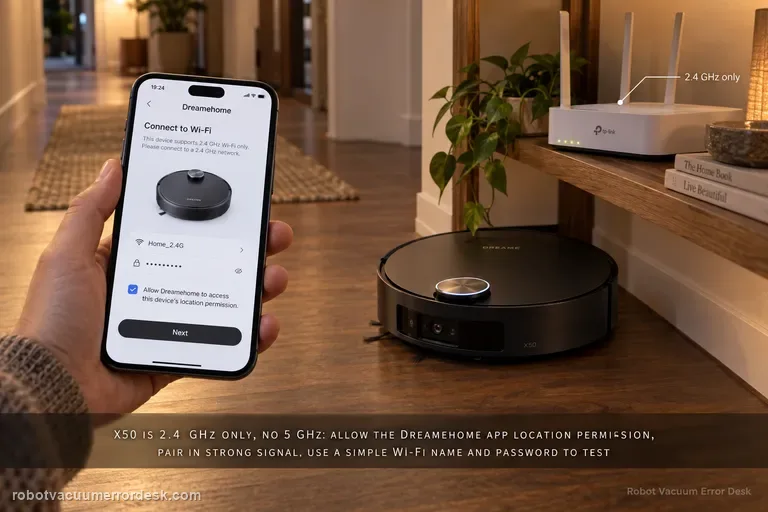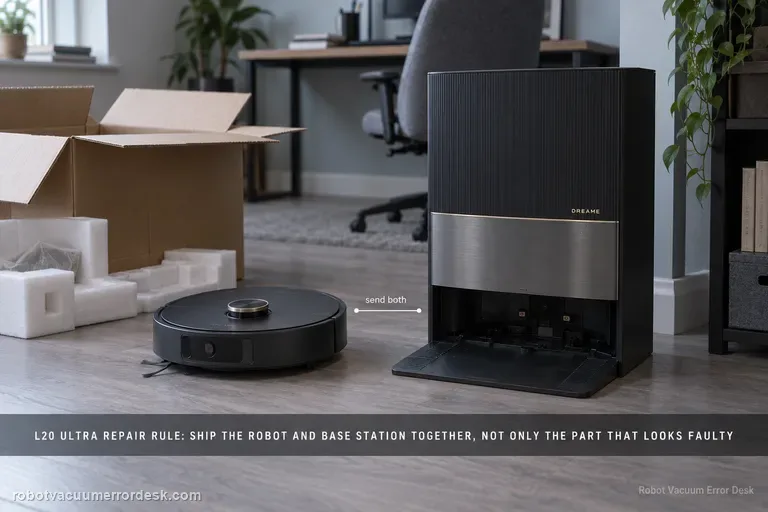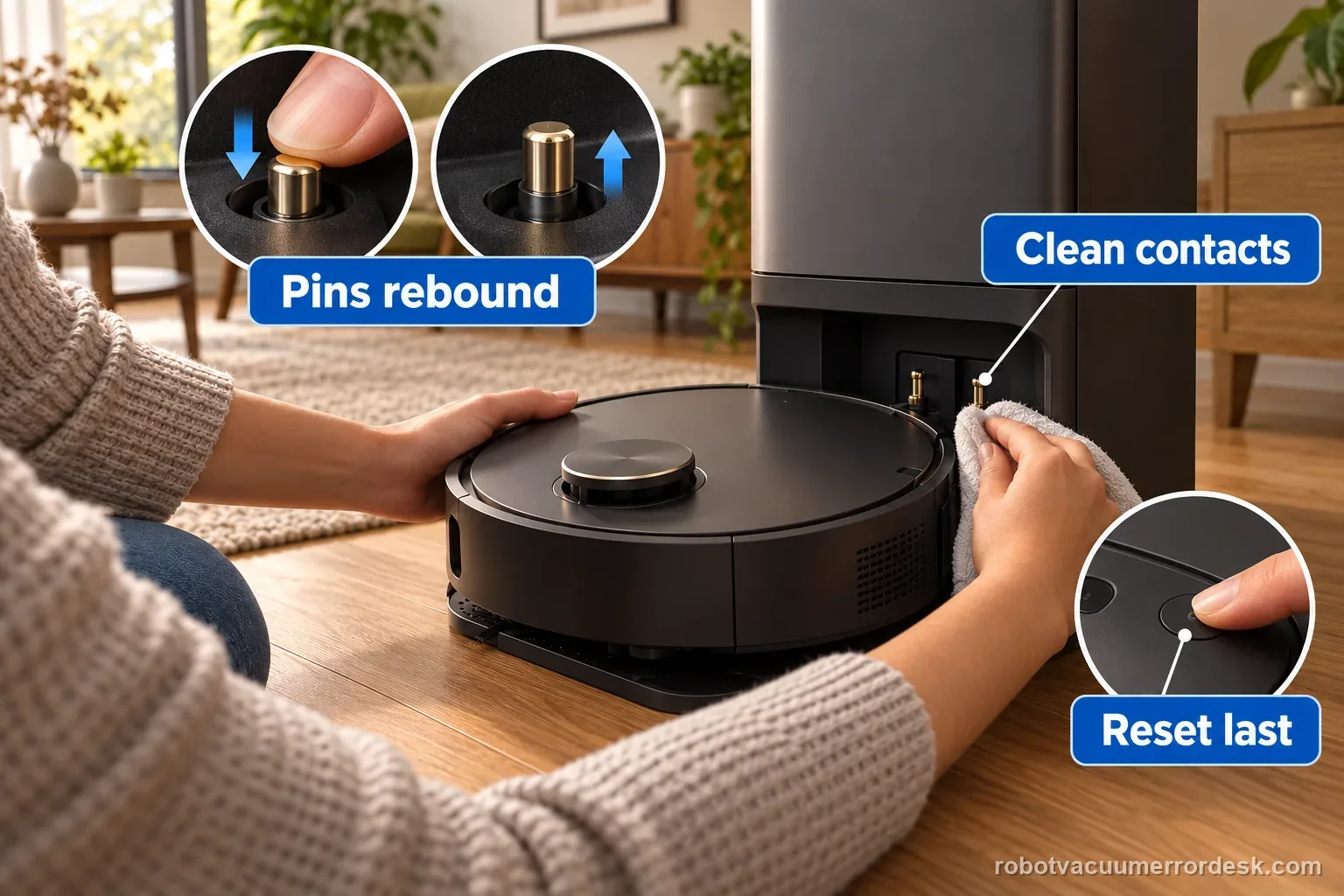
Use this guide only when the X50 reaches the dock area but repeatedly seats, backs out or fails to establish charging. Dreame’s exact Docking Failed article starts with the robot charging contacts and the dock’s metal pins: remove dust/foreign matter and confirm the pins are not stuck and can rebound. Then remove the robot, restart it, place it back on the dock and listen for the 'Start charging' voice prompt. Factory reset is third, not first, and Dreame warns that it erases saved maps. If the robot cannot find the base from 1–2 meters away, that belongs to the separate return-to-base path with power, placement, LDS and wheel checks.
Can X50 dock from a short, straight approach?
A silent robot is not enough to diagnose a dock fault. The GSC phrase 'bleibt stumm' describes silence, but this guide applies when the X50 reaches the station and fails at final seating or charging. Compare voice, app status, and physical position together.
Silence, failed approach, or failed charging?
| Observation | What it separates | Next action |
|---|---|---|
| Never reaches station | Return-path problem | Use the navigation guide |
| Seats then backs out | Final docking retry | Inspect contacts and pins |
| Silent but app shows charging | Voice alone is inconclusive | Observe charging stability |
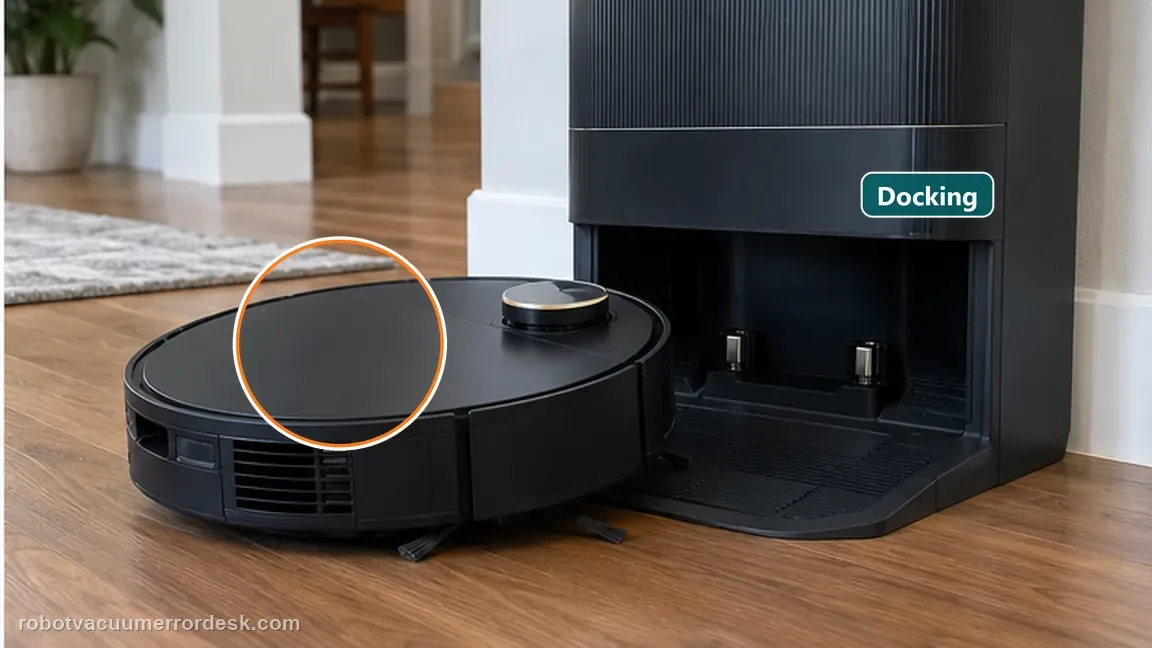
Confirm the exact model and exact code, light pattern or symptom.
Run the lowest-risk physical or software check first.
Use each pass condition to decide what the result actually narrows down.
Does this match your problem?
- The X50 reaches the base area but repeatedly docks/retries instead of settling.
- The robot physically sits on the dock but does not announce or maintain charging.
- You need to separate final charging-contact failure from a robot that cannot find the base from across the room.
- You have not yet factory-reset the robot and want to preserve maps until simpler physical checks are exhausted.
This page covers X50 docking and navigation. If your exact model is the L20 Ultra and it sits on the base without gaining charge, follow the Dreame L20 Ultra not-charging guide; its power and contact checks are model-specific.
Most likely causes
Dust, debris or foreign material on the robot charging contacts
Dock charging pin stuck or not bouncing back normally
Robot state that clears after restart once contact hardware is proven
Final seating/contact issue being confused with long-range return-to-base navigation
Persistent system fault requiring reset after lower-risk tests fail
What your test result means
| What you observe | What it narrows down | Next move |
|---|---|---|
| Robot never reaches the dock from 1–2 m away | This is not yet a final docking/contact failure. | Use Dreame’s separate Unable to Find or Return to Base path for station power, placement, LDS, wheels and route checks. |
| Robot reaches dock but contacts are dirty or a pin sticks | A physical charging interface has not been proven. | Clean contacts with a dry cloth and verify normal pin rebound before restarting/resetting. |
| Robot seats and says “Start charging” after restart | Final docking/contact is functioning in the controlled test. | Stop troubleshooting and monitor charging stability instead of factory-resetting. |
| Contacts/pins pass and restart fails | Dreame’s next documented step is reset, with a real data-loss cost. | Only proceed if you accept losing saved maps and current settings. |
| Robot reaches the station but repeatedly backs away with clean contacts and free pins | The short-range return works, but final seating/recognition still fails after the owner-visible interface passes. | Capture the final approach and charging-prompt state; proceed to the documented restart/reset boundary rather than changing room maps. |
What a useful final-approach test looks like
It arrives, touches, then backs away
The X50 reaches the ramp every time but reverses after touching the station. One dock pin stays depressed. That observation is more specific than a room-map problem. Record the pin behavior without prying it or opening the station. Stop repeating returns while the contact cannot rebound normally. Give Dreame a short clip showing the approach and the affected pin. A factory reset cannot establish whether a mechanical contact moves correctly.
It stays seated but you hear nothing
After cleaning the contacts and restarting, the robot remains on the dock. You do not hear the expected charging prompt. Read the app status as well. If charging is shown and stays active, silence by itself does not prove that docking failed. If the app still shows no charging and the robot retries, record both results together. Continue through the documented restart path before accepting a reset that clears saved maps.
Illustrative decision sequence. These are observations, not measured repair success rates.
- Check physical contacts
- Restart and re-dock
- Reset only after those fail
Reset can erase maps/settings on this path. Use lower-risk checks first and document the current state before resetting.
Run these checks in order
Confirm the robot can actually reach the dock area
Do not mix 'Docking Failed' with 'Unable to Find or Return to Base Station.' If the robot never reaches the base, use Dreame’s separate navigation/return article. As a quick classifier, that support path uses a test from about 1–2 meters in front of the base. This page starts after the robot is already at the final docking/contact stage, where it repeatedly retries or does not establish charging.
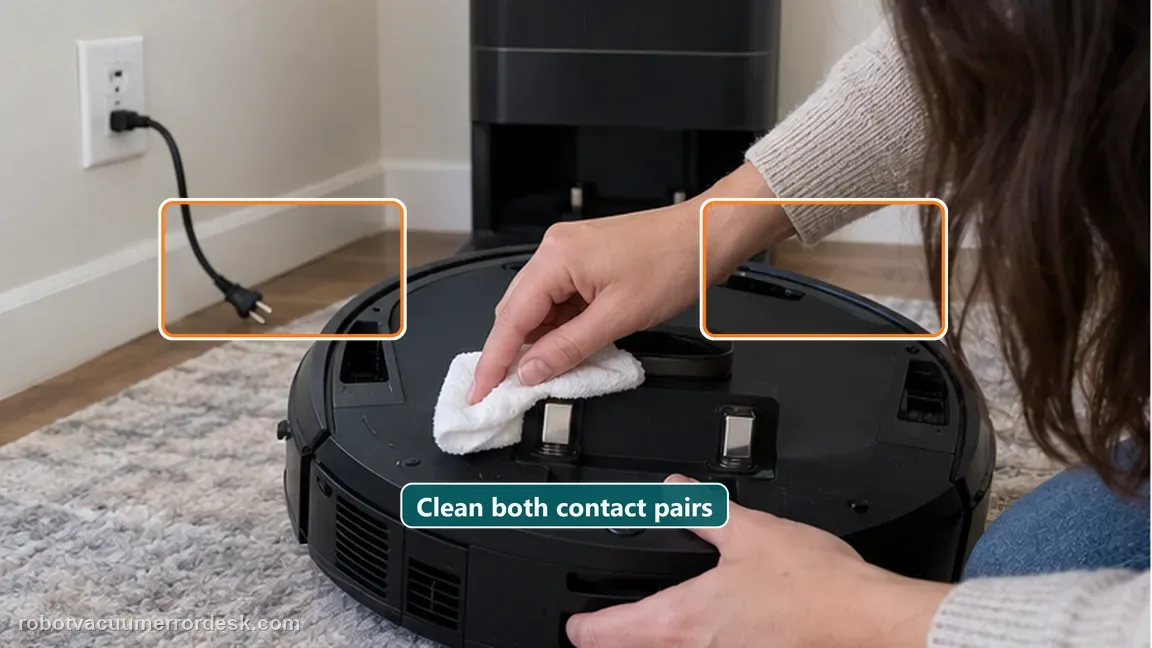
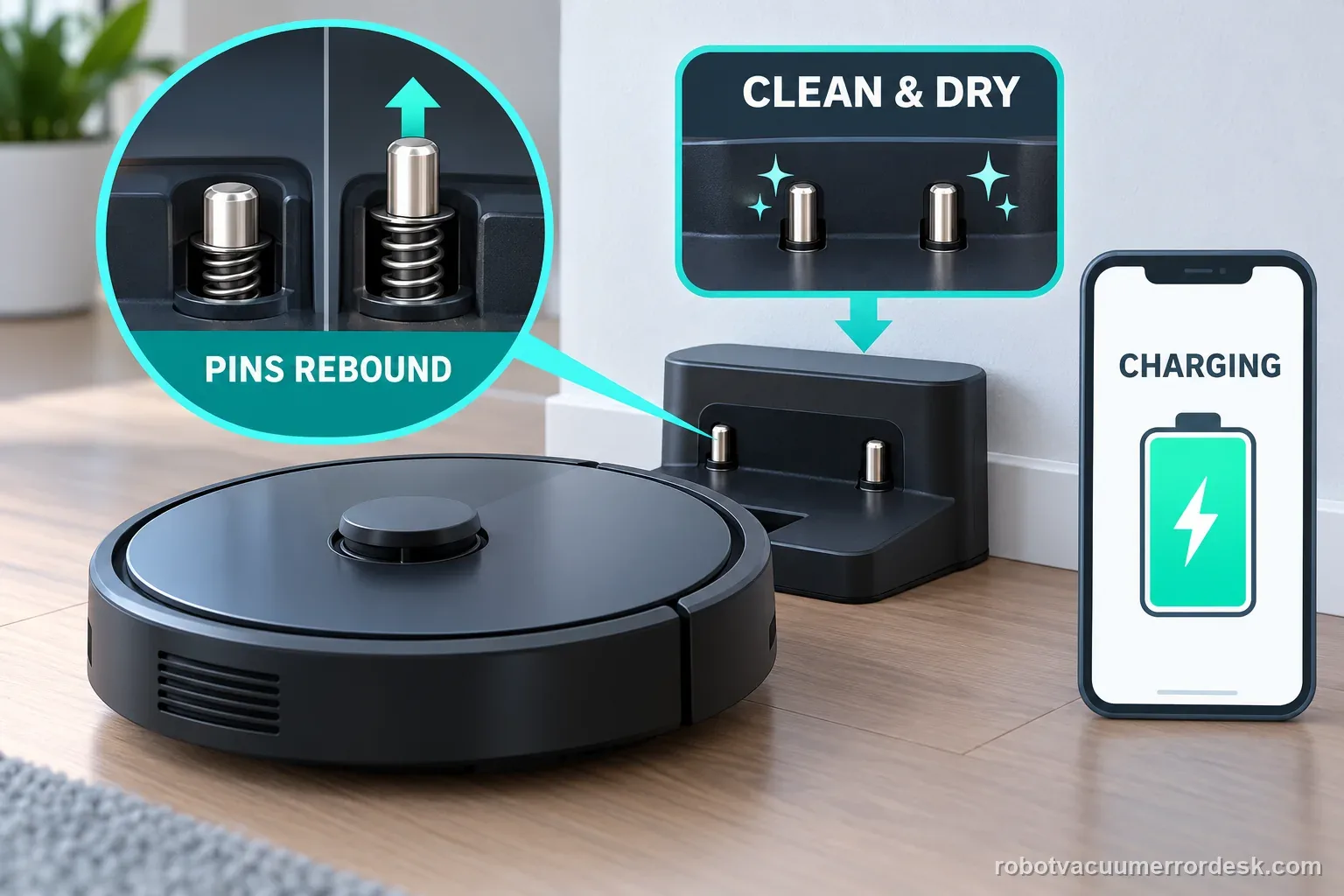
Clean the robot charging contacts with a dry cloth
Inspect the charging contacts on the robot for dust, debris or other foreign matter. Dreame explicitly says to wipe dirty contacts with a dry cloth before retrying. Avoid wet cleaners or abrasive scraping on the contact surface. Cleaning first gives you a simple physical pass/fail test before any software reset can erase useful map or configuration data.
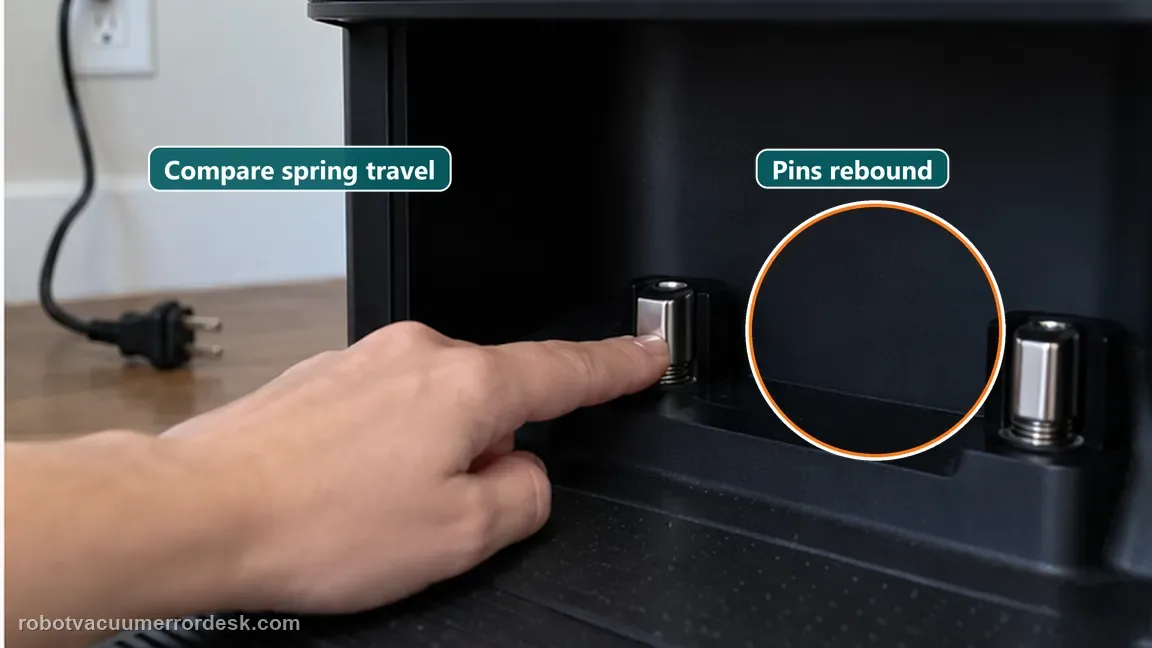
Test each dock charging pin for free rebound
Check the metal charging pins on the dock and confirm they are not stuck and can bounce back normally. A clean robot contact cannot charge reliably if the matching dock pin remains depressed or cannot meet it. Press only enough to verify normal movement; do not pry or dismantle the dock. If a pin does not rebound, record that mechanical symptom for support.
Restart away from the dock and listen for the charging prompt
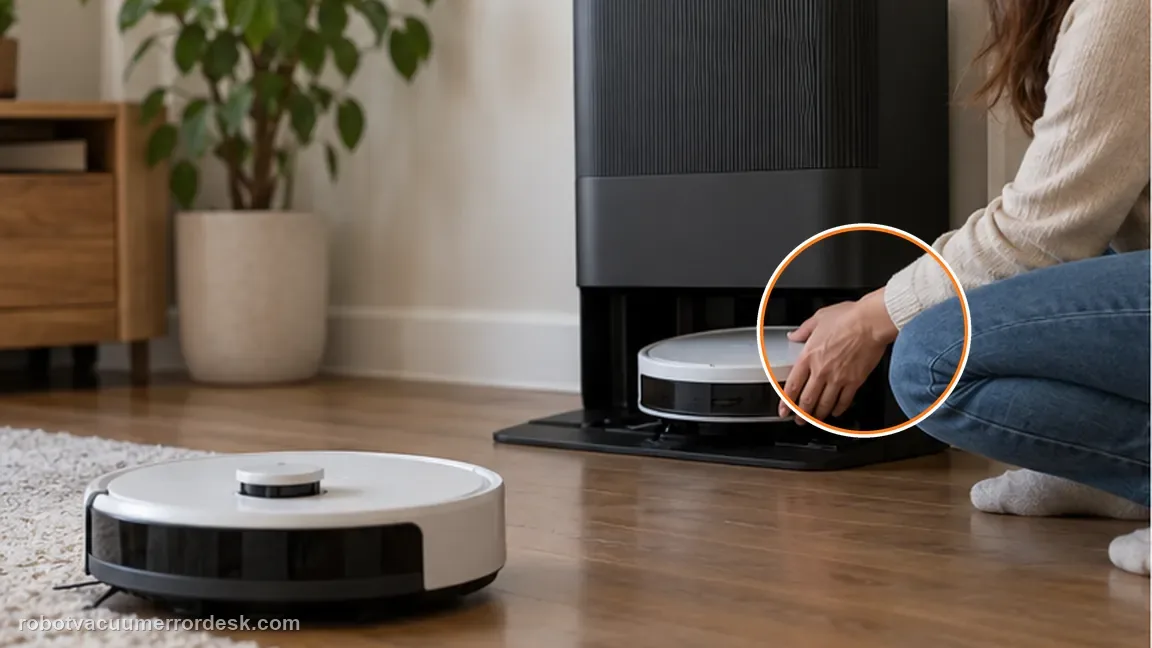
Remove the X50 from the dock, restart the robot, then place it back on the dock as Dreame instructs. Listen for the voice prompt 'Start charging.' That prompt is a useful checkpoint because it indicates the robot has recognized the dock/charging state, not merely made physical contact. If it announces charging and remains stable, stop before reset and preserve the existing map.
Factory-reset only after the physical and restart tests fail
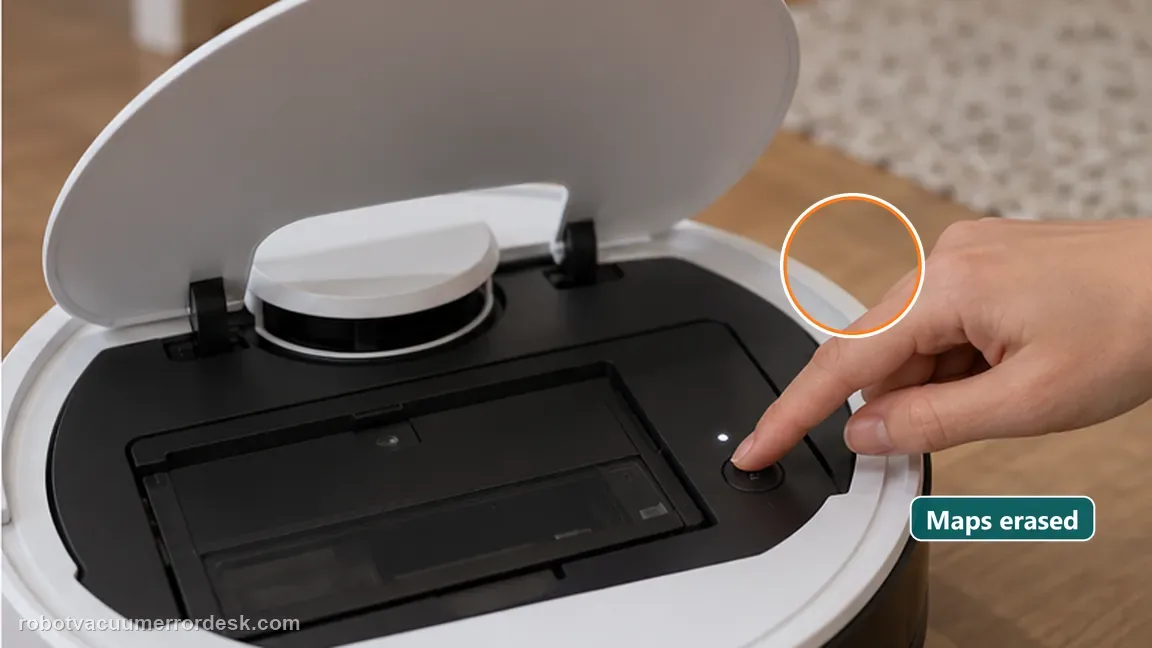
Dreame’s third step is reset: open the upper cover, locate the small Reset button near the Wi-Fi indicator and press/hold it for about 3 seconds until the factory-restore voice prompt. The manufacturer explicitly warns that this erases saved maps and other data. Do not use reset as a casual first-line docking fix. After reset/setup, retry docking once and capture video if the same final approach failure remains.
If the X50 still repeatedly docks or fails to establish charging after clean robot contacts, freely rebounding dock pins, restart and—only if accepted—a factory reset, contact Dreame. Provide a short video that begins before the final approach and continues through the charging attempt, note whether 'Start charging' is heard, and report whether any dock pin failed the rebound test. If the robot instead fails to find the base from a distance, use the separate return-to-base evidence path rather than reporting this as a contact fault.
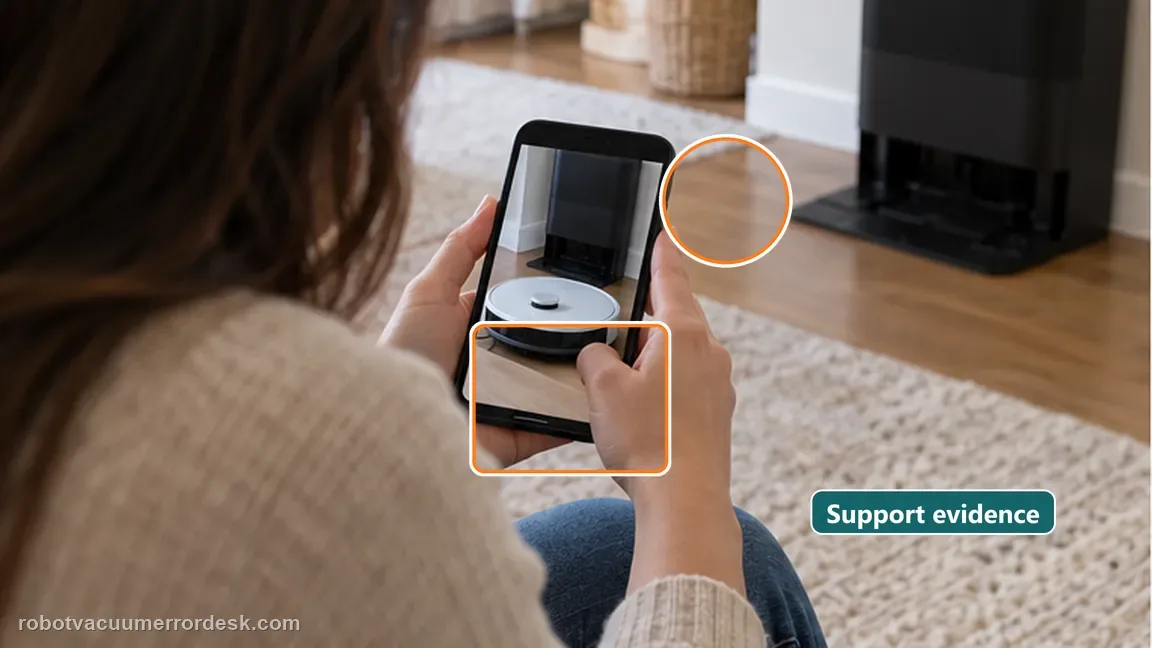
Compare the evidence before and after restart
| Stage | Question to answer | Evidence to keep |
|---|---|---|
| Contact surface | Clean and dry? | Photo before retry |
| Dock pins | Both rebound? | Record a stuck pin |
| Restart test | Prompt and app agree? | Film seating and status |
What to collect before contacting support
Give support a reproducible case instead of “it doesn’t work.” That reduces repeated basic troubleshooting and preserves the clues from your tests.
- Exact model name and the error code / voice prompt exactly as shown
- A photo or screenshot of the app error and the time it occurred
- A short list of the checks already completed and what happened after each one
- Short video showing the failed docking, mapping or base-station behavior
- Firmware version shown in Dreamehome
Manufacturer evidence
Dreame X50 Ultra Complete — Docking Failed
Dreame’s exact X50 Docking Failed article orders charging-contact inspection, charging-pin rebound check, restart/re-dock with the 'Start charging' prompt, and only then a 3-second factory reset that erases saved maps. Dreame separately publishes an Unable to Find or Return to Base article for long-range power/placement/navigation failures.
Additional official source: Dreame X50 Ultra Complete — Unable to Find or Return to Base Station ↗Additional official source: Dreame X50 Ultra User Manual ↗Last editorial review: September 5, 2026Regional note: manufacturer help centers, model suffixes, mains-power requirements and warranty procedures can differ by country. If the source redirects to a local support site, confirm that the model/hardware scope still matches before following a region-sensitive step.
This guide is rated Official model support. See what each evidence label means →
FAQ
Is X50 Docking Failed the same as cannot find the base station?
No. Docking Failed is the final approach/contact state: the robot reaches the station area but repeatedly retries, fails to seat, or does not establish the expected charging state. Dreame’s separate return-to-base article starts earlier with station power, a 1–2 m return test, placement, LDS and wheels. Keeping those states separate prevents room-navigation fixes from masking a contact/pin problem.
What does the Start charging voice prompt prove?
Dreame asks owners to listen for the “Start charging” prompt after restarting and placing the X50 back on the dock. Hearing it is a useful checkpoint that the controlled test reached a recognized charging state, which is stronger than merely seeing the robot touch the station. It does not prove long-term battery health, so still confirm that charging remains active if that is the complaint.
Should I reset the X50 before cleaning the charging contacts?
No. Dreame orders contact inspection, charging-pin rebound and restart before factory reset. Wipe the charging contacts with a dry cloth and make sure the metal pins are not stuck before erasing data. The reset warning matters because Dreame says it clears all saved information, including maps. Use a destructive reset only after the physical interface and restart branches have already failed.
How do I know whether an X50 charging pin is part of the docking problem?
Dreame’s Docking Failed article tells owners to check whether the metal charging pins are stuck or fail to bounce back normally. Observe their normal owner-accessible movement without prying or disassembling the base. If a pin is visibly stuck while the robot reaches the station, that is more specific evidence than changing maps. If the pins rebound and contact is clean, continue to restart/controlled docking.
What video should I send Dreame for repeated docking failure?
Film the X50’s final approach so the clip shows whether it reaches the ramp, seats, backs away/retries, and whether the “Start charging” prompt occurs. Also note whether the charging contacts are clean and both dock pins rebound normally. Dreame asks for malfunction video/details if the issue persists, and this state-focused clip is more useful than a long whole-room cleaning recording.
Keep the distinction between finding the base and establishing charging. A clean final-approach video, pin observation, and charging status give support a better starting point than another erased map.
Choose the matching model before using another guide's procedure:
X50 map not saving after an interrupted return →Saros 20 cannot find the dock: a different model →X8 station return versus final seating →Qrevo Curv not charging: compare the symptom only →Narwal base station overflow: stop wet-station tests →Did this diagnostic narrow the fault?
Use this as an editorial signal, not a popularity counter. If a feedback address is configured you can email the note; otherwise you can copy it for your own support record.