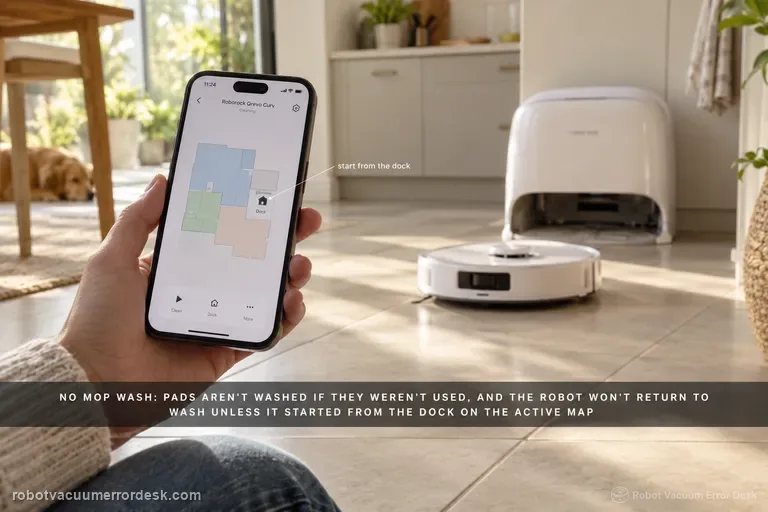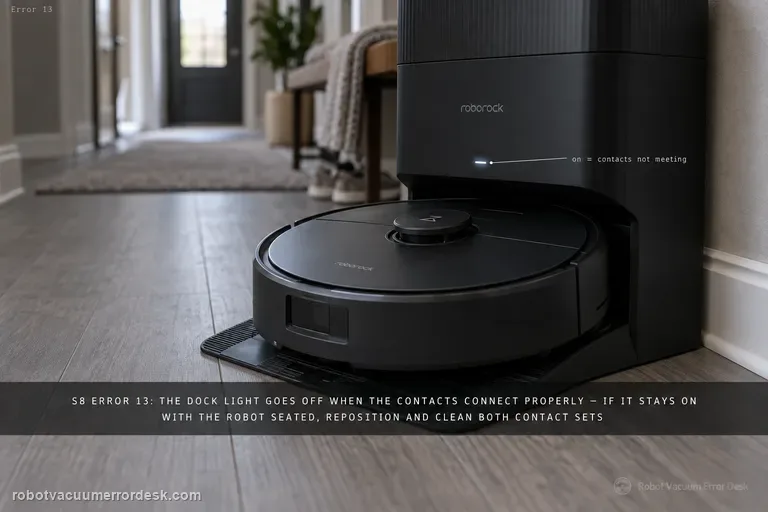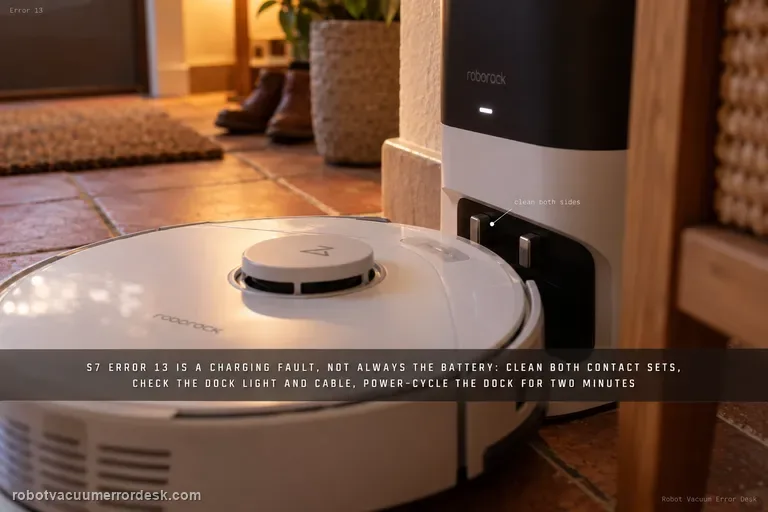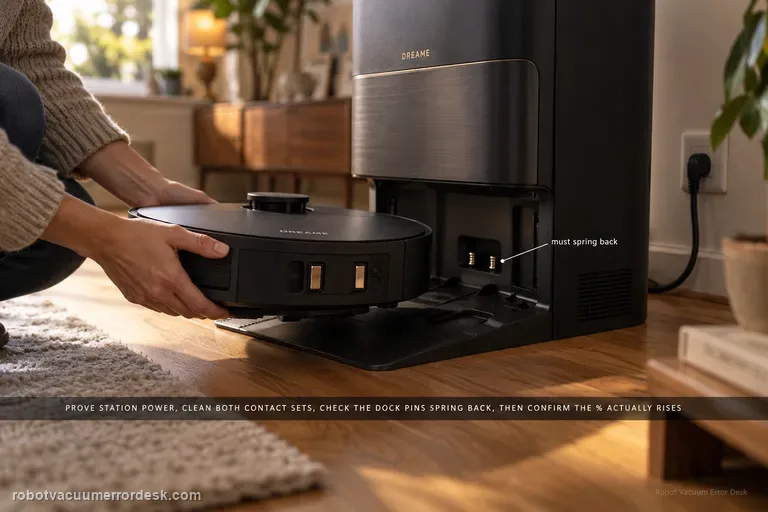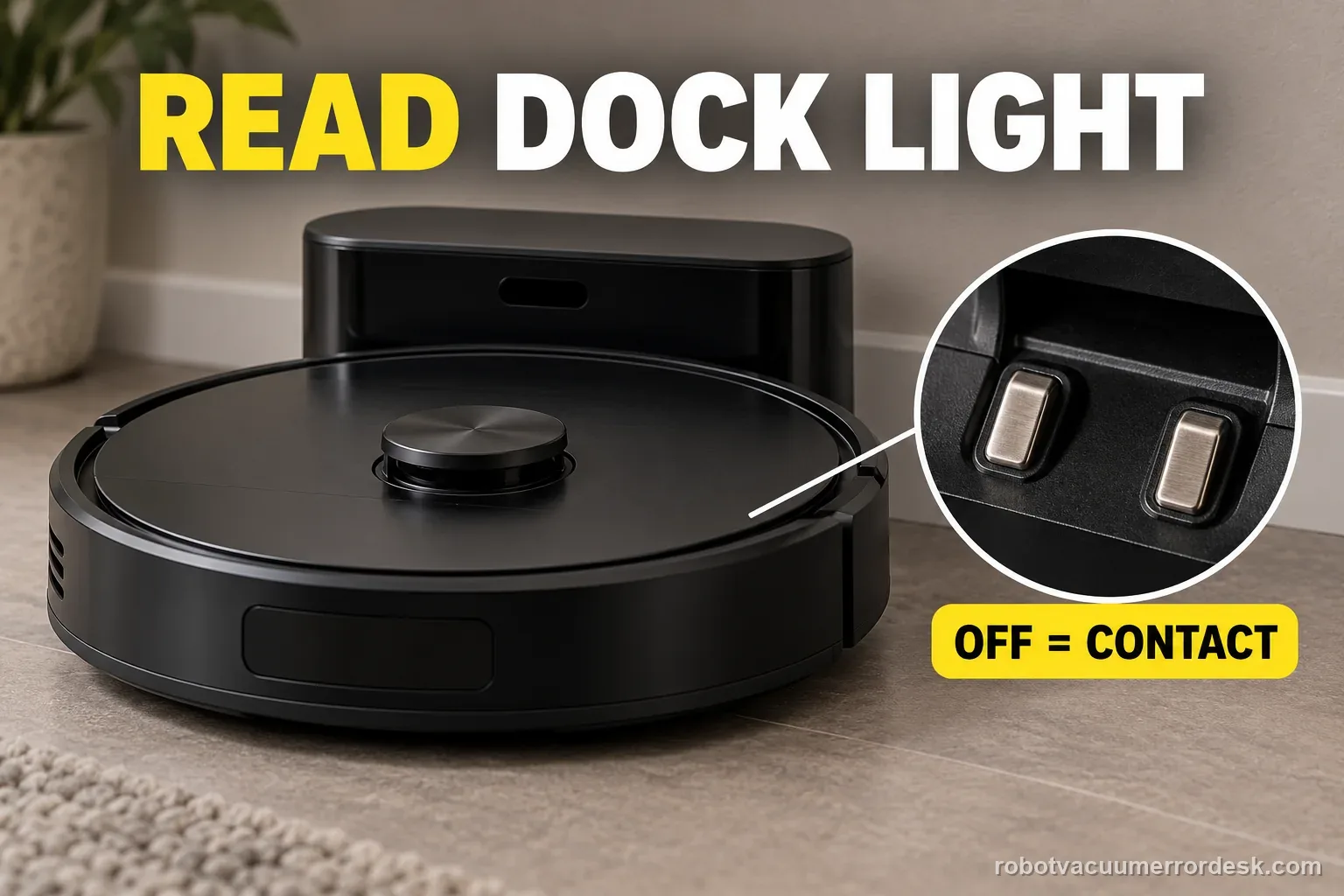
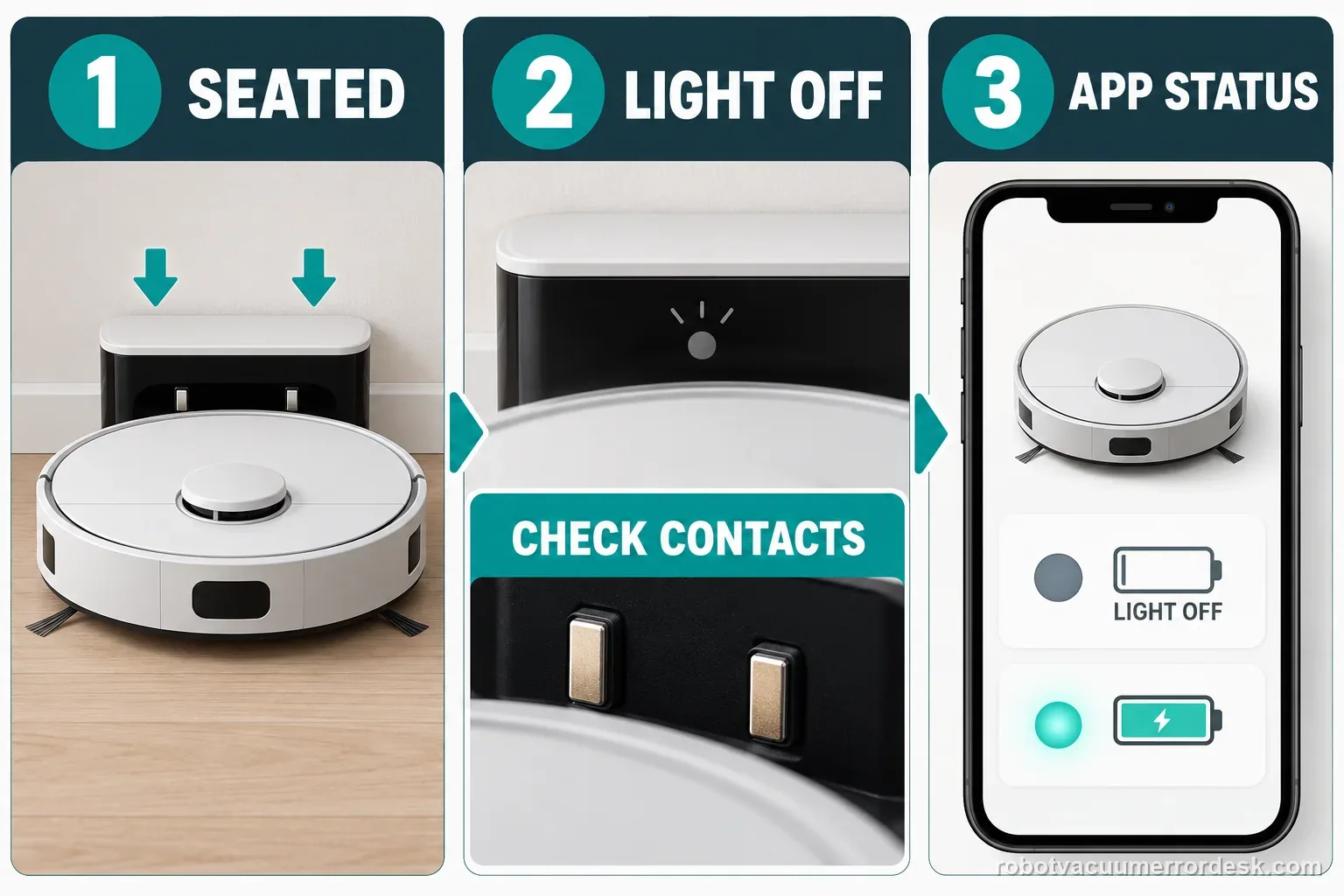
Seat the Curv and read the dock light before checking the battery. Roborock says OFF means the charging contacts are connected; ON means they are not. If it stays on, reseat the robot, clean both contact sets, then verify the cable and outlet. If the light turns off but charge does not rise, record both signals for support.
What does the Qrevo Curv dock indicator do while the robot is seated?
For a Qrevo Curv that reaches the dock but does not charge, read the dock indicator first. Roborock's current support says the dock light should turn off when charging contacts connect; a light that stays on points to a contact-alignment check.
Read the dock light before changing the charging setup
| Observation | What it separates | Next action |
|---|---|---|
| Dock light turns off | Contacts connected per support | Confirm the app shows stable charging |
| Dock light stays on | Contacts may not be aligned | Reposition and clean both contact sets |
| No dock indicator | Power path is unconfirmed | Check cable seating and outlet |
| Charging begins then stops | Intermittent connection or status change | Record the light and app together |
Confirm the exact model and exact code, light pattern or symptom.
Run the lowest-risk physical or software check first.
Use each pass condition to decide what the result actually narrows down.
Does this match your problem?
- The Qrevo Curv or CurvX sits on the dock but does not enter a stable charging state.
- The dock indicator remains lit while the robot is seated, suggesting the charging contacts are not properly connected.
- Charging begins only after nudging or repositioning the robot on the dock.
- The robot/dock charging contacts look dusty, stained or oxidized.
- You want to separate dock power/contact failure from a deeper battery or charging-circuit problem before replacing parts.
This guide follows the Qrevo Curv’s dock indicators. If your exact model is a Dreame L20 Ultra, use its separate L20 Ultra charging checks instead of transferring another brand’s indicator meanings.
Charging checks depend on the exact dock and model. If you have a Saros 20 return issue, or a Dreame robot that stays seated without charging, follow its separate guide: Saros 20 cannot-find-dock checks · Dreame L20 Ultra not-charging checks
Most likely causes
Robot is not seated squarely enough for the charging contacts to connect
Dust, stains or oxidation on the robot or dock charging contacts
Dock power cable is loose or the wall outlet is not delivering reliable power
Contact alignment is intermittent even though the robot can physically reach the dock
Persistent dock, battery or charging-circuit fault after alignment, cleaning and power checks pass
What your test result means
| What you observe | What it narrows down | Next move |
|---|---|---|
| Dock indicator stays ON with the robot seated | Roborock says the charging contacts are not properly connected. | Reposition the robot and watch for the indicator to turn OFF before changing batteries or app settings. |
| Indicator turns OFF after a small reposition | The dock can establish the charging interface, but the original seating/alignment was poor. | Inspect contact cleanliness and confirm the robot sits squarely without rocking or obstruction. |
| Indicator stays ON after cleaning and careful reseating | The contact interface still cannot establish the expected connection. | Verify dock cable/outlet power once, then document the persistent contact-state failure for Roborock. |
| Indicator is OFF but battery percentage still does not rise | The dock reports proper contact, so a deeper charging, battery or reporting fault is more plausible. | Record the indicator state and battery behavior and escalate instead of endlessly polishing contacts. |
| Indicator is OFF and battery percentage rises on the timed retest | The contact and charging path worked during this observation; it does not establish a rate for future sessions. | Keep the time-stamped readings and return to normal use; if the fault recurs, compare its light and app states. |
Two illustrative charging records
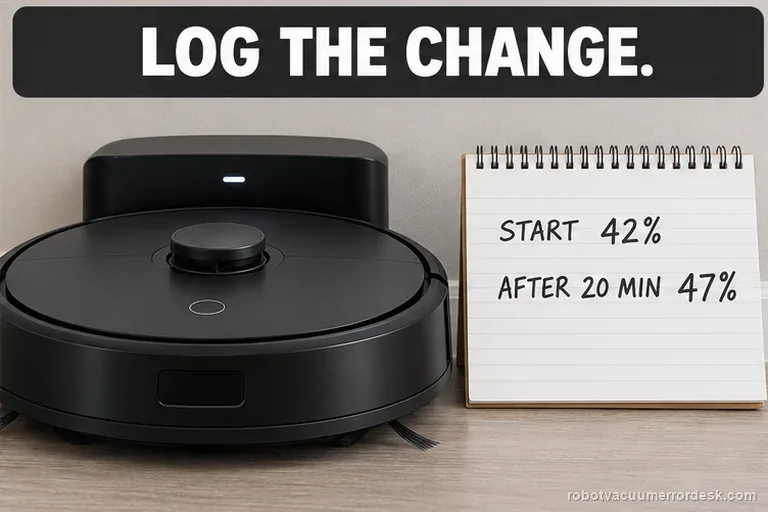
A 42% to 47% rise over twenty minutes
Illustrative record, not a charging-time standard: after one normal placement, the dock light is OFF and the app says charging. The owner logs 42% at minute 0 and 47% twenty minutes later. That single test shows the battery rose during the observed interval; it does not guarantee the robot will charge at that rate in another session.
Three checks while the light stays ON
Illustrative record, not a failure-rate claim: after one placement, the dock light stays ON. The owner records three checks: one careful reseat, cleaning both contact sets, and one known-working outlet test. The light remains ON, so repeated nudging and battery replacement are not justified by this evidence; send the result to Roborock.
Illustrative decision sequence. These are observations, not measured repair success rates.
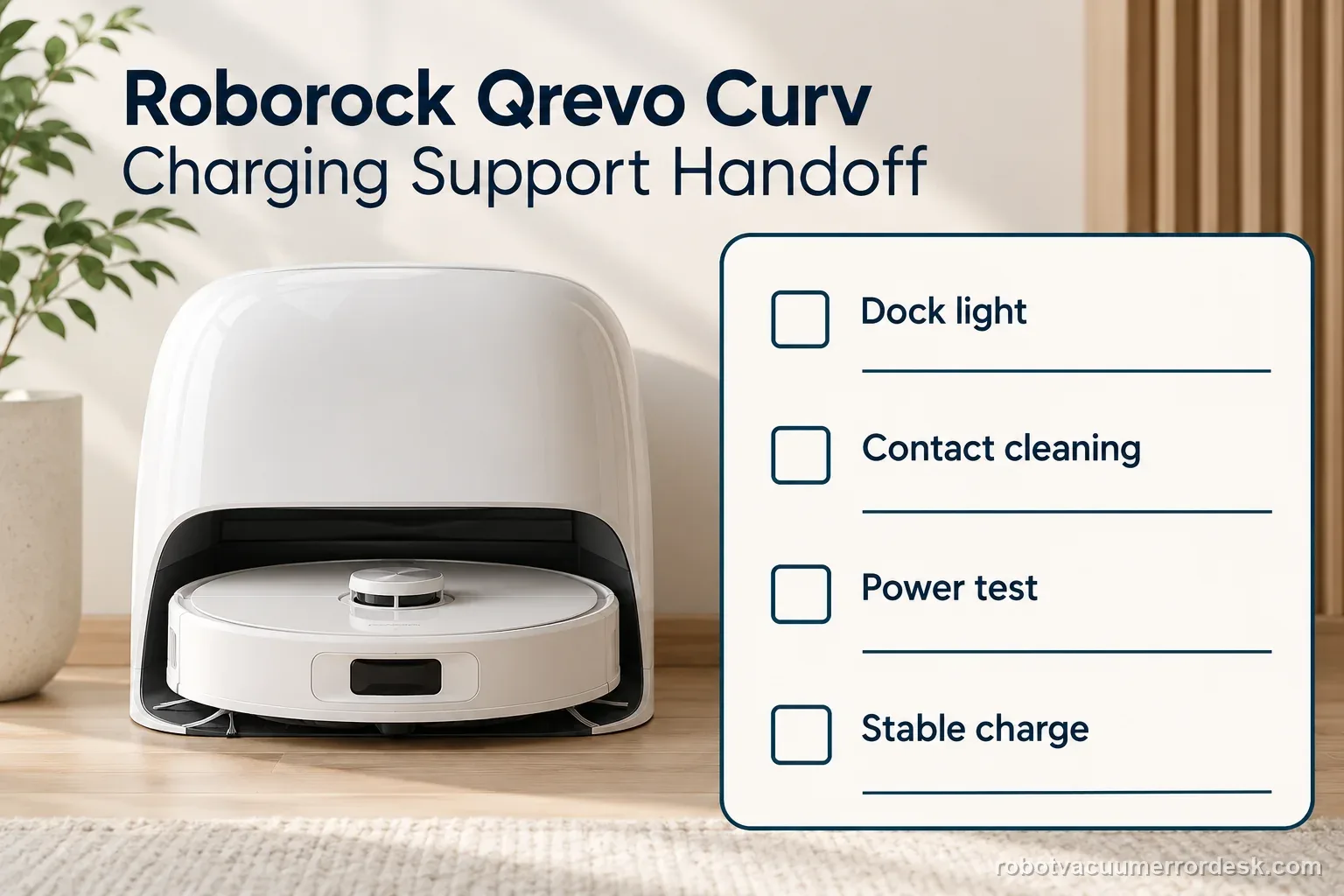
- Read the dock indicator
- Reseat and clean both contact sets
- Check dock power, then confirm stable charge
A map or factory reset will not correct a charging-contact or dock-power fault. Read the dock light, check contacts and verify power before considering service; do not open the dock or battery pack.
Run these checks in order
Use the dock indicator as the first discriminator
Place the Qrevo Curv on the dock and watch its indicator alongside the app. Roborock’s exact-model troubleshooting says an OFF light means charging contacts are connected, while ON means they are not. Follow the light first: if ON, check seating and contacts; if OFF but battery level stays flat, preserve that mismatch for support. Record the light and app state before moving the robot.
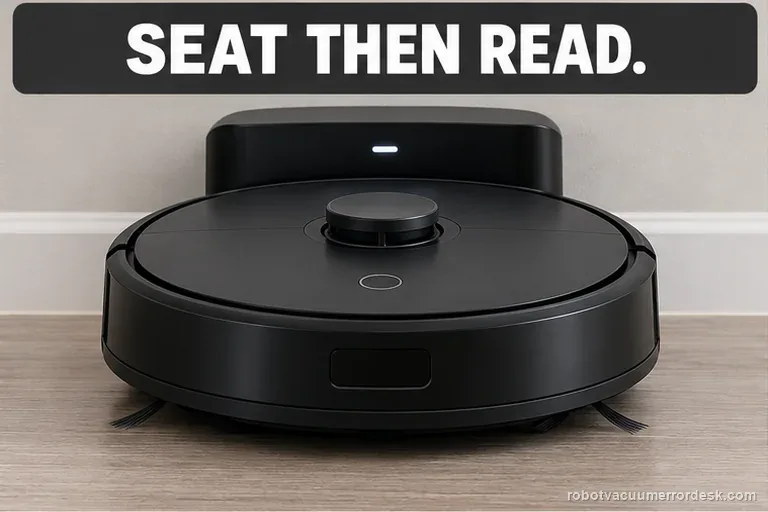
Reposition the robot until the contact state changes
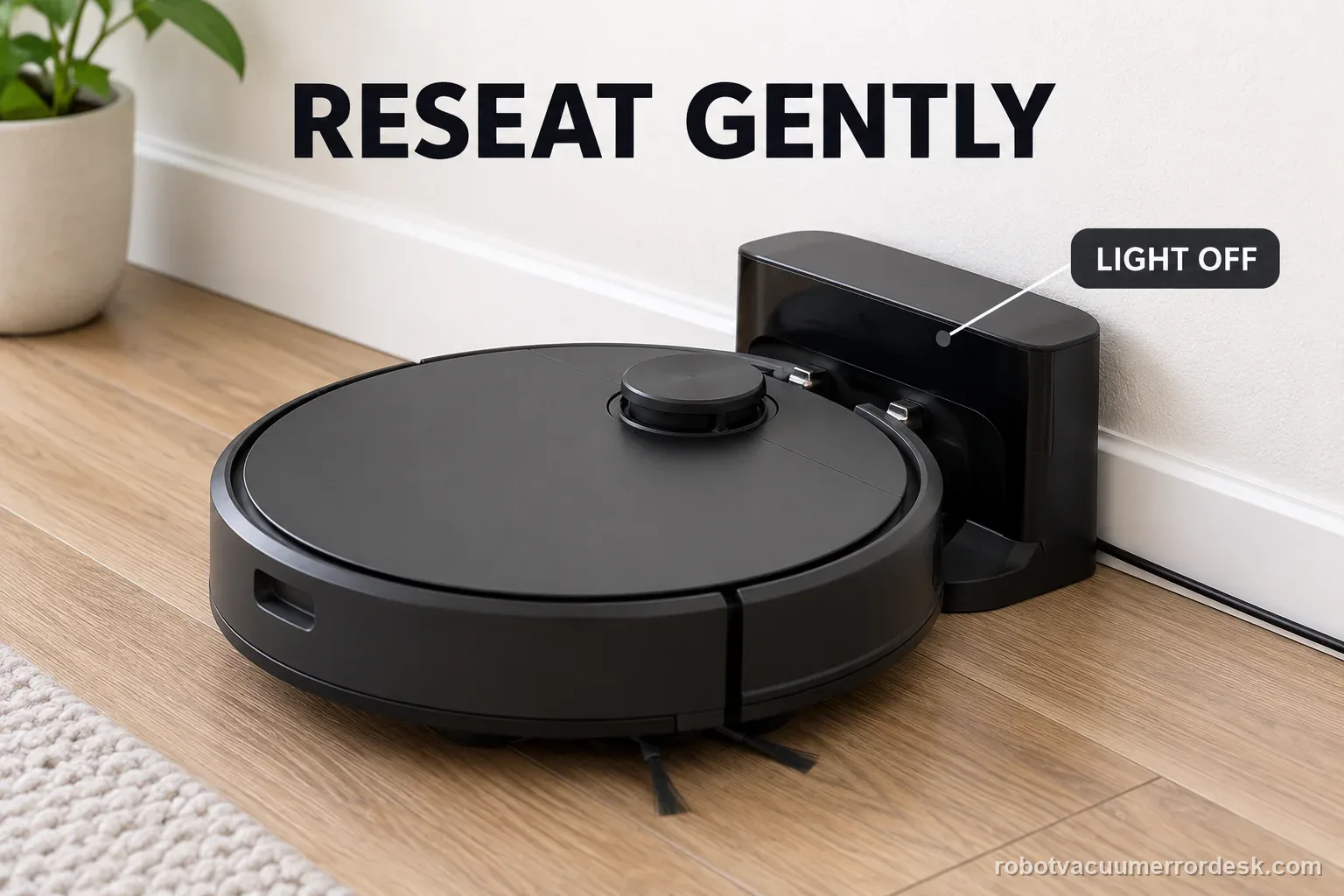
If the indicator stays ON, slightly reposition the robot until it turns OFF. Roborock says this confirms contact alignment. Seat it normally; do not shove it or wedge anything under it. Remove cable slack, a mat edge or debris that prevents square seating. If the light changes to OFF after one small adjustment, note that result because it shows the dock can establish contact.
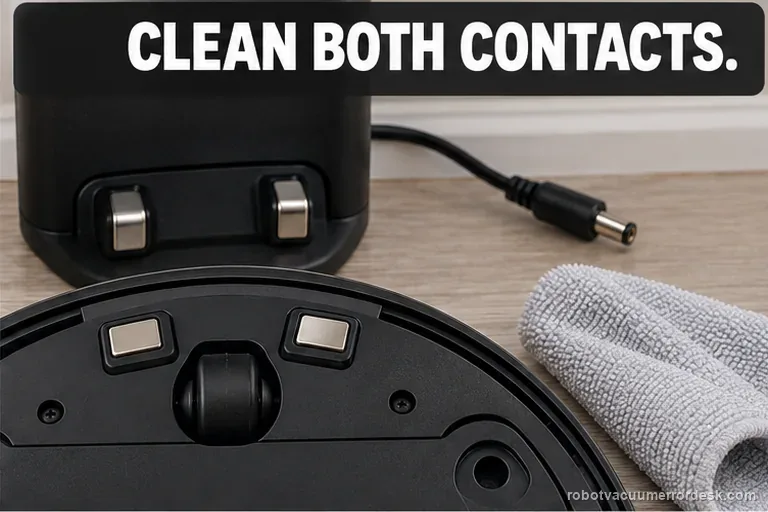
Clean both robot and dock charging contacts
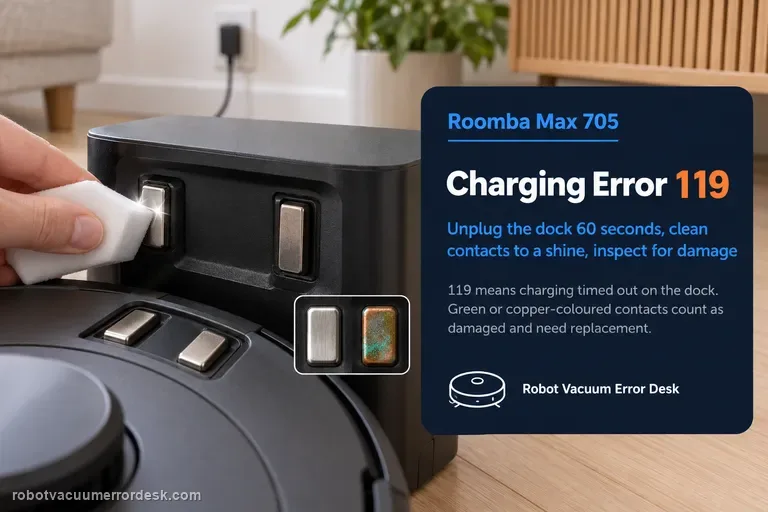
If careful alignment does not turn the light OFF, inspect both charging-contact sets for dust, stains or oxidation. Roborock allows a dry cloth, a cloth lightly moistened with alcohol, or gentle use of an eraser. Clean robot and dock contacts, let any alcohol dry and avoid metal tools or sanding. Reseat once and check the indicator again.
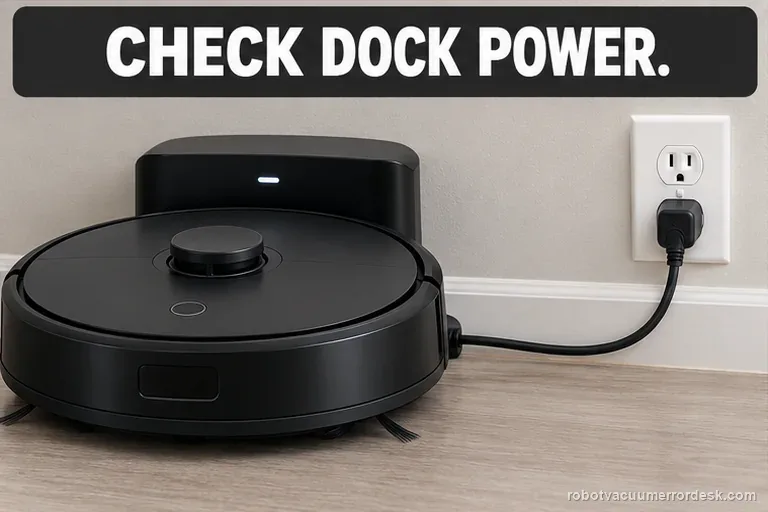
Prove dock power at the cable and outlet
With the contacts clean, check the dock cable at the station and wall outlet. Roborock says the cable must be firmly seated at both ends and recommends another outlet if needed. Test one known-working outlet, then repeat the indicator check. A clean interface cannot charge without dock power.
Judge stable charging, not a one-second connection
After the indicator turns OFF and dock power is confirmed, leave the Curv seated and check whether battery percentage rises over a recorded interval. If it rises, the dock-contact path passed that test. If the light stays ON, contact alignment remains unresolved; if it is OFF but charge does not rise, the dock reports contact despite no charge progress. Stop repeating the same cleaning loop and send Roborock the light, outlet and battery evidence.
Escalate if the dock indicator stays ON after normal reseating, cleaning both contact sets and confirming dock power, or if the indicator is OFF but the battery still will not gain charge. Send Roborock a short video showing the robot seated and the dock indicator, photos of both contact sets, the outlet/power-cable test, and whether battery percentage changes. That evidence is more useful than replacing a battery without proving the contact state.
Keep the power and contact checks separate
| Stage | Question to answer | Evidence to keep |
|---|---|---|
| Outlet | Known working and cable seated? | Outlet and cable check |
| Dock | Status light on, off, or absent? | Photo before seating |
| Contacts | Both sets clean and aligned? | Before/after photo |
| Robot | App status remains charging? | Status after seating |
What to collect before contacting support
Give support a reproducible case instead of “it doesn’t work.” That reduces repeated basic troubleshooting and preserves the clues from your tests.
- Exact model name and the error code / voice prompt exactly as shown
- A photo or screenshot of the app error and the time it occurred
- A short list of the checks already completed and what happened after each one
- Dock indicator state with the robot seated (ON, OFF, or changing)
- Contact-cleaning photos plus the cable and outlet test
- Time-stamped app state and battery percentages before/after the observation interval
Manufacturer evidence
Roborock Qrevo Curv troubleshooting
Roborock’s current Qrevo Curv model support defines the dock-light states for charging contact, instructs owners to reposition until the light turns OFF, clean both contact sets with a dry/lightly alcohol-moistened cloth or eraser, and verify the dock cable/outlet. The owner manual independently lists dock power and poor charging contact as the core unable-to-charge checks.
Additional official source: Roborock Qrevo Curv Series user manual (2026) ↗Additional official source: Roborock Qrevo Curv user manual ↗Last editorial review: September 5, 2026Regional note: manufacturer help centers, model suffixes, mains-power requirements and warranty procedures can differ by country. If the source redirects to a local support site, confirm that the model/hardware scope still matches before following a region-sensitive step.
This guide is rated Official model support. See what each evidence label means →
FAQ
What should the Qrevo Curv dock light do while charging?
Roborock’s current Qrevo Curv troubleshooting says the dock indicator should turn OFF when the robot is correctly seated and the charging contacts are connected. If it stays ON with the robot on the dock, treat alignment or contact contamination as unresolved. Record the light state before changing parts, because it is a direct clue about whether the charging interface is established.
Can I use alcohol on the charging contacts?
Yes, within Roborock’s published cleaning method. Start with a dry cloth; for stains or oxidation, the support page allows a cloth lightly moistened with alcohol or gentle use of an eraser. Clean both the dock and robot contacts, keep liquid out of openings, let the metal surfaces dry, then reseat the robot and re-check the dock indicator.
Does an ON dock light automatically mean the battery is bad?
No. On the current Qrevo Curv support page, an ON dock light while the robot is seated means the charging contacts are not properly connected. Reposition the robot, clean both contact sets and verify dock power first. Battery or internal charging faults become more credible only after the dock reports the connected state and charge still does not progress.
What if the light is OFF but the battery still does not increase?
That is a stronger service clue because the dock is reporting that the charging contacts are connected. Leave the robot seated long enough to confirm the percentage truly does not rise, then document the OFF dock-light state, contact condition and outlet test. Avoid repeatedly reseating it, because that would erase the useful contradiction between good contact indication and no charge progress.
Should I replace the Qrevo Curv battery before checking the dock light?
No. Roborock gives the dock indicator a direct diagnostic role, so prove the contact state before replacing battery hardware. Confirm the robot seats squarely, clean the contacts, verify the power cord at both ends and test a known-working outlet. If the indicator is OFF yet battery percentage still does not rise, send that evidence to Roborock for the next service decision.
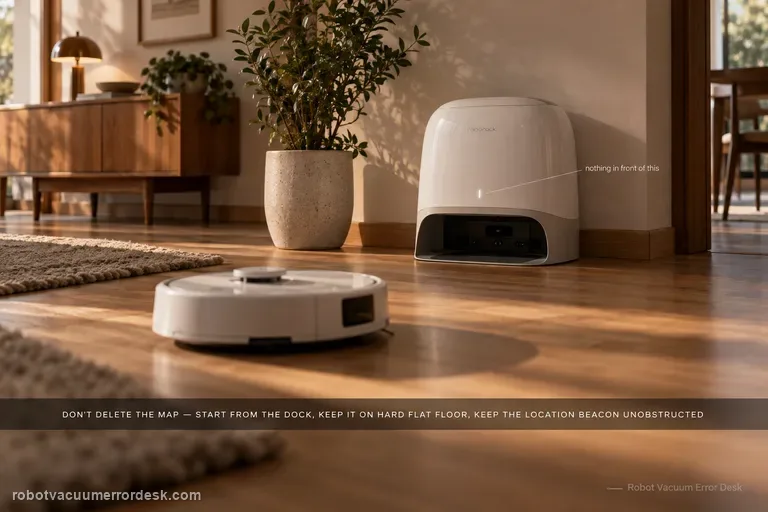
The Curv manual says to keep the dock on a hard, flat surface and keep its location beacon unobstructed. Do not use a dripping or wet cloth on charging contacts. If the dock light and app still disagree after a controlled retest, record both and contact Roborock.
Choose the matching model before using another guide's procedure:
Saros 20 cannot find dock: navigation stage →General Roborock dock-location checks →Compare X50 contact and reset guidance →Error 18 is a separate fan diagnosis →Did this diagnostic narrow the fault?
Use this as an editorial signal, not a popularity counter. If a feedback address is configured you can email the note; otherwise you can copy it for your own support record.