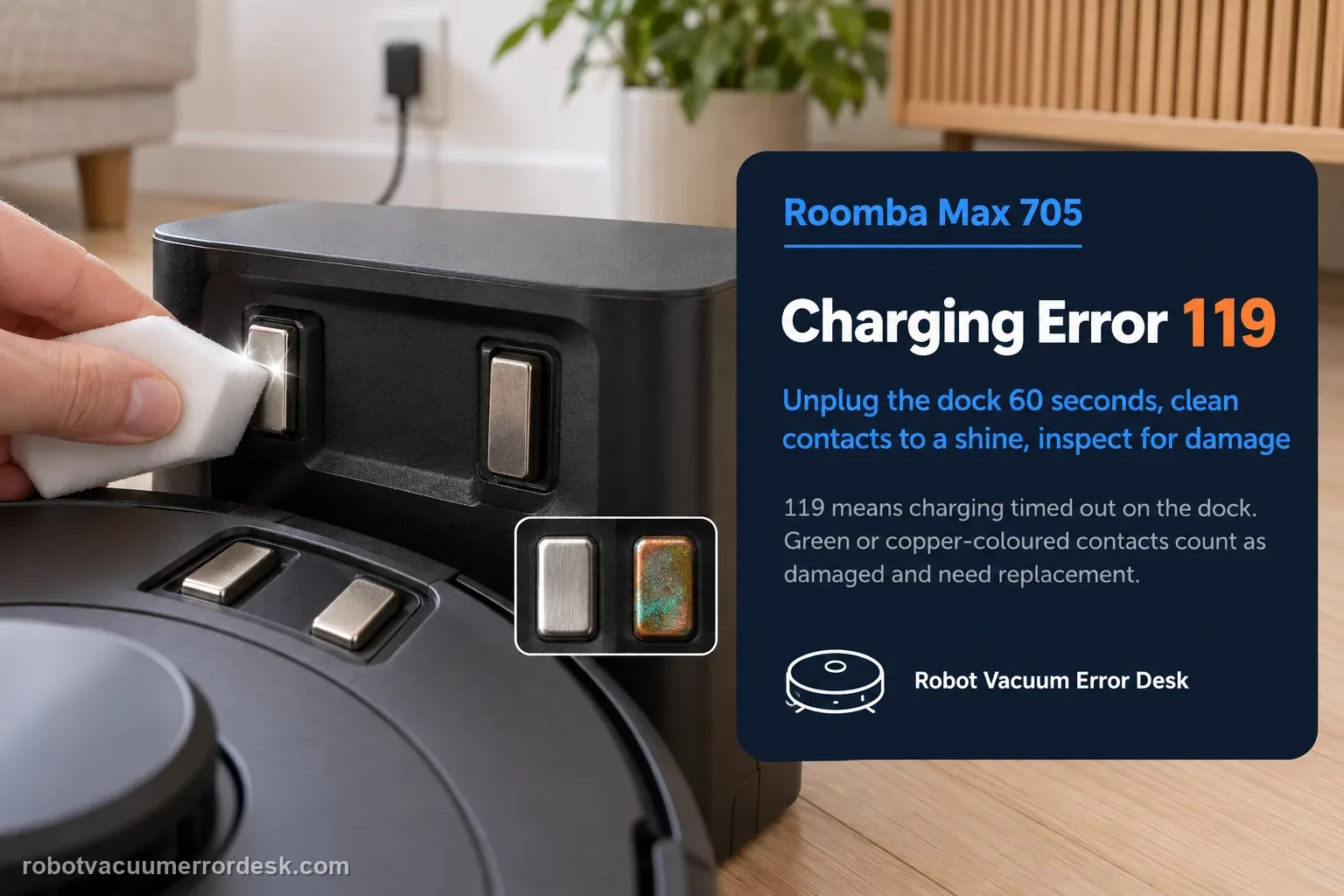
Charging Error 119 means the Roomba is on the dock but charging timed out. iRobot says the most common cause is charging contacts that need maintenance or are damaged. Start by unplugging the dock for 60 seconds, then clean the metal contacts on both robot and dock with a lightly dampened melamine foam or cloth until they have a visible shine. Inspect the contact color: green or copper-colored contacts are considered damaged and the affected robot/dock may need replacement. Confirm the dock has power, then use iRobot’s ship/sleep-mode reactivation path or remove and reinstall the battery to clear the error. The Max 705 Combo is specifically pictured in the manufacturer article, so this is not a generic older-Roomba guess.
Confirm the exact model and exact code, light pattern or symptom.
Run the lowest-risk physical or software check first.
Use each pass condition to decide what the result actually narrows down.
Does this match your problem?
- The Roomba Max 705 reports Charging Error 119 after spending time on the dock without completing the expected charge.
- The robot can physically seat on the dock, but the charging session times out.
- You need to distinguish dirty/damaged contacts from dock power loss and battery seating.
- The charging chart identifies 119 as a timeout rather than the low-current meaning used by Error 105 or the losing-charge meaning used by Error 121.
Most likely causes
Dirty charging contacts causing high resistance or poor contact
Physically damaged/oxidized contacts on the robot or dock
Dock power connection interrupted
Robot state that clears after ship/sleep mode reactivation
Battery not installed/seated correctly
Persistent battery, robot or dock hardware fault after owner maintenance
What your test result means
| What you observe | What it narrows down | Next move |
|---|---|---|
| Contacts have film or residue but normal color/movement | Extra resistance at the interface can contribute to a charge session that never completes normally. | Clean both contact sets with approved material and retest from a fully seated position. |
| A contact is green/copper-colored | iRobot classifies that contact as damaged, so timeout recovery should not become repeated polishing. | Identify the affected robot/dock side and escalate for the damaged assembly. |
| Dock power is intermittent or cord seating changes the symptom | The timeout may be downstream of an unstable power feed rather than the battery itself. | Verify the wall outlet and reseat both power-cord connections before the next charging session. |
| Contacts and power are good but Error 119 returns | iRobot's 119 article says improper battery installation becomes the most likely documented cause at this stage. | Remove and reinstall the battery, then start one fresh charging session. |
| 119 persists after battery reseating | The official owner-level path is exhausted; the remaining fault may require battery, dock or robot service. | Save the code and branch results and contact iRobot rather than opening charging hardware. |
Do not factory-reset by default. Use the exact model’s reboot/network-reset procedure only when the manufacturer path calls for it.
Run these checks in order
Unplug the dock and inspect before cleaning
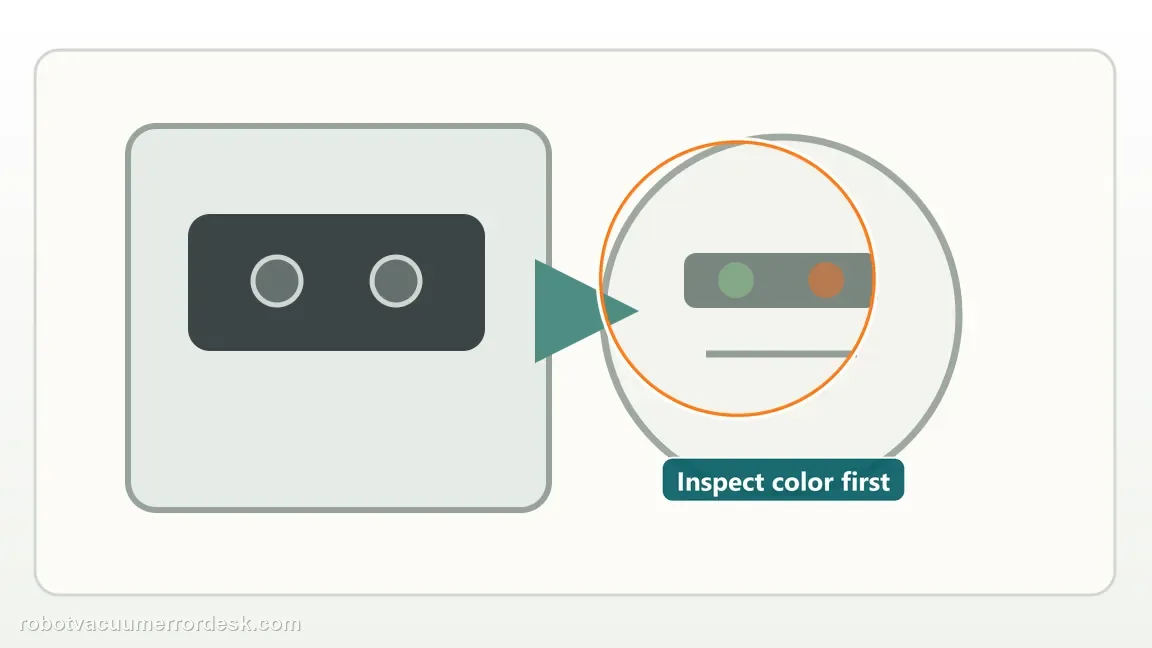
Disconnect dock power and look at every charging contact on both the dock and Max 705. Note color, surface contamination and whether the robot sits evenly. This first inspection matters because a timeout can come from a contact that is merely dirty, while green or copper-colored metal is classified by iRobot as damaged. Photograph anything questionable before cleaning so you can compare the surface afterward and retain evidence if service is needed.
Clean both charging-contact sets to a visible shine
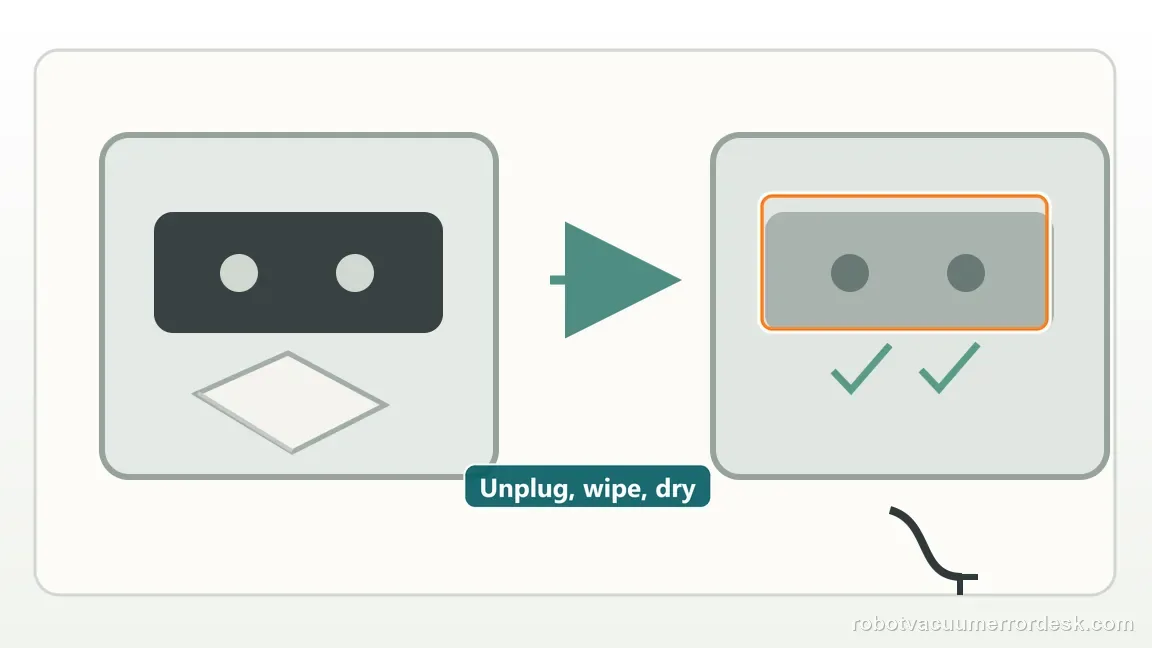
Use only a lightly dampened melamine foam or clean cloth on the contacts. Work the robot and dock sides, then allow the surfaces to return to a clean, normal state before restoring power. iRobot’s 119 procedure uses the same contact images for the Max 705 Combo and says the contacts should have visible shine. Do not sand plating or spray liquid into the dock. A timeout diagnosis needs a controlled electrical interface, not an aggressively modified one.
Stop at damage instead of treating it as stubborn dirt
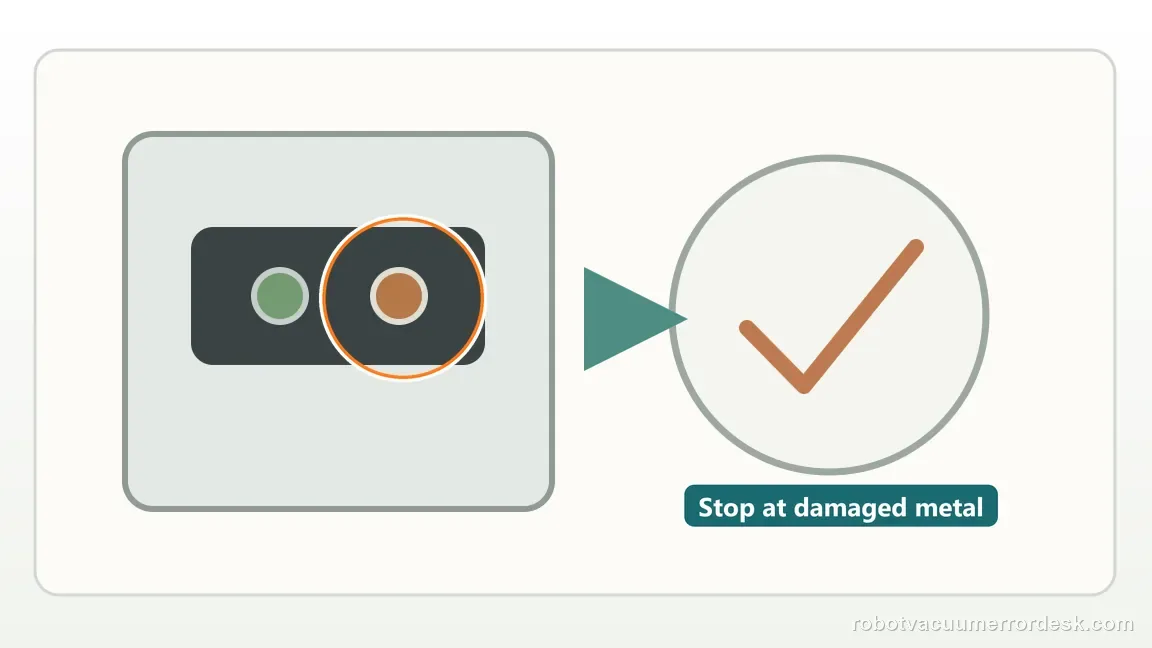
If cleaning reveals green or copper-colored contact metal, iRobot considers the contact damaged and says the robot or dock with that damaged contact needs replacement/service. Record which side is affected. Continuing to scrub can remove more plating and confuse the failure mode. If the contacts are intact, continue to the power branch; if they are damaged, the useful troubleshooting work is already complete.
Verify dock power for the entire timeout window
Check the cord where it enters the dock and at the wall, unplug both ends and reconnect them firmly, and use a known-good outlet. Error 119 is a timeout: a dock that drops power briefly can undermine the test even if the robot sometimes displays charging. Leave the setup undisturbed long enough to see whether the timeout behavior returns. Do not combine this with unrelated Wi-Fi changes because network state is not the documented electrical branch for Charging Error 119.
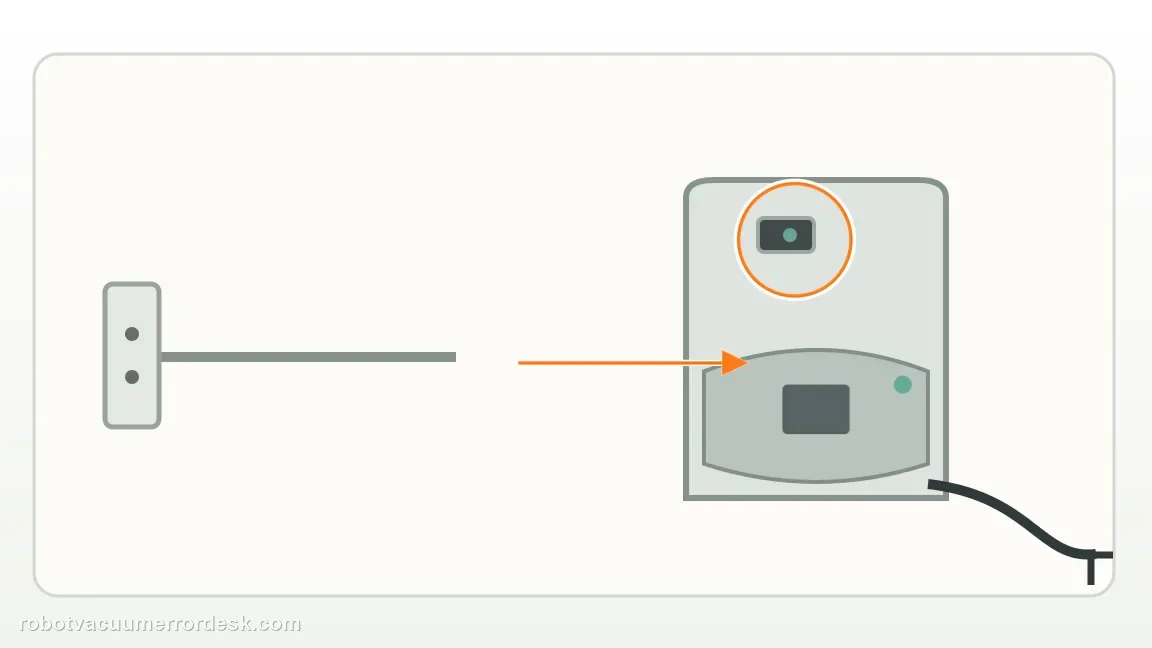
Reseat the battery after contacts and dock power pass
If 119 persists, iRobot says the most likely documented cause is that the battery has not been properly installed, so power is not reaching it correctly. Remove and reinstall the battery using the serviceable-battery procedure and make sure it seats fully. This is different from randomly replacing the battery: the official first battery action is reseating. Once reassembled, return the robot to the powered dock and start a new charging session.
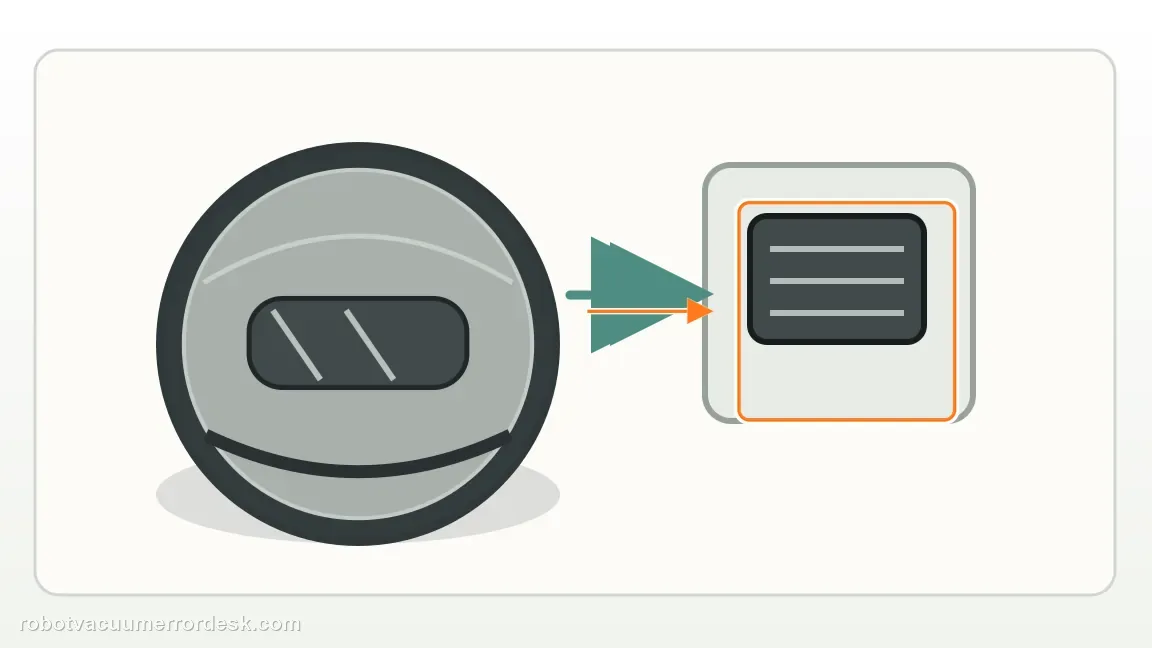
Classify the post-reseat result and escalate a true repeat
Watch for normal sustained charging, immediate Error 119, or a different code. If a new charging code appears, use that code’s definition from iRobot’s chart rather than assuming every failure is still a timeout. If 119 returns with clean intact contacts, stable dock power and a reseated battery, you have completed the published owner-side path. Preserve the result for Customer Care instead of repeatedly reseating the battery.
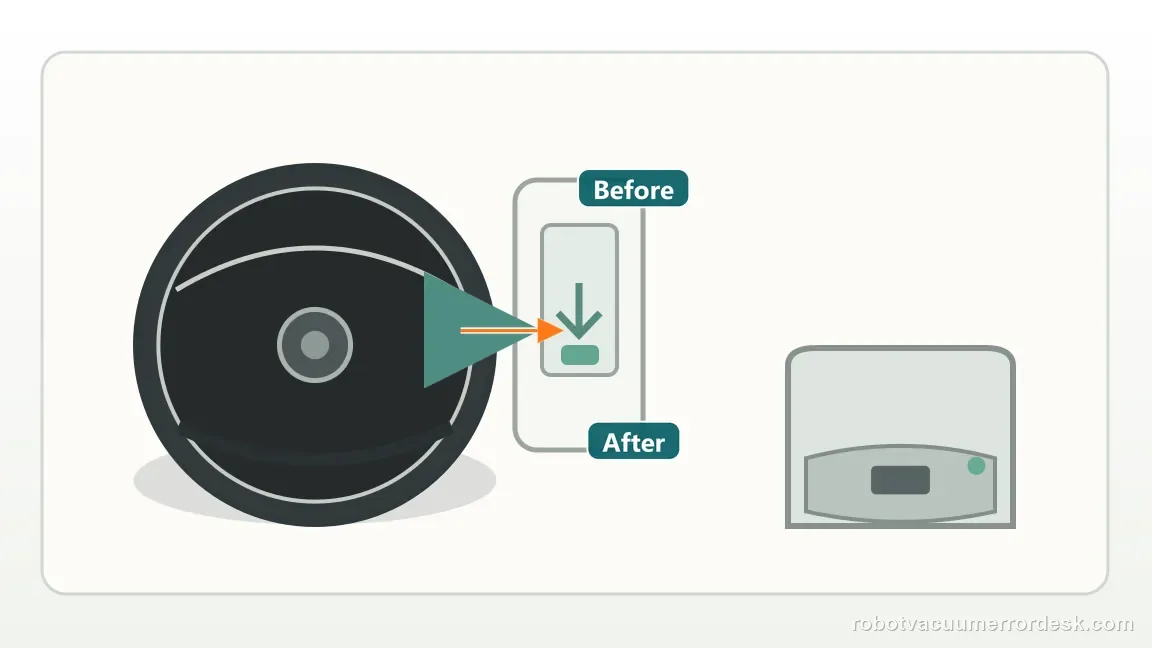
Charging Error 119 should go to iRobot after clean intact contacts, verified dock power and a battery reseat still produce the same timeout. Contact sooner if green/copper contact damage is visible. Do not open the dock or repeatedly replace batteries without evidence. Record whether charging begins and later times out versus never starts at all, because that observation helps distinguish 119 from other charging codes in iRobot’s chart.
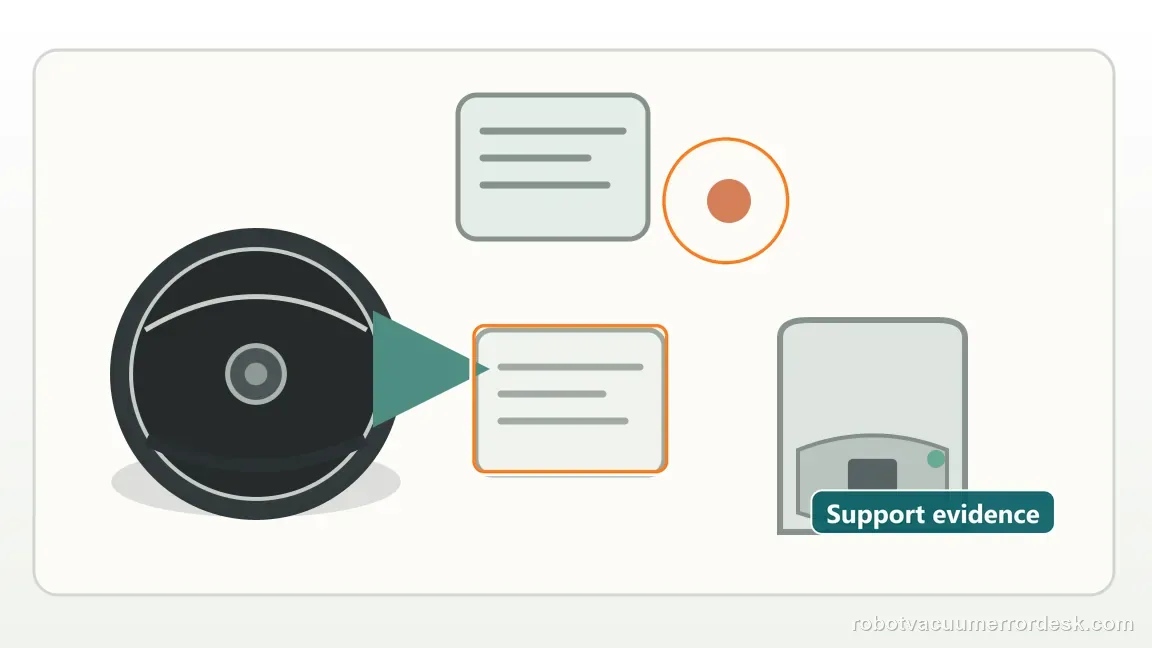
What to collect before contacting support
Give support a reproducible case instead of “it doesn’t work.” That reduces repeated basic troubleshooting and preserves the clues from your tests.
- Exact model name and the error code / voice prompt exactly as shown
- A photo or screenshot of the app error and the time it occurred
- A short list of the checks already completed and what happened after each one
- Robot serial number and proof of purchase if warranty may apply
Manufacturer evidence
iRobot Charging Error 119 support
Primary evidence is iRobot Knowledge 10619, which defines the Error 119 troubleshooting path and specifically includes Max 705 Combo contact illustrations. The iRobot charging-error chart is the companion source that labels 119 as a charge timeout and distinguishes it from 105 low current and 121 losing charge. This guide preserves those distinctions to reduce charging-page cannibalization.
Additional official source: iRobot — Charging Error Chart: All Roomba and Braava Models ↗Last editorial review: September 5, 2026Regional note: manufacturer help centers, model suffixes, mains-power requirements and warranty procedures can differ by country. If the source redirects to a local support site, confirm that the model/hardware scope still matches before following a region-sensitive step.
This guide is rated Official model support. See what each evidence label means →
FAQ
What does Charging Error 119 mean on the Roomba Max 705?
iRobot’s charging chart defines 119 as a charging timeout. On the Max 705, the documented recovery path cleans the robot/dock contacts, verifies dock power and then reseats the battery if the timeout persists. That differs from Error 105, which is low electrical current, and Error 121, where a robot is docked but losing charge. The distinctions help you avoid repeating the wrong branch.
How can I tell dirty contacts from damaged contacts on the Max 705?
Dirty contacts may show ordinary film and can be cleaned with the approved lightly dampened melamine foam or cloth. iRobot says green or copper-colored contacts are damaged, not simply dirty. If that color remains or the surface is visibly compromised, identify whether it belongs to the robot or dock and stop abrasive cleaning. The affected assembly may need service or replacement rather than another timeout test.
Why should I check dock power for Charging Error 119?
Because Error 119 is a timeout, the charging session needs a stable power source long enough to complete normally. iRobot instructs owners to check both power-cord connections and reconnect them. A dock that intermittently loses power can make a battery or contact diagnosis misleading. Verify the outlet and cord first, then leave the setup undisturbed for one controlled charging session before deciding the timeout is internal.
When should I reseat the battery for Roomba Max 705 Error 119?
Reseat it after dock power and charging contacts have been checked. iRobot’s Error 119 article says an improperly installed battery is the most likely cause if the earlier steps do not clear the timeout. Remove and reinstall the pack according to the serviceable-battery procedure, then start one fresh charge. Repeatedly removing a correctly seated battery is not useful if 119 immediately returns afterward.
When is Charging Error 119 an iRobot support case?
Escalate when the Max 705 has clean intact contacts, a known-good powered dock and a properly reseated battery but Error 119 still repeats. Also escalate immediately for visibly damaged contacts. Save photos, the exact error and whether charging ever starts before timing out. Those details let support distinguish a contact or dock issue from battery/robot charging hardware without you opening either assembly.
Did this diagnostic narrow the fault?
Use this as an editorial signal, not a popularity counter. If a feedback address is configured you can email the note; otherwise you can copy it for your own support record.