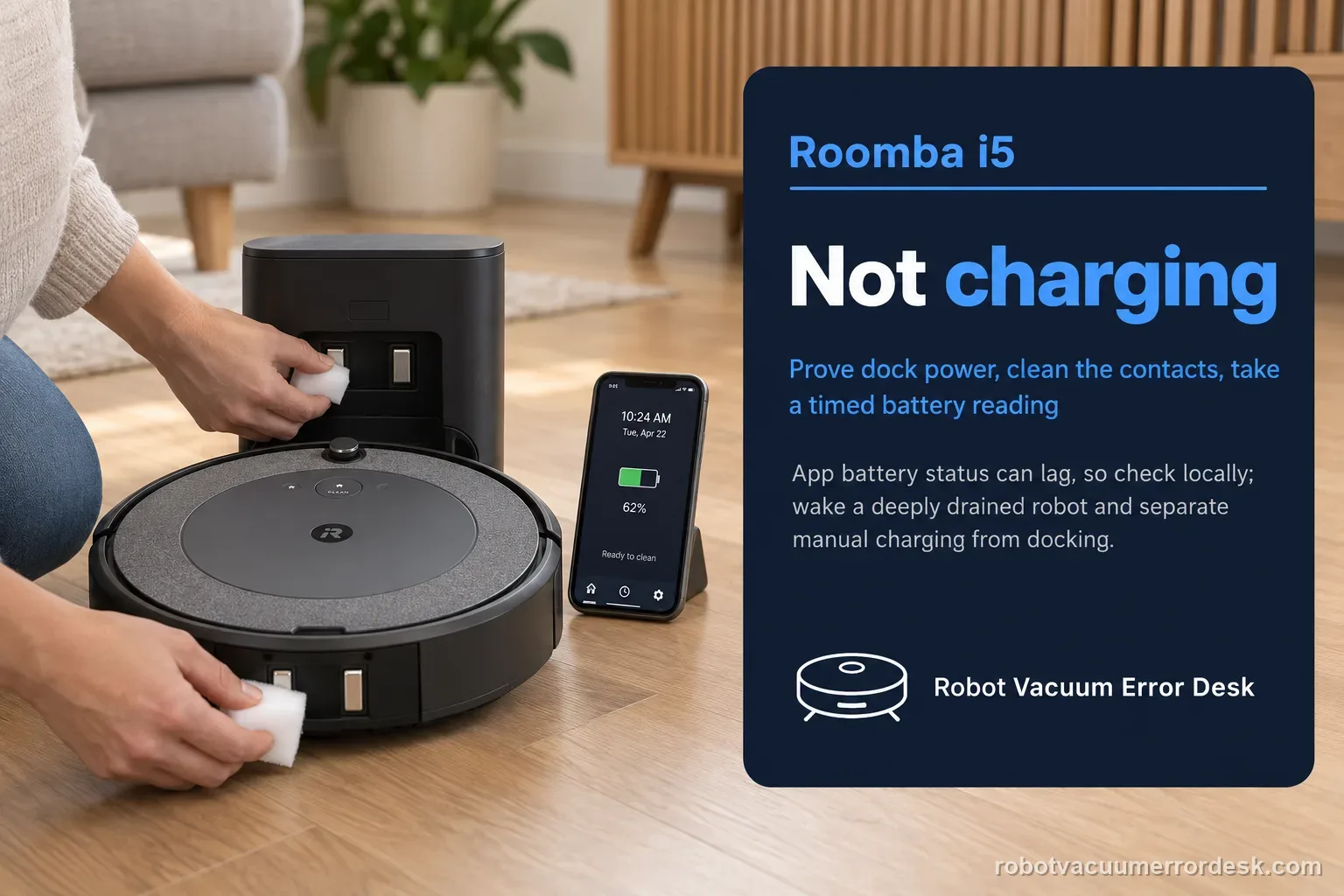
For a Roomba i5 that will not charge, first prove the Home Base or Clean Base is powered and that the robot is actually touching both charging contacts. iRobot warns that battery status may not refresh reliably from a remote connection, so check locally and use a timed before/after reading. Clean the contacts, allow a deeply exhausted robot to wake, and separate manual charging from autonomous docking. If the i5 never acknowledges charge, use the supported reboot or battery re-seat path. Only after those controlled checks should battery or robot-side charging hardware become the leading suspect; newer i5 hardware revisions can also be non-modular, which affects the service route.
Confirm the exact model and exact code, light pattern or symptom.
Run the lowest-risk physical or software check first.
Use each pass condition to decide what the result actually narrows down.
Does this match your problem?
- The i5 or i5+ remains low after sitting on the dock.
- The robot wakes on the base but the app percentage appears stuck.
- The i5 charges by hand but autonomous returns do not establish charging.
- The robot became unresponsive after storage, maintenance or a battery event.
Most likely causes
Dock power connection is loose or interrupted
Charging contacts are dirty, damaged or not meeting evenly
A deeply depleted i5 needs a stable wake/charge period
App battery state is stale when checked remotely
Battery, dock or robot-side charging hardware remains faulty after controlled tests
What your test result means
| What you observe | What it narrows down | Next move |
|---|---|---|
| No wake-up on a confirmed powered base | The robot is not entering a normal charging state. | Recheck both contact pairs, then use the supported i-Series recovery path. |
| Battery rises during local timed test | Charging hardware and battery acceptance are functioning. | Stop electrical diagnosis; address docking only if autonomous returns still fail. |
| Remote app value is stale but local status rises | The apparent problem is status refresh, not failed charging. | Use local readings and robot indicators for future checks. |
| Charges only when repositioned by hand | Final seating/contact alignment is unstable. | Inspect dock approach, wheel/caster drag and contact geometry. |
| Contact is stuck or visibly damaged | Cleaning cannot correct a mechanical contact defect. | Escalate for dock or robot service instead of repeated abrasive cleaning. |
Do not factory-reset by default. Use the exact model’s reboot/network-reset procedure only when the manufacturer path calls for it.
Run these checks in order
Confirm base power independently of the status light
Check the wall outlet and fully seat the base power cable. iRobot docks may turn indicators off after a short time, so a dark LED is not enough to call the base dead. Place the i5 squarely on the charging contacts and look for robot wake-up or charging behavior. If another compatible iRobot base is available through normal household use, compare behavior only if the model supports it; do not improvise power supplies. The goal is simply to prove that power reaches the official dock reliably.
Inspect contact condition, not just cleanliness
Clean the charging contacts on both robot and base, then look for physical defects. iRobot notes that contacts can be stuck or show abnormal green/copper coloration; those conditions are different from ordinary surface dirt. Seat the robot straight so both sides touch at the same time. If one contact is mechanically damaged, repeated scrubbing or pushing the robot harder onto the base will not restore reliable charging and can hide the real service need.
Allow a very low battery to wake on the base
A fully exhausted i-Series battery can take time before the robot presents normal indicators. Leave the i5 undisturbed on the powered base and note whether the ring wakes and changes state. Avoid removing and replacing the robot every few minutes because each interruption resets the observation. A delayed wake followed by normal charge progression suggests deep discharge rather than immediate charging-hardware failure; no response at all keeps dock/contact/robot power state in play.
Measure battery change on the local network
Check the battery state while the phone and robot are on the same local network, record the percentage, then leave the robot charging and compare later. iRobot notes that remote status may not refresh in the same way, so a stale app number alone is weak evidence. Pair the app reading with the robot's own charging indication. If both show progress, charging is working. If the robot claims charge but the local percentage stays flat, document the exact interval and values.
Separate manual charging from autonomous docking
If the i5 charges when hand-seated, put it a short distance in front of the base and command Home. Failure during the final approach belongs to docking: base placement, wheel/caster condition, approach interference or contact alignment. Do not replace a battery simply because the robot docks crooked. Conversely, if the robot navigates onto the base but never acknowledges charge even when manually repositioned, keep the diagnosis on the electrical contact/charging side.
Use the official recovery path once
For an unresponsive i5 or a charging state that remains stuck after power/contact checks, follow iRobot's supported reboot and, where the model procedure allows, battery remove/reinstall path. Do not open the lithium-ion pack. After the recovery, repeat exactly the same manual-seat and timed battery test so the result is comparable. Rebooting repeatedly without a fixed test condition can create the impression of improvement while the underlying intermittent contact remains.
Escalate with revision-aware evidence
If charging still fails, provide iRobot with the serial number and bottom-hardware details because newer i1/i3/i5 designs can differ in modularity. Include whether the dock is powered, whether contacts look damaged, whether the i5 wakes, and the local battery percentage before and after the timed test. This evidence lets support distinguish a battery issue from dock output or robot-side charging hardware without asking you to repeat the entire basic checklist.
Contact iRobot if the i5 cannot establish charging on a confirmed powered base with clean, healthy contacts after the supported recovery path, or if it acknowledges charge but the local battery percentage repeatedly fails to rise. Provide the serial number, dock model, contact condition and timed before/after battery readings. If the robot charges only when placed manually, say so explicitly because that shifts the likely cause toward docking/alignment. Do not open the battery pack or base electronics.
What to collect before contacting support
Give support a reproducible case instead of “it doesn’t work.” That reduces repeated basic troubleshooting and preserves the clues from your tests.
- Exact model name and the error code / voice prompt exactly as shown
- A photo or screenshot of the app error and the time it occurred
- A short list of the checks already completed and what happened after each one
- Robot serial number and proof of purchase if warranty may apply
Manufacturer evidence
iRobot — not turning on or charging properly
iRobot charging support covers dock power, contact maintenance, recovery and battery re-seat; battery-status guidance warns that remote state may not always update as expected during charging.
Additional official source: iRobot — battery level indicator guidance ↗Additional official source: iRobot — i1–i5 light-ring behavior ↗Last editorial review: September 5, 2026Regional note: manufacturer help centers, model suffixes, mains-power requirements and warranty procedures can differ by country. If the source redirects to a local support site, confirm that the model/hardware scope still matches before following a region-sensitive step.
This guide is rated Official series support. See what each evidence label means →
FAQ
Why does my Roomba i5 look like it is charging but the percentage does not change?
First check the battery state while your phone and robot are on the same local network, because iRobot notes that remote battery status may not refresh the same way. Record the percentage, leave the i5 on a confirmed powered base, and compare later. If the robot indicates charging but a local timed reading never rises, that repeatable mismatch is useful evidence for support.
Can dirty contacts make a Roomba i5 charge only sometimes?
Yes. Residue or poor seating can create intermittent contact even when the robot appears parked correctly. Clean both robot and base contacts and inspect them for physical damage or sticking, then repeat several manual placements. If the i5 charges only when pushed or repositioned, focus on contact alignment and docking mechanics before assuming the battery itself has failed.
How do I know whether my Roomba i5 problem is docking or charging?
Manually place the i5 squarely on a confirmed powered base. If it charges normally by hand but fails after autonomous returns, the charging circuit can work and the stronger suspects are final approach, wheel/caster drag, base placement or contact alignment. If it never acknowledges charge even when perfectly seated, keep the diagnosis on dock power, contacts, battery state or charging hardware.
Should I replace the battery if my Roomba i5 will not wake?
Not before proving dock power, contact condition and the supported recovery path. A deeply depleted i-Series robot may take time to wake on the base, and a poor electrical connection can mimic a dead battery. Leave the i5 undisturbed on a confirmed powered dock, then use the documented reboot or battery re-seat procedure if needed. Replace parts only after the controlled test still fails.
When is a Roomba i5 charging problem ready for support?
Escalate when a known-good outlet, powered base, clean undamaged contacts and the supported recovery procedure still cannot produce a charging state, or when the local battery percentage remains flat despite a repeated charging indication. Send the serial number, dock type and before/after percentage. Also say whether hand-seating works, because that separates an electrical fault from an autonomous docking problem.
Did this diagnostic narrow the fault?
Use this as an editorial signal, not a popularity counter. If a feedback address is configured you can email the note; otherwise you can copy it for your own support record.