iRobot Roomba troubleshooting
Roomba i, j, Max 700 and current Wi-Fi models. Start with the exact model, then match the error code, light pattern, voice alert or symptom.
Roomba i3 / i3+
Navigation, charging and cleaning-head diagnostics.
3 live diagnostics →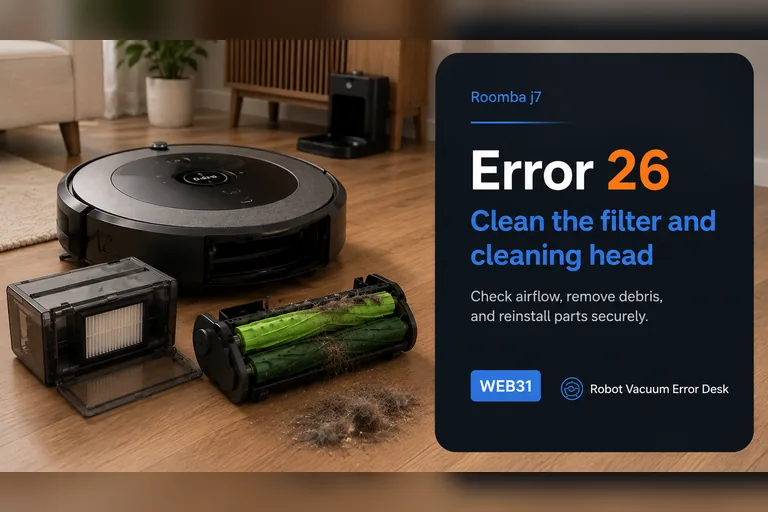
Roomba j7 / j7+
Docking, vacuum-path and light-ring diagnostics.
3 live diagnostics →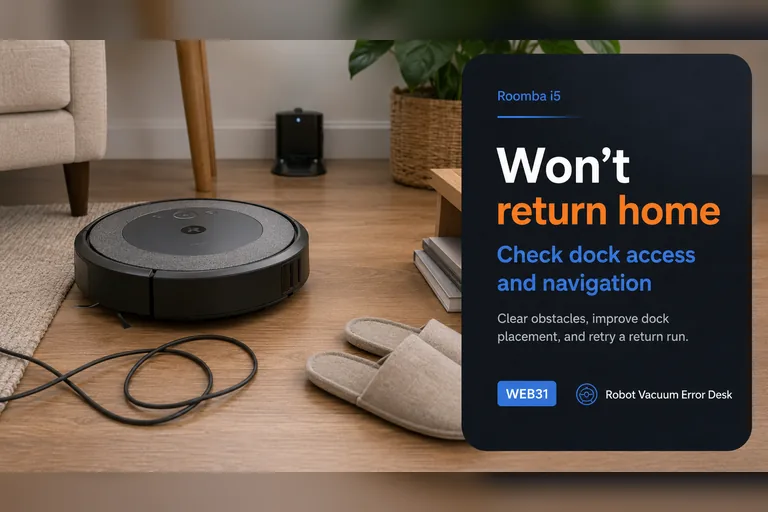
Roomba i5 / i5+
Series-level error paths with model checks.
3 live diagnostics →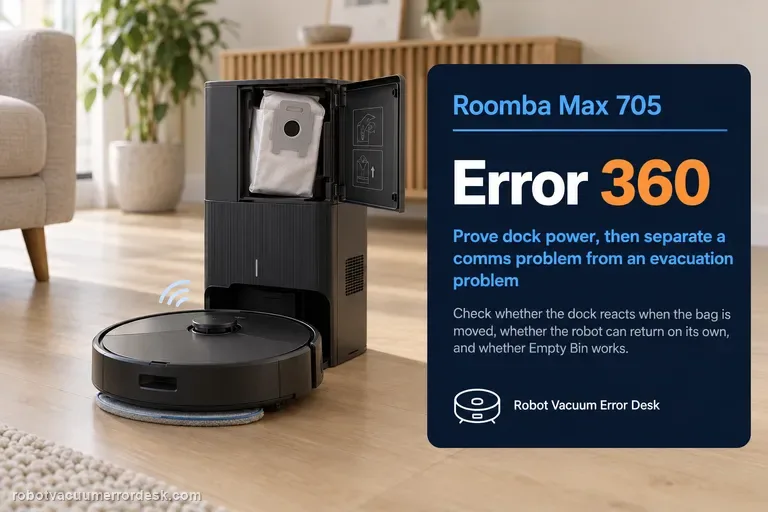
Roomba Max 705 Combo
Current-generation dock communication, charging and software diagnostics.
9 live diagnostics →All iRobot Roomba diagnostics
18 guidesError 26
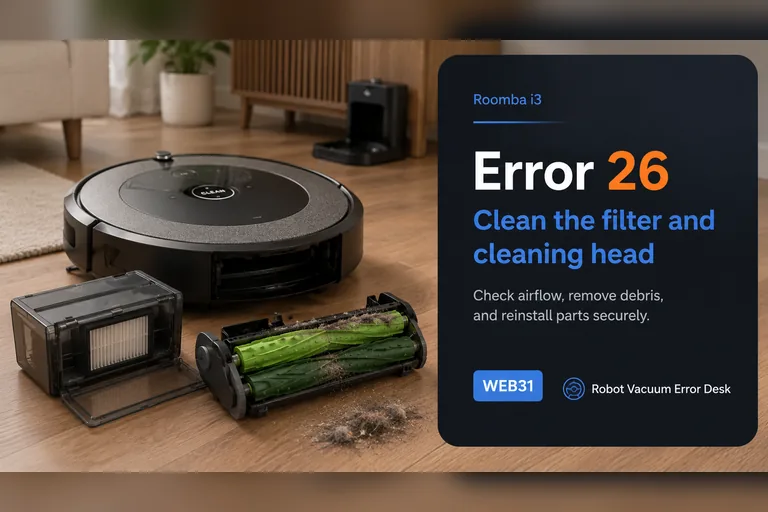
On the Roomba i3, Error 26 is an airflow/vacuum problem, not a generic internal error. iRobot says to clean or replace the bin filter first, keep that filter dry, rinse only the bin and let it dry completely, then reinstall everything before retesting. If the code persists, reboot an i-Series robot by holding CLEAN for 20 seconds. A repeat Error 26 after a known-good filter and reboot raises the cleaning-head module as the next suspect, but newer i1/i3/i5 variants may be non-modular. Check the serial-number or bottom-cover clues before ordering a module that cannot be replaced on your particular robot.
Error 26
iRobot defines Error 26 on the Roomba j7/j7+ as insufficient airflow, so start with the air path rather than the battery, dock or map. Remove the bin, tap dust from the filter without washing it, rinse only the bin with warm water and let it dry completely, then clear the dual rollers and intake path. Reassemble the filter and bin, reboot a j-series robot by holding CLEAN for nine seconds, and run a short controlled vacuum test. If Error 26 returns after a clean or replaced filter, a dry unobstructed bin path and the documented reboot, iRobot says the cleaning-head module may need service or replacement; stop buying random parts and use the repeatable test result for support.
Won't dock
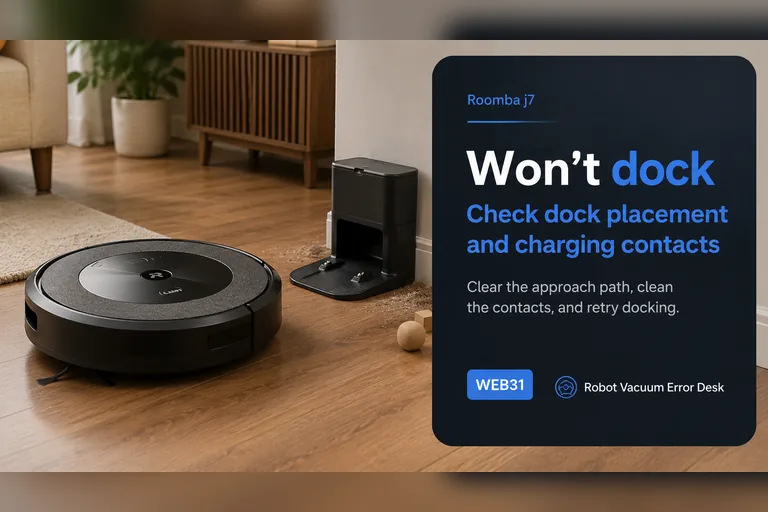
For a j7 that will not dock, start with a controlled close-range return rather than deleting the map. iRobot's Error 18 guidance says j-Series robots use the front-facing camera for the docking approach instead of the RCON used on many older Roombas. Confirm the dock has power, keep its approach clear, remove direct sunlight or visual obstruction, clean the robot/dock contact and bumper areas, then face the j7 toward the dock from about 6 ft (1.8 m) and command Home. A successful close test points to placement, mission context or range. A failed close test keeps camera visibility, final approach and dock/contact conditions at the center of the diagnosis.
Not charging
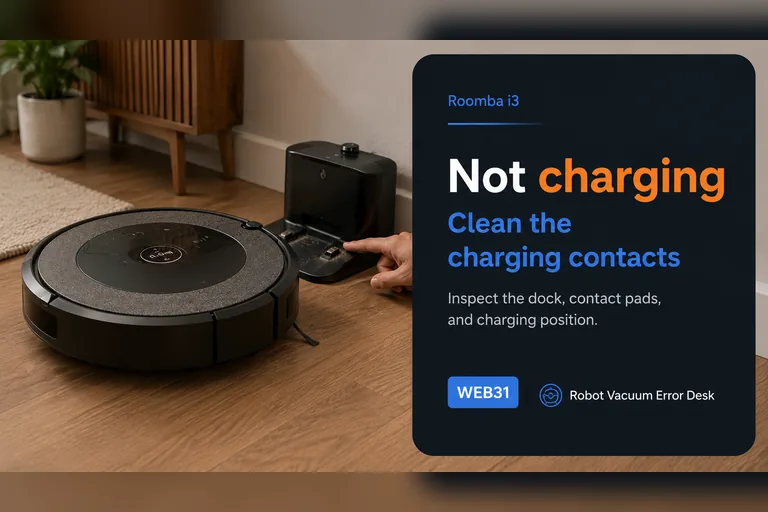
Treat a Roomba i3 charging complaint as three separate questions: does the Home Base have power, does the robot actually make electrical contact, and does the battery state rise after contact is established? iRobot's charging guidance starts with dock power and maintenance rather than a replacement battery. Manually seat the i3 on a confirmed powered base, clean both charging contacts, allow a deeply depleted robot time to wake, and compare the battery state before and after a controlled charging interval. If manual seating works but autonomous returns do not, the problem belongs in docking/navigation diagnosis. If the i3 never acknowledges charge even when directly aligned, use the supported reboot or battery re-seat path and then escalate with the exact symptom rather than buying parts by guesswork.
Red light
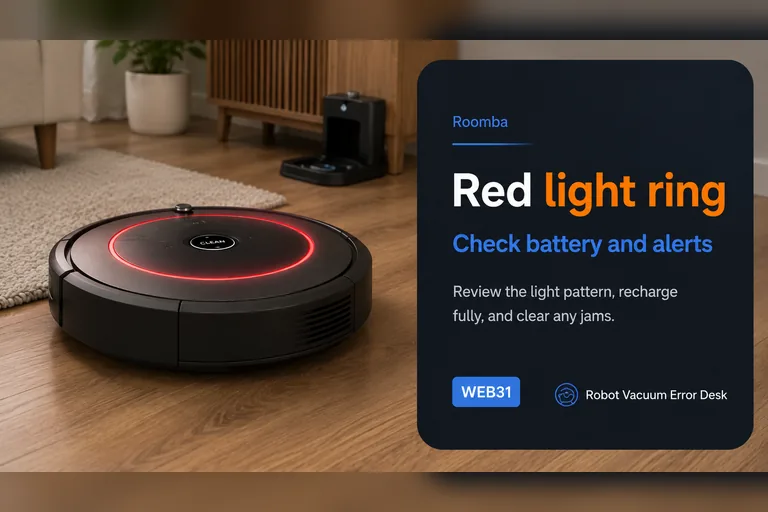
A red light on a Roomba j7 is a status language, not one universal fault. iRobot documents solid red for an active error, pulsing red when the battery is charging but still too low to start, and a red sweep toward the rear for a full-bin condition on i/j robots. Read the motion of the light and the app/voice message before resetting the robot. If it is solid red, make Roomba repeat the underlying error and troubleshoot that code. If it is pulsing red, prove charging time. If it sweeps rearward, empty the bin and clean all full-bin/port sensors. A dock light is a separate indicator and should not be interpreted as the robot's light ring.
Won't return home
When a Roomba i5 simply 'won't return home' without a clear Error 18 message, first determine which stage fails. If it cannot dock from a short clear approach, troubleshoot the Home Base, RCON/bumper area, contacts and wheels. If it docks perfectly from about 6 ft but fails after a long cleaning mission, focus on whole-home context: whether the robot or base was moved, how far the return begins from the dock, remaining battery and environmental interference. iRobot notes that physically moving a Roomba during a mission can make Home Base recovery harder and publishes range guidance for the i3/i4/i5 family. This symptom-first page therefore starts with a close test before map deletion or battery replacement.
Error 360
Error 360 on the Roomba Max 705 belongs to the robot-to-dock communication and debris-evacuation path. Do not treat it as a generic charging warning. iRobot’s current Max 700 procedure first proves that the AutoEmpty/AutoWash dock has power, then separates a communication problem from an evacuation problem. A useful check is whether the dock reacts when the bag is partially removed, whether the robot can return to the dock by itself, and whether an Empty Bin command appears and works. If manual evacuation works but the app control is missing, clean the dock sensor window and robot bumper with the approved dry method. If the robot was simply placed on the dock by hand, send it away and press HOME so it self-docks; iRobot notes that automatic emptying is tied to a normal self-docking event. Finish with a reboot only after power, sensors, contacts and docking behavior have been classified.
Charging Error 119
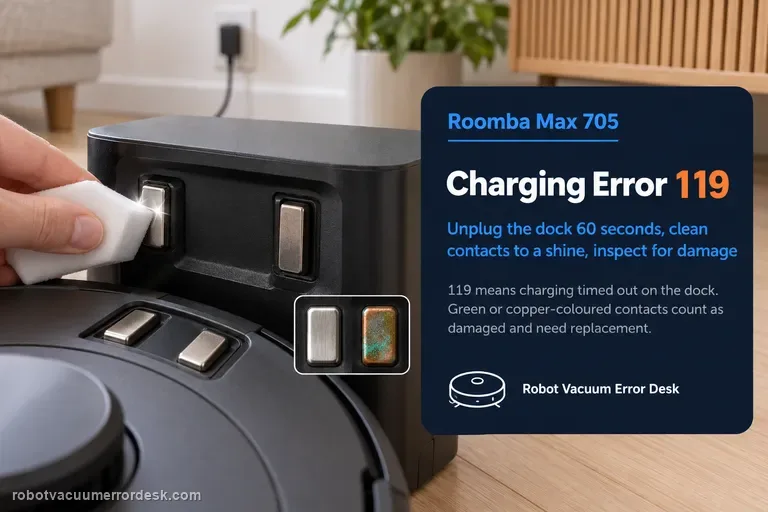
Charging Error 119 means the Roomba is on the dock but charging timed out. iRobot says the most common cause is charging contacts that need maintenance or are damaged. Start by unplugging the dock for 60 seconds, then clean the metal contacts on both robot and dock with a lightly dampened melamine foam or cloth until they have a visible shine. Inspect the contact color: green or copper-colored contacts are considered damaged and the affected robot/dock may need replacement. Confirm the dock has power, then use iRobot’s ship/sleep-mode reactivation path or remove and reinstall the battery to clear the error. The Max 705 Combo is specifically pictured in the manufacturer article, so this is not a generic older-Roomba guess.
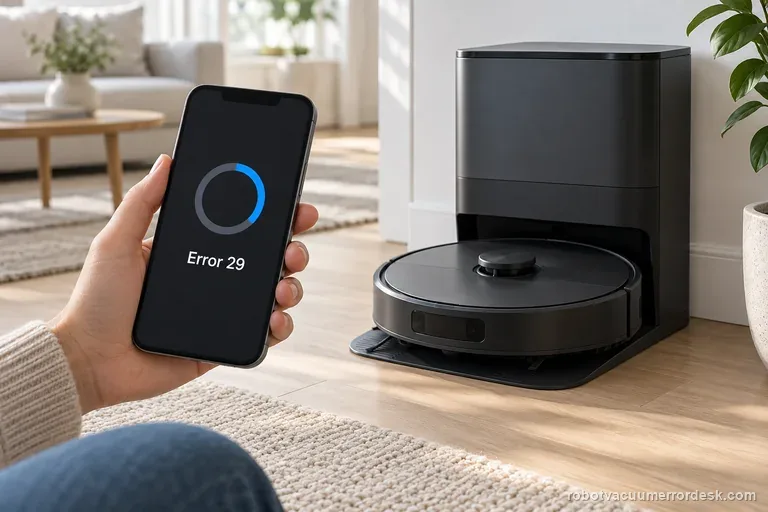
Error 29 / update interruption
Error 29 means the Roomba started while a software update was in progress. Leave the Max 705 on its dock and watch the app for a few minutes. If status never finishes, iRobot says to reboot from Product Settings or hold the power button for 10 seconds off the dock. Record the software version and result before contacting support.
Charging Error 121
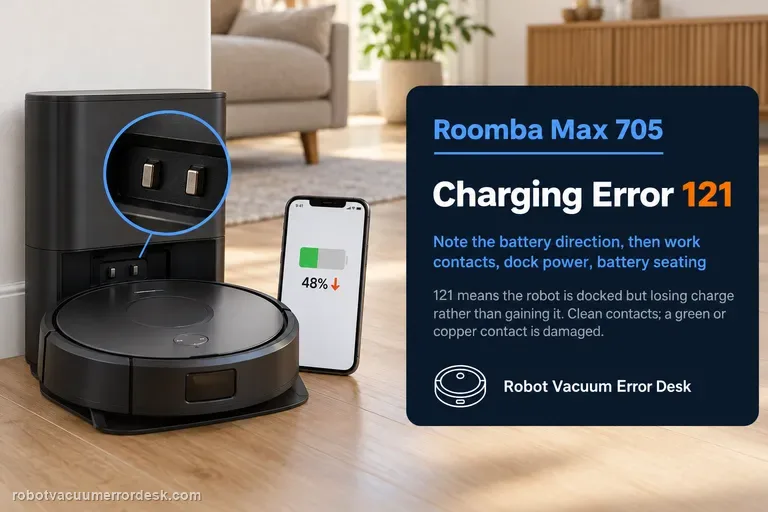
Charging Error 121 means the Roomba Max 705 is docked but losing charge instead of maintaining or gaining it. That makes the observed battery direction important: this is not merely ‘the robot will not start charging.’ iRobot’s code-specific path begins with the charging contacts, then verifies continuous dock power, and finally removes/reinstalls the battery if the external interface passes. Clean contacts with an approved lightly dampened melamine foam or cloth; if a contact is green or copper-colored, iRobot treats it as damaged. During the power test, watch whether the battery percentage or charging state continues to fall while the robot remains seated. If it does, capture that behavior. After a battery reseat, run one fresh session without moving the robot. A persistent 121 on clean intact contacts with stable dock power is a service case rather than a cue to keep polishing or repeatedly rebooting.
Charging Error 105
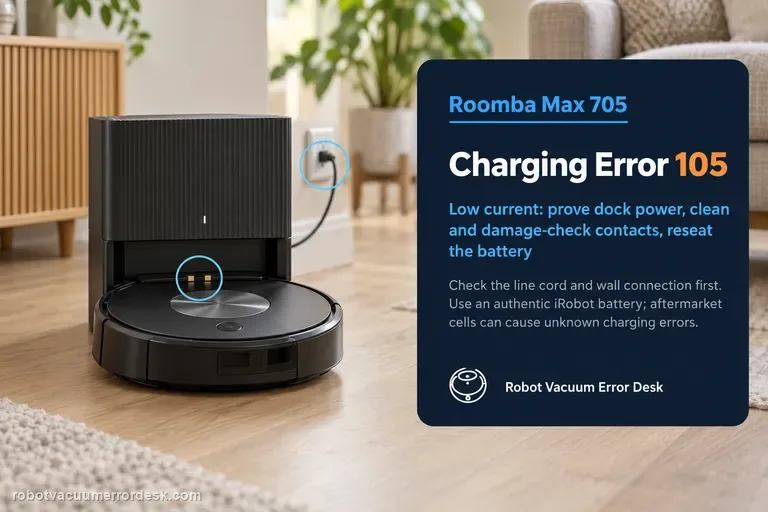
Charging Error 105 means low electrical current is reaching the Roomba Max 705. That is more specific than ‘not charging’: iRobot says the low-current path can involve the dock or power cord, debris on the charging contacts, damaged/stuck contacts, or the battery/robot side. Start by proving the dock has power, then clean both contact sets with an approved lightly dampened melamine foam or clean cloth. Inspect rather than endlessly polish: contacts that are green, copper-colored or stuck down are considered damaged and the affected robot or dock needs service/replacement. If the contacts and power path look normal, remove and reinstall the battery; iRobot says this effectively reboots the robot and specifically warns to use an authentic iRobot lithium-ion battery because aftermarket batteries can cause unknown charging errors. The pass condition is stable current/charging after each branch, not simply making Error 105 disappear for a few seconds.
Wi-Fi setup / connection
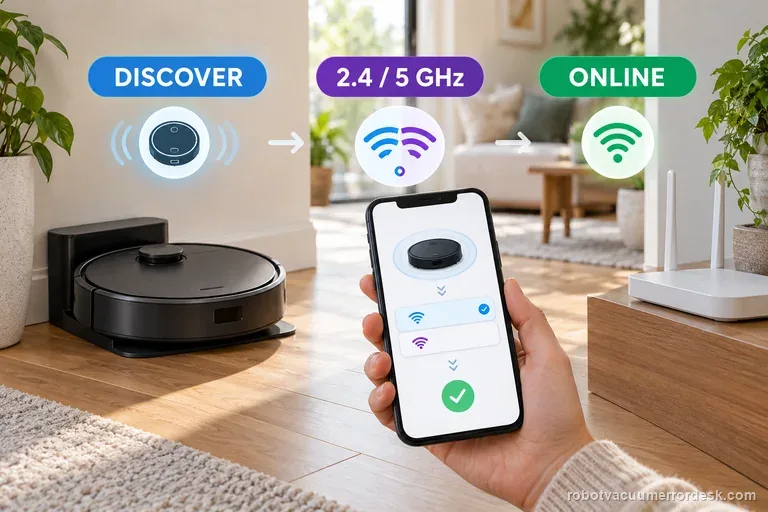
First note where Max 705 setup stops: nearby discovery, Wi-Fi credentials, or the post-setup cloud connection. iRobot lists this model on both 2.4 and 5 GHz, so do not force 2.4 GHz by default. Keep it charging near the router, allow the phone permissions the app requests, then test one network change at a time.
Error 18
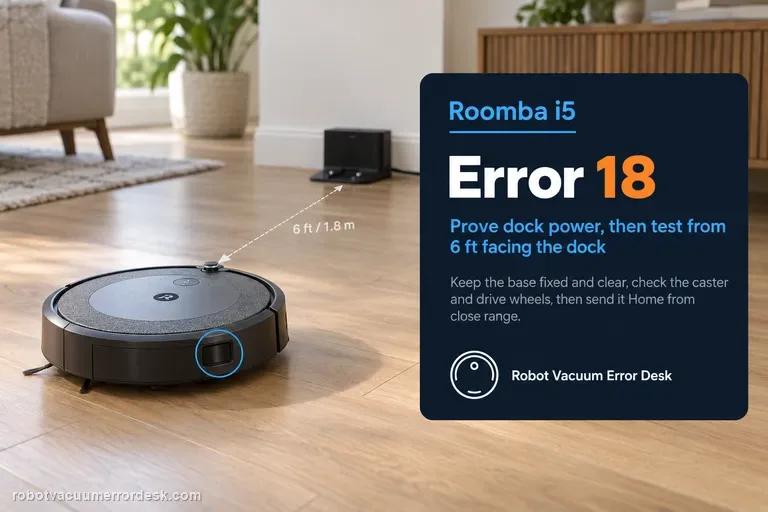
Error 18 on a Roomba i5 means it could not return to the Home Base or starting position. Treat the numbered error as a controlled docking diagnosis: prove dock power, keep the base fixed and clear, inspect the caster and drive wheels, then test the i5 facing the dock from about 6 ft (1.8 m). Unlike j-Series robots, the i Series is among the models iRobot lists with an RCON sensor for dock detection, so the close-range test helps evaluate that homing path. If the i5 docks from close range but fails after long missions, placement, navigation context, remaining battery and area coverage are stronger suspects than the dock itself.
Not charging
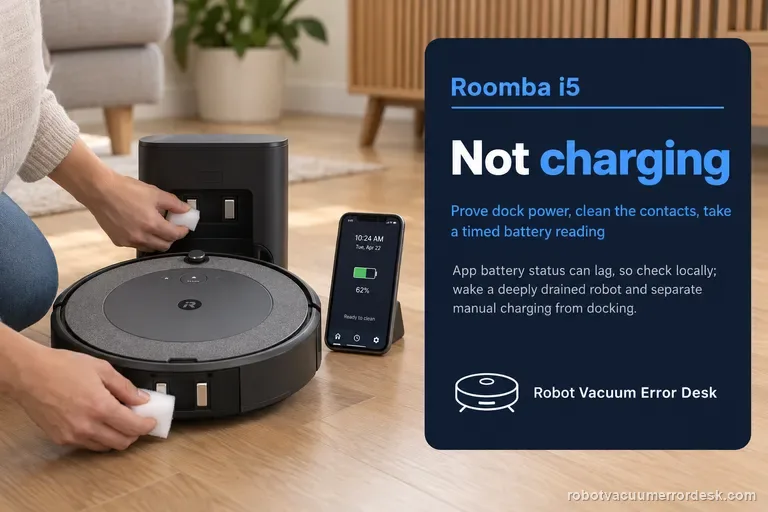
For a Roomba i5 that will not charge, first prove the Home Base or Clean Base is powered and that the robot is actually touching both charging contacts. iRobot warns that battery status may not refresh reliably from a remote connection, so check locally and use a timed before/after reading. Clean the contacts, allow a deeply exhausted robot to wake, and separate manual charging from autonomous docking. If the i5 never acknowledges charge, use the supported reboot or battery re-seat path. Only after those controlled checks should battery or robot-side charging hardware become the leading suspect; newer i5 hardware revisions can also be non-modular, which affects the service route.
Error 18 / cannot return to dock
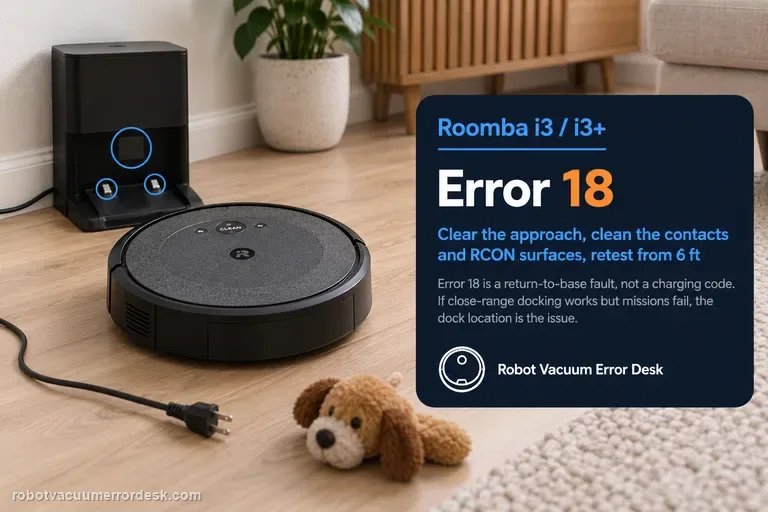
On the Roomba i3/i3+, Error 18 means the robot could not return to the Home Base or its starting position; it is not a charging-error code by itself. Prove the dock has power and has not moved, clear the approach, clean both charging-contact sets and the dock/RCON homing surfaces, check the caster and drive wheels, reboot the i Series robot, then face it toward the dock from within about 6 ft (1.8 m) and send it Home. If that close-range test works but a normal mission still fails, dock placement, environmental interference or mission range becomes the stronger lead. iRobot lists i3/i3+ coverage at up to about 1,600 ft², so a long mission ending with a very low battery can also reduce the margin for a successful return.
Error 450
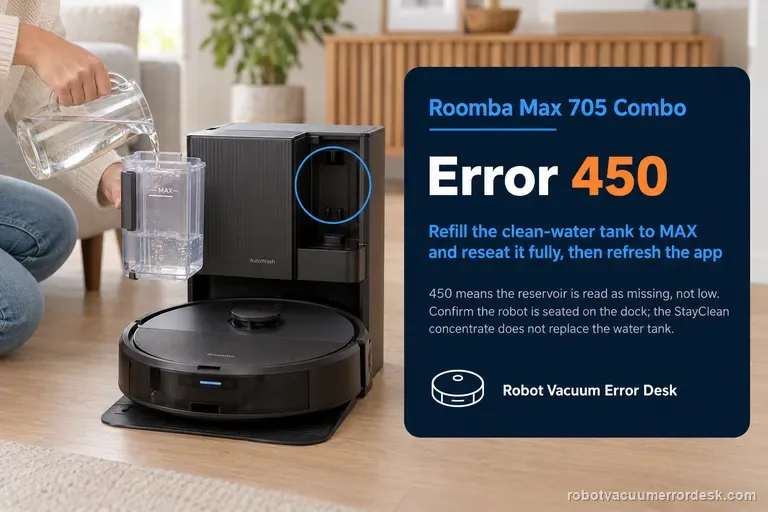
Error 450 on the Roomba Max 705 Combo means the clean-water reservoir needed for dock-to-robot replenishment is being treated as missing, not merely low. The useful recovery path is physical and state-specific: remove the reservoir completely, fill it to MAX, then reinstall it so it is fully seated; make sure the robot is correctly seated on the AutoWash dock and the charging interface is engaged; then refresh the Roomba Home App and retry the water operation. Keep the Max 705’s two liquid concepts straight: the AutoWash system still needs clean water for refill, while the separate StayClean concentrate supplied with the Combo does not replace the clean-water reservoir. If a full, properly seated tank still produces 450, save that exact condition. Do not drift into Error 451/other low-water troubleshooting or repeatedly reboot unrelated components, because the diagnostic value is proving that the expected tank is present and recognized.
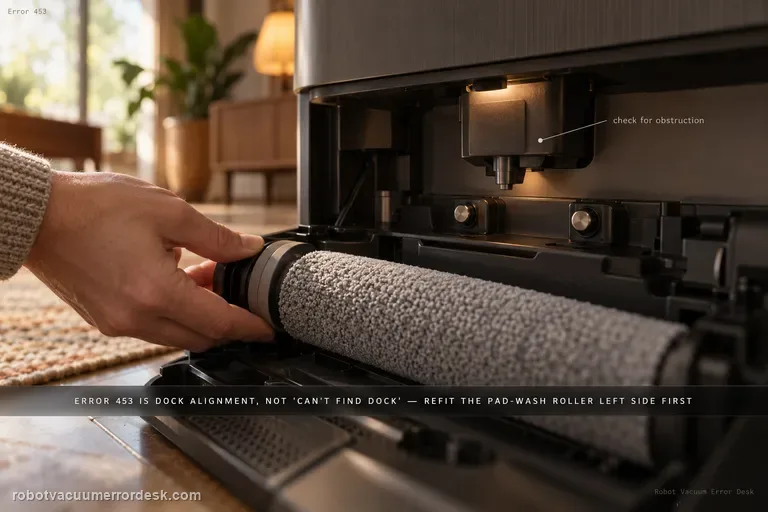
Error 453
Error 453 is an AutoWash dock alignment failure after multiple attempts to position the Max 705 closely enough for the refill nozzle to extend. It is not the same as ‘cannot find the dock.’ iRobot’s code-specific procedure focuses on the mechanical interface around the wash/refill position: reinstall the Pad Wash Roller left side first, verify the robot bin is correctly installed, press the movable port on the bin to make sure it can move, inspect the dock nozzle housing for obstruction, and test the two dock buttons that lift the charging contacts. Each button should move freely and the corresponding contact should spring upward; it should not remain stuck in the pressed position. Only after those external checks should you reboot the robot and briefly power-cycle the dock, then run one return/refill retest. Do not pull or force the nozzle or contacts into position by hand.
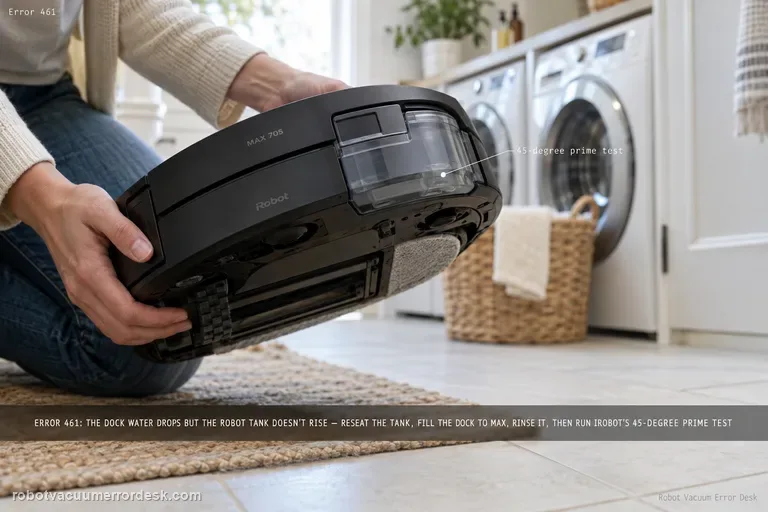
Error 461
Error 461 means the AutoWash dock believes clean water is being pumped — its tank level is decreasing — but the Max 705 robot tank is not reporting the expected rise. iRobot calls this an air-pressure build-up/nozzle-tube problem and warns that fluid may be spilling outside the robot during refill. Start by removing the robot bin/tank and drying any liquid on the dock ramp, then reinstall the robot tank and seat the robot correctly. Fill the dock’s clean-water reservoir to MAX. In the Roomba Home App, open Pad and Dock Control and run ‘Rinse pad wash System’ once to flush debris, reinstall the dock tank and retry refill. Only if the code persists should you use iRobot’s unusual but explicit tube-prime test: tilt the dock backward about 45 degrees while retrying refill. If that succeeds, return the dock to normal; iRobot says repeated tilting should not be necessary once the tube is filled. Stop immediately for uncontrolled leakage.