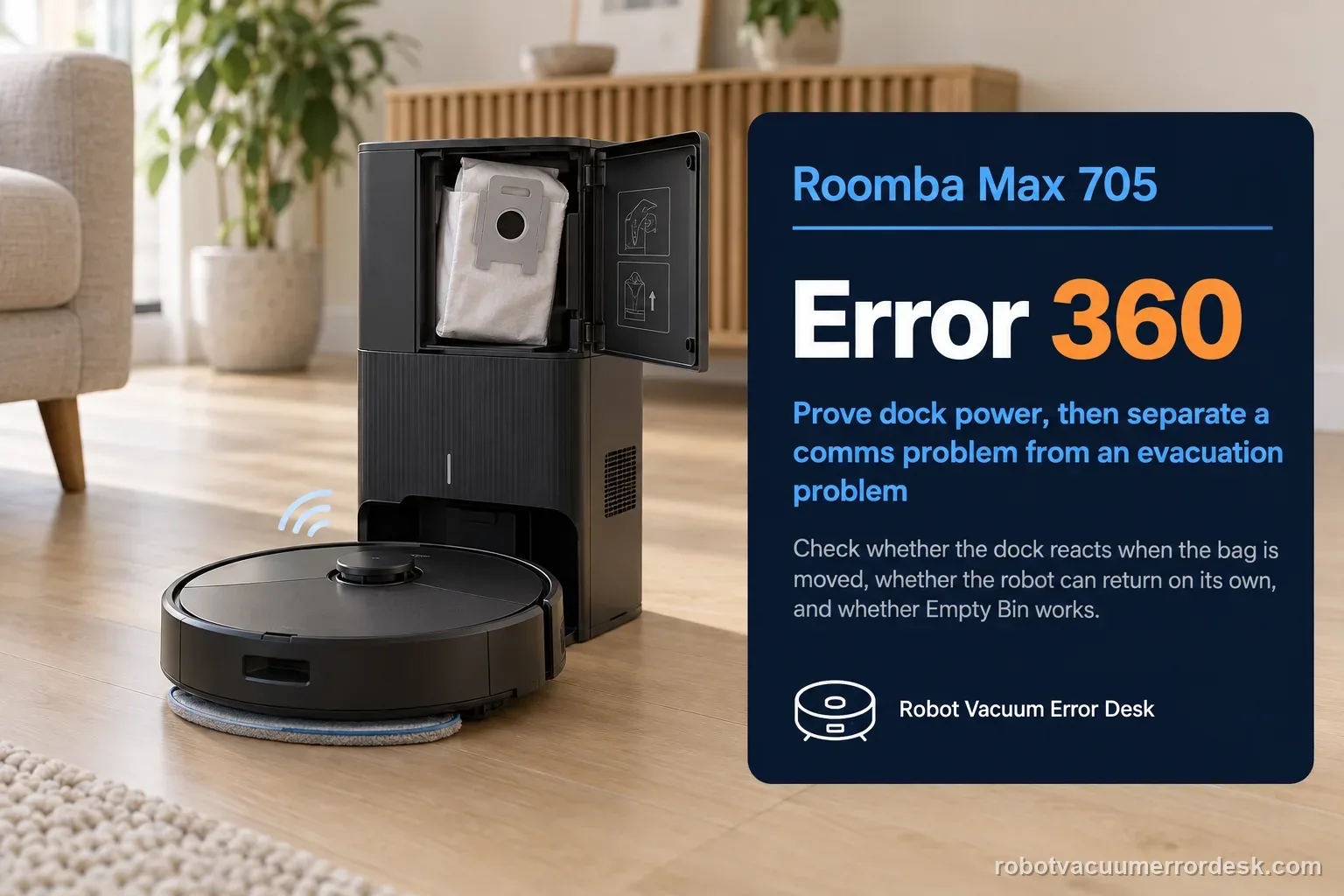
Error 360 on the Roomba Max 705 belongs to the robot-to-dock communication and debris-evacuation path. Do not treat it as a generic charging warning. iRobot’s current Max 700 procedure first proves that the AutoEmpty/AutoWash dock has power, then separates a communication problem from an evacuation problem. A useful check is whether the dock reacts when the bag is partially removed, whether the robot can return to the dock by itself, and whether an Empty Bin command appears and works. If manual evacuation works but the app control is missing, clean the dock sensor window and robot bumper with the approved dry method. If the robot was simply placed on the dock by hand, send it away and press HOME so it self-docks; iRobot notes that automatic emptying is tied to a normal self-docking event. Finish with a reboot only after power, sensors, contacts and docking behavior have been classified.
Confirm the exact model and exact code, light pattern or symptom.
Run the lowest-risk physical or software check first.
Use each pass condition to decide what the result actually narrows down.
Does this match your problem?
- The Roomba Max 705 reports Error 360 while using an AutoEmpty or AutoWash dock.
- The robot reaches the dock but does not reliably communicate, expose the Empty Bin control, or evacuate debris.
- The dock appears quiet or unresponsive and you need to distinguish missing dock power from robot-to-dock communication.
- Evacuation works manually but not after a cleaning run, which points toward docking state or sensor communication rather than the vacuum motor itself.
Most likely causes
The dock has lost wall power or its line cord is not fully seated.
Dust on the dock sensor window or robot bumper is blocking the infrared communication path.
The charging contacts are dirty enough to make the docked state unreliable even though the robot physically sits on the ramp.
The robot was placed on the dock by hand, so the expected self-dock/auto-empty sequence never occurred.
The app or robot state needs a non-destructive reboot after the physical power and sensor checks are complete.
A persistent dock or robot communication fault remains after the official owner-serviceable checks.
What your test result means
| What you observe | What it narrows down | Next move |
|---|---|---|
| Removing the dock bag briefly does not trigger the expected dock-light response | Treat dock power as unproven; communication troubleshooting is premature while the dock itself may be unpowered. | Verify the wall outlet with another device, reseat both ends of the line cord, then retest the dock response. |
| The dock powers normally, but Empty Bin is missing or the robot intermittently behaves as if it is not docked | The sensor/contact path is a stronger suspect than the debris bag itself. | Dry-wipe the dock sensor window and robot bumper, then clean only the charging contacts with an approved method. |
| Empty Bin works when requested in the app or with the Home button while docked | The evacuation hardware can operate; the failure is more likely the automatic return/dock sequence or state recognition. | Move the robot roughly eight feet away and press HOME so it returns and docks itself, then observe the post-dock sequence. |
| The robot was carried to the dock and set onto it manually | A hand-placed robot does not reproduce the automatic self-dock event iRobot expects for auto-empty behavior. | Run the self-return test before replacing bags, batteries or dock parts. |
| Power, sensors, contacts and self-docking are all correct but Error 360 returns | The owner-serviceable branches are exhausted and a robot/dock communication fault remains plausible. | Save the error screen and the result of the Empty Bin/self-dock tests, then contact iRobot with serial number and proof of purchase if applicable. |
Reset can erase maps/settings on this path. Use lower-risk checks first and document the current state before resetting.
Run these checks in order
Prove the dock is powered before diagnosing communication
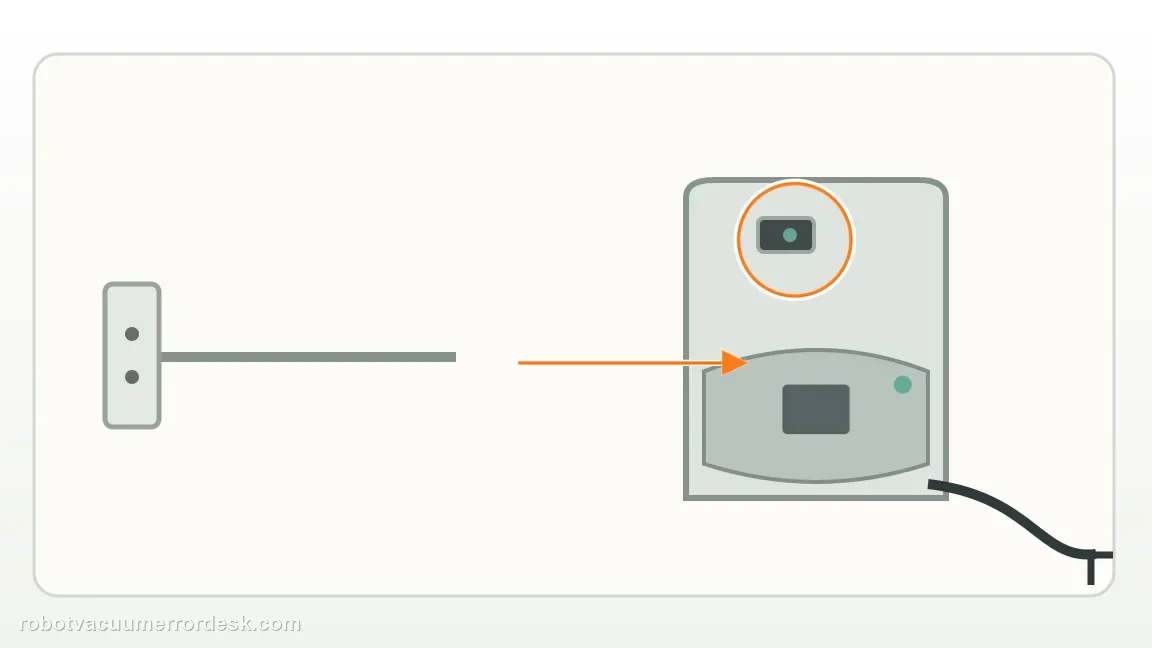
Start with the dock, not the robot. Confirm the line cord is fully inserted at the wall and dock. iRobot’s Error 360 procedure uses the dock’s response to a partially removed evacuation bag as a power clue: a powered compatible dock should react with its status light. If that response is absent, test the outlet with a simple known-good load such as a lamp and reseat the cord. Do not repeatedly reboot the robot while the dock’s power state is still unknown; a robot cannot communicate with an unpowered dock.
Clean the communication windows without wetting them
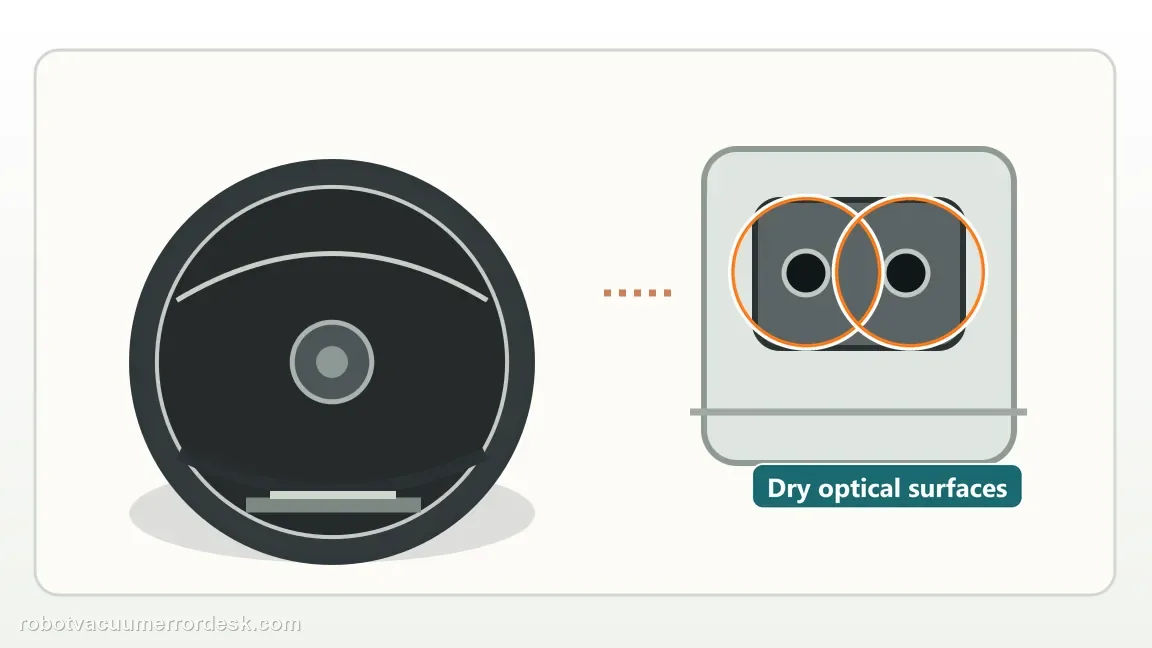
If dock power is normal, inspect the dock sensor window and the robot bumper where the communication path is located. Wipe sensor windows with a clean, dry microfiber cloth. iRobot explicitly distinguishes these surfaces from charging contacts: do not spray cleaner onto the sensor windows and do not use melamine foam there. If dust is trapped around the bumper, use the manufacturer’s dry-cleaning approach; canned/compressed air can help clear loose debris without coating the optical path. The goal is a visibly clean, dry communication surface rather than aggressive polishing.
Service the charging contacts as a separate dock-state check
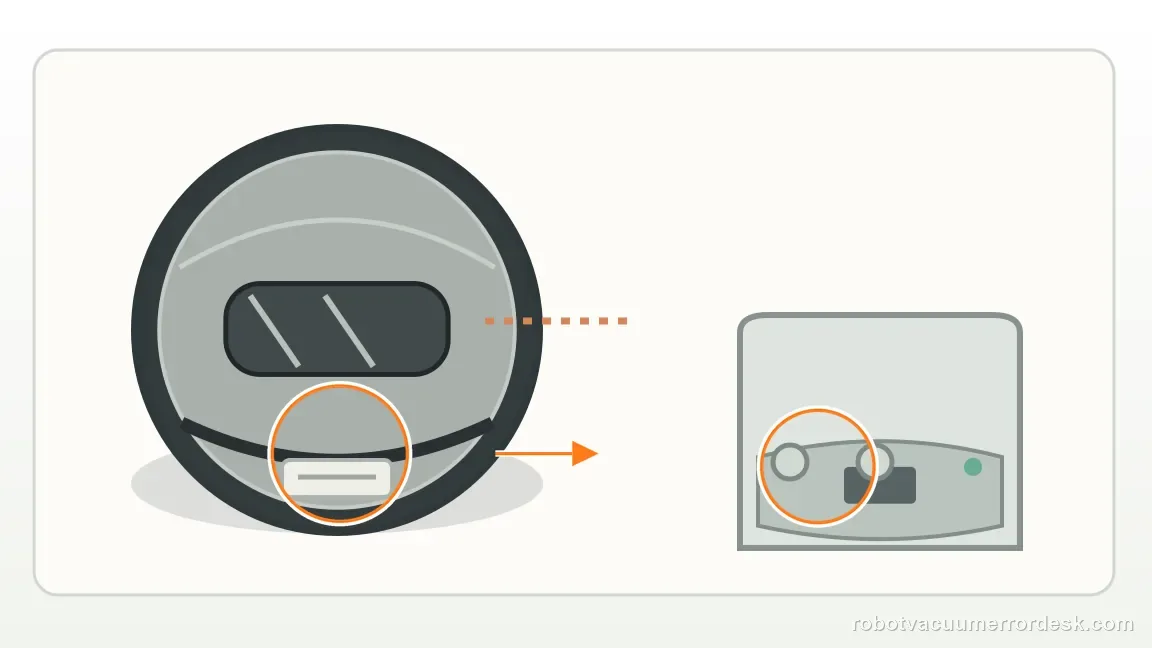
A robot can be physically on the dock yet fail to hold a reliable docked state if contact surfaces are dirty. For the charging contacts only, iRobot permits a lightly dampened melamine foam or clean cloth. Wipe the dock contacts and the matching contacts on the bottom of the Max 705 until the metal looks clean. Keep this maintenance separate from the optical sensors, which stay dry. If contacts are visibly damaged, do not sand or reshape them; document the damage for support instead of turning an Error 360 diagnosis into an unapproved hardware repair.
Test a manual evacuation command while the robot is docked
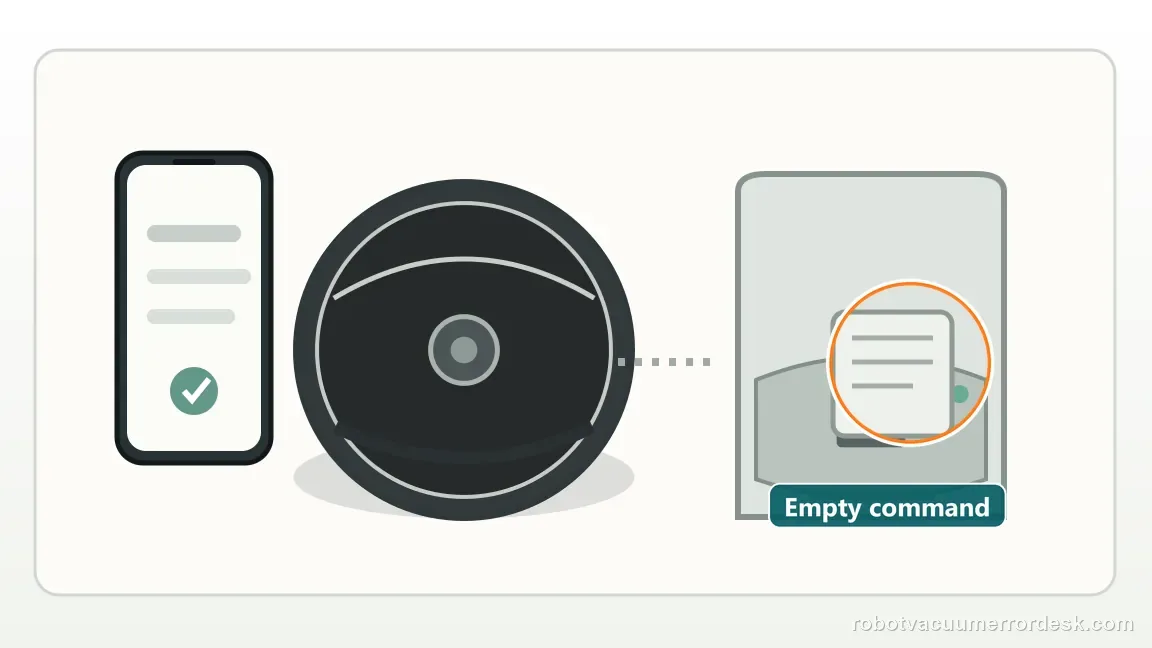
With the Max 705 correctly seated, try the two official evacuation controls available on supported docks: use Empty Bin in the Roomba Home App or press the Home button while the robot is on the dock. Listen for the evacuation cycle and watch whether the app still reports Error 360. This is a high-value discriminator. A successful manual evacuation proves much more than another reboot: it shows the robot and dock can exchange the command and that the debris-evacuation hardware can run under at least one condition.
Run the self-dock test instead of placing the robot on the ramp
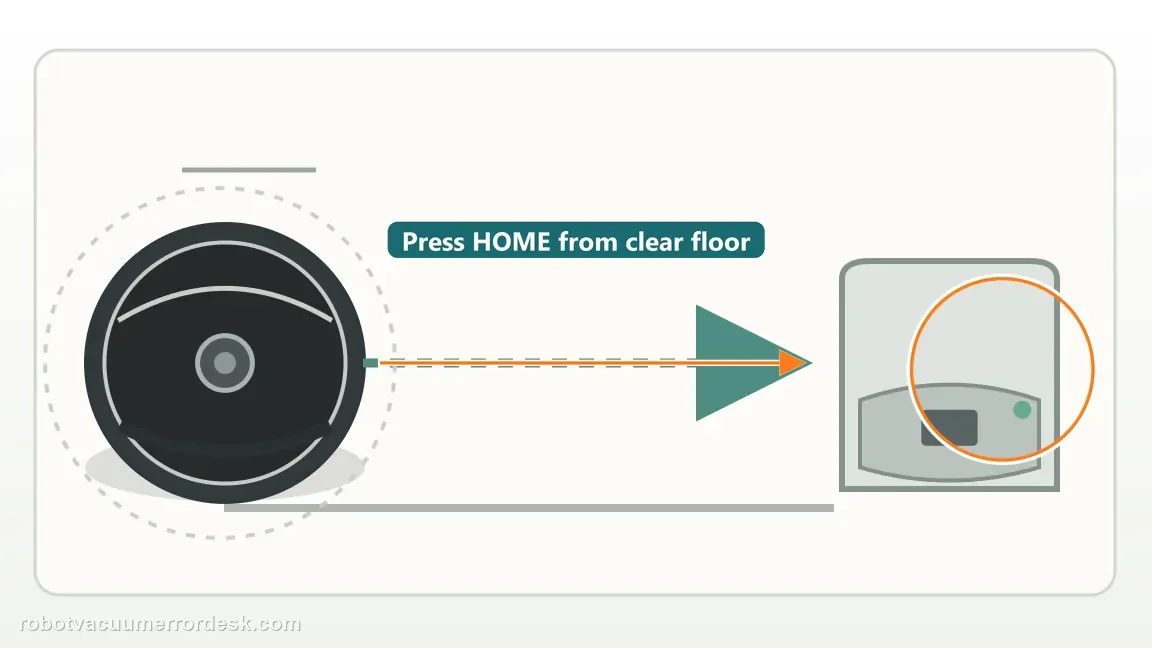
Move the robot about eight feet from the dock with a clear approach path and press HOME. Let it navigate back and dock under its own control. iRobot notes that simply setting the robot on the dock by hand does not reproduce the automatic-emptying sequence. If it docks itself and then evacuates normally, Error 360 was likely tied to how the docked state was established. If it finds the dock but fails the same communication step, preserve that result because it separates navigation from the dock handshake.
Reboot once, then stop cycling power if the same classified fault returns
After power, optical surfaces, contacts and docking behavior have been checked, reboot through the app or use iRobot’s button method: with the robot off the dock, hold the power button for about ten seconds, then hold it again for about three seconds to turn it back on. A reboot does not erase map data. Run one fresh self-dock/evacuation test. If Error 360 immediately returns with a powered dock and clean communication path, repeated resets add little evidence; escalate with the observed branch results.
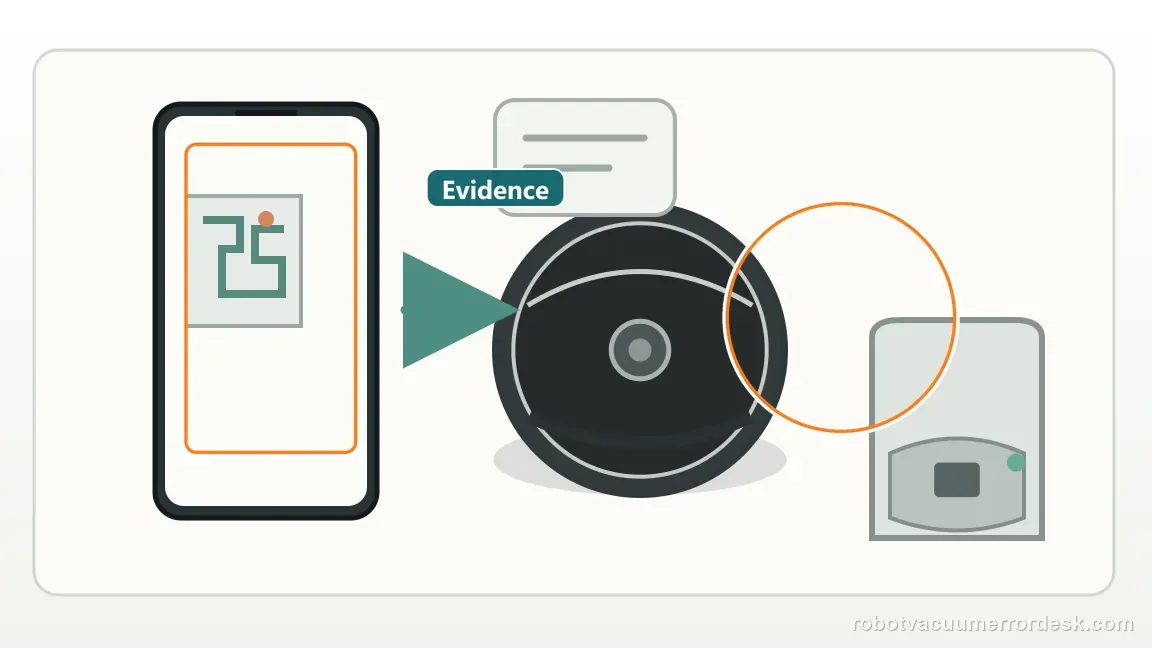
Contact iRobot if the dock has proven power, the sensor windows and contacts are clean, the Max 705 can physically self-dock, and Error 360 still prevents communication or evacuation. Record whether the bag-removal light test worked, whether Empty Bin worked from the app/Home button, and whether the robot was able to self-dock. Those observations separate dock power, evacuation and communication more clearly than saying only that the error returned. Stop owner troubleshooting sooner if a charging contact is physically damaged, the dock intermittently loses power with a known-good outlet/cord, or liquid is present where only dry optical cleaning is specified.
What to collect before contacting support
Give support a reproducible case instead of “it doesn’t work.” That reduces repeated basic troubleshooting and preserves the clues from your tests.
- Exact model name and the error code / voice prompt exactly as shown
- A photo or screenshot of the app error and the time it occurred
- A short list of the checks already completed and what happened after each one
- Robot serial number and proof of purchase if warranty may apply
Manufacturer evidence
iRobot Error 360 — Plus 400/500 and Max 700 Series
Primary evidence is iRobot Knowledge 40360, the current Error 360 procedure that explicitly covers Max 700 Series and separates dock power, sensor/bumper cleaning, charging-contact maintenance, self-docking, reboot and evacuation tests. The Max 705 Combo packout page is retained as a stable companion source confirming the AutoWash dock configuration. The article does not justify opening the dock or replacing internal electronics, so this guide stops at the manufacturer’s external checks.
Additional official source: iRobot — Roomba Max 705 Combo packout / AutoWash dock configuration ↗Last editorial review: September 5, 2026Regional note: manufacturer help centers, model suffixes, mains-power requirements and warranty procedures can differ by country. If the source redirects to a local support site, confirm that the model/hardware scope still matches before following a region-sensitive step.
This guide is rated Official model support. See what each evidence label means →
FAQ
Why does my Roomba Max 705 keep showing Error 360?
Error 360 points to the communication/evacuation relationship between the Max 705 and its compatible dock. First prove the dock has wall power, then clean the dry optical communication surfaces and the charging contacts with their approved methods. If those pass, test Empty Bin and a real self-dock return. Persistent failure after those branches is a support case, not a reason to open the dock.
Can a Roomba Max 705 have Error 360 even if it is charging?
Yes. A robot can appear seated and receive charge while the communication or automatic-emptying sequence still fails. That is why iRobot’s Error 360 procedure includes sensor-window and bumper cleaning plus an Empty Bin test, not only charging-contact maintenance. If charging is stable but evacuation fails, classify that separate behavior and continue through the communication/self-dock branch rather than treating the code as Charging Error 105 or 121.
Why should I let the Roomba Max 705 return to the dock by itself?
iRobot specifically notes that placing the robot on the dock by hand does not reproduce the normal automatic-emptying event. Move the Max 705 several feet away and press HOME so it finds and seats itself. If auto-empty works only after self-docking, the dock hardware can operate and the earlier symptom was tied to the docking state or sequence rather than a dead evacuation motor.
What should I clean for Error 360, and what should stay dry?
Keep the cleaning methods separate. Wipe the dock sensor window and robot bumper/optical communication surfaces with a clean, dry cloth; do not spray those sensors. For charging contacts only, iRobot permits a lightly dampened melamine foam or clean cloth. This distinction matters because aggressive wet cleaning can create a new problem while you are trying to diagnose the original communication error.
When should I contact iRobot about Max 705 Error 360?
Escalate when a known-good outlet powers the dock, the communication windows and charging contacts are clean, the robot self-docks normally, and Error 360 still blocks Empty Bin or automatic evacuation after one reboot. Save the app error and note each test result. iRobot asks for the robot, serial number and proof of purchase for expedited warranty support, so prepare those before contacting care.
Did this diagnostic narrow the fault?
Use this as an editorial signal, not a popularity counter. If a feedback address is configured you can email the note; otherwise you can copy it for your own support record.