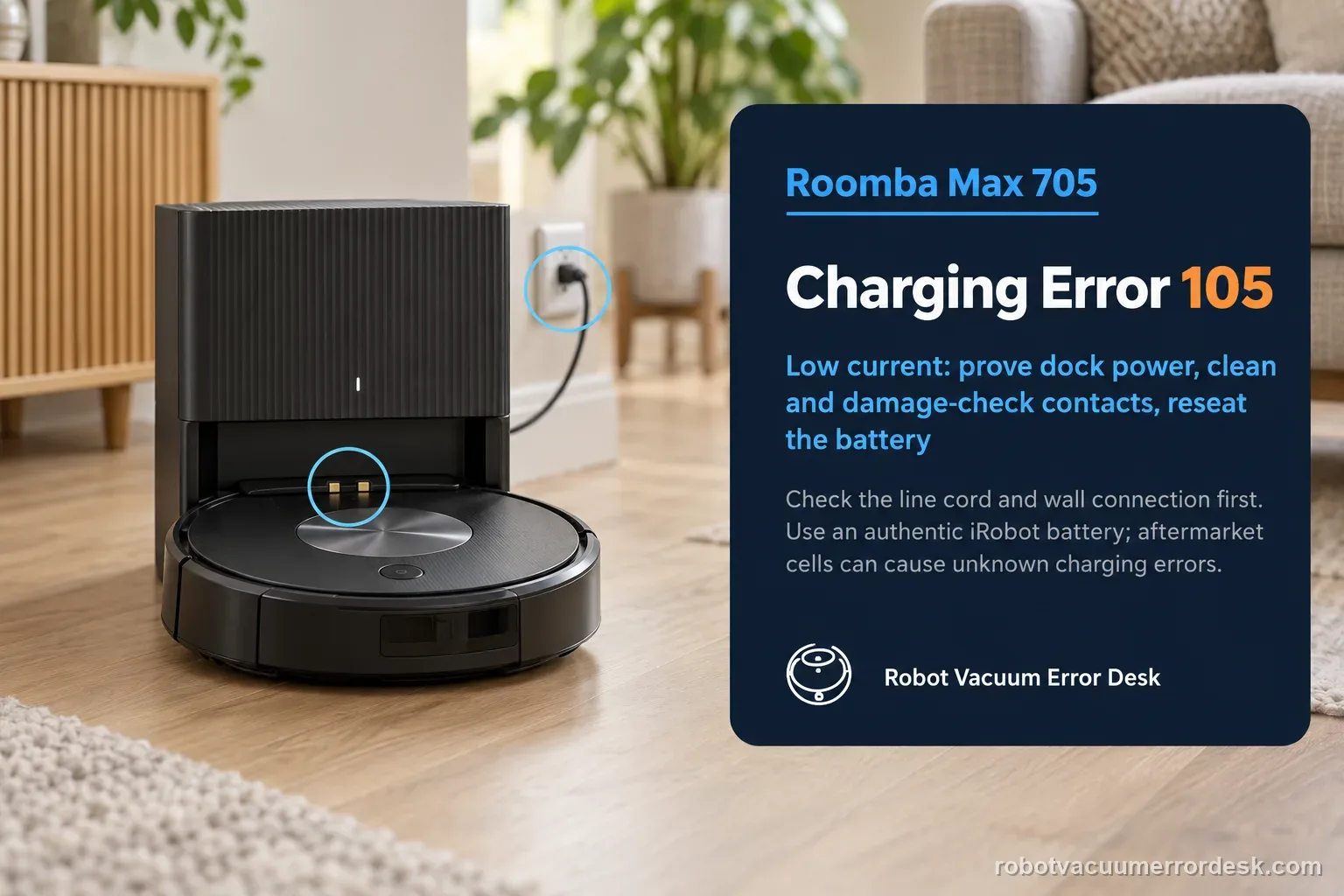
Charging Error 105 means low electrical current is reaching the Roomba Max 705. That is more specific than ‘not charging’: iRobot says the low-current path can involve the dock or power cord, debris on the charging contacts, damaged/stuck contacts, or the battery/robot side. Start by proving the dock has power, then clean both contact sets with an approved lightly dampened melamine foam or clean cloth. Inspect rather than endlessly polish: contacts that are green, copper-colored or stuck down are considered damaged and the affected robot or dock needs service/replacement. If the contacts and power path look normal, remove and reinstall the battery; iRobot says this effectively reboots the robot and specifically warns to use an authentic iRobot lithium-ion battery because aftermarket batteries can cause unknown charging errors. The pass condition is stable current/charging after each branch, not simply making Error 105 disappear for a few seconds.
Confirm the exact model and exact code, light pattern or symptom.
Run the lowest-risk physical or software check first.
Use each pass condition to decide what the result actually narrows down.
Confirm this is the right issue
- The Roomba Home App or robot reports Charging Error 105 on a Max 705.
- The robot reaches the dock but low current prevents a normal sustained charge.
- Charging improves or worsens when the robot is reseated, suggesting the contact/current path needs classification.
- You need to separate dirty contacts from physically damaged contacts, dock power loss and battery seating.
What’s most likely causing this
The dock line cord or wall connection is loose enough to limit reliable power delivery.
Debris or film on the robot or dock charging contacts is adding resistance.
A charging contact is green/copper-colored or mechanically stuck down, which iRobot classifies as damage.
The battery needs to be removed and reinstalled after the external power/contact checks.
A non-authentic replacement battery is creating an unsupported charging state.
A persistent dock, battery or robot electrical fault remains after owner-serviceable checks.
Reading your test result
| What you observe | What it narrows down | Next move |
|---|---|---|
| Dock light/power behavior is absent or inconsistent | Low current may begin upstream of the robot, so contact polishing alone cannot prove the power path. | Reseat the cord at wall and dock and verify the outlet before moving to battery work. |
| Contacts are dull/dirty but mechanically normal | Surface contamination can raise resistance and matches iRobot's first-line Error 105 maintenance path. | Clean both contact sets with approved lightly damp melamine foam or cloth until the metal is visibly clean. |
| A contact is green, copper-colored or stays pressed down | iRobot treats this as damaged hardware, not ordinary dirt. | Stop abrasive cleaning; identify whether the damaged contact is on robot or dock and contact support for the affected assembly. |
| Power and contacts pass, but Error 105 remains | Battery seating/state becomes the next documented owner-serviceable branch. | Remove and reinstall the battery, ensuring it is an authentic iRobot lithium-ion battery, then run one fresh charging test. |
| Error 105 returns after stable power, clean intact contacts and battery reseating | The low-current fault persists beyond owner maintenance and may involve dock, battery or robot electronics. | Save photos of contacts and the error, then escalate rather than opening the robot/dock. |
Do not factory-reset by default. Use the exact model’s reboot/network-reset procedure only when the manufacturer path calls for it.
Work through these checks in order
Prove the Max 705 dock power path
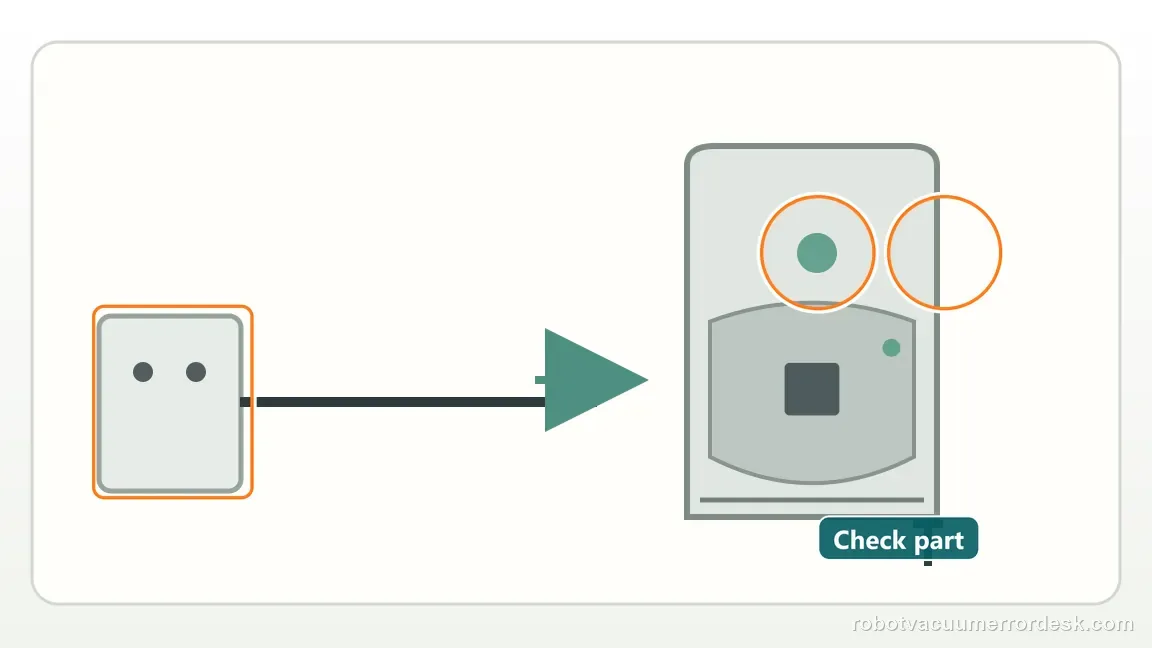
Before cleaning anything, confirm the dock is connected to a known-good wall outlet and that the line cord is fully seated at both ends. If the dock supports evacuation, iRobot also uses its status-light response as a power clue in related Max 700 dock diagnostics. Error 105 is specifically a low-current code, so an unstable upstream power connection must be ruled out before you judge the robot battery. Avoid power strips or switched outlets during the test if they make the result ambiguous.
Clean both charging-contact sets using the approved material
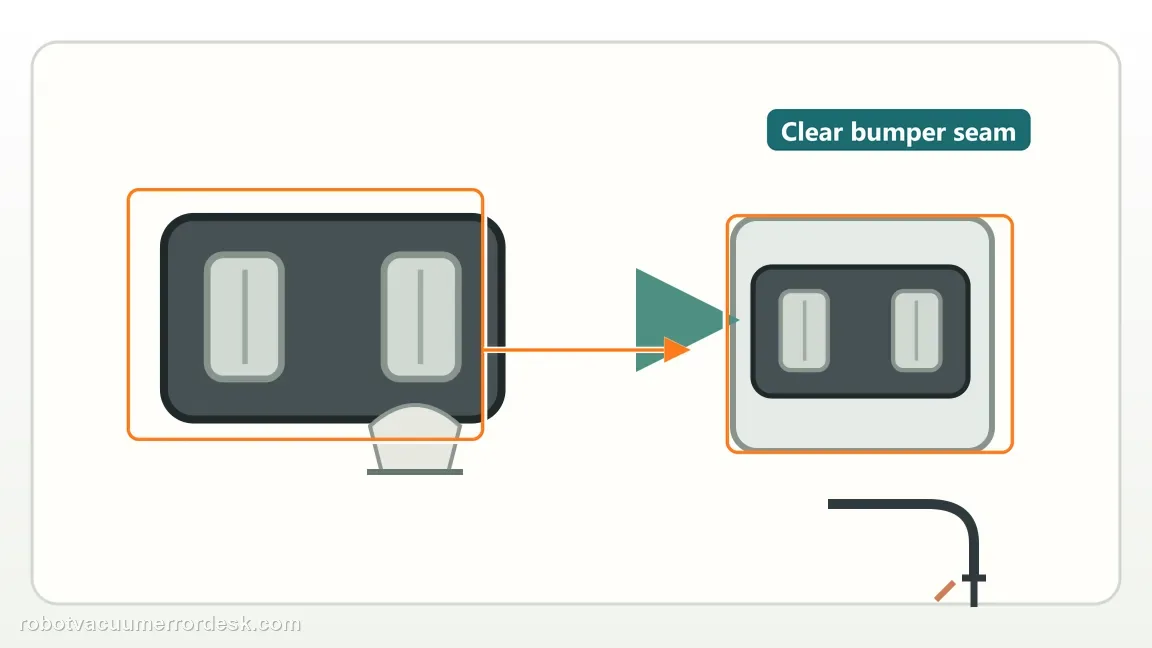
Remove power from the dock before contact cleaning. Wipe the dock contacts and the matching Max 705 contacts with a lightly dampened melamine foam or a lightly damp clean cloth. iRobot says the contacts should have a visible shine after cleaning. Do not use sandpaper, metal tools or solvent. Let excess moisture dissipate before restoring power. This test is about restoring a clean electrical interface, not removing metal or changing spring pressure.
Classify damage instead of repeating the same cleaning
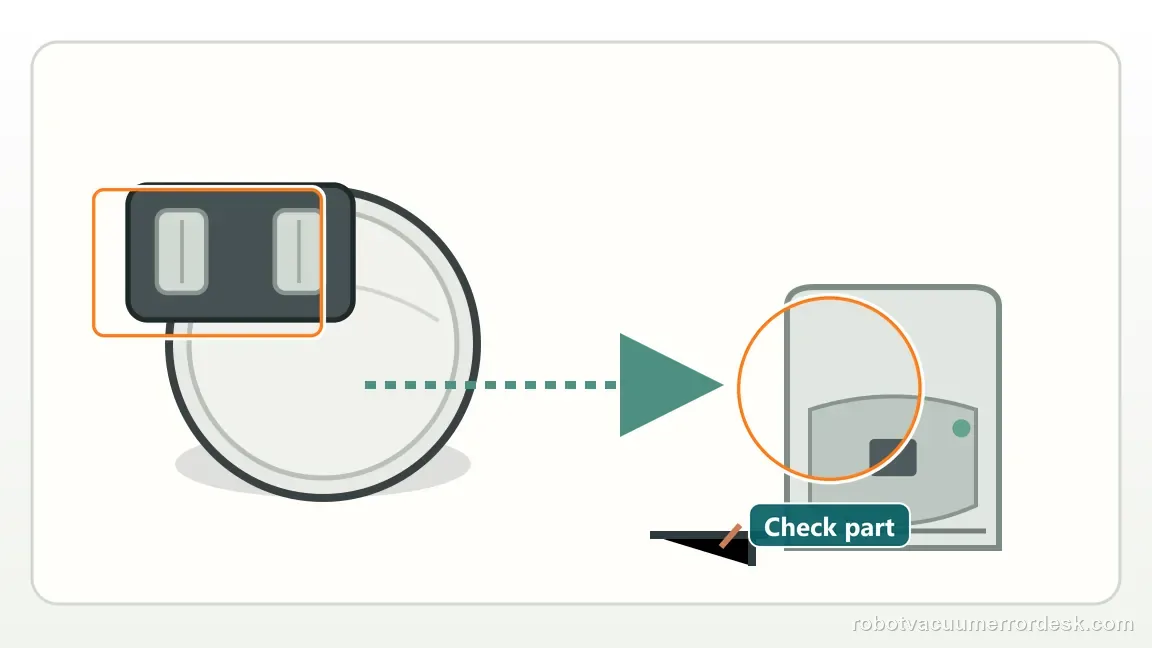
Inspect color and movement. iRobot says green or copper-colored contacts are damaged; contacts that remain stuck down are also damage signs. If one side is affected, record whether it is the robot or dock assembly. More scrubbing will not turn damaged plating or a failed spring mechanism into a reliable contact. This classification prevents wasting time on battery resets when the current bottleneck is already visible at the interface.
Reseat the authentic iRobot battery only after the external path passes
If dock power is stable and the contacts are clean and intact, remove and reinstall the battery according to the Max 705 serviceable-battery procedure. iRobot describes battery reseating as effectively rebooting the robot for Error 105. While the battery is out, verify that the installed pack is an authentic iRobot lithium-ion battery; the charging support article warns that aftermarket packs can generate unknown charging errors. Do not probe battery terminals or substitute an unverified pack as a diagnostic shortcut.
Judge the new charging session by current behavior, not only the banner
Return the Max 705 to the dock and watch whether it remains charging rather than briefly connecting and falling away. Note whether Error 105 clears, immediately returns, or changes to a different charging code. A changed code is useful evidence because iRobot’s charging chart assigns different meanings to no current, low current, timeouts and losing charge. Do not collapse a new Error 119 or 121 into the old Error 105 procedure; follow the code that is actually reported.
Escalate persistent low current without opening the dock
If a verified outlet, clean intact contacts and a correctly seated authentic battery do not clear Error 105, stop owner-level disassembly. Save the app screenshot, photos of both contact sets and the result of the dock-power test. The remaining candidates include the battery, robot charging electronics, dock electronics or power hardware that iRobot does not direct owners to repair internally. This evidence makes support much more efficient than repeated unstructured cleaning and resets.
Contact iRobot when Charging Error 105 repeats with a verified outlet, firmly connected dock cord, clean free-moving contacts and a correctly seated authentic iRobot battery. Escalate immediately if a contact is green/copper-colored or stuck down, because iRobot classifies that as damage. Do not sand contacts or open the dock to chase a low-current fault. Save the error code and contact photos so support can distinguish visible interface damage from a battery/robot/dock electrical fault.
Before you contact support, gather this
A reproducible case moves a support call past the basic troubleshooting script faster than “it doesn’t work” does, and it keeps the clues from your own tests on record.
- Exact model name and the error code / voice prompt exactly as shown
- A photo or screenshot of the app error and the time it occurred
- A short list of the checks already completed and what happened after each one
- Robot serial number and proof of purchase if warranty may apply
Where this comes from
iRobot Charging Error 105 support
Primary evidence is iRobot Knowledge 10605, which defines Charging Error 105 as low electrical current and explicitly shows the Max 705 Combo charging-contact set. The companion charging-error chart confirms the meaning of 105 and distinguishes it from 104 no-current, 119 timeout and 121 losing-charge codes. That distinction is why this page has a current-path diagnosis rather than generic ‘Roomba not charging’ advice.
Additional official source: iRobot — Charging Error Chart: All Roomba and Braava Models ↗Last editorial review: September 5, 2026Regional note: manufacturer help centers, model suffixes, mains-power requirements and warranty procedures can differ by country. If the source redirects to a local support site, confirm that the model/hardware scope still matches before following a region-sensitive step.
This guide is rated Official model support. See what each evidence label means →
Questions people ask
What does Charging Error 105 mean on a Roomba Max 705?
iRobot defines Error 105 as low electrical current reaching the robot. The documented path checks dock power, cleans the charging contacts, looks for damaged or stuck contacts, and then reseats the battery if needed. It is not the same as Error 119, which is a charging timeout, or Error 121, where a docked robot loses charge. Use the code-specific path rather than a generic reset sequence.
How do I clean Max 705 contacts for Charging Error 105?
Unplug the dock, then wipe the dock contacts and the matching contacts on the robot with a lightly dampened melamine foam or lightly damp clean cloth. iRobot says the metal should have a visible shine. Avoid sandpaper, scraping tools and solvent. Sensor windows are a separate surface and should not be treated like charging contacts. After cleaning, restore power and run one controlled charging test.
What do green, copper-colored or stuck charging contacts mean?
Those are damage signs in iRobot’s Error 105 instructions, not an invitation to keep polishing. A green or copper-colored contact, or one that remains stuck down, can prevent reliable current transfer. Record whether the damaged contact belongs to the robot or dock and contact iRobot about that assembly. Abrasive cleaning can make plating damage worse and also destroys useful evidence for a warranty evaluation.
Can an aftermarket battery cause Charging Error 105 on the Max 705?
iRobot’s Error 105 support specifically tells owners to use an authentic iRobot lithium-ion battery and warns that aftermarket batteries can produce unknown charging errors. If Error 105 remains after dock power and contacts pass, reseat the installed authentic battery before concluding the robot or dock has failed. Do not use an unverified third-party pack as the control for a charging diagnosis because it adds another variable.
When should I stop troubleshooting Roomba Max 705 Error 105?
Stop when the outlet and dock cord are verified, both charging-contact sets are clean and mechanically normal, and the authentic battery has been reseated yet Error 105 still returns. Also stop immediately at visible contact damage. At that point the remaining fault can be in the battery, robot charging system or dock hardware, and iRobot does not direct owners to open those assemblies for this code.
Did this diagnostic narrow the fault?
Use this as an editorial signal, not a popularity counter. If a feedback address is configured you can email the note; otherwise you can copy it for your own support record.