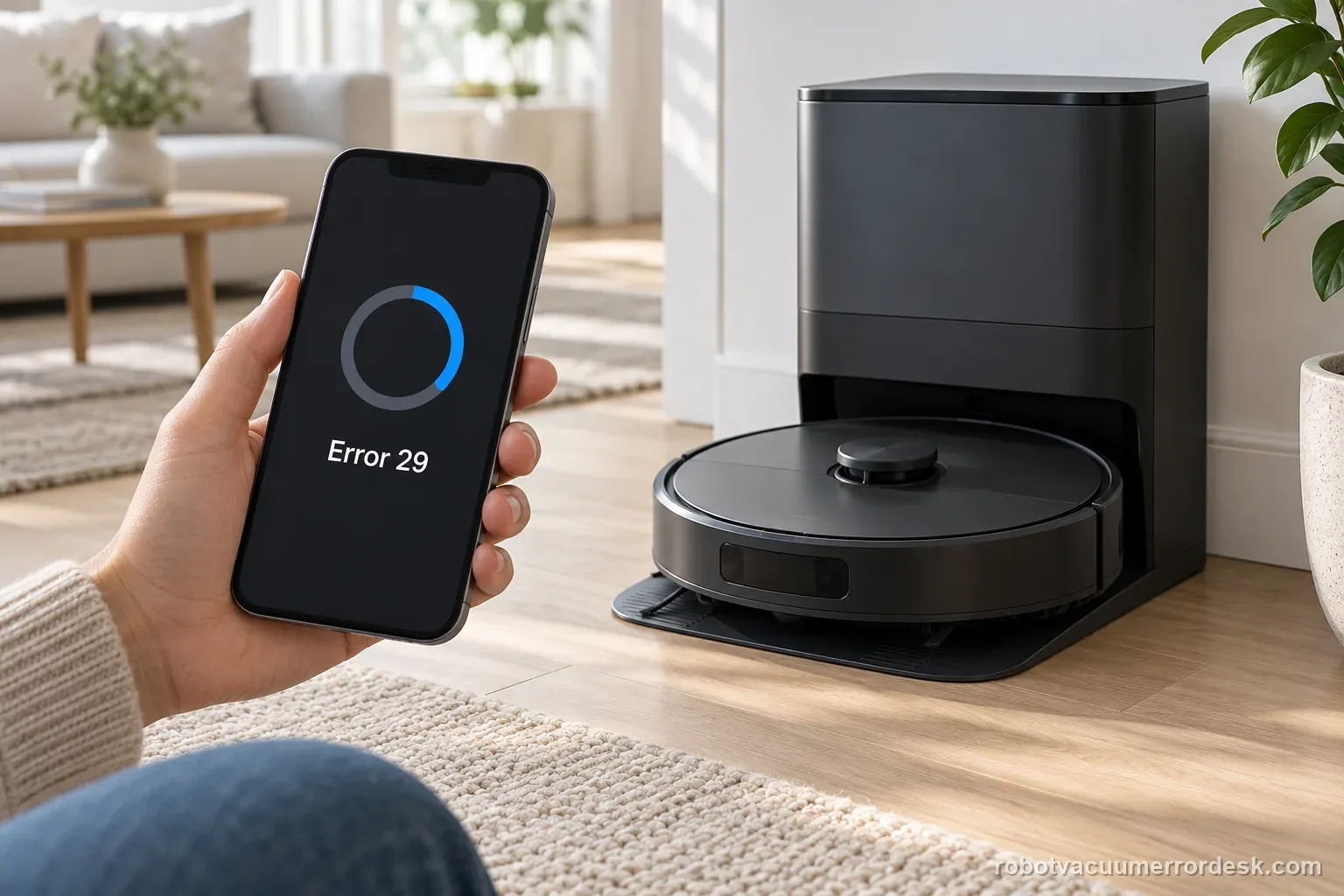
Error 29 means the Roomba started while a software update was in progress. Leave the Max 705 on its dock and watch the app for a few minutes. If status never finishes, iRobot says to reboot from Product Settings or hold the power button for 10 seconds off the dock. Record the software version and result before contacting support.
Did the failure begin during a software update?
iRobot defines Error 29 as the robot being started during a software update. Keep the Max 705 docked while status is progressing; if status continues indefinitely, use the documented app or power-button reboot before escalating.
Separate an active update from a stalled update state
| Observation | What it separates | Next action |
|---|---|---|
| Update status is progressing | Software install remains active | Keep the robot docked and watch the app |
| Status stays unchanged | Update may be stalled | Use iRobot's documented reboot path |
| Robot is unresponsive after reboot | The update recovery did not restore operation | Follow the exact model support path |
| Different code appears | The symptom has changed | Use the new exact code, not Error 29 steps |
Confirm the exact model and exact code, light pattern or symptom.
Run the lowest-risk physical or software check first.
Use each pass condition to decide what the result actually narrows down.
Does this match your problem?
- The app or robot explicitly reports Error 29 during or after a Max 700 software update.
- A new Max 705 has not completed initial cloud/app provisioning and will not start its first cleaning mission.
- The robot is online but appears to loop, interrupt or fail while applying an available release.
- You need to distinguish a real update interruption from simply not receiving a staged software rollout yet.
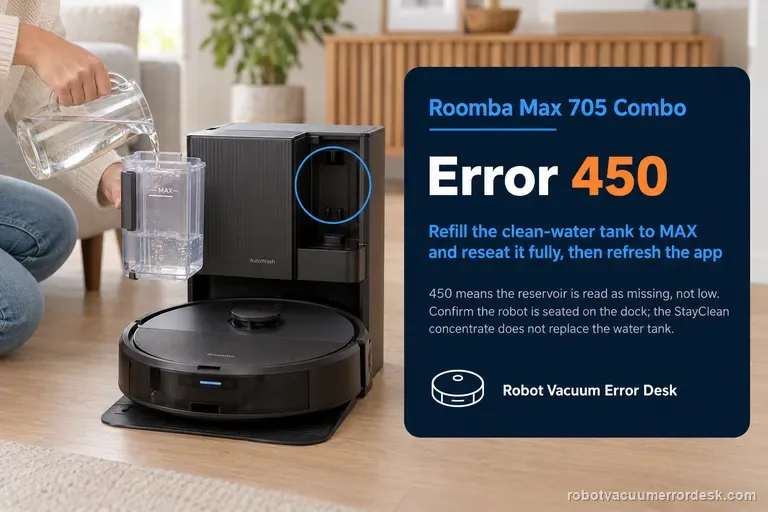
If your Max 705 Combo shows Error 450 about a missing clean-water tank instead of Error 29, follow the separate Error 450 tank-presence checks; an update-recovery step will not diagnose a dock reservoir alert.
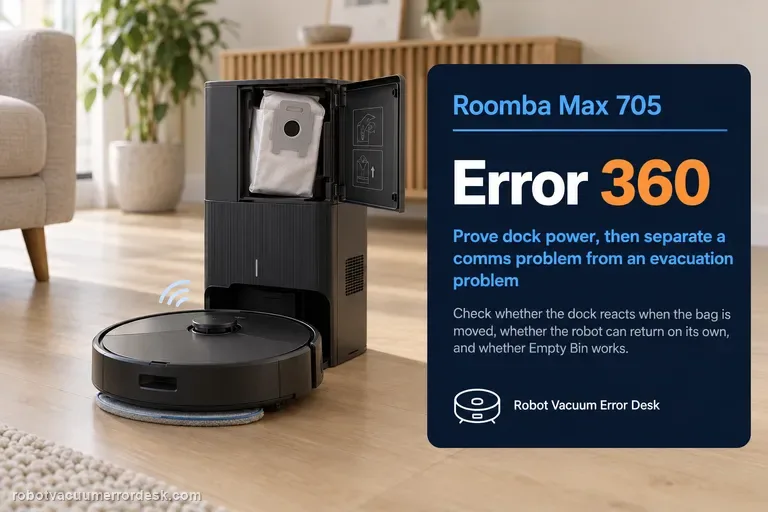
Error 29 is an update path. If the same Max 705 instead shows a tank or setup message, use that exact branch: Roomba Max 705 Wi-Fi setup · Max 705 Error 450 tank-presence checks
Most likely causes
The software update was interrupted while downloading, verifying or applying.
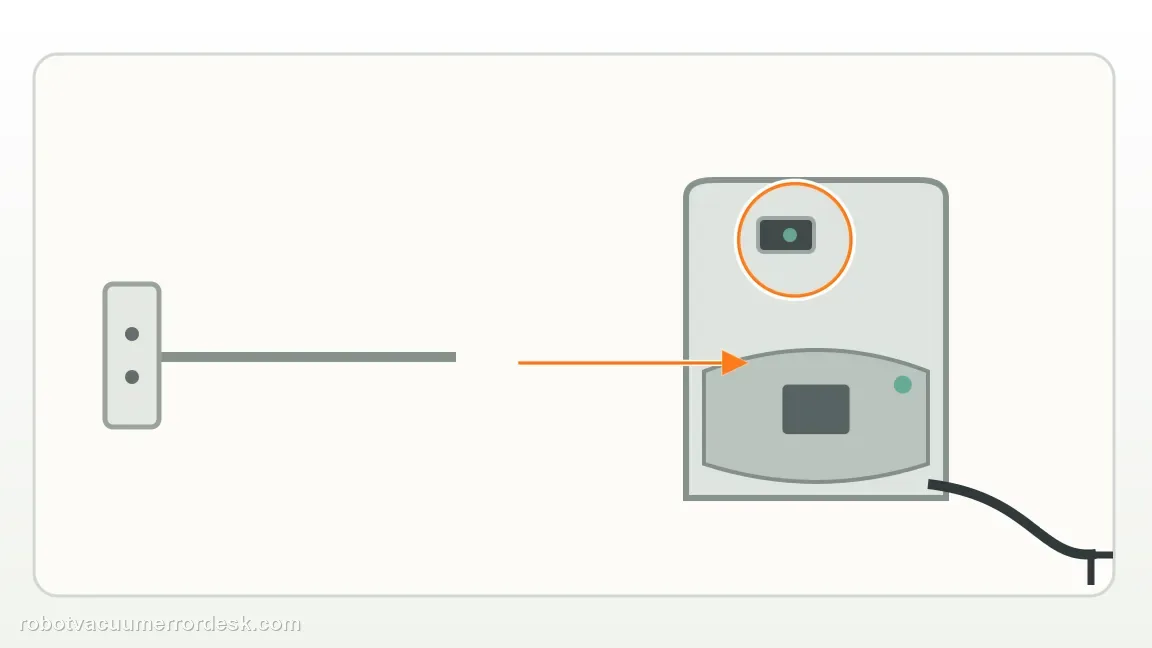
The robot was not left on stable dock power for the update window.
Wi-Fi or internet reachability dropped during delivery, especially before initial provisioning was complete.
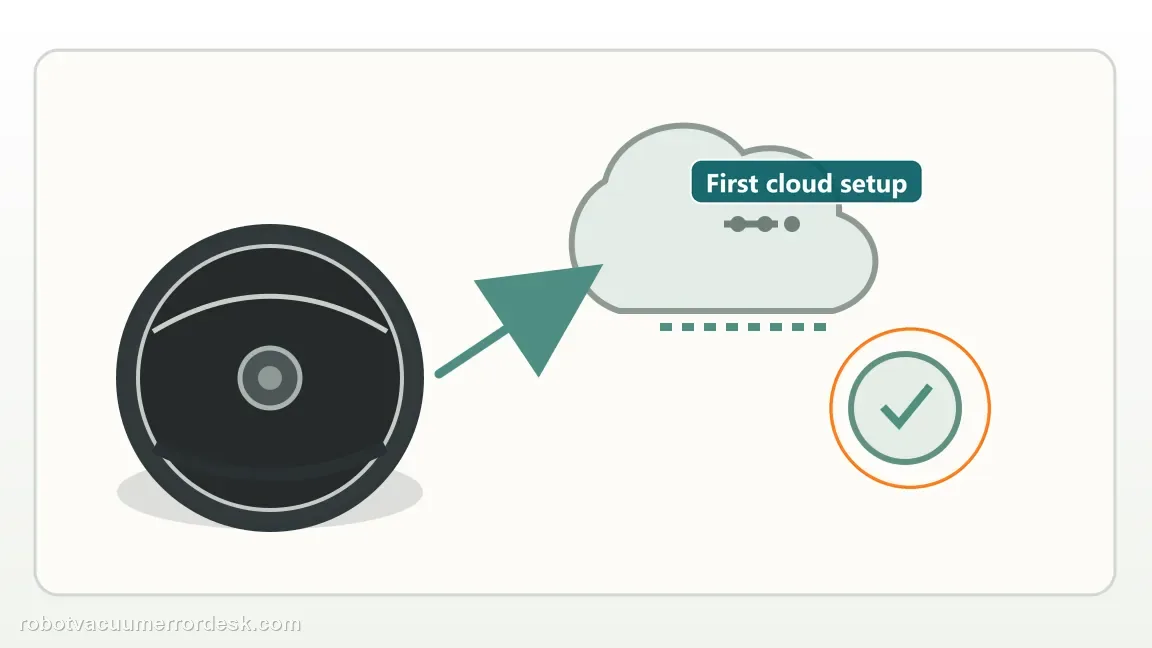
The Max 705 has not finished association with the Roomba Home App/account, so its cloud-required first-run state is incomplete.
The expected newer release has not reached this robot yet because iRobot stages rollouts over several weeks.
A persistent software state remains after power/network conditions are stable and requires iRobot support rather than mechanical disassembly.
What your test result means
| What you observe | What it narrows down | Next move |
|---|---|---|
| The Max 705 is new and pressing CLEAN produces a prompt to finish app setup | This matches iRobot's cloud-provisioning requirement on factory software 7.2.3 or later, not a failed wheel or cleaning system. | Complete setup in the Roomba Home App first; do not diagnose Error 29 as hardware until provisioning is finished. |
| The robot is not charging or the dock power is intermittent | An update recovery test is not controlled while power can drop underneath it. | Correct the dock/outlet/charging condition, then leave the robot seated and retry the software path. |
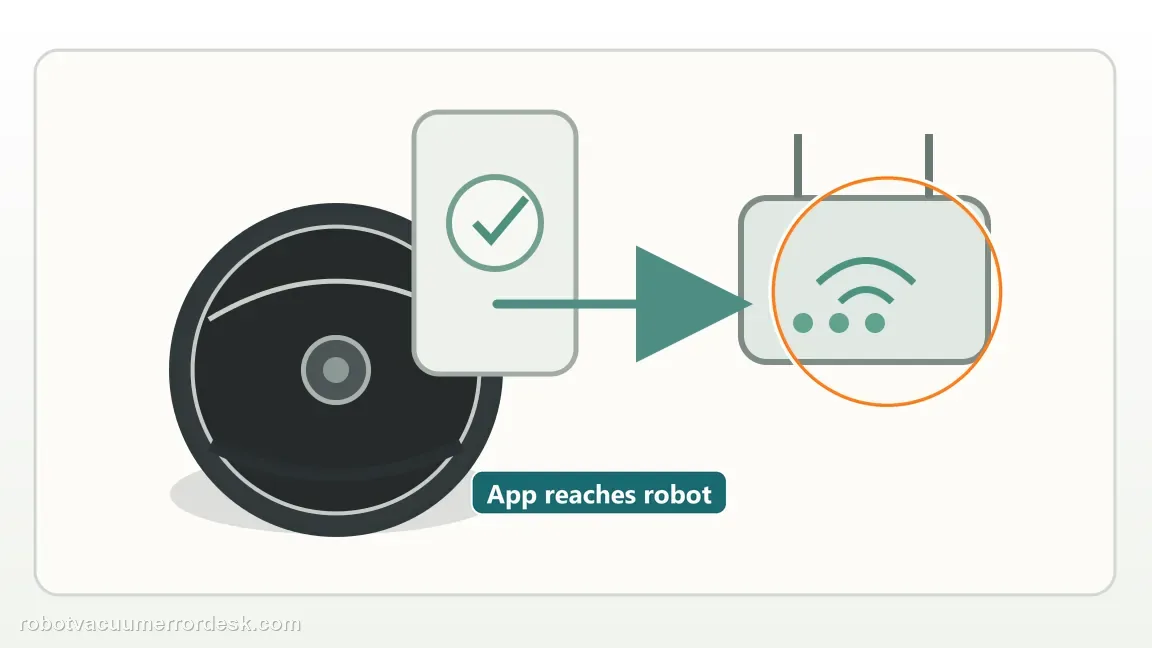
| The app cannot see the robot or Wi-Fi changes during the update | Network reachability is a credible interruption point and must be stabilized before judging the software package itself. | Use the Max 705 Wi-Fi setup path, confirm the robot stays online, then retry or wait for the staged update. |
| The robot is online and stable but the newer version is simply not offered yet | iRobot states that releases roll out over several weeks; absence of the update alone is not Error 29 evidence. | Leave normal connectivity available and monitor the software version rather than factory-resetting a working robot. |
| Error 29 repeats on stable power and Wi-Fi after the robot is fully provisioned | The documented owner-side prerequisites are satisfied and the remaining problem is a repeatable software-update interruption. | Capture current software version, app error and timing, then contact iRobot instead of repeatedly resetting maps or opening the robot. |
Separate an update that is moving from one that is stalled
The update status is still advancing
Illustrative example, not repair-rate data: the app shows 42% at the first check and 58% two minutes later. Leave the Max 705 on its powered dock and keep watching the app. Do not start a cleaning task or interrupt power while the update is progressing. Record the version and finish state after it completes.
The update status stays unchanged
Illustrative example, not repair-rate data: after five minutes with no status change, use Product Settings, Reboot Roomba, then Reboot Roomba. If the app route is unavailable, move the robot off the dock and hold its power button for about 10 seconds. Wait up to 90 seconds for the light ring to shut off, then hold for 3 seconds to turn it on. Record whether Error 29 returns.
Illustrative decision sequence. These are observations, not measured repair success rates.
- Dock and monitor a progressing update
- Use one documented reboot only if status never finishes
- Escalate if Error 29 remains after reboot
Do not factory-reset by default. Use the exact model’s reboot/network-reset procedure only when the manufacturer path calls for it.
Run these checks in order
Confirm this is really Error 29 and record the installed version
Open the Roomba Home App and capture the exact error plus the software version shown for the robot. Error 29 is specifically referenced in iRobot’s Max 700 software release history as an update-interruption problem. Do not substitute a generic ‘software error’ diagnosis if the app is actually reporting another number. Recording the version also prevents a common mistake: assuming the Max 705 is behind simply because someone else has a newer build. iRobot stages software releases, so different robots can legitimately receive the same release at different times.
Dock it and monitor the update
Place the Max 705 on its powered dock and watch the Roomba Home App. iRobot says an update should take a few minutes and that the app can show the robot’s status. Let a progressing update finish; do not start a cleaning task or cut power while the status is changing. If charging is intermittent, resolve that separate charging condition before judging the software update.
Finish first-run provisioning if this is a new Max 705
iRobot’s Max 700 release notes say robots shipping with factory software 7.2.3 or later must connect to the cloud before their first cleaning mission. If pressing CLEAN produces a setup voice prompt, complete the Roomba Home App onboarding rather than forcing repeated manual starts. Once provisioning is complete, the robot can later be used offline without the app, but initial setup is part of the expected software state. This is especially important when Error 29 appears on a robot that has never successfully run a mission.
Verify Wi-Fi reachability separately from the software version
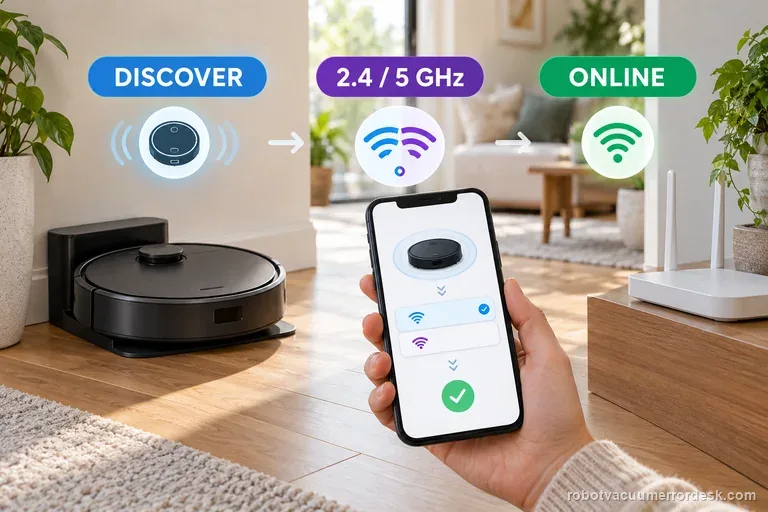
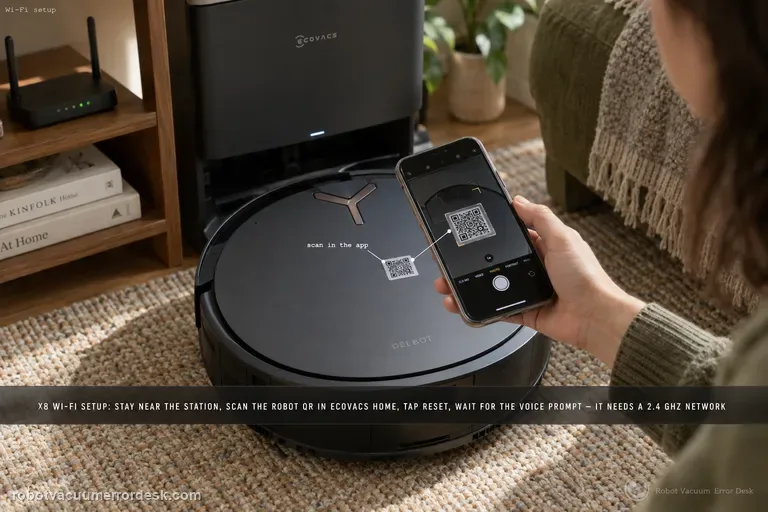
Keep the phone and robot on a stable home network and confirm the app can reliably reach the Max 705. If discovery or provisioning itself is failing, use the dedicated Max 705 Wi-Fi setup workflow rather than repeatedly invoking software recovery. The current setup page lists Max 705 as supporting both 2.4 GHz and 5 GHz, so do not blindly disable 5 GHz based on older Roomba advice. The point here is continuity: the robot should remain reachable while update delivery is expected.
Use iRobot’s reboot route only if the status never finishes
If the app status continues indefinitely, iRobot says to choose Product Settings, Reboot Roomba, then Reboot Roomba. Its alternate button route is to take the robot off the dock, hold the power button for about 10 seconds, then wait for the white light and tune. Reboot can take up to 90 seconds and ends when the light ring shuts off; hold the button for 3 seconds to turn it on again. Do not interrupt an update that is still progressing.
Escalate if Error 29 remains after the documented reboot
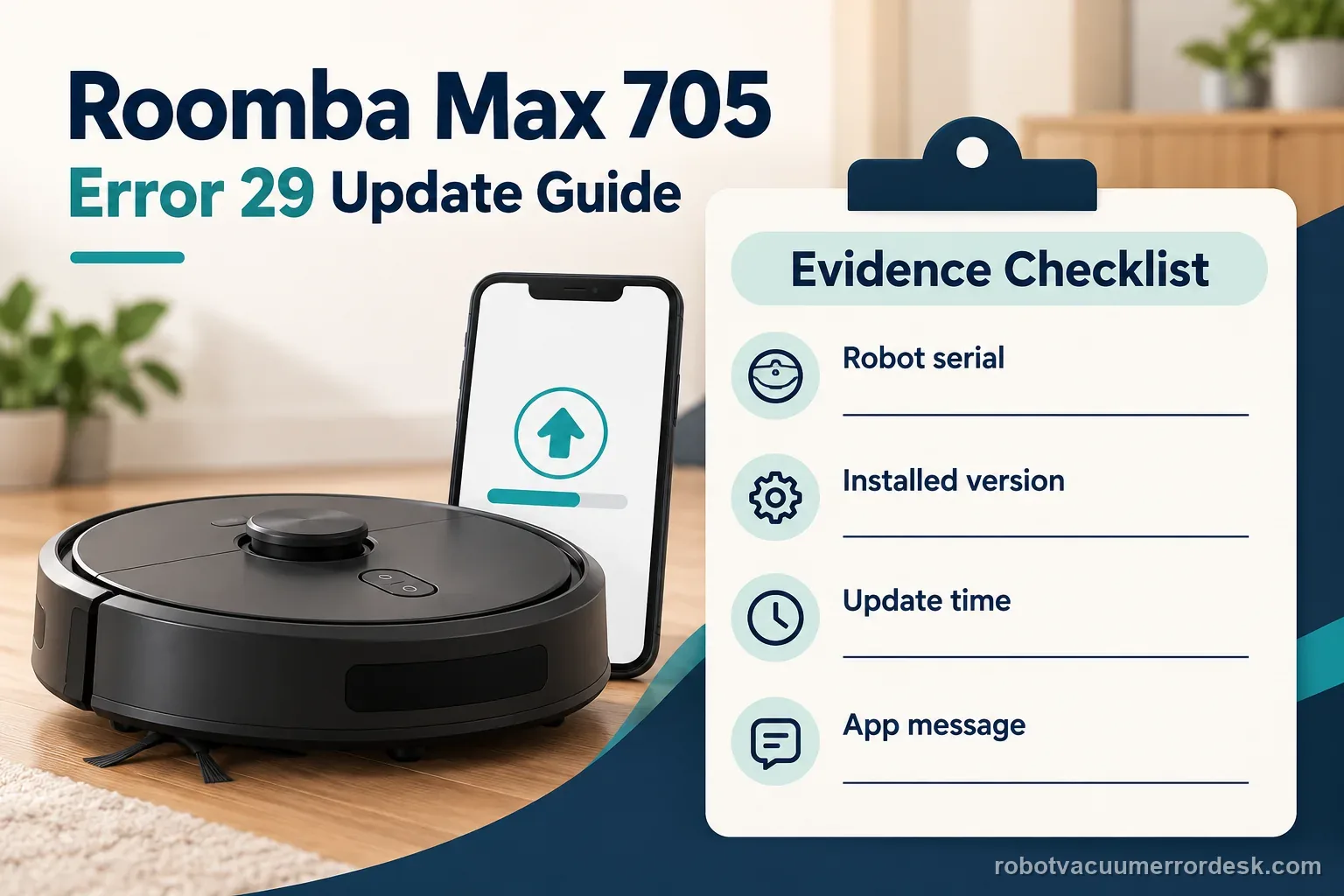
If the same code returns after the reboot, save the error screen, software version, update time, app state and confirmation that charging remained stable. iRobot lists battery removal and reinstall as a later step for a robot that remains stuck and unresponsive. On a Max 700 Combo, its battery article says access requires a Phillips screwdriver and removal of 9 bottom-cover screws. Skip that disassembly if you are not comfortable or the warranty/support path says to contact iRobot; send the evidence instead.
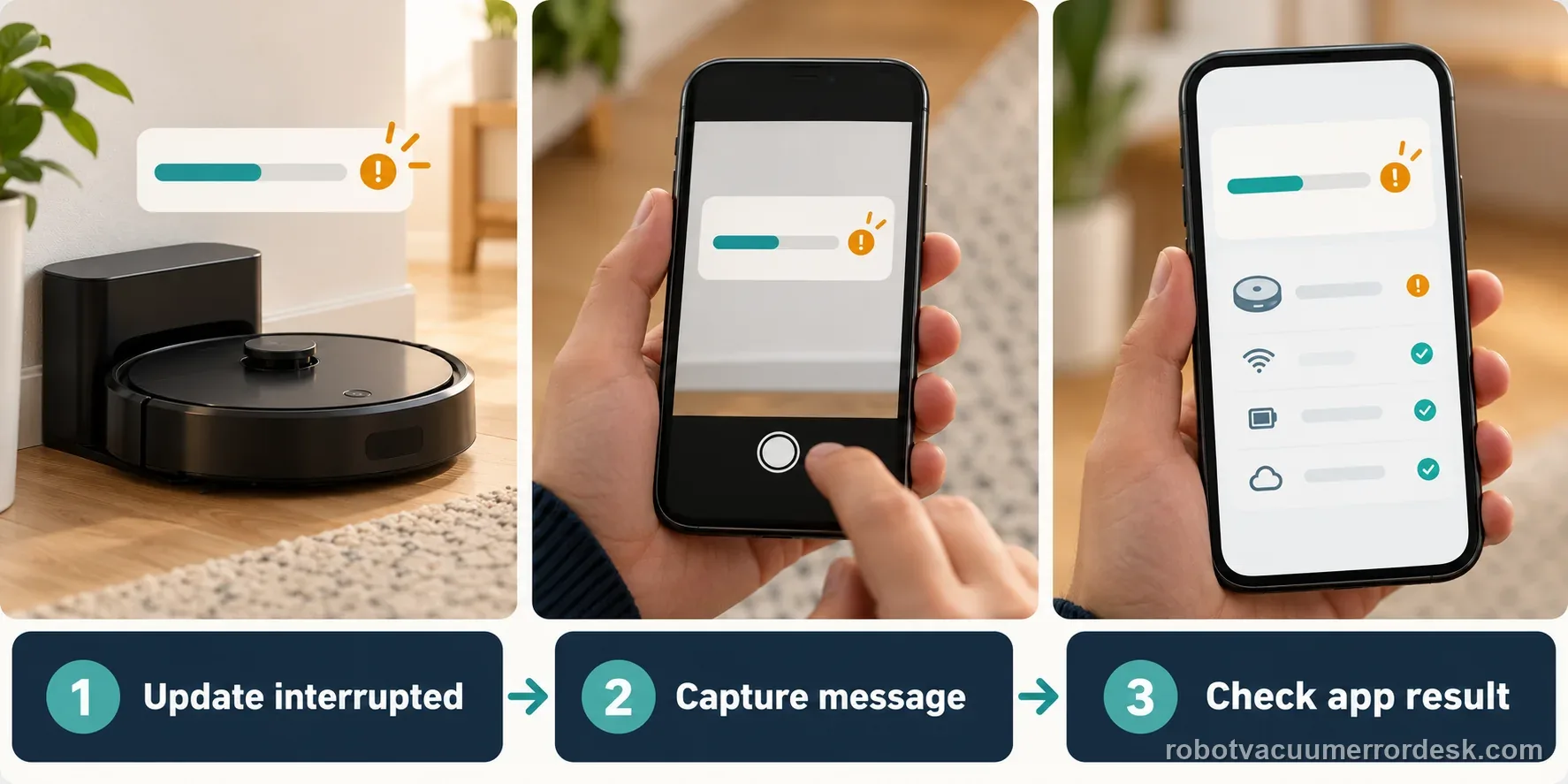
Contact iRobot if Error 29 remains after the manufacturer’s reboot route, especially when the Max 705 is provisioned, charging and reachable in the app. Send the exact error, software version, update time and test record. A new version may not be offered yet because iRobot stages releases over weeks; an absent update alone is not a fault. Treat battery access as the final manufacturer step for a robot that remains stuck and unresponsive, not a routine first fix.
Keep the update and reboot timeline for support
| Stage | Question to answer | Evidence to keep |
|---|---|---|
| Alert | Exact Error 29 wording | App screenshot |
| Update | Status and time checked | Before/after status |
| Reboot | App route or 10-second button hold | Light, tune and time |
| Result | Same or different code | Current version and screen |
What to collect before contacting support
Give support a reproducible case instead of “it doesn’t work.” That reduces repeated basic troubleshooting and preserves the clues from your tests.
- Exact model name and the error code / voice prompt exactly as shown
- A photo or screenshot of the app error and the time it occurred
- A short list of the checks already completed and what happened after each one
- Robot serial number and proof of purchase if warranty may apply
Manufacturer evidence
iRobot Error 29 guidance for Max 700 Series
iRobot’s Error 29 article covers Max 700 Series and defines this as a robot started during an update. It says to leave the robot docked while the update completes, then use the app or 10-second power-button reboot if status continues indefinitely. Release notes record earlier Error 29 improvements in 7.5.2, staged rollout, and cloud provisioning on factory 7.2.3 or later. The Max 700 Combo battery article says access requires removing 9 bottom-cover screws, so keep this step late and optional for owners uncomfortable with opening the robot.
Additional official source: iRobot Roomba Home App setup ↗Additional official source: iRobot Max 700 Software Release Notes ↗Additional official source: iRobot Max 700 battery removal instructions ↗Last editorial review: September 5, 2026Regional note: manufacturer help centers, model suffixes, mains-power requirements and warranty procedures can differ by country. If the source redirects to a local support site, confirm that the model/hardware scope still matches before following a region-sensitive step.
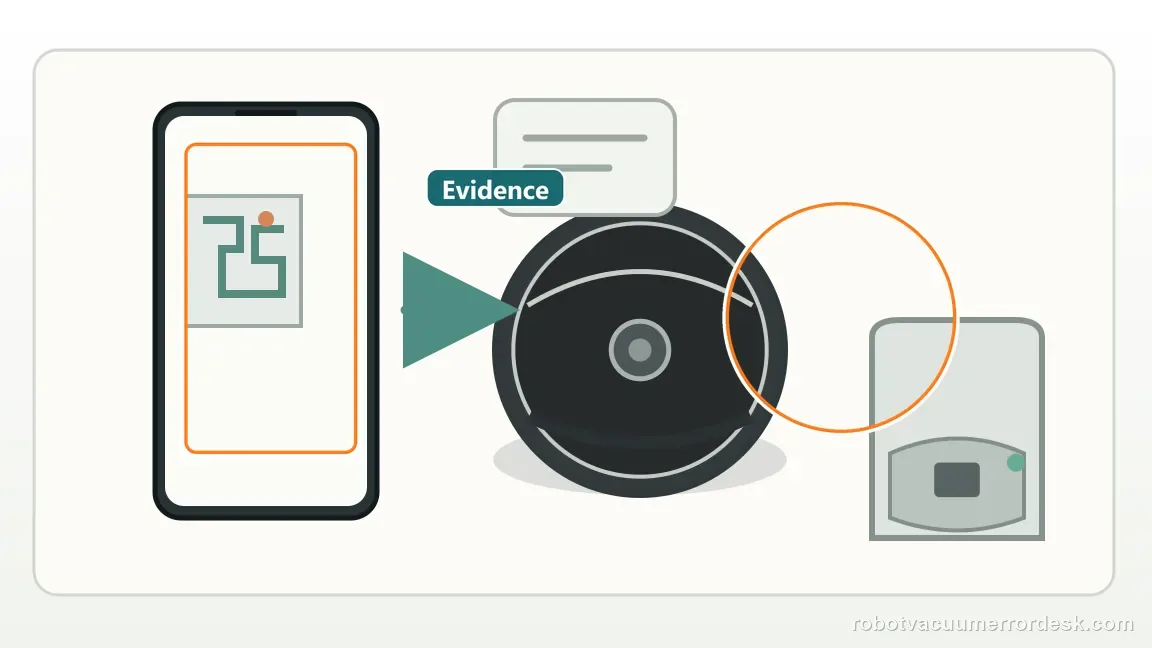
This guide is rated Official series support. See what each evidence label means →
FAQ
What does Error 29 mean on the Roomba Max 705?
iRobot defines Error 29 as a robot started while a software update was being performed. Put it on the dock and monitor the app while the update completes. If the status continues indefinitely, use iRobot’s reboot route. This is an update-state alert, not a brush or wheel diagnosis.
Why will my new Roomba Max 705 not clean before app setup?
iRobot says Max 700 robots shipping with factory software version 7.2.3 or later must connect to the cloud before their first mission. Pressing CLEAN before provisioning can trigger a prompt to download the Roomba Home App and finish setup. After successful setup, the robot can later be disconnected from Wi-Fi and used offline, so this first-run requirement should not be mistaken for a permanent always-online limitation.
Should I factory-reset the Max 705 if a software update has not arrived?
No. iRobot stages Max 700 software releases over several weeks, so a newer version may not be offered yet. If Error 29 is not recurring and the robot is working, keep its maps and settings. Use the reboot steps only if the update status continues indefinitely.
Can weak Wi-Fi cause Roomba Max 705 Error 29?
An interrupted network path can make software delivery unreliable, so stable connectivity is an important prerequisite, but Error 29 should not be reduced to ‘bad Wi-Fi’ without evidence. Confirm the app can consistently reach the robot and that setup is complete. If Wi-Fi pairing itself fails, troubleshoot that separately. If the robot remains online yet Error 29 repeats, save the version/error details for iRobot support.
What information should I save before contacting iRobot about Error 29?
Save the Error 29 screen, installed version, update time, app status, and whether the robot stayed docked and charging. Note each reboot attempt and whether Error 29 returned. If the robot remains stuck after reboot, tell iRobot before opening the Max 700 Combo battery compartment, which requires removing 9 bottom-cover screws.
The Max 700 release notes record historical Error 29 improvements, but they do not promise a current update or guarantee a fix. iRobot stages releases over several weeks. If the robot remains stuck and unresponsive after the listed reboot, its Max 700 Combo battery article is the final documented step and requires a Phillips screwdriver plus removal of 9 bottom-cover screws; owners who are not comfortable with that should contact iRobot.
Choose the matching model before using another guide's procedure:
Check Max 705 Wi-Fi setup separately →Max 705 Error 360 is dock communication →Compare a separate fan error path →A docking problem on the j7 has a different symptom path →Did this diagnostic narrow the fault?
Use this as an editorial signal, not a popularity counter. If a feedback address is configured you can email the note; otherwise you can copy it for your own support record.