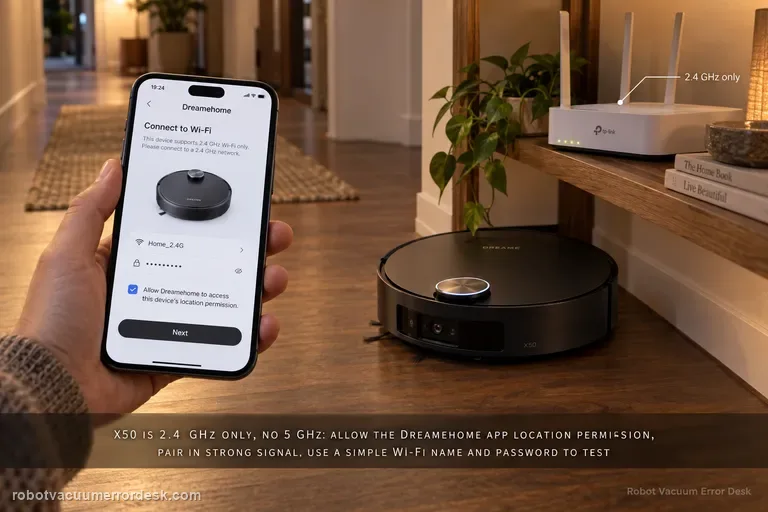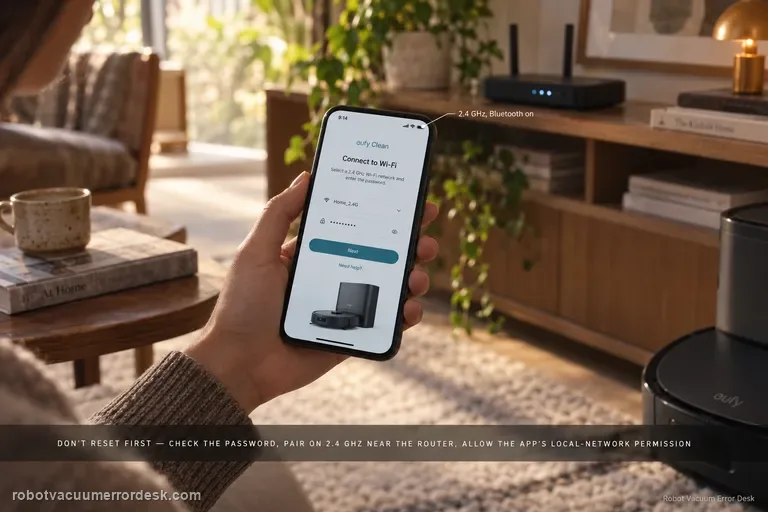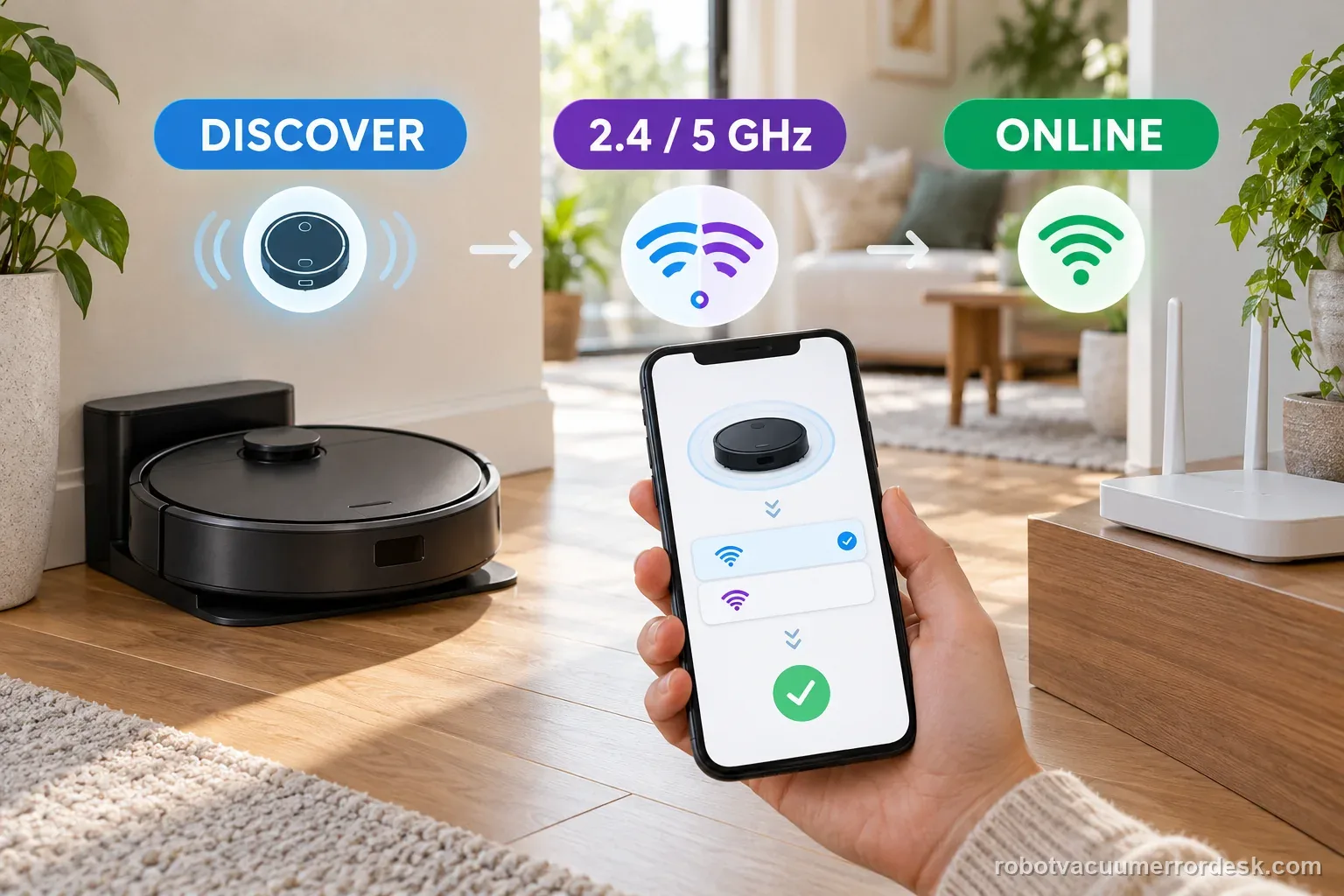
First note where Max 705 setup stops: nearby discovery, Wi-Fi credentials, or the post-setup cloud connection. iRobot lists this model on both 2.4 and 5 GHz, so do not force 2.4 GHz by default. Keep it charging near the router, allow the phone permissions the app requests, then test one network change at a time.
Is the problem “5 GHz” or a specific pairing stage?
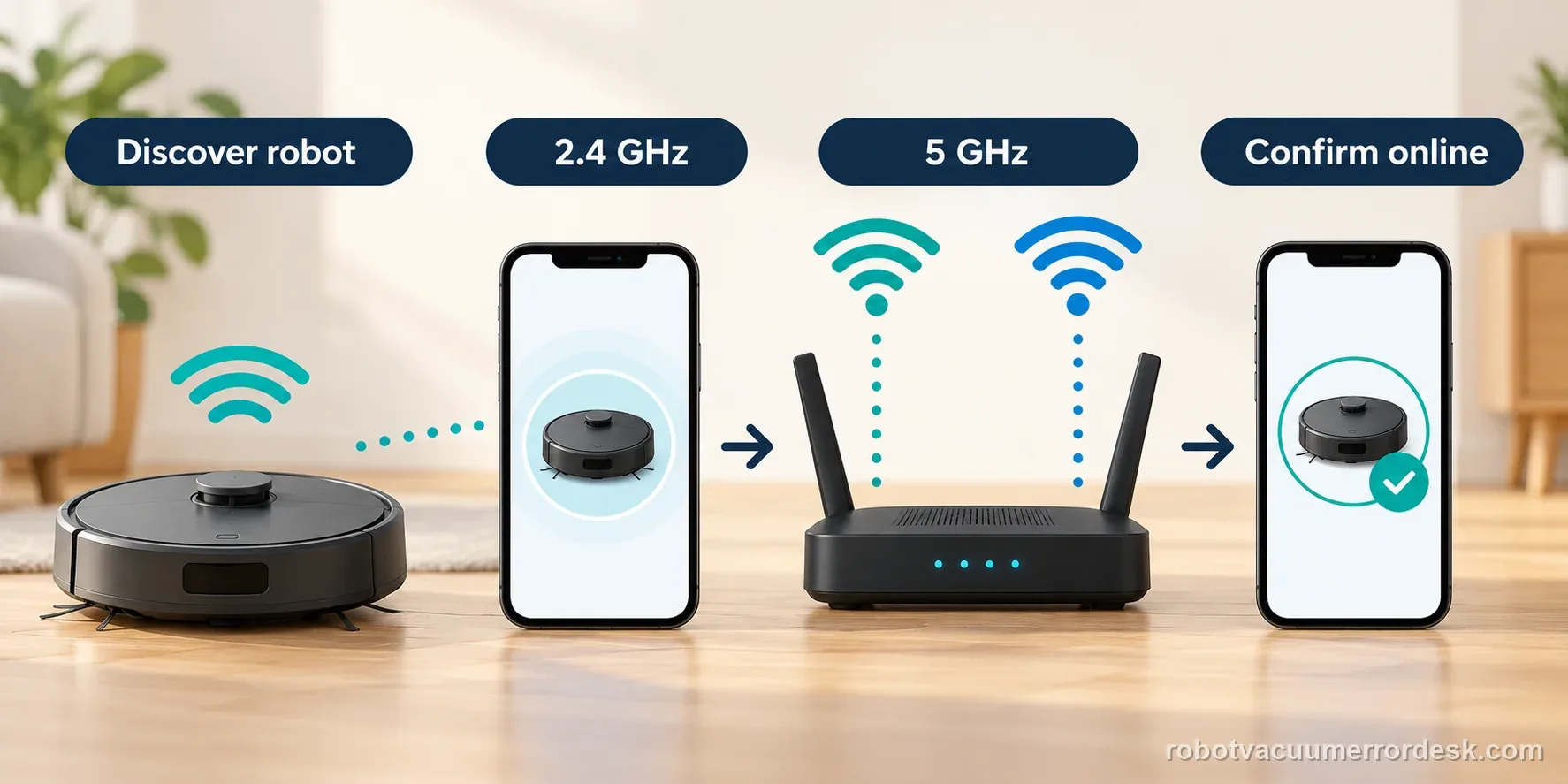
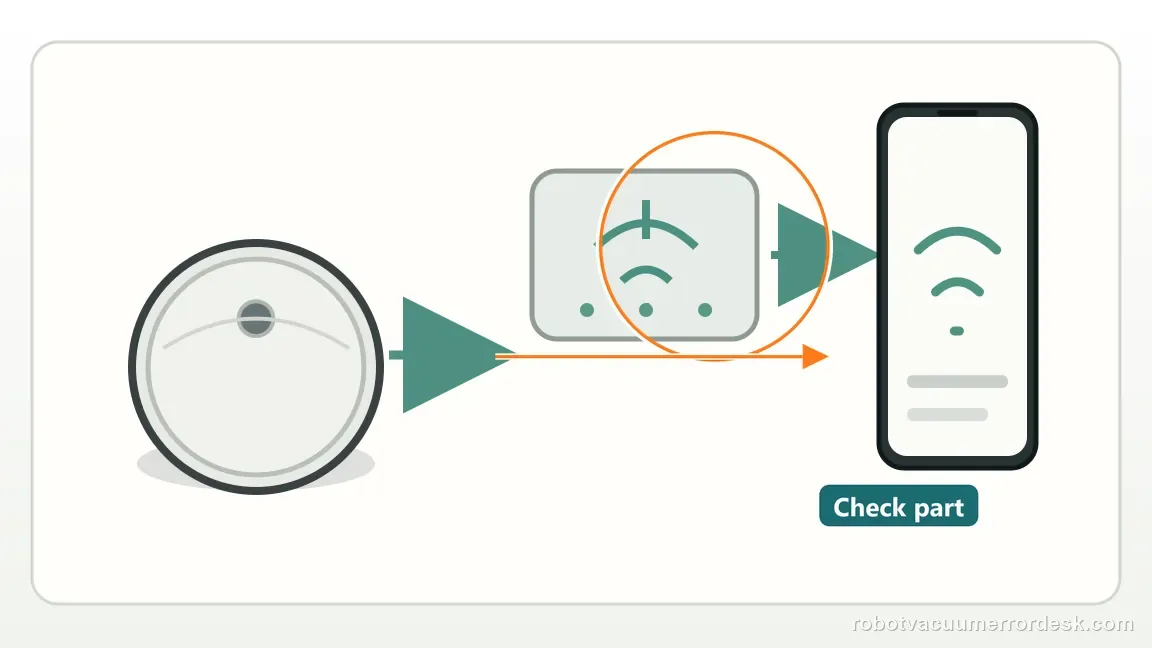
iRobot's current setup guide lists the Max 705 on both 2.4 and 5 GHz. Troubleshoot by stage: phone discovery, Wi-Fi credentials, account/cloud connection, then home-router behavior.
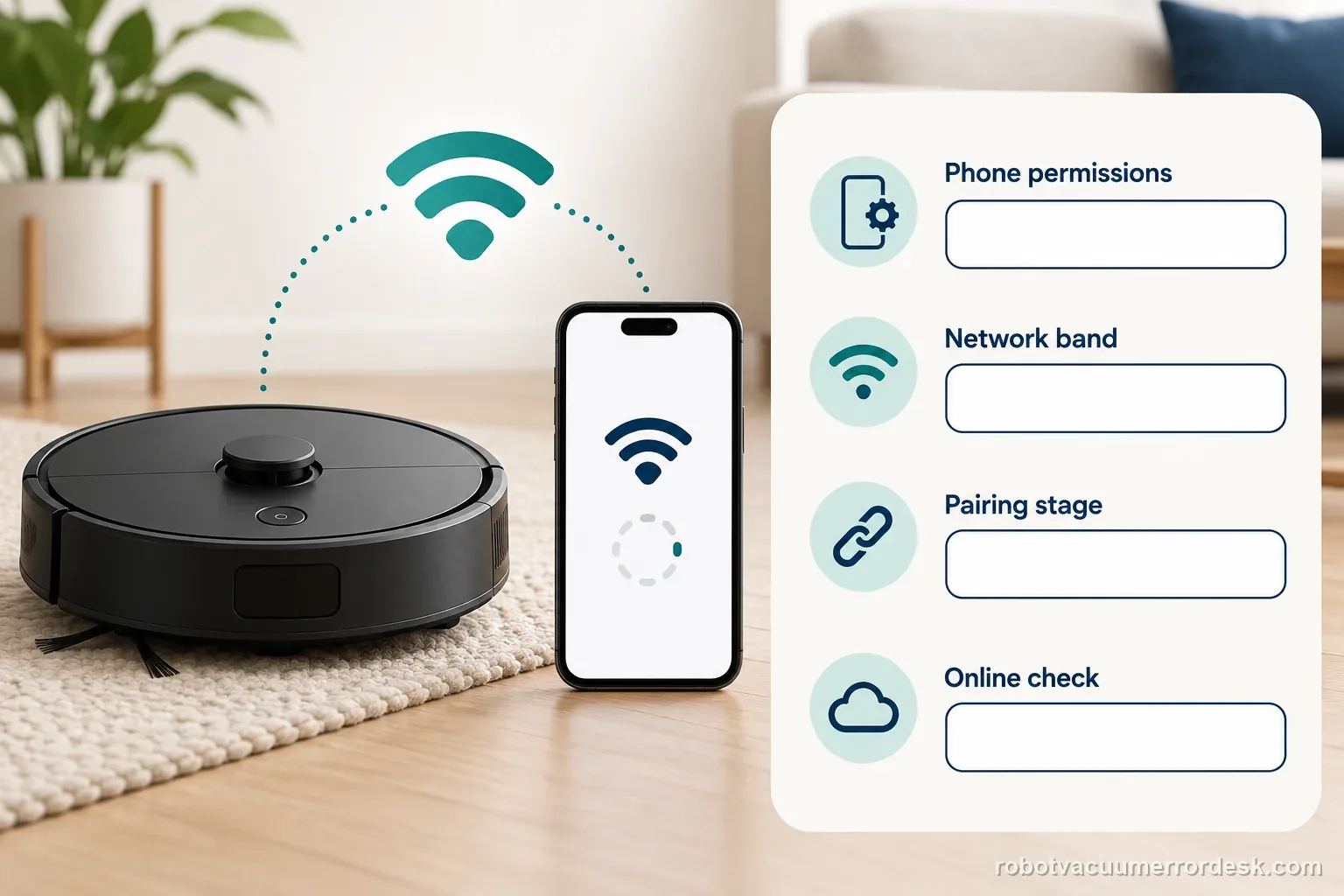
Find whether setup stops at discovery, Wi-Fi, or account binding
| Observation | What it separates | Next action |
|---|---|---|
| Robot not found nearby | Bluetooth, permissions, or device discovery | Check phone access and app prompt |
| Network appears but password fails | Credential entry or router security | Type the password and record the message |
| Setup works, app then says offline | Post-pairing connection state | Use Product Settings Wi-Fi reconnect |
| Robot is tied to another account | Ownership flow | Follow iRobot's account-change process |
Confirm the exact model and exact code, light pattern or symptom.
Run the lowest-risk physical or software check first.
Use each pass condition to decide what the result actually narrows down.
Confirm this is the right issue
- A Roomba Max 705 Combo or Max 705 Series robot is being added to the current Roomba Home App and setup will not complete.
- The app cannot discover the nearby robot even though the dock is powered and the robot is charging.
- Robot discovery works, but setup fails after you select or enter Wi-Fi credentials.
- You were told to disable 5 GHz and need to know whether that advice actually applies to Max 705.
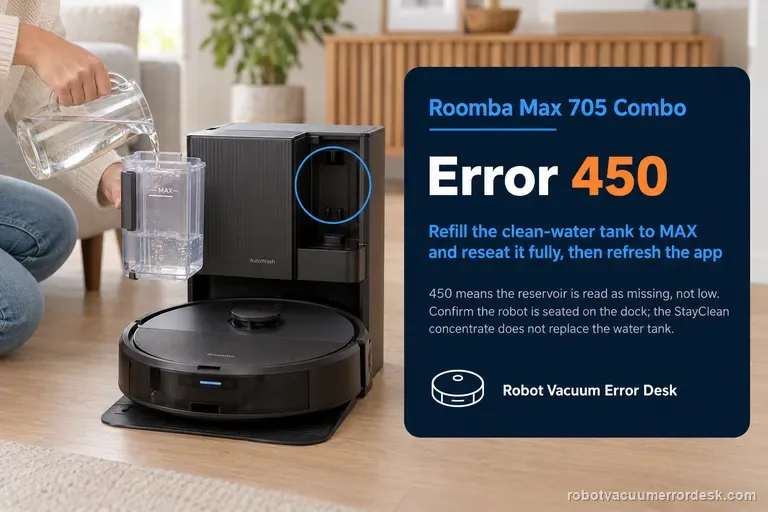
A robot can join Wi-Fi while its dock still reports a water-tank alert. For the exact Error 450 missing-tank message, use the Max 705 clean-water tank checks after confirming the network setup separately.
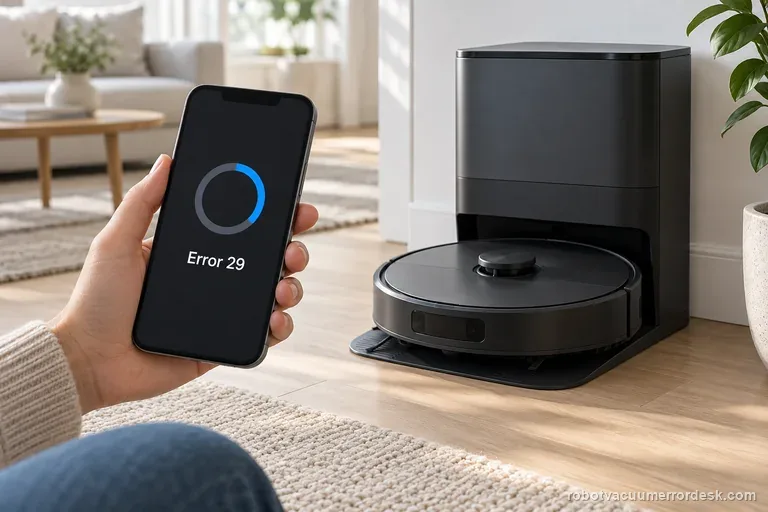
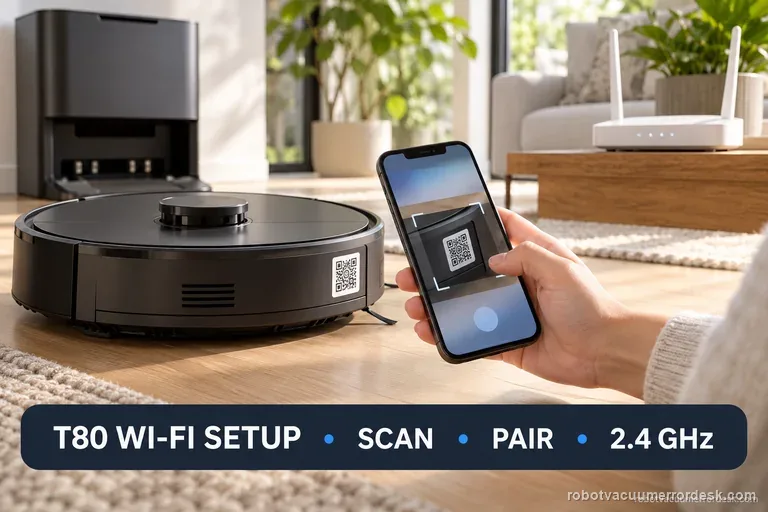
Pairing instructions vary by model. If setup is complete but an update or another brand’s network pairing fails, use the corresponding guide: Max 705 Error 29 update checks · Qrevo Curv Wi-Fi pairing steps · ECOVACS T80 Wi-Fi setup
What’s most likely causing this
The robot is not on a powered charging dock or the dock is in a weak Wi-Fi area during initial setup.
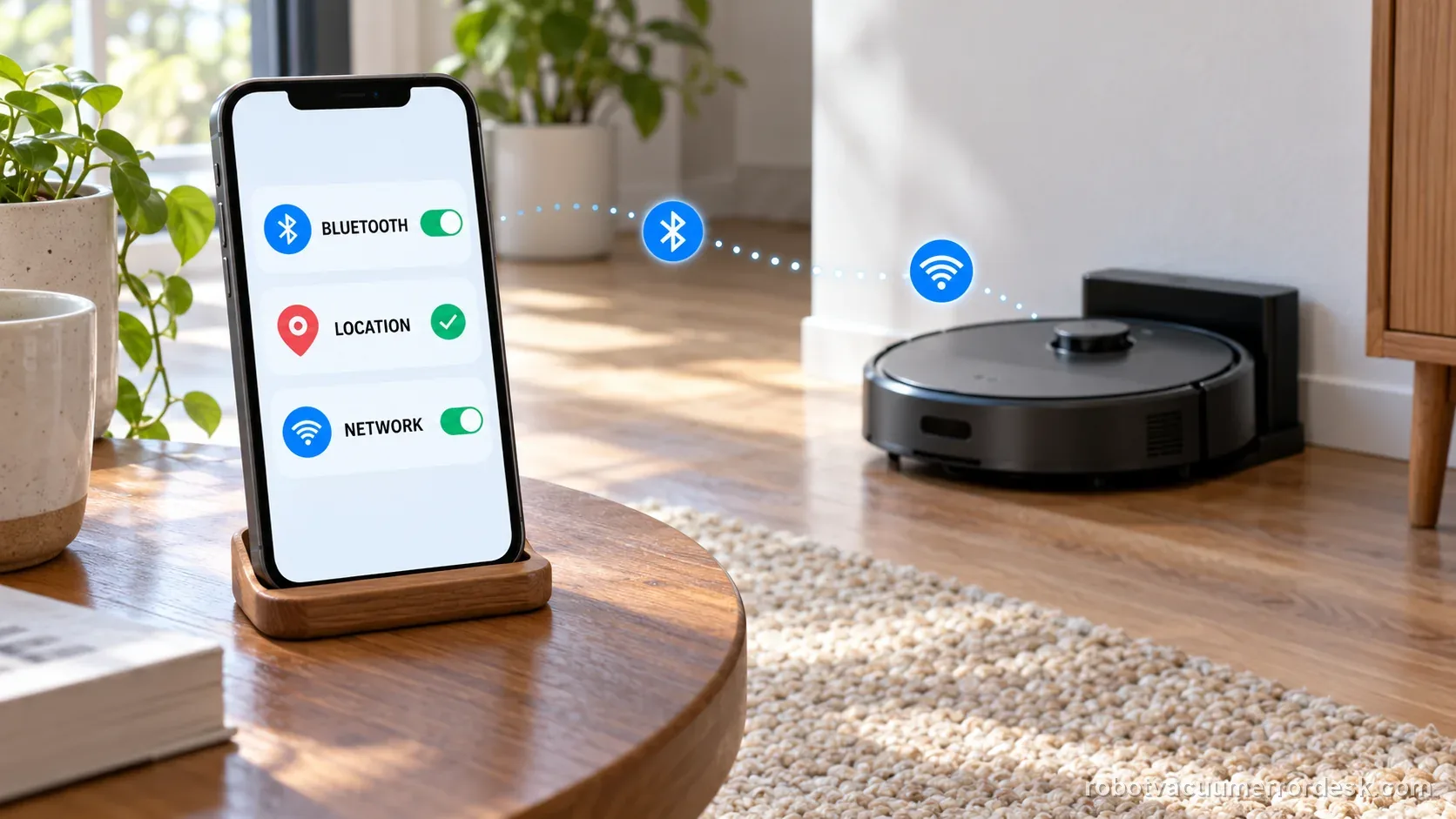
Bluetooth, precise location or local-network permission is disabled on the setup phone, blocking nearby-device discovery.
The phone is not connected to the network you intend the robot to use, or the wrong SSID/credentials are being entered.
A router, firewall, VPN, ad blocker, client-isolation rule or mesh configuration is interfering after robot discovery.
The app cannot automatically find the robot and the temporary Roomba setup network has not yet been selected manually.
Reading your test result
| What you observe | What it narrows down | Next move |
|---|---|---|
| The app never discovers the Max 705 nearby | Phone-to-robot discovery is failing before home Wi-Fi credentials are even the main issue. | Verify Bluetooth, Precise Location/local-network permissions, robot power and proximity; then retry Add a New Product. |
| The app finds the robot but rejects/loses the selected home network | Discovery works, so focus on SSID/password and router/network policy rather than robot Bluetooth. | Enter credentials manually, remove unsupported special characters if the app flags them, and keep the phone on the intended network. |
| Someone says the Max 705 must use 2.4 GHz only | That is legacy advice for older Roomba lines; iRobot’s current table lists Max 705 Series on both 2.4 and 5 GHz. | Use either supported band with good signal and troubleshoot the actual stage that fails instead of disabling 5 GHz by default. |
| Setup completes but 'Unable to Connect' appears immediately | Provisioning reached the account/network stage but subsequent service communication is blocked or stale. | Close/reopen the app, then use Product Settings > Wi-Fi Settings > Reconnect or Change Product Wi-Fi and verify required outbound traffic if managed network rules apply. |
| A simple phone hotspot works but the home network does not | The robot radio and basic provisioning path are functional; the home router/network configuration is now the stronger branch. | Check VPN/ad blocking, client isolation, DNS/firewall rules and mesh behavior; avoid factory reset until the network branch is resolved. |
Two measured setup examples, with the failure stage kept separate
Two discovery attempts, then the robot appears
Illustrative example, not repair-rate data: attempt 1 ends with “No nearby products.” Confirm Bluetooth, location/Precise Location and network access, then try once more. On attempt 2 the Max 705 appears, so discovery is working; continue with Wi-Fi selection instead of resetting the router.
Home Wi-Fi fails once, a second network works once
Illustrative example, not a success-rate claim: the app finds the robot, but one home-network provisioning attempt ends with an error. A single setup test on a separate phone hotspot succeeds. Record both outcomes; this points toward the home router or its policies, not proof of a failed robot radio. Return to the router branch and avoid a factory reset.
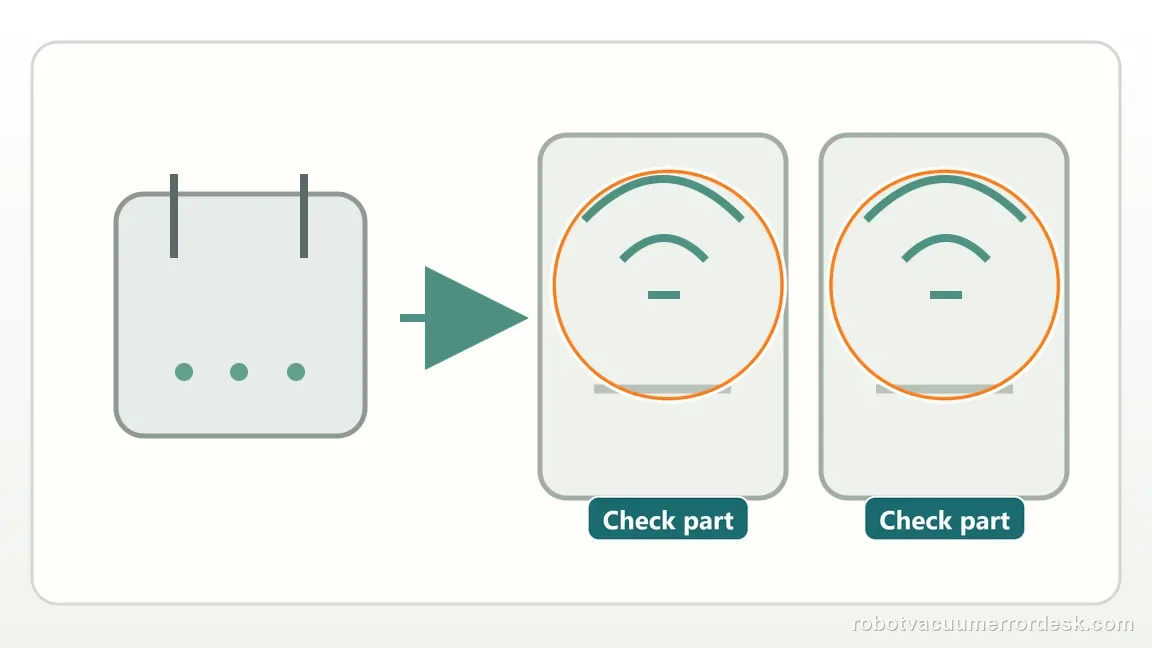
Illustrative decision sequence. These are observations, not measured repair success rates.
- Dock and power the robot near coverage
- Check app permissions and nearby discovery
- Select the supported network and record the exact result
- If needed, compare one other network before escalation
Do not factory-reset by default. Use the exact model’s reboot/network-reset procedure only when the manufacturer path calls for it.
Work through these checks in order
Start with the Max 705 charging on a powered dock near the router
Remove shipping tape/films, place the dock on a level unobstructed surface and power it. iRobot recommends locating it where Wi-Fi coverage is strong during setup. Put the Max 705 on the dock and confirm it is charging before pairing. This prevents a discovery failure caused by an unpowered robot from being misread as a router problem. Keep the phone nearby and connected to the home network you actually intend the robot to use.
Enable the phone permissions used for nearby discovery
Turn on Bluetooth and allow the Roomba Home App the requested location/Precise Location and local-network access. iRobot uses Bluetooth where possible to discover nearby robots during setup. If the app cannot see the Max 705 at all, fix this phone-to-robot layer before changing SSIDs or router channels. Use a supported phone, not a tablet-class device. iRobot lists iOS 17 or later and Android 11 or later for the new app; check the current app listing if the phone is older.
Use the current Max 705 dual-band rule
iRobot's current table lists Max 705 on both 2.4 and 5 GHz. Older Roomba band advice may not apply, so select a compatible network with good coverage at the dock. Keep the setup phone on that network. Type the password manually. If the app identifies a character it rejects, follow its prompt; do not change your primary home SSID/password without planning for other devices. Release notes say version 9.3.5 added Japanese and Chinese characters, so check software notes before generalizing one failure.
Separate discovery failure from Wi-Fi provisioning failure
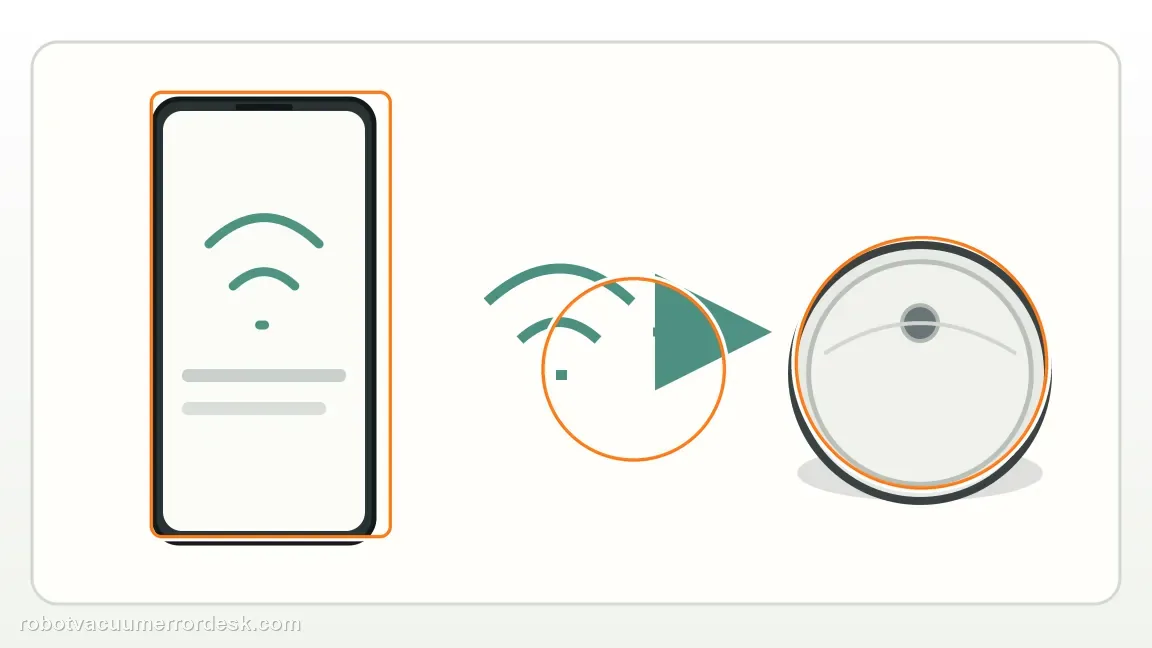
Choose Add a New Product and let the app search. If the Max 705 appears, press Set Up. If it remains missing after two attempts, follow the app to join the temporary robot network, then return to the app. This is not your home SSID. Press the robot power button when asked to confirm the device. Stay on screen until setup completes, then allow a few minutes for account setup.
Recover an immediate post-setup connection error without wiping the robot
If setup succeeds but immediately shows “Roomba Cannot Connect Right Now” or “Unable to Connect,” close and reopen the app, then use Product Settings > Wi-Fi Settings > Reconnect or Change Product Wi-Fi. On managed networks, iRobot lists UDP 5353/5678 for discovery, DNS port 53, UDP 123 for time, TCP 443, and MQTT TCP 8080/8883. Ask the network administrator to verify those paths without broadly disabling the firewall. VPNs, blockers or client isolation can still interfere.
Use a simple hotspot only as a discriminator, then preserve the result
Use a separate network only if one is available. iRobot describes a two-phone hotspot test: one phone broadcasts the hotspot and the setup phone joins it. If the Max 705 completes one setup attempt there but fails on the home network, investigate router policy rather than blaming the robot radio. Record both results and stop; do not factory-reset just because one network branch failed.
Contact iRobot when the Max 705 is powered and discoverable but cannot complete provisioning on a known-good network, or when it cannot be discovered despite correct phone permissions and a current app. Record the exact stage: not found nearby, password/network failure, or post-setup ‘Unable to Connect.’ If a simple hotspot works, include that result because it strongly narrows the problem toward home-network configuration. Avoid factory reset until you have separated those layers.
Record where the Max 705 setup stops
| Stage | Question to answer | Evidence to keep |
|---|---|---|
| Phone | Bluetooth and location allowed? | Phone model and OS version |
| Discovery | Robot found by app? | Discovery screen |
| Network | Band and setup message? | SSID only; never password |
| Account | Already registered message? | Exact prompt and ownership state |
| Network test | Second network tried? | Success or exact error |
Before you contact support, gather this
A reproducible case moves a support call past the basic troubleshooting script faster than “it doesn’t work” does, and it keeps the clues from your own tests on record.
- Exact model name and the error code / voice prompt exactly as shown
- A photo or screenshot of the app error and the time it occurred
- A short list of the checks already completed and what happened after each one
- Robot serial number and proof of purchase if warranty may apply
Where this comes from
iRobot Roomba Home App setup: Max 705
iRobot Knowledge 10503 is the current setup procedure and lists Max 705 on both 2.4 and 5 GHz. It covers charging dock placement, phone permissions, discovery, credential entry, temporary robot Wi-Fi, account binding and mesh/hotspot isolation. Knowledge 17735 covers a robot that was already paired but now shows Unable to Connect. Release notes 70550 document first-run cloud provisioning and version history. Generic 2.4-GHz-only advice for older models does not apply to this Max 705 band table.
Additional official source: iRobot: Roomba Max 700 Software Release Notes ↗Additional official source: iRobot: Cloud and Wi-Fi Connectivity Troubleshooting Guide ↗Last editorial review: October 19, 2026Regional note: manufacturer help centers, model suffixes, mains-power requirements and warranty procedures can differ by country. If the source redirects to a local support site, confirm that the model/hardware scope still matches before following a region-sensitive step.
This guide is rated Official model support. See what each evidence label means →
Questions people ask
Does the Roomba Max 705 support 5 GHz Wi-Fi?
Yes. iRobot’s current Roomba Home App setup table explicitly lists the Max 705 Series as supporting both 2.4 GHz and 5 GHz. That is important because many older Roomba models were 2.4-GHz-only. Do not disable 5 GHz by default. Use a supported band with good signal at the dock and troubleshoot the stage that actually fails: discovery, credential transfer or post-setup connectivity.
Why can the Roomba Home App not find my Max 705 during setup?
If the app never discovers the robot, focus on the phone-to-robot layer first. Confirm the Max 705 is powered and charging, then enable Bluetooth, Precise Location/location service and local-network access for the app. Keep the phone close to the robot and use the current Roomba Home App. Router-password troubleshooting is premature until nearby discovery works or the app advances to the home-network selection stage.
Should I disable 5 GHz before pairing a Roomba Max 705?
No, not as a blanket rule. The Max 705 supports both 2.4 and 5 GHz according to iRobot’s current setup table. Disabling 5 GHz can hide the real problem and is legacy advice for different models. Keep the phone on the network you want the robot to use, enter credentials manually if needed, and only change router settings when the failure is clearly at the home-network stage.
What does it mean if Max 705 works on a hotspot but not home Wi-Fi?
A successful simple-hotspot test is strong evidence that the robot can discover, authenticate and establish a network connection. The home router then becomes the stronger branch: check VPN/ad blocking, client isolation, mesh behavior, firewall/DNS rules and the SSID/password. Preserve the successful hotspot result. It is more diagnostic than repeatedly factory-resetting a robot whose radio has already proven it can connect elsewhere.
Why does a new Max 705 need the app before its first cleaning?
iRobot’s Max 700 release notes say robots shipping with factory software 7.2.3 or later must connect to the cloud before their first mission. Pressing CLEAN before provisioning can produce a setup prompt. After successful app/cloud setup, the robot may be disconnected from Wi-Fi and used offline. This requirement is therefore an initial provisioning dependency, not proof that every future cleaning mission permanently requires internet access.
If the robot remains offline, record the exact stage, app version, phone model/OS, and error text. Do not send a Wi-Fi password. If it works on a separate network but not the home router, ask the router maker or ISP to review device discovery, isolation and firewall rules. Use iRobot's ownership-change process only when the app explicitly says the robot is registered to another account.
Choose the matching model before using another guide's procedure:
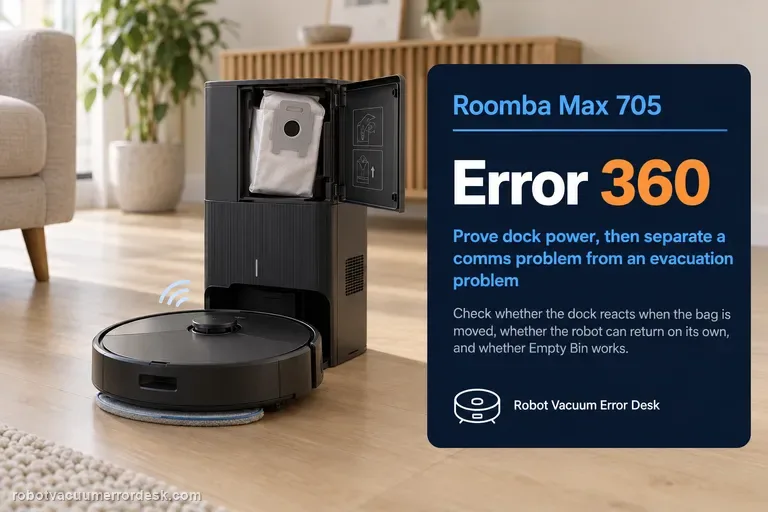
Error 29: update interruption is separate →Error 360: dock communication →Compare a 2.4 GHz-only model setup →E28 network isolation and evidence →Did this diagnostic narrow the fault?
Use this as an editorial signal, not a popularity counter. If a feedback address is configured you can email the note; otherwise you can copy it for your own support record.