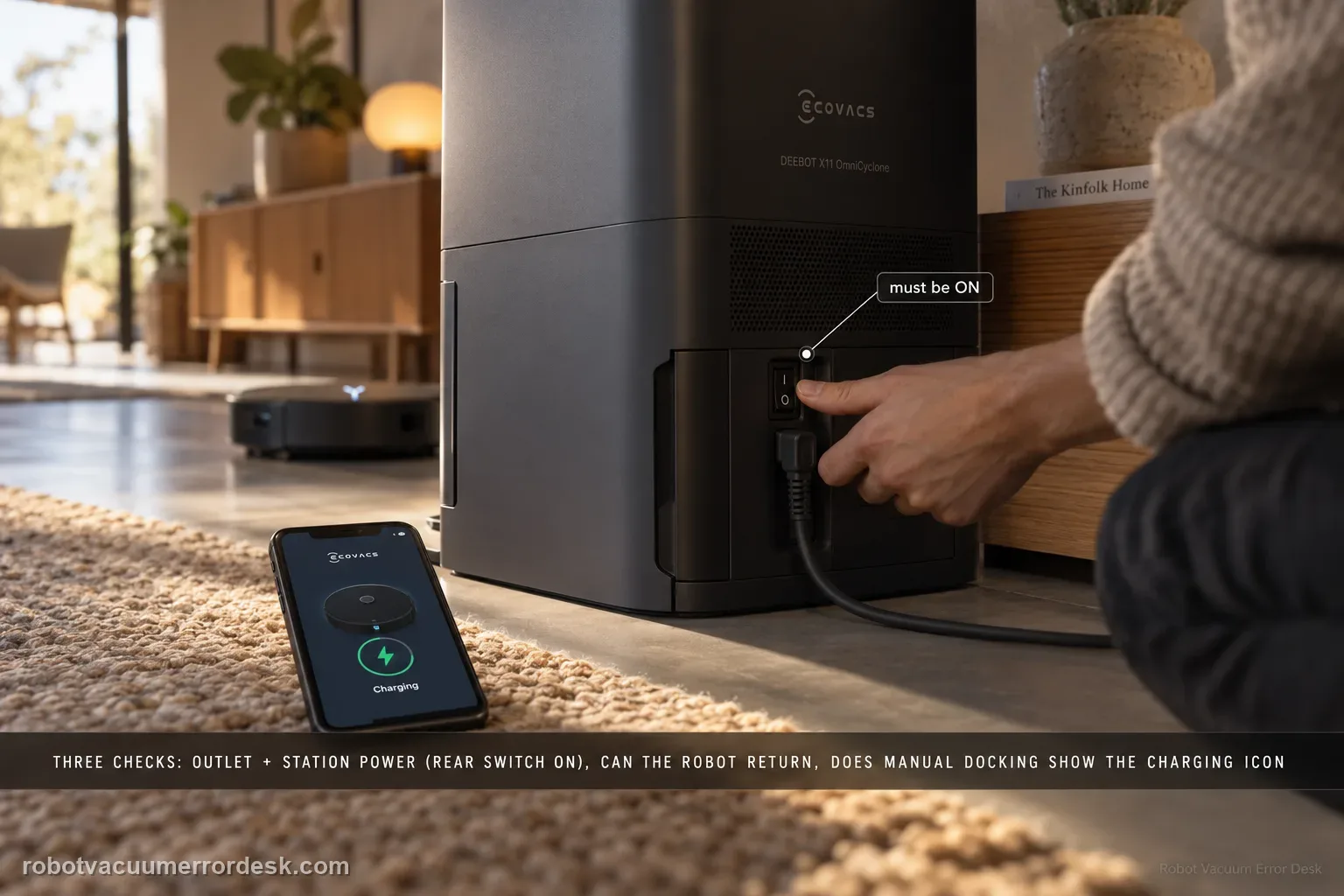
Ecovacs’ X11 charging flow separates three things owners often mix together: whether the station has power, whether the robot can power/return, and whether manual contact charging works. First prove the wall outlet and station connection; on U.S. units, confirm the rear station switch is ON. Power the robot on and ask it to return. If it cannot power on, manually dock it and look for the charging indication—the Auto button blinking or the lightning icon in the app. If manual contact charging also fails, clean the station and rear robot contacts and make sure the station contacts rebound normally. This sequence prevents a navigation failure from being misdiagnosed as a bad battery or dock.
Will X11 charge when manually seated on a powered station?
Confirm the exact model and exact code, light pattern or symptom.
Run the lowest-risk physical or software check first.
Use each pass condition to decide what the result actually narrows down.
Does this match your problem?
- The X11 OmniCyclone is on or near the station but the battery does not begin charging.
- The robot cannot power on and you need to know whether the dock can wake/charge it manually.
- Automatic return fails, making it unclear whether navigation or the electrical charging path is the real problem.
- The station appears unpowered or its front indicator is not in the expected powered state.
- Charging contacts are dirty, stuck or not rebounding normally.
Most likely causes
Wall outlet or station power connection is not supplying the dock
Rear station power switch is OFF on a U.S. configuration
Robot itself is powered off or deeply discharged
Automatic return/navigation failure prevents normal docking even though charging may still work
Dirty charging contacts on station or robot
Station charging contacts do not rebound/make reliable physical contact
Persistent dock/robot/battery hardware fault after owner-level checks
What your test result means
| What you observe | What it narrows down | Next move |
|---|---|---|
| Station does not show its expected powered state | The charging path cannot be judged until outlet, cable and station switch are proven. | Verify outlet power, fully seat the rear cable and set the U.S. rear switch to ON if applicable. |
| Robot cannot return but charges when manually docked | The electrical contact path works; the problem is not simply “dock will not charge.” | Move the case to return/docking/navigation troubleshooting rather than battery replacement. |
| Manual docking gives no charging indication | Navigation has been removed from the test and the charging interface itself is still failing. | Clean both contact sets and verify station-contact rebound before escalating. |
| Contacts are clean/rebounding and station is powered, but no charge | The documented owner checks are exhausted. | Send Ecovacs a video of station state, manual docking and app battery/charging screen. |
| The prior checks are complete but Not charging repeats under controlled conditions | The owner-level decision path for Not charging is exhausted rather than merely untried | Preserve the failed pass condition and a short repeatable Not charging video for ECOVACS support. |
Do not factory-reset by default. Use the exact model’s reboot/network-reset procedure only when the manufacturer path calls for it.
Run these checks in order
Prove outlet and station power first
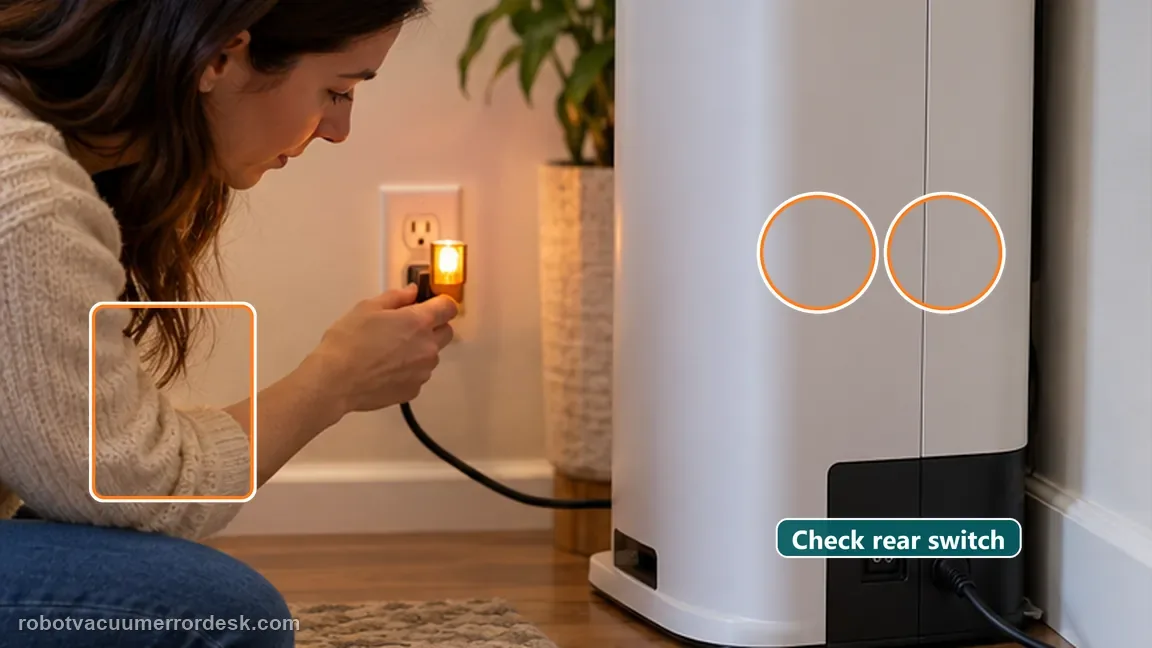
Confirm the wall outlet has electricity. Press the power-cord connector on the back of the station fully into place and verify the station plug is correctly connected to the outlet. Ecovacs adds a U.S.-specific check: the rear power switch on applicable stations must be set to ON. Look for the station’s expected front indicator. Do not start by cleaning the robot or changing maps if the base itself is not proven powered; every later charging observation depends on this first condition.
Power the robot and test an automatic return
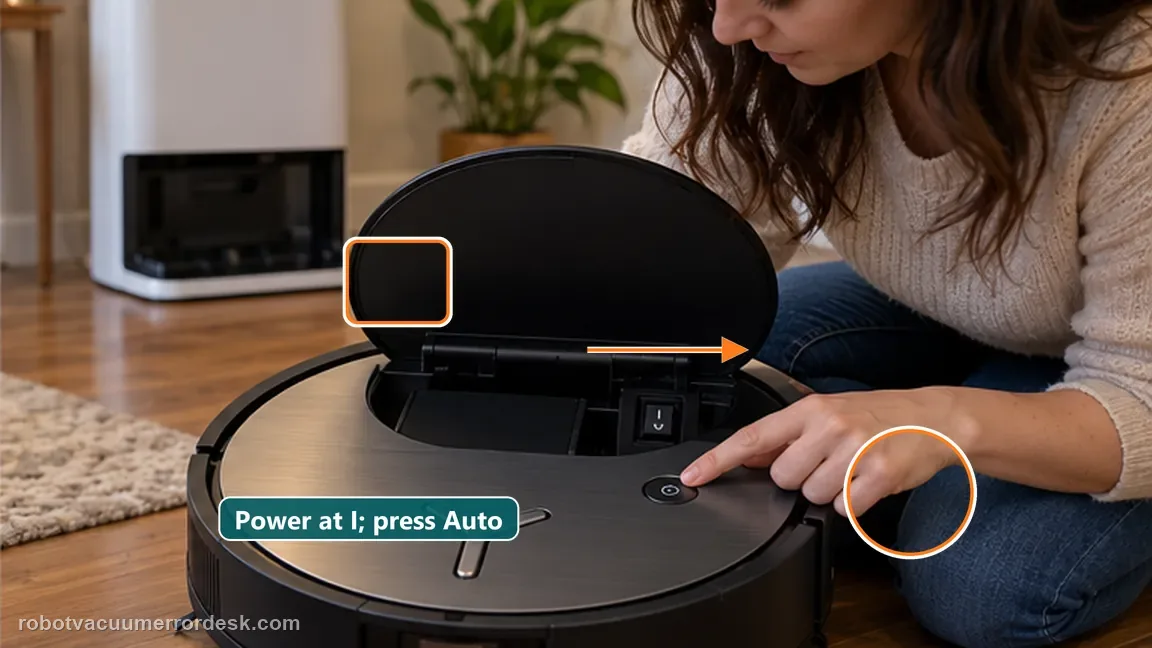
Remove/open the robot cover as applicable and make sure the robot power switch is set to the powered position. Then use the robot control to request a return to the station. This test is useful because a successful automatic return proves the robot is awake and can execute the docking approach. A failed return does not yet prove the dock cannot charge; it may be a navigation or approach issue, so the next step deliberately removes navigation from the diagnosis.
Manually dock to isolate the electrical charging path
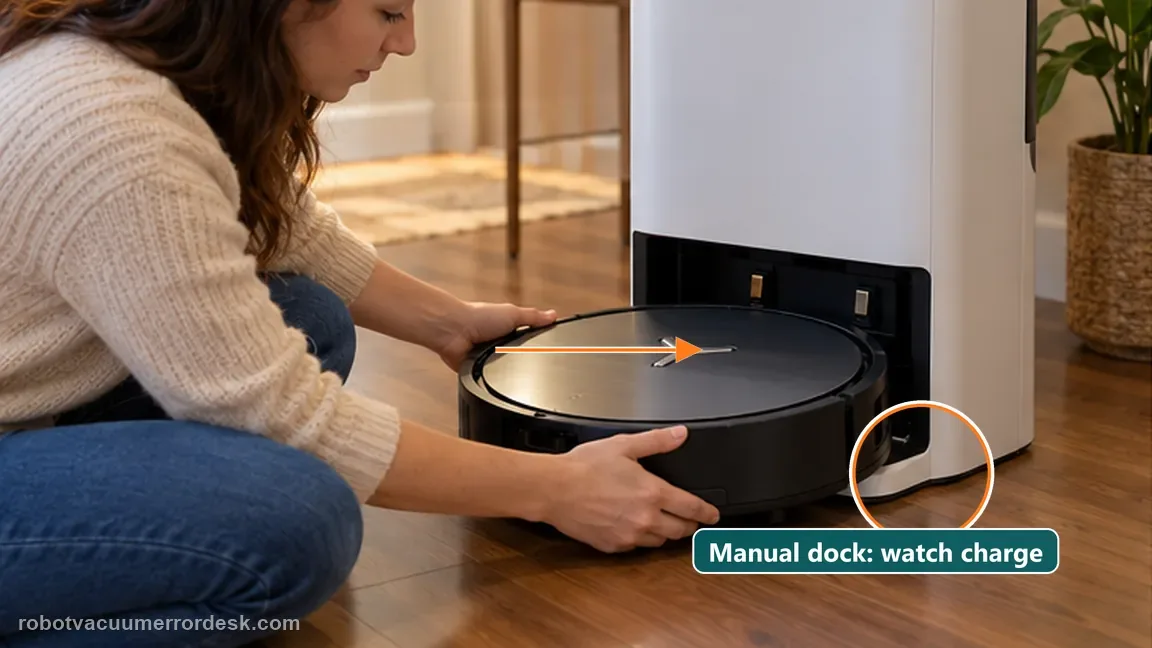
If the robot cannot power on or cannot return, place it manually on the station so the charging contacts meet. Ecovacs says the Auto button should blink to indicate charging and the app can show a lightning icon. This is the key discriminator: if manual docking starts charging, the battery/dock contact path is functional enough to accept charge and the earlier failure belongs in return/docking troubleshooting. If manual docking still produces no charging state, continue to contact maintenance.
Clean both contact surfaces and check station-contact rebound
Wipe the station charging contacts and the robot’s rear charging contacts. Ecovacs specifically says to make sure the station contacts have normal resilience/rebound rather than remaining stuck. Dirt can block electrical contact even when the robot looks aligned, while a contact that cannot spring into position creates a mechanical interface failure. Clean gently and keep liquid away from the powered station; perform the contact check with safe access and then re-dock the robot squarely.
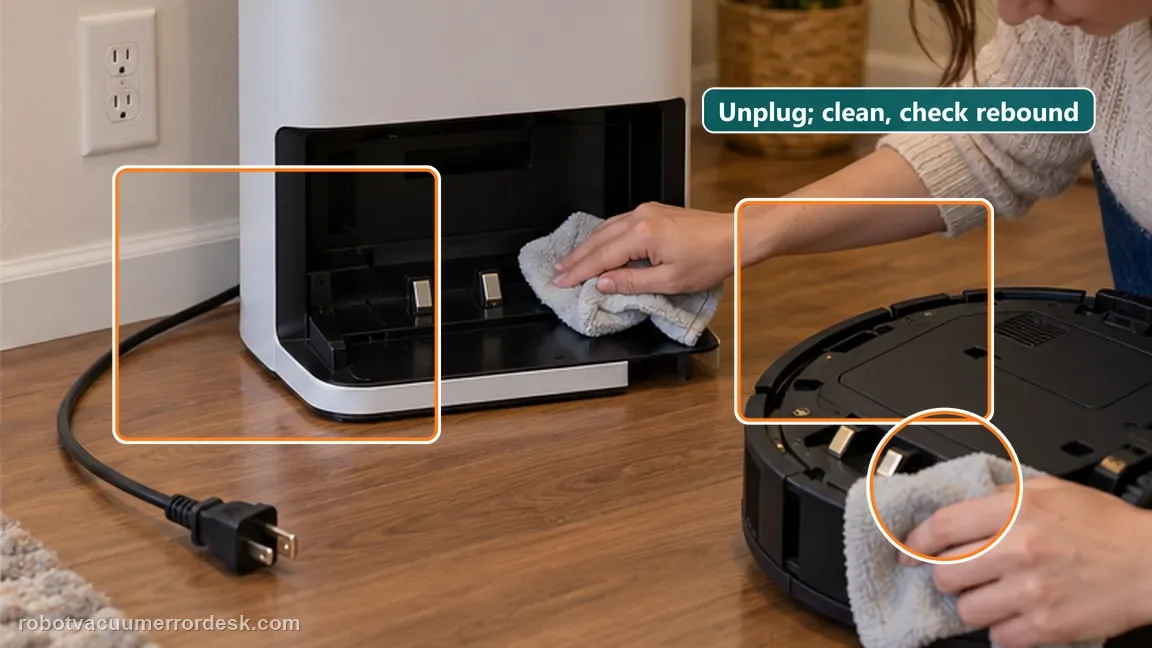
Re-dock once and capture the support proof if still dead
After the power and contact checks, re-dock and watch the robot/app rather than repeatedly lifting and dropping it on the station. If charging begins, note which intervention changed the result. If it does not, record a short video that shows the powered station state, the robot being manually seated and the app battery/charging screen. This evidence lets Ecovacs see that power, navigation removal and contact maintenance were already tested instead of restarting the support conversation from generic “not charging.”
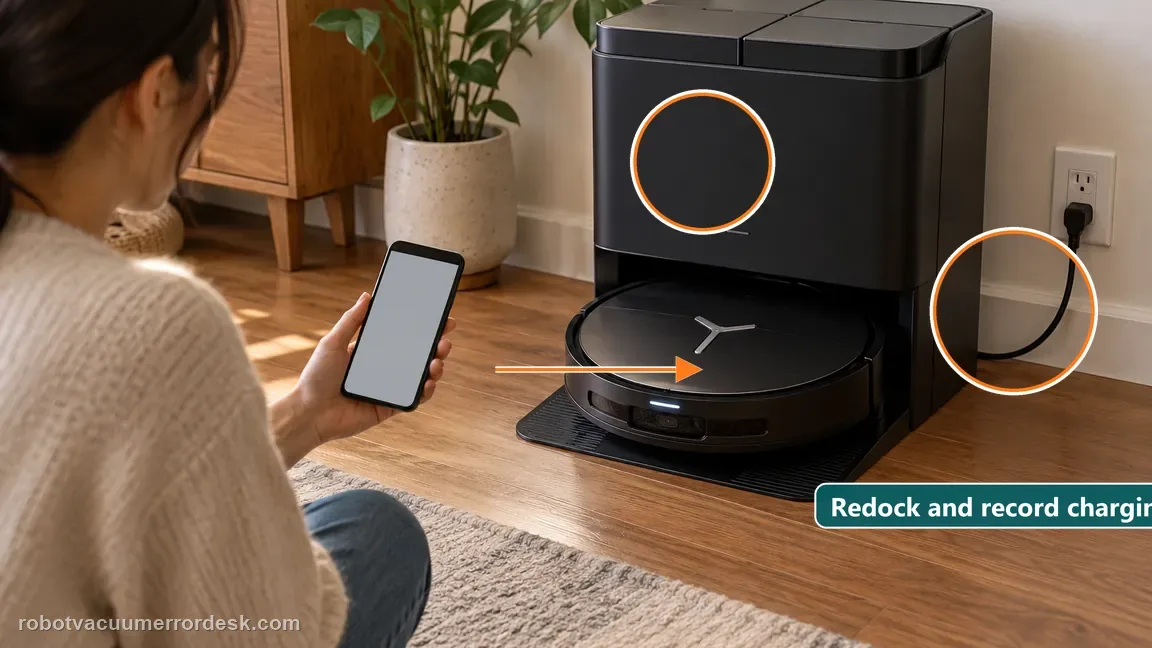
Escalate when the outlet/station are powered, the robot has been manually docked, both contact sets are clean, station contacts rebound normally and there is still no charging indication. Send Ecovacs a video showing station power, manual seating and the app battery screen. If manual docking works but automatic return does not, use the return/docking diagnostic instead of reporting a charging-hardware failure.
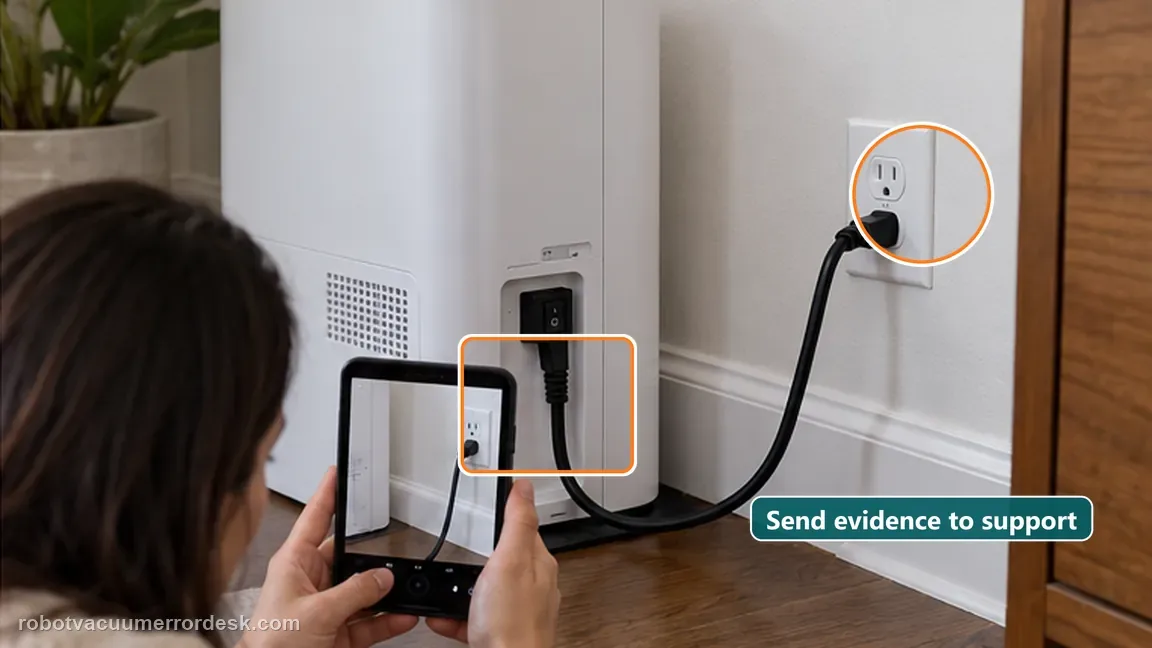
What to collect before contacting support
Give support a reproducible case instead of “it doesn’t work.” That reduces repeated basic troubleshooting and preserves the clues from your tests.
- Exact model name and the error code / voice prompt exactly as shown
- A photo or screenshot of the app error and the time it occurred
- A short list of the checks already completed and what happened after each one
- Map/station screenshot when the problem involves return-to-station or mapping
Manufacturer evidence
Ecovacs DEEBOT X11 OmniCyclone — fails to charge
Ecovacs’ X11 charging support checks outlet and station cable power, the U.S. rear station switch, robot power, automatic return, manual docking with Auto-button/app charging indication, and cleaning both contact sets while confirming normal station-contact rebound.
Additional official source: ECOVACS US: DEEBOT X11 OmniCyclone Support Center ↗Last editorial review: September 5, 2026Regional note: manufacturer help centers, model suffixes, mains-power requirements and warranty procedures can differ by country. If the source redirects to a local support site, confirm that the model/hardware scope still matches before following a region-sensitive step.
This guide is rated Official model support. See what each evidence label means →
FAQ
Why manually dock the X11 during a charging diagnosis?
It removes navigation from the charging test. If the X11 begins charging when you place it on the station manually, the outlet, station and contact path can accept charge and the earlier failure belongs in return/docking troubleshooting. If manual seating still produces no charging indication, continue with contact cleaning and rebound checks before suspecting the battery or replacing parts.
What charging indication does Ecovacs mention?
ECOVACS says the Auto button can blink to indicate charging and the app can show a lightning icon. Use those indicators together with actual battery movement after the X11 is seated. A robot can look perfectly aligned yet still lack electrical contact, so the visible charging state is more useful than judging the dock position by eye alone.
What does “contact rebound” mean?
The station charging contacts should move inward and spring back so they maintain pressure against the X11’s rear contacts. A contact that stays depressed can break the electrical path even when both metal surfaces are clean and the robot appears aligned. Check rebound gently after cleaning, then seat the robot squarely and look for the charging indicator again.
Should I replace the battery before testing station power?
No. ECOVACS starts this X11 diagnosis with outlet and station power, robot power, manual docking and charging-contact checks. Replacing the battery before those tests skips the manufacturer’s first-line path and can waste money if the station is unpowered or the contacts are not making pressure. Escalate only after the powered, manually docked contact test still fails.
Why can my X11 return to the station but still fail to charge?
Reaching the station proves navigation can succeed, but it does not prove the electrical contact path. ECOVACS separates station power, robot power, manual docking and contact rebound. If the X11 seats correctly yet shows no charging indication after both contact sets are cleaned and the station contacts move normally, capture that exact seated state for support rather than remapping.
Did this diagnostic narrow the fault?
Use this as an editorial signal, not a popularity counter. If a feedback address is configured you can email the note; otherwise you can copy it for your own support record.