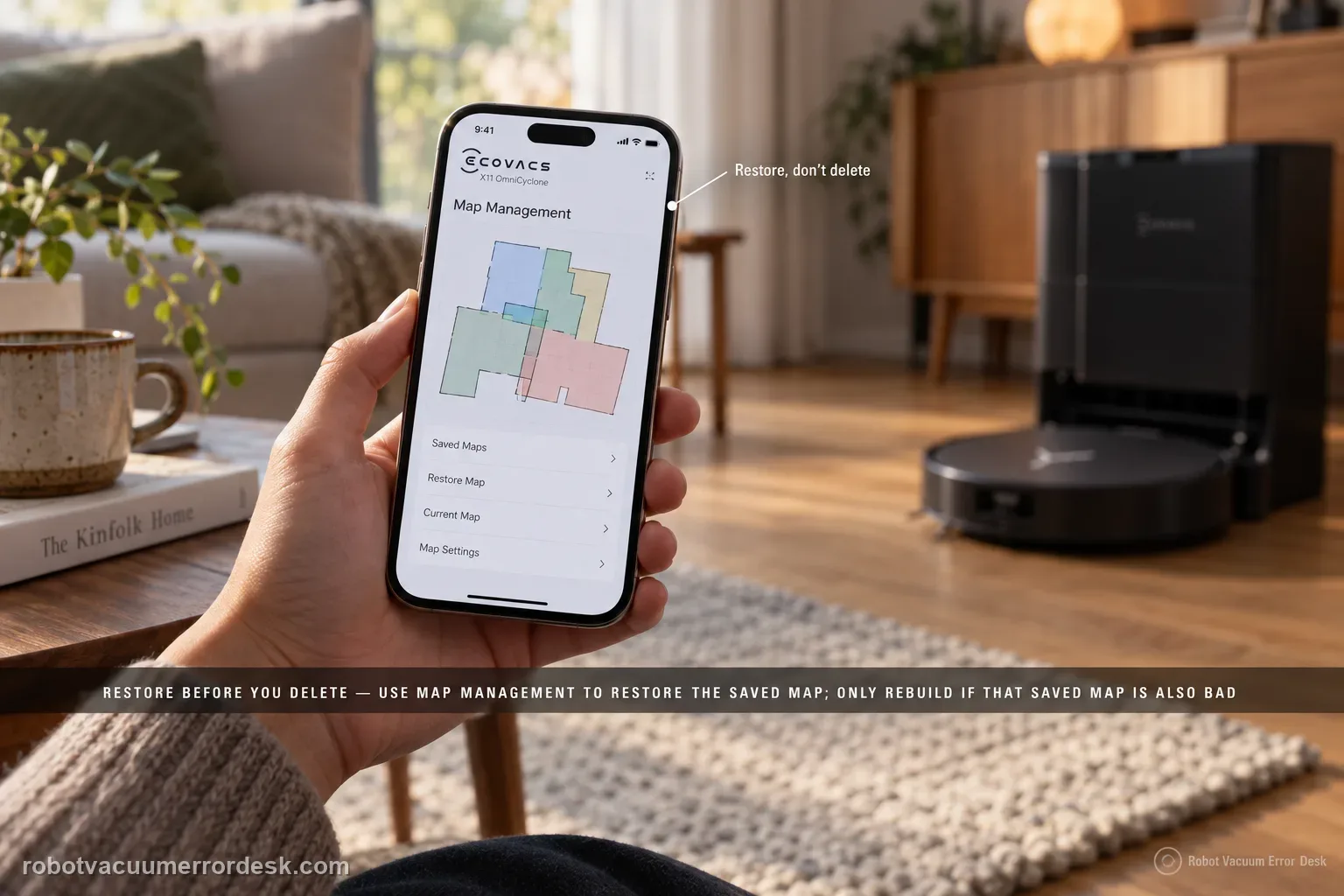
Restore before you delete. ECOVACS’ X11 support tells owners to use Map Management and restore the initially saved map when the floor plan becomes skewed or overlapping. ECOVACS’ broader map guidance explains why that order matters: restore returns to a saved/backup state, while deleting and Quick Mapping destroys the current map and starts over. If restore works, stop. If the saved map is also bad, prepare the home, start from the station and rebuild once under stable conditions.
Is the robot position wrong, or is only the floor-plan outline odd?
Confirm the exact model and exact code, light pattern or symptom.
Run the lowest-risk physical or software check first.
Use each pass condition to decide what the result actually narrows down.
Does this match your problem?
- Rooms appear rotated, skewed, duplicated or layered over each other in ECOVACS HOME.
- The station or robot icon no longer aligns with the real floor plan.
- The map was previously correct and became distorted after a relocation/navigation event.
- A restored map is also wrong, so you need to decide whether to delete and Quick Map again.
Most likely causes
Current active map state became corrupted while a usable saved version still exists
The last saved/backup map is itself outdated or already distorted
Robot was physically moved or positioning failed during a run, creating a relocation mismatch
Weak display/network state makes the map appear incomplete without proving the underlying saved geometry is bad
A clean remap is required after restore fails, with doors, lighting, station position and floor obstacles controlled
What your test result means
| What you observe | What it narrows down | Next move |
|---|---|---|
| Restore Map immediately returns rooms and station to correct positions | The active/current map state was the problem; a destructive remap was unnecessary. | Keep the restored map, verify key zones and make a fresh manual backup after any important edits. |
| Restore works but newer virtual walls/edits disappear | The restored version predates those edits, which matches ECOVACS’ backup behavior. | Recreate only the needed edits, then manually back up the good map. |
| Saved map is still skewed/overlapping after restore | There is no clean saved state to return to. | Delete the bad map and run one prepared Quick Mapping session from the station. |
| Fresh map distorts again under stable conditions | The problem is no longer just one corrupt map file. | Document the before/after maps and escalate positioning/navigation behavior to ECOVACS. |
| The prior checks are complete but Map skewed / overlapping repeats under controlled conditions | The owner-level decision path for Map skewed / overlapping is exhausted rather than merely untried | Preserve the failed pass condition and a short repeatable Map skewed / overlapping video for ECOVACS support. |
Do not factory-reset by default. Use the exact model’s reboot/network-reset procedure only when the manufacturer path calls for it.
Run these checks in order
Capture the bad map and stop changing it
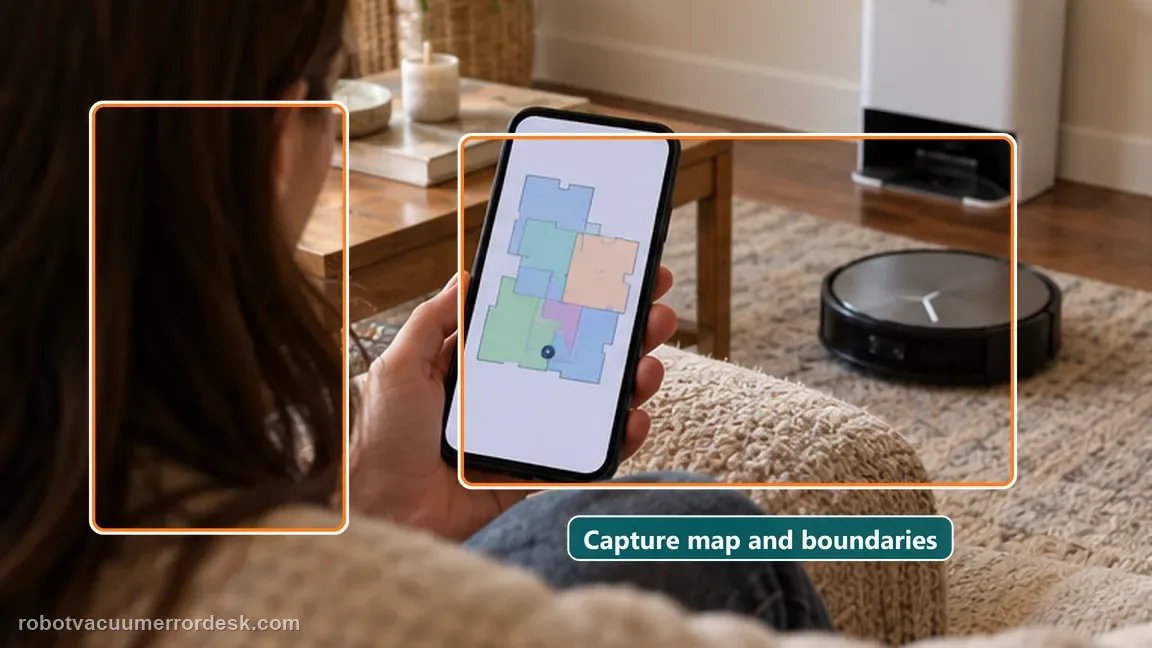
Before pressing Restore or Delete, take screenshots of the skew/overlap, the station icon, room boundaries and any obvious duplicated layer. Note whether someone physically moved the robot, changed the station position or interrupted a run before the map became wrong. ECOVACS has documented that relocation/positioning problems can create overlaid or confused maps, so preserving that context matters. Do not start by editing rooms, moving boundaries and deleting zones; every extra change makes it harder to tell whether the saved map itself was bad or whether later edits created a second problem.
Use Map Management > Restore Map before Delete
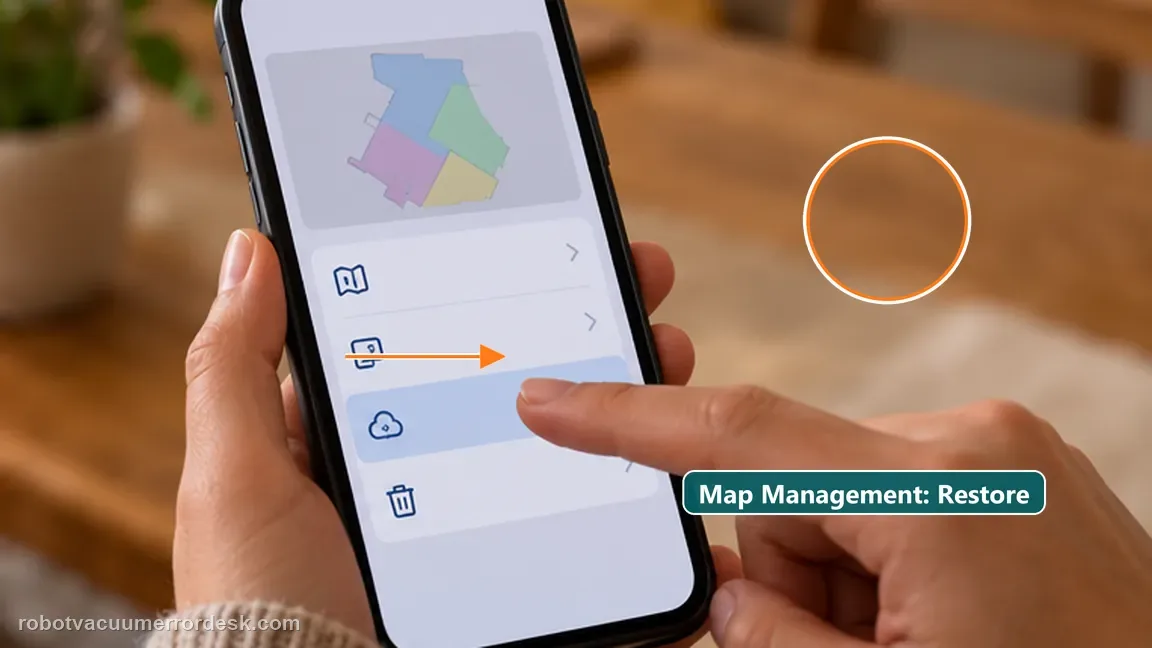
Follow the X11 model-specific path first: open Map Management in ECOVACS HOME and restore the map to the saved/initial version. ECOVACS’ map-management documentation explains that maps are backed up and that restore returns to a saved version rather than reconstructing the current geometry. After restore, compare the real station location and major room boundaries with the app. If the map is aligned again, stop troubleshooting; deleting and remapping would add work without solving anything new. Be aware that restored content may reflect the backup state, so some edits made after that backup can disappear.
Validate the restored map before recreating every edit
If restore fixes the geometry, run a short ordinary cleaning from the station and watch whether the robot icon tracks the real path and returns normally. Check only critical map controls first — room boundaries, station position and any safety-related virtual walls — before rebuilding every custom name or schedule. ECOVACS notes that the version restored depends on the saved/backup state, so losing a later cosmetic edit is not the same as restore failing. Once the map proves stable, recreate necessary edits and make a manual backup so the next restore returns to the known-good post-edit version rather than an older default.
If restore is bad, prepare one clean Quick Mapping rebuild
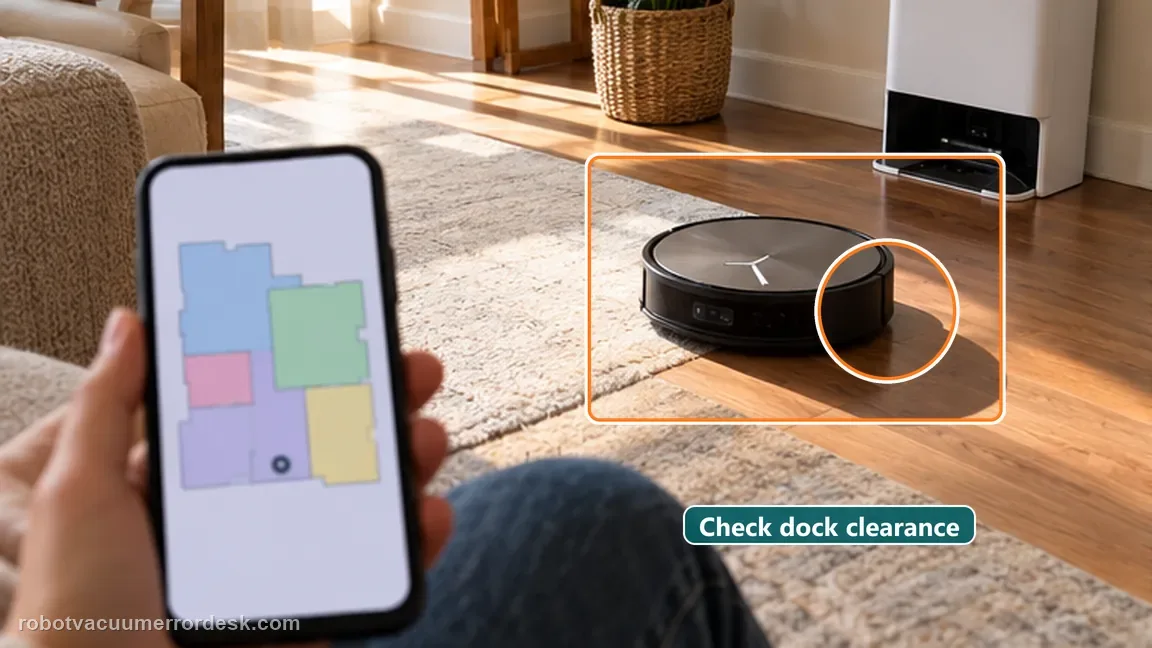
Delete the map only when the saved version is also unusable. For the rebuild, keep the station fixed, open doors to rooms you want included, remove floor clutter that can disturb mapping and provide sufficient light. ECOVACS’ Quick Mapping guidance says to start with the robot at/in front of the station and let the mapping process complete. Avoid carrying the robot midway through the mapping session. The purpose is to create one controlled baseline map, not to repeatedly remap while changing furniture, doors and station position between attempts. When mapping completes, check the station, room geometry and major boundaries before adding customization.
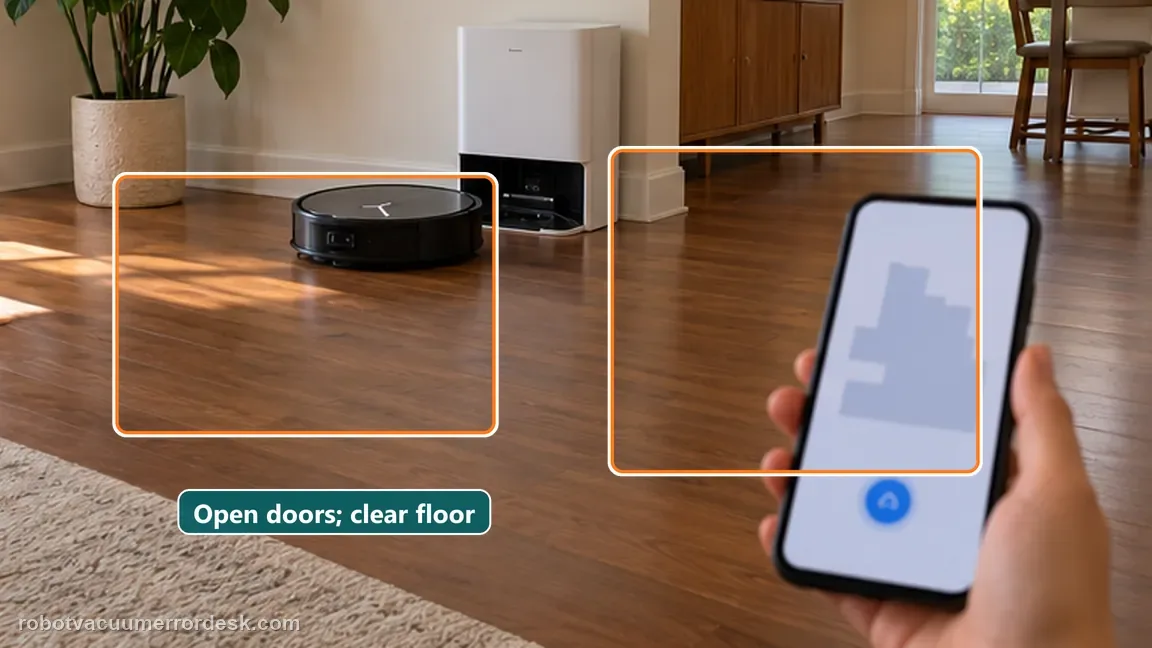
Escalate only if a clean rebuild distorts again
If a newly created map becomes skewed or overlaps again despite a fixed station and prepared mapping environment, collect three screenshots: the original broken map, the restored map and the fresh rebuilt map. Note whether the failure happens immediately or only after a later cleaning run. That sequence lets ECOVACS distinguish a bad saved state from repeated positioning/navigation behavior. Do not keep deleting maps after every distortion without preserving evidence; repeated destructive resets remove the very comparison support needs to determine whether the problem is environmental, app-display related or tied to robot localization.
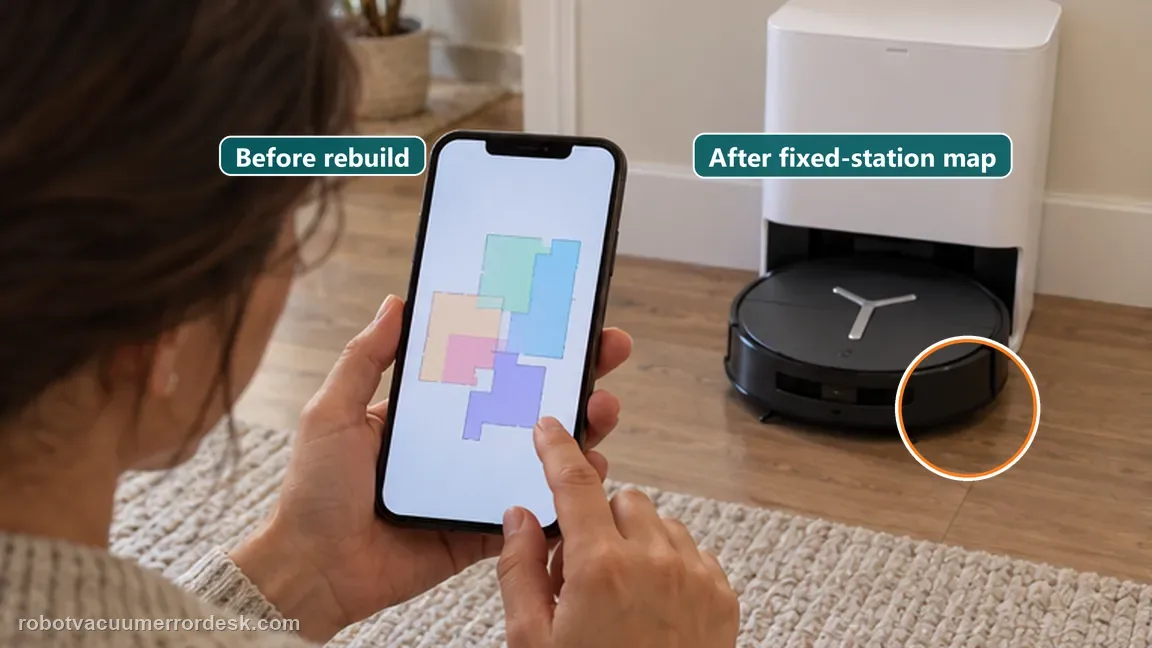
Escalate when a map restored from backup is unusable and a carefully prepared fresh map from the fixed station also becomes skewed/overlapping. Include screenshots from before restore, after restore and after the rebuild. Avoid physically moving the robot during mapping and do not repeatedly delete maps without evidence.
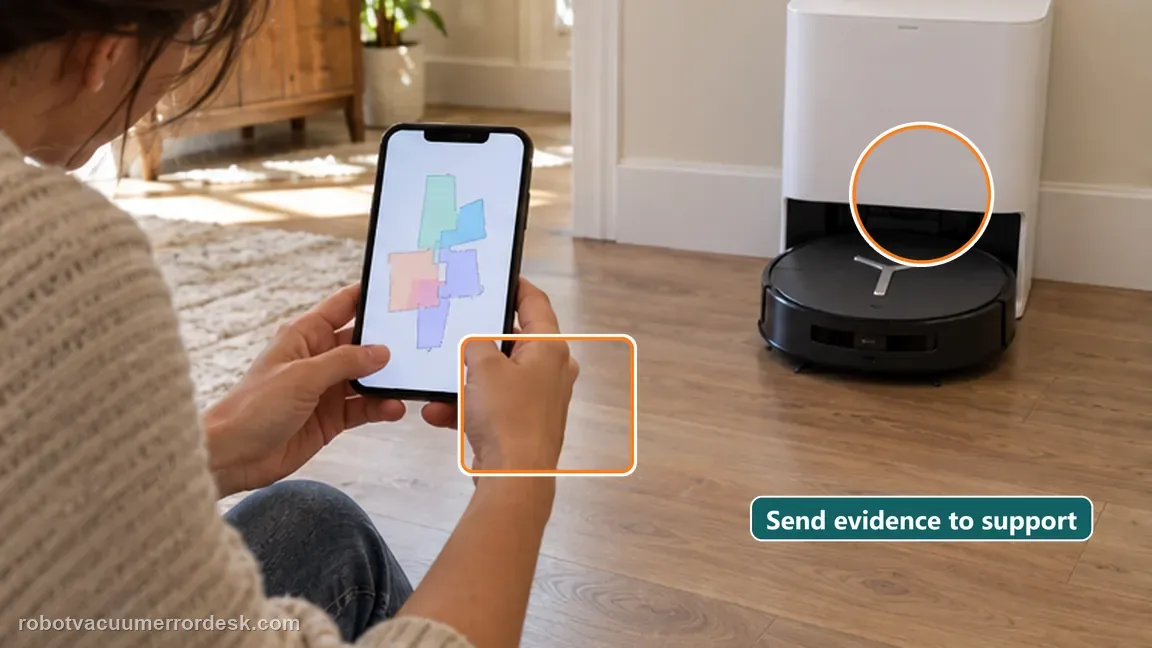
What to collect before contacting support
Give support a reproducible case instead of “it doesn’t work.” That reduces repeated basic troubleshooting and preserves the clues from your tests.
- Exact model name and the error code / voice prompt exactly as shown
- A photo or screenshot of the app error and the time it occurred
- A short list of the checks already completed and what happened after each one
- Map/station screenshot when the problem involves return-to-station or mapping
Manufacturer evidence
ECOVACS DEEBOT X11 OmniCyclone — Abnormal Map
The X11-specific page establishes Restore Map before delete/remap. ECOVACS’ current Map Management and Quick Mapping support explain backup/restore behavior and the preparation for a clean rebuild. The diagnostic sequence deliberately preserves a good saved state before any destructive action.
Additional official source: ECOVACS — Map Management Function ↗Additional official source: ECOVACS — Quick Mapping Preparation ↗Additional official source: ECOVACS — Map Confusion / Overlapping Troubleshooting ↗Additional official source: ECOVACS US — DEEBOT X11 OmniCyclone Support Center ↗Last editorial review: September 5, 2026Regional note: manufacturer help centers, model suffixes, mains-power requirements and warranty procedures can differ by country. If the source redirects to a local support site, confirm that the model/hardware scope still matches before following a region-sensitive step.
This guide is rated Official model support. See what each evidence label means →
FAQ
Why should I restore the X11 map before deleting it?
Because the current map can be corrupted while a known-good saved version still exists. Restore is reversible in the sense that it returns you to that saved state; Delete Map discards the current map and forces a rebuild. ECOVACS’ X11 instructions explicitly put restore first, so remapping is the fallback rather than the opening move.
Why did some virtual walls or edits disappear after Restore Map?
ECOVACS explains that restore uses a saved/backup version. If you edited the map later but did not create a newer manual backup, restore can return to the earlier state. That does not mean the geometry repair failed. Recreate only the necessary edits after confirming the map is stable, then back up the good version.
What should I change before Quick Mapping again?
Keep the station fixed, open the rooms you want mapped, clear floor obstacles that can disrupt the route, provide sufficient light and let the mapping process start from the station and finish without carrying the robot. Change as few variables as possible so a second distortion is meaningful rather than the product of a different environment.
Can a bad app display be confused with a bad saved map?
Yes. ECOVACS has noted that network/display problems can make a map appear incomplete, while actual overlap can also come from positioning problems. That is why the workflow checks restore, robot tracking and a clean rebuild instead of assuming every strange screenshot means the stored map geometry is permanently corrupted.
When should I rebuild the DEEBOT X11 map instead of restoring it?
Rebuild only after a known-good saved map cannot be restored or the restored geometry becomes abnormal again under stable station and room conditions. ECOVACS’ map guidance favors recovery before deletion. Keep the station fixed, open the rooms you want mapped and avoid carrying the robot during the rebuild so the new map is a meaningful test, not another moving target.
Did this diagnostic narrow the fault?
Use this as an editorial signal, not a popularity counter. If a feedback address is configured you can email the note; otherwise you can copy it for your own support record.