
For X11 spinning, wandering or a route that suddenly looks messy, ECOVACS checks three physical/environmental inputs: dust on the laser module in the center of the bumper, a room with many obstacles that causes high-precision avoidance to make the path look irregular, and dirty drive wheels. Clean the laser with a dry paper towel, simplify one test area and wipe the wheels before deleting a map. A stable route in the controlled area points away from map corruption.
Confirm the exact model and exact code, light pattern or symptom.
Run the lowest-risk physical or software check first.
Use each pass condition to decide what the result actually narrows down.
Confirm this is the right issue
- The X11 route looks chaotic or unpredictable.
- The robot spins in circles during cleaning.
- Laser or drive-wheel surfaces may be dirty.
- The X11 circles, zigzags or makes abrupt turns even on a clear hard-floor test.
- The route became orderly after cleaning the laser window or drive-wheel surfaces, pointing away from a map rebuild.
What’s most likely causing this
Dust on the center-front laser module degrades localization
Dense obstacles make high-precision avoidance produce a route that looks erratic
Dirty drive-wheel surfaces cause uneven movement
The behavior disappears in a clear hard-floor test, pointing to environment rather than map corruption
The robot marker and real movement disagree after sensor/wheel checks, suggesting a map/localization branch
A repeatable route fault remains in an open controlled area
Reading your test result
| What you observe | What it narrows down | Next move |
|---|---|---|
| Laser window in the center bumper is dusty | Navigation sensing may be degraded | Dry-wipe the laser module before any remap. |
| Route becomes messy only in dense clutter | High-precision avoidance may be generating extra turns | Tidy the area temporarily and compare. |
| Drive wheels have residue or debris | Physical travel may not match commanded motion cleanly | Clean the wheels and retest. |
| Cleared-room route is orderly and map marker tracks correctly | Core navigation is functioning | Preserve the map and reintroduce environmental complexity gradually. |
| Spinning persists with clean sensors/wheels in a clear area | The simple environmental branches are ruled out | Capture route video plus app map and escalate. |
Do not factory-reset by default. Use the exact model’s reboot/network-reset procedure only when the manufacturer path calls for it.
Work through these checks in order
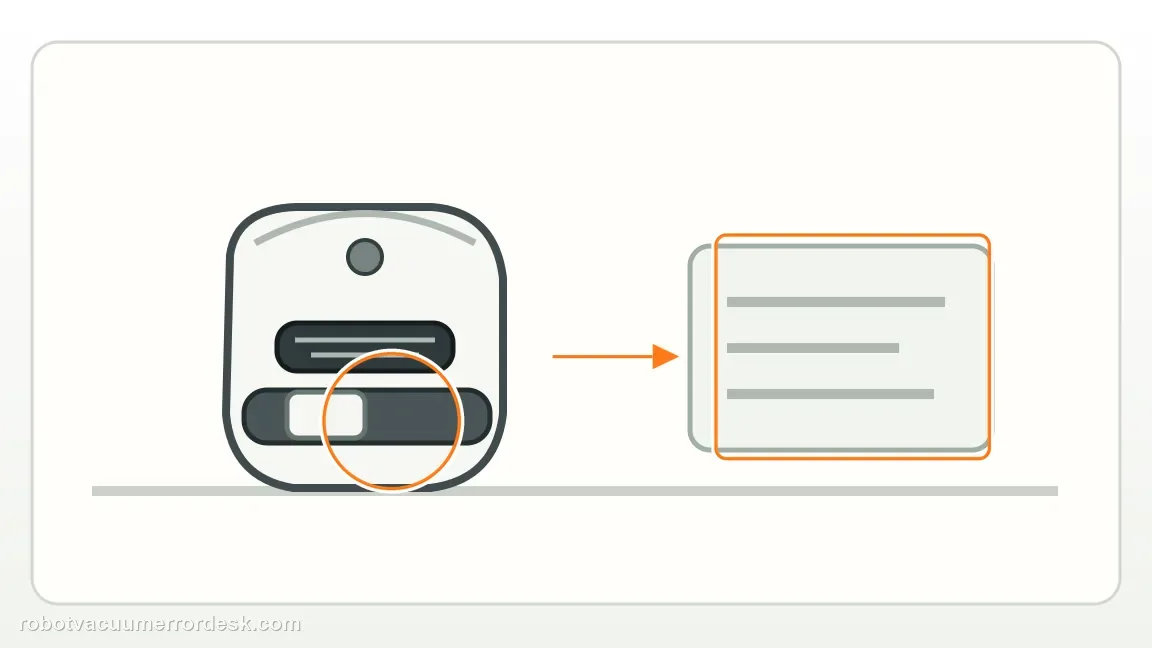
Clean the laser module window
Gently wipe dust from the laser module located in the center of the bumper using a dry paper towel. Why it matters: The laser window is a positioning input. Dust there can change route behavior without producing an obvious hard error, so clean it before assuming the saved map is bad.
Reduce obstacle density for one test
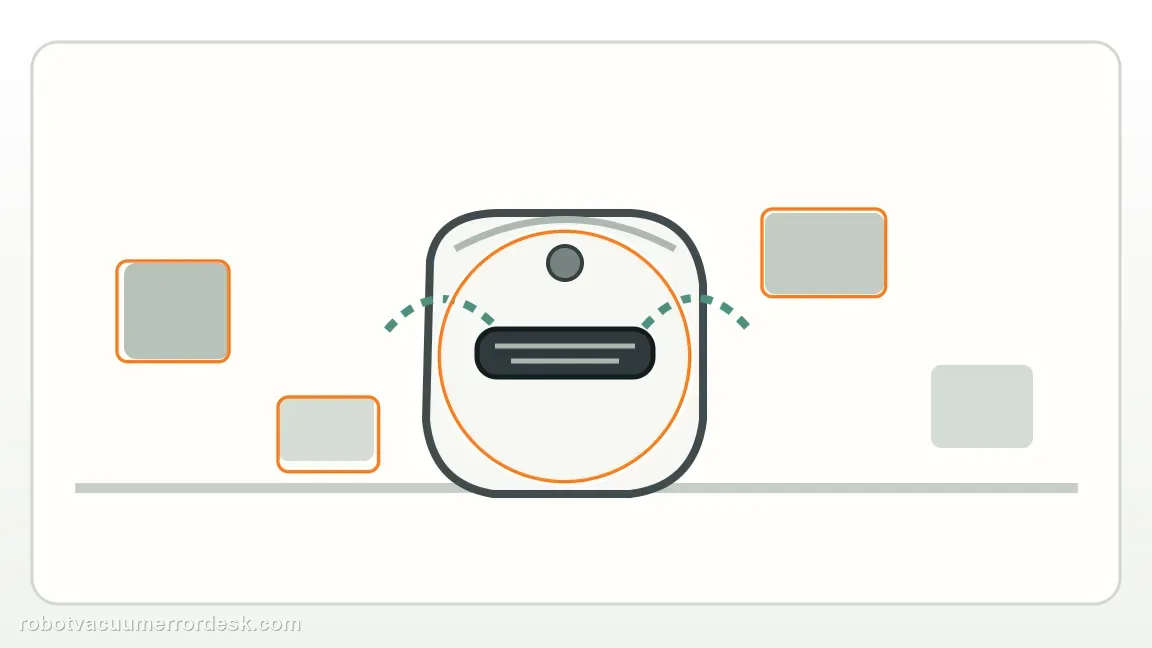
Tidy a small test area so high-precision obstacle avoidance has a clear route. Do not delete the map just to run this comparison. High-precision avoidance can deliberately create turns around clustered objects. A temporarily simplified room reveals whether the “messy” path is actually the robot reacting to a dense environment.
Clean the drive-wheel surfaces
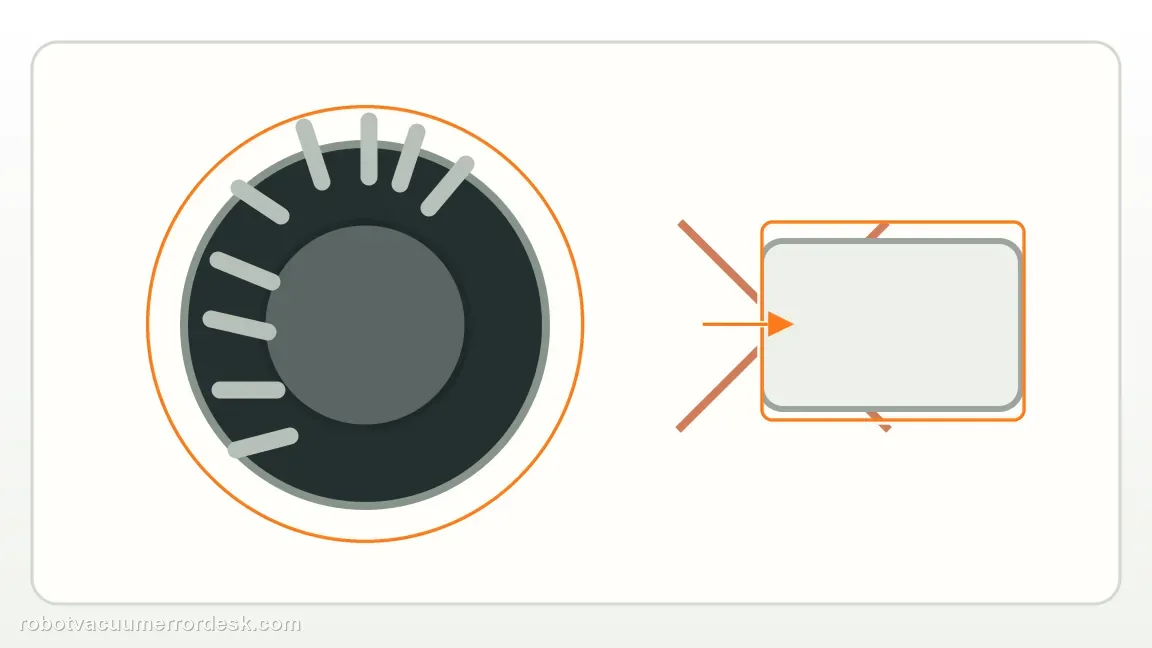
Wipe the drive wheels with a dry rag and remove surface dirt that could cause slip or inconsistent tracking. Dirty wheels can change how far the robot physically travels for a commanded movement. Cleaning them removes a mechanical contributor to drift and repeated correction.
Run a short route test on clear hard flooring
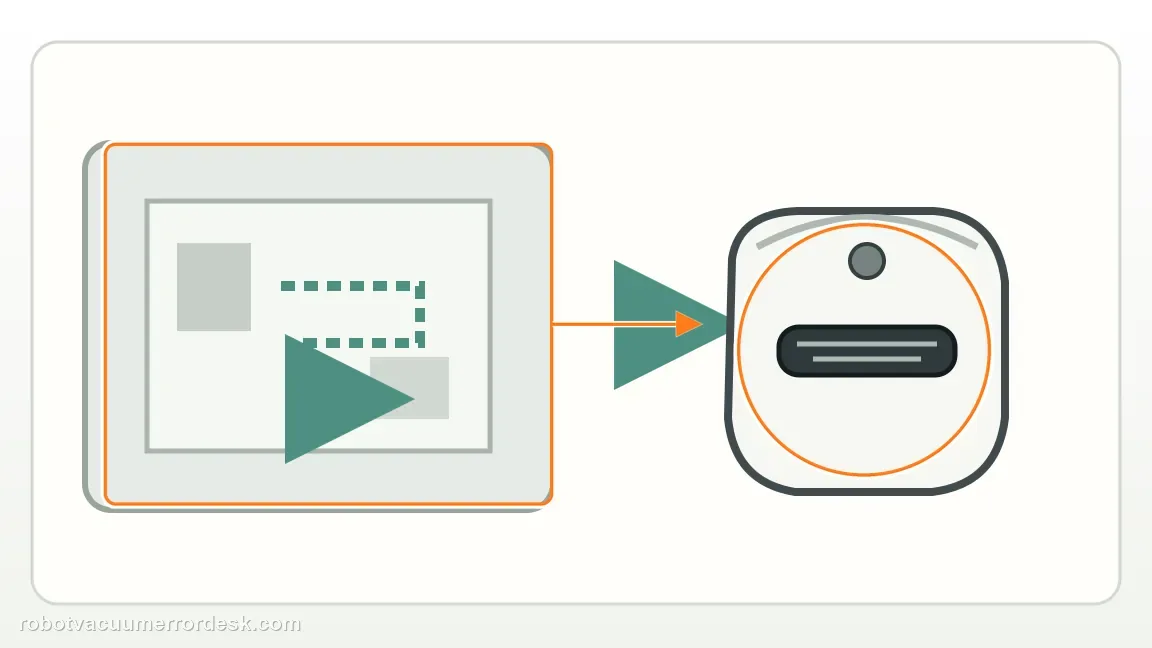
With the laser window and drive-wheel surfaces clean, reduce nearby clutter and run a short test in an open area. This gives you a baseline before deciding the saved map itself needs intervention. A short route comparison is more informative than immediately deleting the map. If the X11 becomes orderly after the sensor/wheel/environment checks, preserve the existing map and restore normal furniture gradually.
Compare the robot marker with real movement
Watch the robot icon in the app while the X11 traverses the cleared test area. Note whether the marker tracks the real robot or appears to jump, rotate unexpectedly or lag far behind.

Escalate only after a repeatable controlled run
If a clean laser, clean wheels and simplified test area still produce spinning or unpredictable routes, record one uninterrupted run and include the map screen.

If the X11 still circles or moves unpredictably in a clean, open area with a clean laser and wheels, preserve the map and send Ecovacs a video of the route. Include a short clear-floor route video after the laser window and wheels are clean; keep the saved map intact unless ECOVACS asks for a rebuild.
Before you contact support, gather this
A reproducible case moves a support call past the basic troubleshooting script faster than “it doesn’t work” does, and it keeps the clues from your own tests on record.
- Exact model name and the error code / voice prompt exactly as shown
- A photo or screenshot of the app error and the time it occurred
- A short list of the checks already completed and what happened after each one
- Map/station screenshot when the problem involves return-to-station or mapping
Where this comes from
Ecovacs DEEBOT X11 OmniCyclone — Messy cleaning routes
ECOVACS’ exact X11 route article checks the laser module, obstacle density and drive-wheel cleanliness for circling or unpredictable movement. Those checks make a map deletion a poor first move: a clear-floor comparison with the existing map preserved can show whether the path normalizes when sensing and traction inputs are clean. Only a persistent position mismatch after that test meaningfully points toward the separate map/localization branch. If the robot marker is correctly located on the saved map while the physical path merely bends around many objects, that is different from a skewed or overlapping map. The latter belongs in the map-restoration branch; this article stays focused on laser cleanliness, environmental path complexity and wheel traction before any map rebuild.
Additional official source: ECOVACS US — DEEBOT X11 OmniCyclone Support Center ↗Last editorial review: September 5, 2026Regional note: manufacturer help centers, model suffixes, mains-power requirements and warranty procedures can differ by country. If the source redirects to a local support site, confirm that the model/hardware scope still matches before following a region-sensitive step.
This guide is rated Official model support. See what each evidence label means →
Questions people ask
Should I delete the map when the route looks messy?
Not first. The official article starts with the laser, environment and drive wheels. Clean the laser window and wheels before deleting a map; a dirty sensor or uneven wheel motion can make a healthy map look wrong. If the route straightens afterward, keep the saved map instead of rebuilding a map that was not the cause.
Can obstacle avoidance make the route look less straight?
Yes. Ecovacs notes that a cluttered environment and high-precision avoidance can make the route appear messy. High-precision avoidance can add turns around clutter, so compare the route in one simplified area before assuming localization has failed. A clean, open comparison also prevents dense furniture from making normal avoidance turns look like localization failure.
Why clean the drive-wheel surfaces for a route problem?
ECOVACS includes wheel cleanliness in the X11 route troubleshooting path because slip can distort movement even when the map is intact. If the route is still erratic on a clear hard floor with clean sensing and wheels, then preserve the map and video for a stronger localization/support case.
Why is my DEEBOT X11 cleaning in strange zigzags or circles?
ECOVACS tells X11 owners to check the laser module in the center bumper, the amount of clutter in the room and the drive wheels. Dust can affect sensing, many obstacles can make high-precision avoidance look messy, and dirty wheels can alter motion. Clean those inputs and test in one simplified area before deleting the saved map.
Should I reset the X11 map when the cleaning path suddenly looks messy?
Not first. The model-specific ECOVACS article starts with the laser window, environmental obstacles and drive wheels. A map reset can erase useful boundaries without proving those simpler causes. If the robot runs normally in a cleared room after cleaning the laser and wheels, keep the map. Escalate or consider map recovery only if controlled navigation remains abnormal.
Did this diagnostic narrow the fault?
Use this as an editorial signal, not a popularity counter. If a feedback address is configured you can email the note; otherwise you can copy it for your own support record.