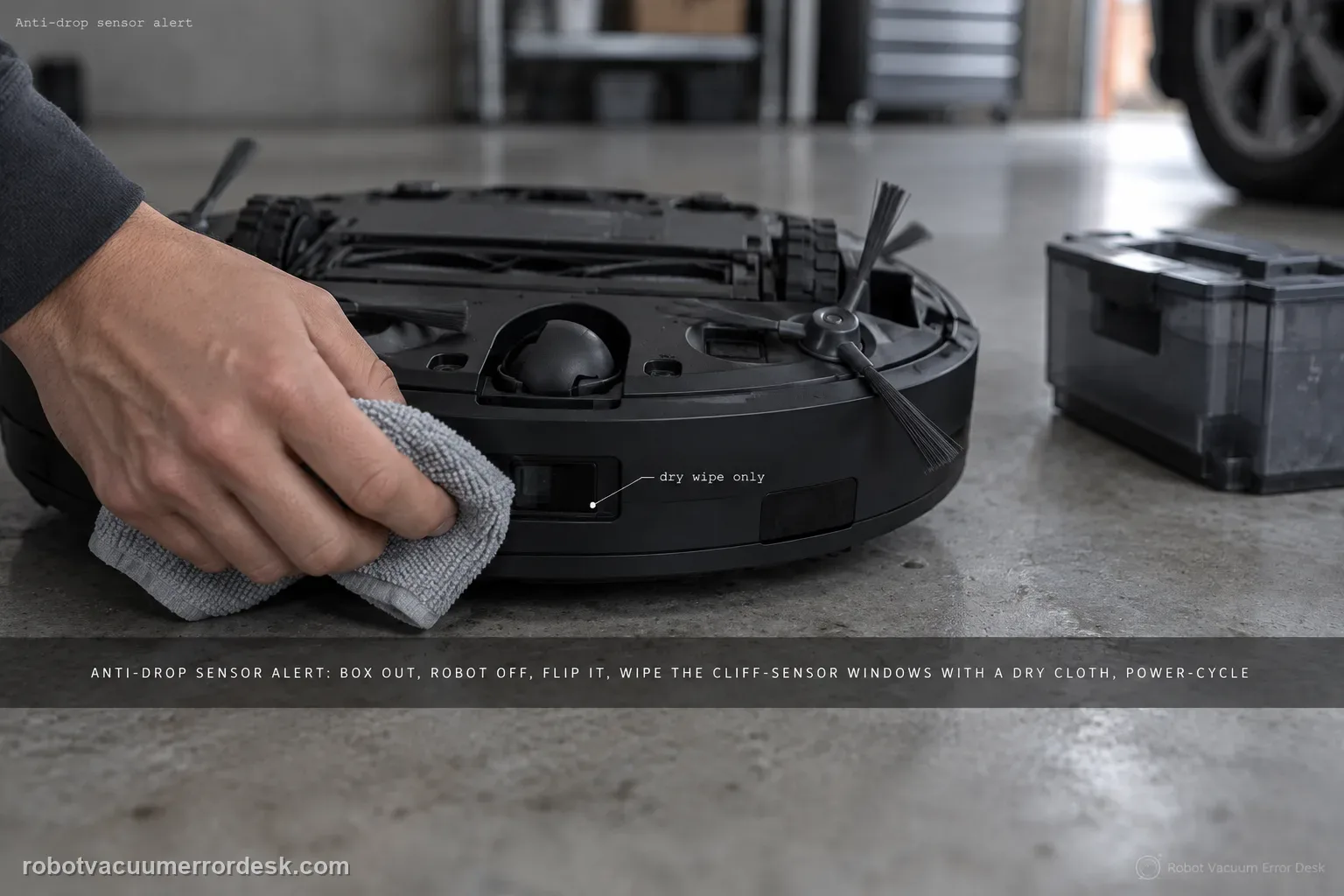
For a DEEBOT T80 OMNI anti-drop sensor dust/error alert, use a dry optical-cleaning path rather than trying to defeat the cliff sensors. Remove the dirty-water box, switch the robot off, invert it safely, and wipe the anti-drop sensor windows gently with a soft dry cloth. Reinstall the box and power-cycle the robot, then test on level flooring well away from stairs. If the alert clears on a light, ordinary floor but returns only on a very dark or highly reflective edge condition, record that surface effect; if it returns immediately everywhere with clean sensor windows, the fault is no longer explained by surface dust.
Confirm the exact model and exact code, light pattern or symptom.
Run the lowest-risk physical or software check first.
Use each pass condition to decide what the result actually narrows down.
Confirm this is the right issue
- The T80 app or voice prompt reports anti-drop sensors dusty or anti-drop sensor error.
- The robot stops or refuses to proceed even though it is on normal level flooring.
- Dust or residue is visible on the underside cliff-sensor windows.
- The alert appeared after a wet/dirty cleaning session and you need a safe dry-clean/restart procedure.
- The robot behaves differently on a very dark or reflective surface and you want to separate environment from a persistent sensor fault without covering the sensors.
What’s most likely causing this
Dust, lint or dried film on the underside anti-drop sensor windows
The alert remains latched until the robot is power-cycled after cleaning
A highly unusual floor/edge condition changes the sensor reading even though the windows are clean
The dirty-water box was not reinstalled correctly after underside cleaning
A sensor hardware fault persists when clean sensors trigger the same error on ordinary level flooring
Reading your test result
| What you observe | What it narrows down | Next move |
|---|---|---|
| Sensor windows are visibly dusty | The alert has a reversible optical cause to test first. | Power off, dry-clean all anti-drop windows, reassemble and restart. |
| Alert disappears after restart | The cleaning/restart path worked; no bypass is needed. | Run a short level-floor test and keep the sensors uncovered. |
| Alert occurs only on one dark/reflective area | Surface context may be influencing cliff detection. | Retest on ordinary light level flooring and use a safe boundary rather than covering sensors. |
| Robot was inverted with dirty-water box still fitted/full | Liquid handling can confound the test and should be corrected. | Remove/manage the box, inspect for spills, dry the robot externally and repeat safely. |
| Immediate alert on normal floor with clean windows | Surface dust no longer explains the problem. | Document the app alert and underside and contact ECOVACS. |
Do not factory-reset by default. Use the exact model’s reboot/network-reset procedure only when the manufacturer path calls for it.
Work through these checks in order
Move the robot away from any stair edge before testing
Place the T80 in a safe level area where a false cliff decision cannot send it toward stairs. This matters because the goal is to diagnose the anti-drop sensors, not to prove they can be bypassed. Note the exact alert wording and whether it happens everywhere or only on a particular dark rug, glossy border or edge transition. A surface-specific pattern is useful evidence later, but the first maintenance step remains the same: clean the underside sensor windows while the robot is powered off.
Remove the dirty-water box and power the T80 off
ECOVACS' T80 anti-drop procedure starts by removing the dirty-water box before the robot is turned over. Switch the robot off and place it upside down on a clean padded surface. This reduces the chance of liquid shifting while you work and keeps the underside stable. Do not leave the robot powered while your hands are near wheels or moving components. If you see evidence of a spill, dry the exterior and do not continue until the robot is safe to handle.
Dry-clean every anti-drop sensor window
Use a soft, dry cloth to wipe the anti-drop sensors gently. Clean the entire exposed window of each sensor, not just the one nearest visible dirt, because a thin film can be difficult to see. Avoid water, alcohol, spray cleaner, tape or marker. Covering a cliff sensor may suppress an alert but also removes a safety function, so it is not a valid repair. Inspect under good light after wiping to confirm no lint or streak is left on the optical surfaces.
Reinstall the box and perform the documented power cycle
Return the dirty-water box to its normal position, turn the robot on and allow it to initialize. ECOVACS tells owners to power-cycle after cleaning, which is important because the fault state can remain until the sensor is read again during startup. Do not reset the map or factory-reset at this point. A short power cycle is enough to determine whether the alert was simply dust plus a latched state.
Run a short ordinary-floor comparison
Test on a clean, level, ordinary hard floor away from steps. If the alert is gone there, return to the original problematic surface and observe whether it reappears. A difference between two surfaces is more useful than repeatedly cleaning already-clean sensors. Do not tape over sensors to make a dark rug pass; instead use a virtual/physical boundary if a particular area reliably confuses cliff detection. If the alert persists on ordinary flooring, the environmental explanation is much weaker.
Escalate a persistent clean-sensor error
When the sensor windows are clean and dry, the robot has been power-cycled and the same alert returns on safe ordinary flooring, stop at the external maintenance boundary. Photograph the underside so the clean sensor windows are visible and save the app/voice alert. Tell ECOVACS whether the symptom changes on a second floor surface. That comparison helps distinguish an optical/environmental edge case from a sensor that is failing to read normally after cleaning.
Contact ECOVACS if the anti-drop sensor windows are clean and dry, the dirty-water box is correctly reinstalled, the robot has been power-cycled, and the same alert returns on ordinary level flooring away from edges. Do not tape, paint over or otherwise bypass the cliff sensors to silence the alert. Provide a photo of the clean underside, the exact app message and whether the problem changes between the original floor and a second normal surface.
Before you contact support, gather this
A reproducible case moves a support call past the basic troubleshooting script faster than “it doesn’t work” does, and it keeps the clues from your own tests on record.
- Exact model name and the error code / voice prompt exactly as shown
- A photo or screenshot of the app error and the time it occurred
- A short list of the checks already completed and what happened after each one
- Photo or short video of the roller/tray/sensor state plus the exact app alert
Where this comes from
ECOVACS T80 OMNI — Anti-drop Sensors Dust Accumulation
ECOVACS' exact T80 procedure says to remove the dirty-water box, invert the robot, wipe the anti-drop sensors gently with a soft dry cloth, reinstall the box and power-cycle. That official path is kept intact, with a safe two-surface discriminator and an explicit no-bypass boundary so an optical alert is not 'fixed' by disabling cliff protection.
Additional official source: ECOVACS T80 OMNI product support hub ↗Additional official source: ECOVACS T80 OMNI — erratic cleaning paths ↗Additional official source: ECOVACS T80 Family — official English instruction manual ↗Last editorial review: September 5, 2026Regional note: manufacturer help centers, model suffixes, mains-power requirements and warranty procedures can differ by country. If the source redirects to a local support site, confirm that the model/hardware scope still matches before following a region-sensitive step.
This guide is rated Official model support. See what each evidence label means →
Questions people ask
How do I clean the anti-drop sensors on a DEEBOT T80 OMNI?
Remove the dirty-water box, power the robot off and turn it over on a protected surface. ECOVACS instructs owners to wipe the anti-drop sensors gently with a soft dry cloth. Reinstall the box and power-cycle the robot before testing. Keep the sensor windows dry and uncovered; liquids, tape or abrasive cleaning are not part of the published T80 procedure.
Can I tape over the T80 cliff sensors to stop the alert?
Do not do that. Covering anti-drop sensors disables a safety function intended to detect drops. A robot that runs only with the sensors covered has not been repaired. Clean the windows, restart and compare behavior on ordinary level flooring. If one specific dark/reflective area remains problematic, use a safe boundary or contact ECOVACS rather than defeating the sensors.
Why does the anti-drop alert come back only on a dark rug?
A surface-specific result suggests the floor condition is affecting the optical reading rather than loose dust being the only problem. Prove the robot works on a normal light hard floor with clean sensor windows, then reproduce the original area carefully. Do not cover the sensors. If the dark area consistently triggers the robot, exclude that area or ask ECOVACS for model-specific guidance.
Do I need to delete the T80 map after an anti-drop sensor error?
No. The official T80 path is physical cleaning plus a power cycle. A saved map does not remove dust from an underside optical sensor, so deleting it first discards useful navigation context without testing the documented cause. Only investigate mapping if the sensor alert is gone and a separate map/navigation symptom remains.
When is the T80 anti-drop alert likely a hardware issue?
When all sensor windows are clean/dry, the robot has restarted, and the same alert appears immediately on more than one ordinary level surface. At that point surface contamination is no longer a good explanation. Photograph the clean underside and send the exact app message plus the two-surface comparison to ECOVACS instead of opening the sensor housings.
Did this diagnostic narrow the fault?
Use this as an editorial signal, not a popularity counter. If a feedback address is configured you can email the note; otherwise you can copy it for your own support record.