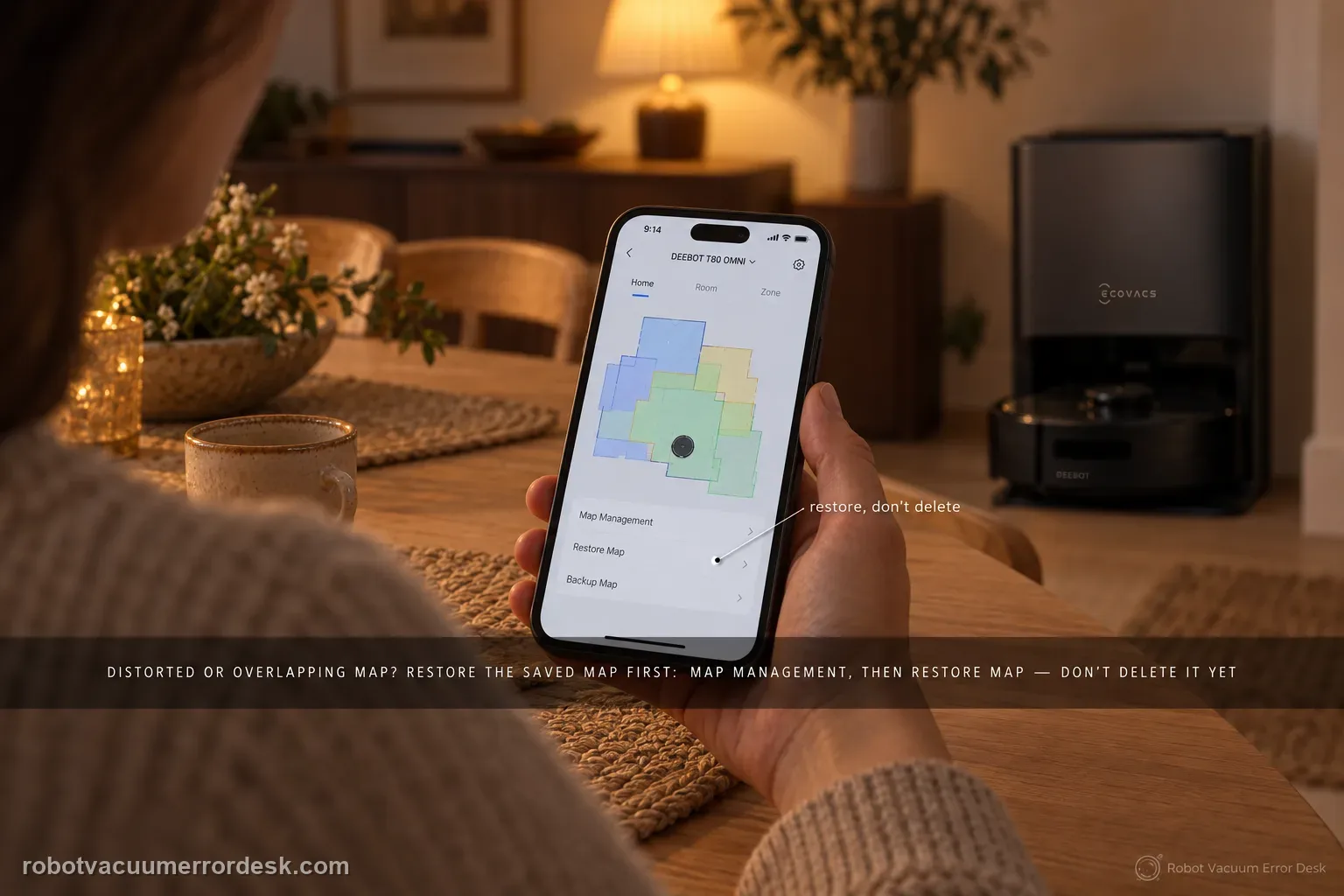
Do not delete the T80 map first. ECOVACS’ exact distortion/overlap article says to use Map Management → Restore Map to revert to the original saved map. Only if that original map is inadequate does ECOVACS tell you to delete it and create a new one. When a rebuild is necessary, the T80 Mapping Guide adds the conditions that make the new test meaningful: open doors, remove floor obstacles, provide sufficient lighting, power the robot on, place it directly in front of the charging dock and let it dock, keep the robot online for Quick Mapping, wait for the “Mapping completed” announcement, and manually back up the map after editing.
Confirm the exact model and exact code, light pattern or symptom.
Run the lowest-risk physical or software check first.
Use each pass condition to decide what the result actually narrows down.
Does this match your problem?
- Rooms or walls on the T80 map appear doubled, shifted, skewed or overlapped.
- A previously usable map became distorted and you are considering deleting it.
- The app still has an original saved map that may be recoverable with Restore Map.
- A new map is genuinely needed because the original saved map is also inadequate.
- You want to rebuild under controlled mapping conditions instead of repeatedly deleting maps after a bad run.
Most likely causes
Current map state is corrupted/distorted while an original saved map remains usable
Original saved map is also inadequate and needs a controlled rebuild
Closed doors or floor obstacles prevent complete mapping coverage
Insufficient lighting or an unstable starting/docking setup makes the rebuild less reliable
Robot is offline when attempting Quick Mapping
Edited map was never manually backed up, leaving no clean restore point for later problems
What your test result means
| What you observe | What it narrows down | Next move |
|---|---|---|
| A previously good original map exists | ECOVACS gives Restore Map as the first fix for distortion/overlap. | Restore the saved original before deleting or rebuilding anything. |
| Restored original map is also inadequate | The manufacturer then allows deletion and a new map. | Prepare the home and run one controlled mapping cycle from the dock. |
| Quick Mapping cannot start because robot is offline | The T80 Mapping Guide requires the robot to be connected/online for app Quick Mapping. | Restore connectivity first; do not judge map quality from a failed/incomplete session. |
| New map is good after edits | You now have a clean reference state. | Use ECOVACS’ manual map backup so a later distortion can be restored instead of rebuilt. |
| Restoring the saved map fixes geometry without a new mapping run | The stored map copy was usable and a full remap was unnecessary. | Keep the restored map, then watch for the environmental or navigation condition that caused the distortion before deleting anything. |
Do not factory-reset by default. Use the exact model’s reboot/network-reset procedure only when the manufacturer path calls for it.
Run these checks in order
Confirm this is distortion/overlap, not just a missed area
Before changing the saved map, look at the app and identify the symptom: shifted/doubled walls, room overlap or a visibly distorted layout. That is different from a normal map with one missed cleaning area. Keeping those problems separate prevents a destructive map rebuild for what is really an access/cleaning issue. If the map itself is distorted, note whether the app still offers an original saved map in Map Management. ECOVACS’ exact T80 article is intentionally short because the first action is decisive: try restoration before deletion.
Use Map Management → Restore Map first
Open the app’s map management and use Restore Map to revert to the original saved map, exactly as ECOVACS instructs for the T80 distortion/overlap symptom. Then inspect the restored layout before sending the robot on another whole-home run. If rooms and walls return to a normal arrangement, stop there and avoid creating a new map just because one recent state was corrupted. Restoring is lower-risk than deletion because it preserves an existing known map and gives you a clean comparison point.
Delete/rebuild only when the original map is inadequate
If the original restored map is also wrong or incomplete, ECOVACS says to delete it and create a new one. Before starting, follow the model Mapping Guide: open all doors you want included, remove floor obstacles and provide sufficient lighting so the robot can cover the intended home environment. Make those preparation changes before the run, not halfway through it. A rebuild is only useful as a diagnostic if the environment is stable; otherwise you cannot tell whether a new distortion came from the map state or from a changed/blocked mapping path.
Start from a known docked/online state
Power the T80 on, place it directly in front of the charging dock and use the robot’s Auto control to return to charging so the mapping session begins from a known station context. For app Quick Mapping, ECOVACS says the robot must be connected to the internet and online. Start Mapping in the ECOVACS HOME app and let the robot complete the mapping process without being carried to another position. The robot should announce “Mapping completed. Please check the map in the app” when the quick map finishes. A normal cleaning cycle can also create a map when it finishes and returns to charge.
Review, edit and manually back up the clean map
Inspect the newly created map before immediately launching another complex cleaning scenario. Make only the needed room/boundary edits, then use ECOVACS’ instruction to manually back up the map after editing. That backup is the prevention step missing from many repeated-remap loops: if distortion returns later, you have a clean restore point and can use the manufacturer’s first-line Restore Map action instead of rebuilding the whole home again. If a controlled new map distorts immediately despite prepared rooms, stable dock context and an online mapping run, preserve screenshots before further deletions.
Escalate if Restore Map cannot recover a previously good layout and a controlled rebuild—open doors, clear floors, sufficient lighting, known dock start, online Quick Mapping and no manual relocation—still creates immediate distortion/overlap. Send ECOVACS before/after screenshots and state whether the original saved map was also inadequate. Avoid repeated delete/remap loops that erase useful evidence.
What to collect before contacting support
Give support a reproducible case instead of “it doesn’t work.” That reduces repeated basic troubleshooting and preserves the clues from your tests.
- Exact model name and the error code / voice prompt exactly as shown
- A photo or screenshot of the app error and the time it occurred
- A short list of the checks already completed and what happened after each one
- Map/station screenshot when the problem involves return-to-station or mapping
Manufacturer evidence
ECOVACS T80 OMNI — map distortion/overlap
ECOVACS’ exact T80 distortion/overlap article says to restore the original saved map first and delete/rebuild only if the original is inadequate. The T80 Mapping Guide supplies the controlled rebuild conditions: open doors, remove obstacles, sufficient lighting, start from the dock, stay online for Quick Mapping, wait for mapping completion and manually back up edited maps.
Additional official source: ECOVACS T80 OMNI — Mapping Guide ↗Last editorial review: September 5, 2026Regional note: manufacturer help centers, model suffixes, mains-power requirements and warranty procedures can differ by country. If the source redirects to a local support site, confirm that the model/hardware scope still matches before following a region-sensitive step.
This guide is rated Official model support. See what each evidence label means →
FAQ
Should I delete my DEEBOT T80 map immediately when rooms overlap or rotate?
No. ECOVACS’ exact T80 guidance starts with Restore Map so you can return to the original saved map without destroying a usable layout. Delete and rebuild only if the restored version is also wrong or cannot be used. After a successful restore, watch whether the distortion returns; repeated recurrence is a clue to investigate navigation conditions rather than repeatedly erasing the map.
What should I do before remapping a DEEBOT T80 after Restore Map fails?
Prepare the home so the replacement map has a clean run: open the doors for spaces you want included, remove temporary floor obstacles, provide adequate lighting, make sure the robot is powered and online, and start with the station in its intended location. Changing the environment and station position during mapping can make a new map harder to compare with the failed one.
Does DEEBOT T80 Quick Mapping require the robot to be online?
Yes. The T80 Mapping Guide says the robot should be connected to the internet and online before you start Quick Mapping from the app. If the robot is offline, solve the connectivity state first instead of judging the mapping feature as broken. That order also preserves a clearer diagnosis because Wi-Fi/app failure and map-generation failure are different problems.
Why should I back up my DEEBOT T80 map after room edits?
ECOVACS explicitly recommends manually backing up the map after useful edits. The practical benefit is a known-good restore point: if geometry later becomes skewed or overlapping, you can restore the saved version before attempting a destructive whole-home remap. Backing up also makes it easier to tell whether a later problem is a temporary map-state issue or a repeated navigation problem.
Should I delete my DEEBOT T80 map as soon as rooms overlap or rotate?
No. ECOVACS’ T80 guidance starts with Restore Map, which preserves a known-good saved version and is less destructive than remapping. Delete and rebuild only when restoration does not correct the geometry. If distortion repeatedly returns after a successful restore, investigate the navigation environment and sensor/traction symptoms rather than repeatedly erasing a map that can still be recovered.
Did this diagnostic narrow the fault?
Use this as an editorial signal, not a popularity counter. If a feedback address is configured you can email the note; otherwise you can copy it for your own support record.