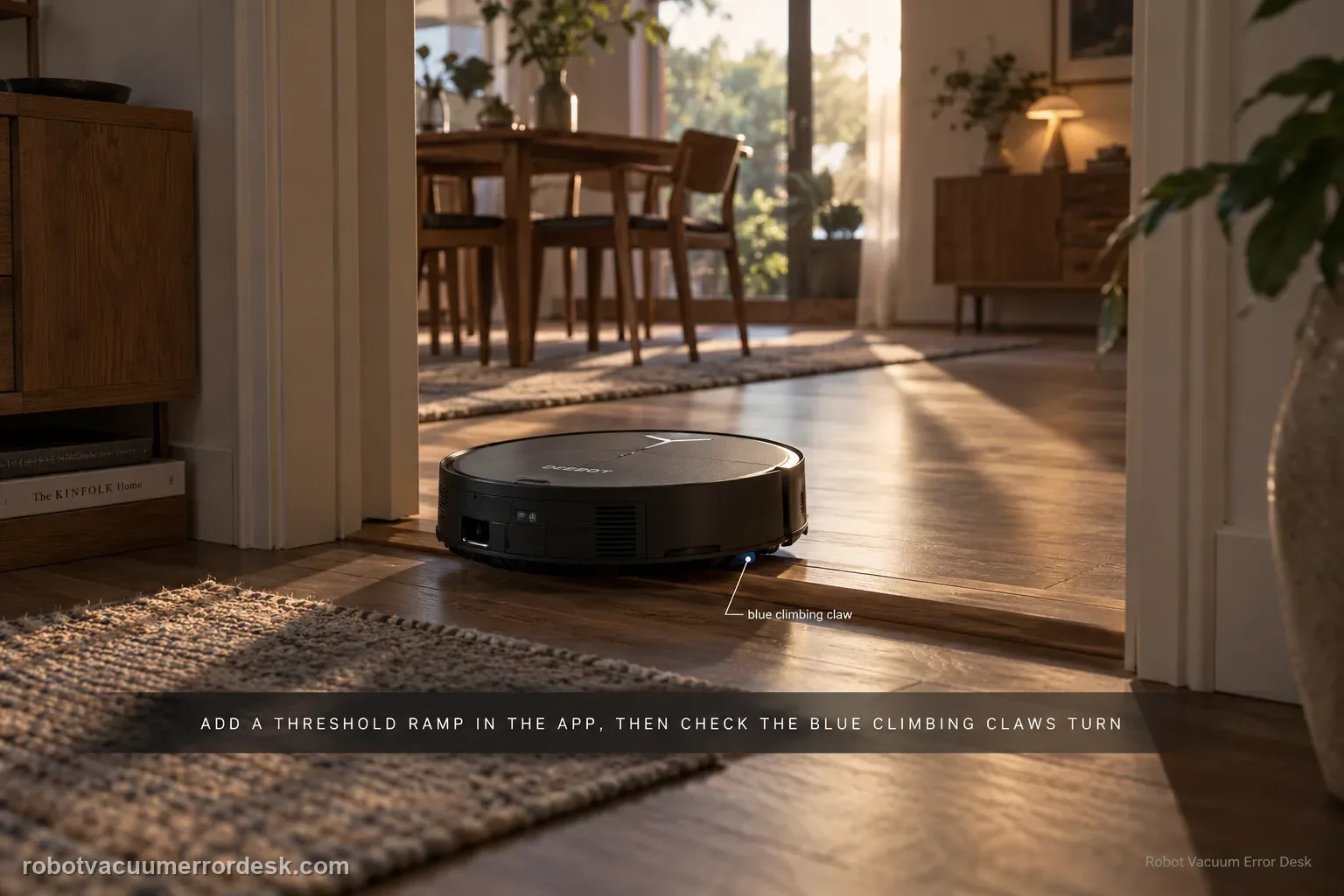
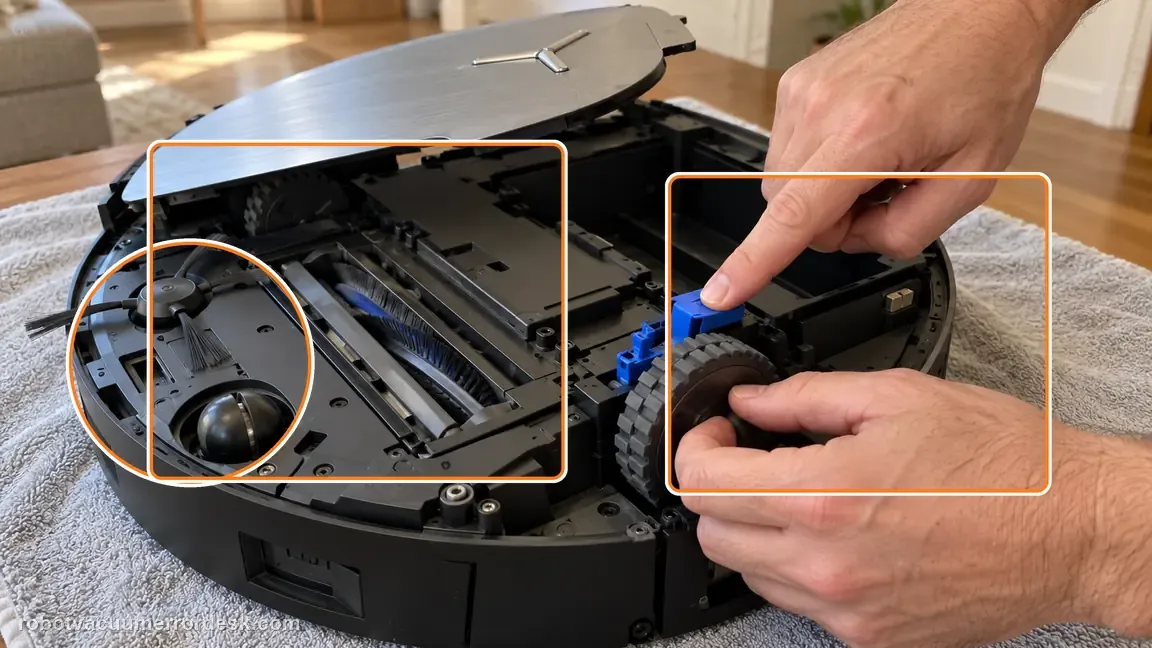
X11 threshold failures have a model-specific path that goes beyond generic “clean the wheels” advice. ECOVACS says to add a Threshold Ramp at the location in the app, power the robot off, remove the dirty-water box, clean the drive wheels and inspect the blue climbing claws for debris. Then press the trigger above a drive wheel while slowly rotating the wheel clockwise and confirm the blue claw rotates with it. A claw that does not rotate normally is an after-sales case.
Confirm the exact model and exact code, light pattern or symptom.
Run the lowest-risk physical or software check first.
Use each pass condition to decide what the result actually narrows down.
Confirm this is the right issue
- The X11 repeatedly stops at the same threshold or step.
- The app map may not mark the threshold as a ramp.
- A drive wheel or blue climbing claw may be dirty or jammed.
- The X11 repeatedly stops at the same doorway transition despite a clear approach.
- You need to distinguish a map Threshold Ramp setting from a blue climbing-claw mechanical failure.
What’s most likely causing this
The Threshold Ramp location is not marked correctly in the app
Dust or debris reduces drive-wheel grip
Foreign material is trapped around the blue climbing claws
A climbing claw does not rotate when the documented trigger-and-wheel test is performed
The robot approaches the same threshold at a poor angle after the mechanism itself passes
A mechanical climbing fault remains after the owner-safe wheel/claw checks
Reading your test result
| What you observe | What it narrows down | Next move |
|---|---|---|
| No Threshold Ramp is marked at the problem location | The X11 has not been given the map-side threshold cue | Add the Threshold Ramp in Map and retest. |
| Wheel/claw area contains hair or debris | Mechanical climbing movement may be restricted | Power off, remove the dirty-water box and clean the area. |
| Blue claw rotates when wheel trigger test is performed | The visible climbing mechanism passes the owner check | Retest the marked threshold from a clean, straight approach. |
| Blue claw does not rotate with the wheel | The mechanism fails ECOVACS’ functional check | Stop forcing the threshold and contact after-sales service. |
| Threshold is unusually tall/thick or blocked by a mat | Environment may exceed practical climbing conditions | Measure/clear the transition and compare with a simpler threshold. |
Do not factory-reset by default. Use the exact model’s reboot/network-reset procedure only when the manufacturer path calls for it.
Work through these checks in order
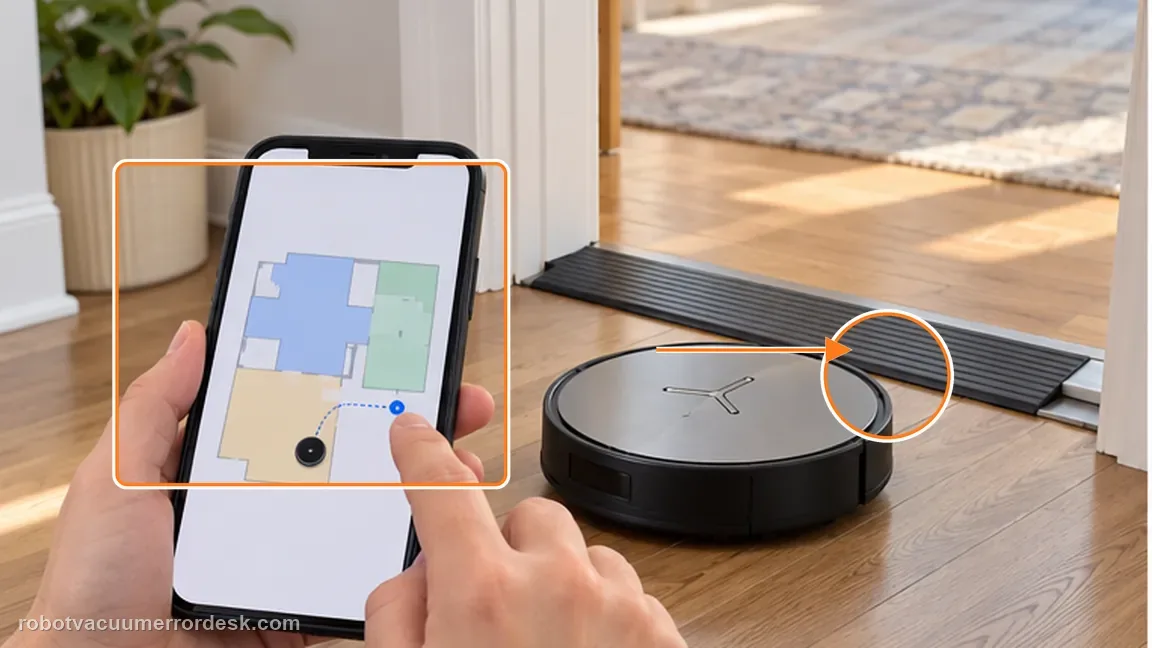
Add a Threshold Ramp at the exact map location
Open the app map and add a Threshold Ramp where the X11 is expected to cross. ECOVACS places this software check before mechanical inspection. Why it matters: The Threshold Ramp marker tells the X11 that a known transition exists at that map location. Confirming the map-side setup separates an unmarked threshold from a mechanical climbing problem.
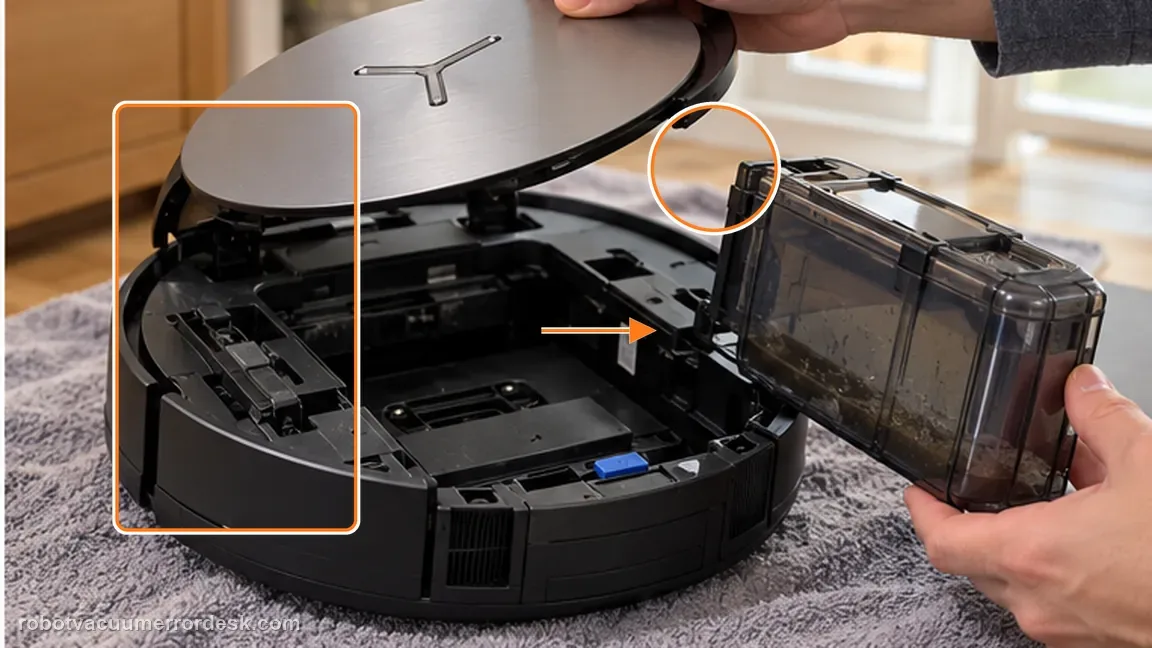
Power off before underside inspection
Remove the top cover, switch the robot to O, take out the dirty-water box and turn the robot over as ECOVACS instructs. Powering off and removing the dirty-water box prepares the robot for the underside inspection ECOVACS specifies. It also reduces the chance of water leaking when the robot is turned over.
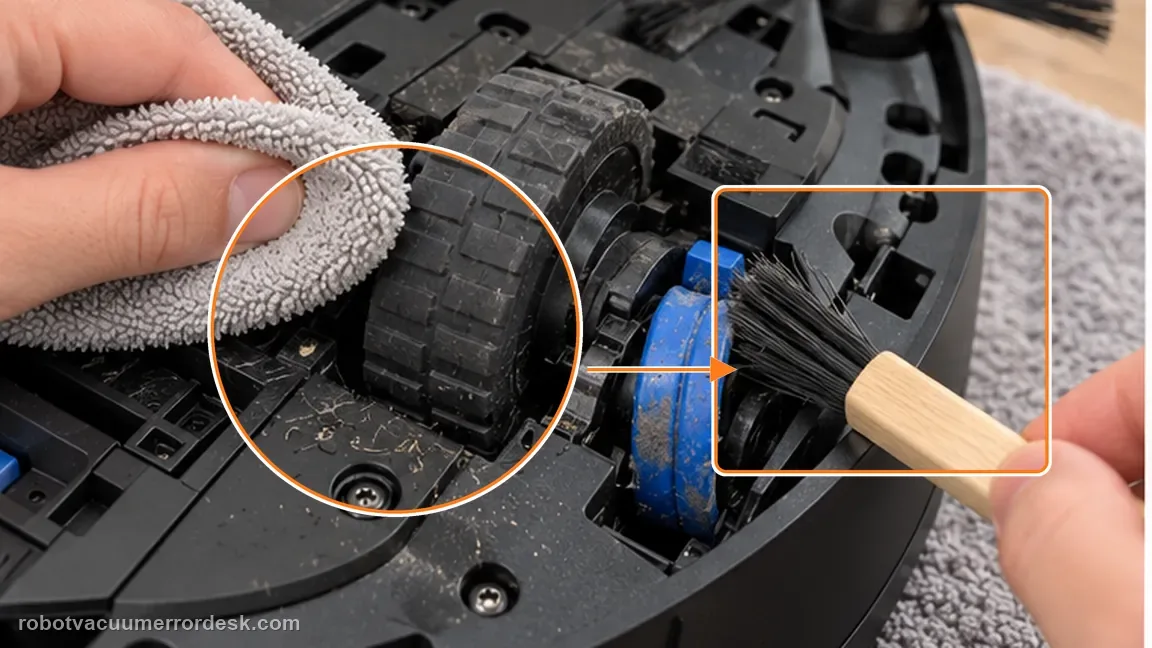
Clean wheels and blue climbing claws
Remove dust, dirt and foreign objects from the drive wheels and around the blue climbing claws. Debris around the drive wheels or blue climbing claws can physically block the mechanism that helps the X11 negotiate a step. Clean before interpreting the functional test.
Perform the claw-rotation proof test
Press the trigger above the drive wheel while slowly rotating the wheel clockwise. Watch whether the blue climbing claw rotates along with it. The trigger-and-clockwise-wheel test is the key discriminator: the blue climbing claw should rotate along with the wheel. It converts a vague “cannot climb” complaint into an observable mechanism result.
Re-test the same threshold only if the claw passes
If the claw rotates normally, continue using the robot and monitor the same crossing point with the Threshold Ramp still mapped. A threshold can also be beyond what the robot can negotiate safely. The companion missed-area guidance notes up to 2.4 cm for that cleaning context, so measure the problem transition instead of assuming every step is within range.
Retest one marked threshold from a straight approach
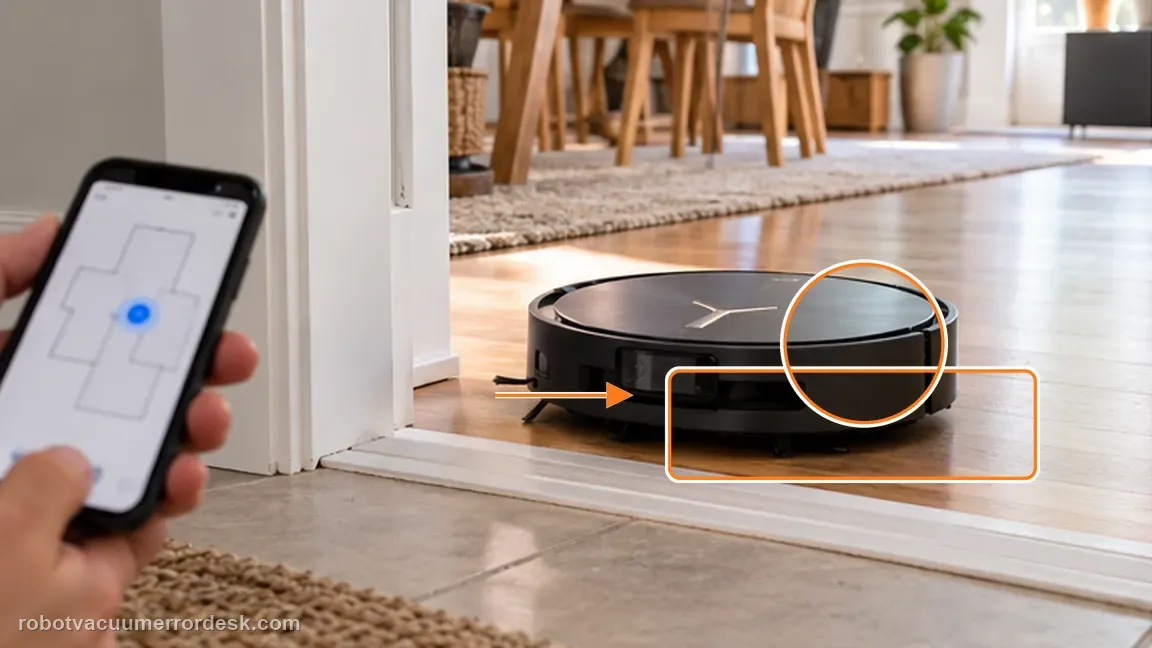
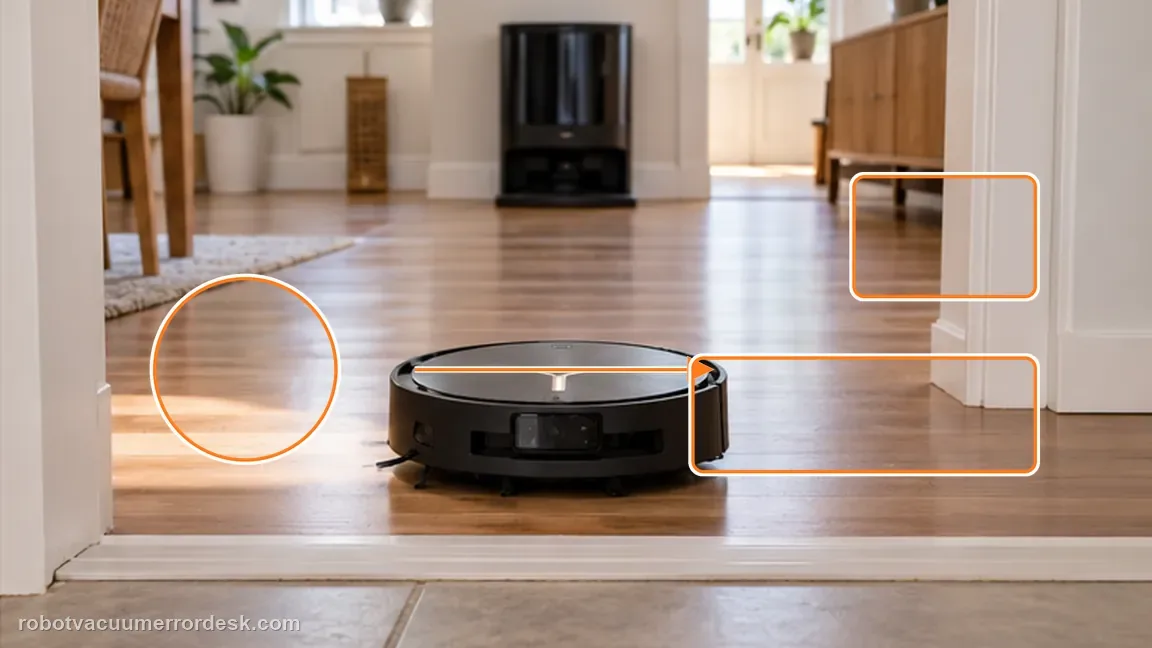
After the map marker and underside checks, start the X11 on a normal cleaning approach that gives it room to meet the threshold squarely. Remove loose mats or objects that change the entry angle during the proof test.
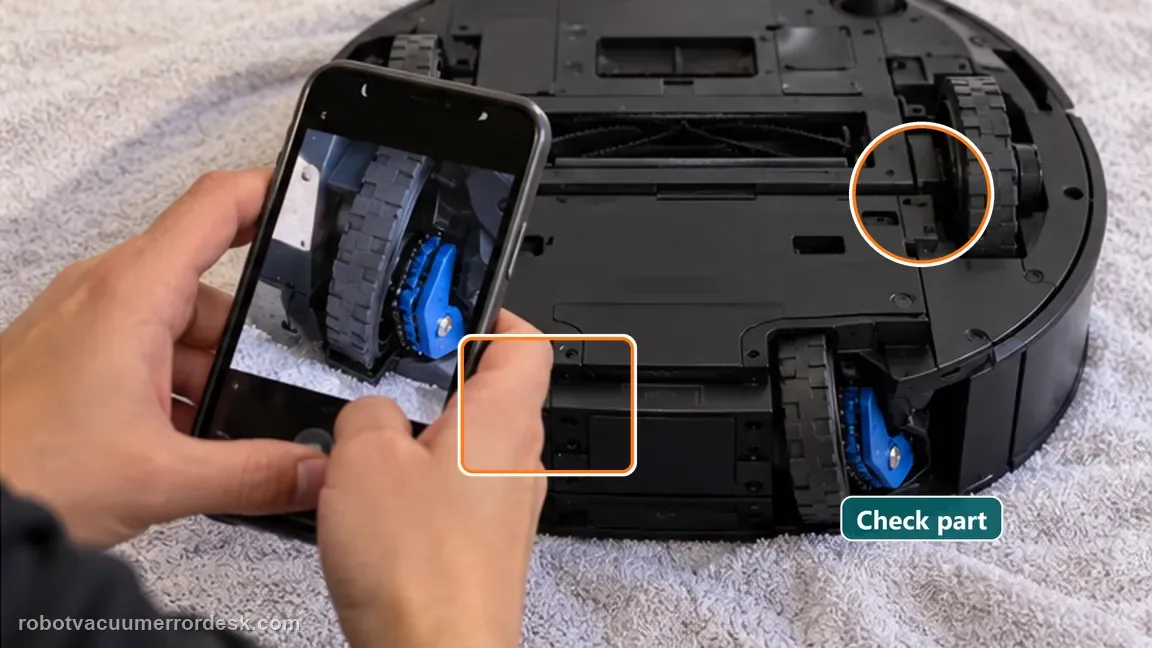
If a climbing claw does not rotate during ECOVACS’s documented trigger-and-wheel test, contact after-sales service rather than repeatedly editing the map. If a blue climbing claw fails the documented rotation test, send a close video of that mechanical result and the mapped Threshold Ramp location.
Before you contact support, gather this
A reproducible case moves a support call past the basic troubleshooting script faster than “it doesn’t work” does, and it keeps the clues from your own tests on record.
- Exact model name and the error code / voice prompt exactly as shown
- A photo or screenshot of the app error and the time it occurred
- A short list of the checks already completed and what happened after each one
- Map/station screenshot when the problem involves return-to-station or mapping
Where this comes from
Ecovacs DEEBOT X11 OmniCyclone — Cannot cross threshold
Ecovacs documents the Threshold Ramp setting plus a model-specific drive-wheel/climbing-claw inspection for X11 threshold failures. Do not use repeated high-speed impacts as a test. Once the mapped Threshold Ramp, clean wheel tread and claw-rotation checkpoint are known, one controlled approach is enough to prove whether the robot can cross. A claw that fails to rotate with the wheel is a mechanical service signal, not a reason to keep changing map geometry.
Additional official source: ECOVACS US — DEEBOT X11 OmniCyclone Support Center ↗Last editorial review: September 5, 2026Regional note: manufacturer help centers, model suffixes, mains-power requirements and warranty procedures can differ by country. If the source redirects to a local support site, confirm that the model/hardware scope still matches before following a region-sensitive step.
This guide is rated Official model support. See what each evidence label means →
Questions people ask
What if the blue climbing claw does not rotate?
ECOVACS says to contact after-sales service when the claw does not rotate properly during the documented check. The blue-claw rotation test is a mechanical checkpoint: if a claw does not rotate with the wheel, stop repeated threshold impacts and contact service. That mechanical result is more decisive than trying the same doorway again with different room-cleaning settings.
Why add Threshold Ramp before opening the wheel area?
Because ECOVACS lists the map feature first; a crossing can fail from configuration even when the climbing mechanism is healthy. Use the app’s Threshold Ramp at the exact location first, then inspect the wheels/claws; that keeps configuration and mechanism failures from being mixed together. at the actual doorway.
Should I keep testing the threshold if the claw fails its rotation check?
No. A failed mechanical proof test is the point to escalate instead of forcing repeated crossings. Once the mechanism fails its documented rotation check, repeated map edits cannot repair the claw and only add noise to the diagnosis. If the claw passes, then retest the marked threshold from a straight approach before escalating.
Why can’t my DEEBOT X11 OmniCyclone cross a doorway threshold?
Use the X11-specific path: add a Threshold Ramp at that map location, then inspect the drive wheels and blue climbing claws with the robot powered off and the dirty-water box removed. ECOVACS also provides a functional check in which the blue claw should rotate while you press the trigger above the wheel and slowly turn the wheel clockwise.
What are the blue climbing claws on the X11 threshold check?
They are the blue mechanism ECOVACS asks owners to inspect around the drive wheels when the X11 cannot cross thresholds or steps. Clear trapped debris, then use the documented trigger-and-wheel test. If the blue claw does not rotate along with the wheel, the manufacturer says to contact after-sales service rather than repeatedly forcing the robot over the transition.
Did this diagnostic narrow the fault?
Use this as an editorial signal, not a popularity counter. If a feedback address is configured you can email the note; otherwise you can copy it for your own support record.