Spinning, Circling or Repeatedly Getting Stuck
Separate a wheel/roller bind from localization behavior. A robot that rotates briefly while locating itself is different from one that circles through an entire cleaning run.
Watch one controlled start on open hard flooring. Note whether the behavior stops after localization or continues once normal cleaning should begin.
What the symptom points to
Normal localization/self-check may still be possible on some models; compare with the exact manufacturer path.
Drive-wheel drag, bumper/sensor input or a localization fault.
Wheel/sensor movement or localization state rather than a real obstacle.
Do not erase the evidence
- Deleting the map before reproducing the movement on open flooring
- Lubricating drive or sensor assemblies unless the manufacturer explicitly allows it
- Calling every startup rotation a navigation failure
Record 20–30 seconds from a clean, open-floor start and note whether the robot was carried or the dock was moved. Video is far more useful than describing the motion as “weird.”
Matching model-specific guides
19 diagnostics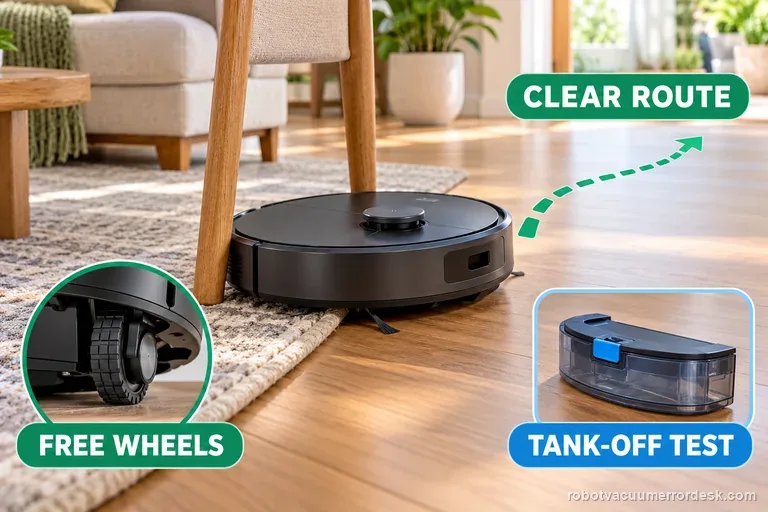
Error 8
The Q7 Max manual defines Error 8 as “Robot trapped.” First clear obstacles around the robot and relocate it. If the problem repeats, manually compare the drive wheels and, when a water tank is installed, remove it for an isolation test before escalating.
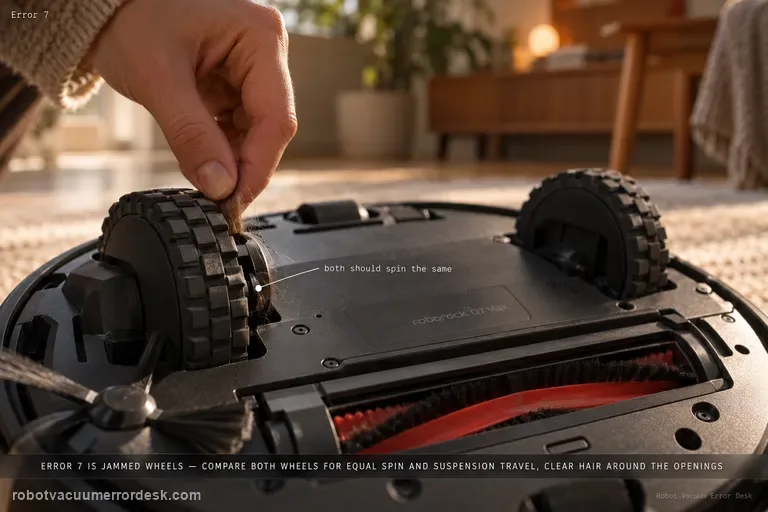
Error 7
The Q7 Max manual defines Error 7 as “Wheels jammed. Move the robot and restart.” Before restarting, compare the two drive wheels for normal rotation and suspension travel and remove accessible hair or debris around the wheel openings.
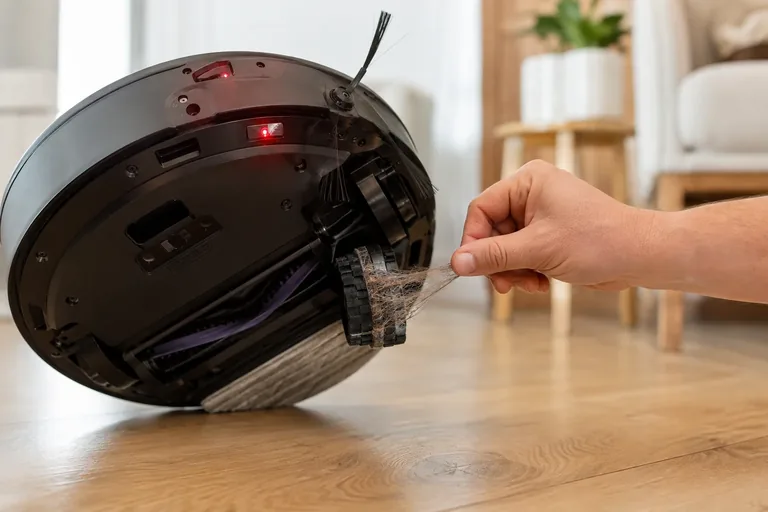
CLEAN red + DOCK red + ! red
On the Shark Matrix 2-in-1, CLEAN red + DOCK red + ! red flashing means a drive wheel is stuck. Shark's owner manual tells you to clean the wheels and remove debris wrapped around the axles so they can move freely. Power the robot off, compare both drive wheels, remove accessible hair or thread, check that each wheel can compress and return through its normal suspension travel, then move the robot away from thresholds or objects that may have loaded one side. Restart on flat hard flooring. If the code clears, the original stop was consistent with a jam or external load. If one wheel still binds with no visible debris, or the same red/red/red pattern immediately returns on open flooring, stop forcing the mechanism and contact Shark.
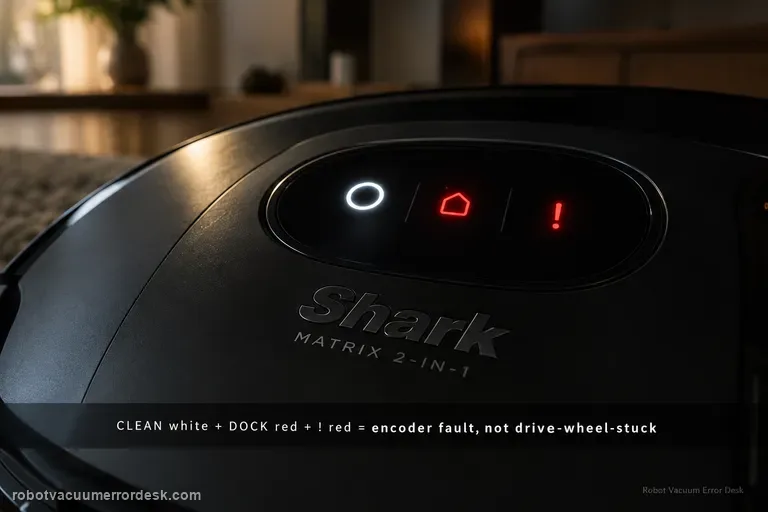
CLEAN white + DOCK red + ! red
On the Shark Matrix 2-in-1, CLEAN white + DOCK red + ! red flashing is the wheel motor encoder failure pattern. That is deliberately different from the drive-wheel-stuck pattern, which uses CLEAN red + DOCK red + ! red. Use that distinction before cleaning anything. With power off, compare the two drive wheels for obvious external hair, trapped debris, unequal spring travel or one wheel that will not turn normally. If the wheels are externally clear and move similarly yet the encoder pattern returns on a level open-floor restart, the owner manual does not give an internal encoder repair; it directs you to Shark Customer Service. Treat the external wheel check as a way to rule out a simple bind, not as permission to open the drive module.
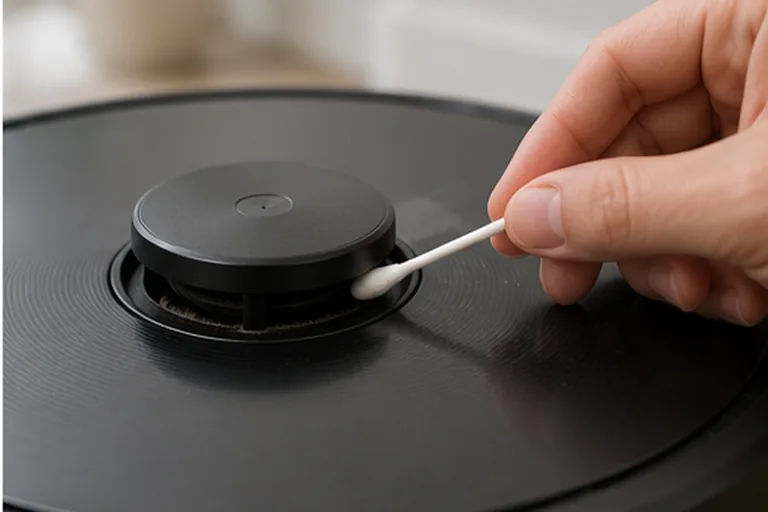
Laser sensor error
Start by writing down the exact X10 Pro Omni voice prompt, because eufy distinguishes four useful states: laser sensor stuck, laser sensor blocked, laser sensor error, and laser sensor cover stuck. Then power the robot on and watch the radar/LiDAR. If it rotates, clean the emission and reception apertures. If it does not rotate, remove the dustbin, gently invert/shake the robot as eufy instructs and verify the radar is not externally obstructed. If the cover-stuck prompt remains, press the cover only enough to confirm its normal click. A persistent hardware 'laser sensor error' after these external checks is a support case, not a reason to open the LiDAR module.
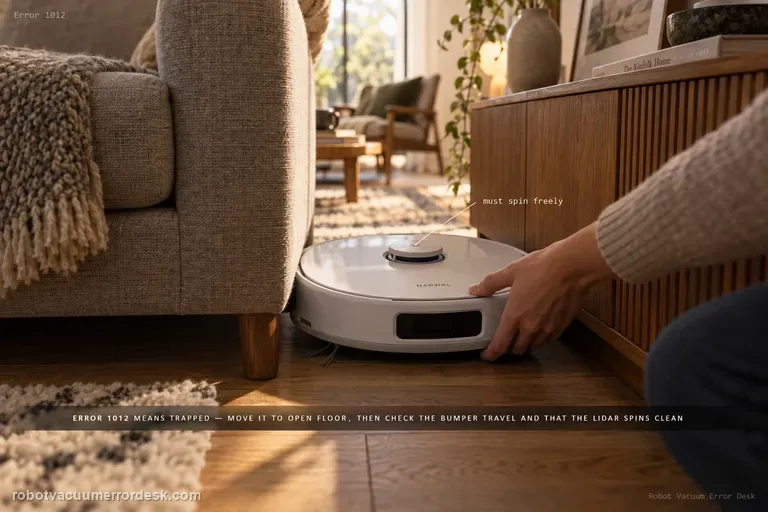
Error 1012
Error 1012 means the robot is trapped. Move the Freo Z Ultra into an open area and remove surrounding obstacles, then check the bumper, whether it can return to base, and whether the LiDAR rotates normally without a red warning.
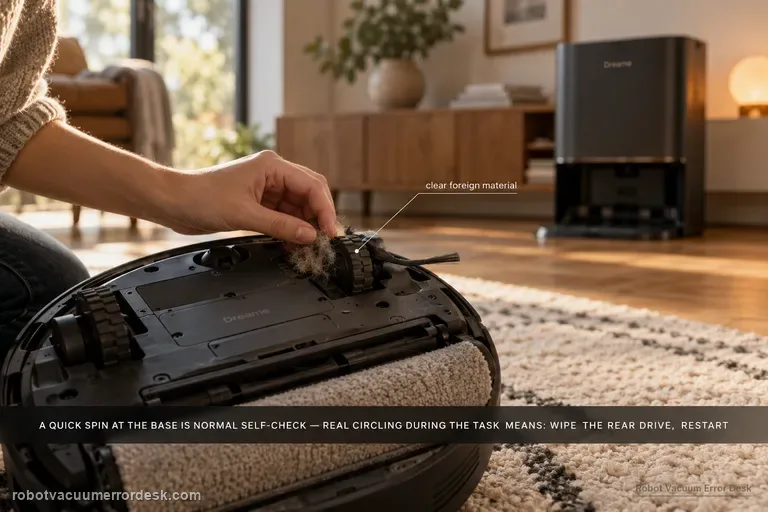
Cleaning in circles
The Aqua10 can rotate around the base station briefly and still be behaving normally: Dreame says the robot locates itself and performs a self-check before leaving the base. The fault pattern is continued circling during the cleaning task. For that case, Dreame directs owners to inspect and wipe the rear drive for foreign material, power the robot off, restart the task, and escalate if the behavior persists.
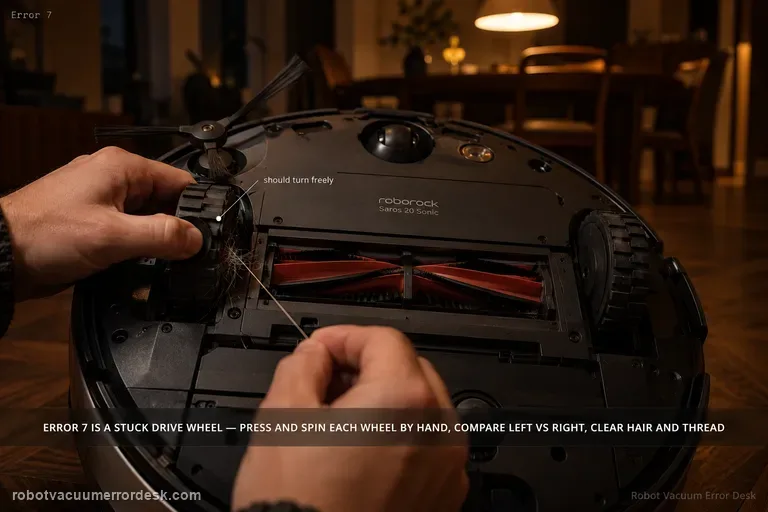
Error 7
Saros 20 Sonic Error 7 is a wheel-stuck diagnosis. With the robot stopped and safe to handle, press and spin each drive wheel manually and compare left versus right movement. Remove hair, thread or debris that prevents free travel. Then run a short test on clear hard floor before adding rugs or thresholds back. If one wheel still binds or Error 7 returns without environmental obstacles, document that side for Roborock support.
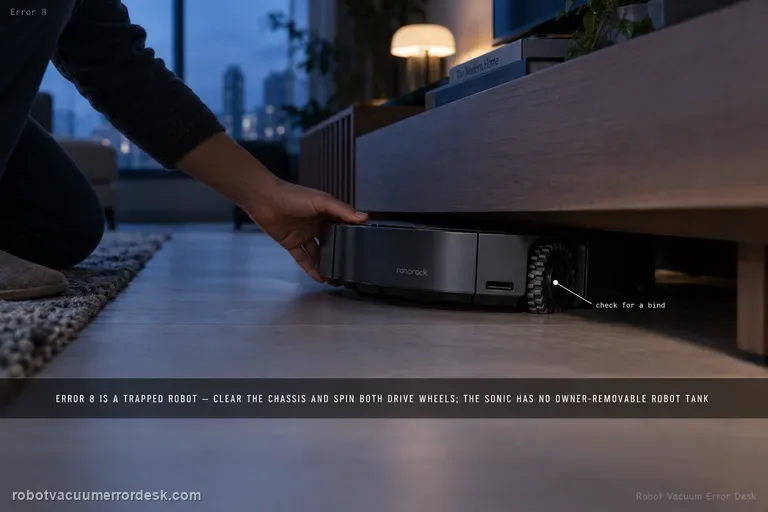
Error 8
Roborock’s Saros 20 Sonic support lists Error 8 as a trapped-robot check: clear obstacles and press/spin the drive wheels to find a bind. That support entry also includes a generic “remove the water tank if installed” step. The current Saros 20 Sonic manual does not show an owner-removable robot water tank; it shows a self-filling port on the robot and removable clean/dirty tanks in the dock. Do not open the robot or try to remove an internal tank. Clear the chassis, compare both drive wheels on safe hard flooring, and run one short control test. If Error 8 returns with free wheels and no obstruction, escalate with the exact code and a short video.
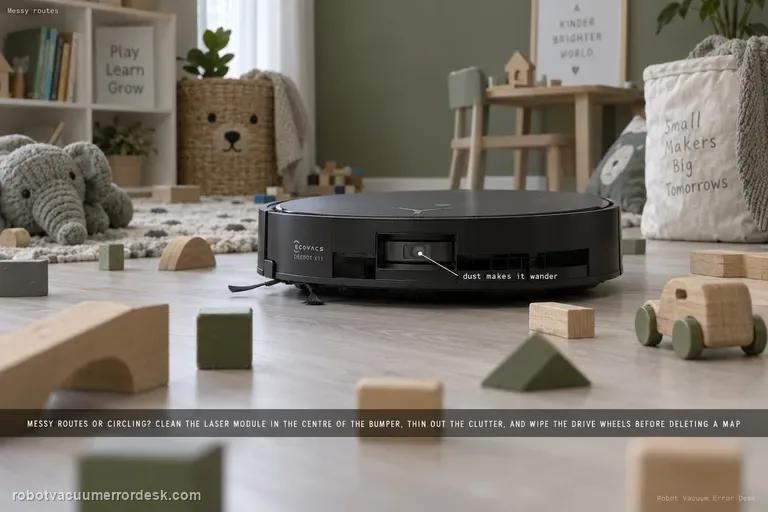
Messy cleaning routes
For X11 spinning, wandering or a route that suddenly looks messy, ECOVACS checks three physical/environmental inputs: dust on the laser module in the center of the bumper, a room with many obstacles that causes high-precision avoidance to make the path look irregular, and dirty drive wheels. Clean the laser with a dry paper towel, simplify one test area and wipe the wheels before deleting a map. A stable route in the controlled area points away from map corruption.
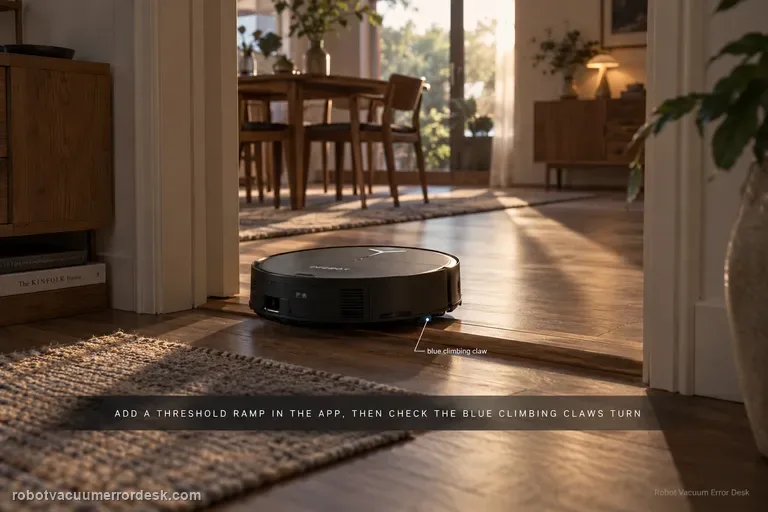
Cannot cross threshold
X11 threshold failures have a model-specific path that goes beyond generic “clean the wheels” advice. ECOVACS says to add a Threshold Ramp at the location in the app, power the robot off, remove the dirty-water box, clean the drive wheels and inspect the blue climbing claws for debris. Then press the trigger above a drive wheel while slowly rotating the wheel clockwise and confirm the blue claw rotates with it. A claw that does not rotate normally is an after-sales case.
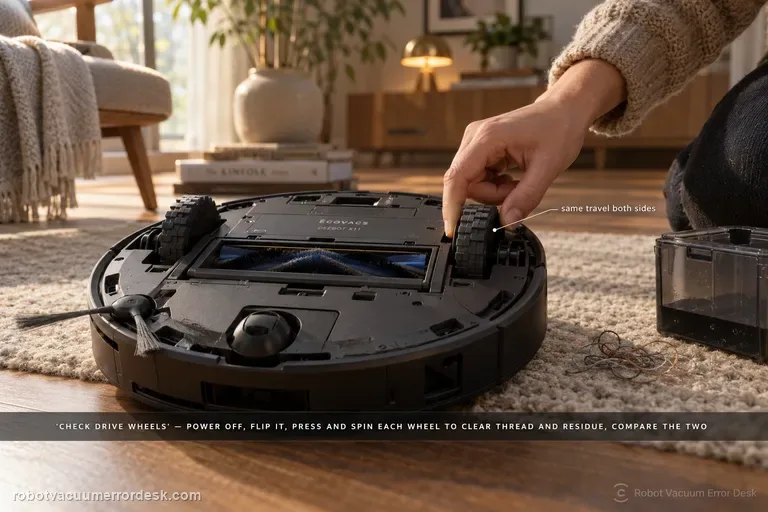
Drive wheel difficulty alarm
For the X11 “difficulty running / check drive wheels” alarm, ECOVACS tells you to power the robot off, remove the dirty-water box, turn the robot over, press and rotate the drive wheels to clear tangles, then wipe or brush away surface stains. The diagnosis should prove that each wheel can move through its travel without hair, thread or sticky residue. If one side remains mechanically different after cleaning, stop repeating cleaning missions and document that asymmetry for service.
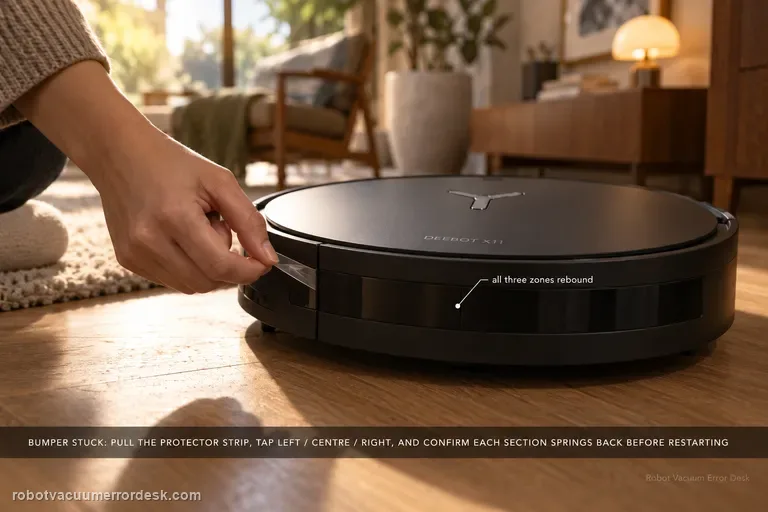
Bumper stuck alert
The X11 Bumper Stuck alert has a short official fix, but the useful diagnosis is to check the bumper across all three zones rather than just pushing once in the middle. Remove the bumper protector strip, gently tap the left, center and right sections, and confirm each area springs back. Restart the robot only after the mechanical response is normal. A section that stays depressed or feels different after accessible debris is cleared is the result to show ECOVACS.
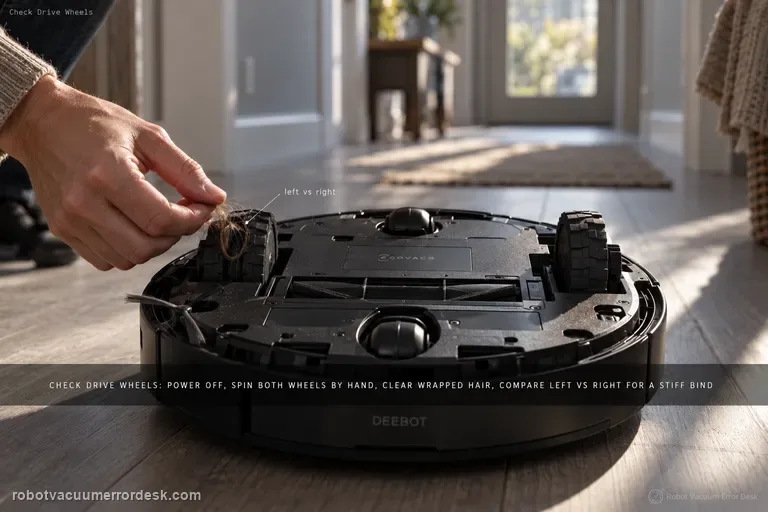
Difficulty running / drive wheels
For the T80 OMNI 'difficulty running / check drive wheels' alarm, keep the first pass mechanical and comparative. Power the robot off, remove the dirty-water box before inversion, then press and rotate both drive wheels to find wrapped hair, thread or a hard bind. Clean the tread with a damp-but-wrung cloth or brush, dry it, and compare left versus right spring and rotation on a flat hard-floor test. If one wheel remains stiff or the alarm returns immediately on a clean dry surface, stop treating it as a map problem.
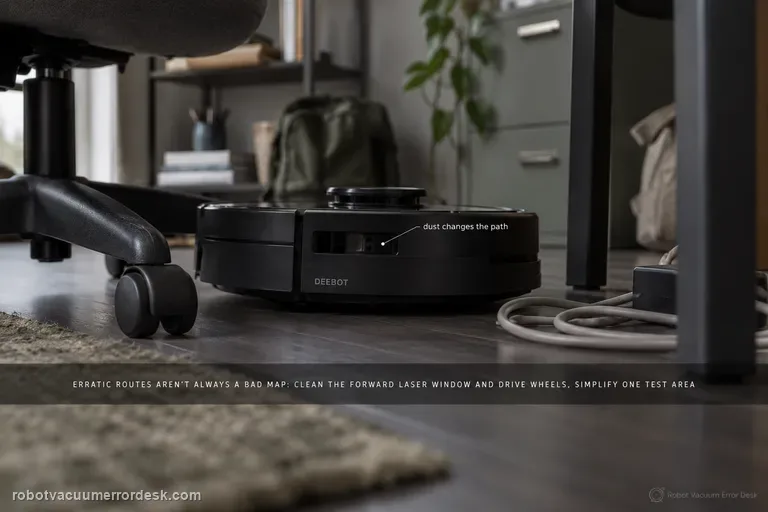
Erratic cleaning paths
Erratic T80 routes are not automatically a bad map. ECOVACS' exact-model article starts with three concrete causes: dust on the forward laser module, an obstacle-dense room that makes high-precision avoidance look irregular, and dirty drive wheels that change the robot's actual motion. Clean the optical and traction inputs, simplify one small test area, and compare a repeated route before restoring or deleting the map. Use the separate map-distortion path only when the saved map itself shows overlap or skew.
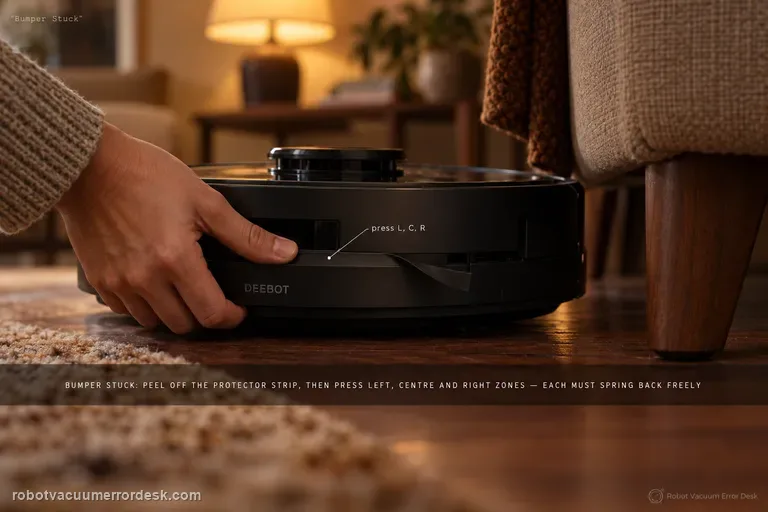
Bumper Stuck alert
For the T80 OMNI Bumper Stuck alert, ECOVACS asks for a direct mechanical spring-back test, not a map reset. Remove the bumper protector strip, then press/tap the left, center and right bumper zones separately. Each zone should move inward and return freely. Clean only accessible debris around the bumper seam, then run a short open-floor test. If one zone remains depressed, returns slowly or the alert recurs immediately with free visible movement, stop prying at the bumper assembly and send ECOVACS a video of the three-zone comparison.
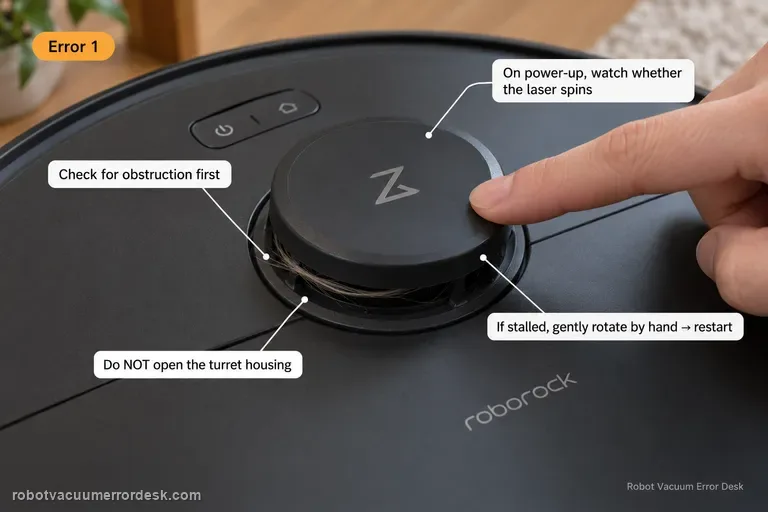
Error 1
Q7 Max Error 1 means the LiDAR turret or laser is blocked. Check for physical obstruction first, then power the robot and watch whether the laser unit spins. If it is stalled, Roborock’s Q7 support says to gently rotate it manually and restart. Do not open the turret housing.
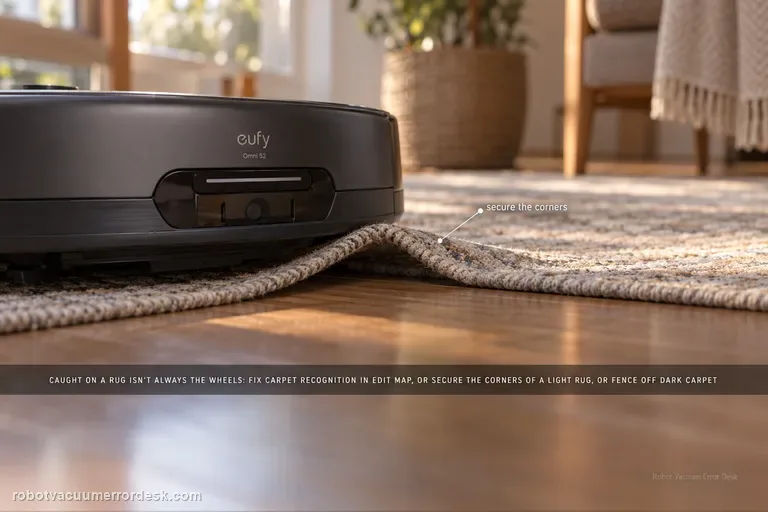
Stuck on carpet / rug
An Omni S2 that gets stuck because a rug edge or carpet material is caught is not automatically a drive-wheel failure. eufy's exact S2 path first checks carpet recognition: manually add the carpet in Edit Map > Carpet Editing > Add Carpet when detection is wrong. For thin/lightweight rugs that the bumper or brushes push or lift, secure the corners or create a no-go zone. Very dark or black carpets can also be misrecognized, so use a controlled comparison and isolate that surface rather than deleting a good map or replacing wheel hardware first.
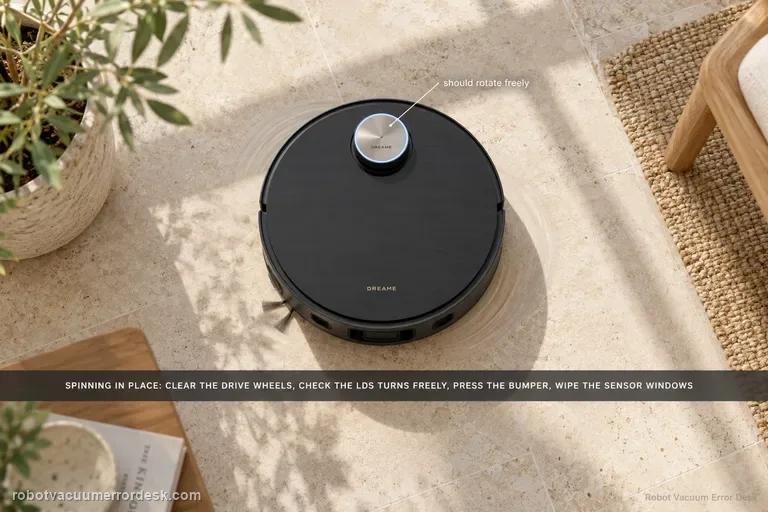
Spins in circles
Dreame’s exact X50 article gives a seven-check path for a robot that spins or keeps turning in the same place. Start with foreign material around the drive wheel, then confirm the LDS is rotating and that its upper cover rebounds normally. Check for hair/debris in the LDS rotating area and for a lifted/cocked sticker or larger object on the robot’s top surface. Then press the impact plate/bumper to confirm it rebounds and wipe the line-laser and AI-identification sensor windows clean. Restart only after those physical states are known. This is not the same intent as ‘map will not save’: a circling robot has a live movement/localization problem, while a map-save problem can occur after otherwise normal driving. Do not force the retractable LDS tower or dismantle a drive wheel. If the X50 still spins after the documented checks, preserve a short video and escalate.