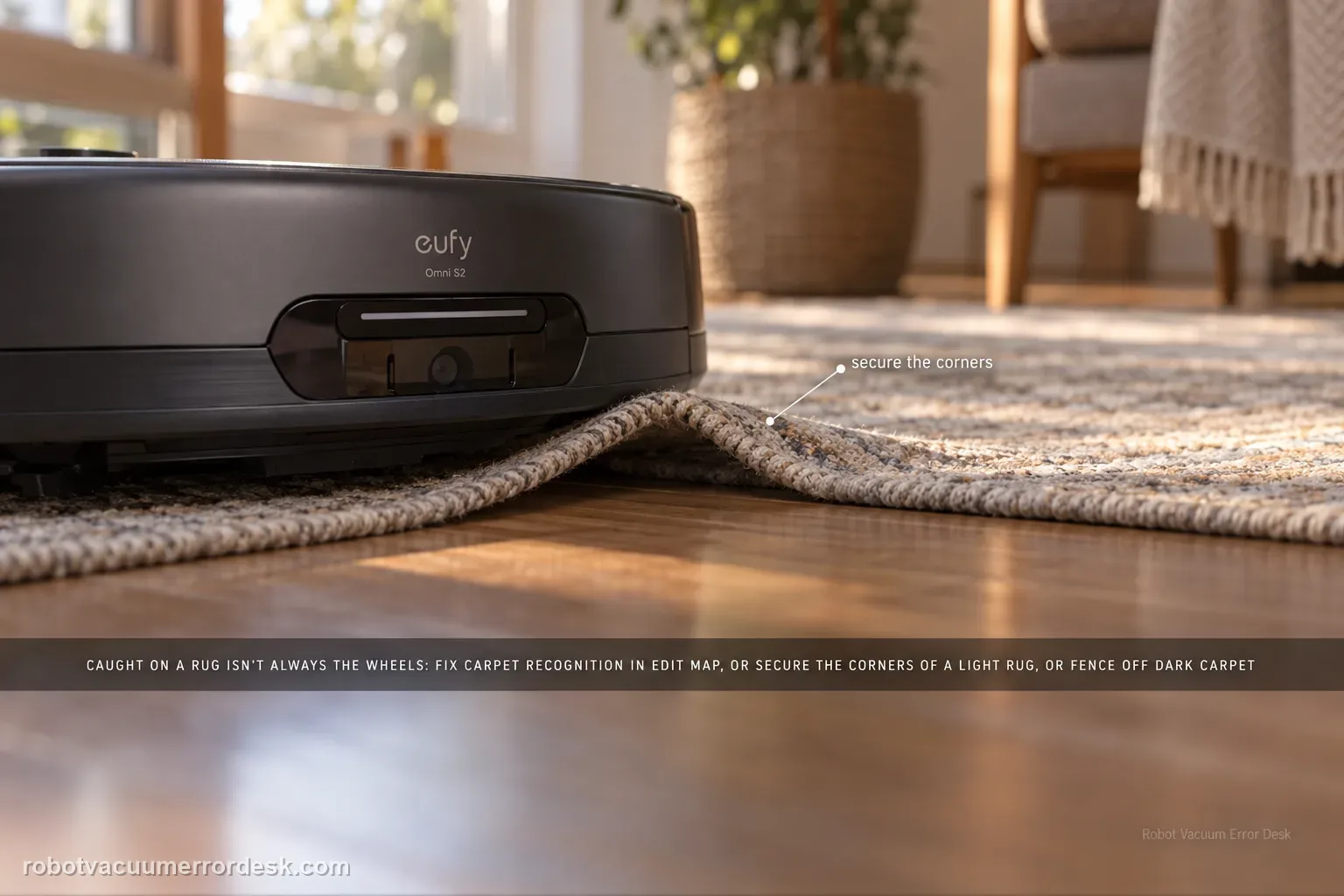
An Omni S2 that gets stuck because a rug edge or carpet material is caught is not automatically a drive-wheel failure. eufy's exact S2 path first checks carpet recognition: manually add the carpet in Edit Map > Carpet Editing > Add Carpet when detection is wrong. For thin/lightweight rugs that the bumper or brushes push or lift, secure the corners or create a no-go zone. Very dark or black carpets can also be misrecognized, so use a controlled comparison and isolate that surface rather than deleting a good map or replacing wheel hardware first.
Does the S2 fail only on one rug/carpet or also on open hard floor?
Confirm the exact model and exact code, light pattern or symptom.
Run the lowest-risk physical or software check first.
Use each pass condition to decide what the result actually narrows down.
Is this the problem you’re seeing?
- The Omni S2 repeatedly catches, pushes or climbs onto a carpet/rug and becomes stuck.
- The problem is specific to one rug or carpet area rather than continuous circling on open hard floor.
- A lightweight, dark or incorrectly recognized carpet may be involved.
Likely root causes, ranked
Carpet area is missing or incorrect in the map
Thin/lightweight rug moves or lifts into the roller path
Dark/black carpet is not recognized reliably by the sensors
Rug corners/tassel area is physically unstable for the robot
A repeatable carpet-specific interaction needs a no-go boundary rather than a map reset
What the result narrows down
| What you observe | What it narrows down | Next move |
|---|---|---|
| S2 moves normally on hard floor but gets trapped on one rug | The failure is surface-specific, not a general wheel/drive fault. | Keep diagnosis on carpet recognition, rug movement and map controls. |
| Affected carpet is missing/incorrect in the map | Wrong carpet classification can select inappropriate behavior. | Use Edit Map → Carpet Editing → Add Carpet and retest before deleting the map. |
| Thin/light rug shifts, lifts or feeds into the roller | Mechanical rug movement is creating the trap. | Secure corners as eufy suggests or create a no-go zone. |
| Only a very dark/black carpet causes recognition trouble | eufy documents dark-surface recognition limitations. | Compare a lighter carpet/hard floor and isolate the dark surface with carpet/no-go controls if needed. |
| Correctly mapped, stabilized rug still traps the S2 | Simple recognition and rug-motion causes have been controlled. | Capture video of the approach/edge/map state and escalate; do not repeatedly let fabric feed into the roller. |
Do not factory-reset by default. Use the exact model’s reboot/network-reset procedure only when the manufacturer path calls for it.
Checks to run, in sequence
Prove the failure is carpet-specific
Move the robot to nearby open hard flooring and run a short test. If it moves normally there and only becomes trapped on one rug/carpet, keep the diagnosis on surface recognition and rug stability. If it circles or stalls on open hard floor too, use the movement/wheel diagnostic instead.
Check whether the carpet exists correctly in the map
eufy's S2 support says misidentified or undetected carpet can lead to wrong cleaning/navigation behavior. Open Edit Map > Carpet Editing and manually add the carpet when necessary. Do this before deleting the whole map so the existing room and station reference is preserved.
Stabilize thin or lightweight rug corners
Watch whether the bumper or side brush pushes the rug, lifts a corner or feeds material toward the roller. eufy recommends securing lightweight rug corners (its article mentions nano tape) or using a no-go zone. The objective is to prove whether rug movement, not wheel torque, creates the trap.
Treat dark or black carpet as a separate recognition test
eufy notes that very dark or black carpets may not be recognized properly. Compare the affected surface with a lighter carpet/hard floor while keeping the map and robot state unchanged. If only the dark surface fails, isolate it with the documented carpet/no-go tools rather than changing drive hardware.
Run one controlled return over the corrected rug, then stop repeated trapping
After carpet-map correction and rug stabilization, run one short supervised pass across the exact problem spot. If the S2 still captures the rug or becomes trapped, preserve a short video showing the approach, carpet edge and map state. Repeatedly letting the roller ingest fabric is not a useful diagnostic and can damage the rug or cleaning hardware.
Inspect the rug edge and fibers after the first controlled trap
Look at what physically entered the cleaning path: a lifted corner, tassel, loose thread, flexible edge or the rug body itself. That observation matters more than the generic phrase “stuck on carpet.” If a corner is being pushed upward, stabilization/no-go is appropriate. If the S2 stops before contacting the fabric, recognition/map behavior is stronger. Stop the test once the mechanism is clear so the roller does not continue pulling material.
Keep the good map and change only the carpet variable
Use Carpet Editing to add/correct the affected carpet, or stabilize the rug, then run one short supervised approach from the same direction. Do not delete the entire map between attempts because that removes the station/room context and changes more than the carpet variable. If the corrected rug still traps the robot, a short video plus the map screenshot is stronger support evidence than another uncontrolled whole-home run.
Escalate a carpet-specific stuck case after the map carpet area is correct, a lightweight rug is stabilized or isolated where appropriate, and one supervised approach still traps the S2. Send the Carpet Editing screenshot, video of the edge/fabric interaction, Device Information and the steps tried. Stop repeated fabric ingestion. If the robot also stalls on open hard floor, the symptom has moved beyond a carpet-recognition case.
Information to have ready for support
Support can skip the basic troubleshooting script when you provide a reproducible case. That keeps the results of your checks from getting lost.
- Exact model name and the error code / voice prompt exactly as shown
- A photo or screenshot of the app error and the time it occurred
- A short list of the checks already completed and what happened after each one
- Device information / activity-log details from eufy Clean when the issue is mapping or routing related
Source and evidence level
eufy Omni S2 — Gets Stuck on Carpet or Rug
eufy’s exact S2 carpet-stuck article directs owners to Edit Map → Carpet Editing → Add Carpet when recognition is wrong, stabilize lightweight rugs or use a no-go zone, and account for very dark/black carpet recognition limitations. The S2 manual/model support page provide companion navigation context. This guide adds a hard-floor control and physical rug-edge observation so carpet-specific behavior is not confused with general drive failure.
Additional official source: eufy — Omni S2 User Guide (T2081) ↗Additional official source: eufy — Omni S2 model support desk ↗Additional official source: eufy — What support needs for S2 technical issues ↗Last editorial review: September 5, 2026Regional note: manufacturer help centers, model suffixes, mains-power requirements and warranty procedures can differ by country. If the source redirects to a local support site, confirm that the model/hardware scope still matches before following a region-sensitive step.
This guide is rated Official model support. See what each evidence label means →
Common questions
Why does my eufy Omni S2 get stuck on one rug but not on hard floors?
That pattern points toward a carpet-specific interaction rather than a general drive-wheel fault. eufy tells owners to check carpet recognition in Edit Map → Carpet Editing, stabilize thin/lightweight rugs that move under the bumper/brushes, and consider a no-go zone. Very dark or black carpet can also be misrecognized. Keep the hard-floor pass as useful evidence when deciding the next step.
How do I manually add a carpet for the eufy Omni S2?
Open Edit Map, choose Carpet Editing and use Add Carpet for an area the S2 did not recognize correctly. eufy recommends this exact path because bad carpet classification can lead to inappropriate cleaning/navigation behavior. Make that targeted map correction before deleting the entire map, then run a short supervised pass over the same rug to see whether recognition changes the outcome.
What can I do if the Omni S2 keeps pulling up a lightweight rug?
Watch whether the bumper or side brushes lift a corner and feed fabric toward the roller. eufy recommends securing lightweight rug corners—its support article mentions nano tape—or creating a no-go zone. Stabilize the rug and retest once. If the edge still gets captured, stop repeated ingestion and use a boundary rather than risking damage to the rug or cleaning hardware.
Why does the Omni S2 have trouble with a black or very dark carpet?
eufy notes that very dark or black carpets may not be recognized properly by the S2 sensors. Compare the affected surface with a lighter carpet or hard floor while keeping the map unchanged. If the problem follows only the dark carpet, use the documented carpet/no-go controls. That surface-specific result is more meaningful than replacing wheel hardware or rebuilding an otherwise good map.
When should I contact eufy about an Omni S2 carpet-stuck problem?
Escalate when the carpet is correctly represented in Carpet Editing, a lightweight rug is stabilized, and the S2 still becomes trapped on the same surface. Send a video showing the approach and what fabric enters the roller path, plus a carpet/map screenshot. If the robot also stalls on open hard floor, switch to a broader movement/wheel diagnosis rather than calling it carpet-only.
Did this diagnostic narrow the fault?
Use this as an editorial signal, not a popularity counter. If a feedback address is configured you can email the note; otherwise you can copy it for your own support record.