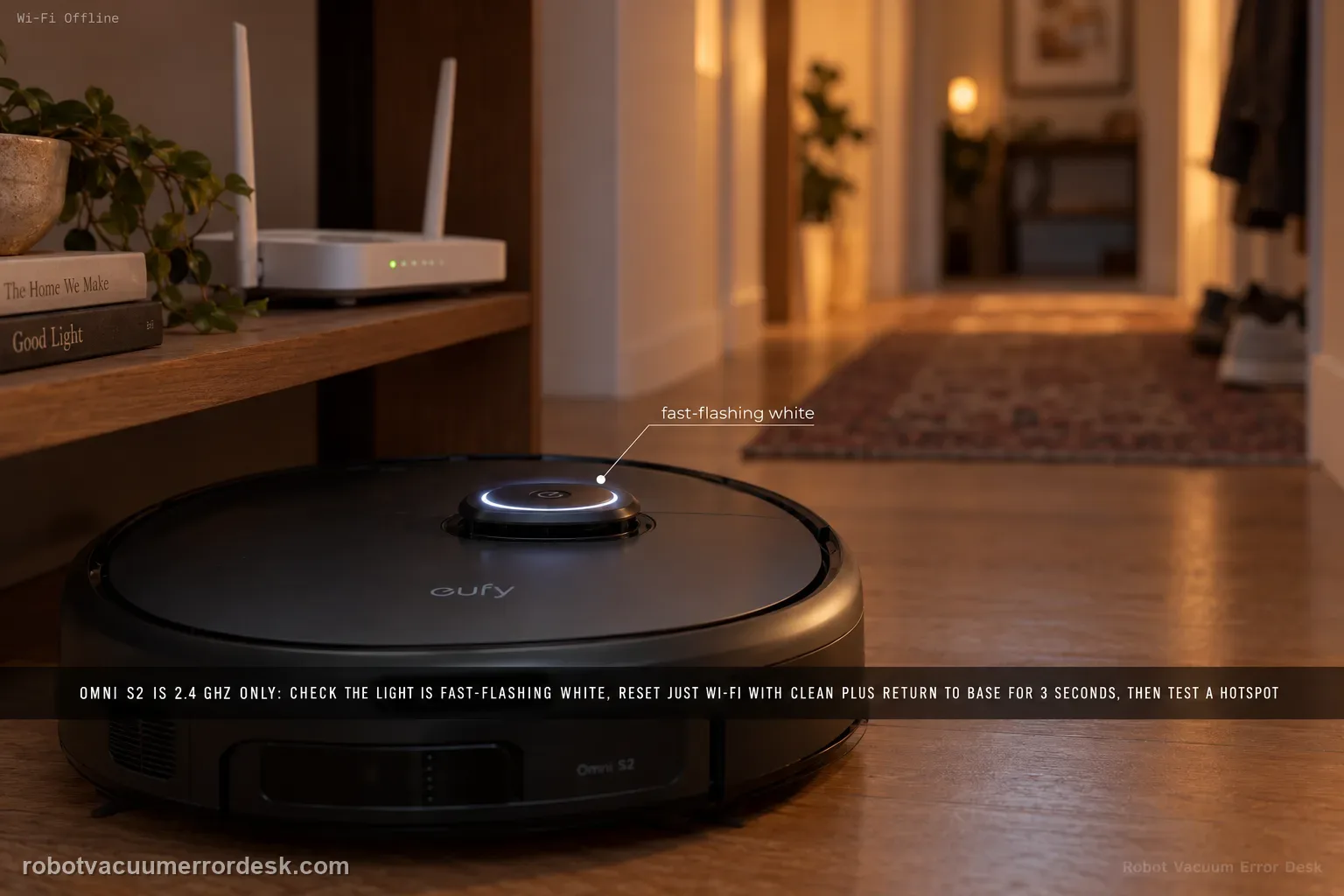
Treat Omni S2 Wi-Fi as a pairing-path problem, not a reason to factory-reset the robot. eufy says S2 supports 2.4 GHz Wi-Fi only: verify the SSID/password, keep Bluetooth on, confirm the circular light is fast-flashing white, then reset only Wi-Fi by holding CLEAN + Return to Base for 3 seconds. A mobile-hotspot test is the clean discriminator before escalation.
At what exact stage does Omni S2 Wi-Fi setup fail?
Confirm the exact model and exact code, light pattern or symptom.
Run the lowest-risk physical or software check first.
Use each pass condition to decide what the result actually narrows down.
Does this match your problem?
- The eufy app cannot add the Omni S2 during setup.
- The S2 was previously online but now appears offline in the app.
- Pairing stalls even though the robot itself can power on and clean locally.
Most likely causes
The phone is trying to provision the S2 on a 5 GHz-only network
SSID/password entry has spaces, special characters or a credential mismatch
Bluetooth, pairing state or weak signal is blocking initial discovery
Heavy router load or the saved Wi-Fi configuration is interfering with setup
Router-specific behavior is exposed by a successful mobile-hotspot test
What your test result means
| What you observe | What it narrows down | Next move |
|---|---|---|
| The phone is on 5 GHz or a combined SSID that never exposes 2.4 GHz cleanly | Omni S2 provisioning is still blocked before credentials can be judged because eufy specifies a 2.4 GHz connection path. | Move the setup to a confirmed 2.4 GHz network and retry with the phone, router and robot close together. |
| The circular light is not fast-flashing white | The robot is not in the pairing state eufy expects, so repeated password attempts are low-value. | Reset Wi-Fi with CLEAN + Return to Base for 3 seconds and wait for the fast-flashing-white state. |
| Pairing reaches the router but fails after credential submission | SSID/password formatting, app state or router security is more plausible than a dead radio. | Re-enter credentials carefully, simplify an unusual SSID for the test, update the app and retry once. |
| The S2 connects to a mobile hotspot but not the home router | The robot Wi-Fi path can work; the home network is now the strongest discriminator. | Preserve the successful hotspot result and review router band/security/isolation behavior instead of factory-resetting the S2. |
| The S2 fails on both known-good 2.4 GHz Wi-Fi and a hotspot | Router-specific incompatibility is less likely after two independent networks fail. | Enable logs, record the exact pairing stage/light state and escalate to eufy without repeated full resets. |
Reset can erase maps/settings on this path. Use lower-risk checks first and document the current state before resetting.
Run these checks in order
Prove the network is 2.4 GHz and the credentials are clean
Confirm the exact Wi-Fi name and password, including accidental leading or trailing spaces. eufy specifies 2.4 GHz for Omni S2 and says 5 GHz is not compatible for this connection path. If the SSID contains unusual symbols, temporarily use a simple letters-and-numbers name for the test.
Put phone, router and robot in one strong-signal test area
Enable Bluetooth on the phone and place the phone, router and S2 close together during setup. Confirm the phone itself has normal internet access on that same Wi-Fi network. eufy also recommends temporarily disconnecting other devices from a heavily loaded router, then retrying the S2, so a congested setup environment is not mistaken for a failed robot radio.
Confirm the S2 is actually in pairing state
Watch the robot's circular indicator. eufy says fast-flashing white means the S2 is ready for Wi-Fi pairing. If the light is not in that state, do not keep retrying credentials against a robot that is not listening for setup.
Reset Wi-Fi only, then retry with the latest app
Hold the CLEAN and Return to Base buttons together for 3 seconds to reset the S2 Wi-Fi configuration, then repeat pairing. Update the eufy app first if it is not current. This is a network recovery step; do not jump straight to a full factory restore.
Use a mobile hotspot as the router-vs-robot discriminator
Try connecting the S2 through a phone hotspot as eufy recommends. If the hotspot works but the home router does not, preserve that result, enable app logs and contact eufy with the router/network details instead of repeatedly resetting the robot.
Separate “cannot add” from “was online and is now offline”
If the S2 has never been added, stay on the pairing path: band, credentials, Bluetooth, fast-flashing-white state and Wi-Fi reset. If it was previously online, first verify that the home router and phone still have normal internet and that the SSID/password were not changed. Re-running first-time setup after every brief outage can erase the distinction between a provisioning failure and a network that simply changed around an already paired robot.
Capture one clean failure instead of repeating pairing loops
After confirming 2.4 GHz, Bluetooth, current app and pairing state, make one deliberate attempt and note where it stops: robot discovery, credential submission, router join or final online registration. Then run the hotspot discriminator. This gives support a reproducible stage and prevents repeated resets from changing several variables at once. If the hotspot succeeds, do not reset the robot again before recording the home-router settings that differ.
Escalate only after a controlled 2.4 GHz, close-range pairing attempt with correct credentials, Bluetooth on, fast-flashing-white state, current app and a Wi-Fi-only reset. Include the hotspot result, router model/security settings and the exact failed setup stage. Avoid repeated factory resets because they change multiple variables and can erase evidence that distinguishes home-network behavior from an S2 radio or registration problem.
What to collect before contacting support
Give support a reproducible case instead of “it doesn’t work.” That reduces repeated basic troubleshooting and preserves the clues from your tests.
- Exact model name and the error code / voice prompt exactly as shown
- A photo or screenshot of the app error and the time it occurred
- A short list of the checks already completed and what happened after each one
- Device information / activity-log details from eufy Clean when the issue is mapping or routing related
Manufacturer evidence
eufy Omni S2 — Wi-Fi / Offline Troubleshooting
eufy’s exact Omni S2 Wi-Fi article documents credential/SSID checks, 2.4 GHz-only setup, Bluetooth, fast-flashing-white pairing state, temporarily reducing router load, close-range setup, CLEAN + Return-to-Base Wi-Fi reset, app update and a mobile-hotspot test. The S2 user guide, model support desk and eufy’s S2 support-information checklist are companion references. First-time provisioning, a previously working robot going offline and a router-specific failure are kept as separate states.
Additional official source: eufy — Omni S2 User Guide (T2081) ↗Additional official source: eufy — Omni S2 model support desk ↗Additional official source: eufy — What support needs for S2 technical issues ↗Last editorial review: September 5, 2026Regional note: manufacturer help centers, model suffixes, mains-power requirements and warranty procedures can differ by country. If the source redirects to a local support site, confirm that the model/hardware scope still matches before following a region-sensitive step.
This guide is rated Official model support. See what each evidence label means →
FAQ
Why will my eufy Omni S2 not connect to Wi-Fi even though my phone is online?
A phone being online does not prove the S2 can use the same radio path. eufy specifies 2.4 GHz for Omni S2 setup, while the phone may be using 5 GHz. Confirm the band, exact SSID/password, Bluetooth and fast-flashing-white pairing state first. If those are correct, a mobile-hotspot test cleanly separates the home router from the robot.
How do I reset Wi-Fi on the eufy Omni S2 without factory-resetting it?
eufy instructs owners to hold CLEAN and Return to Base together for about 3 seconds to reset the S2 Wi-Fi configuration. Use that targeted reset when the robot is not entering the expected pairing state. A full factory restore is not the first Wi-Fi step because it changes more than the network relationship and can obscure what actually failed.
What does a fast-flashing white light mean on the eufy Omni S2?
For the S2 Wi-Fi setup path, eufy uses a fast-flashing white circular indicator as the ready-to-pair state. If the robot is not showing that state, repeated credential attempts are unlikely to help because the robot may not be listening for provisioning. Reset Wi-Fi, confirm the light pattern, then make one controlled setup attempt with the phone nearby.
Why does my Omni S2 connect to a phone hotspot but not my home router?
That result is useful because it proves the robot can complete a Wi-Fi connection on another network. The remaining evidence points toward the home router: band steering, security mode, isolation or another configuration difference. Keep the successful hotspot result, record the router model/settings and contact eufy if the exact incompatibility is not obvious rather than repeatedly resetting the S2.
When should I contact eufy for an Omni S2 Wi-Fi or offline problem?
Escalate after a close-range 2.4 GHz setup with correct credentials, Bluetooth enabled, fast-flashing-white pairing state, current app and one Wi-Fi reset. Run the hotspot test too. Send eufy the app version, router model/security mode, exact stage where setup fails and whether the hotspot succeeds; that evidence is more useful than another factory reset.
Did this diagnostic narrow the fault?
Use this as an editorial signal, not a popularity counter. If a feedback address is configured you can email the note; otherwise you can copy it for your own support record.