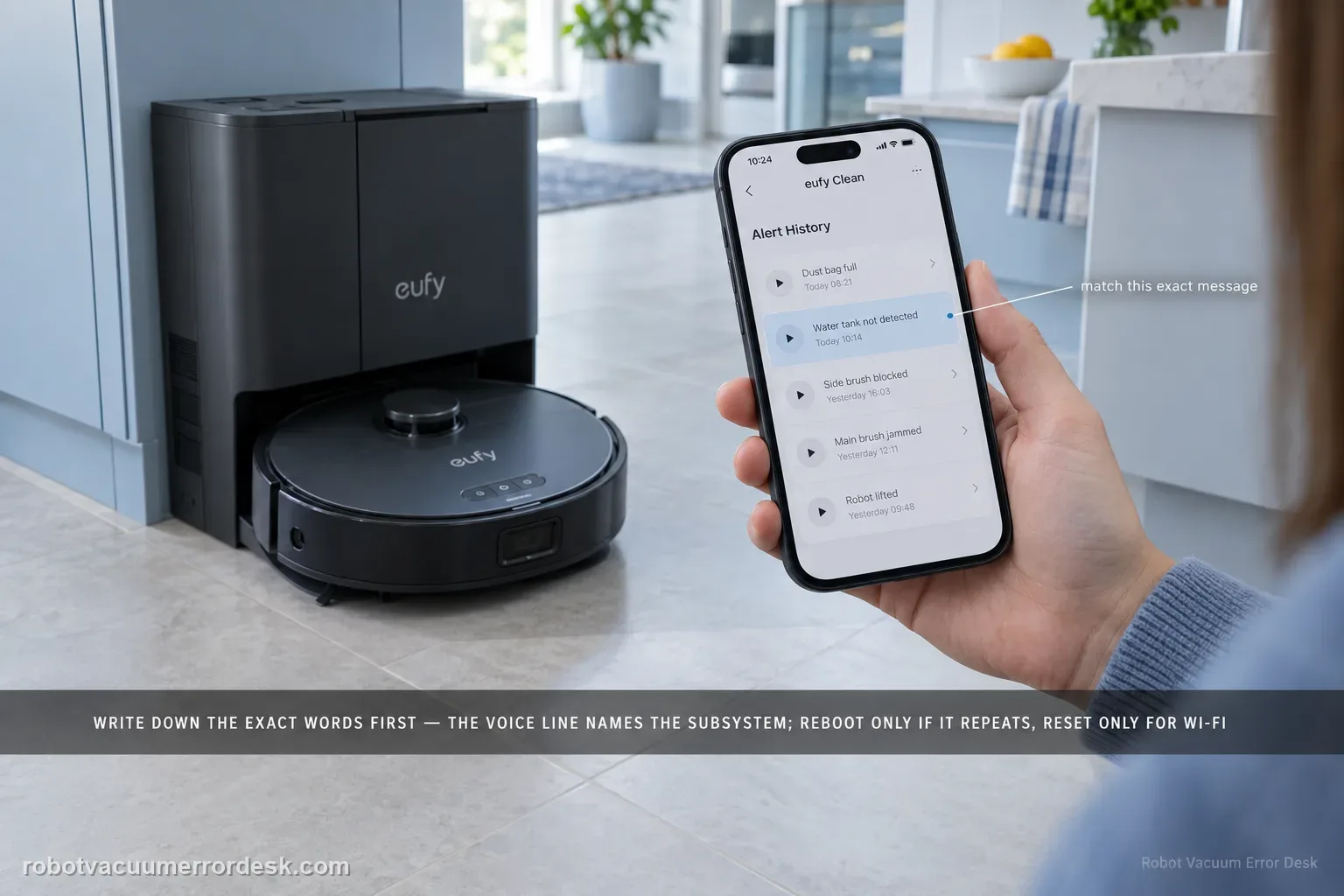
Treat the exact X10 Pro Omni voice prompt as the diagnostic key. Record the wording first, apply the matching quick solution in eufy’s alert table, then reboot the robot if the alert remains. Use the three-second Home + Spot Wi-Fi reset only for Wi-Fi faults; eufy’s separate Reset-button forced recovery is a power-off recovery and is not the same as a factory reset.
Confirm the exact model and exact code, light pattern or symptom.
Run the lowest-risk physical or software check first.
Use each pass condition to decide what the result actually narrows down.
Confirm this is the right issue
- The robot speaks an error but no numeric code is obvious.
- The app shows a matching alert message.
- The problem repeats with the same wording.
- A useful discriminator is observed: prompt names a stuck wheel/brush.
- A useful discriminator is observed: prompt says suction fan error.
What’s most likely causing this
Mechanical wheel/brush obstruction
Sensor obstruction
Connectivity state
Other subsystem-specific fault
Reading your test result
| What you observe | What it narrows down | Next move |
|---|---|---|
| Prompt names a stuck wheel/brush | The alert already identifies a mechanical subsystem. | Inspect only that named component for debris/free movement before using resets. |
| Prompt says suction fan error | The voice-alert table treats this as a fan fault after basic airflow checks. | Use the dedicated suction-fan guide; do not substitute wheel/brush maintenance. |
| Prompt is a Wi-Fi connection alert | Network state is the branch, and eufy reserves Home + Spot reset for Wi-Fi issues. | Use the three-second Wi-Fi reset and setup checks rather than resetting unrelated hardware. |
| Prompt remains after its physical cause is cleared | A normal reboot can clear retained state, but repeated rebooting is not a component fix. | Power-cycle once, reproduce, and record the exact message if it returns. |
| Forced Reset-button recovery is considered | eufy says this power-off recovery does not factory-reset, delete maps or reset network. | Use it only after the prompt-specific check and restart the robot afterward; escalate a recurring hardware-specific alert. |
Reset can erase maps/settings on this path. Use lower-risk checks first and document the current state before resetting.
Work through these checks in order
Capture the exact voice prompt or matching app message
Do not reduce every message to “it says an error.” Record the full wording before moving the robot, emptying a tank or resetting anything. eufy’s X10 table distinguishes stuck-component prompts from module errors, water/tank messages, station states, return/docking messages and connectivity conditions. Exact wording preserves the evidence needed to choose the right subsystem instead of performing a broad reset first.
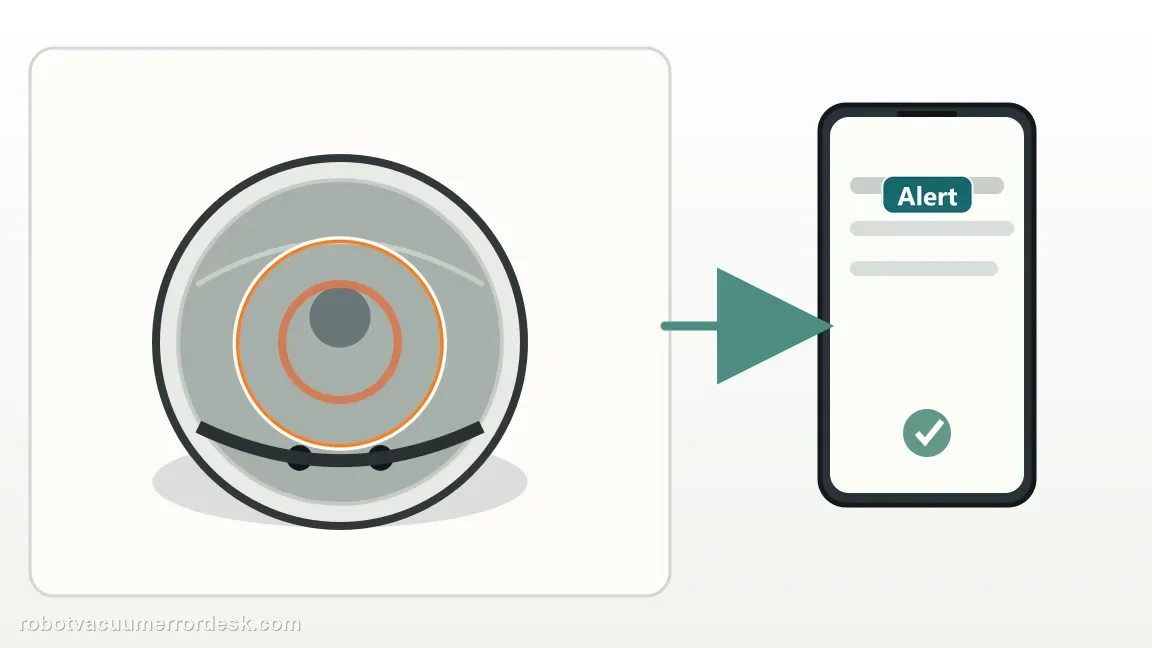
Classify the alert by subsystem before applying a fix
Use the nouns in the prompt to route the problem: wheel/brush/suction prompts go to the cleaning-drive system; laser/cover prompts go to sensing; clean/dirty-water, cleaning-tray and pump prompts go to the water/station path; dust-bag and self-empty messages go to the collection path; Wi-Fi messages go to connectivity. A direct “module error” or “please contact customer service” message has a different service threshold from a simple “stuck” or “not in place” message.
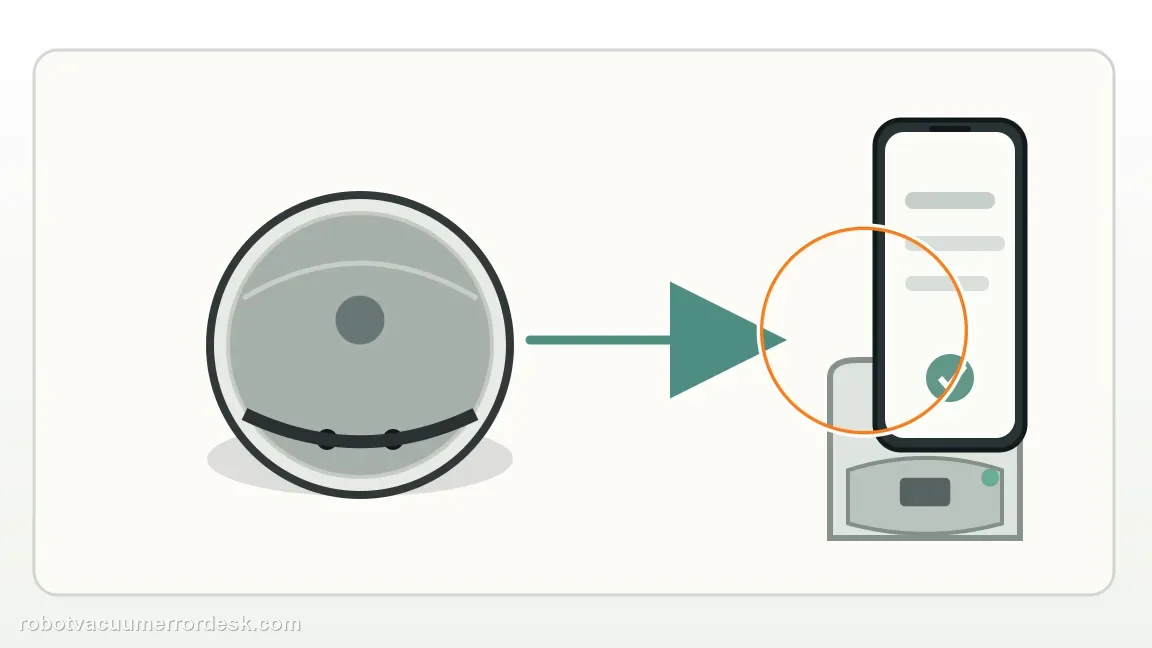
Apply only the quick solution tied to that exact message
Follow the X10 alert row for the named component: remove an accessible wheel/brush obstruction, reseat the named tank or dustbin/filter, clear the specific station condition, or move to the dedicated exact-model guide when the branch requires deeper checks. Do not use a wheel-cleaning routine for a water-pump message or a network reset for a physical brush fault.
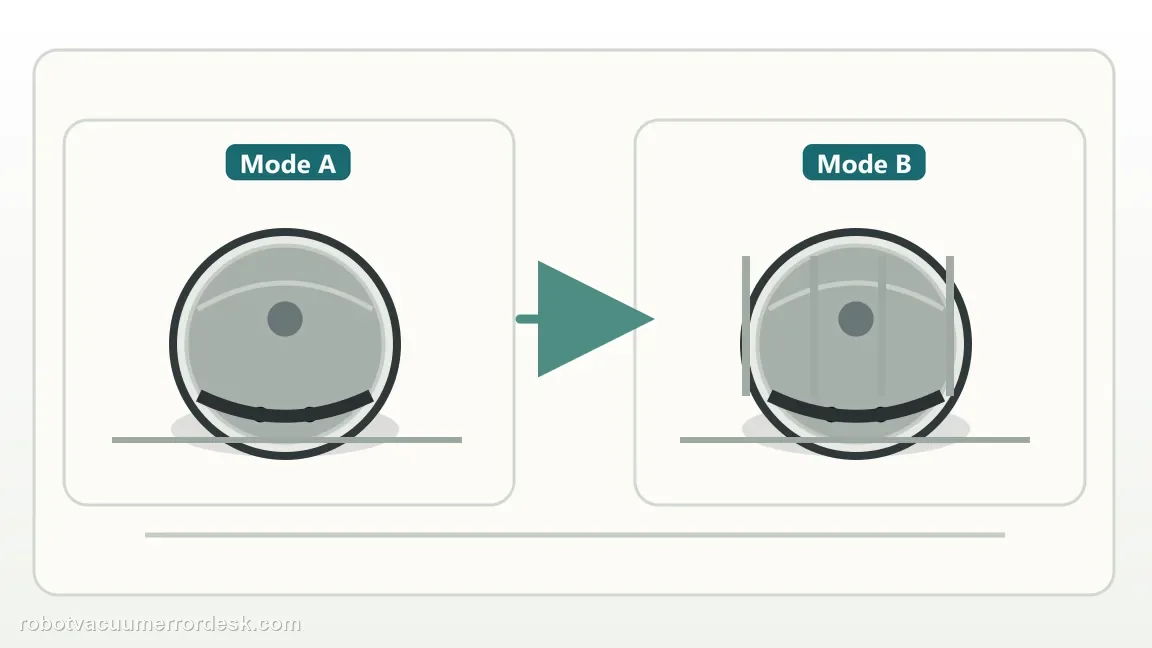
Run one normal reboot after the physical condition is corrected
When the obstruction, seating problem or other owner-correctable state has actually been cleared, power the robot off/on once using the normal supported flow. A reboot is a verification step after the cause changes; repeating reboots while the same tank is unseated or the same brush is jammed does not add evidence. Record whether the identical prompt returns immediately.
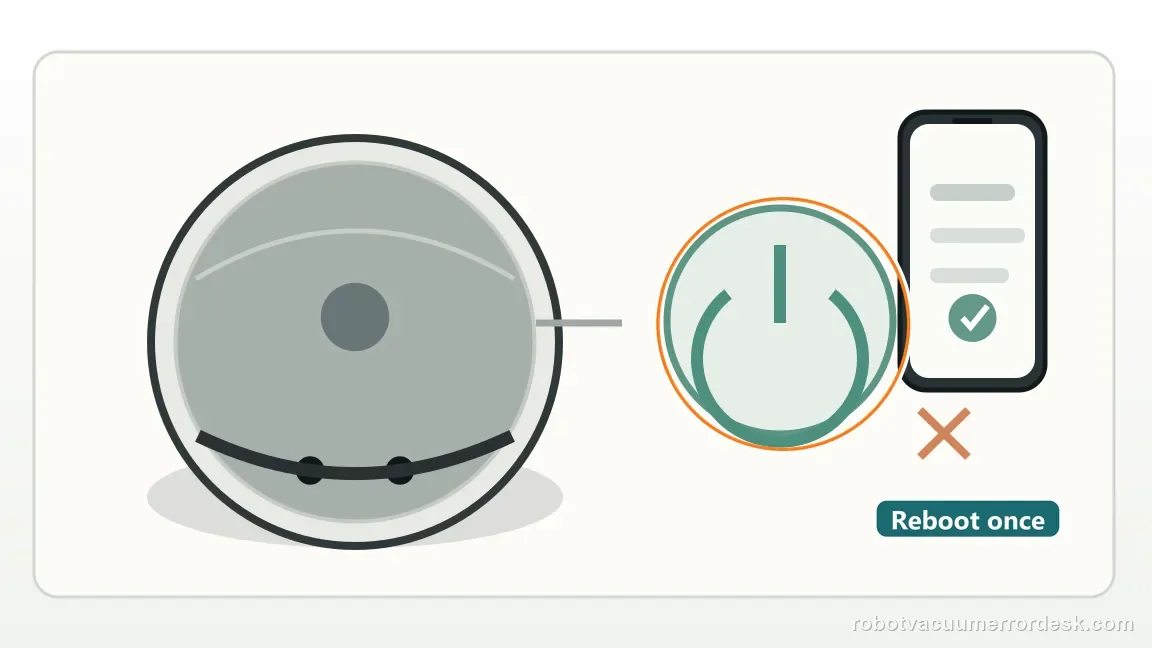
Use Home + Spot for three seconds only when the problem is Wi-Fi
For Wi-Fi faults, eufy documents holding Home/Recharge and Spot Cleaning together for about three seconds to reset the robot’s Wi-Fi and return it to pairing. This is a network reset, not a general mechanical troubleshooting step. It should not be used to chase a suction-fan, wheel, brush or water-system alert because those prompts are not caused by stored Wi-Fi credentials.
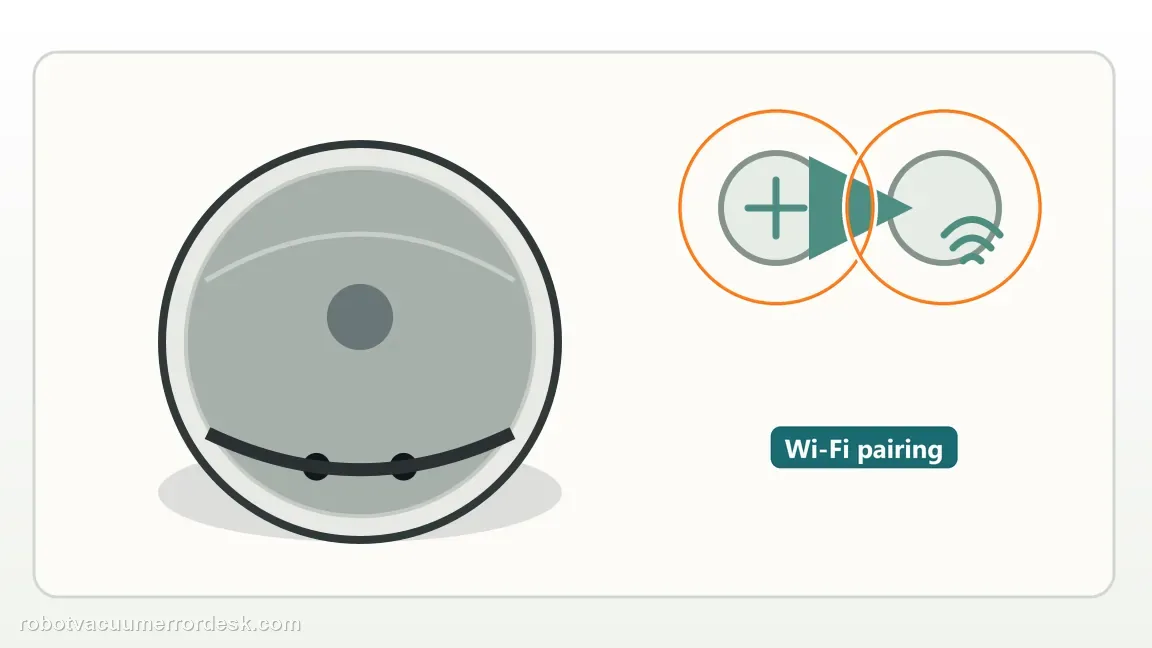
Reserve the physical Reset button for forced power-off recovery
eufy describes the physical Reset-button action as forced power-off recovery. It is not the same as a factory reset and eufy notes that it does not delete the map or reset network configuration. Use it only when the robot is unresponsive or the documented recovery context applies, then restart the robot as directed. Avoid telling owners to “factory reset” an X10 when the source only calls for forced recovery.
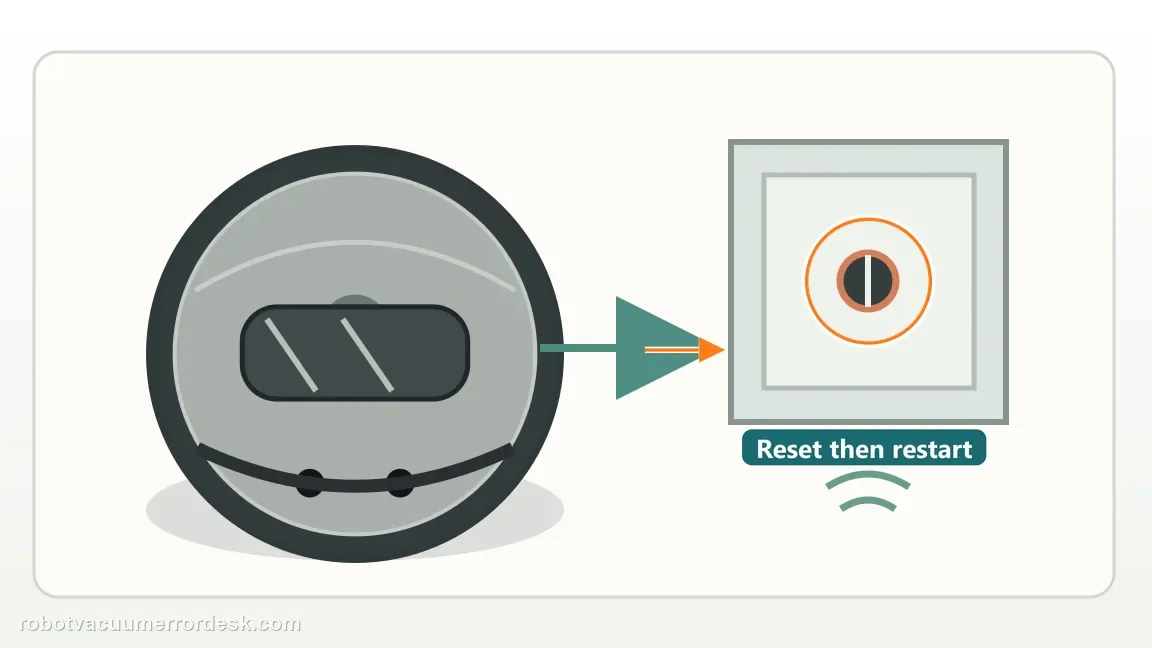
Escalate a persistent direct module error with the original wording intact
If the same direct module/hardware error returns after the exact owner-safe check and one appropriate recovery, stop broad experimentation. Send eufy the full alert text, app screenshot and what changed—or did not change—during the targeted test. For a stuck-component alert, include a photo of the cleared component; for station/water alerts, include the tank/tray state. Preserving the original wording prevents a support case from collapsing back into “robot not working.”
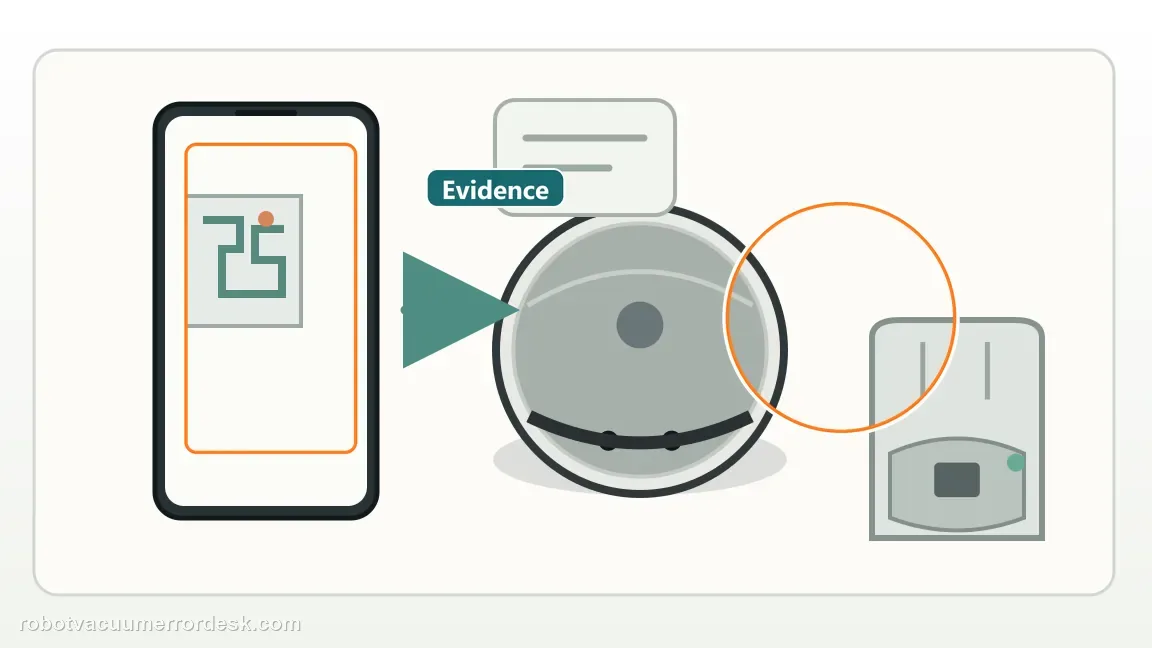
If the same X10 voice prompt returns after its named component or condition has been checked and one appropriate reboot/recovery has been completed, contact eufy with the wording verbatim. For hardware/module prompts, avoid repeatedly forcing the part. For network prompts, use the Wi-Fi-specific reset instead of unrelated mechanical work. Preserve maps/settings by not escalating to factory reset unless eufy explicitly directs it for the documented situation.
Before you contact support, gather this
A reproducible case moves a support call past the basic troubleshooting script faster than “it doesn’t work” does, and it keeps the clues from your own tests on record.
- Exact model name and the error code / voice prompt exactly as shown
- A photo or screenshot of the app error and the time it occurred
- A short list of the checks already completed and what happened after each one
- Device information / activity-log details from eufy Clean when the issue is mapping or routing related
Where this comes from
eufy X10 Pro Omni voice alerts
eufy’s X10 Pro Omni voice-alert table is a routing source, not a one-size-fits-all repair list. It distinguishes mechanical prompts, subsystem error prompts, return/dock messages and network conditions, and separately documents normal reboot, the Wi-Fi-only Home + Spot reset and the physical Reset-button forced recovery. The X10 manual confirms the button functions. This guide’s purpose is to route the owner to the exact subsystem without destructive resetting.
Additional official source: eufy — X10 Pro Omni T2351 English manual ↗Last editorial review: September 5, 2026Regional note: manufacturer help centers, model suffixes, mains-power requirements and warranty procedures can differ by country. If the source redirects to a local support site, confirm that the model/hardware scope still matches before following a region-sensitive step.
This guide is rated Official model support. See what each evidence label means →
Questions people ask
Why should I record the exact eufy X10 Pro Omni voice alert?
Because eufy’s X10 alert table maps different phrases to different subsystems and fixes. “Wheel stuck,” “roller brush error,” “suction fan error,” “return failed” and water-related prompts should not receive the same reset sequence. Capture the full wording first, then inspect the component named by the message. This preserves the most useful diagnostic evidence and avoids turning a specific alert into generic trial-and-error maintenance.
Is the X10 Pro Omni Wi-Fi reset the same as a factory reset?
No. For Wi-Fi issues, eufy says to hold the Home/Recharge and Spot Cleaning buttons together for about three seconds. That resets the robot’s Wi-Fi network. eufy also documents a separate physical Reset-button forced recovery and states that it does not factory-reset the robot, delete maps or reset the network. Use the network reset only for network alerts and do not erase data unnecessarily.
What should I do if the X10 says a wheel or brush is stuck?
Follow the named mechanical branch first: remove debris from the relevant wheel/brush area and confirm the part can move freely. For a roller-brush message, eufy has a deeper X10 guide covering high-pile rugs, hidden hair, shaft/bearing condition and sleeve orientation. Reboot only after the physical obstruction is addressed. If the alert changes from “stuck” to a module/motor error, preserve that wording and escalate.
What does “Error: suction fan error” mean on the X10 Pro Omni?
eufy’s alert table treats an explicit suction-fan error as a fan-failure/support message, while the separate fan article first asks owners to clear the dustbin and filter airflow path. Empty the bin, open the inlet and use a completely dry clean filter for one retest. If the explicit fan error returns, contact eufy rather than applying wheel, Wi-Fi or water-station troubleshooting to an unrelated subsystem.
When should a recurring X10 voice alert go to eufy support?
Escalate when the exact same prompt returns after its named external cause has been checked and one appropriate reboot/recovery has been performed. Save the wording, app screenshot and what you physically inspected. Hardware-specific messages such as wheel module, roller motor or suction fan errors are especially useful to preserve verbatim. Repeating broad resets without changing the failing component adds little evidence and can delay the correct service branch.
Did this diagnostic narrow the fault?
Use this as an editorial signal, not a popularity counter. If a feedback address is configured you can email the note; otherwise you can copy it for your own support record.