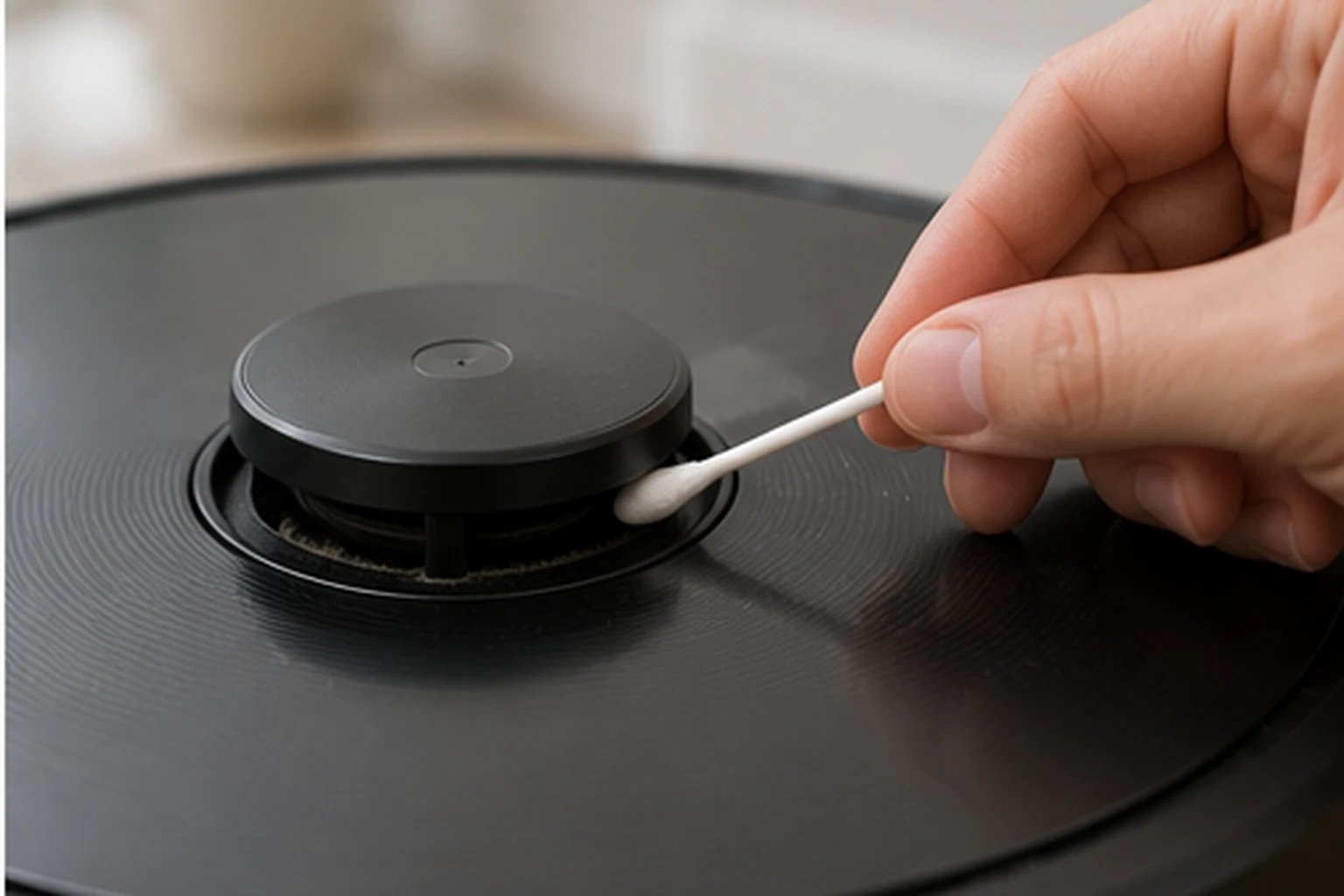
Start by writing down the exact X10 Pro Omni voice prompt, because eufy distinguishes four useful states: laser sensor stuck, laser sensor blocked, laser sensor error, and laser sensor cover stuck. Then power the robot on and watch the radar/LiDAR. If it rotates, clean the emission and reception apertures. If it does not rotate, remove the dustbin, gently invert/shake the robot as eufy instructs and verify the radar is not externally obstructed. If the cover-stuck prompt remains, press the cover only enough to confirm its normal click. A persistent hardware 'laser sensor error' after these external checks is a support case, not a reason to open the LiDAR module.
Confirm the exact model and exact code, light pattern or symptom.
Run the lowest-risk physical or software check first.
Use each pass condition to decide what the result actually narrows down.
Is this the problem you’re seeing?
- The X10 Pro Omni says the laser sensor may be stuck or blocked.
- The app reports 'Laser sensor error' and asks you to contact customer service.
- The robot says the laser sensor cover may be stuck.
- The radar/LiDAR rotates but localization still fails or the message returns.
- The radar/LiDAR does not rotate when the robot powers on.
Likely root causes, ranked
Dust on the LiDAR emission or reception apertures
A foreign object physically preventing radar rotation
The spring-loaded laser sensor cover is obstructed
Environmental contact from low furniture, curtains or clutter touching the sensor area
A persistent LiDAR/radar hardware fault after external obstruction checks
What the result narrows down
| What you observe | What it narrows down | Next move |
|---|---|---|
| Prompt says laser sensor stuck/blocked and radar rotates | The motor can turn; optics or a transient obstruction is the stronger branch. | Clean emission/reception apertures and retest in open space. |
| Prompt says stuck/blocked and radar does not rotate | Physical obstruction or radar-drive failure is stronger than dirty optics alone. | Use eufy’s dustbin/invert-shake obstruction check, then observe rotation again. |
| Prompt says laser sensor cover may be stuck | The spring-loaded top cover has its own diagnostic state. | Remove external pressure/debris and confirm a normal click/return without disassembly. |
| Direct 'laser sensor error' remains after external checks | eufy itself treats this as a customer-service hardware error. | Stop DIY escalation and send the exact prompt plus radar-motion evidence to eufy. |
| Error only occurs under one low object | Environmental contact is reproducible while the robot works in open space. | Use a no-go/room-layout fix rather than opening the LiDAR module. |
Reset can erase maps/settings on this path. Use lower-risk checks first and document the current state before resetting.
Checks to run, in sequence
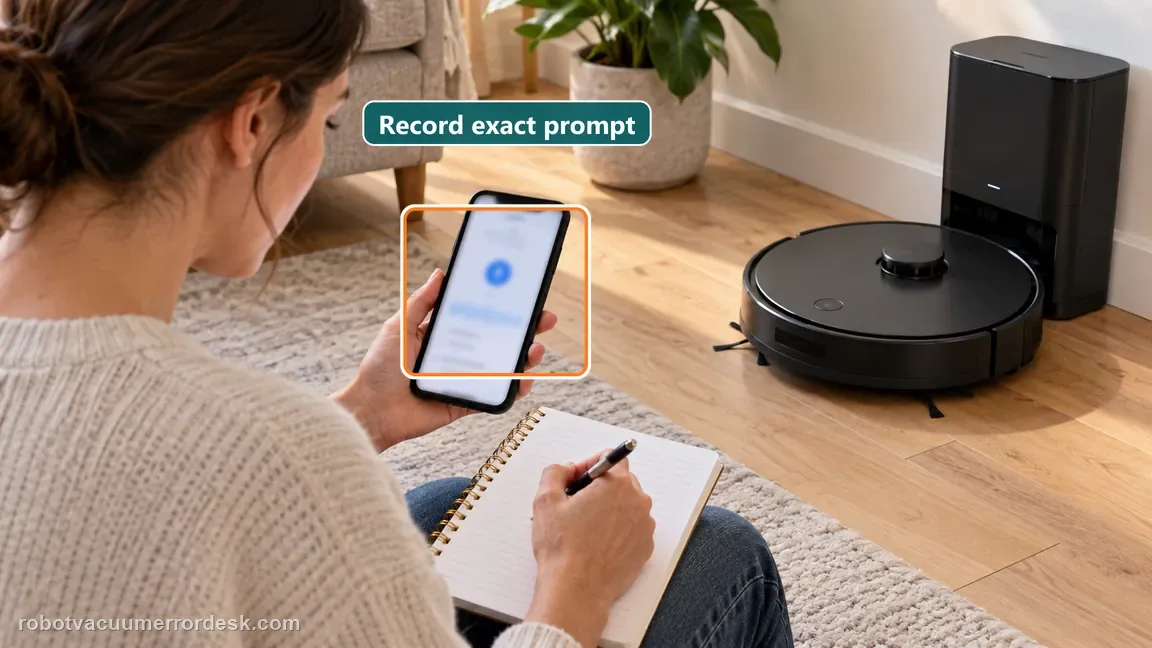
Capture the exact X10 laser voice prompt before touching the robot
eufy does not use one generic laser message for every state. The X10 Pro Omni can report that the laser sensor is stuck, blocked, that the laser sensor cover may be stuck, or a direct laser sensor error that tells you to contact customer service. Write down or screenshot the wording first. That one detail changes the diagnostic branch: stuck/blocked points toward external motion or optics, cover-stuck points toward the spring-loaded top cover, and a direct hardware error becomes much stronger service evidence if it survives the owner-safe checks below.
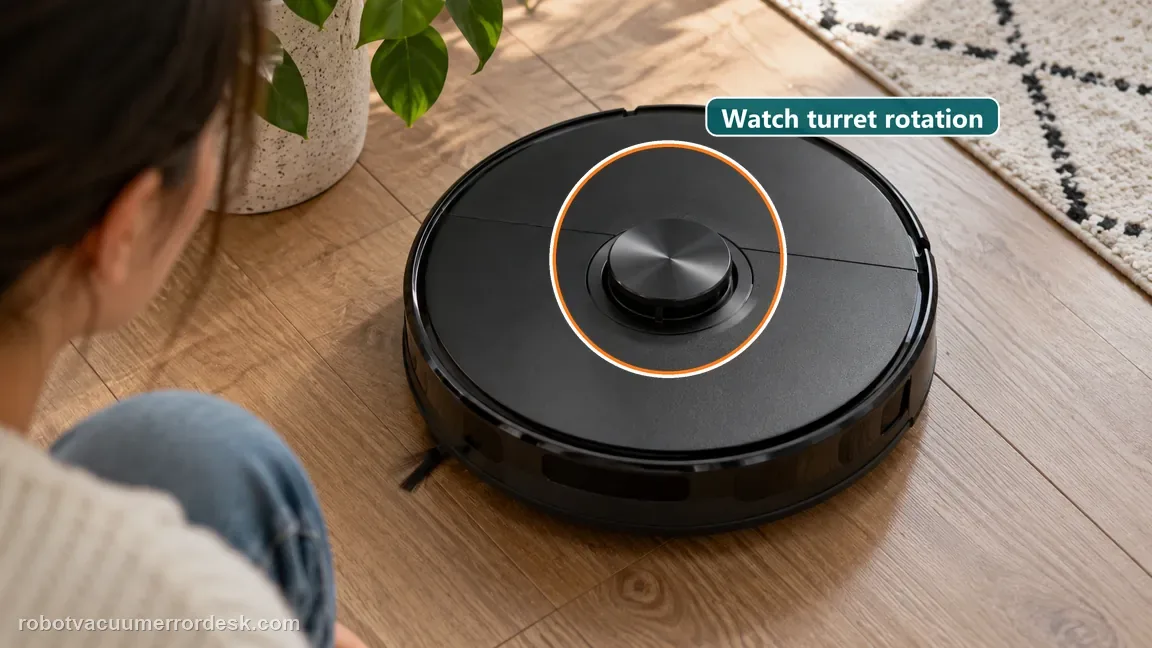
Power on and observe whether the radar actually rotates
With the X10 on level flooring, power it on and watch the radar from above without touching the assembly. eufy’s exact X10 support article makes rotation the first decision point. A radar that spins normally sends you toward dirty emission/reception apertures or a transient blockage; a radar that does not spin sends you toward a physical obstruction. Do not infer rotation from motor noise alone. Observe the turret itself for several seconds during startup and the first attempt to localize.
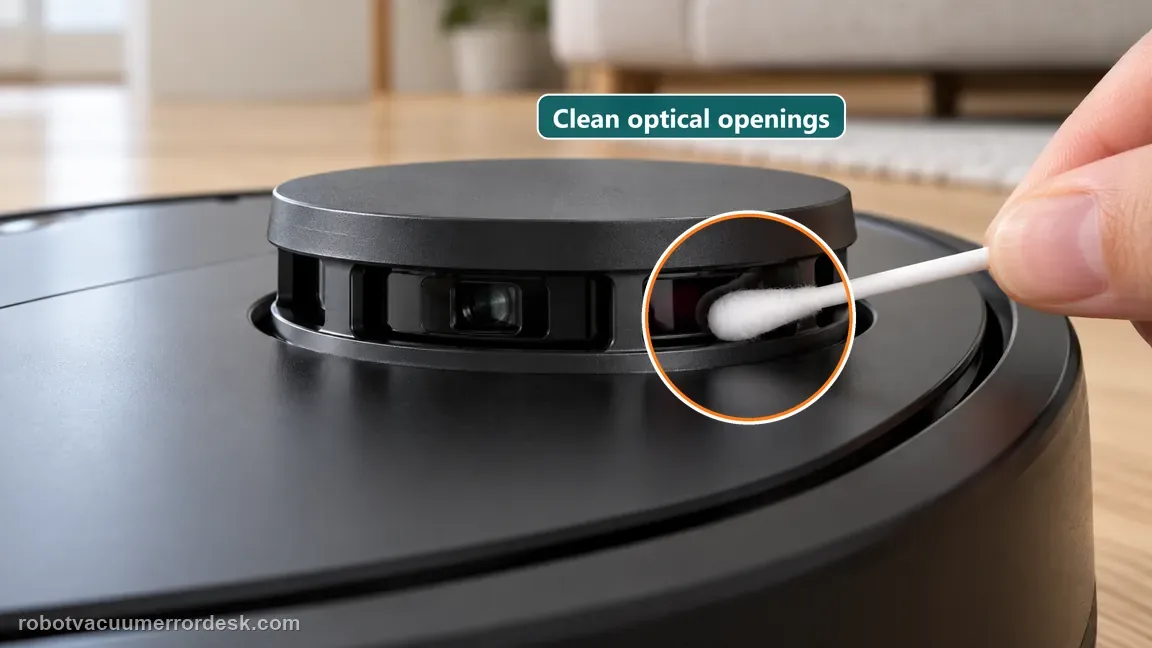
If it rotates, clean the emission and reception apertures
When the radar rotates, eufy tells owners to inspect the radar’s emission and reception apertures for dirt or debris. Use a cotton swab or another soft, flexible material and work gently around the visible openings. Do not spray cleaner into the sensor or polish the optical surfaces aggressively. After cleaning, restart the robot and begin one short mission. The useful result is not merely that the plastic looks clean; the X10 should localize and run without repeating the same laser prompt.
If it does not rotate, clear external obstruction without opening the LiDAR
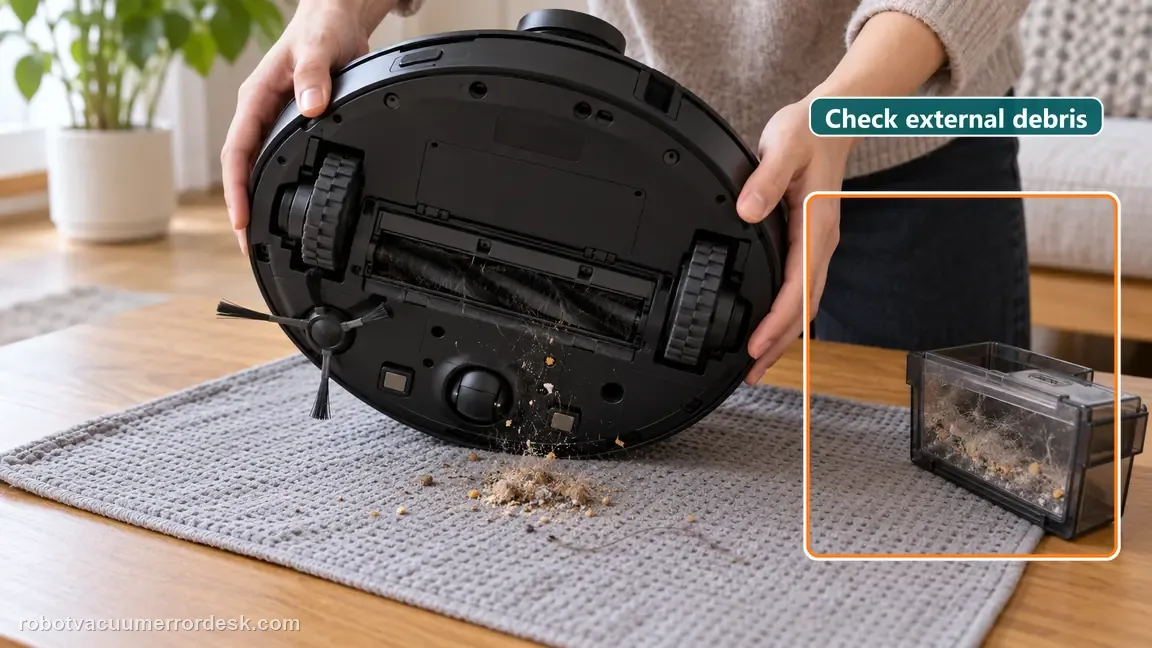
For a non-rotating radar, eufy’s X10 article instructs owners to remove the dustbin and carefully invert/shake the robot to dislodge possible foreign material. With power off, verify that nothing visible is wedged around the radar and that the turret is not being held by an external object. You may gently check whether it can move without forcing it. Do not pry upward, remove the LiDAR housing or add lubricant. Restart once after the external obstruction check and watch the turret again.
For a cover-stuck prompt, test only the cover’s normal click
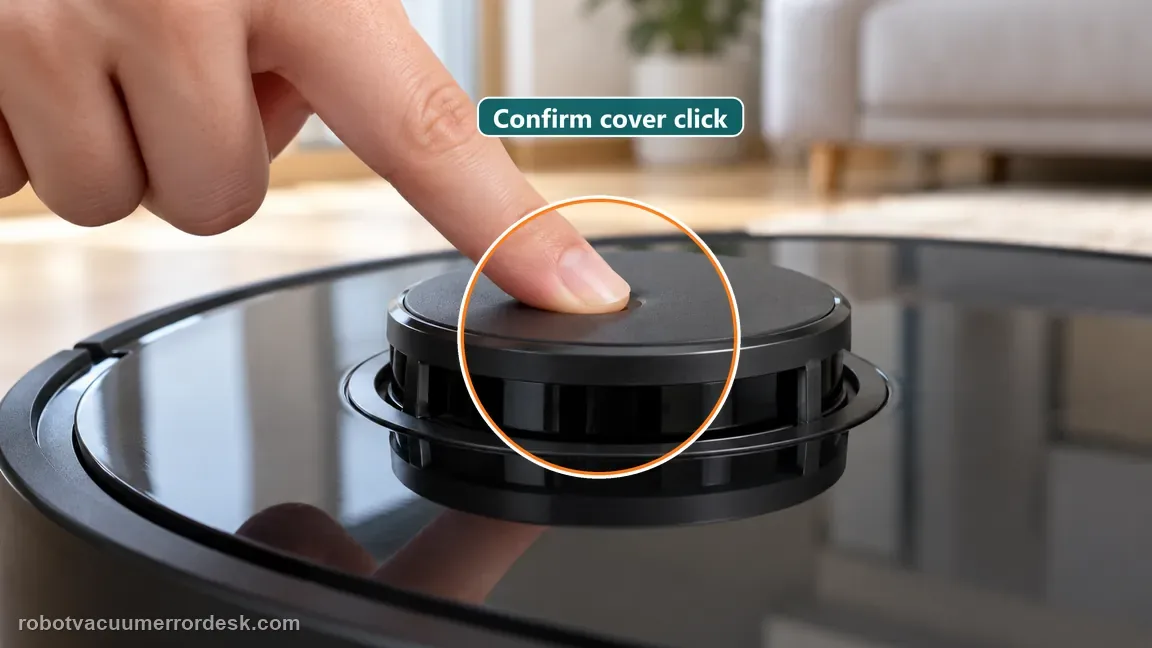
eufy’s X10 voice-alert table treats 'laser sensor cover may be stuck' separately from the normal stuck/blocked radar messages. Inspect the top cover for something pressing on it, then press it gently enough to confirm the expected click and spring return. This is a cover-motion check, not permission to disassemble the LiDAR. If the cover clicks and returns normally but the prompt immediately comes back, preserve that result. If the cover is visibly jammed by external debris, remove only what is accessible from outside.
Run one open-floor proof test away from low furniture
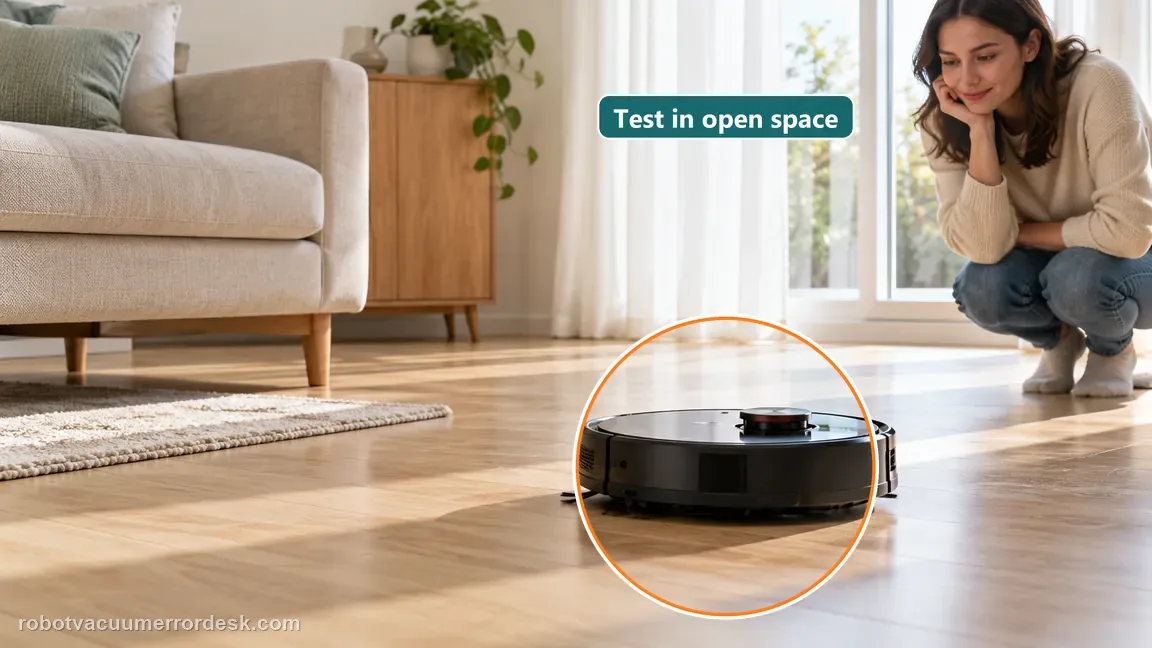
Move the X10 Pro Omni to a hard, open floor where curtains, table aprons and low furniture cannot touch the LiDAR area. Start a short cleaning mission and watch the radar from above. If the error disappears in open space and returns only under one object, environmental contact is the discriminator and a no-go boundary is more appropriate than sensor disassembly. If the message repeats in open space with clean apertures and normal free movement, the room is no longer a convincing explanation.
Escalate with the voice-state and rotation evidence, not more random resets
If the direct 'laser sensor error' remains, or the X10 still reports stuck/blocked after clean apertures, a free cover and the correct rotation branch, stop adding unrelated troubleshooting. Record whether the radar never moved, started then stopped, or rotated continuously; include the exact voice prompt and photos of the cleaned sensor area. eufy’s published owner path stops before LiDAR disassembly. That evidence is more useful to support than repeated resets, map deletion or opening the turret, none of which addresses a persistent sensor hardware state. The alert wording matters. eufy's X10 table says the recessed Reset button forces a power-off restart and does not erase the saved map or Wi-Fi network; after using it, restart the robot. A separate three-second Recharge plus Spot Cleaning button hold resets Wi-Fi and is identified for connection problems, not LiDAR rotation. Neither action substitutes for the laser checks. A Reddit thread about the X10 includes owners who still had a sensor warning after checking movement and cleaning, and one owner reports eufy arranged a replacement. That is an individual report, not a promise that a reset or replacement is the fix. If the exact alert survives the manufacturer checks, give support the evidence and ask them to assess warranty service rather than trying unrelated button combinations. Use the eufy Clean app's Feedback option or eufy's support site, and include the exact spoken message rather than calling every prompt a blocked sensor. Add a short startup video that shows whether the turret never turns, starts and stops, or keeps rotating, plus a photo of the visible apertures after cleaning. State whether the same alert appears on clear hard flooring away from curtains and low furniture. eufy's alert table treats a direct laser-sensor error as a customer-service condition; a repeated stuck/blocked alert after the motion and aperture checks also gives support a reproducible symptom. Do not include a factory reset as a routine laser fix: the X10 alert reference describes its reset button as a forced power-off restart, not a factory restore, and says to restart afterward. Keep the map and unrelated Wi-Fi settings intact unless support specifically asks for a separate reset.
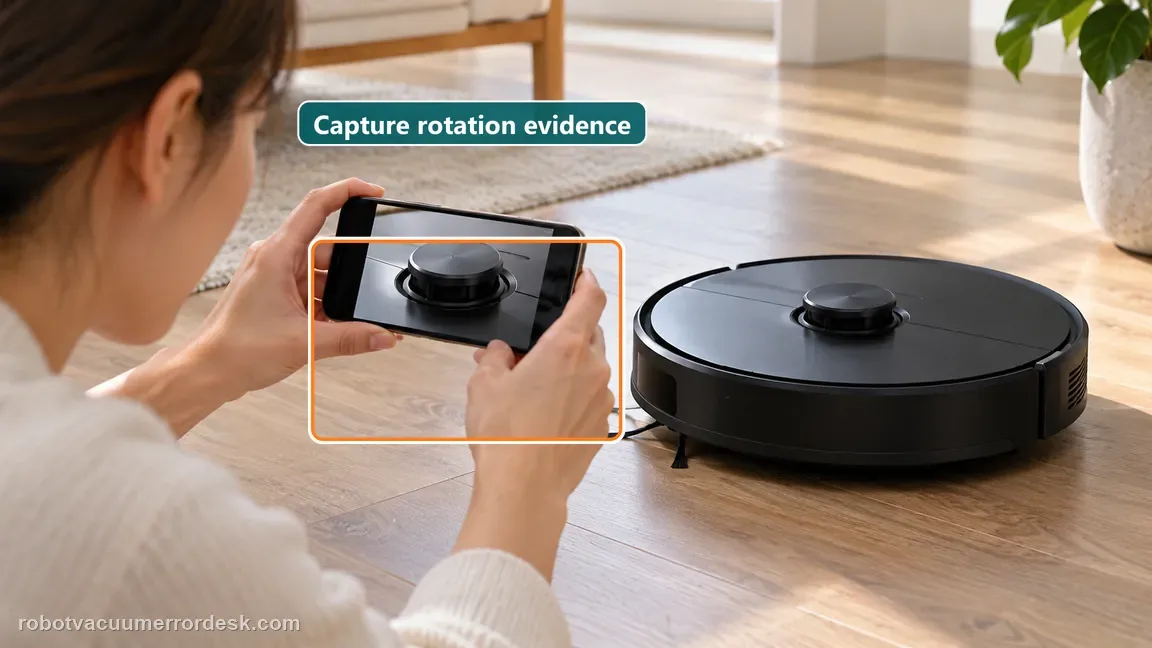
Contact eufy when the direct laser-sensor hardware error remains, when the radar still cannot rotate after accessible obstruction is removed, or when the same stuck/blocked message returns in an open-floor test with clean apertures and a freely moving cover. Send the exact voice prompt, a short video of radar rotation at startup and photos of the cleaned sensor area. Do not open, lubricate or pry the LiDAR assembly; eufy’s owner-facing X10 procedure ends with external cleaning/obstruction checks and customer-service escalation.
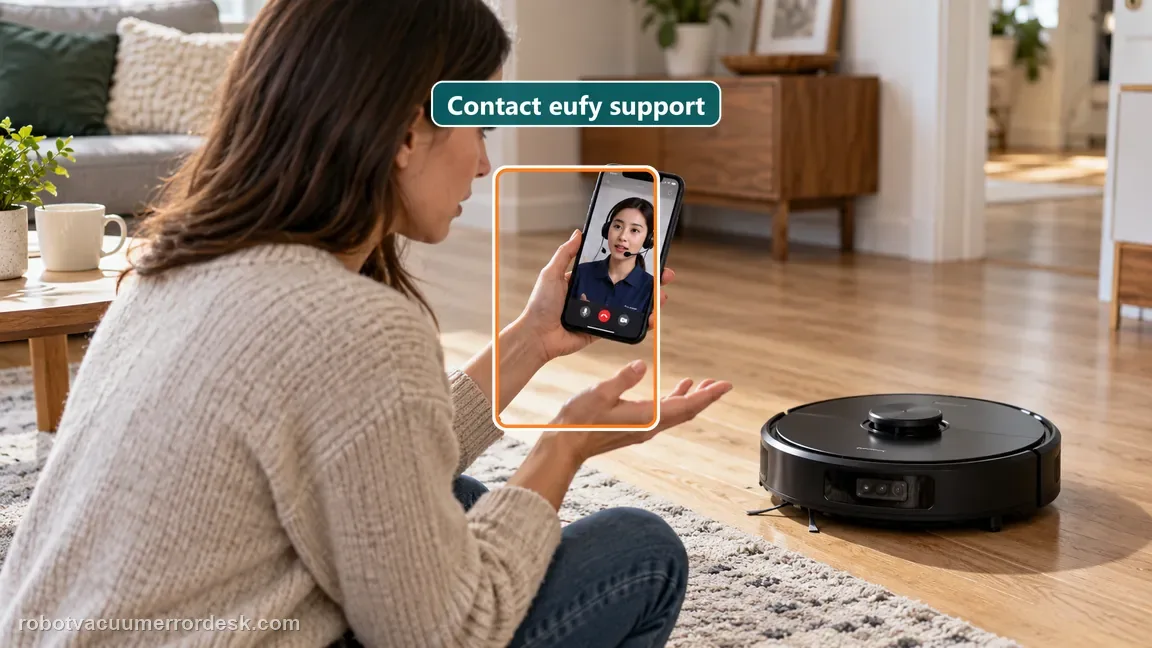
Information to have ready for support
Support can skip the basic troubleshooting script when you provide a reproducible case. That keeps the results of your checks from getting lost.
- Exact model name and the error code / voice prompt exactly as shown
- A photo or screenshot of the app error and the time it occurred
- A short list of the checks already completed and what happened after each one
- Device information / activity-log details from eufy Clean when the issue is mapping or routing related
Source and evidence level
eufy X10 Pro Omni laser sensor support
eufy’s exact X10 Pro Omni laser article makes radar rotation the first branch: when the radar rotates, clean the emission/reception apertures; when it does not, use the owner-safe dustbin/invert-shake obstruction check and verify free external movement. The X10 voice-alert table adds the separate cover-stuck click check and the direct “laser sensor error” customer-service state. The R52 manual pass confirms the article keeps those states separate and stops before LiDAR disassembly.
Additional official source: eufy X10 Pro Omni — voice alerts and quick solutions ↗Additional official source: eufy X10 Pro Omni — multilingual product manuals ↗Additional official source: eufy — X10 Pro Omni T2351 English manual ↗Last editorial review: October 11, 2026Regional note: manufacturer help centers, model suffixes, mains-power requirements and warranty procedures can differ by country. If the source redirects to a local support site, confirm that the model/hardware scope still matches before following a region-sensitive step.
This guide is rated Official model support. See what each evidence label means →
Common questions
What is the first thing to check for a eufy X10 Pro Omni laser sensor error?
Record the exact voice prompt, then watch whether the radar/LiDAR rotates. eufy separates a rotating radar from a non-rotating one, and also has distinct messages for a stuck cover and a direct hardware sensor error. If it rotates, clean the optical apertures. If it does not, use the external-obstruction branch before deciding the sensor itself has failed.
Why does my X10 Pro Omni say the laser sensor is blocked even though it still spins?
A rotating radar does not prove its optical path is clean. eufy specifically tells owners to inspect and gently clean the emission and reception apertures when the radar can rotate. After cleaning, run the robot on open hard flooring. If the prompt returns while the turret keeps spinning, document that state because the fault is no longer explained by a simple motor stall.
What does 'laser sensor cover may be stuck' mean on the eufy X10 Pro Omni?
eufy lists the cover-stuck message separately from the normal stuck/blocked radar prompts. Check that nothing is pressing on the top cover and gently confirm that the cover clicks and springs back normally. Do not remove the LiDAR housing. If the cover moves correctly but the message returns, save that result for eufy support instead of repeatedly forcing the cover.
Can low furniture cause the eufy X10 Pro Omni laser sensor error?
Yes, if an object physically touches or traps the LiDAR area. Run one short mission in an open hard-floor area after cleaning the sensor. If the robot works there and the error returns only beneath one table or curtain edge, the environment is the discriminator. Use a no-go boundary or move the obstacle rather than modifying the LiDAR assembly.
When should I contact eufy about an X10 Pro Omni laser sensor error?
Contact eufy when the direct hardware sensor error persists, the radar remains unable to rotate after accessible debris is cleared, or stuck/blocked warnings repeat in open space with clean apertures and a normally moving cover. Send the exact prompt and a startup video showing radar motion. Do not open or lubricate the sensor; those steps are outside eufy’s owner procedure.
Did this diagnostic narrow the fault?
Use this as an editorial signal, not a popularity counter. If a feedback address is configured you can email the note; otherwise you can copy it for your own support record.